Team NPS
This article demonstrates how to create and update the Team NPS plan.
Create a Team NPS plan
The Budget & Capacity plan is the foundation for all FAB5 schedules including the Team NPS. In most cases, the Team NPS will automatically be created alongside the Budget & Capacity plan.
If you need to create a standalone Team NPS, you must have a new Budget & Capacity plan that is not already linked to another Team NPS plan.
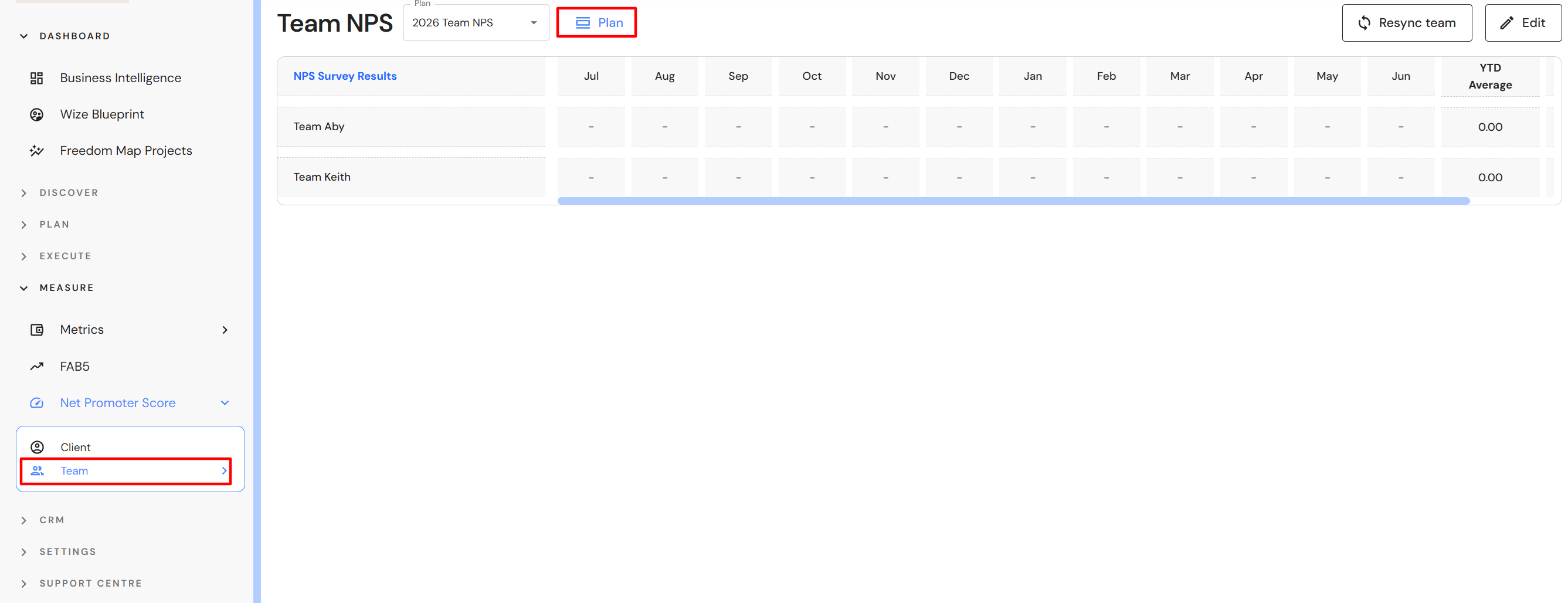
- Go to Measure > Net Promoter Score > Team
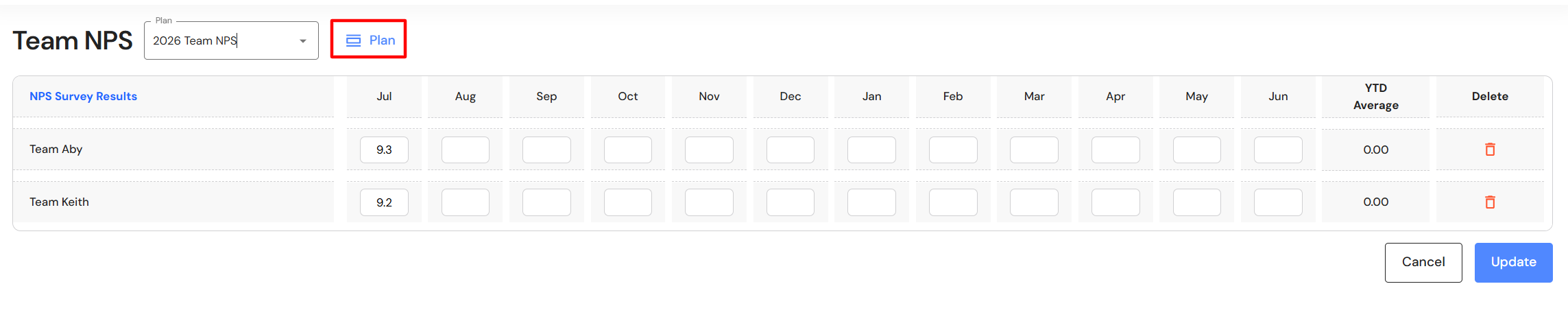
- Click on the 'Plan' button.
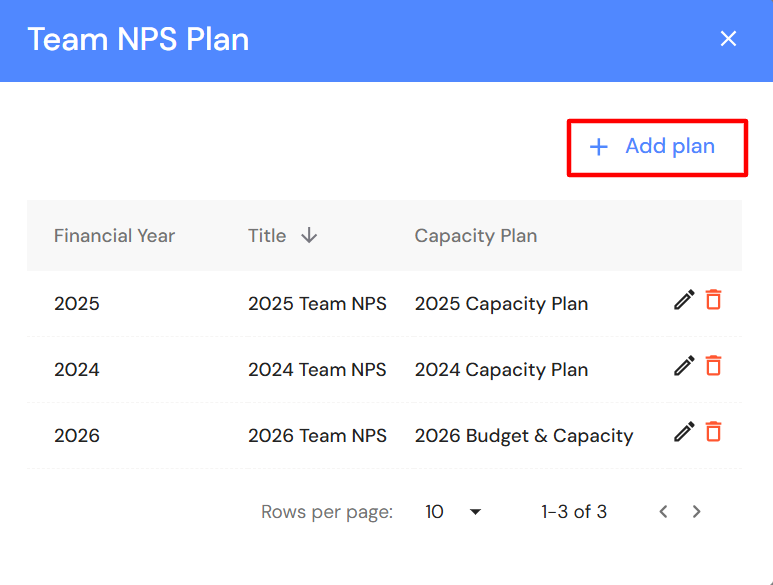
- Click on '+ Add plan'.
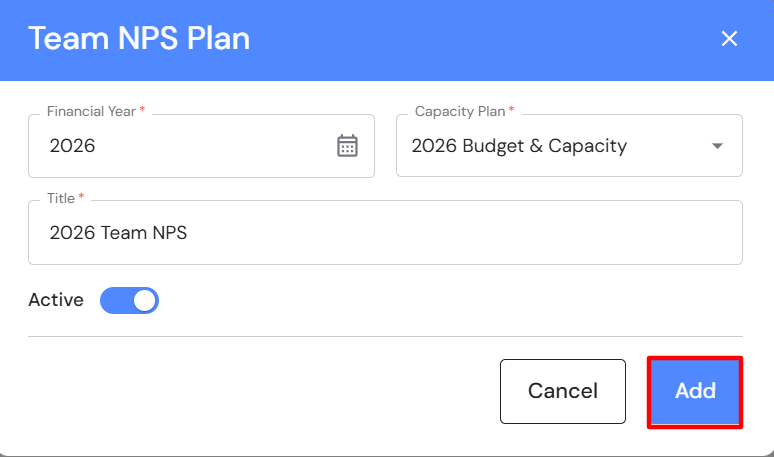
- Select the financial year and capacity plan to be linked to the Team NPS.
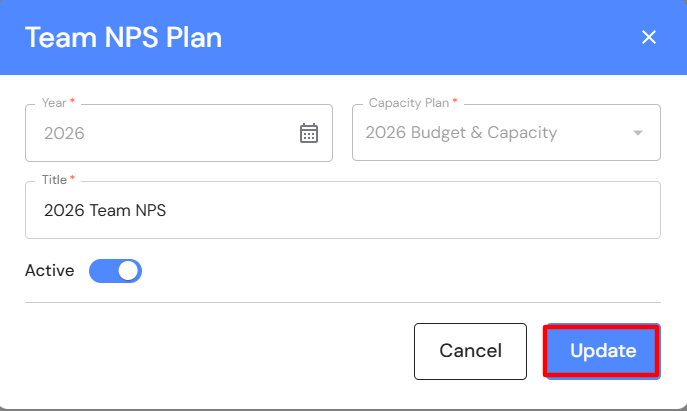
- Add a title e.g. 2026 Team NPS
- Switch the 'Active' toggle on if you would like the Team NPS plan to be the default plan. NB* If you have the active toggle set to 'on' in more than one Team NPS plan, the newest plan will become the default.
- Click on 'Add'.
- Teams will automatically sync from the Budget & Capacity plan.
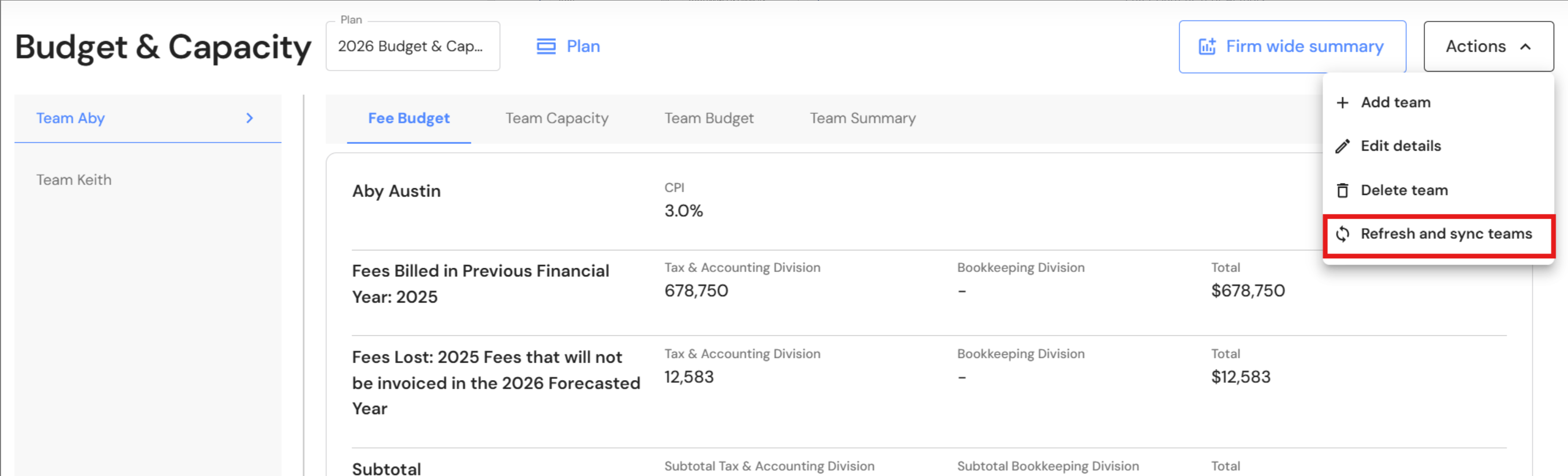
If you add more teams to your Budget & Capacity plan, click on 'Actions → Refresh and sync teams' and the Revenue plan will update with the team changes.
Update the Team NPS
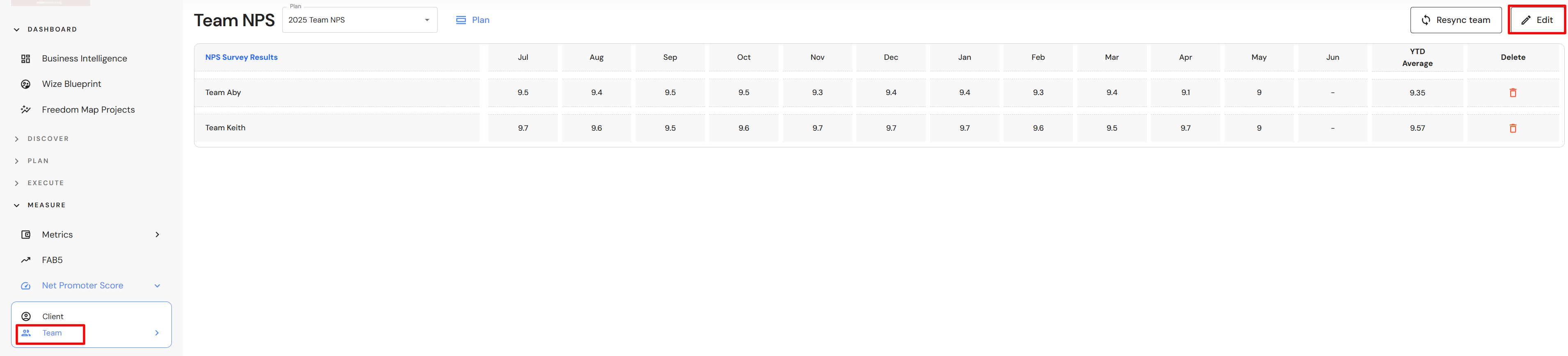
- In the Team NPS plan, click on 'Edit'.
- Add the average NPS score for each team in the relevant month.
- Click on 'Update'.

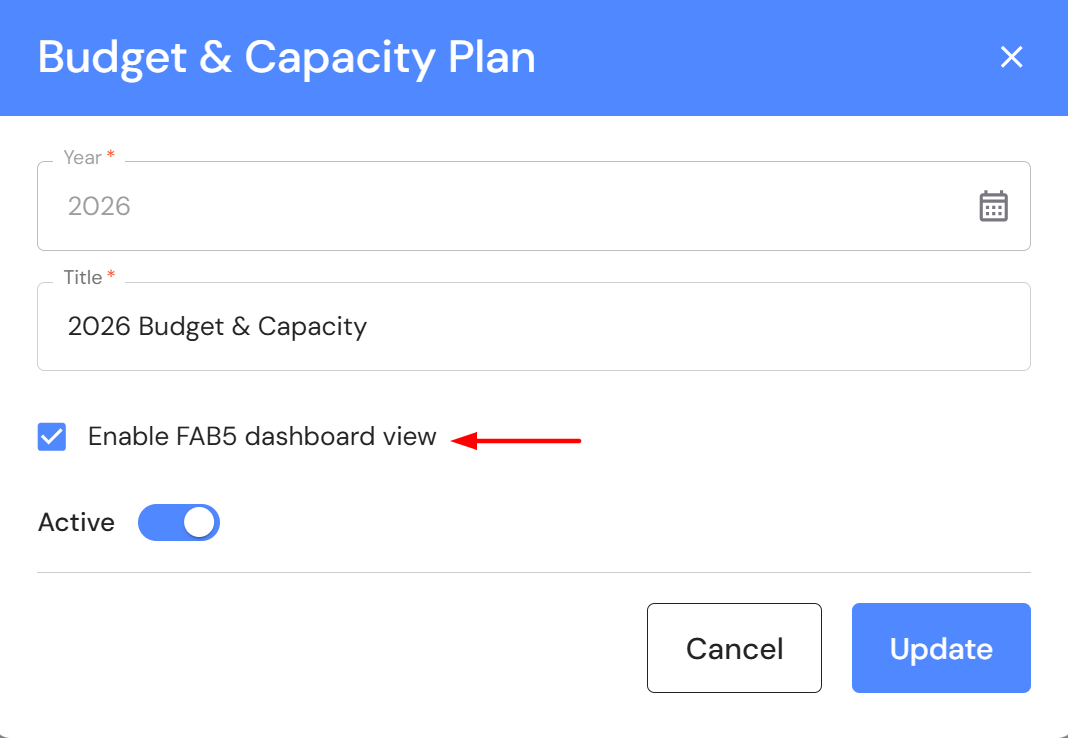
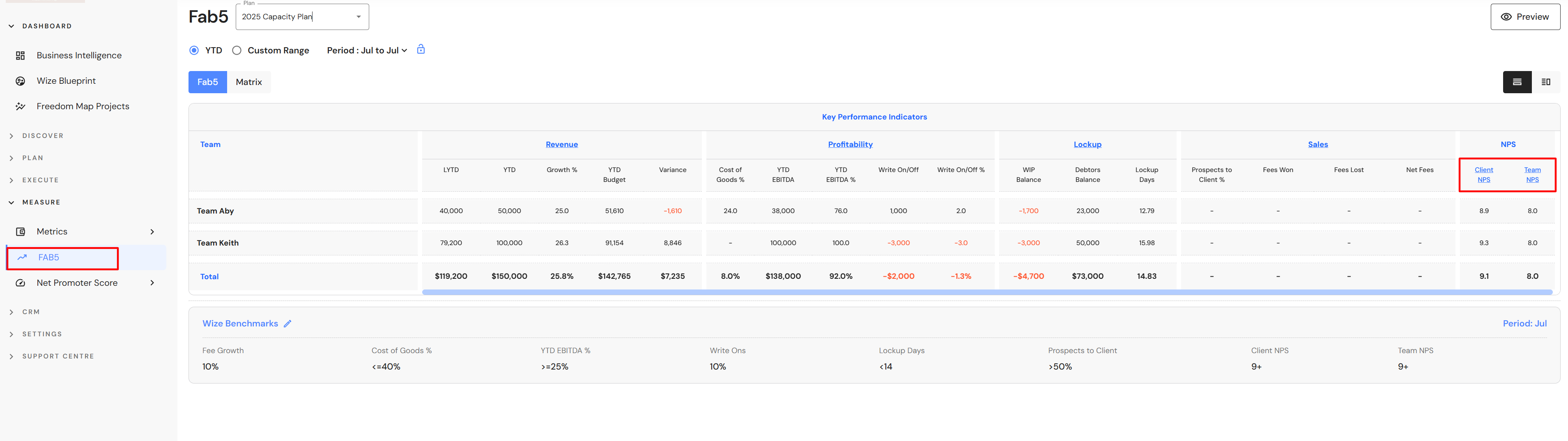
If your Budget & Capacity plan is set to 'Enable the FAB5 dashboard view, your Team NPS will be appear under the relevant KPI on the FAB5 dashboard.
Go to Measure > FAB5 to review your NPS KPI.
Rename a Team NPS
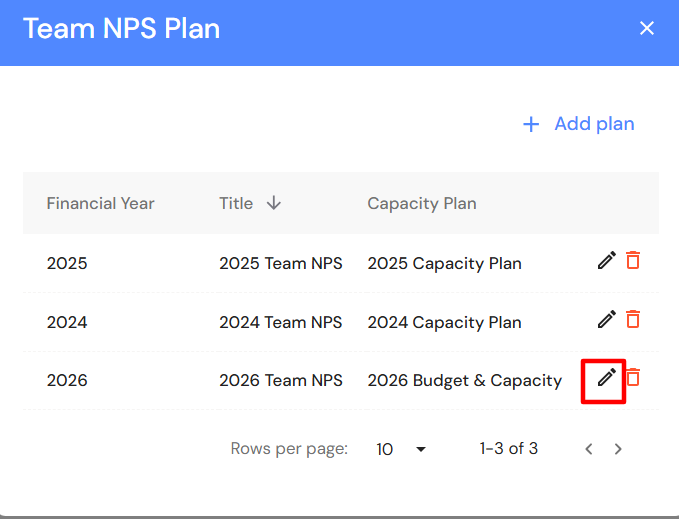
- Click on the 'Plan' button.
- Click on the edit icon.
- Change the title and click on 'Update'.
Delete a Team NPS
- Click on the 'Plan' button.
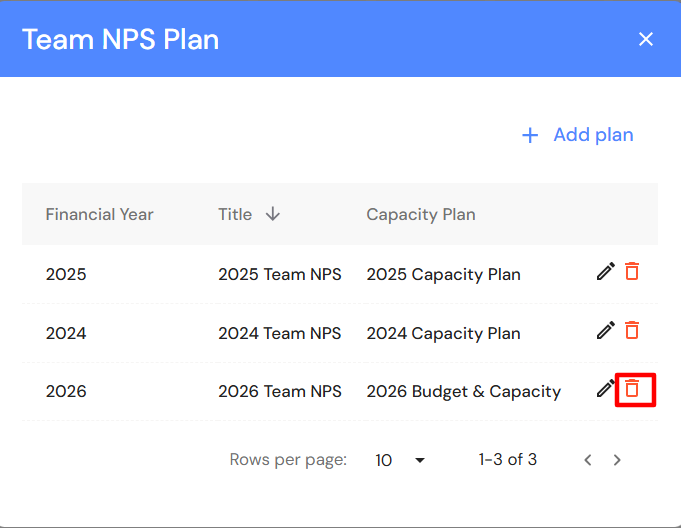
- Click on the bin icon.
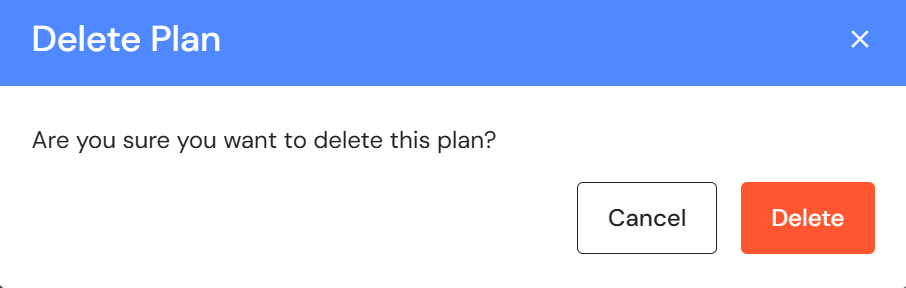
- Click on 'Delete'.