Meeting Agendas & Templates
Establishing meeting rhythms and routines is one of the drivers of successful business management by keeping momentum and accountability towards operational goals. To help businesses get started, your WizeHub comes with single agenda items and prefilled meeting templates (a meeting topic with predefined agenda items). Users can import agenda items or templates into meetings rather than typing repetitive meeting topics into new meetings. Users with relevant permission levels can customise agendas and templates and create their own via system preferences.
Agendas
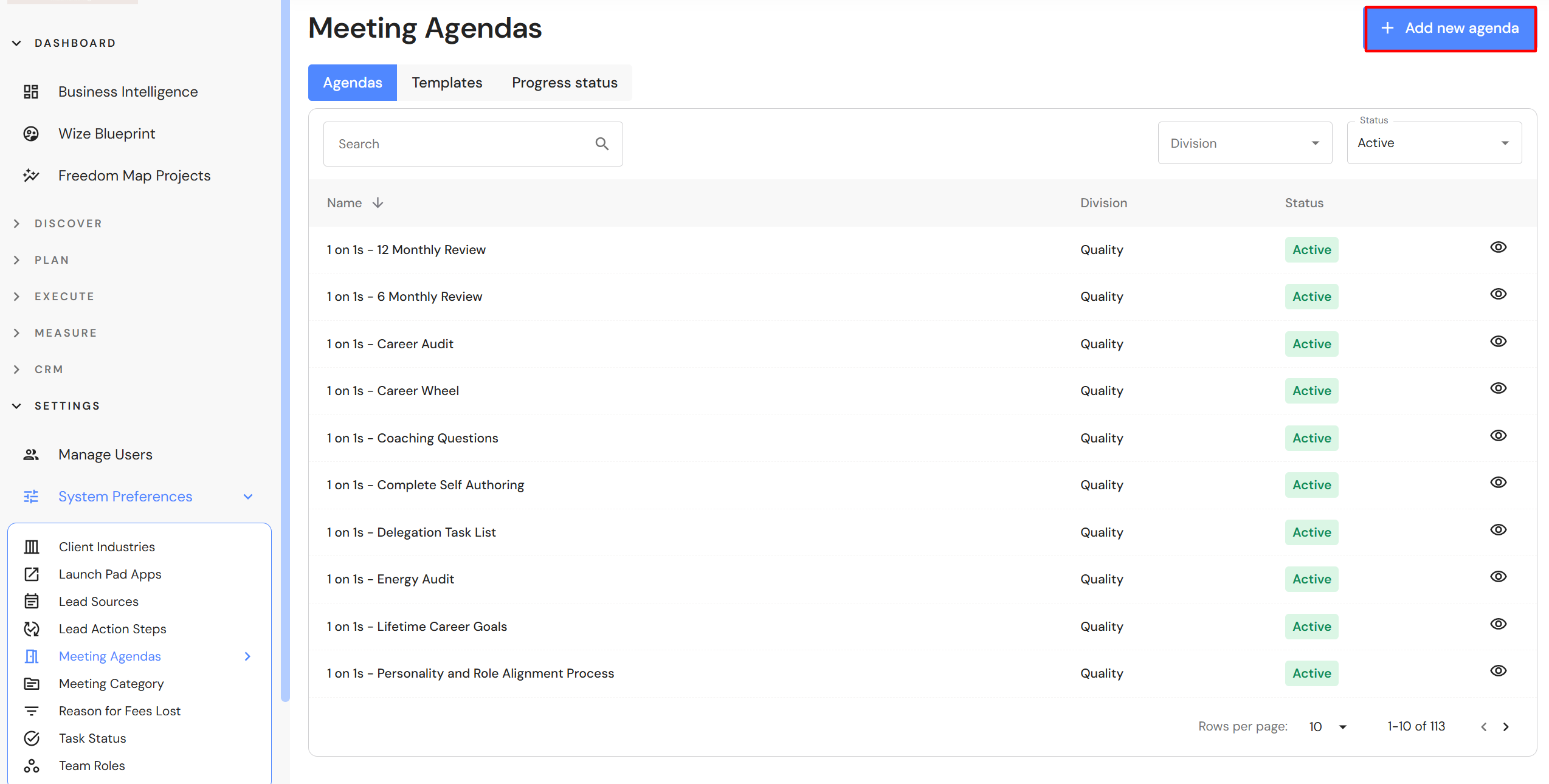
Go to Settings > System Preferences > Meeting Agendas
Create a meeting agenda
- Click on '+ Add new agenda'.
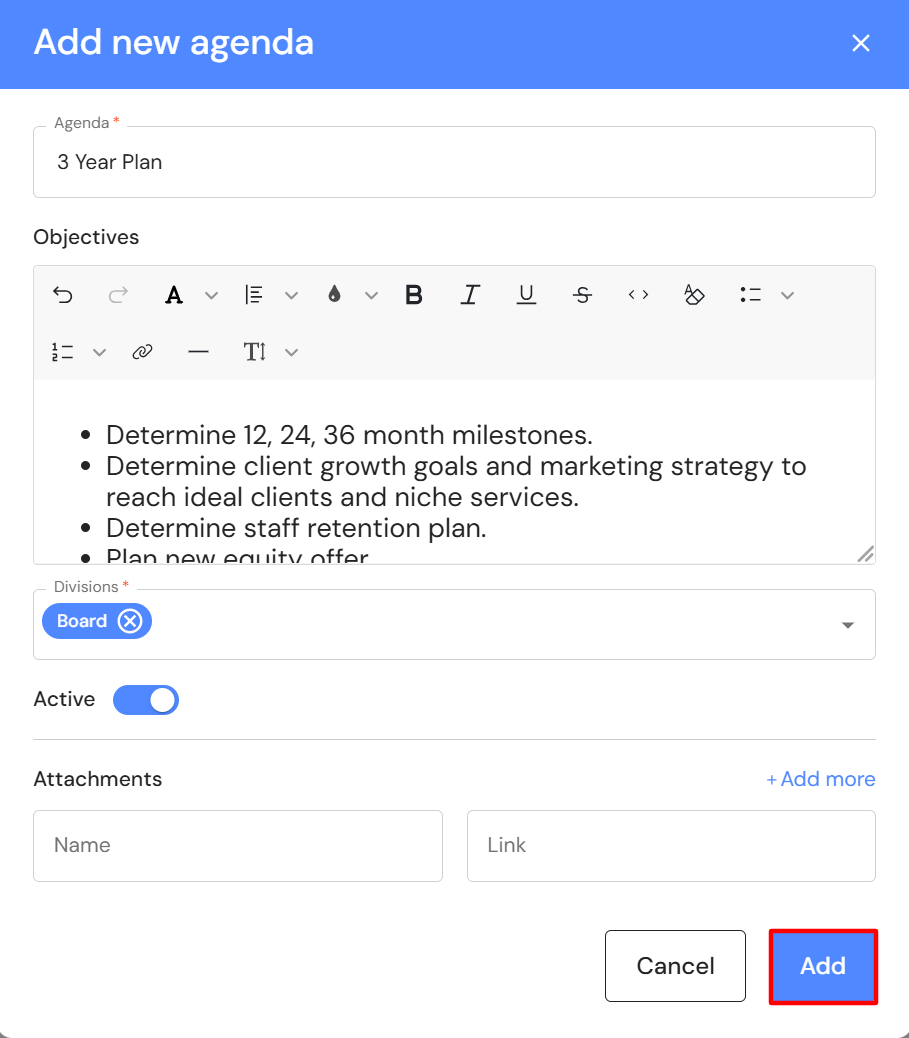
- Add an agenda topic.
- Add meeting discussion points in objectives.
- Assign the agenda to the relevant divisions.
NB* The agenda will only be available for import in the selected divisions. - Switch the active toggle on.
- Optional - You can add a hyperlink to an online resource. This will appear in the attachments section in the meeting agenda.
- Click on 'Add'.
Edit an agenda
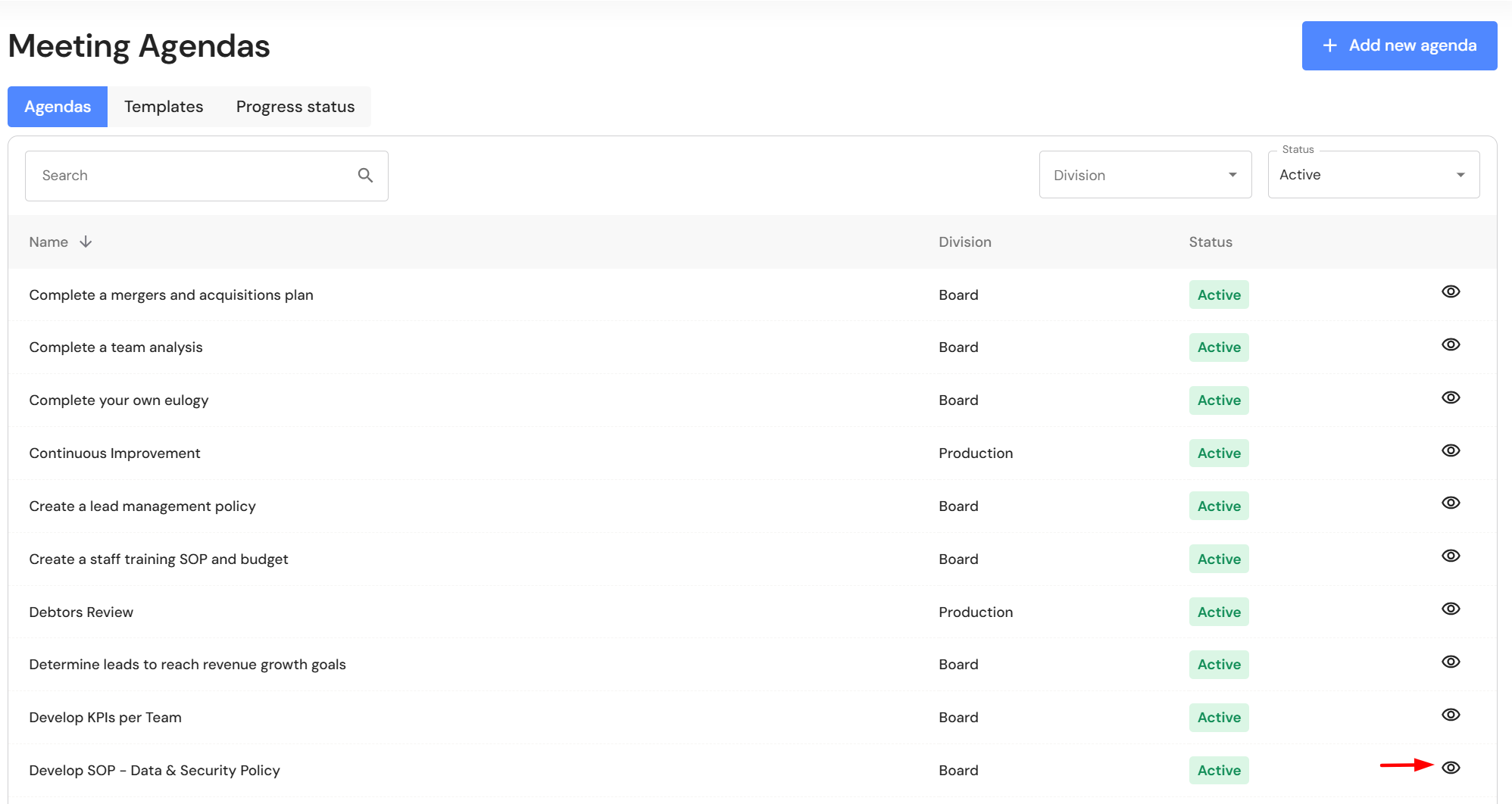
- Click on the view icon next to the meeting agenda.
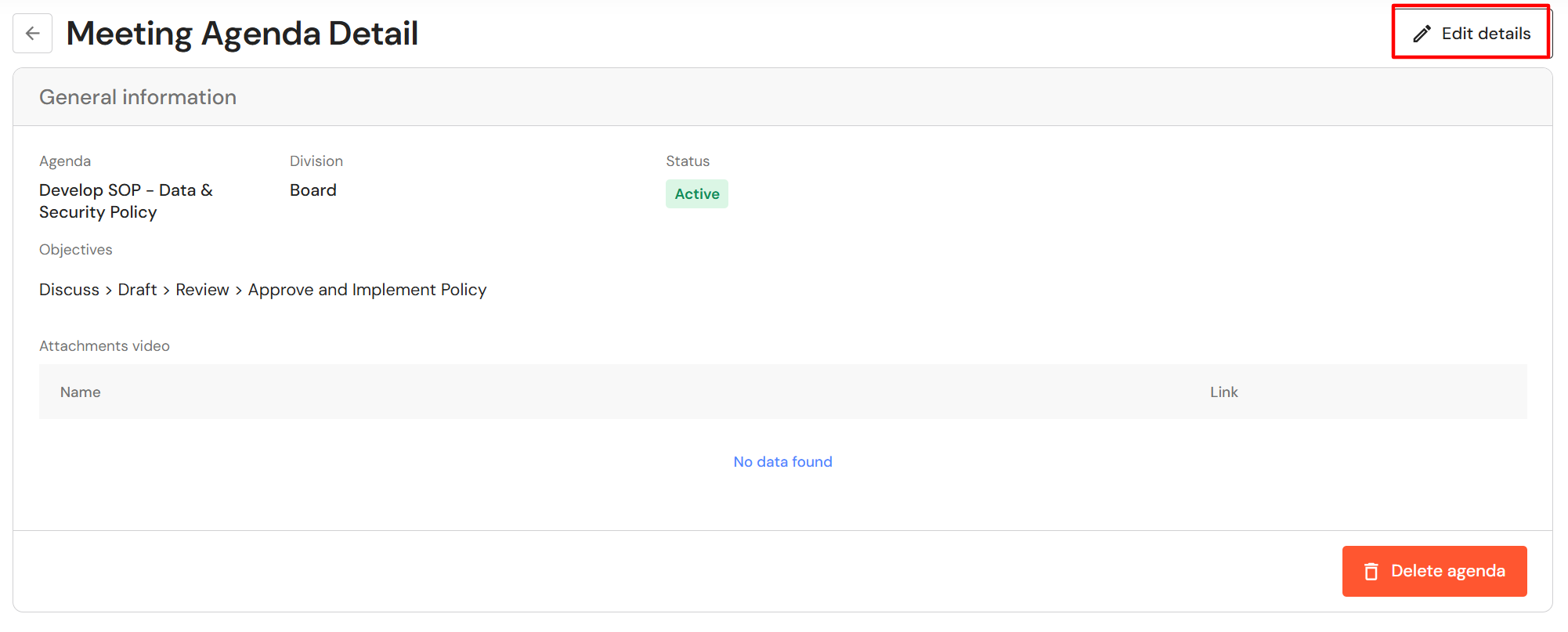
- Click on 'Edit details'.
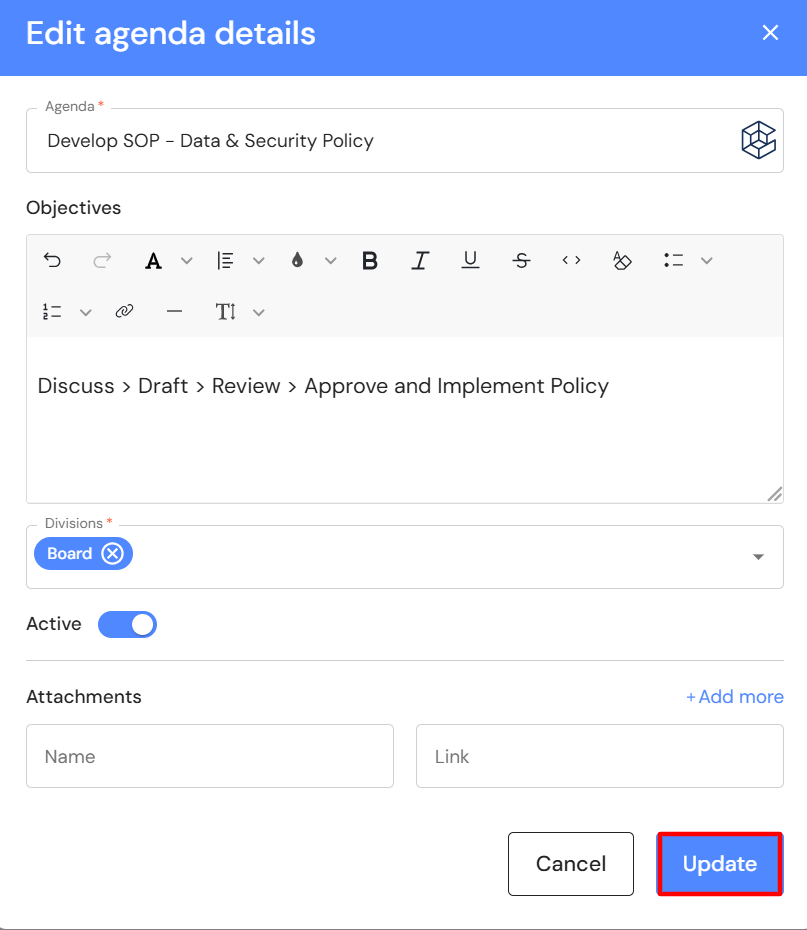
- Update the relevant fields.
- Click on 'update'.
Deactivate an agenda
If you no longer use default agenda topics, you can deactivate them so they disappear from the list of options in the Meetings module.
- Click on the view icon next to the meeting agenda.
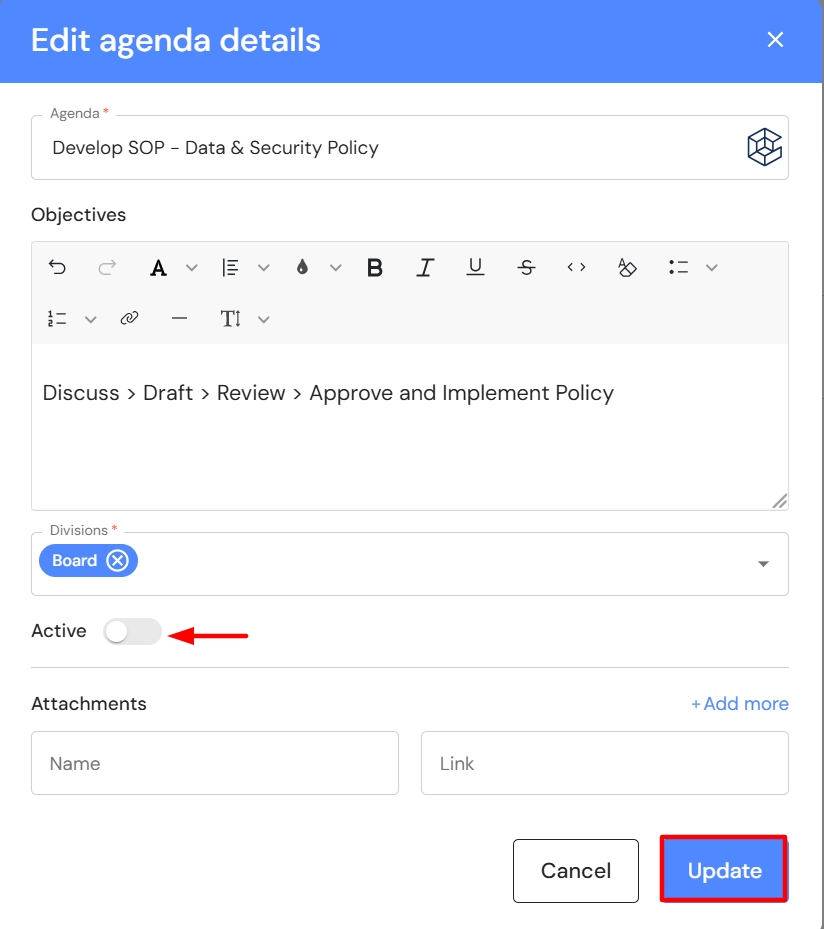
- Click on 'Edit details'.
- Switch the active toggle off.
- Click on 'update'.
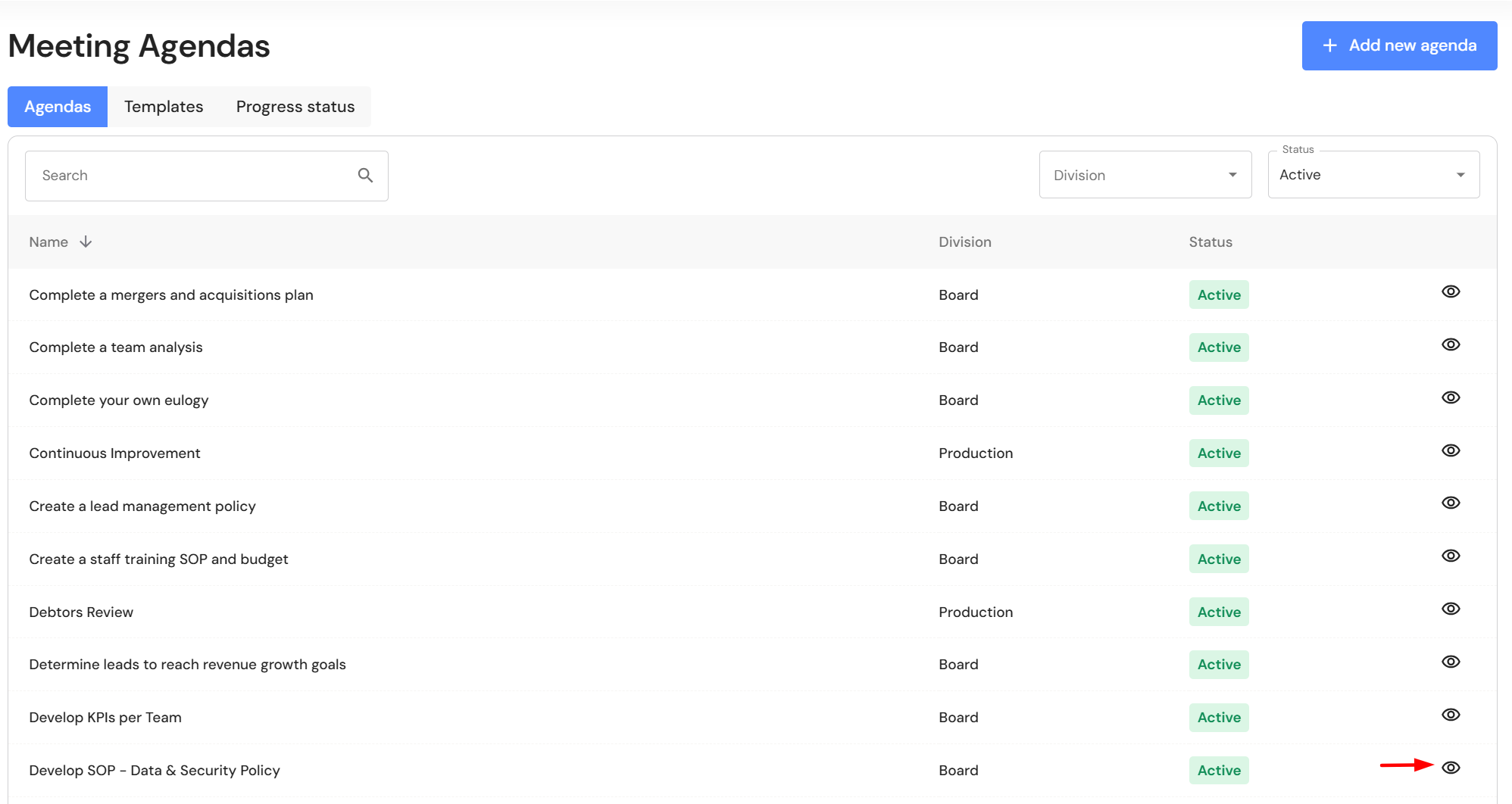
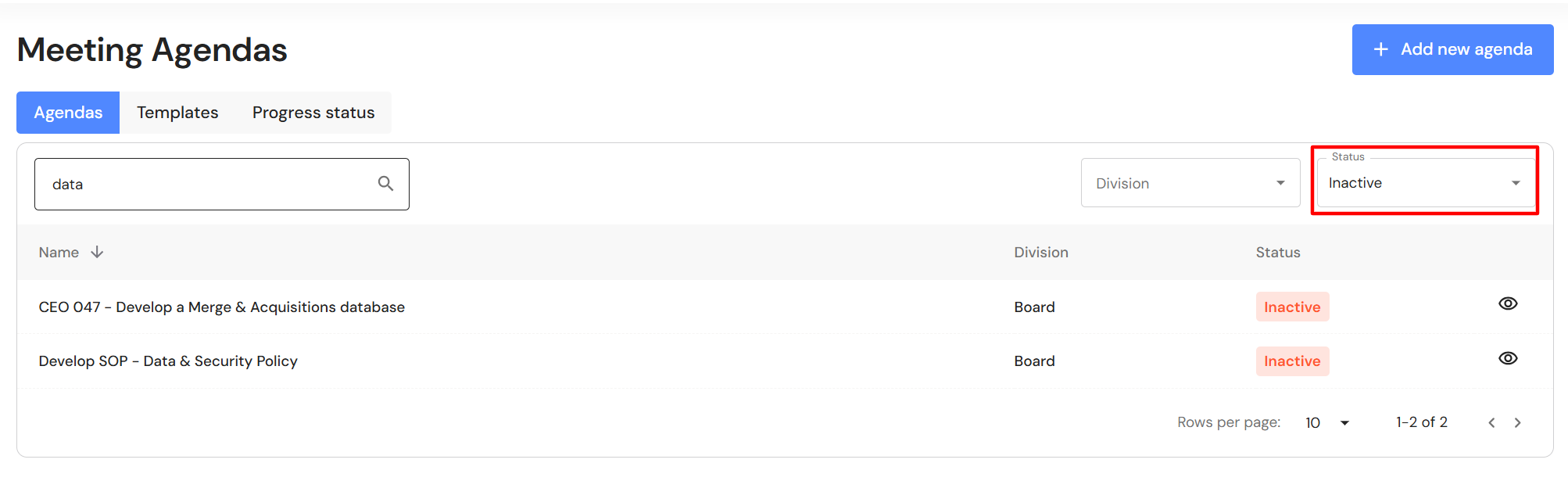
- Change the status view to 'Inactive' to see the list of inactive agenda items.
Templates
A meeting template imports a list of agenda items into a meeting. Your WizeHub includes a series of master meeting agenda templates to help business owners get up and running with meeting rhythms and routines. Users can customise the templates or create their own.
Pre-requisite: Add default meeting agendas before you create a template.
Create a meeting template
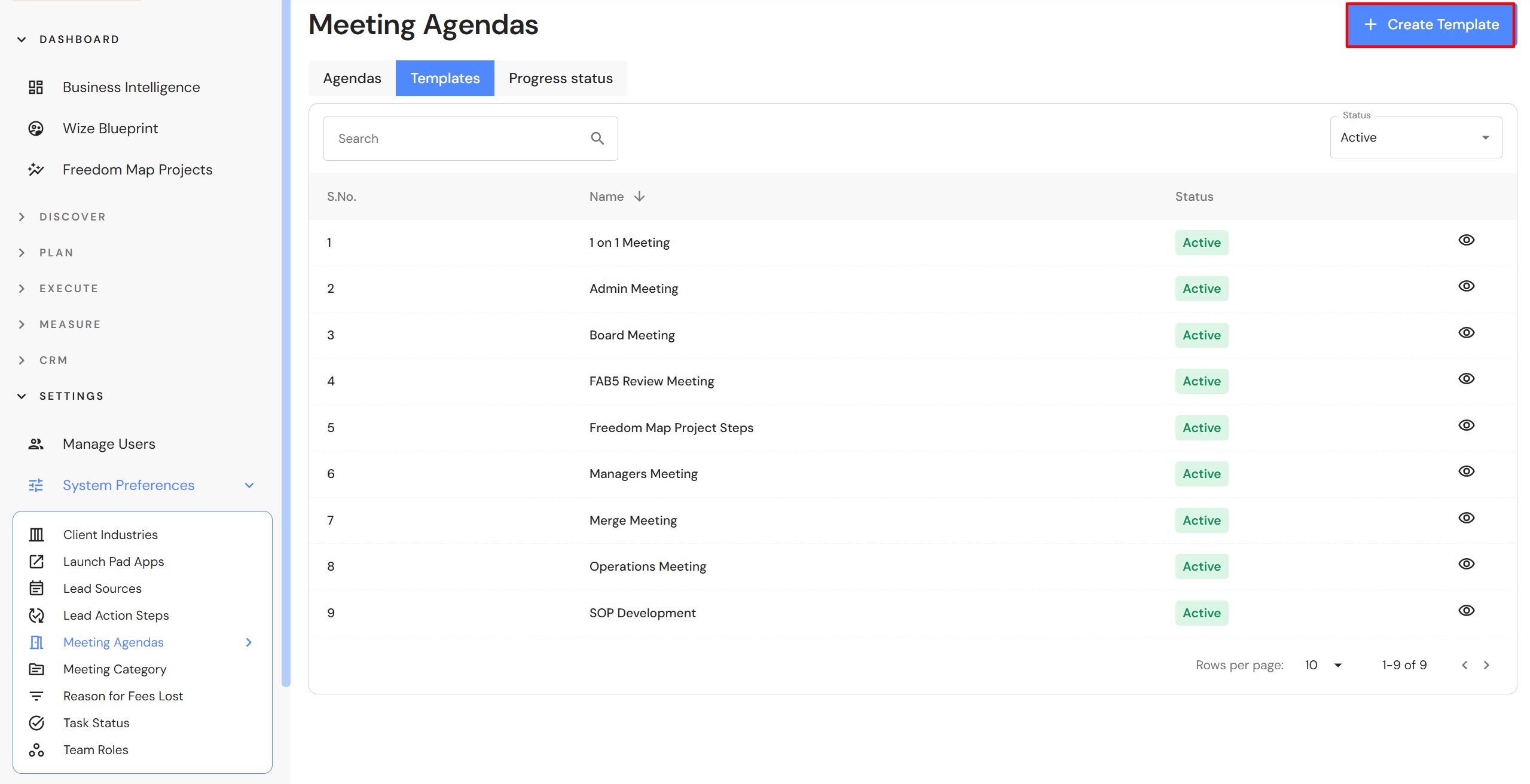
Go to Settings > System Preferences > Meeting Agendas and click on the 'Templates' tab.
- Click on '+Create template'
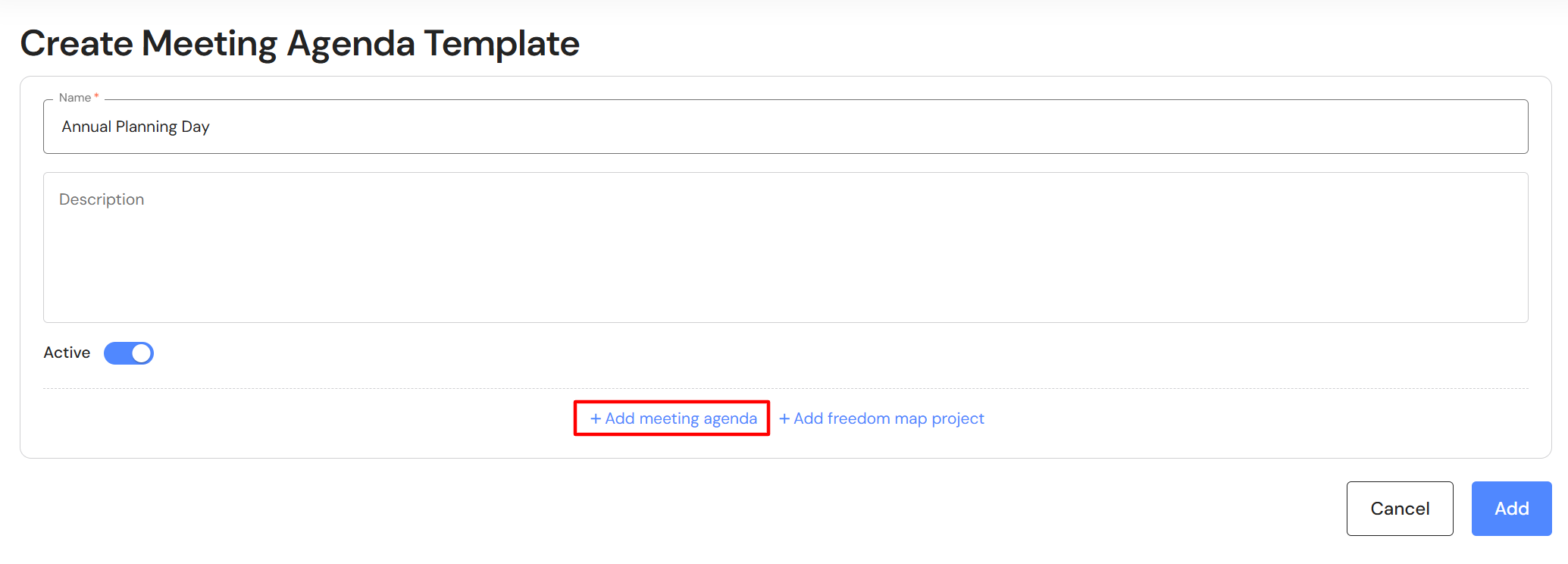
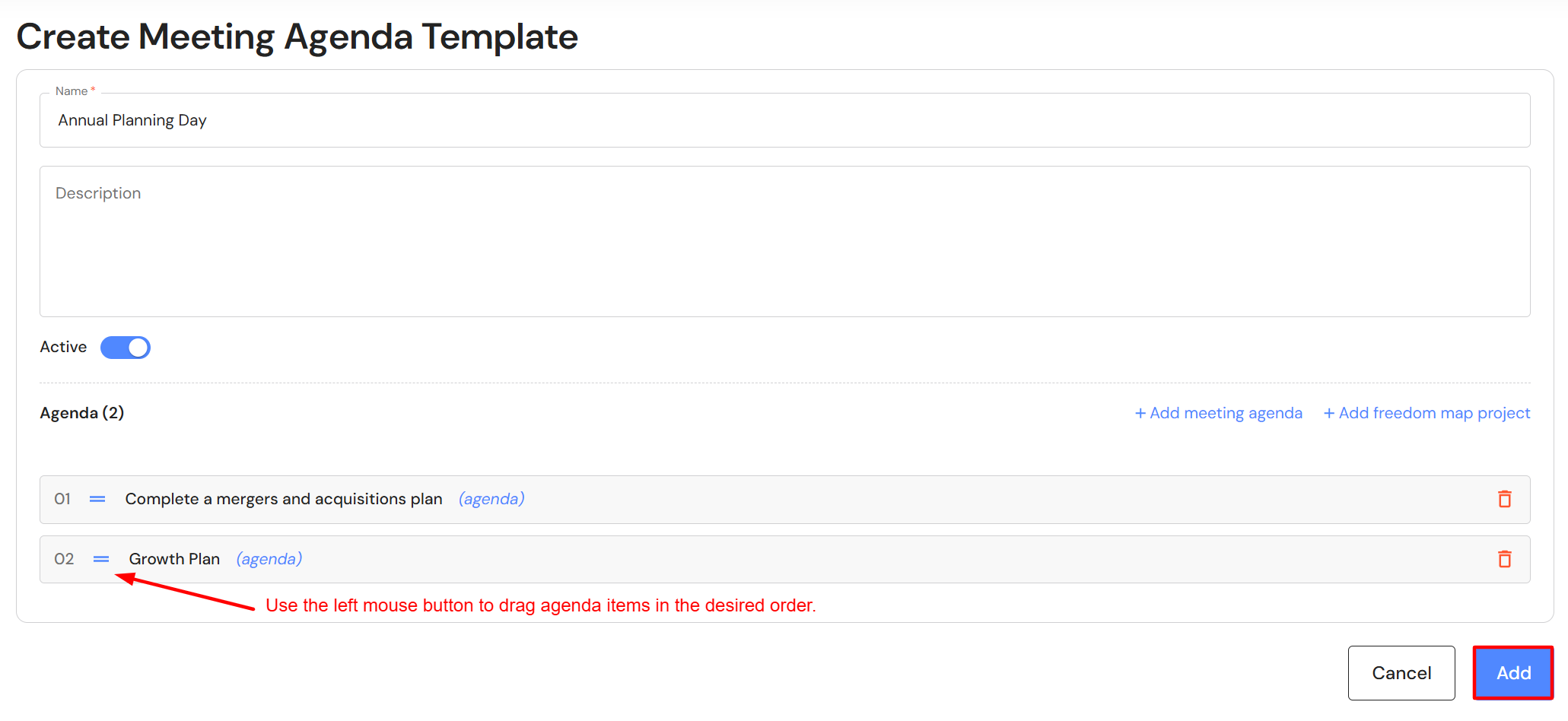
- Add a template name.
- Add a description if you would like to summarise the purpose. The description is only visible in system preferences.
- Switch the active toggle on.
- Click on '+ Add meeting agenda' to add agendas to the template
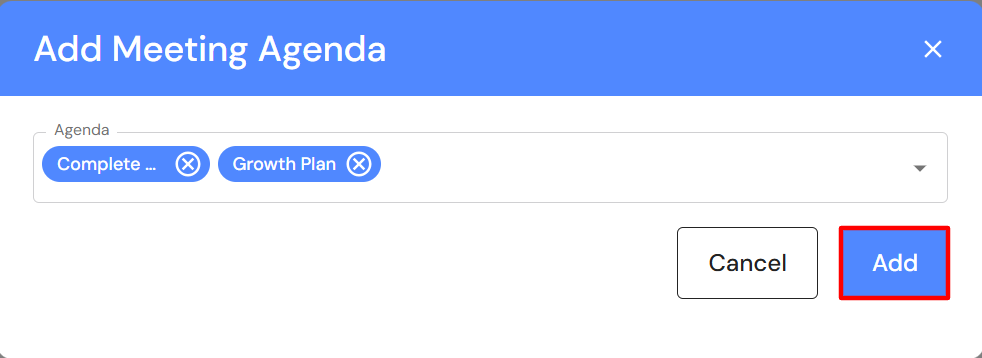
- Select the relevant agenda items from the dropdown list. You can add agendas in bulk.
- Click on 'Add'.
- To re-order agenda items, hold the left button on your mouse and drag the agendas in the desired order.
- Click 'Add'.
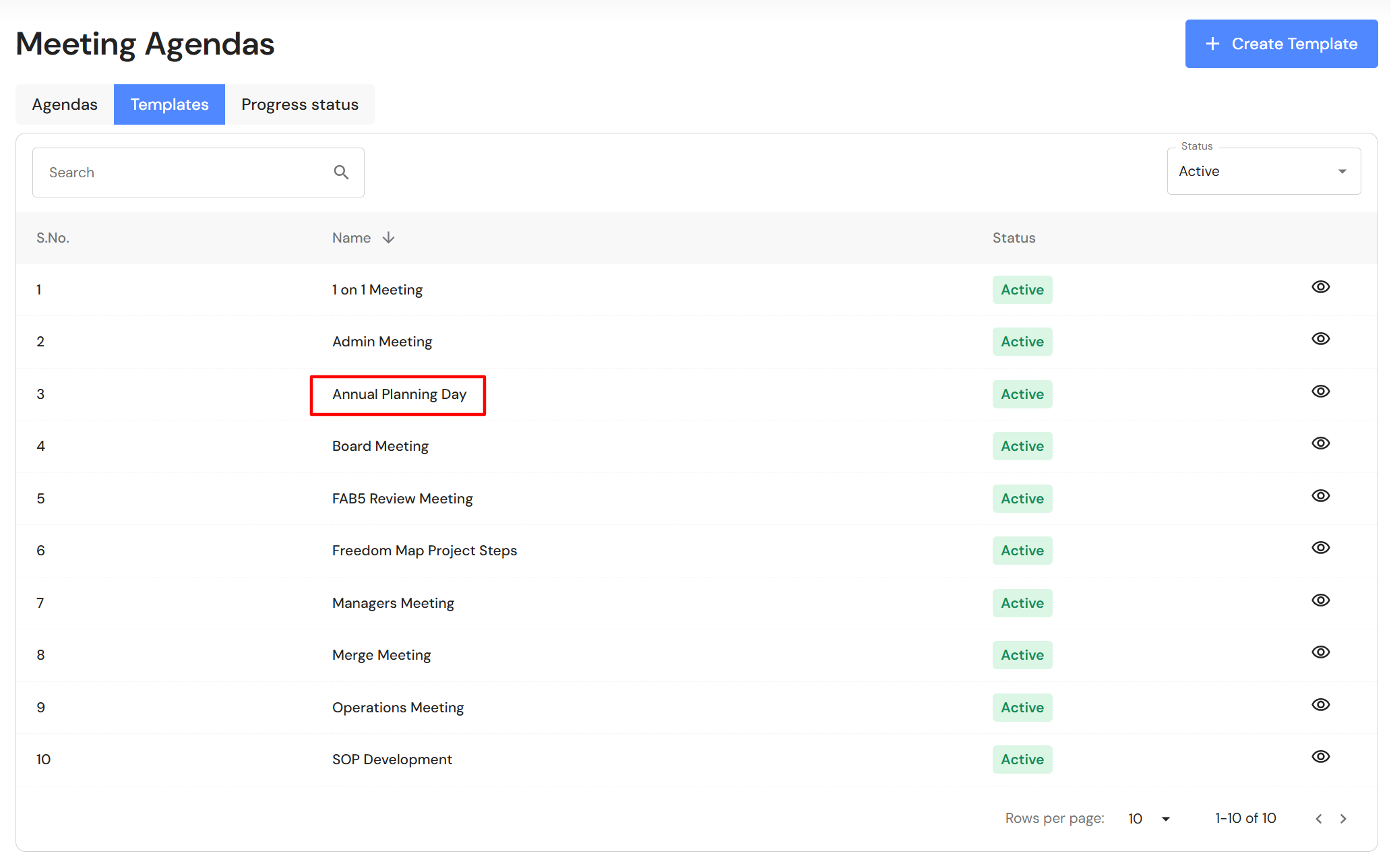
- Your new template is ready to use.
Edit a Template
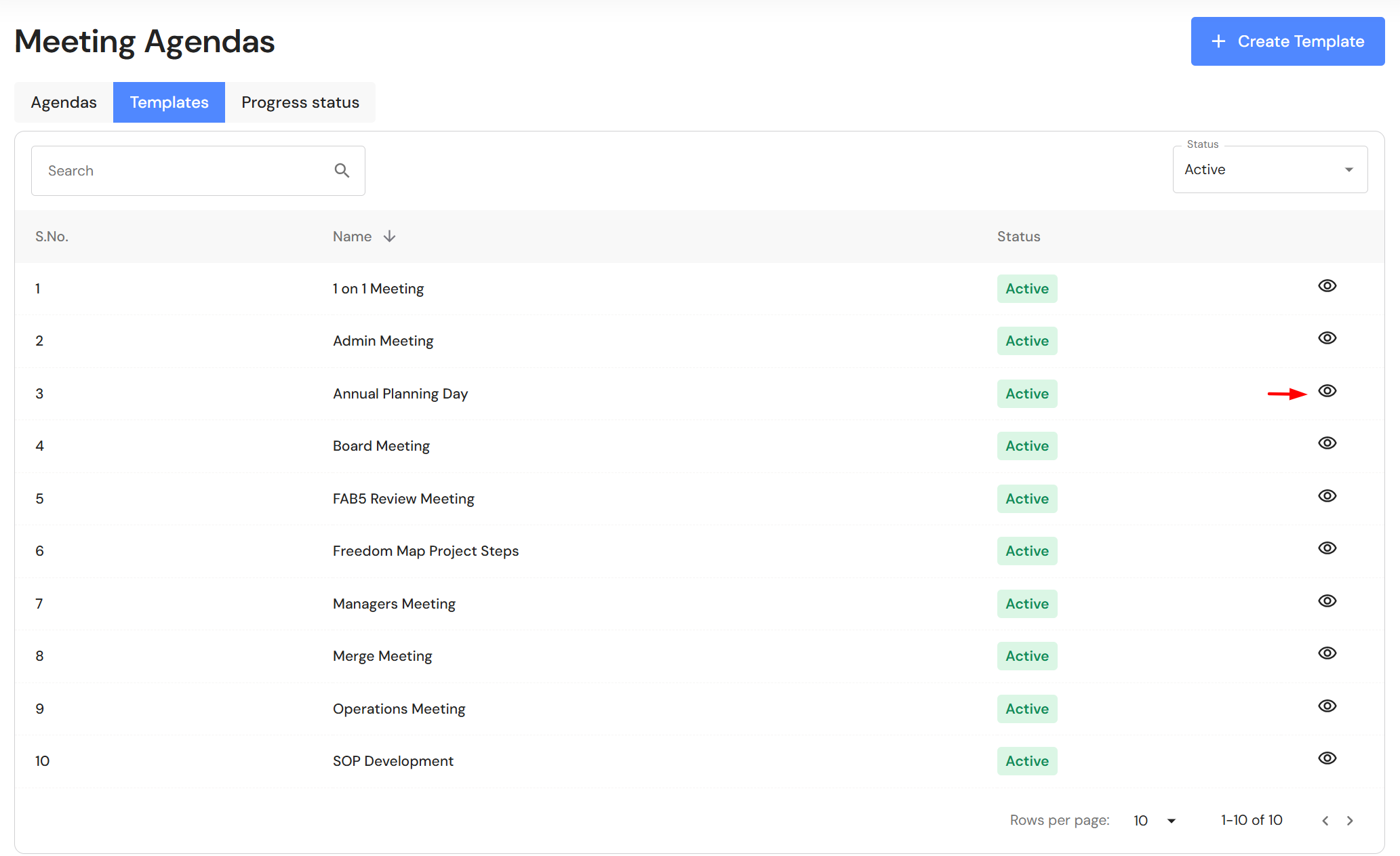
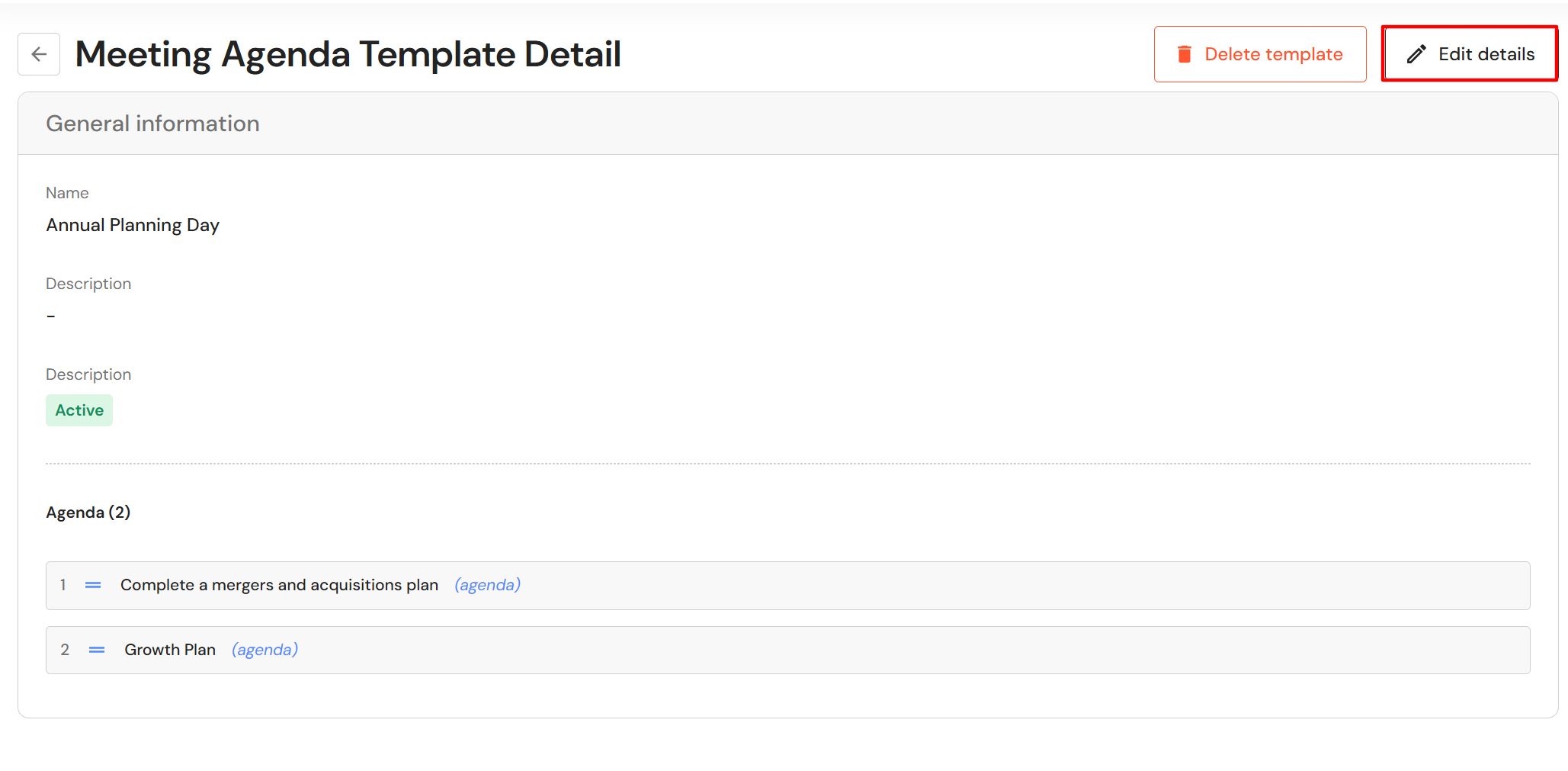
- Click on the view icon.
- Click on 'Edit details'.
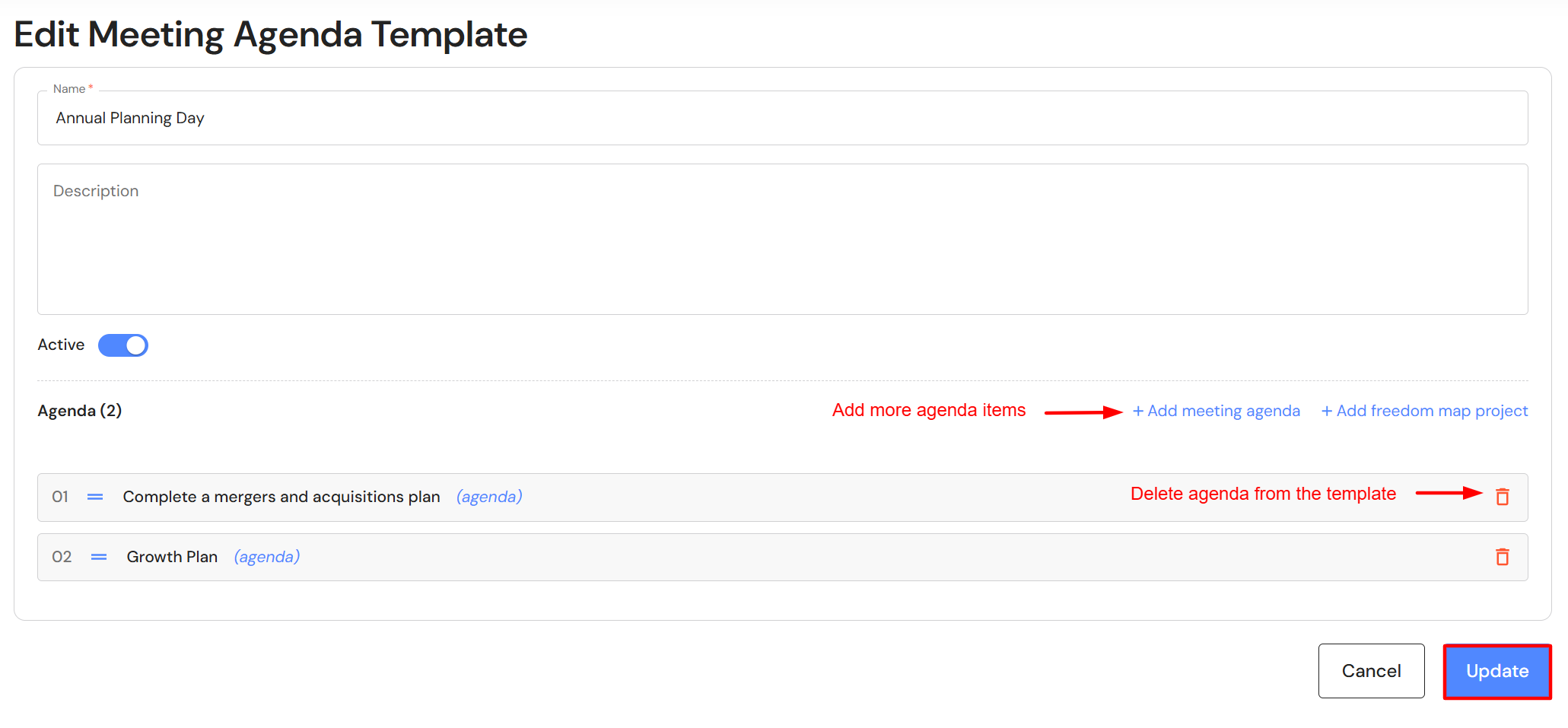
- Update relevant details. Add, delete or re-order agenda items.
- Click on 'Update'.
Deactivate a meeting template
- Click on the view icon.
- To deactivate the template, click on 'Edit details'.
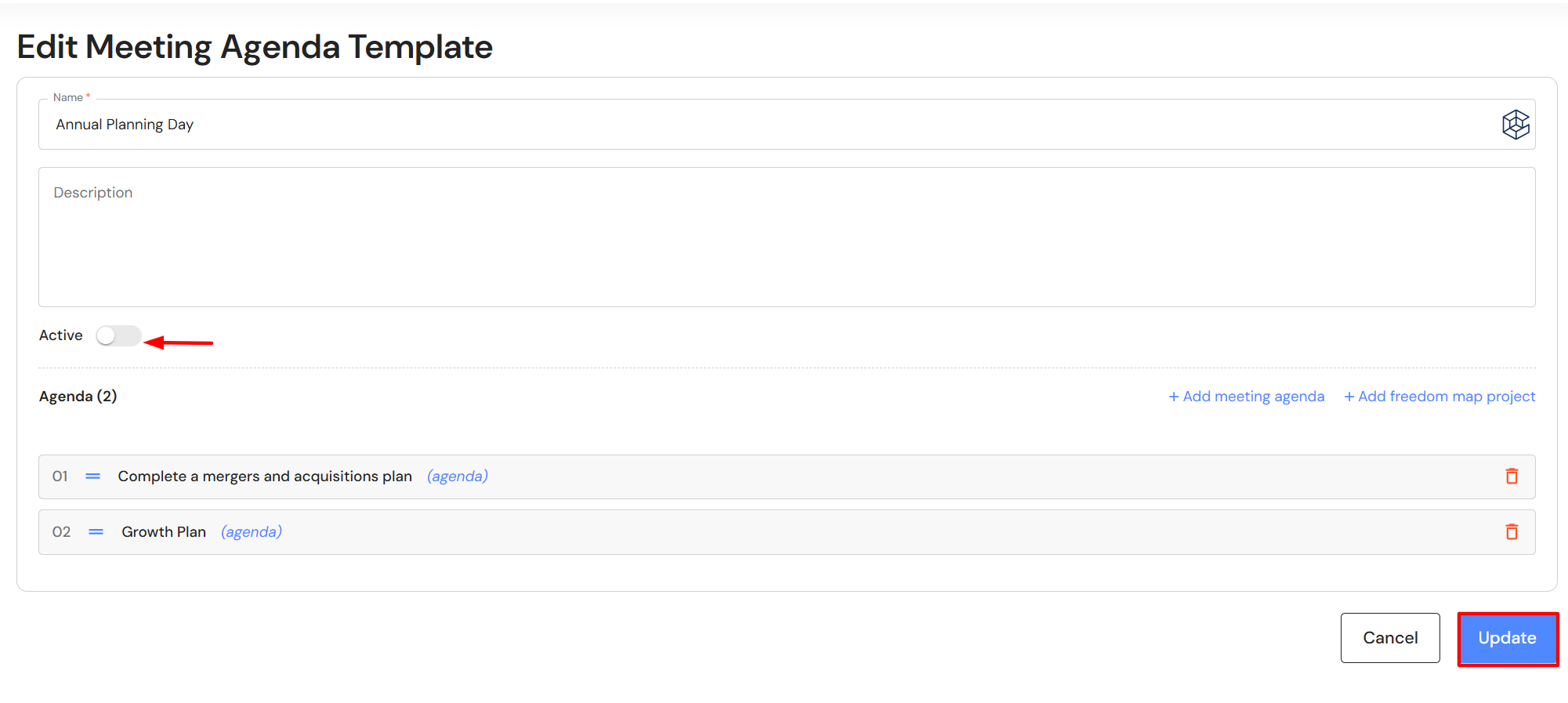
- Switch the active toggle off.
- Click on 'Update'.
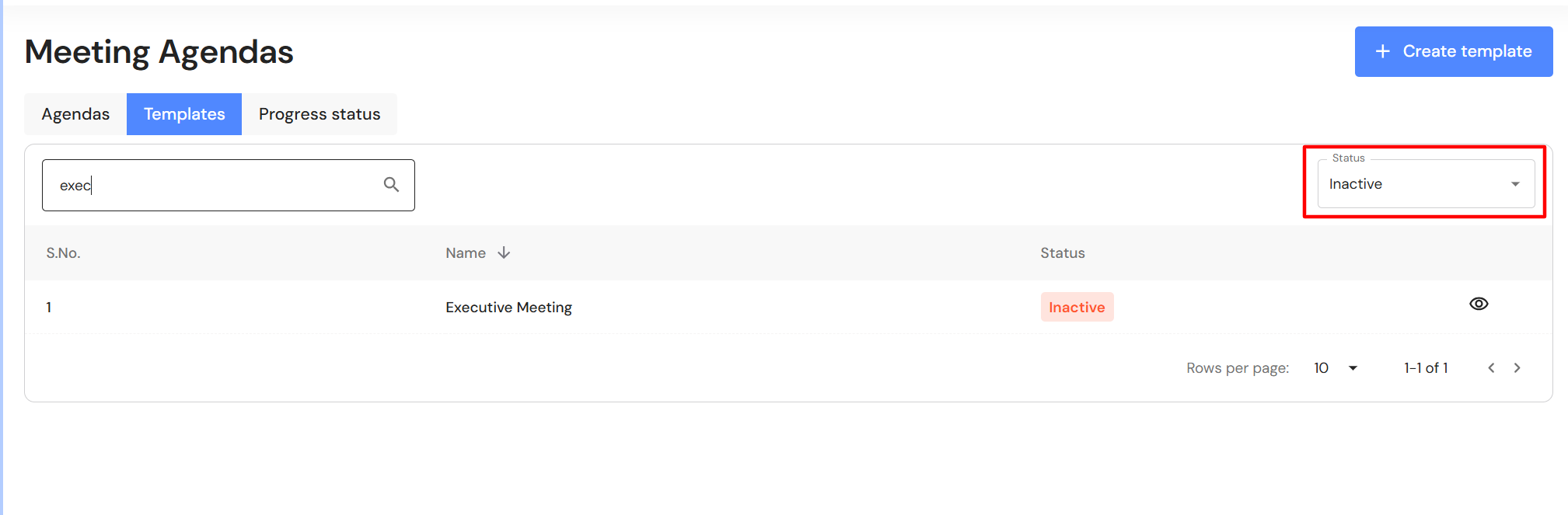
- Change the status view to 'Inactive' to see the list of inactive agenda items.
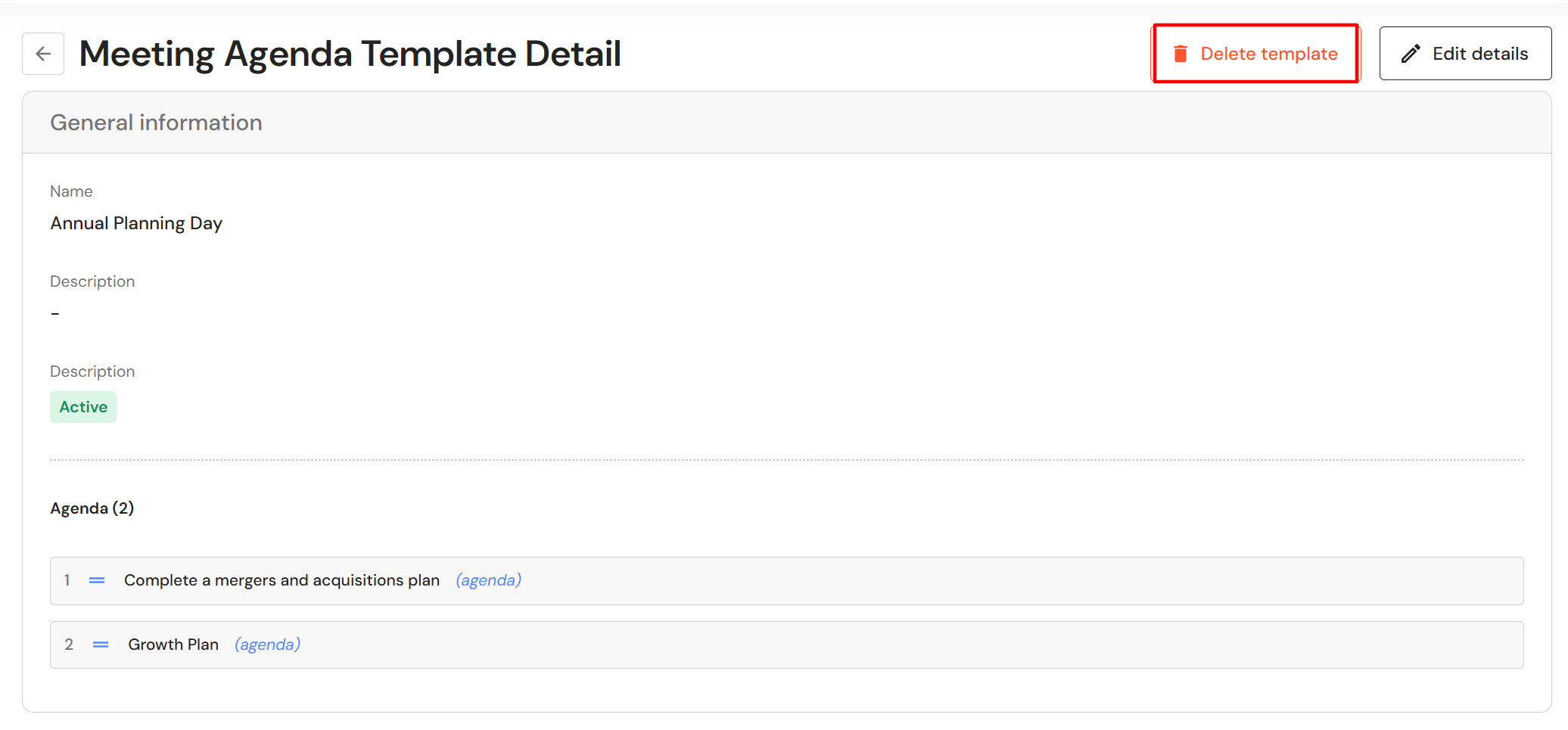
Delete a meeting template
- Click on the view icon.
- Click on 'Delete template'.
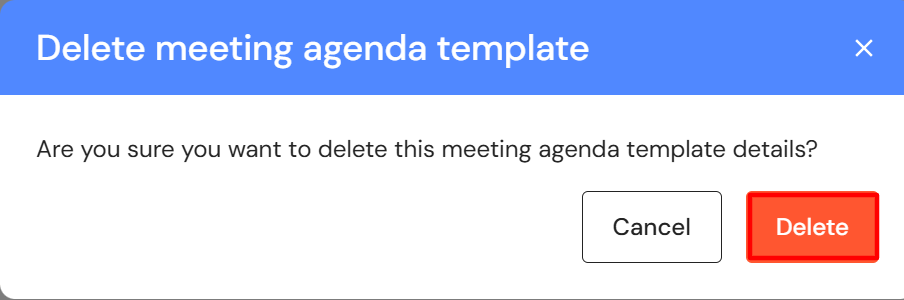
- If you proceed, this will permanently delete the template. Click on 'Delete'.