
Revenue Won & Lost
Create a Revenue Won & Lost plan
The Budget & Capacity plan is the foundation for all FAB5 schedules including Revenue Won & Lost. In most cases, the Revenue Won & Lost plan will automatically be created alongside the Budget & Capacity plan.
If you need to create a standalone Revenue Won & Lost, you must have a new Budget & Capacity plan that is not already linked to another Revenue Won & Lost plan.
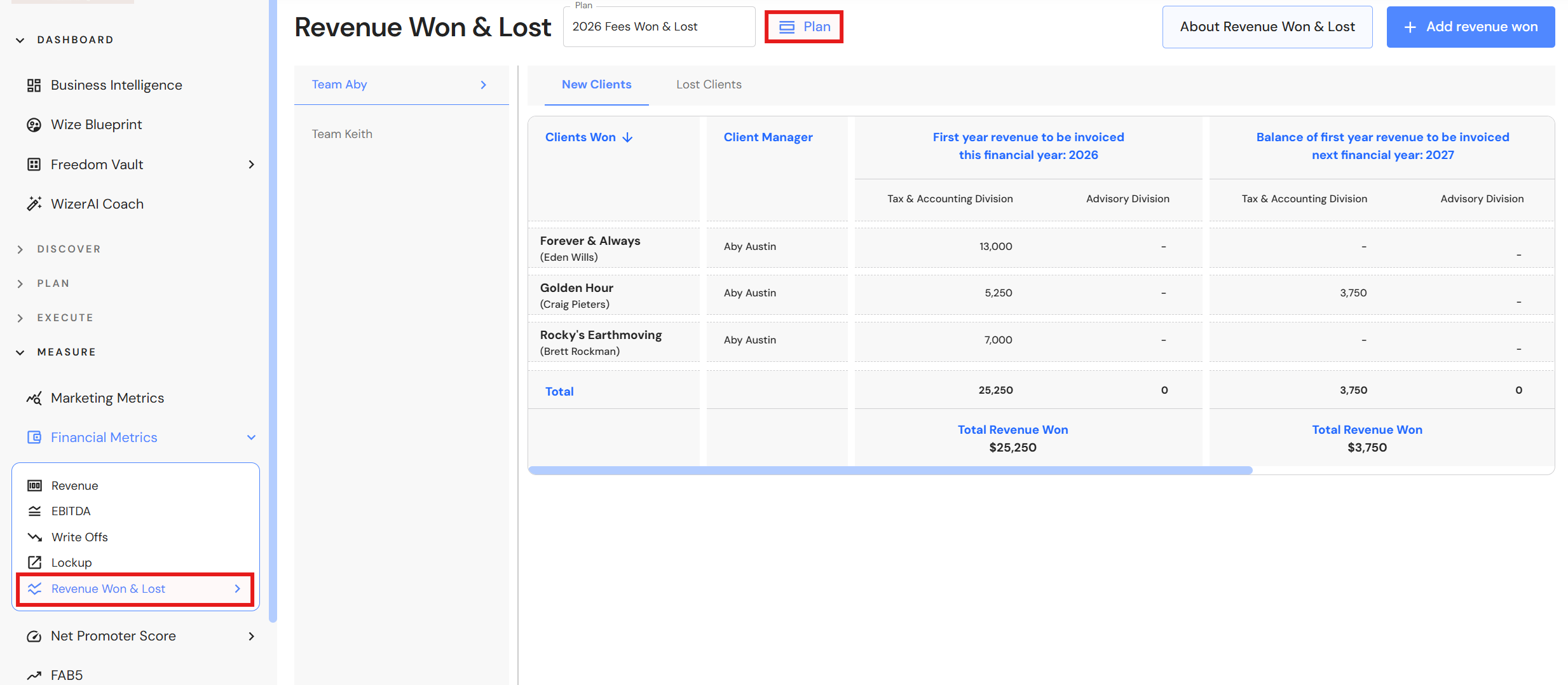
- Go to Measure > Metrics > Revenue Won & Lost
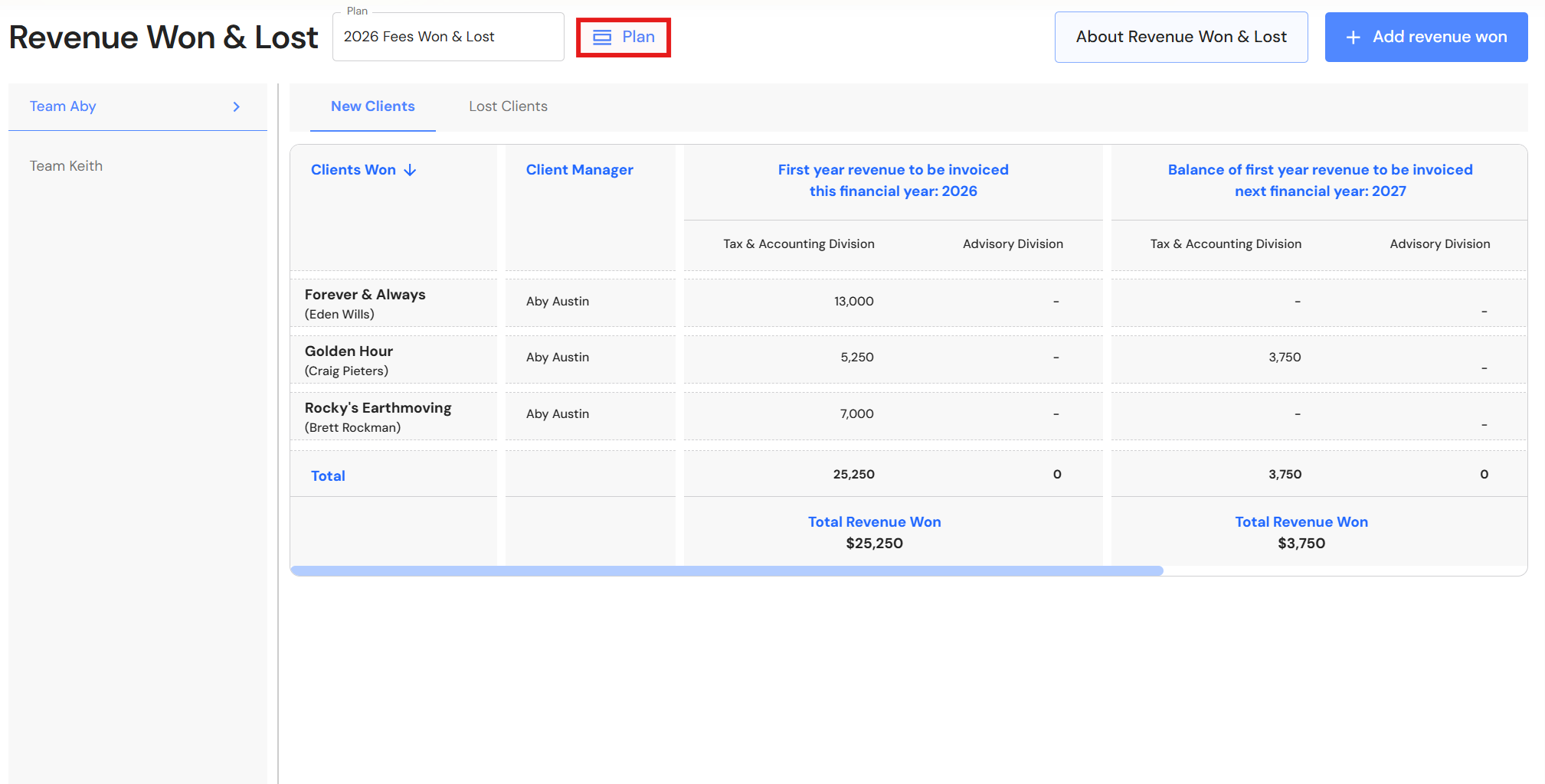
- Click the 'Plan' button.
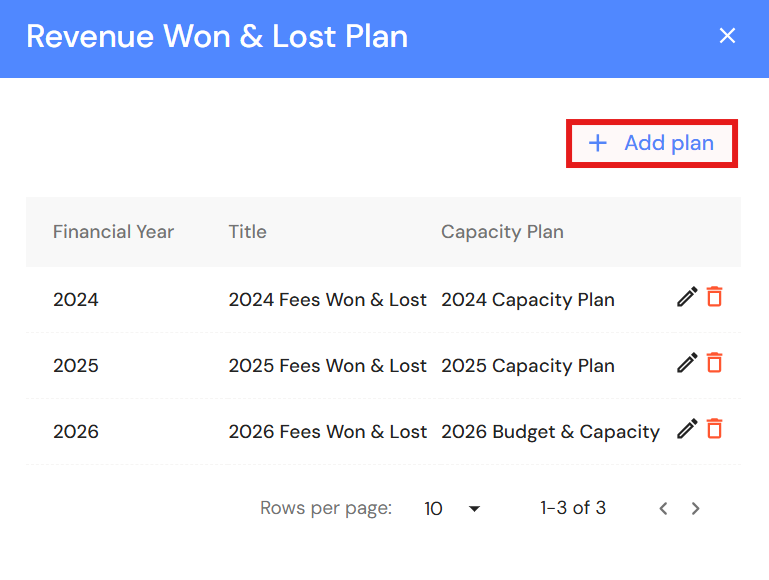
- Click '+ Add plan'.
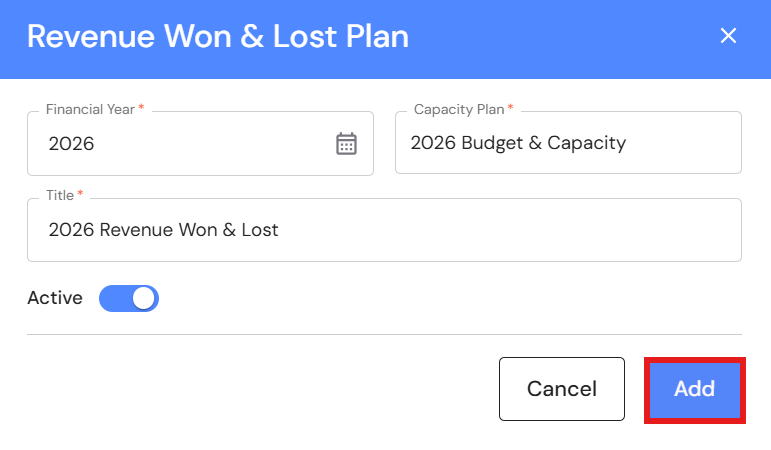
- Select the financial year and capacity plan to be linked to Revenue Won & Lost.
- Add a title e.g. 2026 Revenue Won & Lost.
- Switch the 'Active' toggle on if you would like the Revenue Won & Lost plan to be the default plan. NB* If you have the active toggle set to 'on' in more than one plan, the newest plan will become the default.
- Click 'Add'.
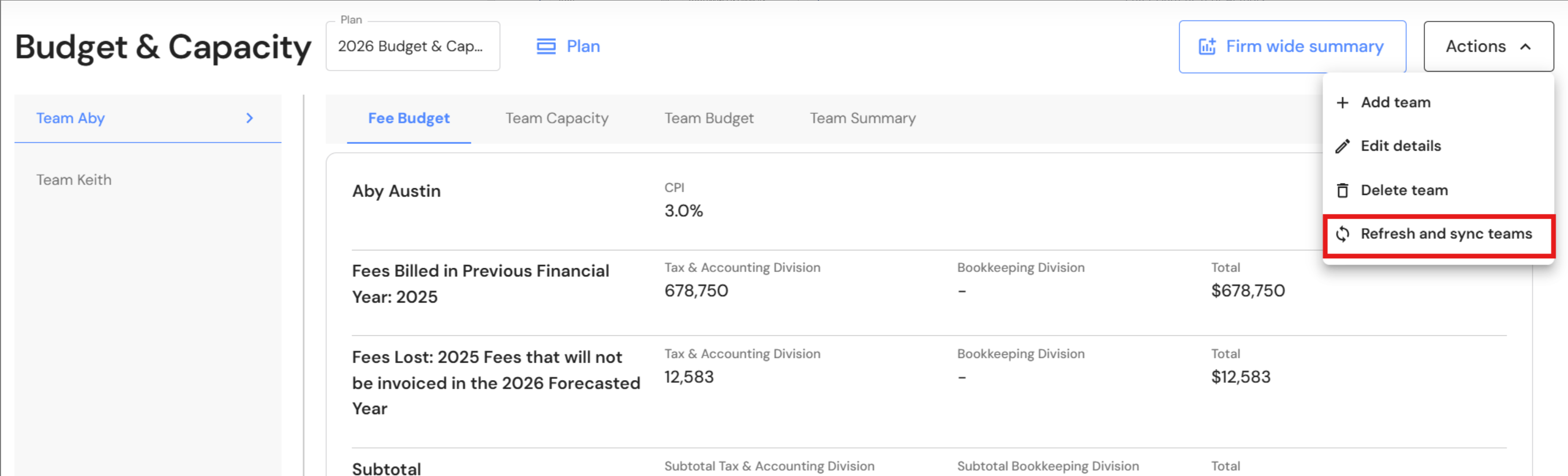
- Teams will automatically sync from the Budget & Capacity plan.
You can also manually sync teams from the Budget & Capacity plan. Click on 'Actions → Refresh and sync teams' and the Revenue Won & Lost plan will update with the team changes.
Update Revenue Won & Lost
Go to Measure > Metrics > Revenue Won & Lost
Add Revenue Won
- Click on the relevant Team in the left panel.
- The 'New Clients' tab is the default tab.
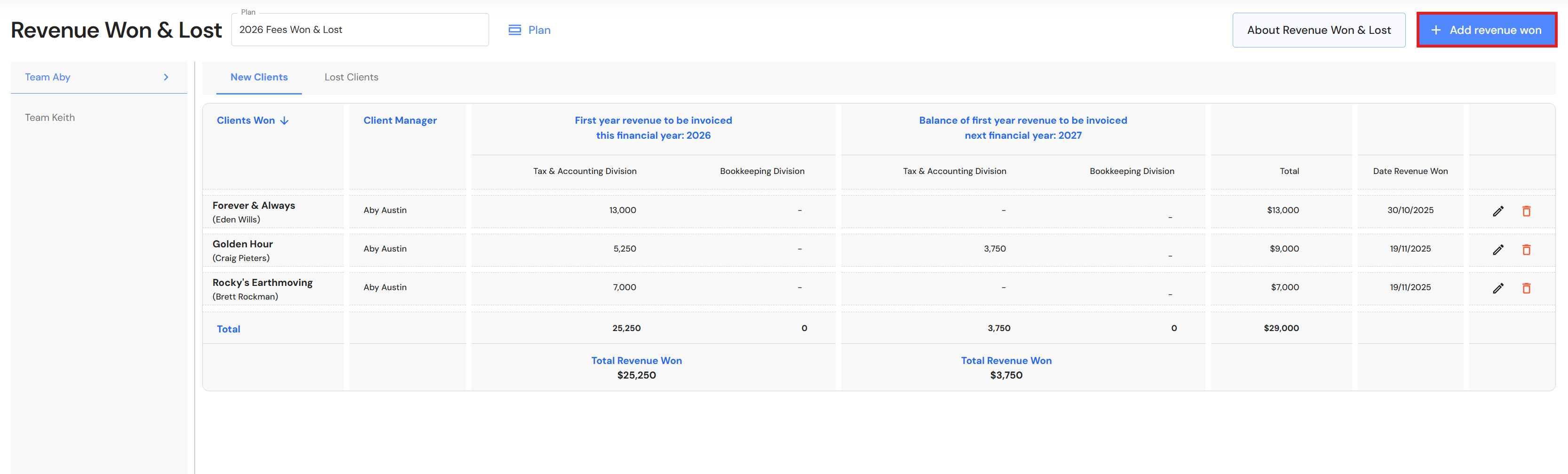
- Click '+ Add revenue won'.
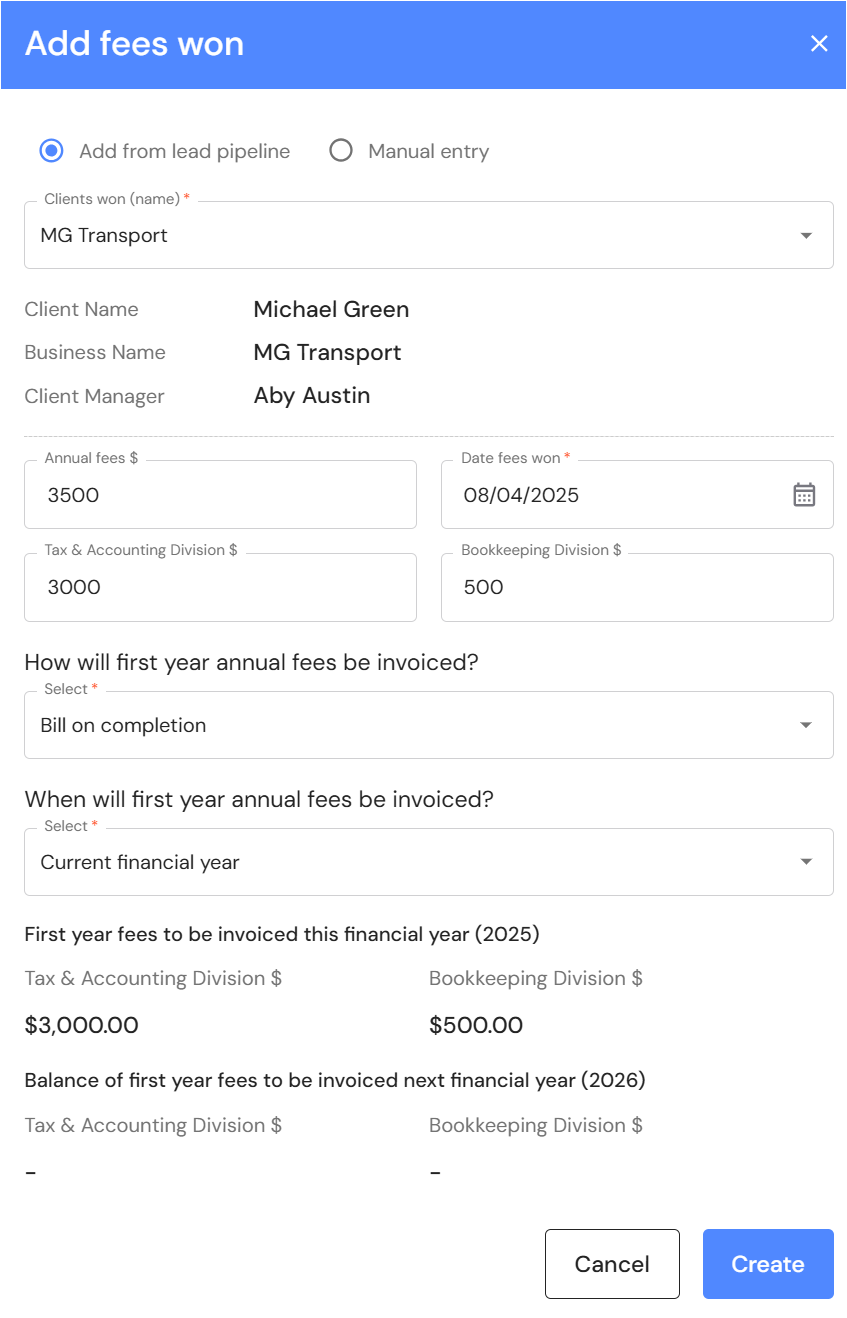
- Choose 'Add from lead pipeline' or 'Manual entry'.
NB* If you choose manual entry, ensure you have added client managers in the sales division and production team - Adding Client Managers to the Lead Pipeline and Revenue Won & Lost - Once you prefill or complete the client details, confirm the annual revenue and date revenue won.
NB* If you update the annual revenue for clients from the lead pipeline, the annual revenue will also be updated in the lead pipeline. - Assign the first year annual revenue to the relevant divisions ie. Tax & Accounting or Bookkeeping.
- Then, follow the questions in the dropdown list to auto-assign revenue won to the relevant financial year.
- Click 'Create'.
Edit or Delete entries
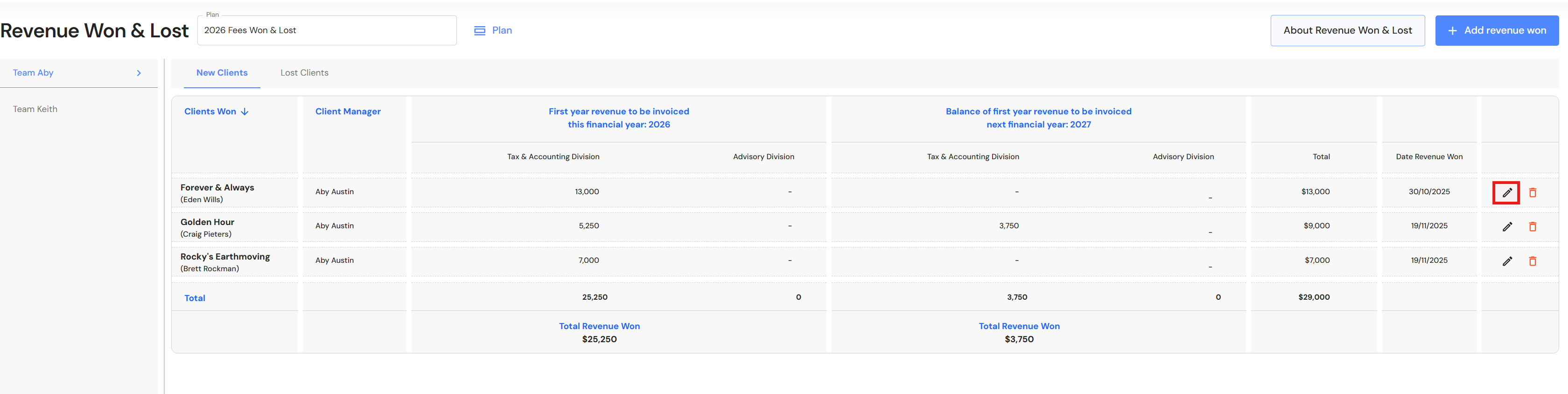
To edit an entry, click the pencil icon next to the 'Date Revenue Won' column.
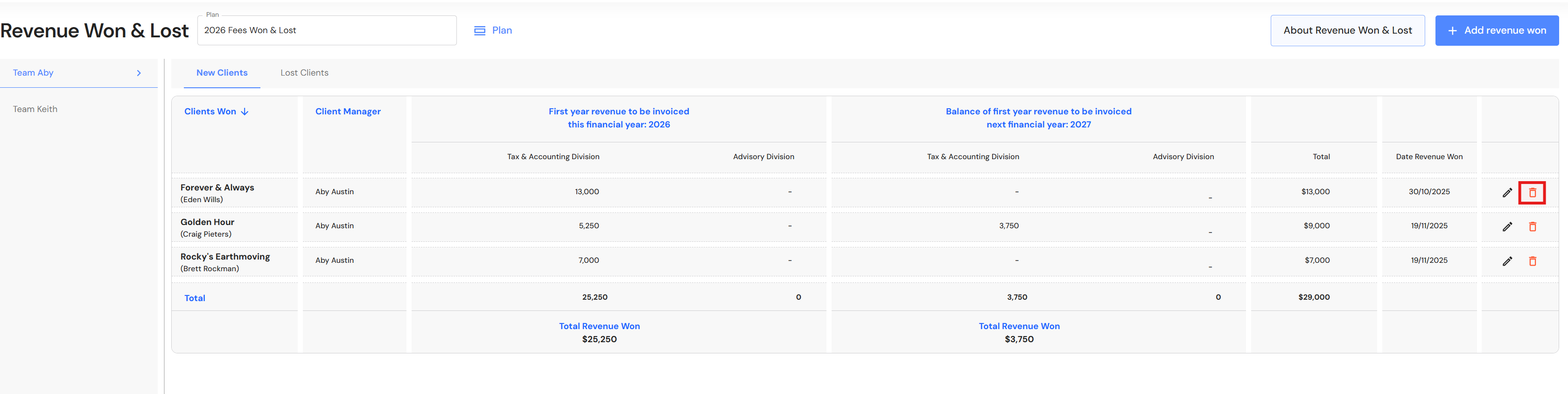
To delete an entry, click the bin icon next to the 'Date Revenue Won' column.
Add Revenue Won when working in the Lead Pipeline
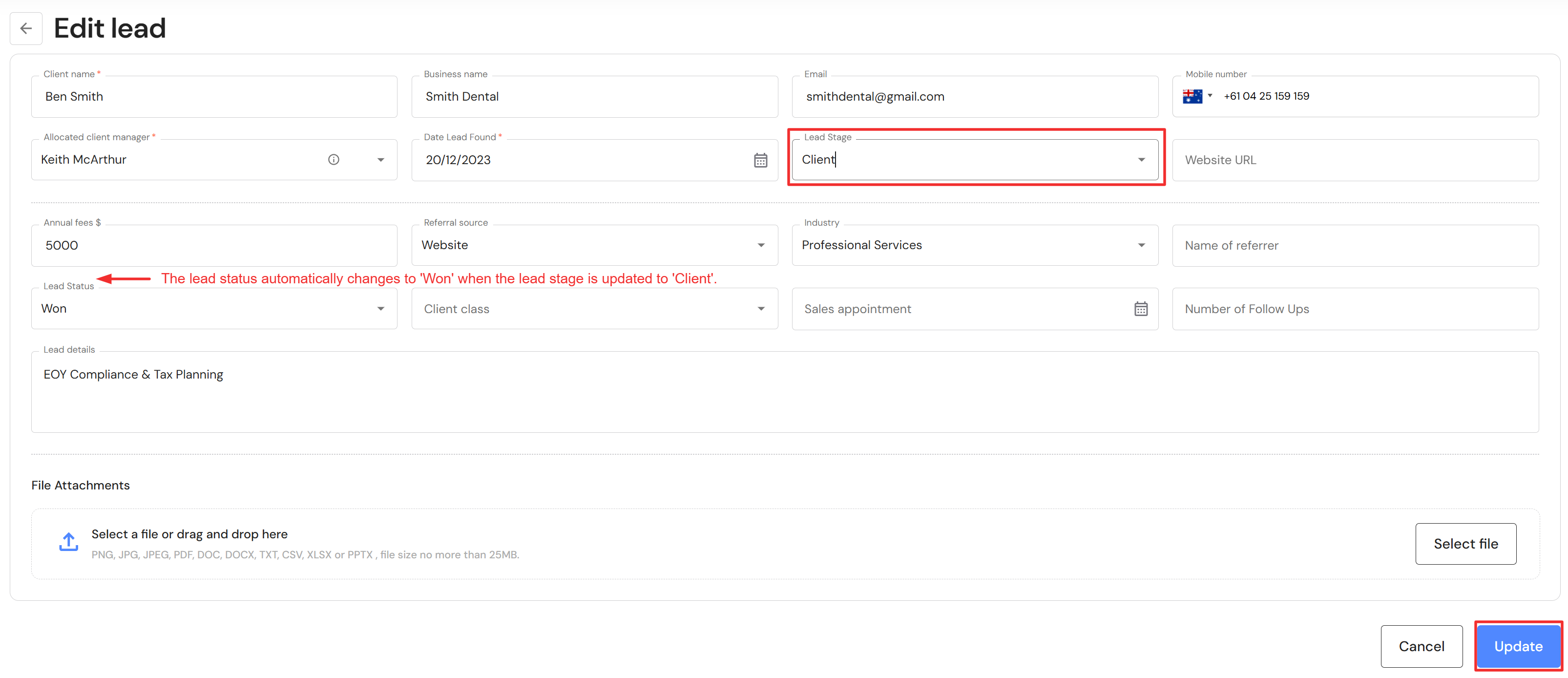
If users convert a lead or prospect to a client in the Lead Pipeline, an auto-prompt will pop up to complete revenue won. If users cancel the prompt, or decide to cancel and make changes to the lead card, navigate to Revenue Won & Lost to complete the entry.
The auto-prompt will appear shortly after you drag and drop a lead or prospect to clients in the Kanban board or when you edit a lead card in the Kanban board or list view by changing the 'Lead Stage' to Client.
Add Revenue Lost
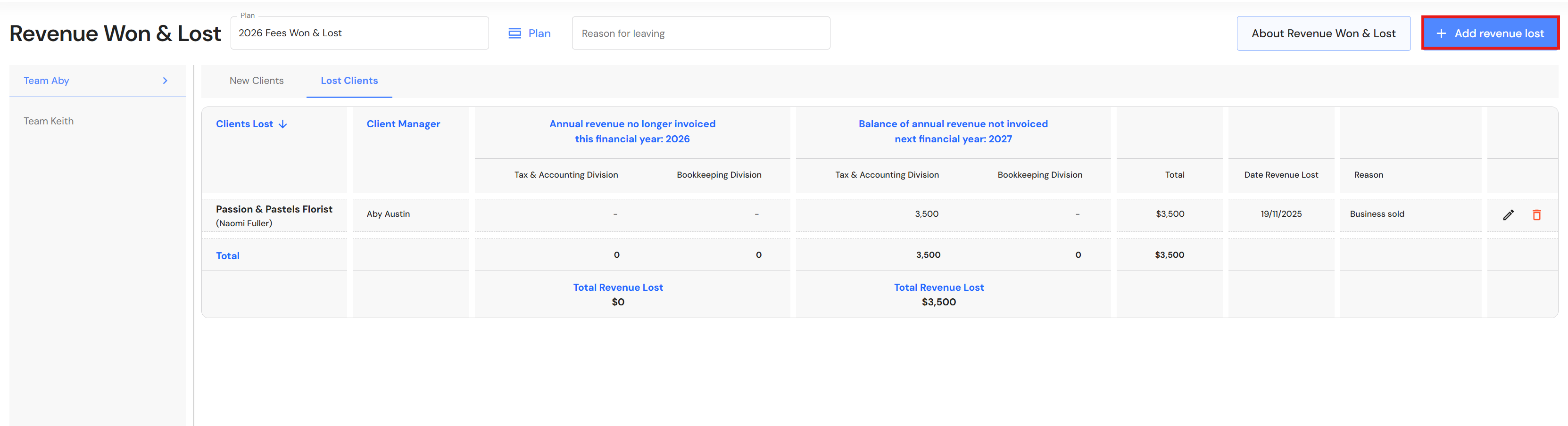
- Click on the relevant Team in the left panel.
- Click the 'Lost Clients' tab.
- Click '+ Add revenue lost'.
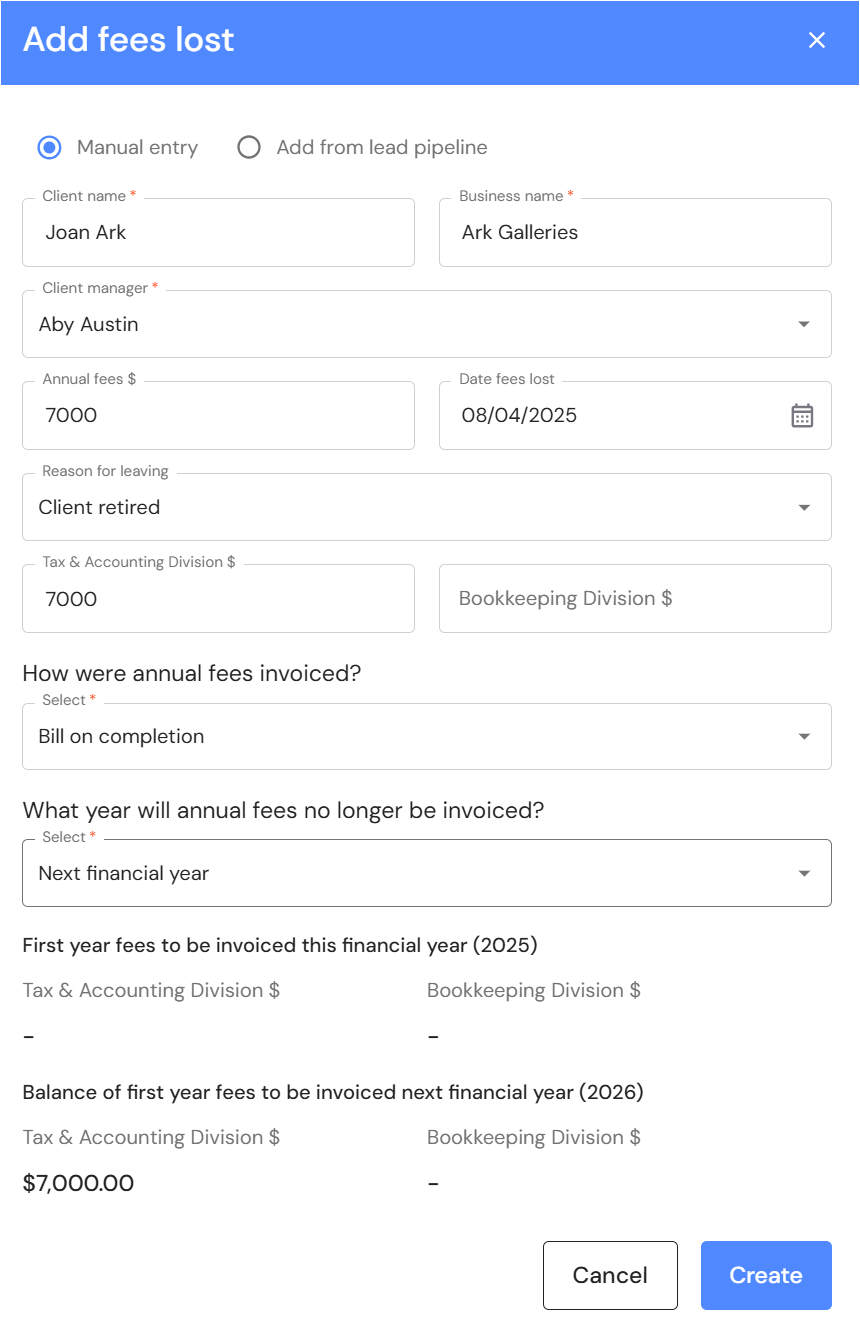
- Choose 'Manual entry' or 'Add from lead pipeline'.
- Once you complete or prefill the client details, confirm the annual revenue and date revenue lost.
- Select the reason for leaving from the dropdown list.
- Assign the annual revenue to the relevant divisions ie. Tax & Accounting or Bookkeeping.
- Then, follow the questions in the dropdown list to auto-assign revenue lost to the relevant financial year.
- Click 'Create'.
Edit or Delete entries
To edit an entry, click the pencil icon next to the 'Reason' column.
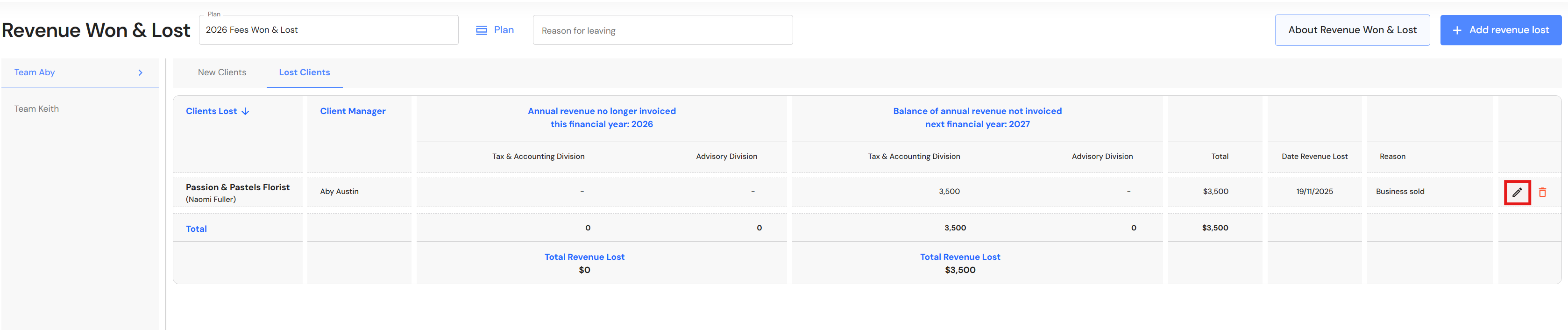
To delete an entry, click the bin icon next to the 'Reason' column.
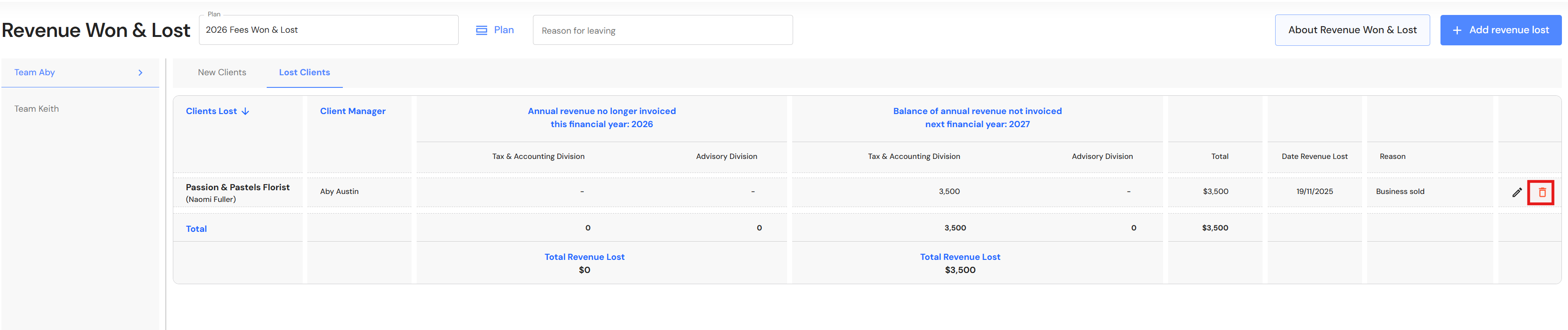
Revenue Lost - Reason for leaving
To add more options in the 'Reason for leaving' dropdown list go to Reasons for Revenue Lost.
Rename a Revenue Won & Lost plan
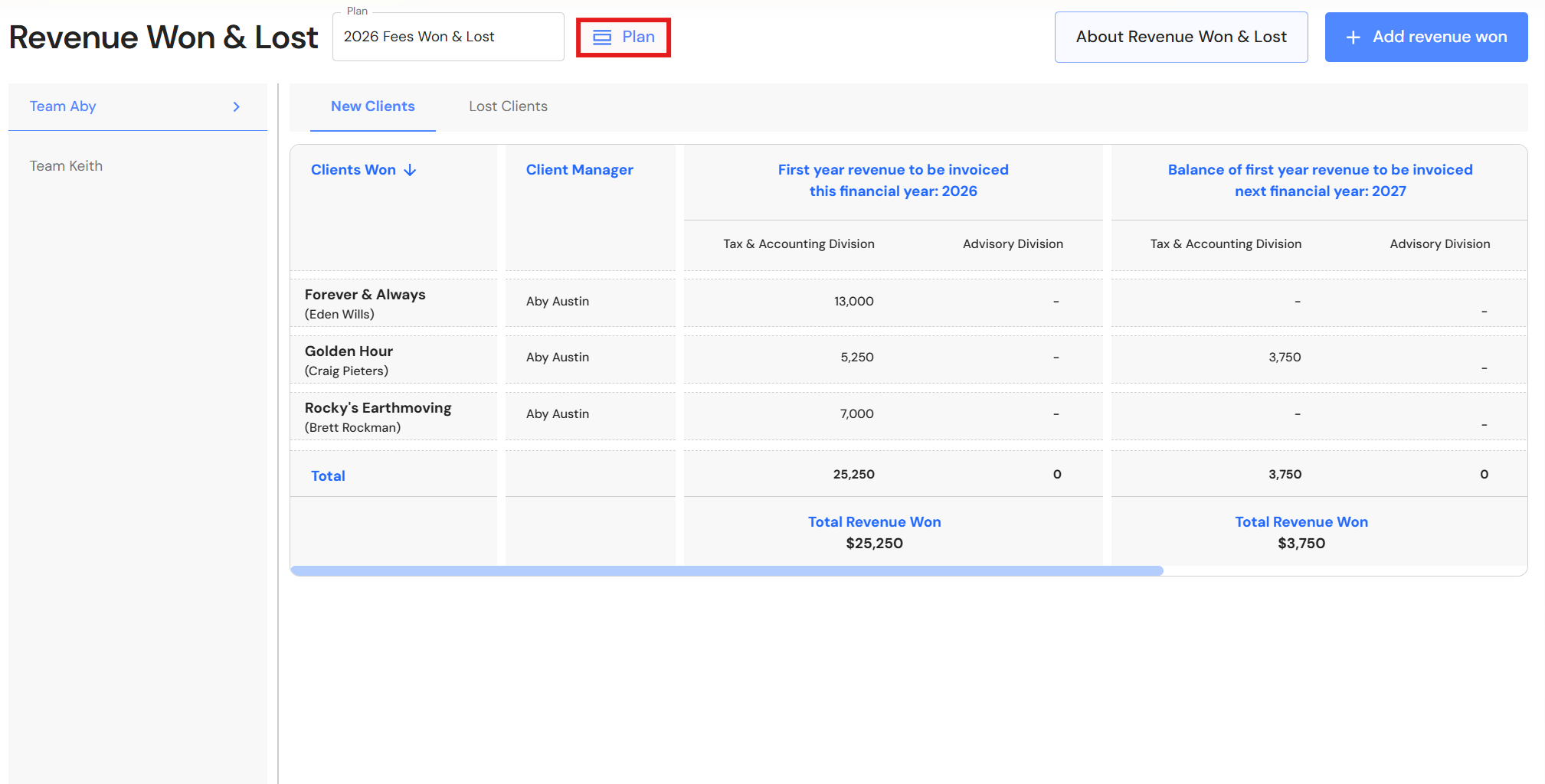
- Click the 'Plan' button.
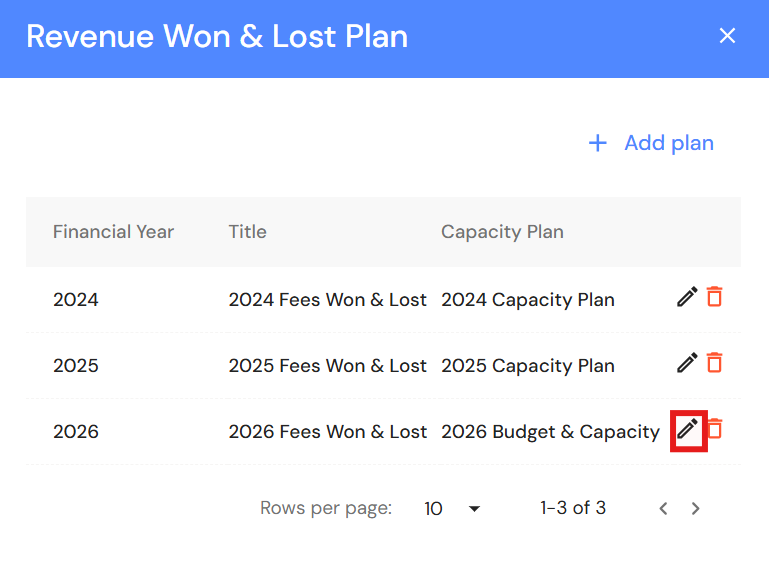
- Click the pencil icon.
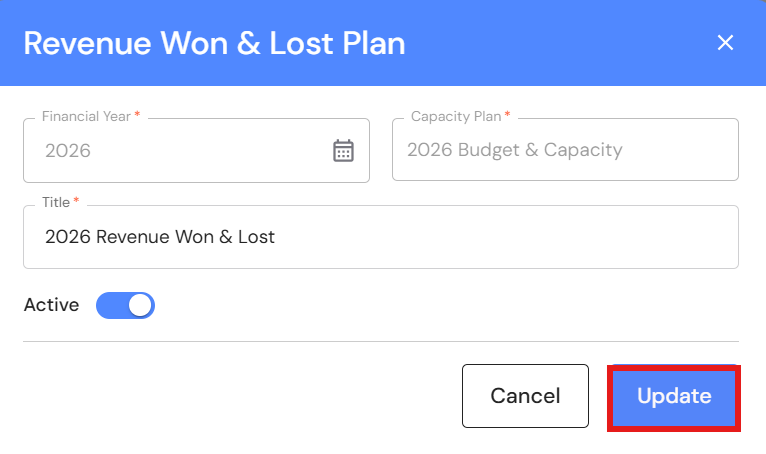
- Change the title and click 'Update'.
Delete a Revenue Won & Lost plan
- Click the 'Plan' button.
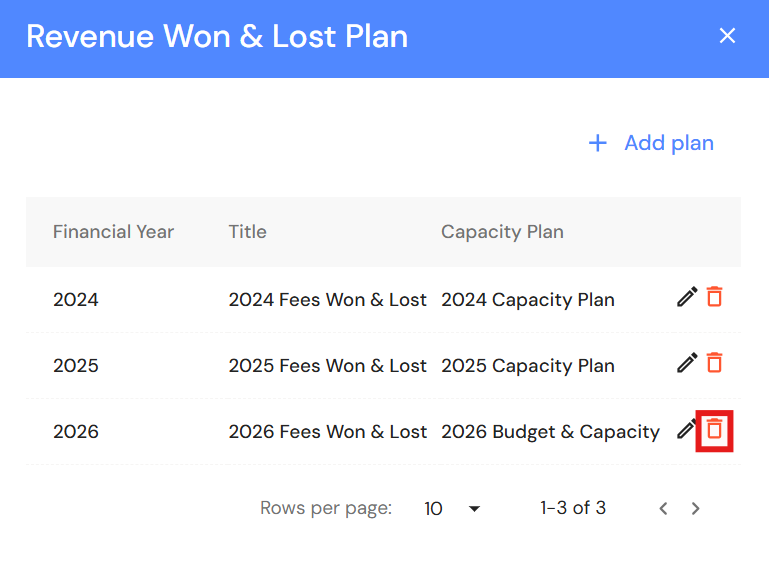
- Click the bin icon.
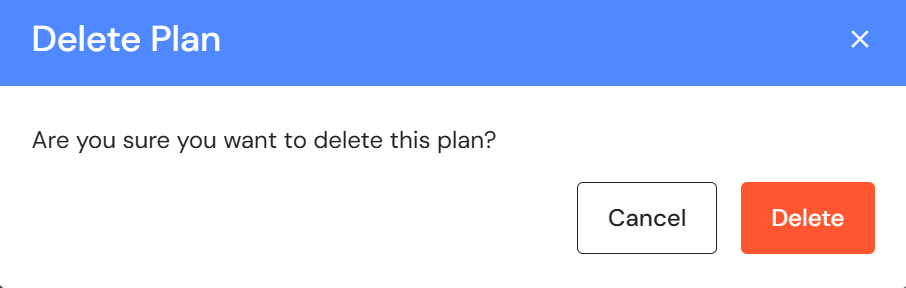
- Click 'Delete' to confirm.
Related articles
Adding Client Managers to the Lead Pipeline and Revenue Won & Lost