FAB5 Monthly Data Entry Checklist
Streamline your monthly data entry with our FAB5 Monthly Data Entry Checklist.
At the beginning of each month, complete your FAB5 data entry for the previous month. Access the relevant plans via the side menu or the FAB5 dashboard to record your metrics.
To access the plans via the side menu, go to:
- Measure > Metrics > Revenue
- Measure > Metrics > EBITDA
- Measure > Metrics > Write Offs
- Measure > Metrics > Lockup
- Measure > Metrics > Revenue Won & Lost
- Measure > Net Promoter Score > Client NPS
- Measure > Net Promoter Score > Team NPS
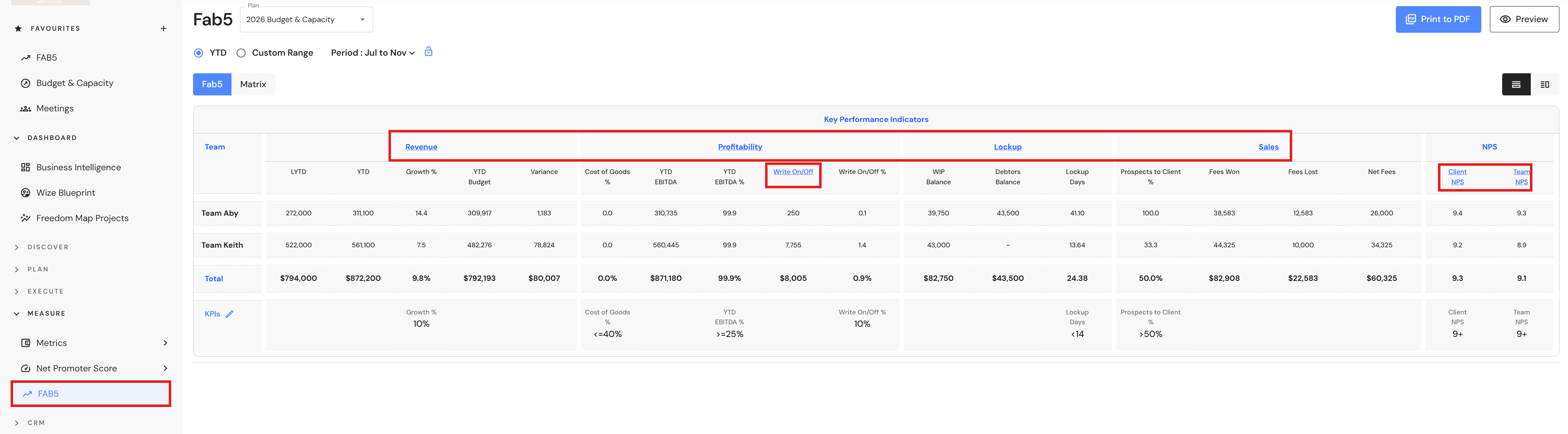
This guide will show you how to complete your data entry via the FAB5 dashboard. Each KPI heading contains a hyperlink that takes you directly to the relevant plan.
Go to Measure > FAB5
Click on each KPI heading.
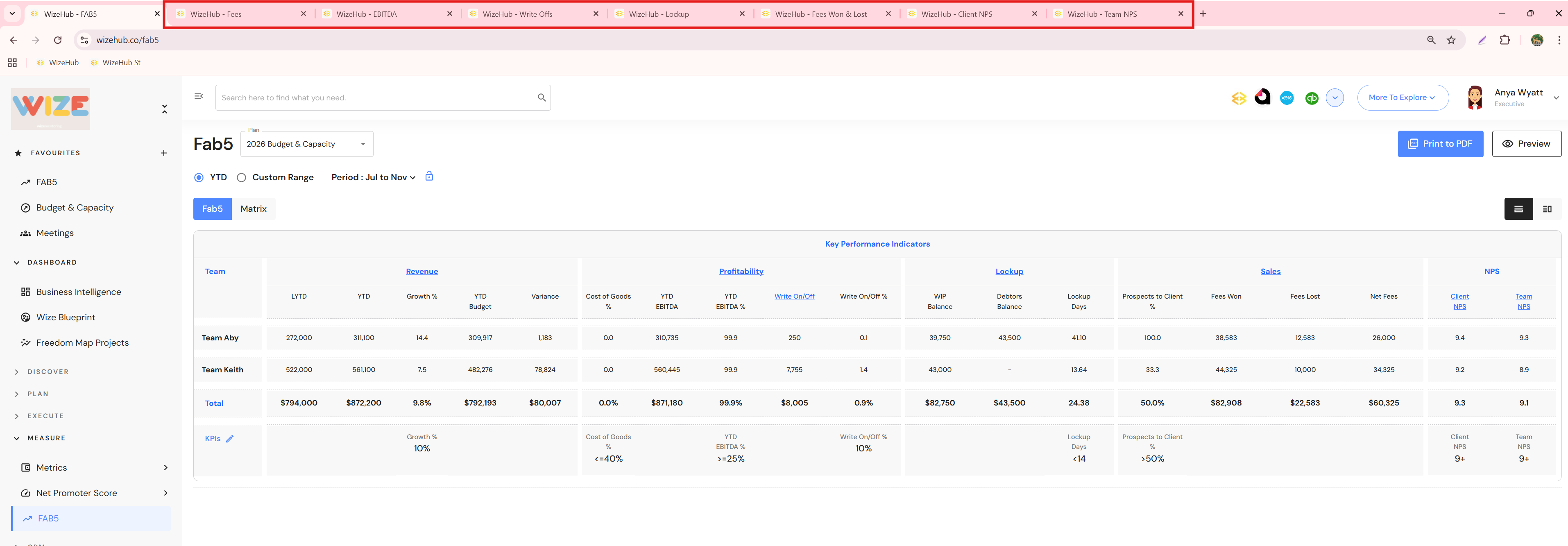
Plans will open in a new tab in your browser.
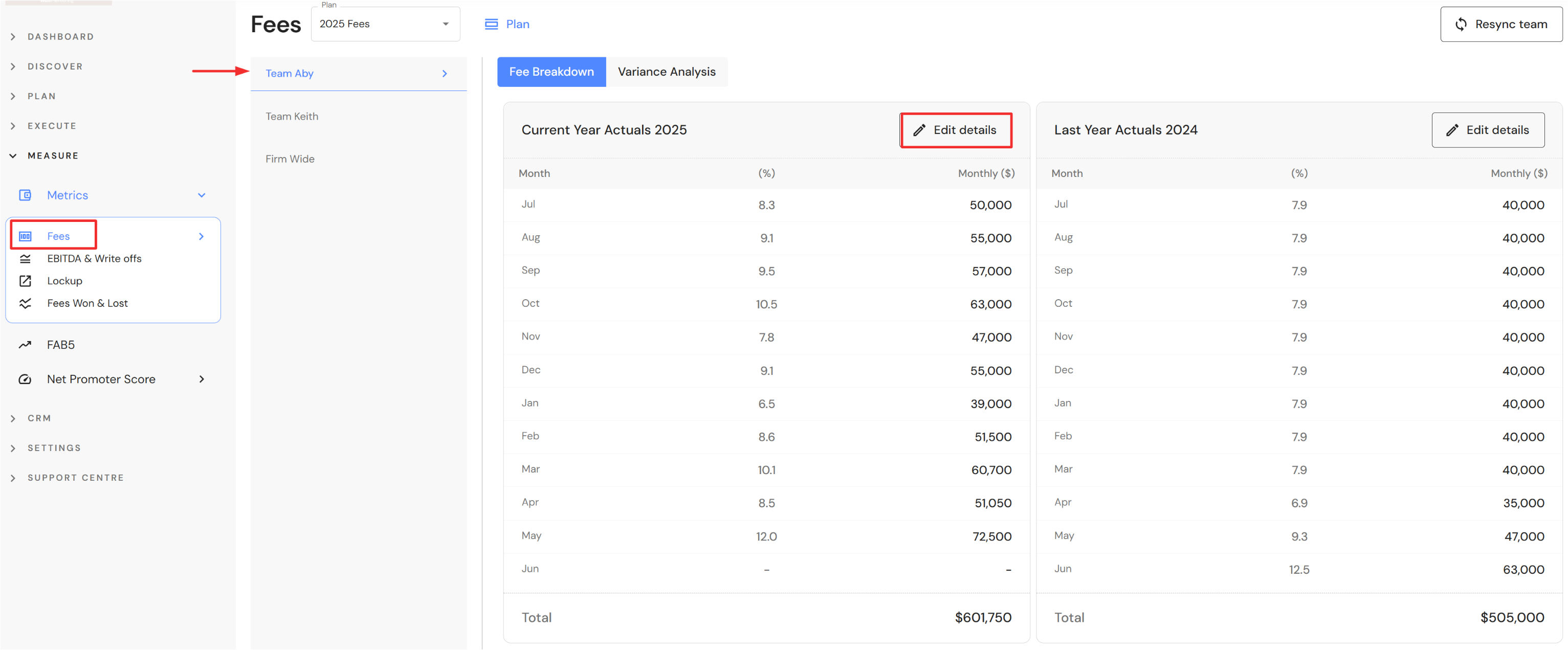
- In the Revenue plan, update monthly revenue for each team.
- Select each team in the left panel.
- Click on 'Edit details'.
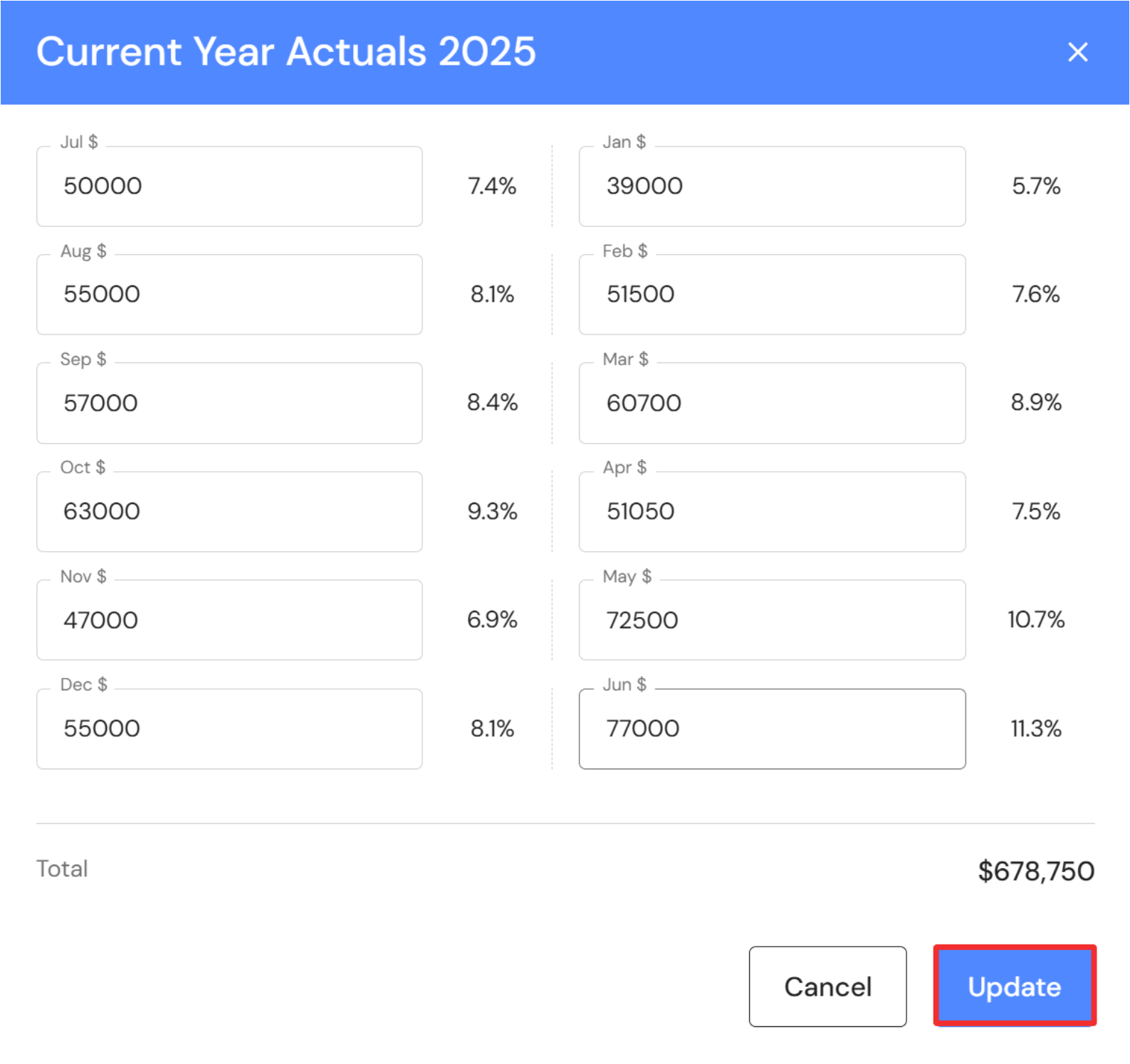
- Enter monthly revenue and click on 'Update'.
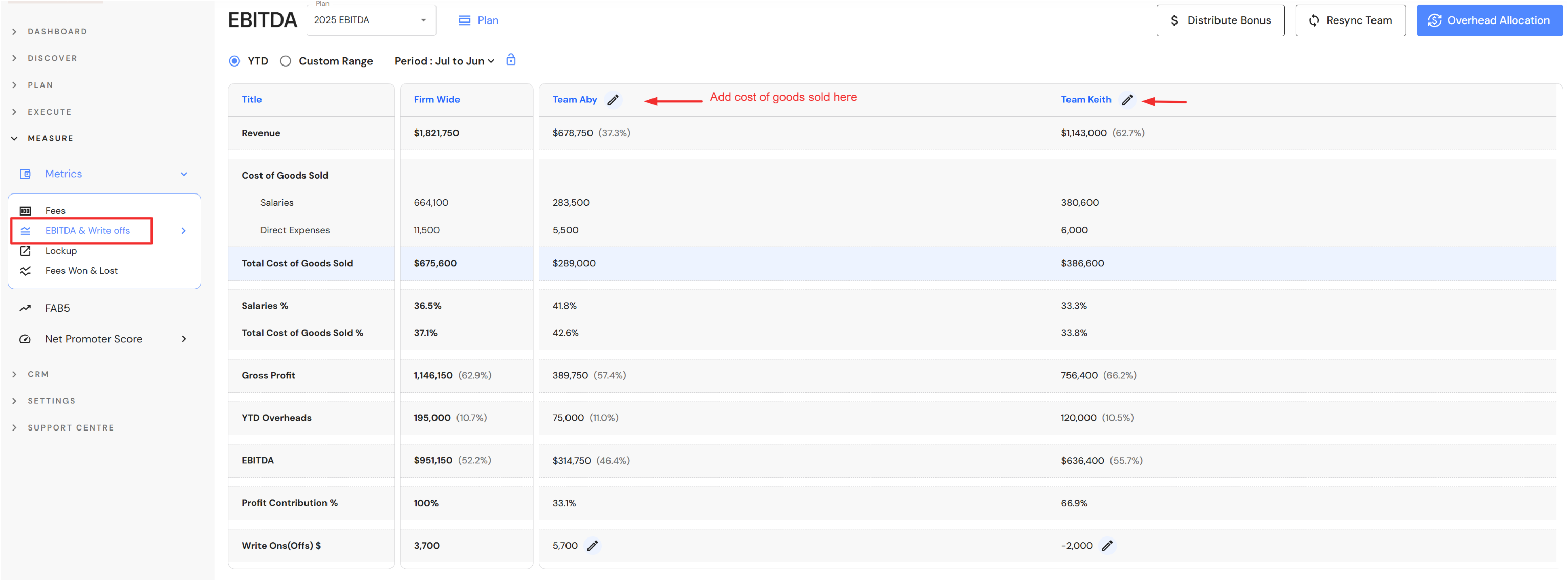
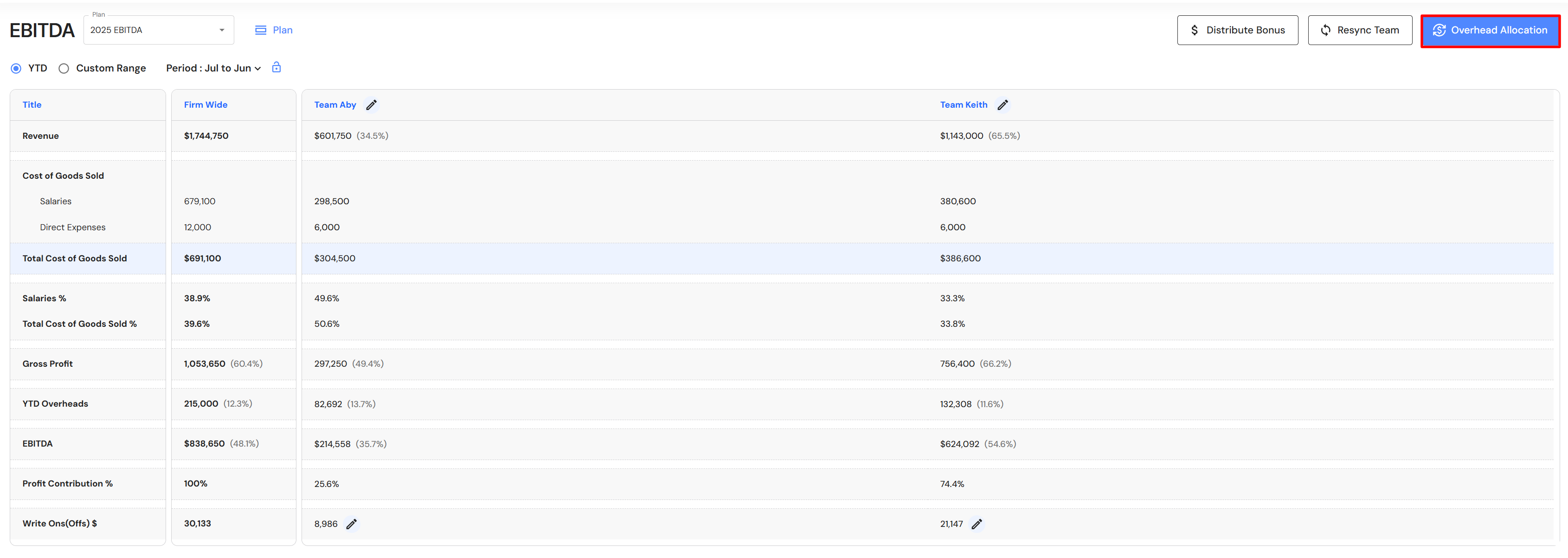
- In the EBITDA plan, enter monthly salaries and direct expenses for each team. Then add overheads and use your preferred distribution method across teams.
- Click on the edit icon next to each team name.
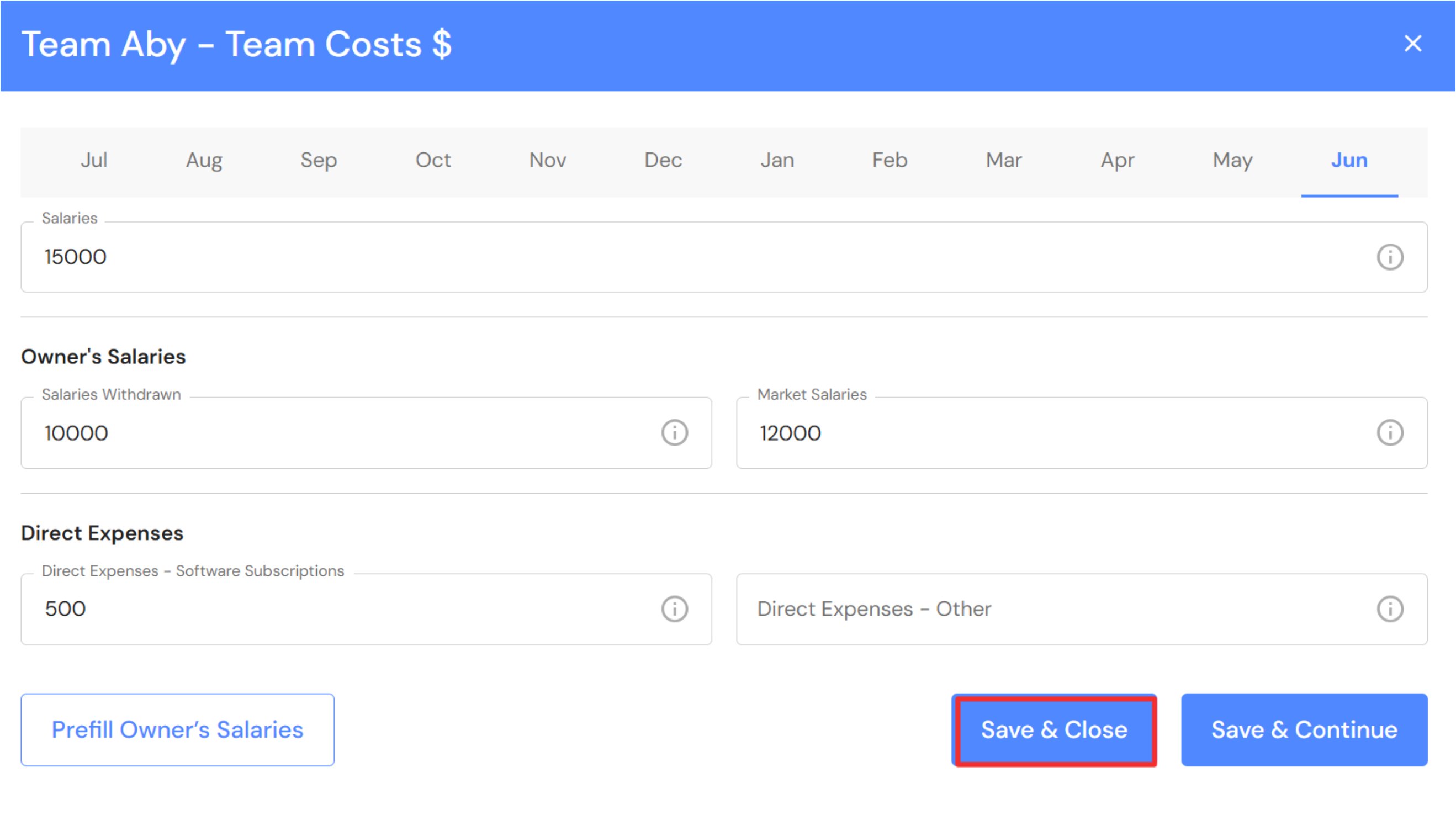
- Click on the relevant month and enter production team salaries, owner's salaries (if required), and direct expenses.
If a business owner is not part of the production team, do not enter amounts in owner's salaries. Owner's Salaries:- Salaries Withdrawn - Enter the monthly salary paid to owner's who are in the production team.
- Market Salaries - Enter the monthly market salary you would pay to hire the equivalent role in the labour market.
The highest value between salaries withdrawn and market salaries will be used in the EBITDA calculation. The main purpose is to assign a commercial salary to business profitability when business owners are paying themselves a "discounted salary".
- Click on 'Save & Close'. If you have additional months to enter, click on 'Save & Continue'.
- Click on the 'Overhead Allocation' button.
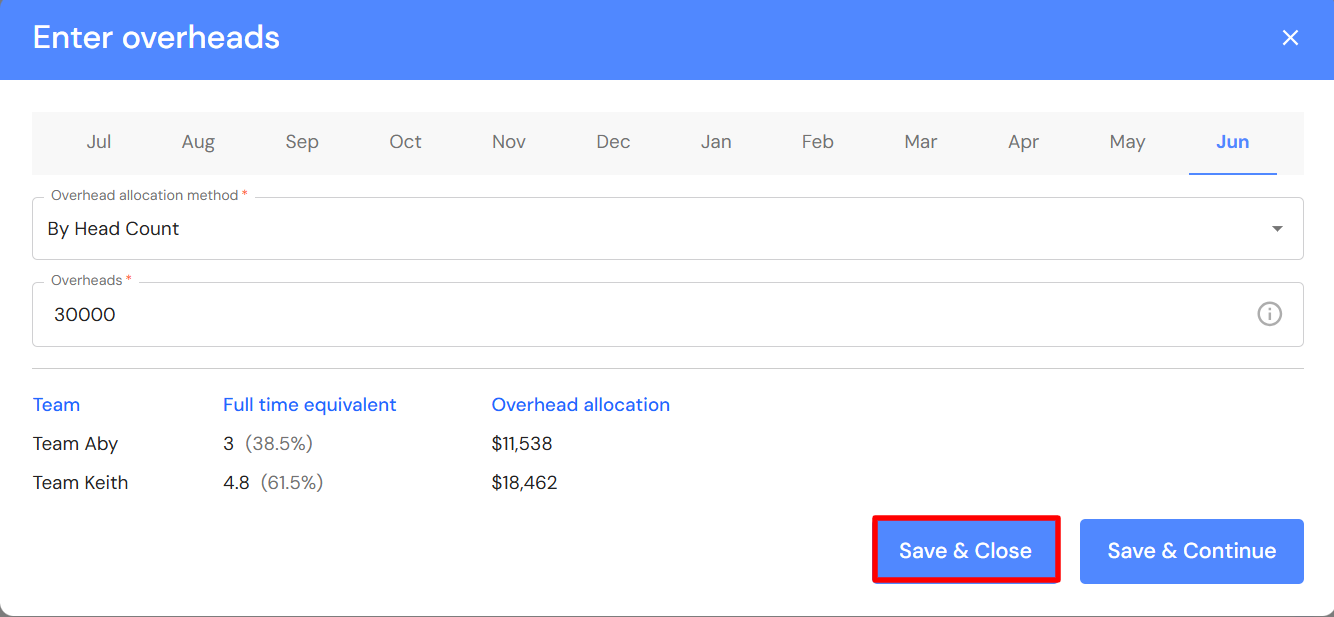
- Click on the relevant month.
- Enter your monthly business overheads (overheads include non-production team salaries and business owner salaries if they are no longer working in the production division). You have three options:
- By Revenue - Overheads are apportioned to each team based on the revenue contribution of each team.
- By Head Count - Overheads are apportioned to each team based on the full time equivalent (FTE) of each team. If the calculation is not working, refer to Business Details and check your standard weekly hours.
- Manual Input - Enter an amount for each team.
- Click on 'Save & Close'. If you have additional months to enter, click on 'Save & Continue'.
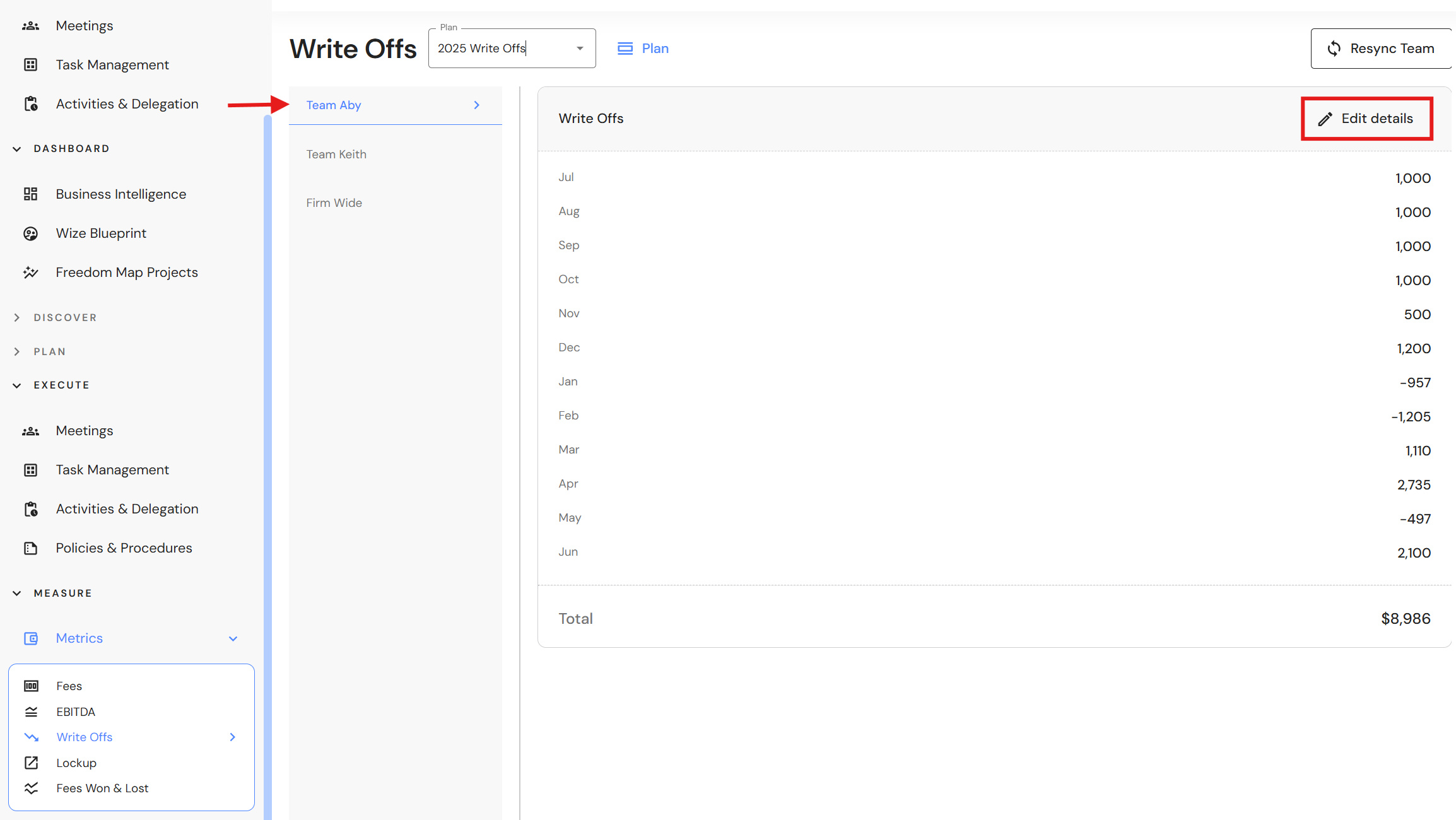
- In the Write Offs plan, add write ons and write offs for each team.
- Select each team in the left panel.
- Click on 'Edit details'.
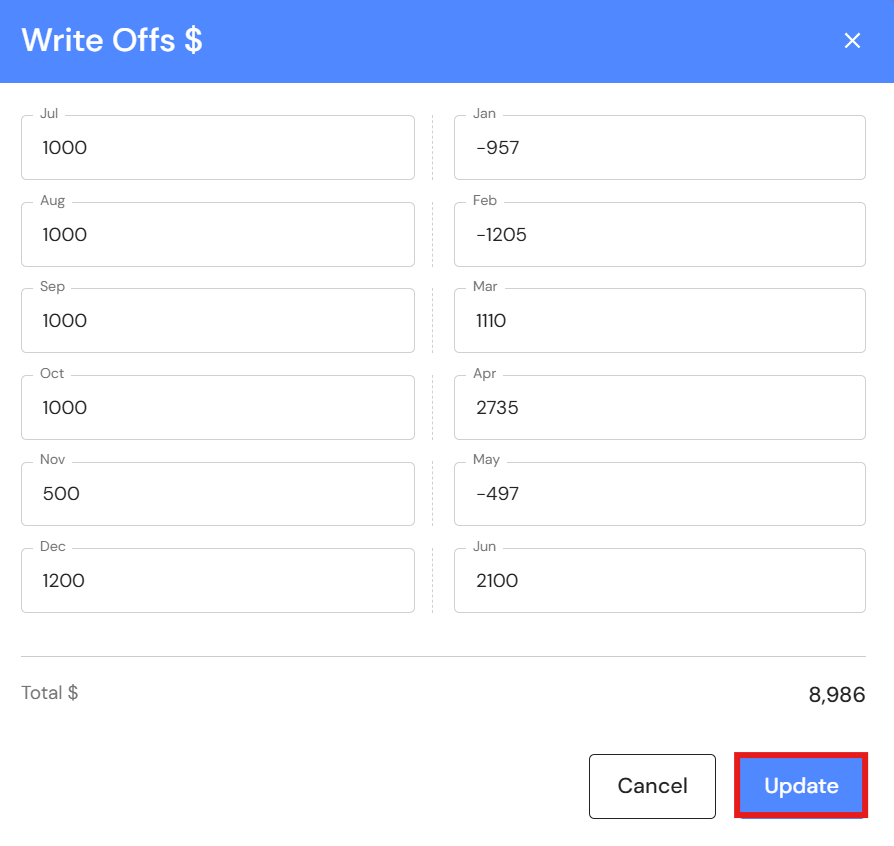
- Enter monthly write ons in the relevant month. Enter write offs as a negative. Click on 'Update'.
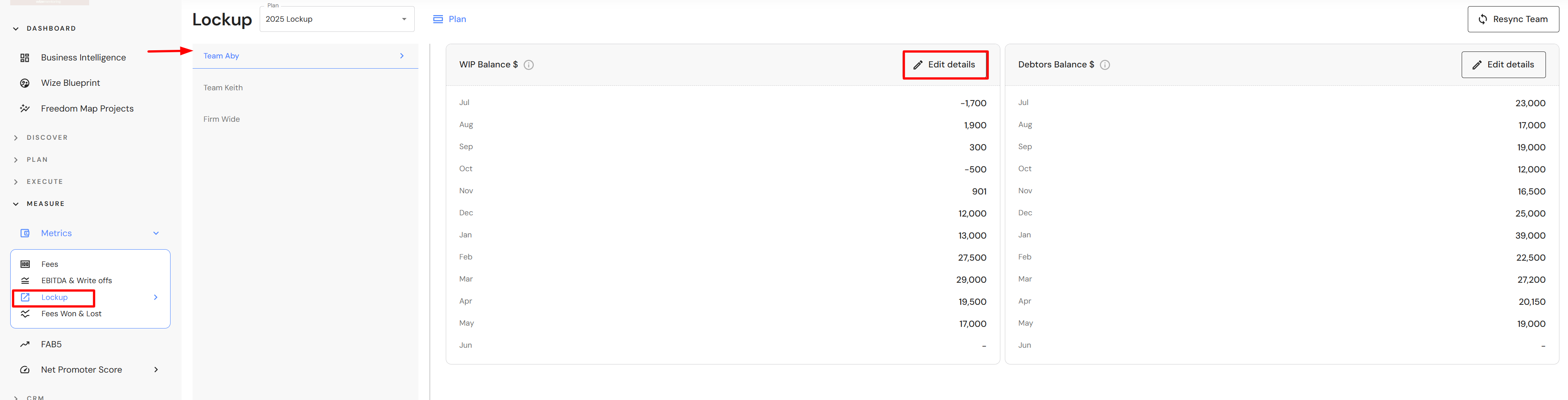
- In the Lockup plan, add the closing WIP and Debtors balance for each team.
- Select each team in the left panel.
- In the WIP Balance section, click on 'Edit details'.
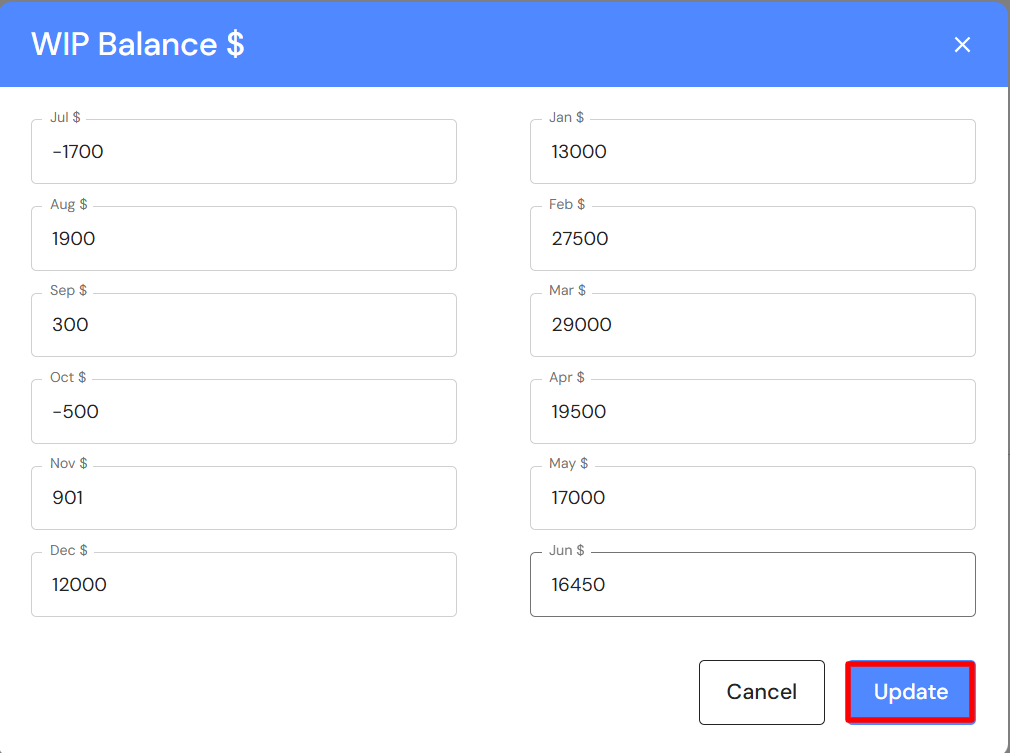
- Enter the closing WIP Balance for the month and click on 'Update'.
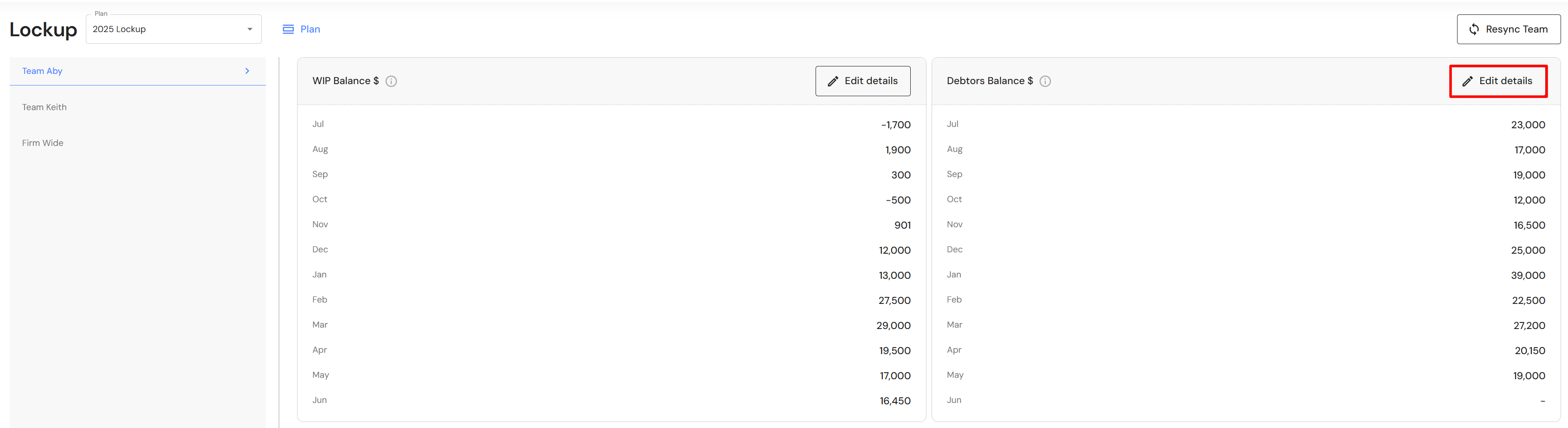
- In the Debtors Balance section, click on 'Edit details'.
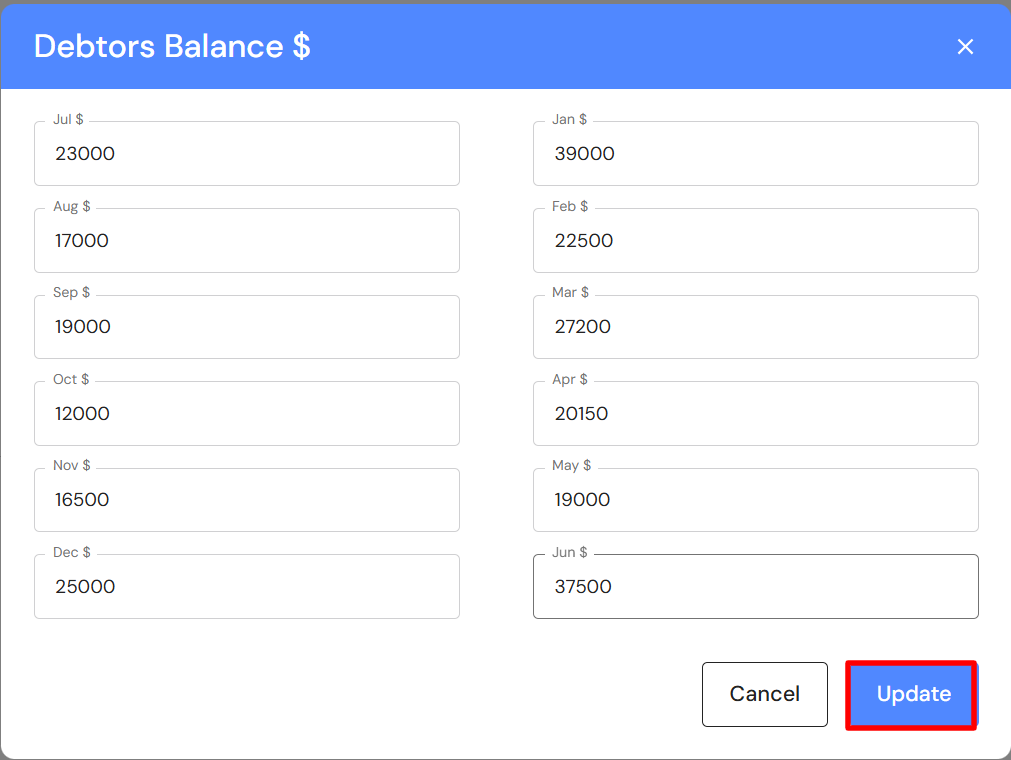
- Enter the closing Debtors balance (excluding GST/Sales tax) for the month and click on 'Update'.
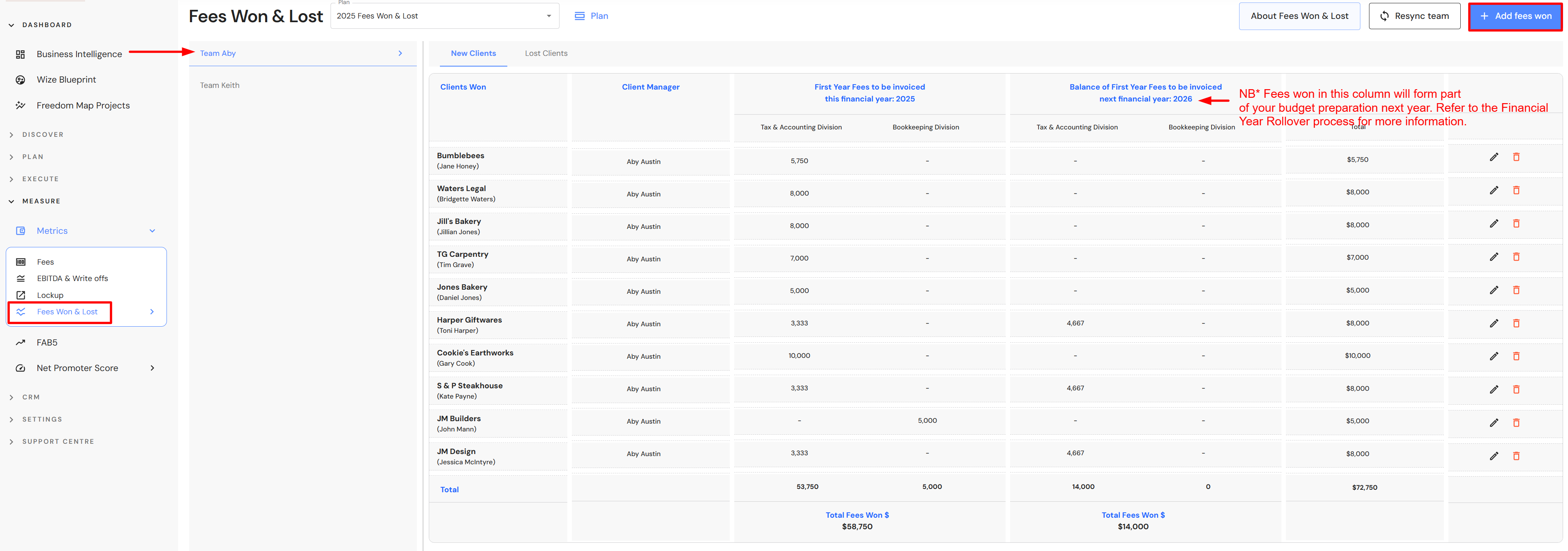
The Revenue Won & Lost plan is part of monthly FAB5 data entry if your business is not regularly updating new and lost client details. We recommend that your administration team manages the Lead Pipeline on a weekly basis and as your business wins a client, Revenue Won is updated at the same time. As clients leave your business, annual Revenue Lost is added at the time of the event. By managing this aspect on a weekly basis, the FAB5 Sales KPI remains up-to-date, eliminating or reducing data entry at the start of each month.
- Select each team in the left panel.
- Click on '+ Add revenue won'.
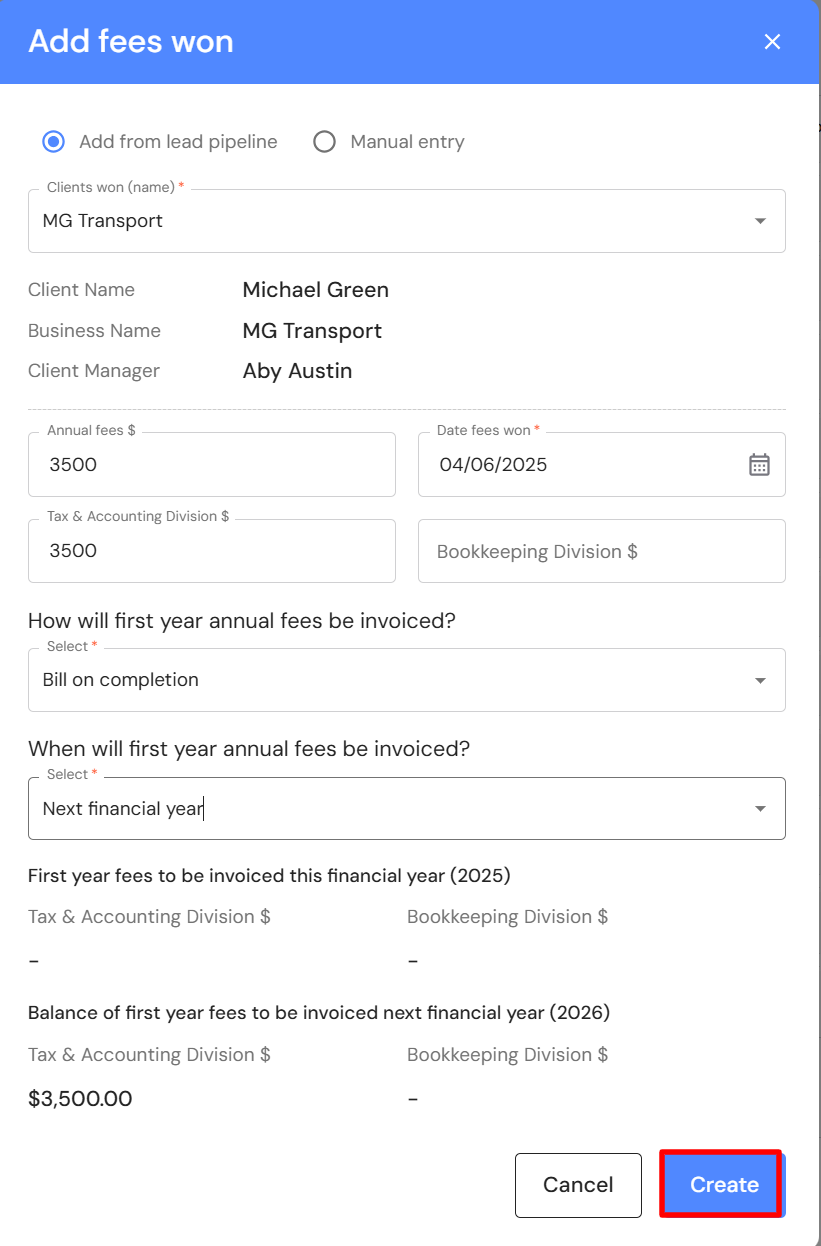
- Add a new client from the lead pipeline or create a manual entry.
- Complete the details on screen. Allocate the portion of annual revenue that belongs to each division e.g. Tax & Accounting and/or Bookkeeping. Answer a series of questions to assign the first year annual revenue to the year that you will invoice the revenue. Click on 'Create'.
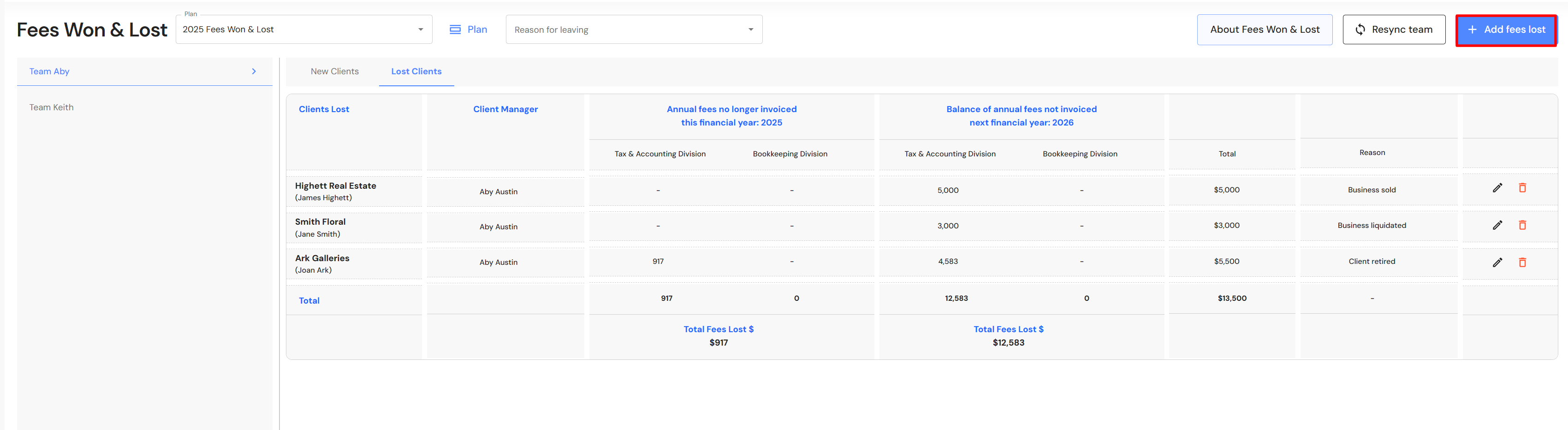
- Click on the Lost Clients tab. Click on '+ Add revenue lost'.
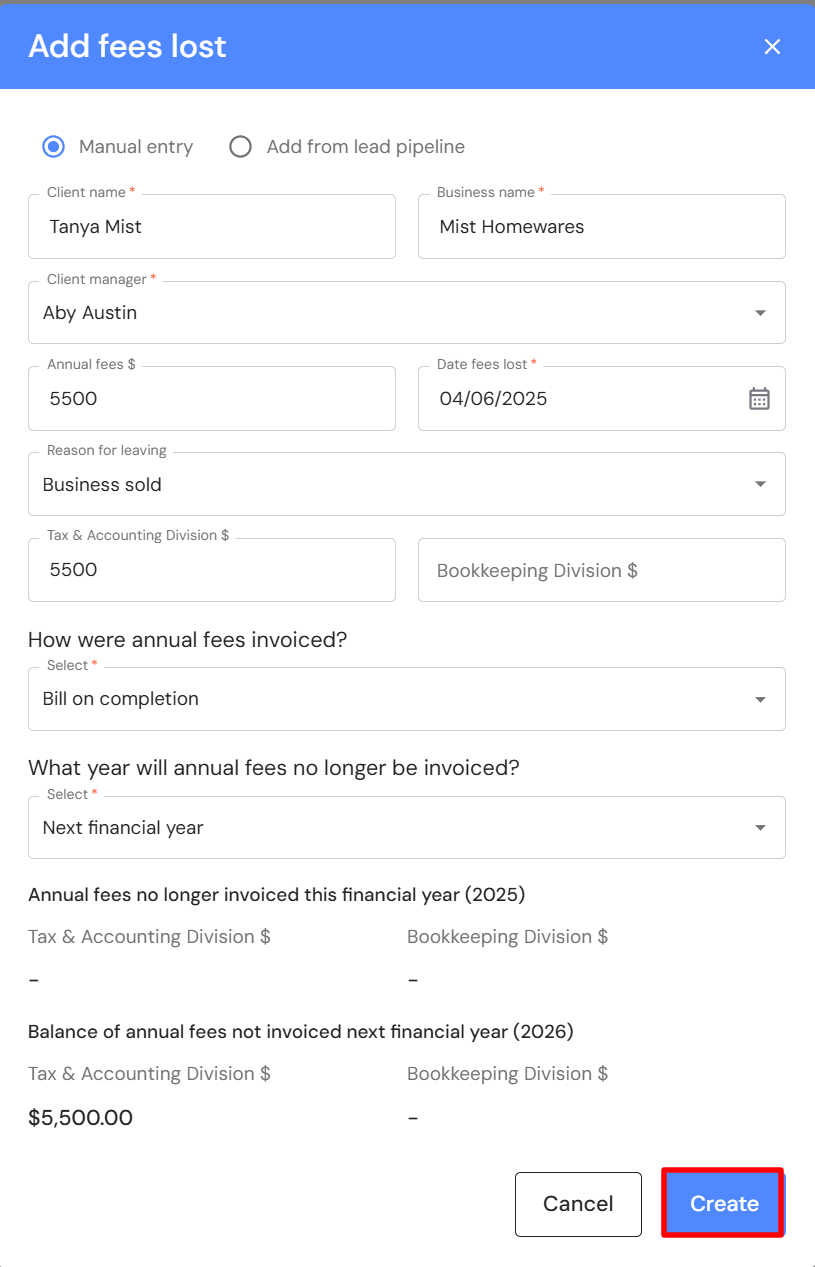
- Add a lost client as a manual entry or from the lead pipeline.
- Complete all the details on the screen. Allocate the portion of annual revenue that belongs to each division e.g. Tax & Accounting and/or Bookkeeping. Answer a series of questions to record the impact of lost annual revenue in the current or following financial year. Click on 'Create'.
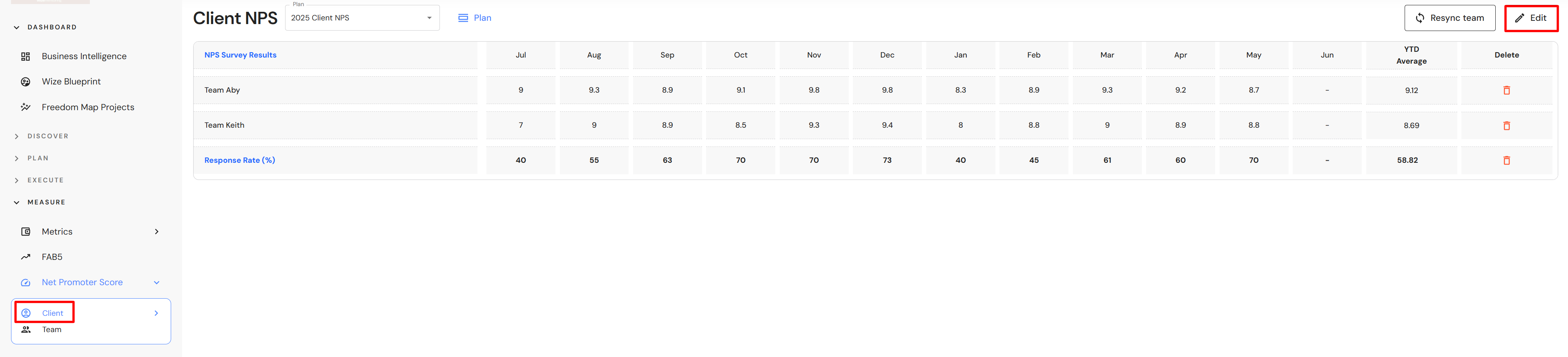
- In the Client NPS plan, click on 'Edit'.
- Add the average NPS score for each team in the relevant month.
- Add the response rate. The response rate is the percentage of clients that responded to the NPS survey sent during the reporting period. Click on 'Update'.
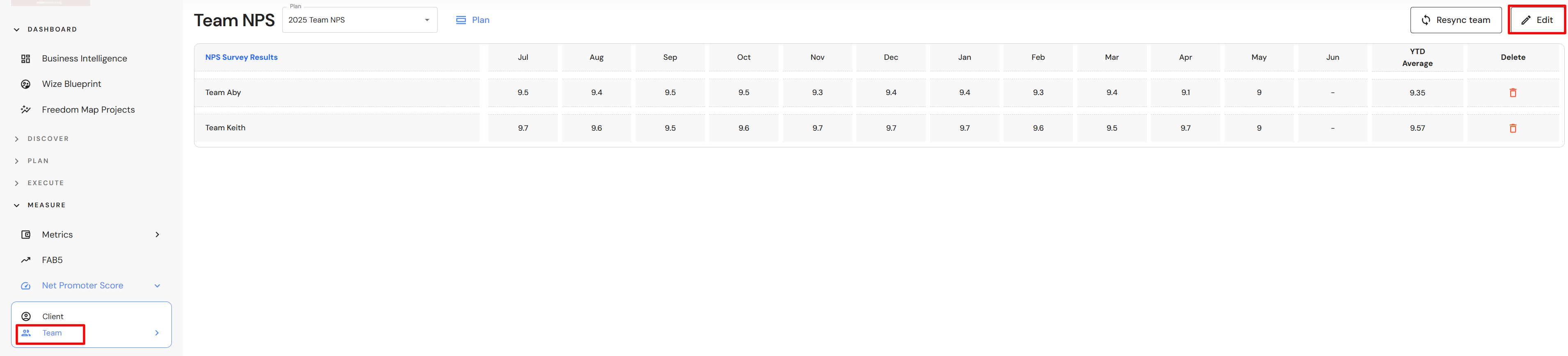
- In the Team NPS plan, click on 'Edit'.
- Add the average NPS score for each team in the relevant month. Click on 'Update'.