Release Notes - 3 February 2025
Activities & Delegation
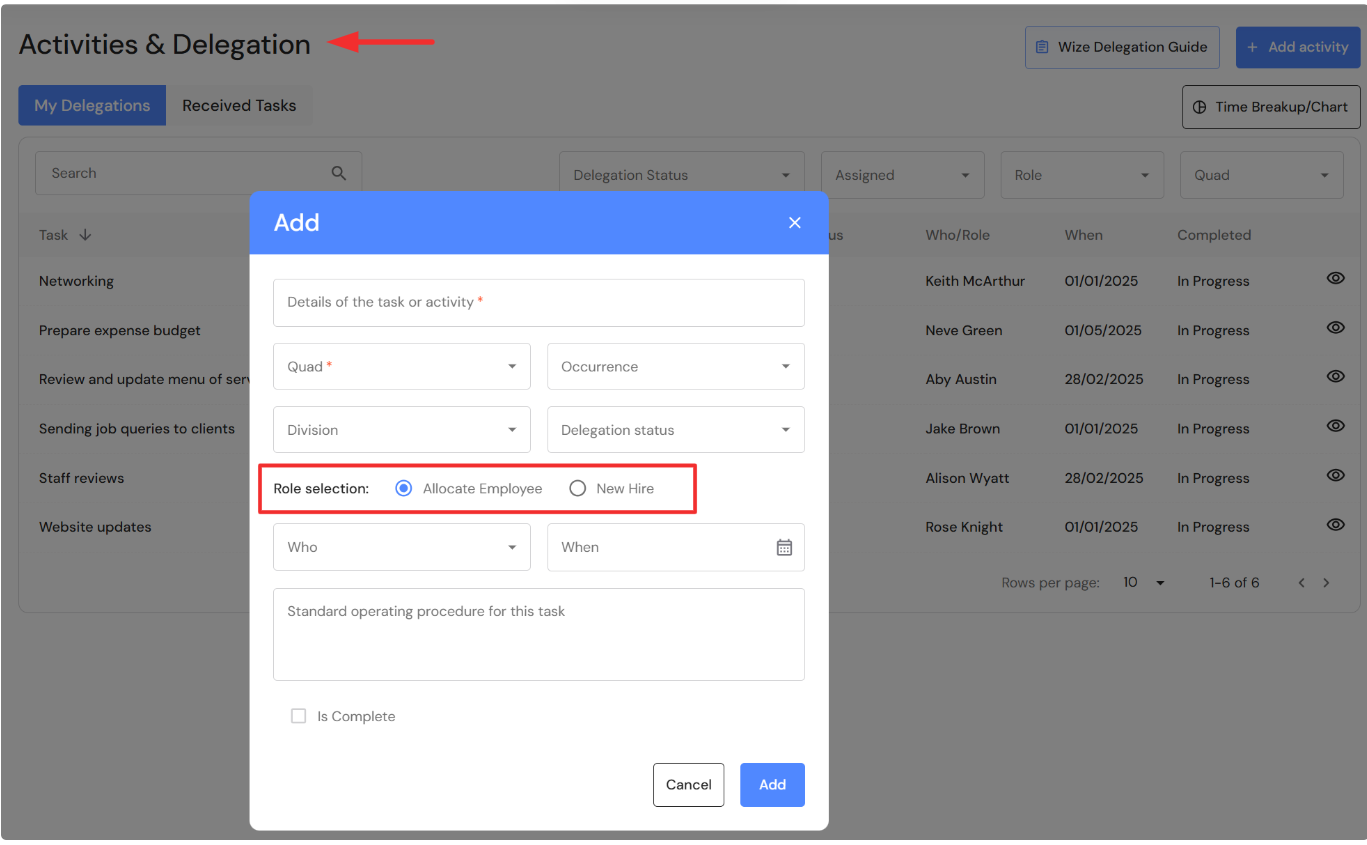
When Executive users add tasks to their activities list, there is now an option to record whether you will delegate the task to a team member or a new hire. The options are:
- Select ‘Allocate Employee’ to assign the task to a team member.
- Select ‘New Hire’ to assign the task to a role.
FAB5 and EBITDA & Write offs
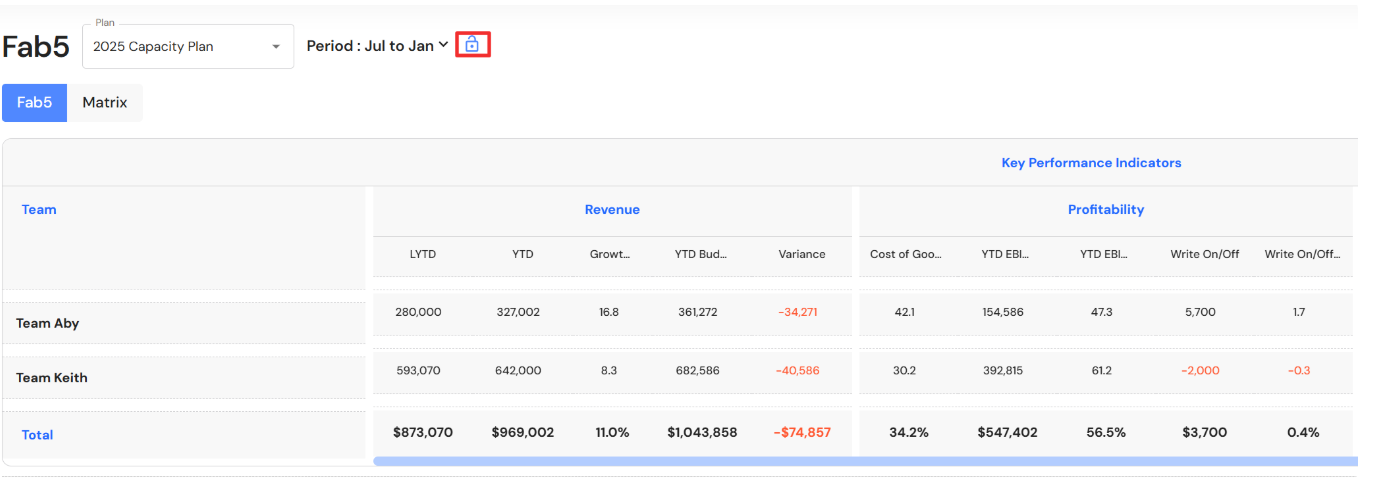
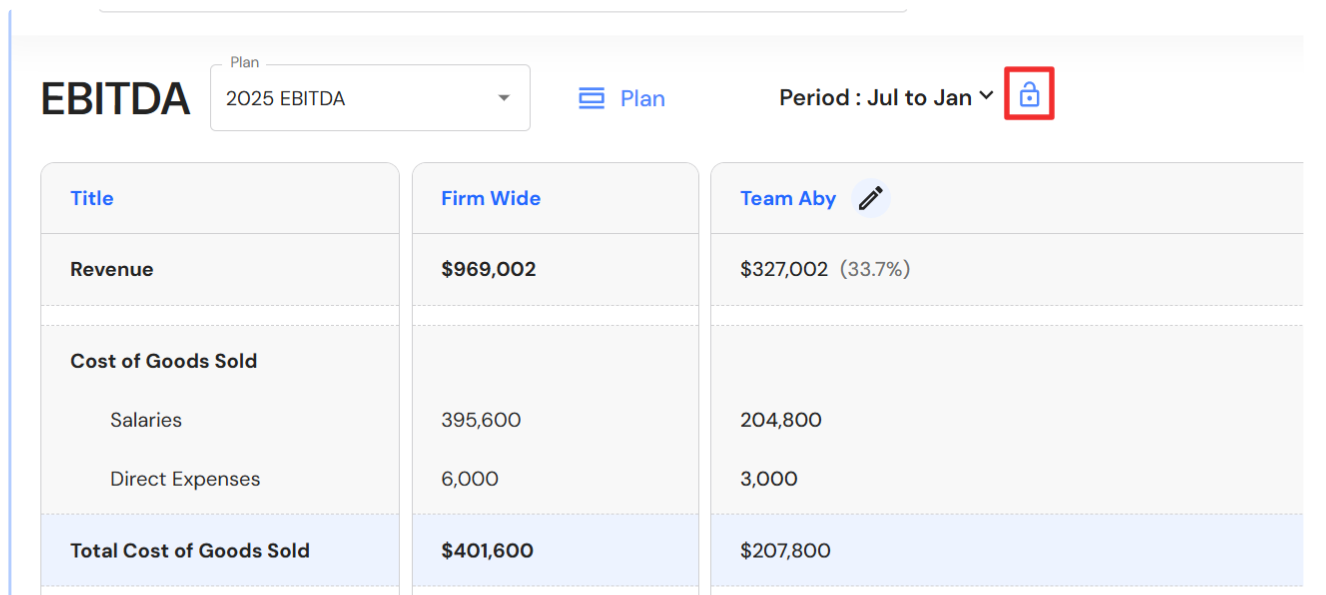
Ability to lock period dates
Users now have the ability to lock the period date on FAB5 dashboards and EBITDA & Write offs plans. This means, you can lock the period date and each time you open the FAB5 dashboard or EBITDA & Write offs, the locked period will automatically be displayed. To do this, set your period date and click on the padlock icon to lock the period date range. Click on the padlock icon to unlock the period date range.
If the padlock is unlocked, the default date range will continue to be the 1st month of your financial year to the end of last month.
Lead Pipeline
Lead Follow Ups
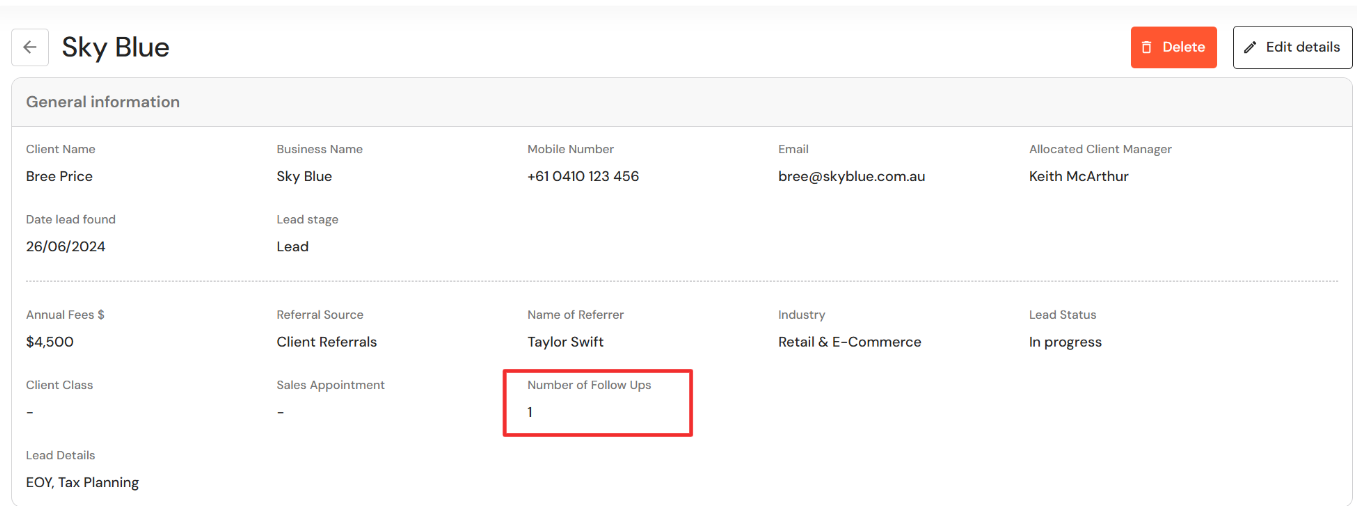
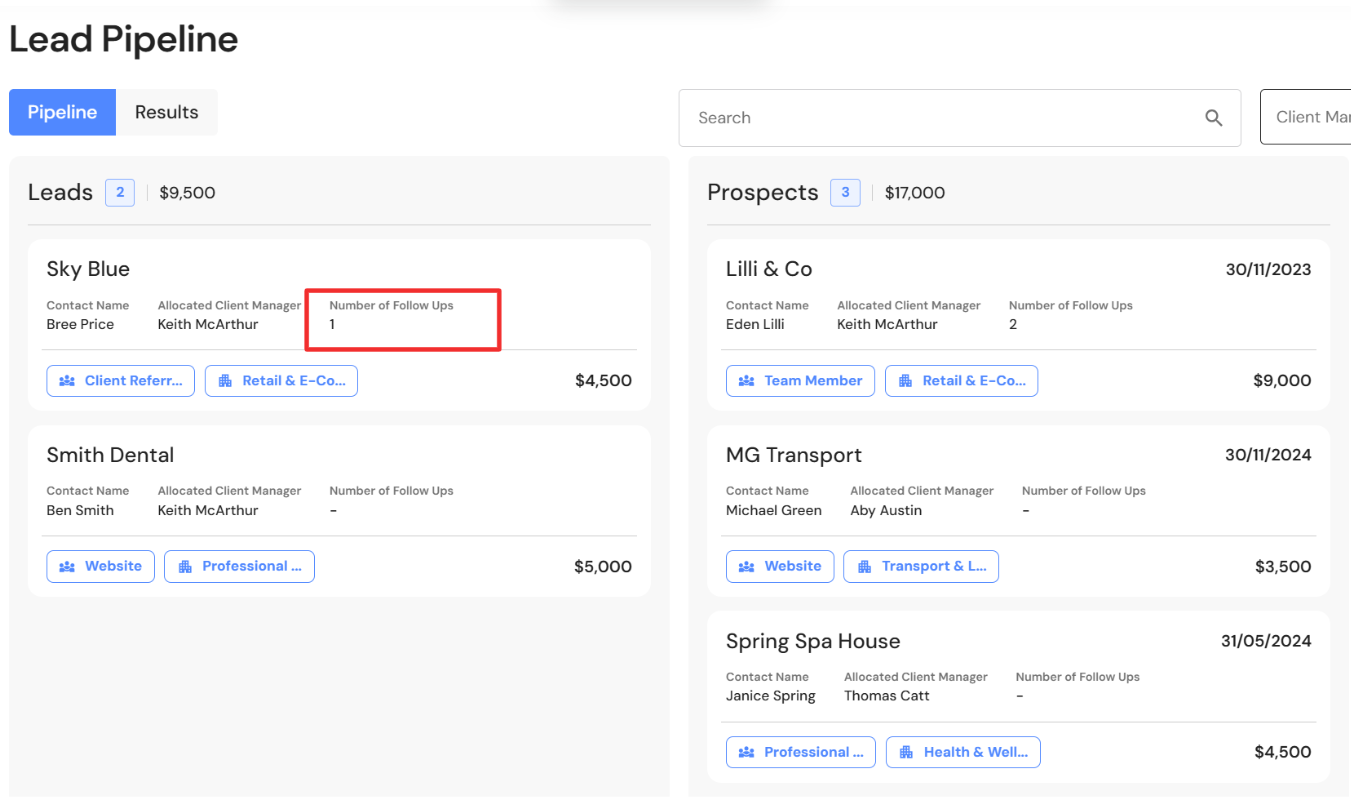
We have added a field for users to record the number of follow up attempts made with leads and prospects. This will help users easily identify the appropriate time to mark a lead as ‘lost’.
Notes
The notes section has been updated to include details of the user the note was ‘Created By' and ‘Last Modified By’. This field automatically populates when a note is added or edited.

Lockup
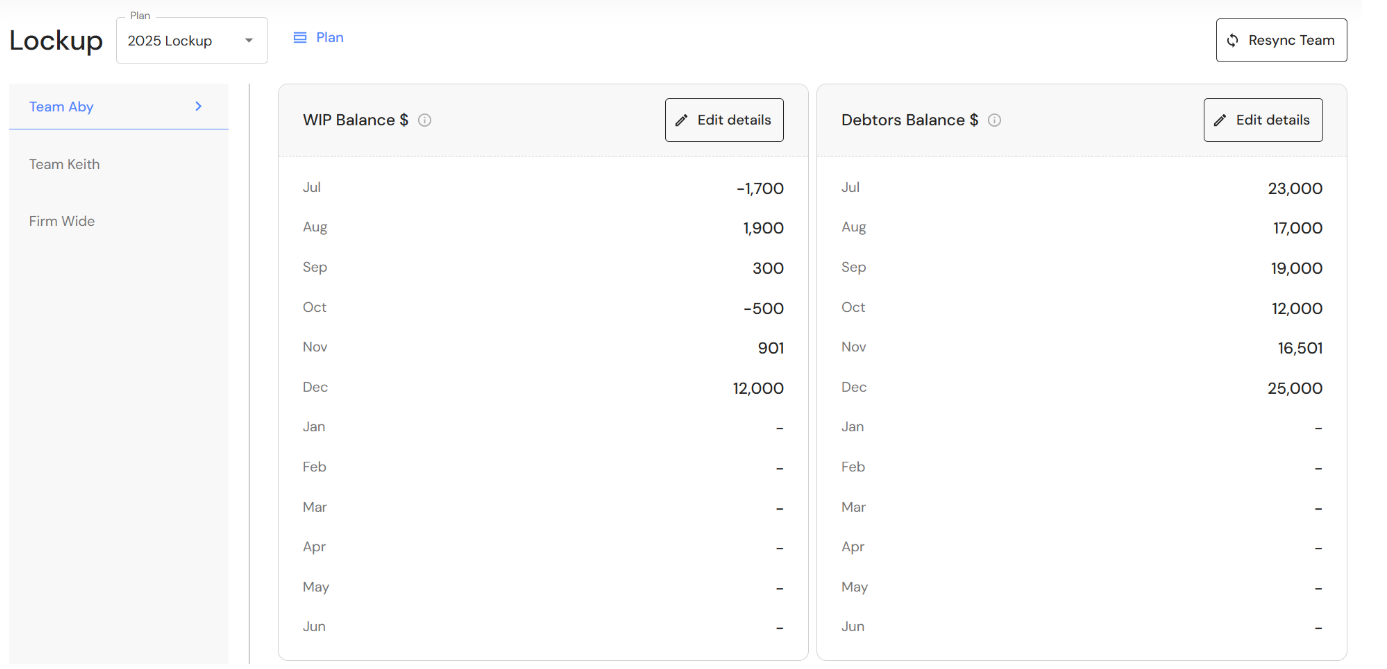
We have re-designed the Lockup plan to match the layout and functionality of the Fees plan. The new look gives visibility of monthly balances for WIP and Debtors by team as well as simplifying the data entry process.
Meetings
Copy agenda items
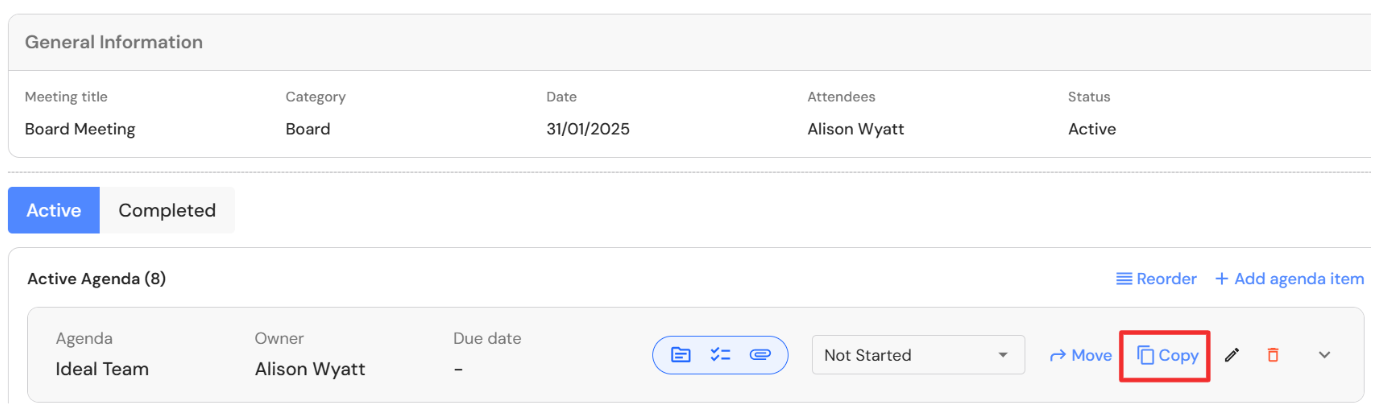
Users now have the ability to copy an agenda item from one meeting to another. Click on the copy icon that appears on the meeting agenda. Select the meeting and click on copy. The agenda item will be copied as well as any minutes and attachments contained in the agenda. Tasks already assigned will not be copied.
People
Employment & Human Resources
We have added a field for users to record qualifications and other notes for team members. The new field is located under Employment & Human Resources in the People profile. This section is accessible by Executive users only.

Policies & Procedures
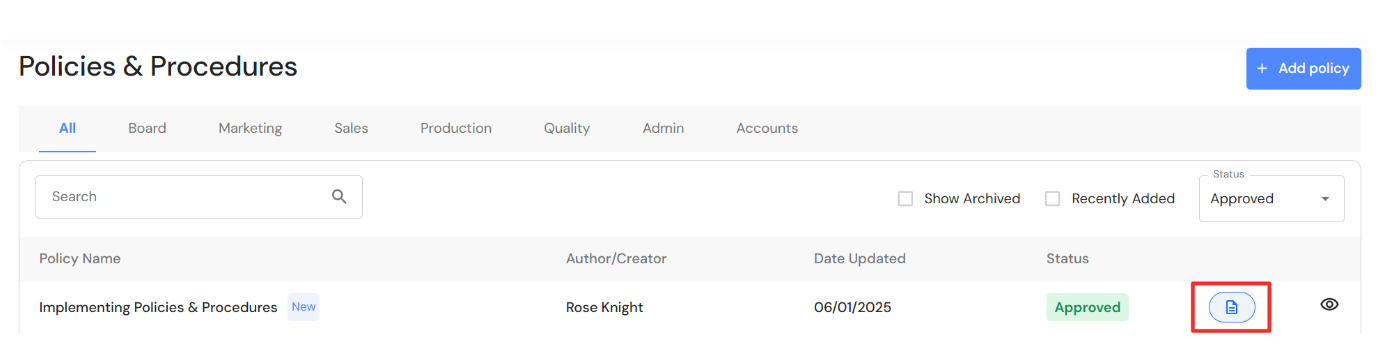
When policy administrators (Executive, Administration Team or CFO roles) attach links, videos or documents to Policies & Procedures, an icon will appear on the main screen to indicate the type of resources attached to the policy. This makes it easier for team members to identify the available resources for each policy.
Task Management
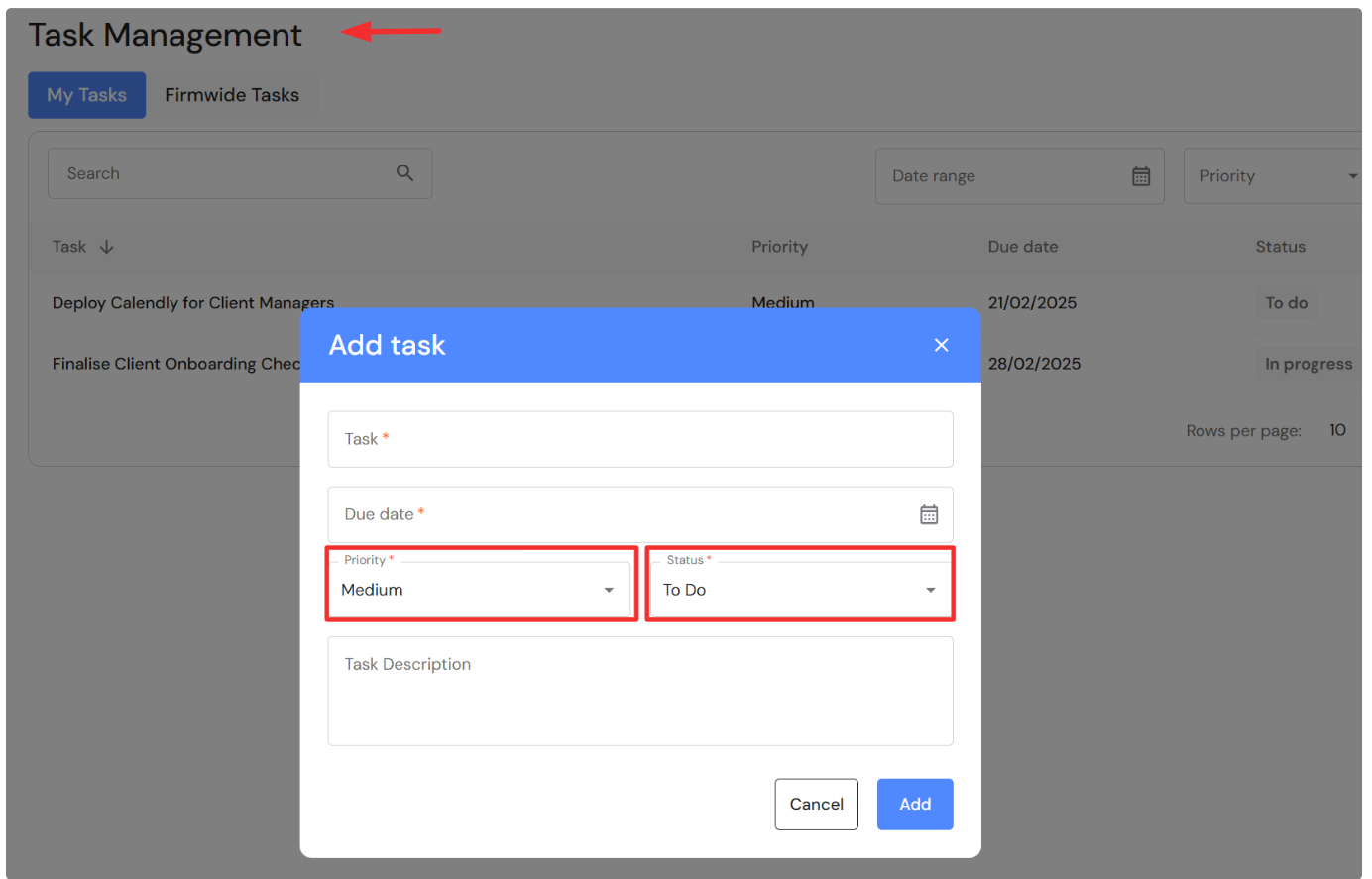
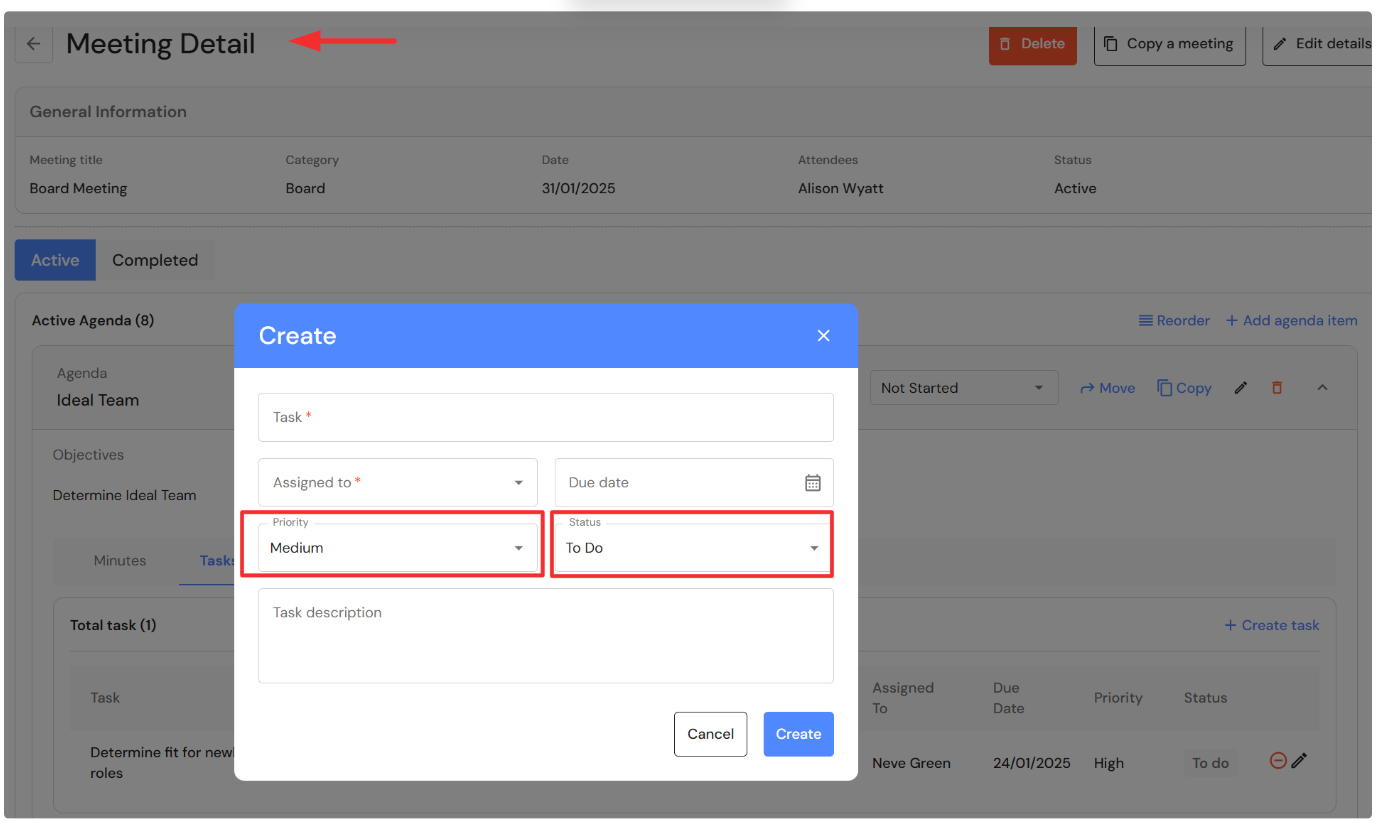
When users add a new task in Task Management or assign tasks to team members via Meeting agendas, the task will auto populate with a default priority ‘Medium’ and default status ‘To do'. Users can change the fields before saving the new item.
Filters and rows per page
Active and inactive status
We have updated the view across all lists that have active and inactive categories. The active filter is now on which means you will only see active items by default. For example, only active staff are displayed in People. To see inactive staff, you can change the status to inactive. This applies to all other areas in the WizeHub.
Filters and rows
We have updated the functionality of filters and rows across all lists. Previously filters were not maintained when users changed or added a new item to a list. The filter or number of rows per page is now maintained while the user is working in the module. The filter and/or number of rows per page will be cleared when a user leaves the module.
New Customisation Options - Budget & Capacity
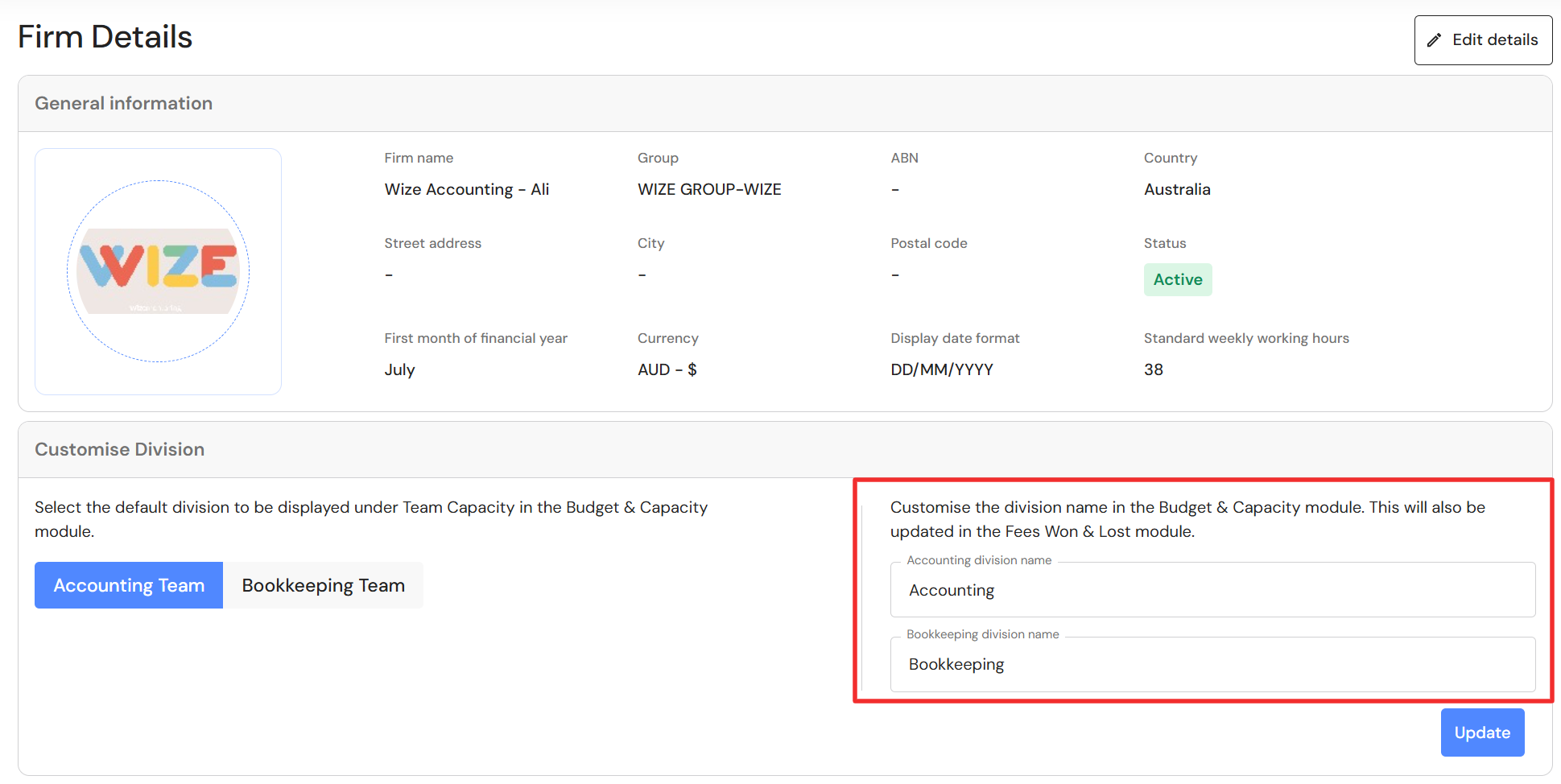
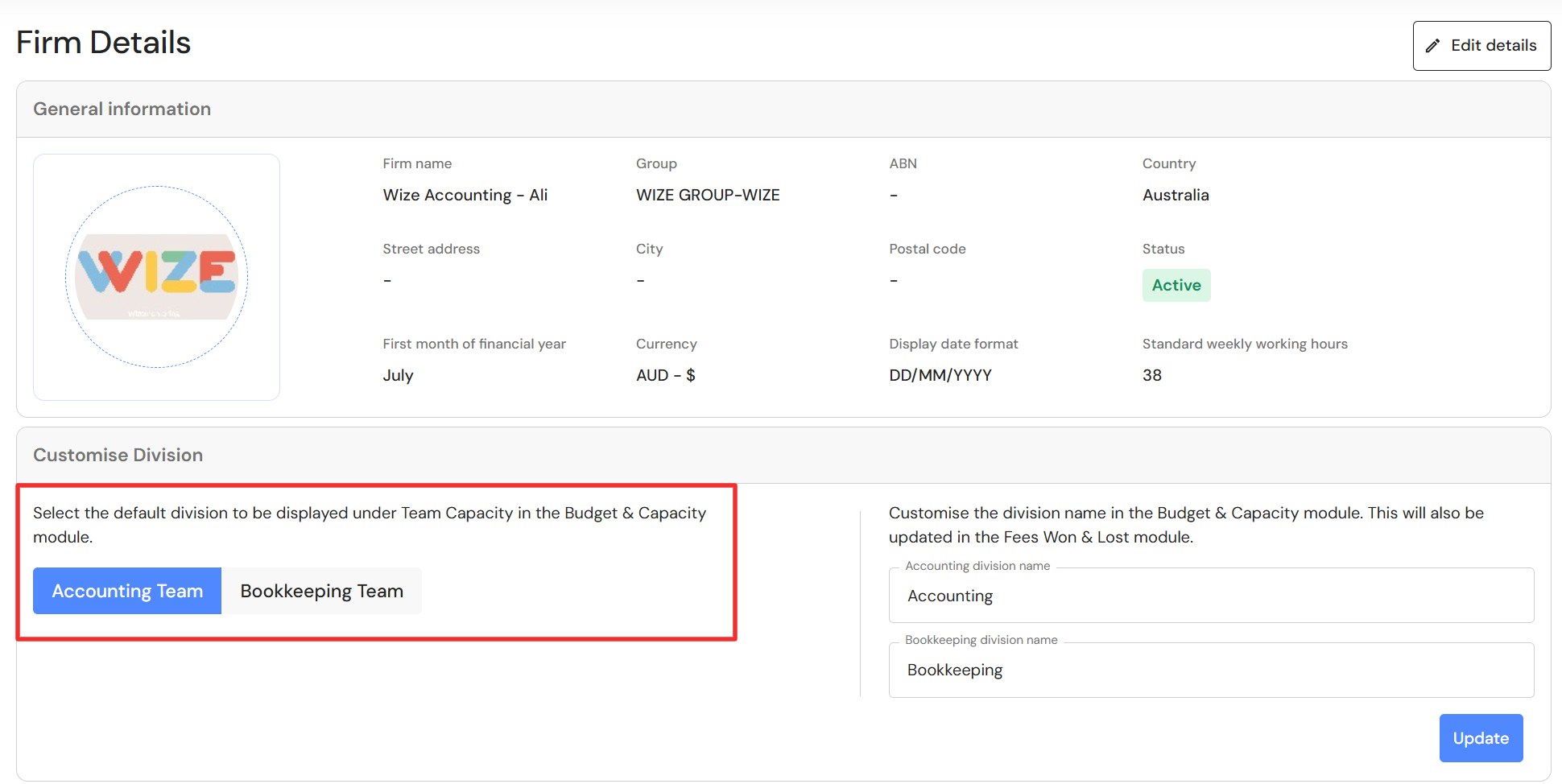
Set the Bookkeeping division as the default tab in Budgets & Capacity: Team Capacity
Especially designed for Bookkeeping firms, Executive or CFO users can now set the Bookkeeping division as the default tab in the Team Capacity in Budget & Capacity.
To make the switch, go to Discover > Firm Profile > Firm Details to select your preferred division. When done, click on update for the changes to take effect.
Ability to rename divisions
You can now customise and rename the divisions in the Budget & Capacity module. The change will also apply to division names in the Fees Won & Lost module.
This feature is helpful for accounting firms and bookkeeping firms, for example:
- An accounting firm can rename Bookkeeping to Advisory
- A bookkeeping firm can rename Tax & Accounting to Virtual CFO
To rename divisions, go to Discover > Firm Profile > Firm Details and rename a division. When done, click on update for the changes to take effect.