Manage Users
WizeHub access is managed by Executive users who can add two types of users:
- An existing employee - the user role is linked to a People profile. ** Recommended option **
- An external user* - a non-employee such as an external bookkeeper or contractor.
* Access restrictions apply. External users have limited functions e.g. FAB5 data entry. They cannot be assigned to teams, meetings, leads etc. They also cannot create entries that are assigned to owners/employees e.g. scorecards, ideal lifestyle, tasks. Full functionality is only available to user roles linked to employee profiles.
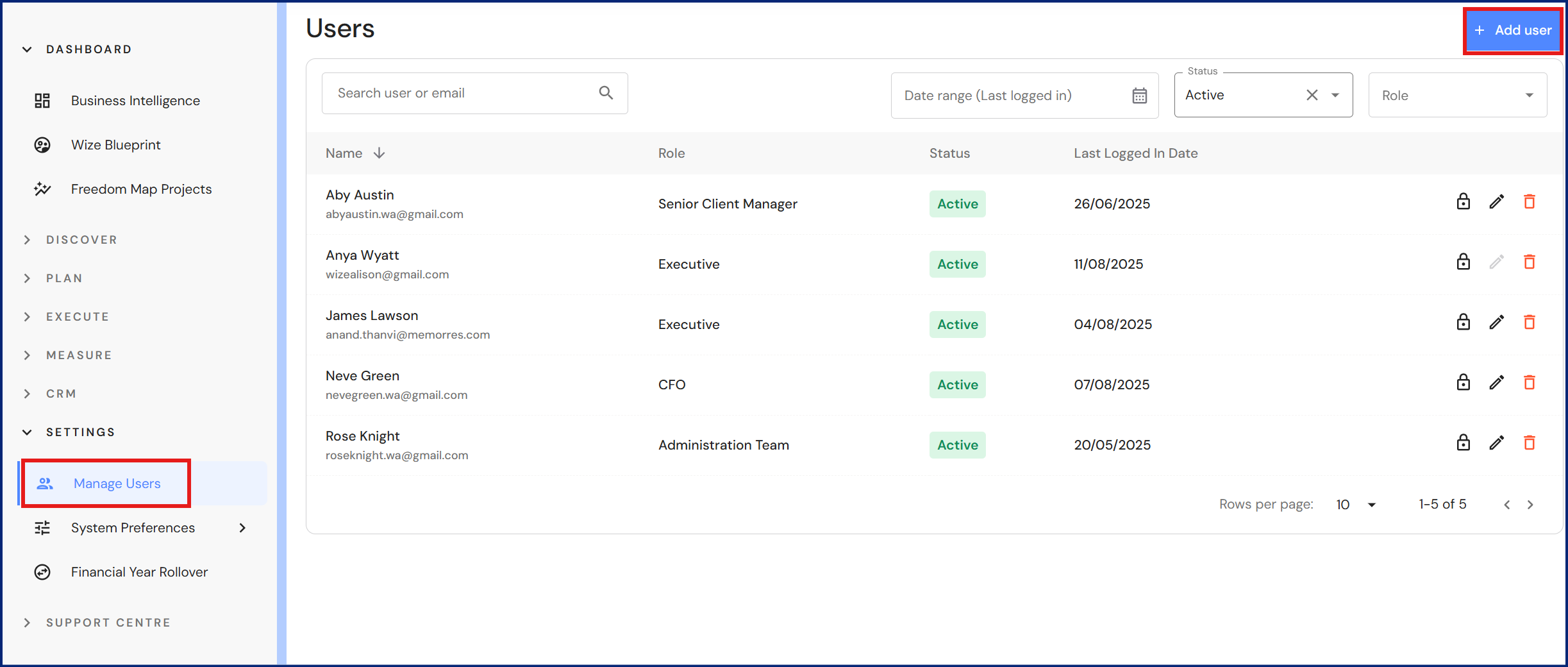
Go to System Preferences > Manage Users
Add an existing employee
- Click on '+Add user'.
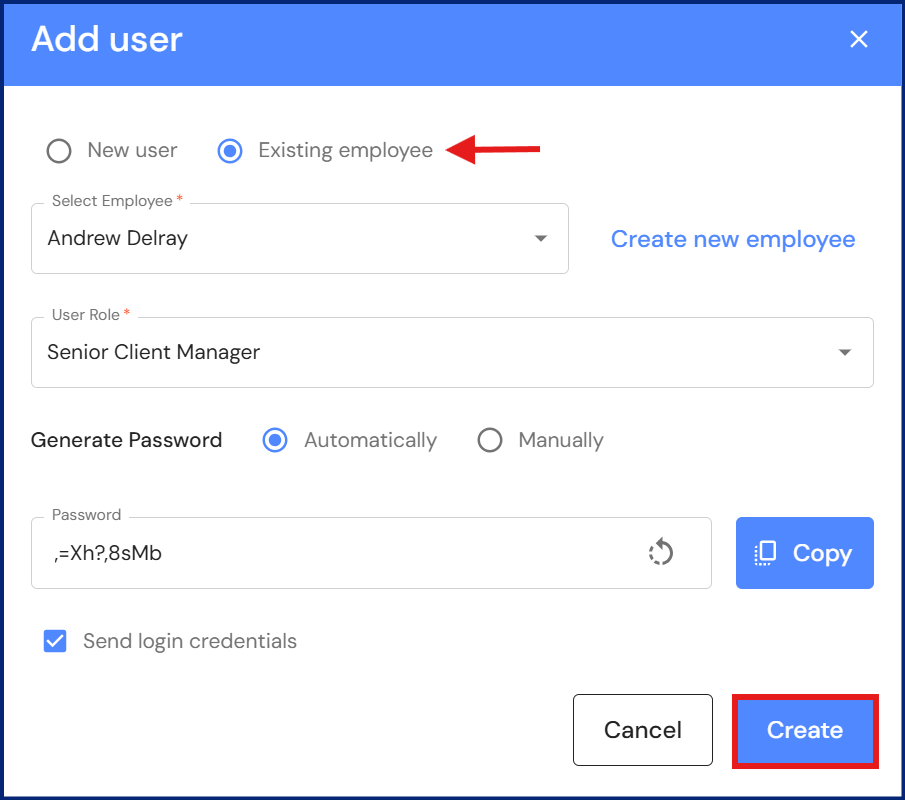
- To maximise functions in the WizeHub, we recommend assigning users to an employee profile. Select 'Existing employee'.
- Select your employee from the dropdown list.
If the employee is not in the list, click on 'Create new employee' to add the employee to People. Once done, return to System Preferences > Manage Users and the employee will appear in the dropdown list. - Select a user role from the dropdown list.
To understand user role access permissions, refer to User Role Security Matrix. - Assign a password automatically or manually.
- Click on the 'Copy' button to copy the password and share it with your employee directly or click on 'Send login credentials' and the user will receive an email to access the WizeHub.
- Click on 'Create'.
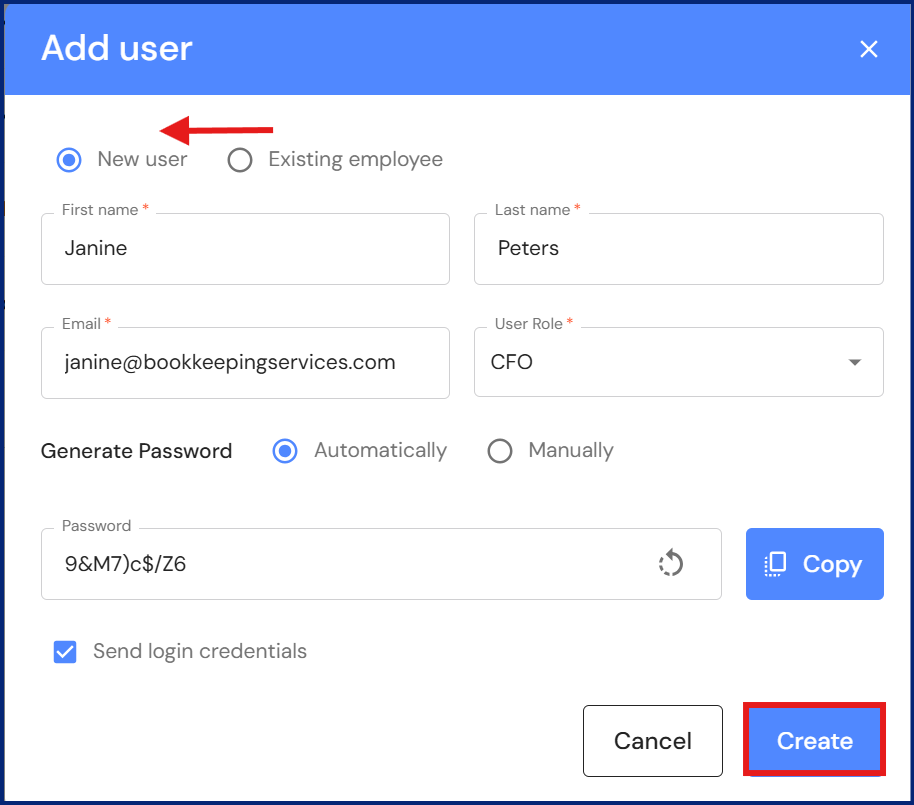
Add an external user
- Click on '+Add user'.
- For non-employees, select 'New user'.
- Add their first name, last name and email.
- Select a user role from the dropdown list.
NB* An external user has limited data entry functions compared to employee user roles in the User Role Security Matrix. - Assign a password automatically or manually.
- Click on the 'Copy' button to copy the password and share it with your employee directly or click on 'Send login credentials' and the user will receive an email to access the WizeHub.
- Click on 'Create'.
Linking a user profile to an employee profile
Executive users may have added a 'new user' (external user) to the WizeHub and later on, added the user to People. When this happens, the separate profiles need to be linked to make connections to relevant modules in the WizeHub.
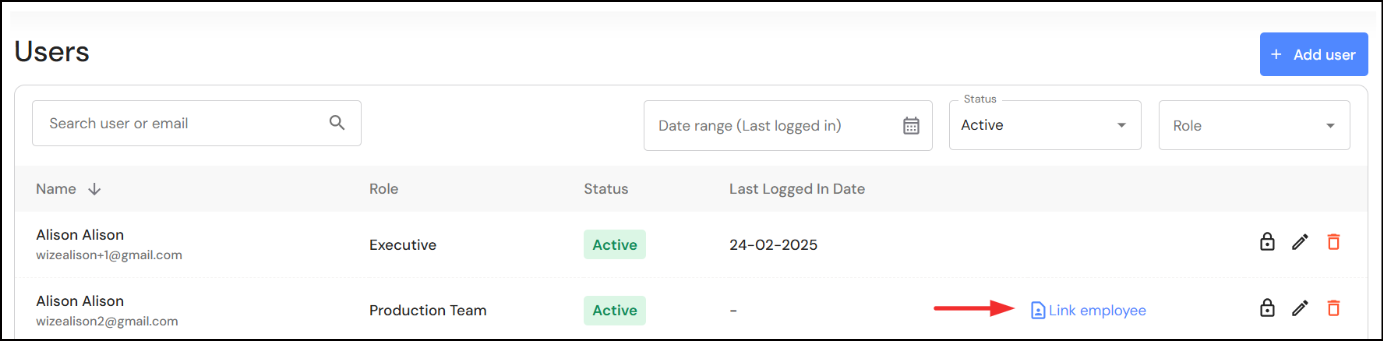
When a user profile is not linked to an employee, a button labelled ‘link employee’ will appear in the Manage Users module.
To link users to employees:
- Click on link employee
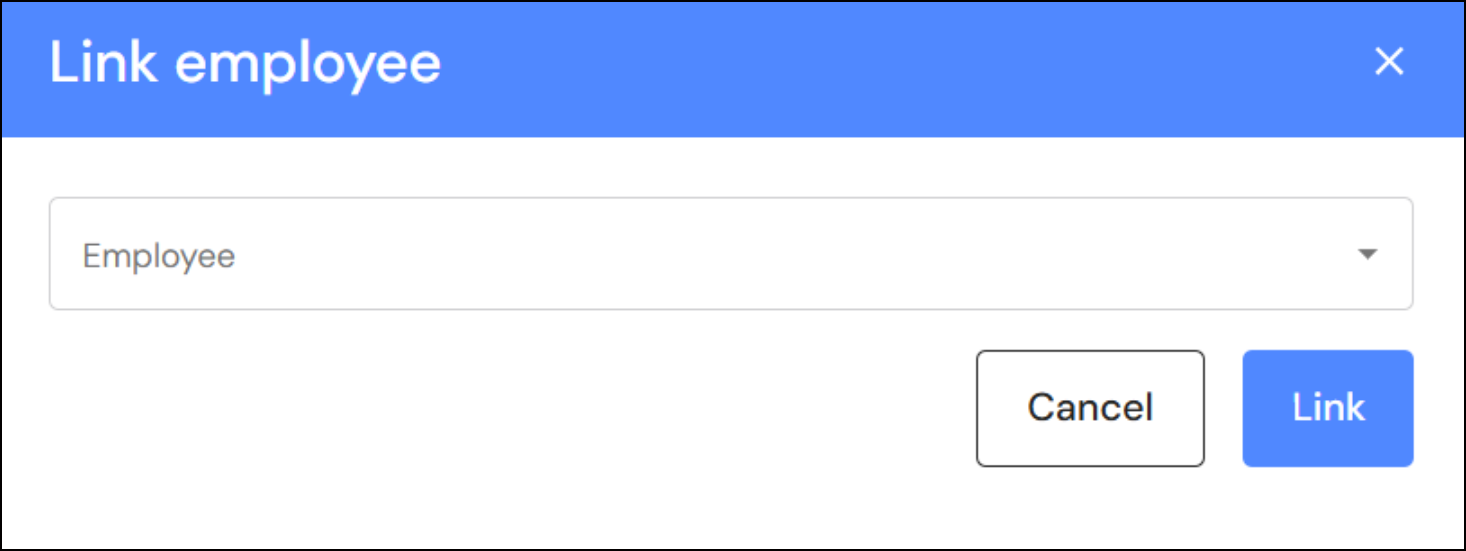
- Select the employee from the dropdown list.
- Click on Link to make the connection.
Once the connection is made, the link employee button will disappear.