Growth Plan
This article explains how to create your Growth Plan.
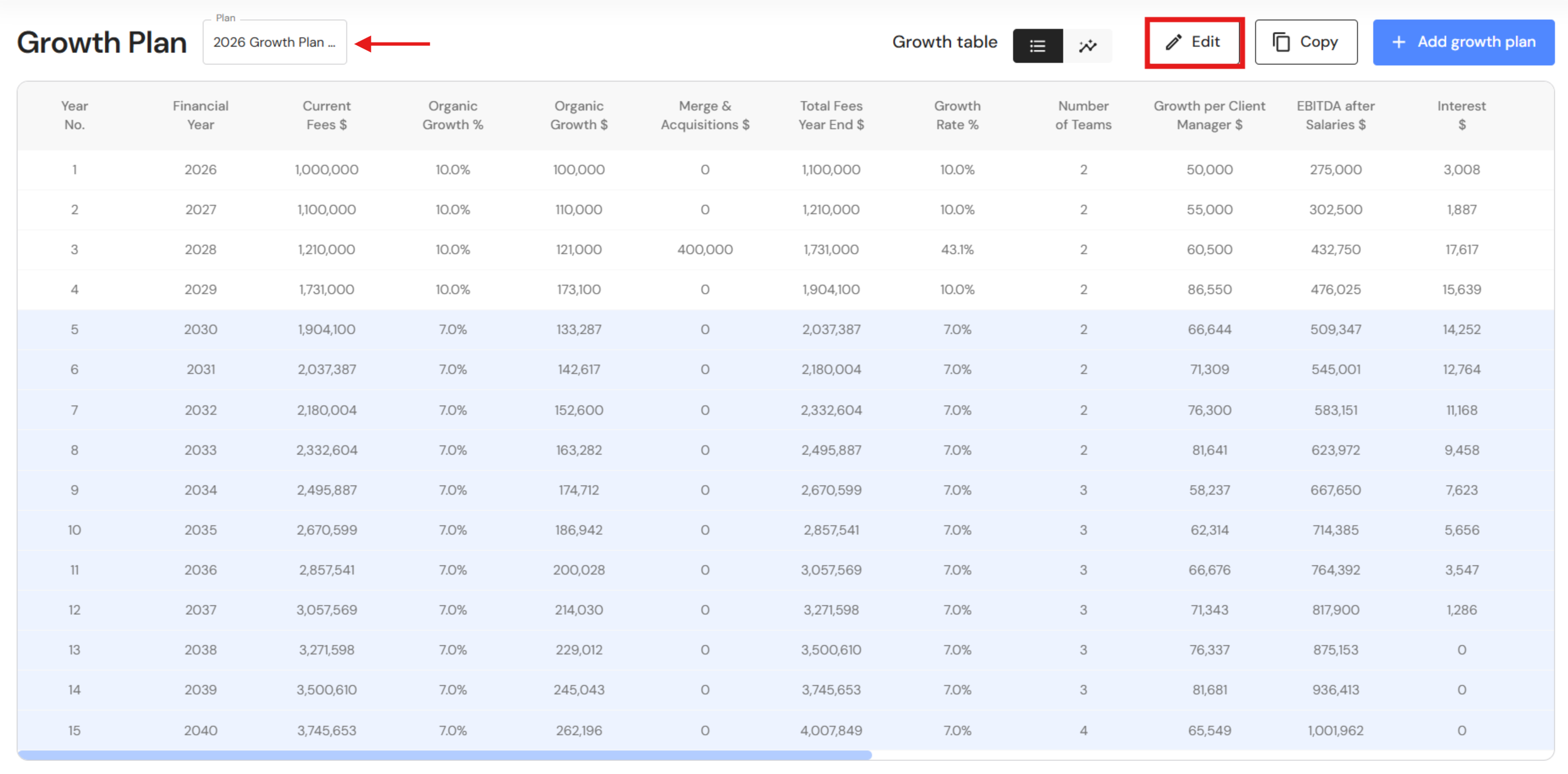
The Growth Plan outlines a strategic timeline for achieving your business’s revenue and income goals through organic growth and acquisitions.
Pre-requisite: Make sure you have completed your Ideal Income before you proceed.
Create a Growth Plan
Go to Plan > Growth Plan
NB* This module is available for Executive users.
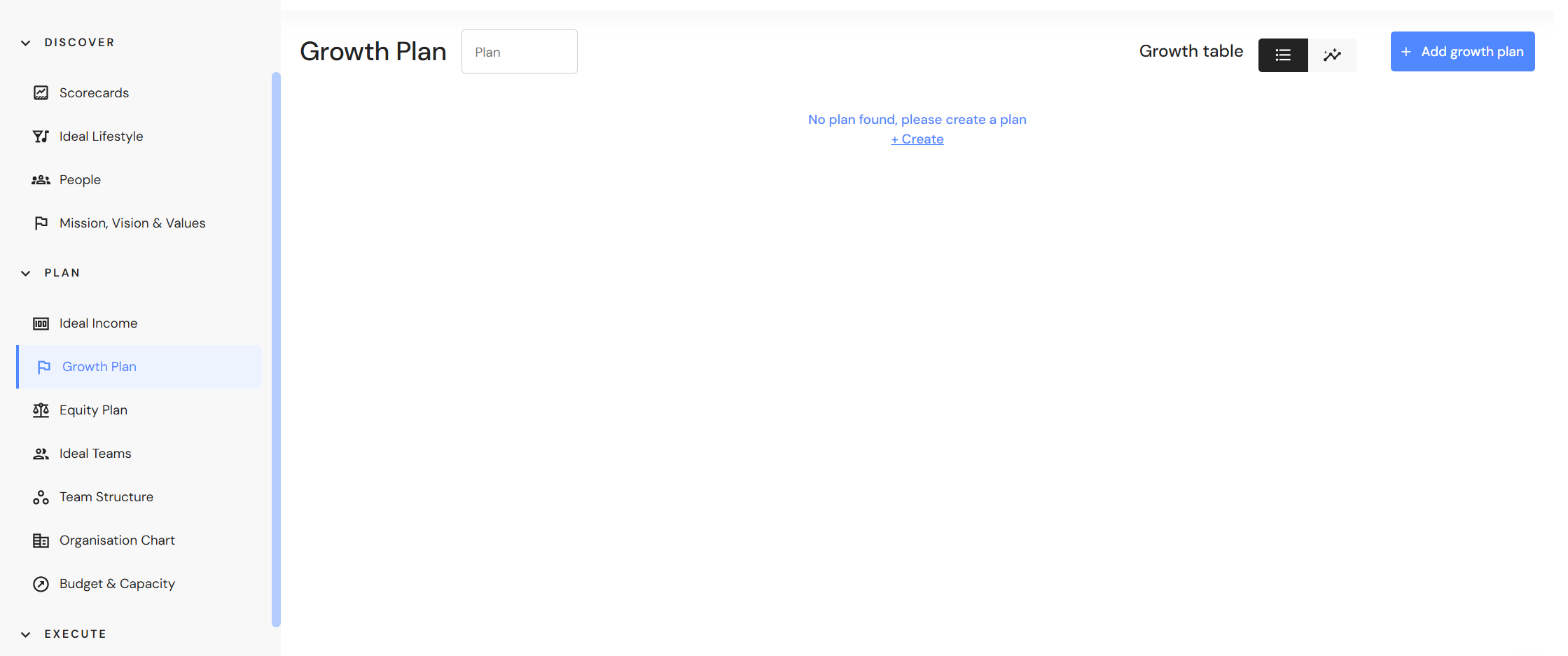
- Click on' + Add growth plan' (or '+ Create' for first time plans).
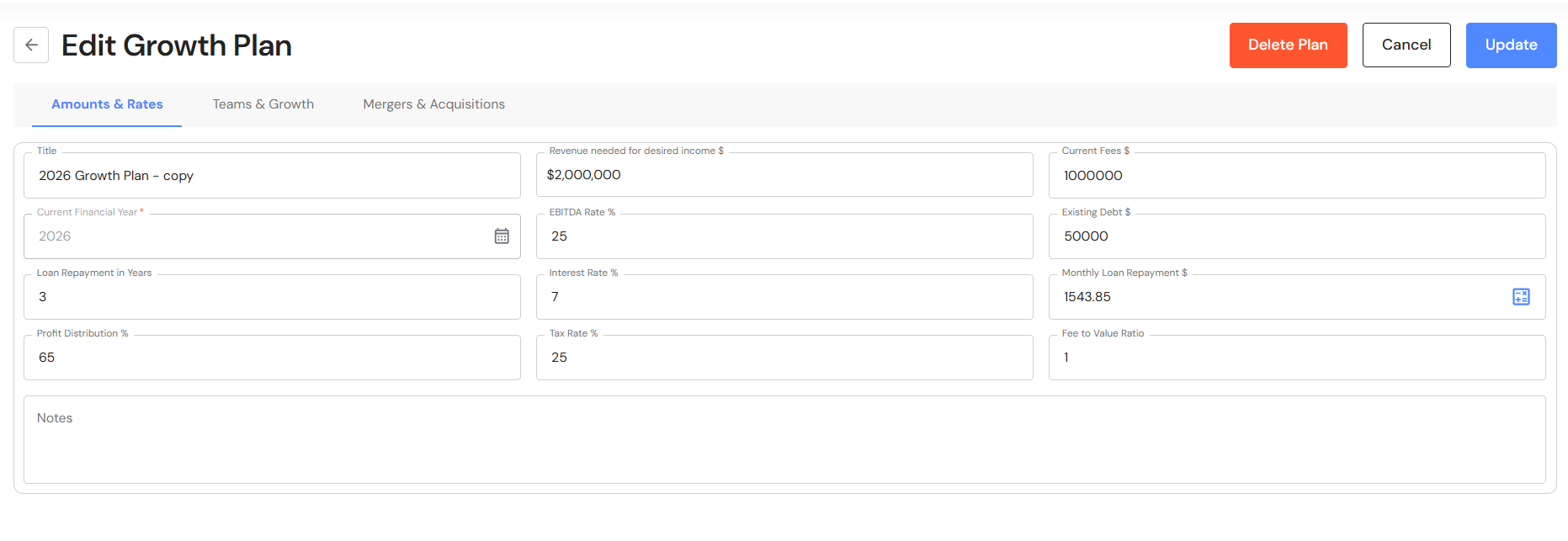
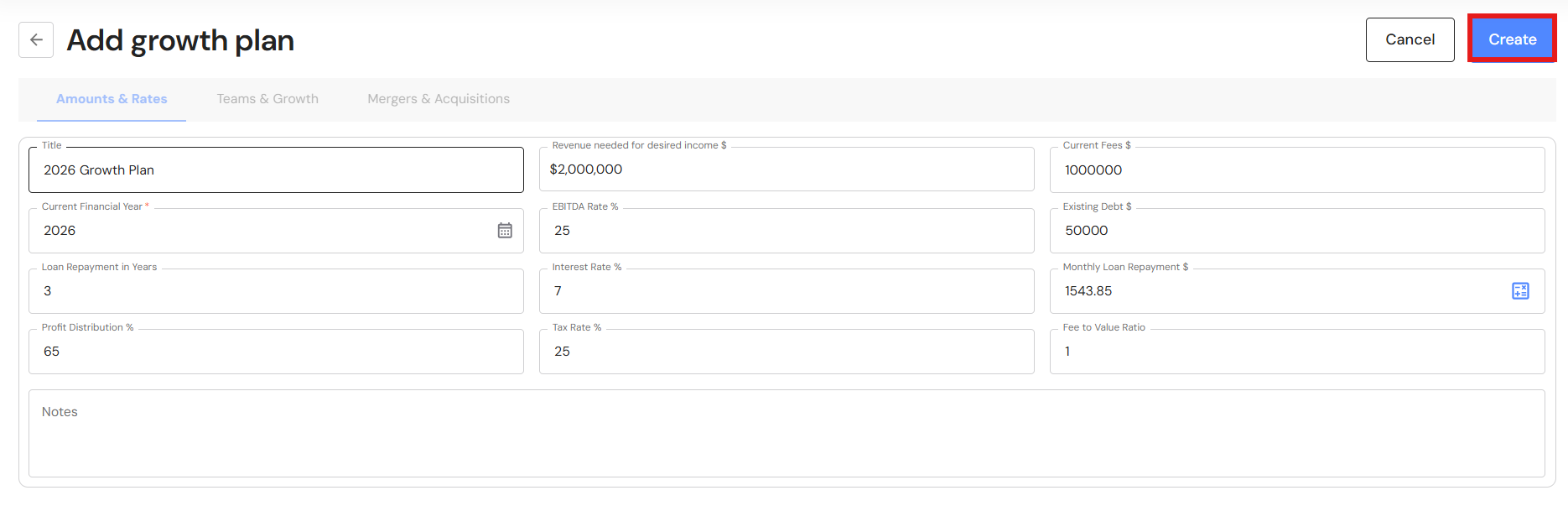
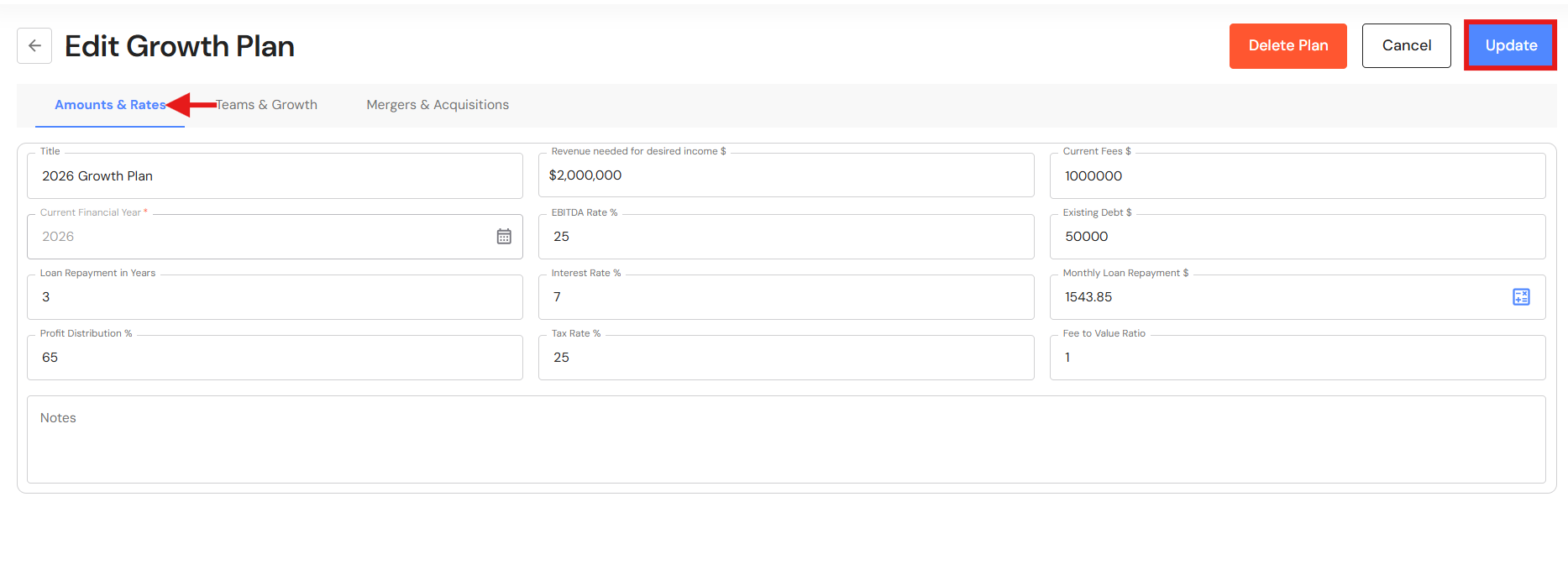
- Complete the following fields:
- Title - Enter a name for your Growth Plan.
- Revenue needed for desired income - Select an Ideal Income plan from the dropdown list. Your Growth Plan will show the year you are projected to reach your revenue goal — and ultimately, your ideal income.
- Current revenue - Enter your current annual revenue.
- Current Financial Year - Select the current financial year. This will become Year 1 in the Growth Plan.
- EBITDA Rate % - Enter the EBITDA rate that will be applied to your growth plan, typically the Wize KPI of 25%.
- Existing Debt $ - If you have an existing business loan, enter the loan amount. Leave this blank if you do not have a business loan.
- Loan Repayment in Years - Enter the loan term.
- Interest Rate % - Enter the loan interest rate up to 2 decimal places.
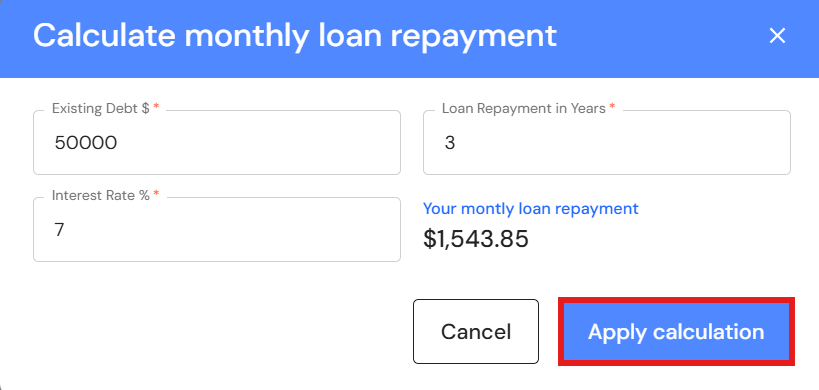
- Monthly Loan Repayment - Enter your monthly repayment or click on the calculator icon to use the loan calculator tool.
If you use the loan calculator, complete each field and click on 'Apply calculation'.
- Profit Distribution % - Enter the profit distribution after tax and principal loan repayments.
- Tax Rate % - Enter a flat tax rate to be applied to net profit. If a marginal tax rate applies to your profit, use an average.
- Revenue to Value Ratio - Using a dollar for dollar valuation method, enter a dollar amount that aligns with your industry valuation method. For example, if your revenue to value ratio is 1:1, enter 1.
- Notes - Optional: Add any relevant notes.
- Click 'Create'.
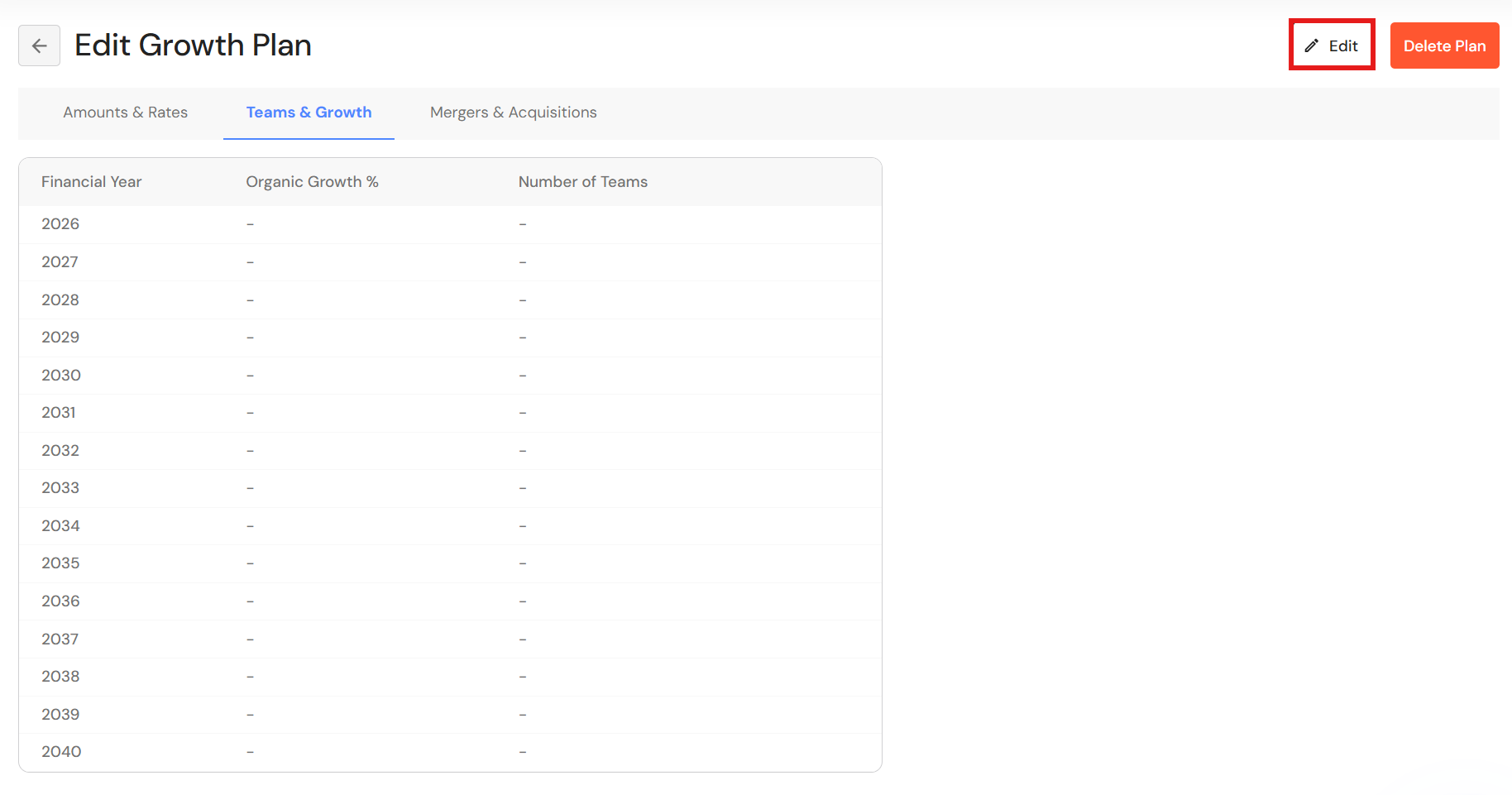
- The plan will be created. The next step is to add your Teams & Growth.
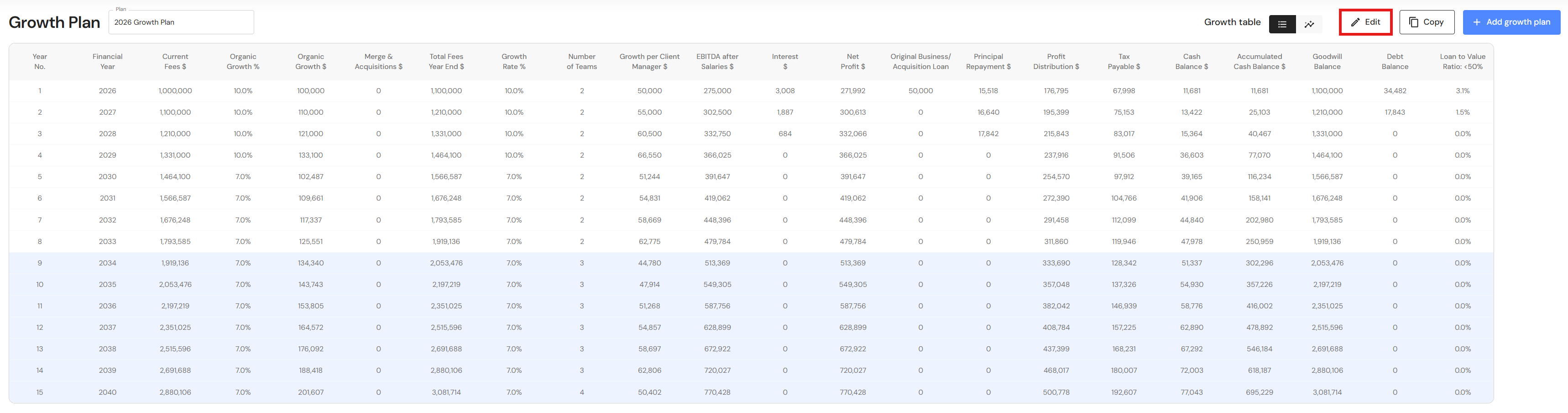
- Click on 'Edit'.
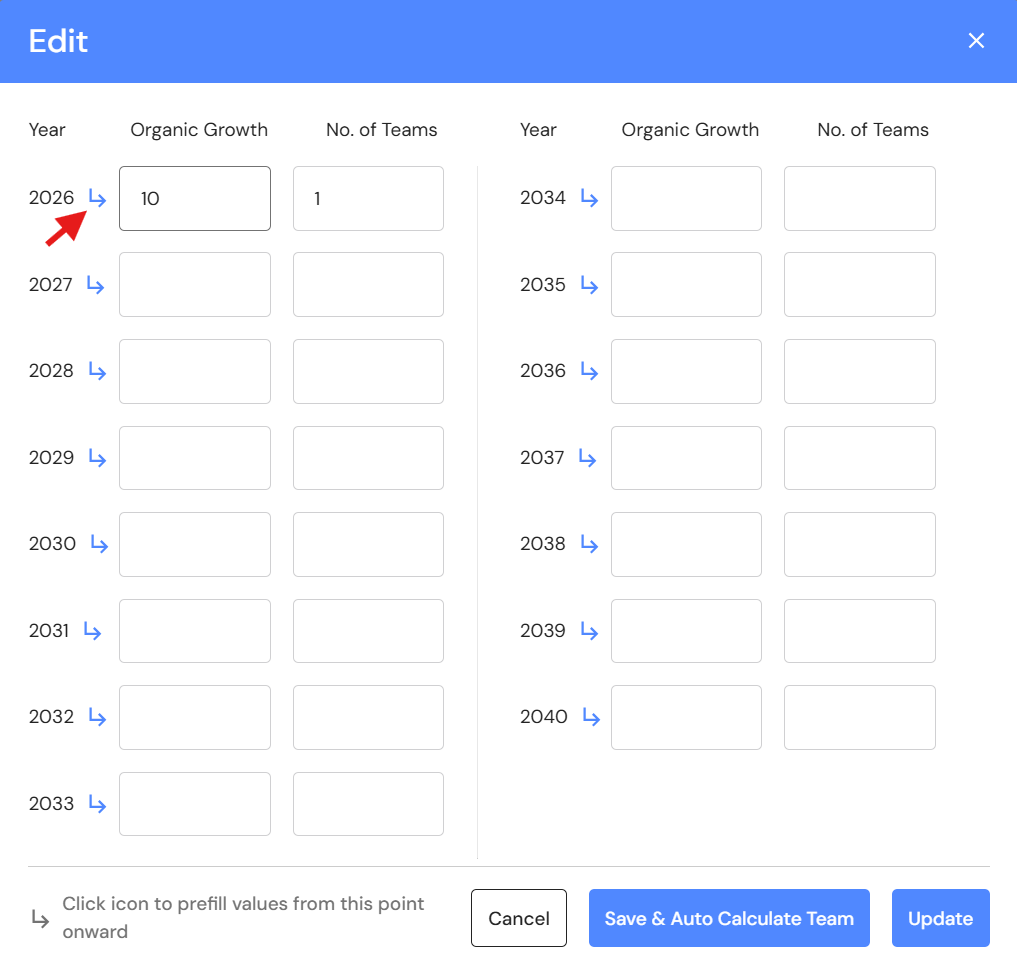
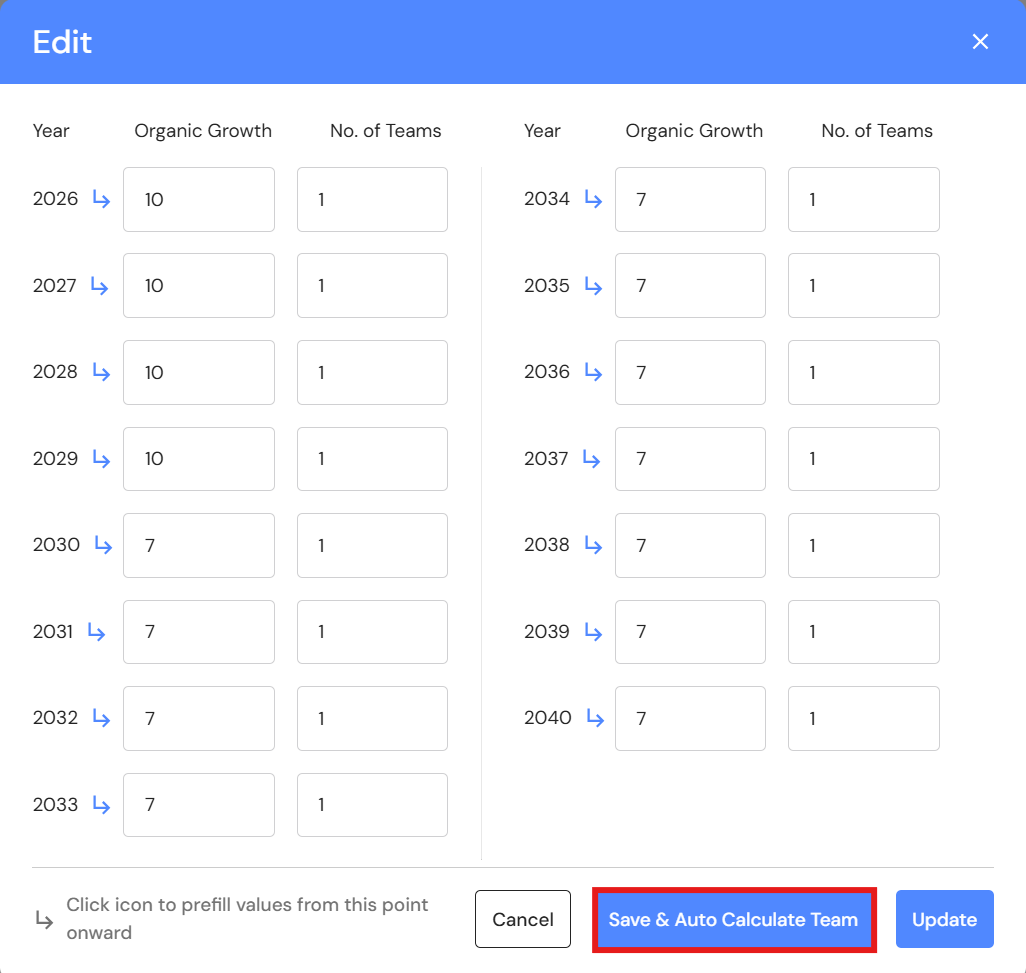
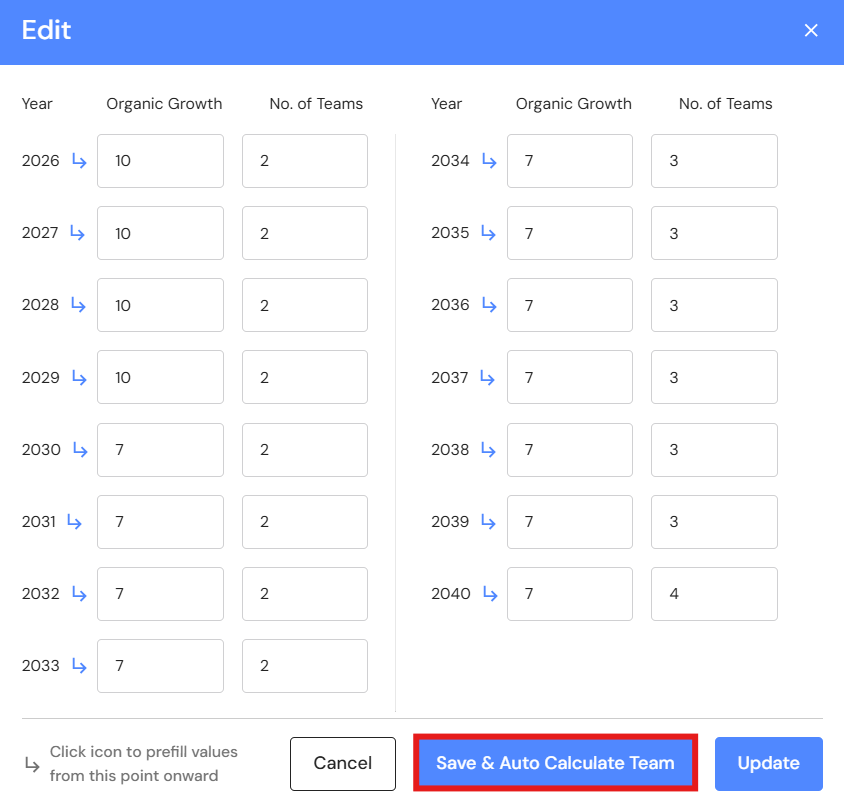
- In the first row, enter:
- Organic Growth - the rate your business achieves through internal efforts; and
- No. of Teams - the number of production teams your business currently has.
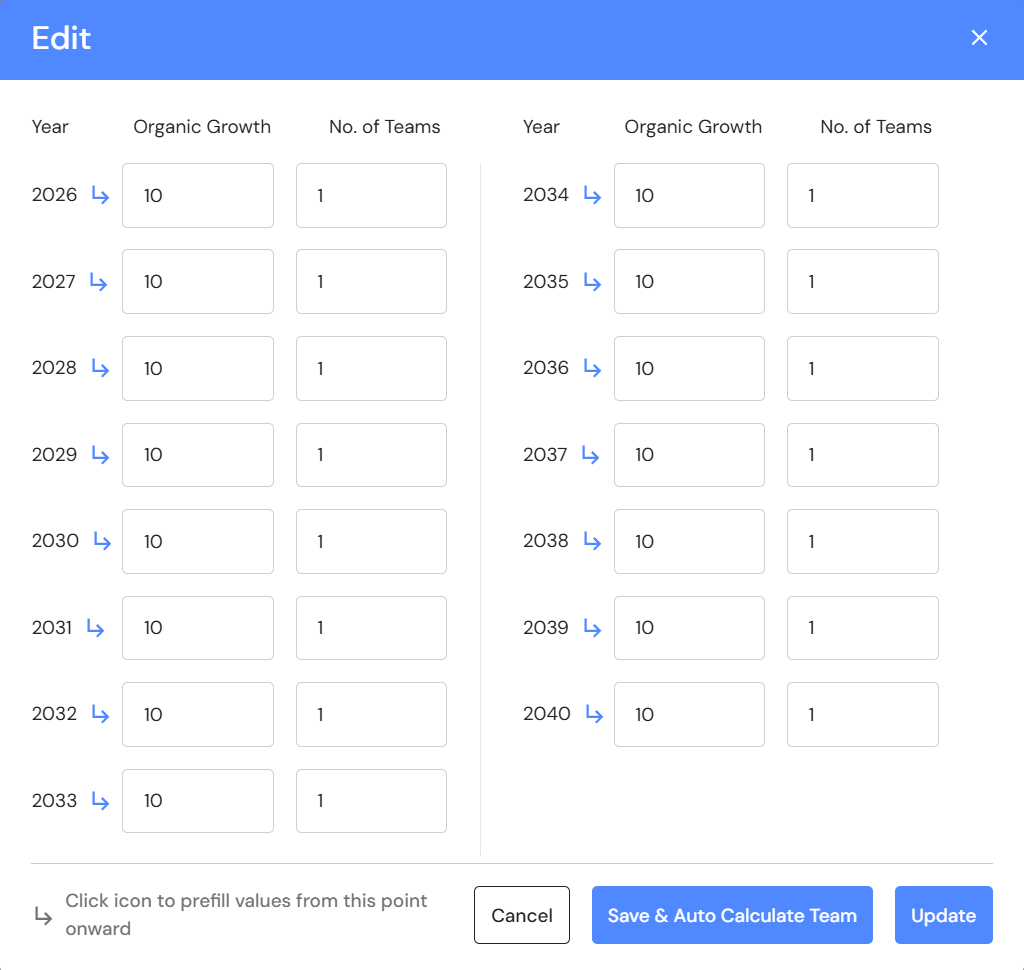
- Click on the prefill icon to prefill the remaining rows.
- Consider if the organic growth rate in subsequent years is likely to remain the same or whether you want to modify the organic growth rate to align with future expectations. Make changes as required.
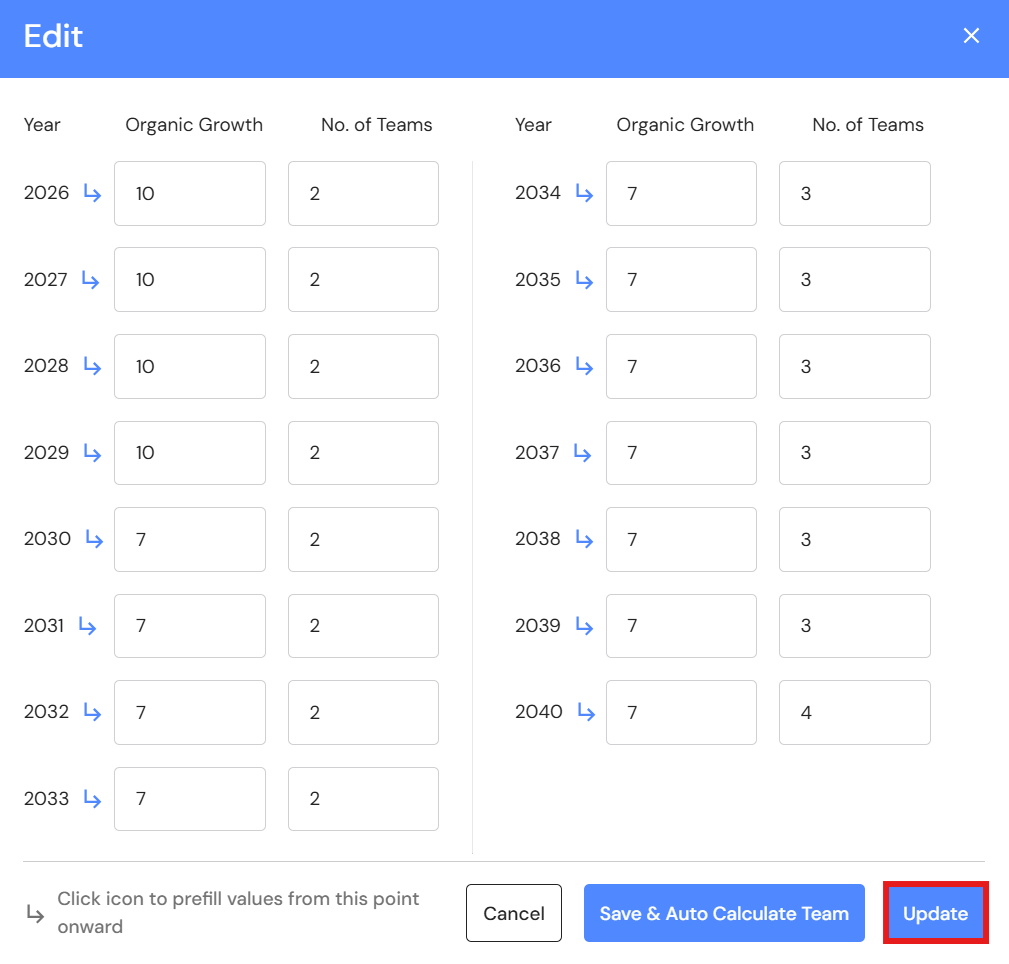
- Click on 'Save & Auto Calculate Teams'. This feature will review the revenue data for every year and automatically assign the number of million dollar teams. The calculation is based on one Ideal Team for every million dollars of revenue. As your revenue reaches $1 million it's time to build a new team to sustain the next growth phase.
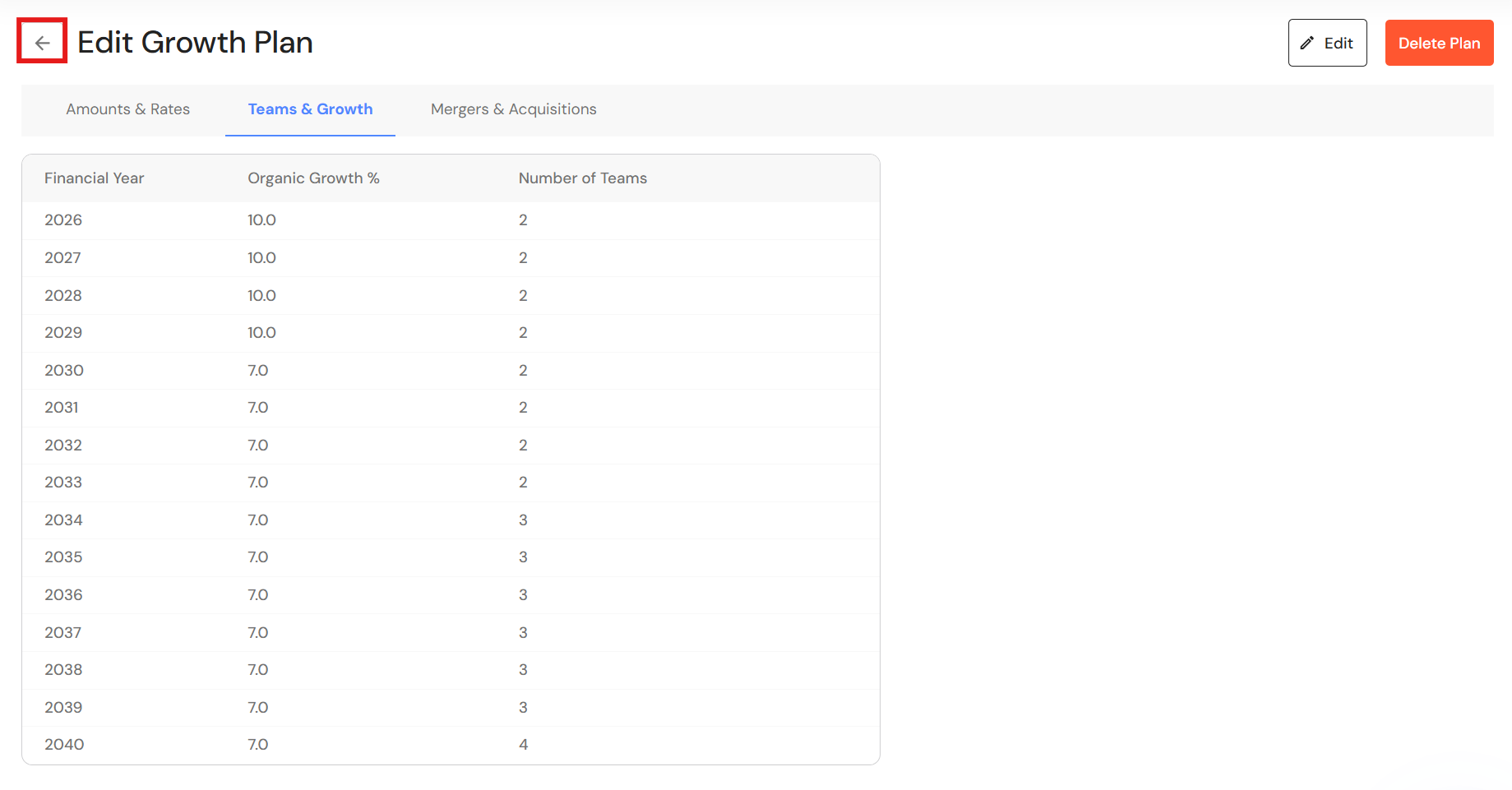
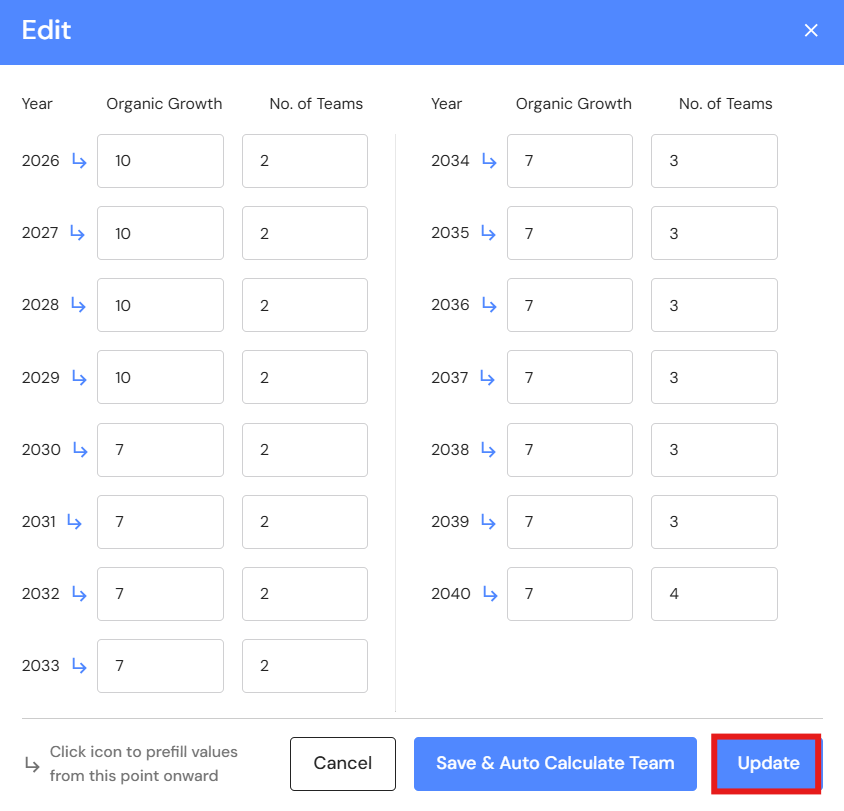
- Click on 'Update'.
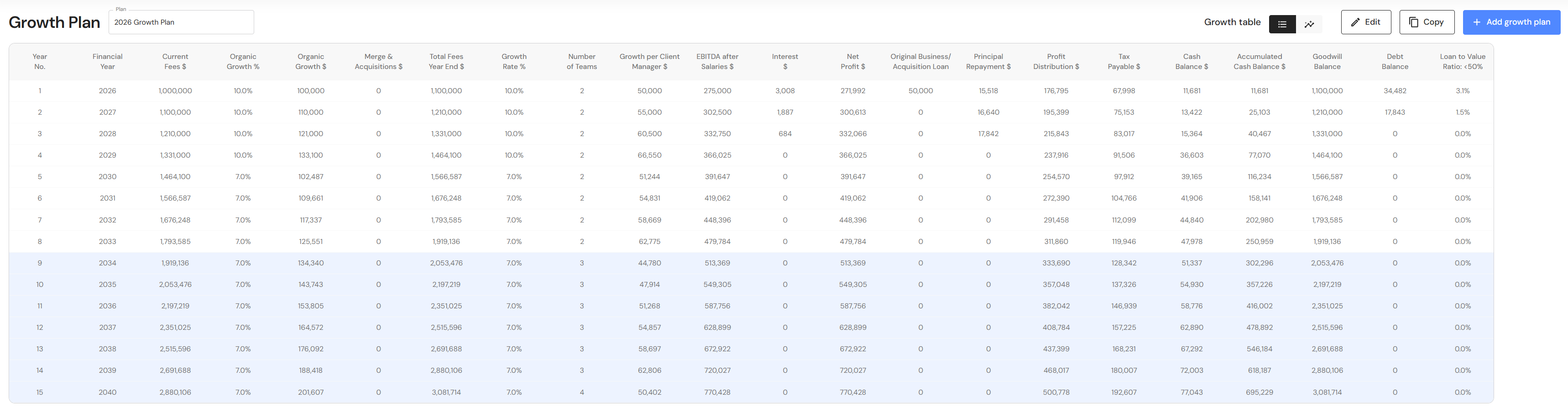
- Click on the back button to view your Growth Plan.
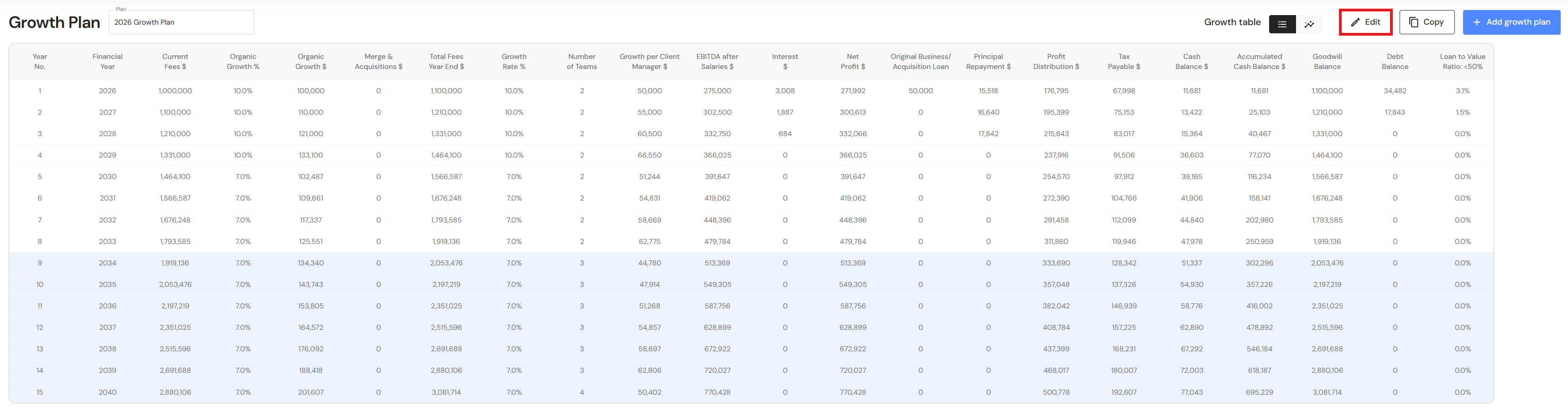
- Your Growth Plan will turn blue in the year you are projected to reach your revenue and ideal income goals.
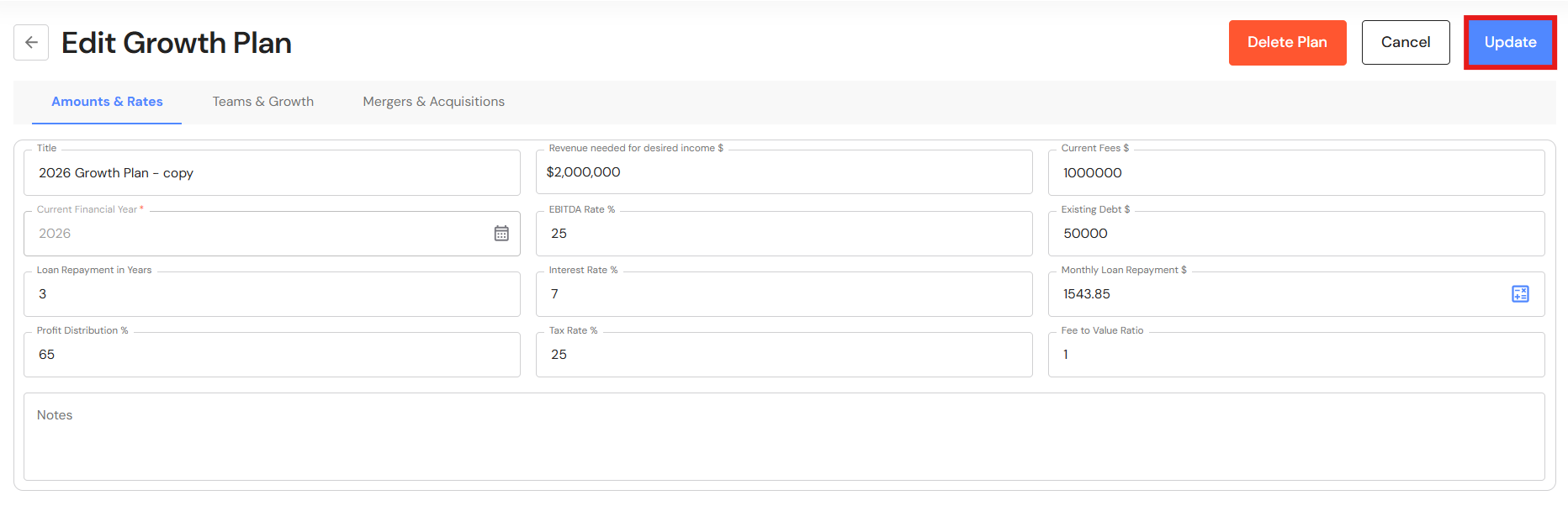
Edit a Growth Plan: Amounts & Rates
- Click on 'Edit'.
- Change the relevant fields in the Amounts & Rates tab and click on 'Update'.
Edit a Growth Plan: Teams & Growth
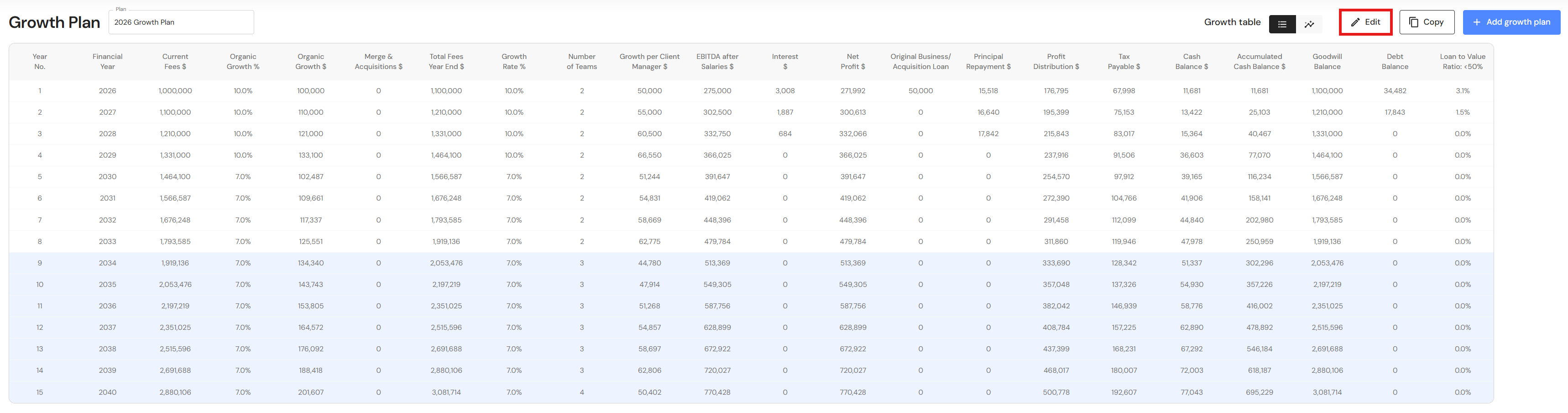
- Click on 'Edit'.
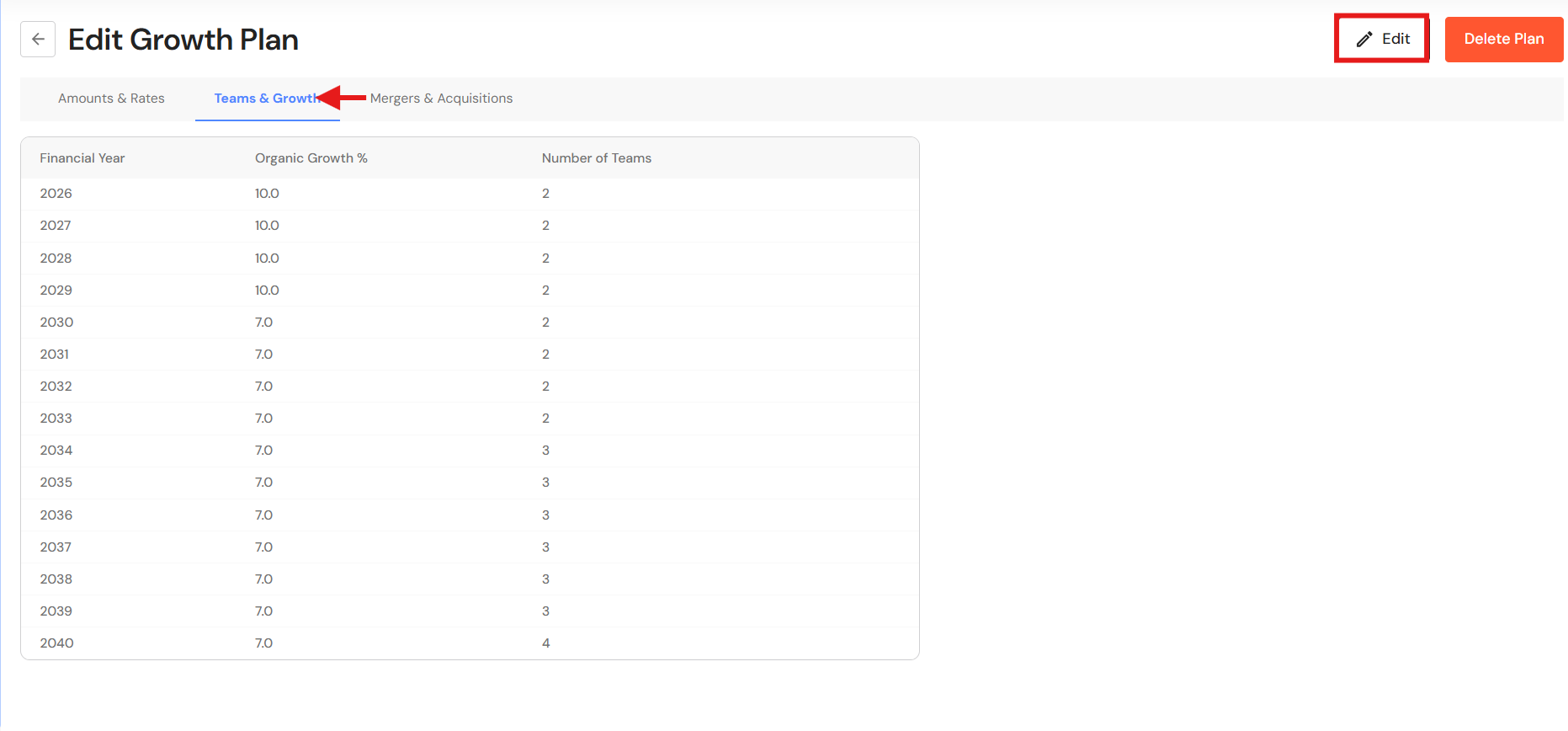
- Go to the Teams & Growth tab and click on 'Edit'.
- Update the rows manually or make a change to a single row and click on the prefill arrow to apply the same details to the remaining rows.
- Click on 'Save & Auto Calculate Team' to auto assign one million dollar teams i.e. 1 team for every million dollars in revenue.
- Click on 'Update'.
Add Mergers & Acquisitions
By adding a Merge & Acquisition strategy to your Growth Plan, you can visualise the impact of acquisitions on your projected revenue and income goals. A successful acquisition boosts revenue and helps you fast track your business growth goals.
- Click on 'Edit' to open the Growth Plan settings.
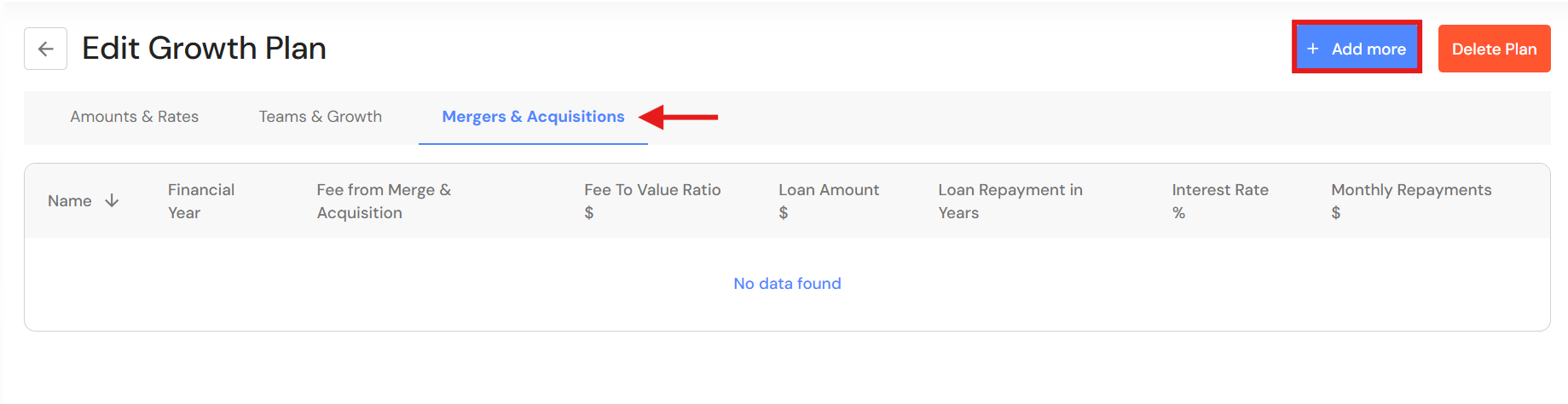
- Click on the 'Merge & Acquisitions' tab, then click on '+Add more'.
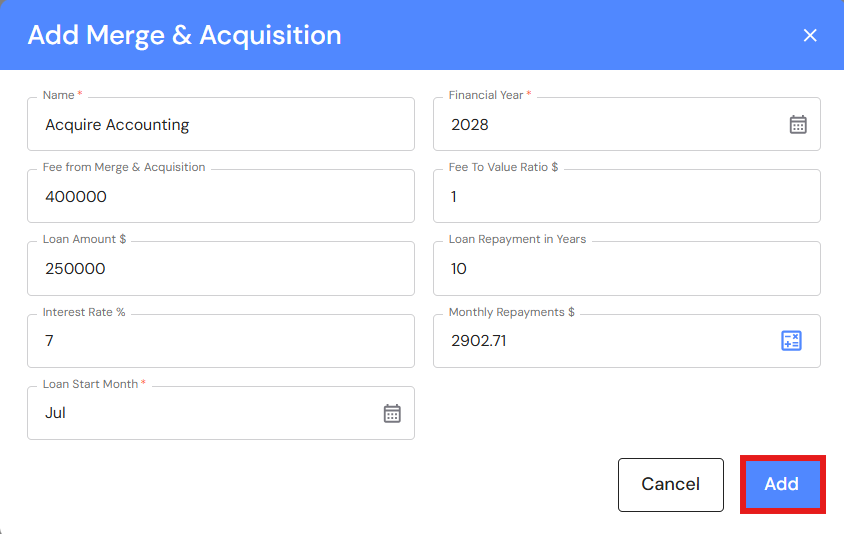
- Complete the following fields:
- Name - Enter the name of the acquired business.
- Financial Year - Enter the financial year the acquisition will take place.
- Revenue from Merge & Acquisition - Enter the revenue that your business will purchase/acquire.
- Revenue to Value Ratio $ - Using a dollar for dollar valuation method, enter a dollar amount that aligns with your industry valuation method. For example, if the revenue to value ratio is 1:1, enter 1.
- Loan Amount $ - If you are borrowing funds to acquire the business, enter the loan amount.
- Loan Repayment in Years - Enter the loan term.
- Interest Rate % - Enter the loan interest rate up to 2 decimal places.
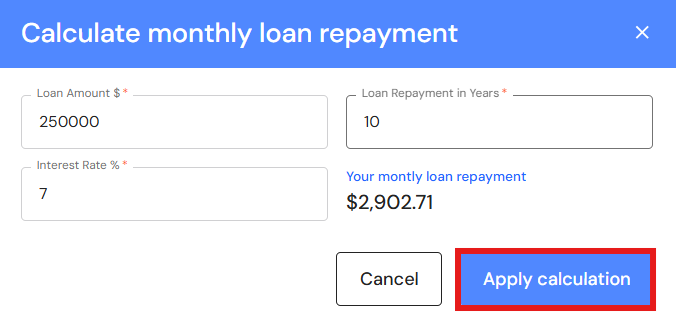
- Monthly Loan Repayment - Enter your monthly repayment or click on the calculator icon to use the loan calculator tool.
If you use the loan calculator, complete each field and click on 'Apply calculation'. Enter the name of the business you plan to acquire.
- Loan Start Month - Enter the month you will make your first loan repayment. This is based on the financial year the acquisition will take place.
- Click on 'Add'.
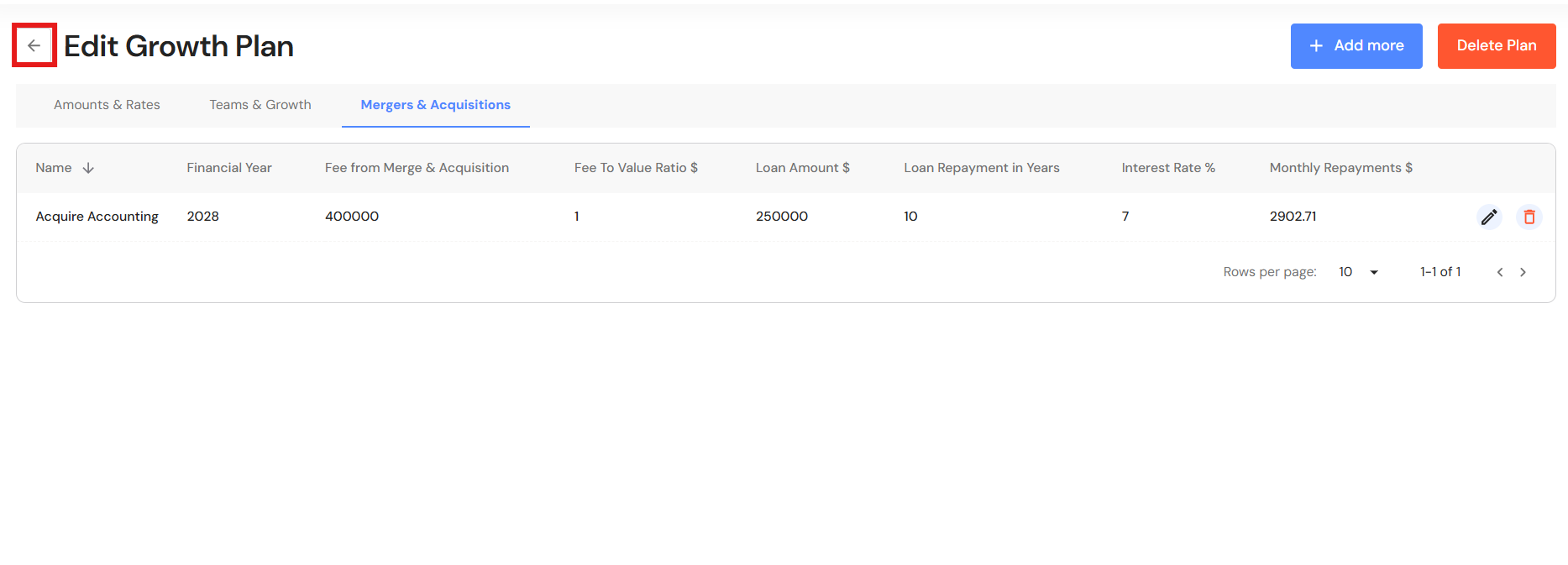
- Click on the back button.
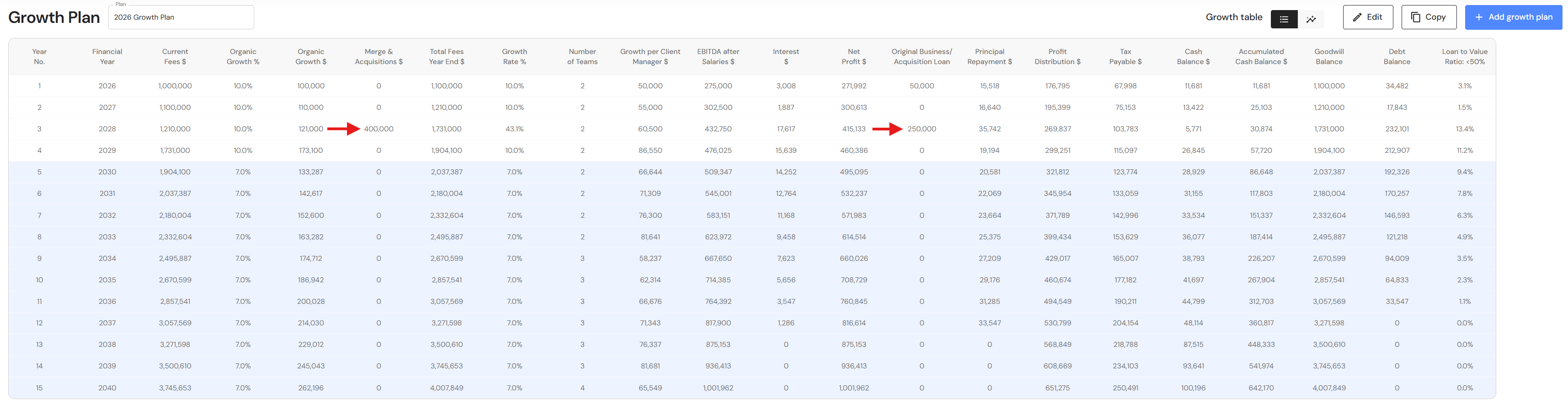
- Your Growth Plan will show the impact of revenue through acquisitions as well as any loans attached to the acquisition. In addition, the year the business reaches your revenue and ideal income goals will be brought forward.
Edit Mergers & Acquisitions
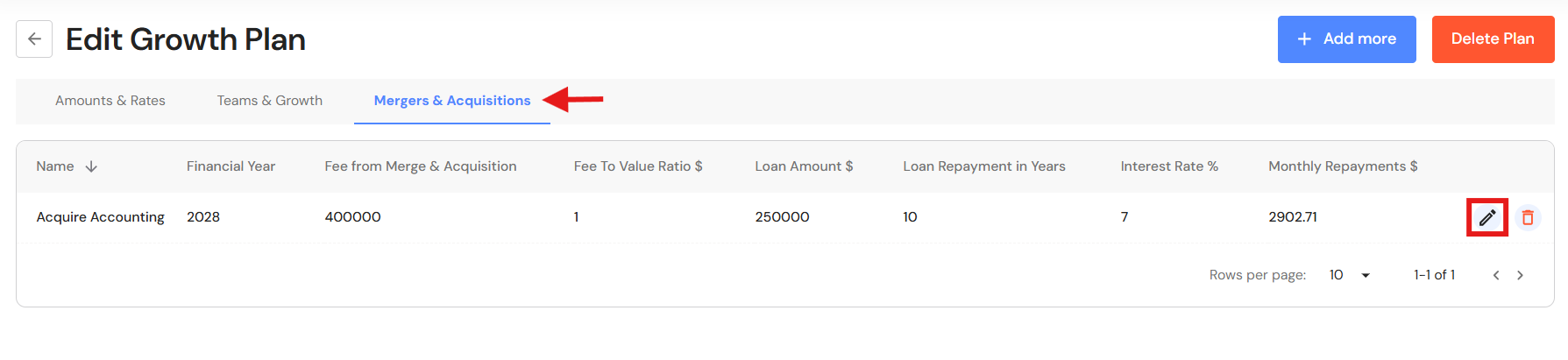
- Click on 'Edit'.
- Go to the Mergers & Acquisitions tab.
- Click on the pencil icon alongside the acquiring business.
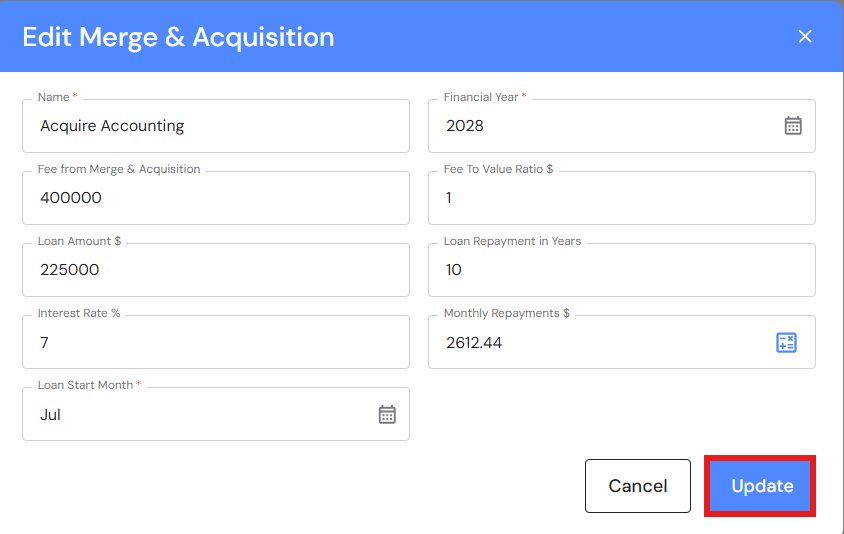
- Change details in the relevant fields and click on 'Update'.
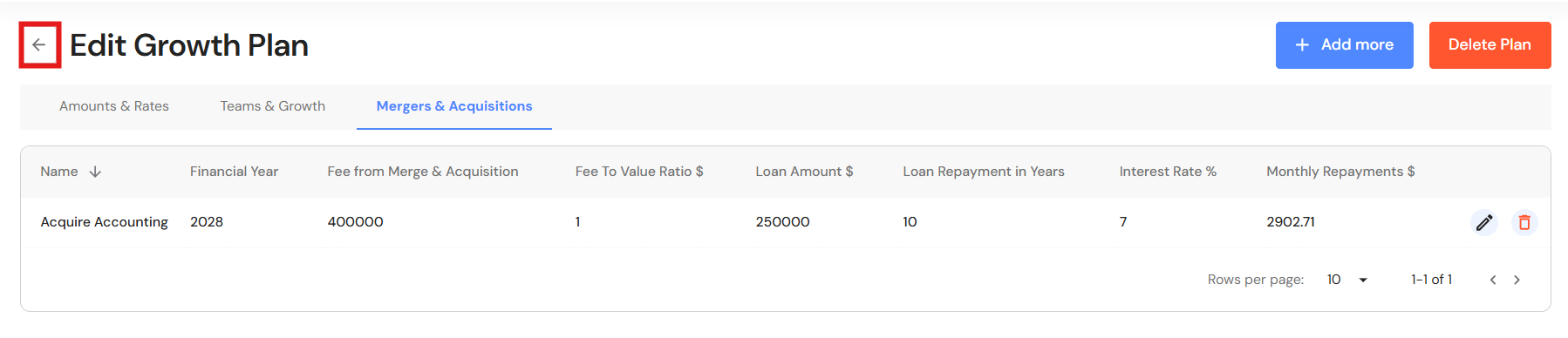
- Click the back arrow to return to your Growth Plan.
Delete Mergers & Acquisitions
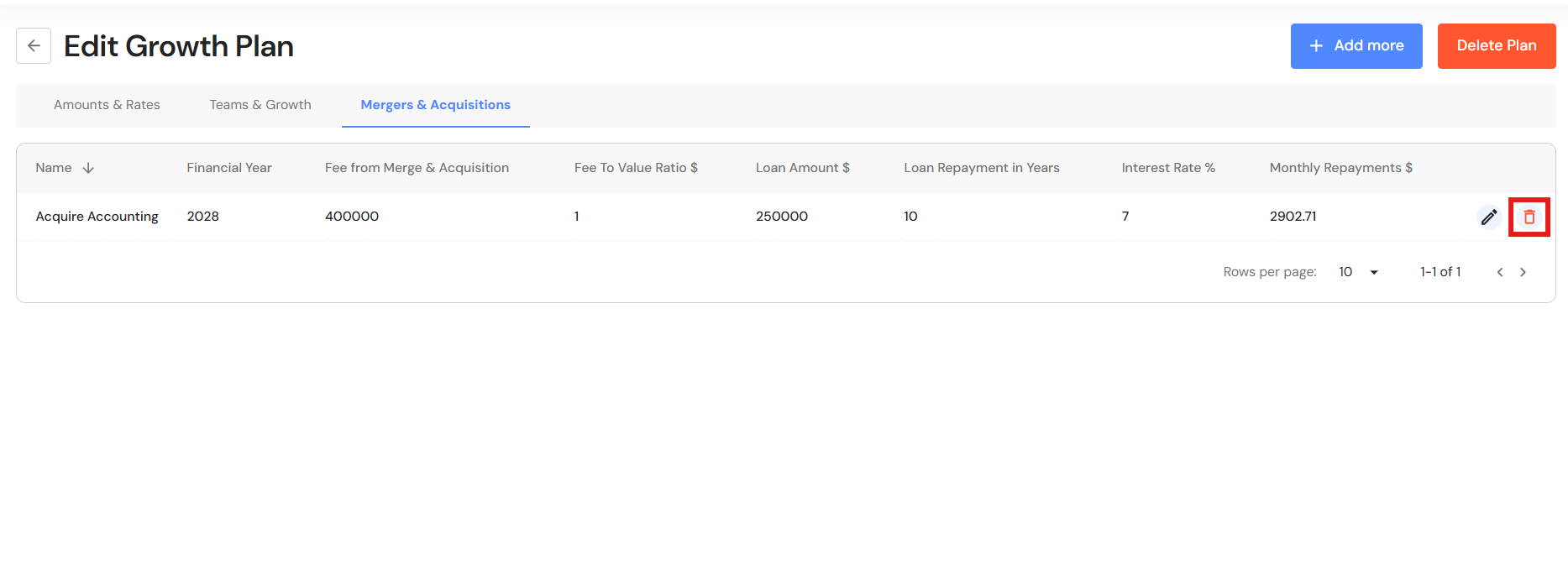
- Click on the bin icon alongside your acquiring business.
- Click on 'Delete'.

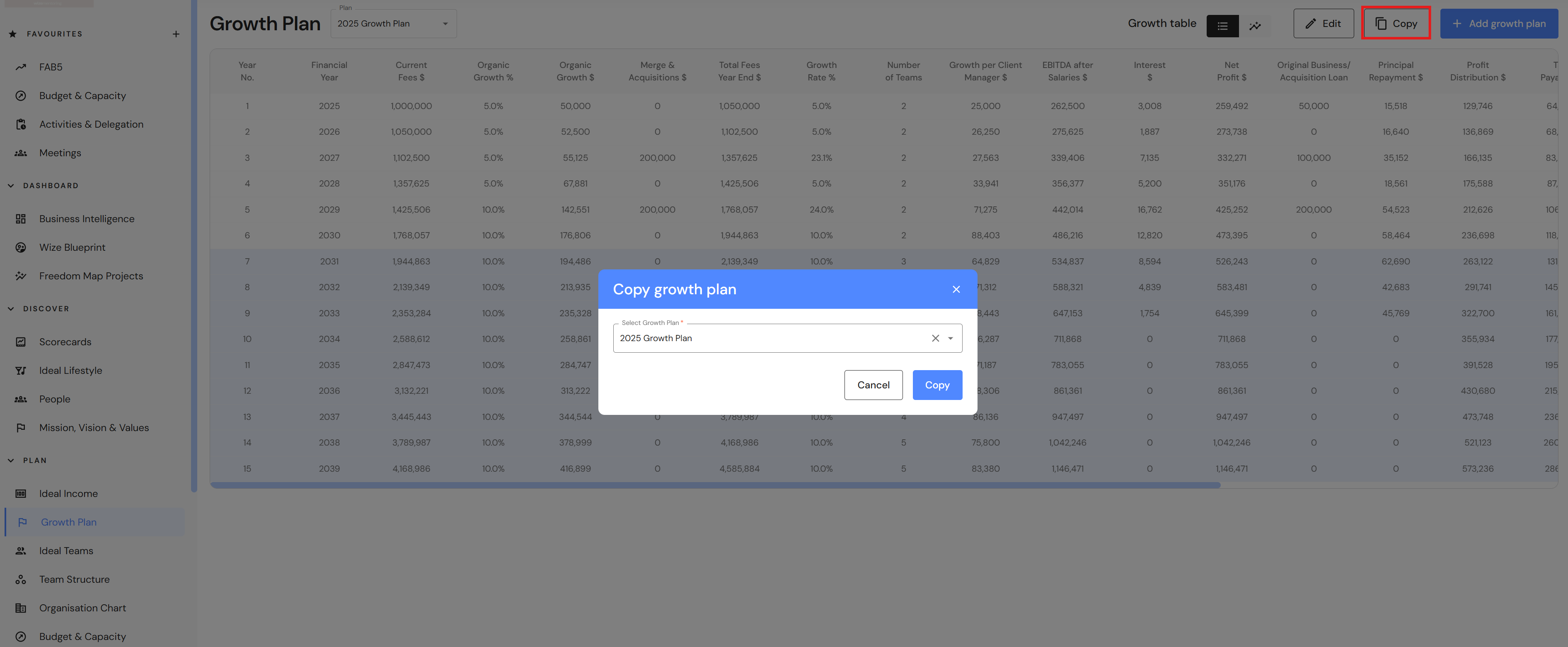
Copy a Growth Plan
- Click on 'Copy'.
- Select a Growth Plan and click 'Copy'.
- Change relevant details for scenario planning and click on 'Update'.
Refer to Edit a Growth Plan: Amounts & Rates, Edit a Growth Plan: Teams & Growth, and Add or Edit Mergers & Acquisitions above.
Delete a Growth Plan
- Ensure the Growth Plan you want to delete is open.
- Click on 'Edit'.
- Click on 'Delete Plan'.
- Click on 'Delete'.