Budget & Capacity Plan Post-Rollover Finalisation
This article provides step-by-step guidance to finalise your Budget & Capacity plan after the financial year rollover process has been performed.
When the financial year rollover is finished, the next step is to finalise your Budget & Capacity plan.
NB* This guide is tailored for users who created a new Budget & Capacity plan during the rollover.
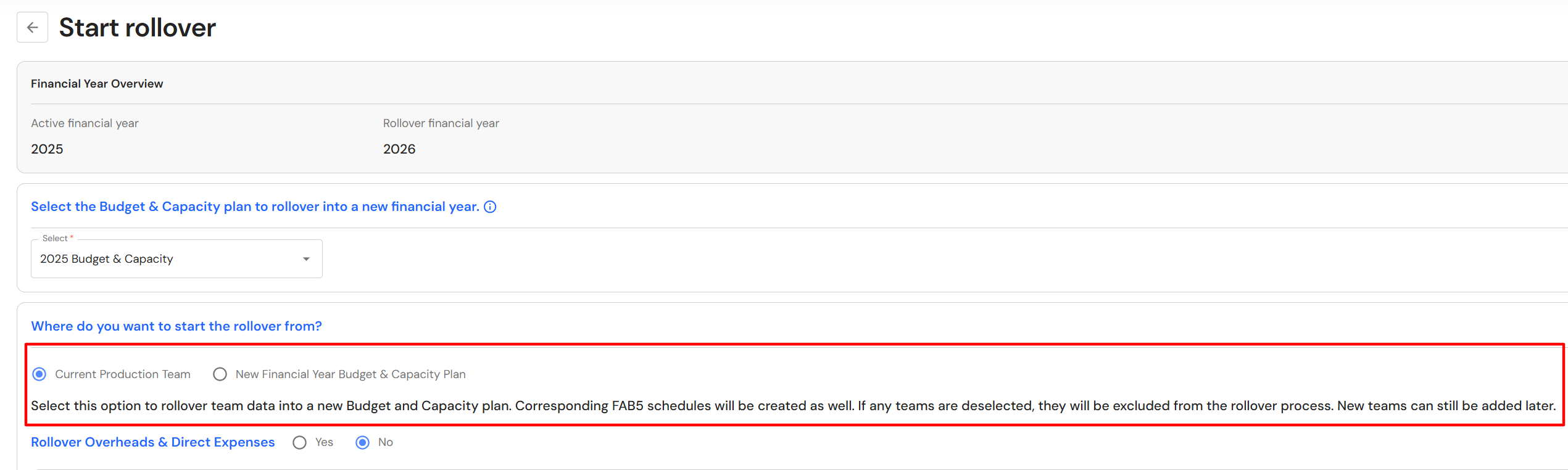
It is assumed that users completed pre-rollover housekeeping.
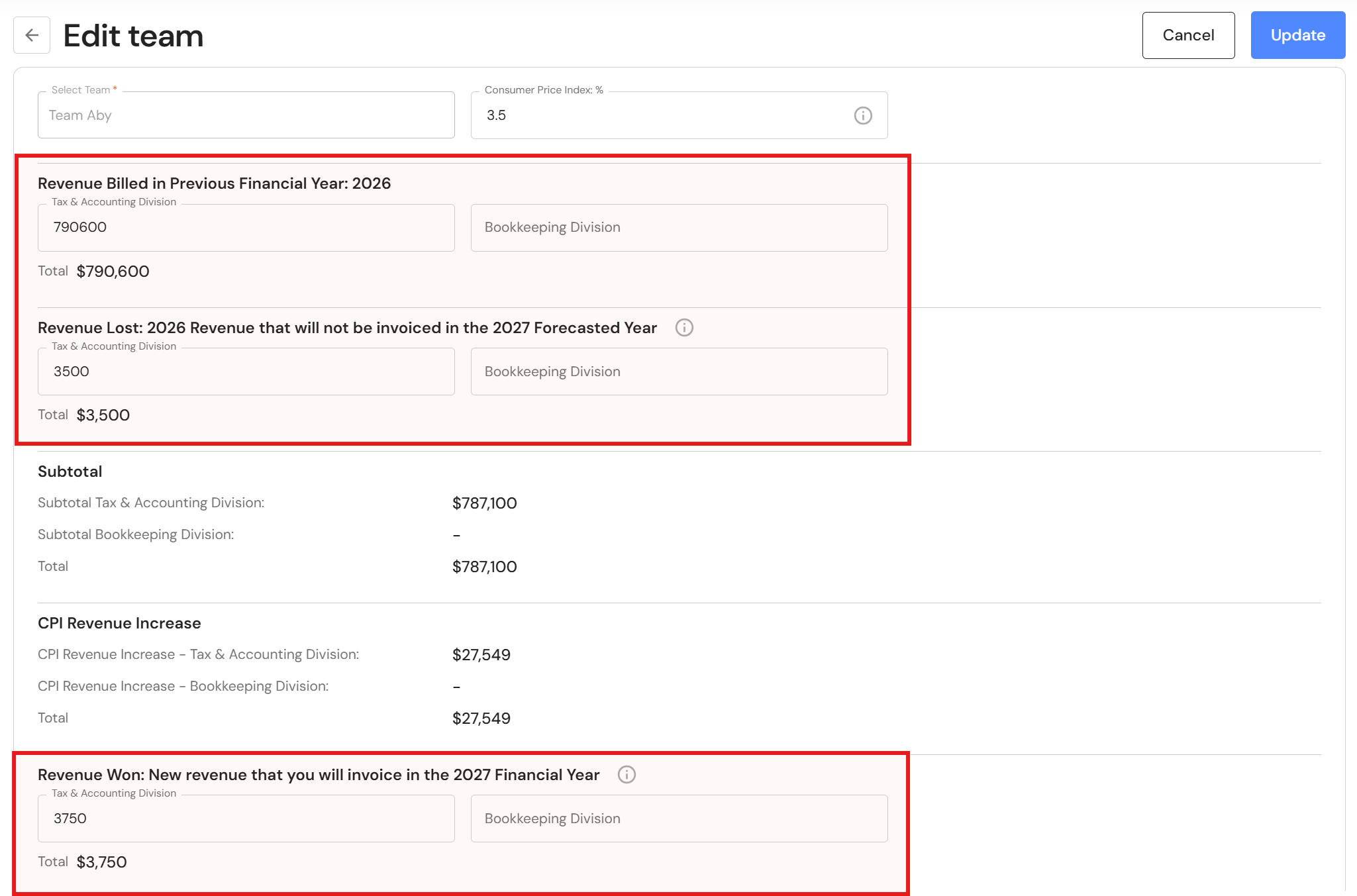
If you have mapped your team data during the rollover process, the Revenue Budget for each team will include:
- Revenue Billed in Previous Financial Year: YYYY
- Revenue Lost: YYYY Revenue that will not be invoiced in the YYYY Forecasted Year
- Revenue Won: New revenue that you will invoice in the YYYY Financial Year
- Overhead Allocation: Business Overheads
FAQ - What happens during the financial year rollover process?
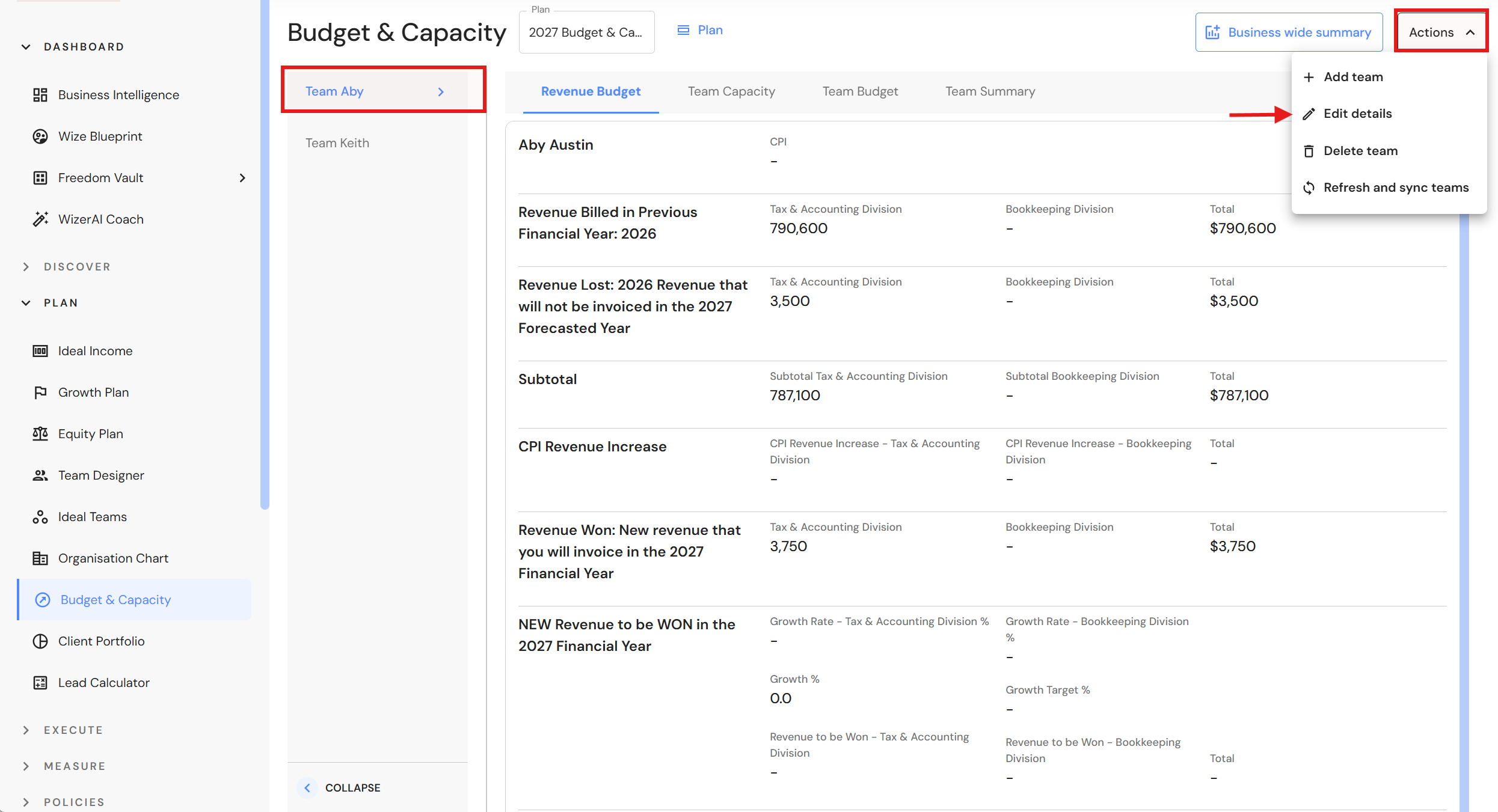
Go to Plan > Budget & Capacity
If you have more than one team, repeat the following process for each team.
Revenue Budget tab
- Select a team in the left panel.
- Click 'Actions, then 'Edit details'.
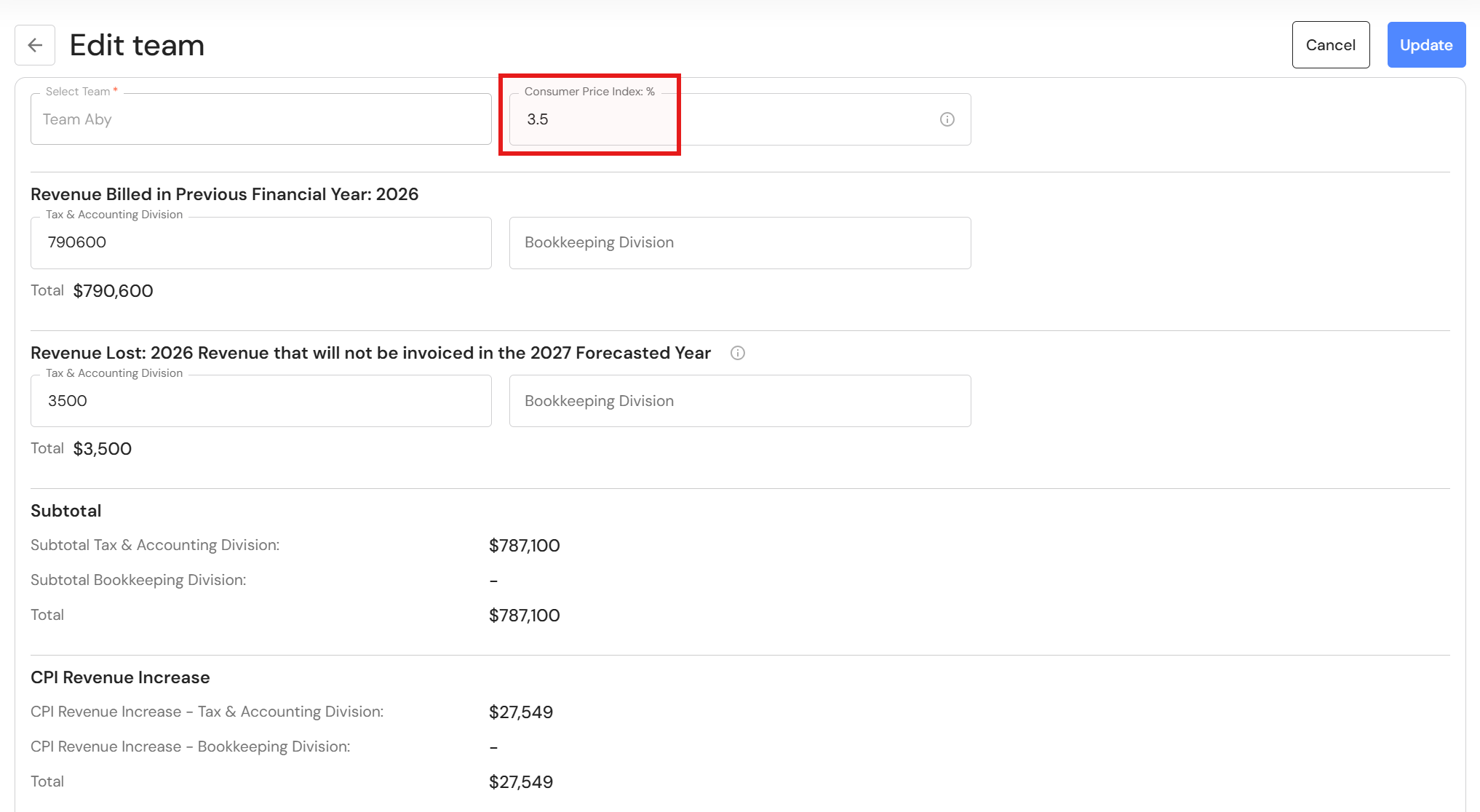
- Enter the annual CPI rate (if the rate is unknown, use an estimate). At a minimum, businesses should increase their price each year to cover inflation.
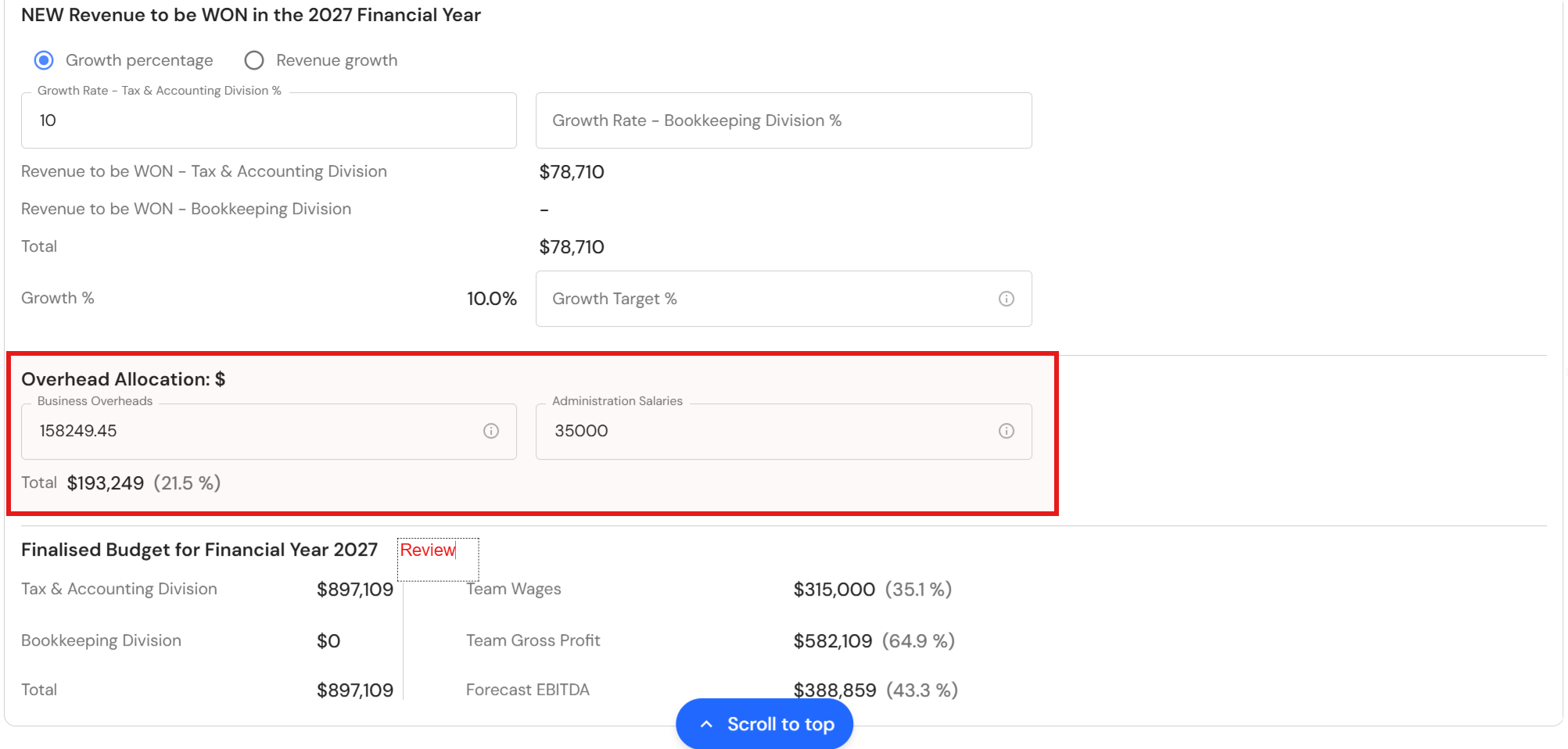
- If your business plans a separate revenue earning division e.g. Bookkeeping or Advisory, split previous revenue billed, revenue lost and revenue won across each division.
IMPORTANT: When you assign a budget to a revenue earning division, there must be corresponding team members in the relevant division in the Team Capacity tab. This is required to correctly allocate the budget.
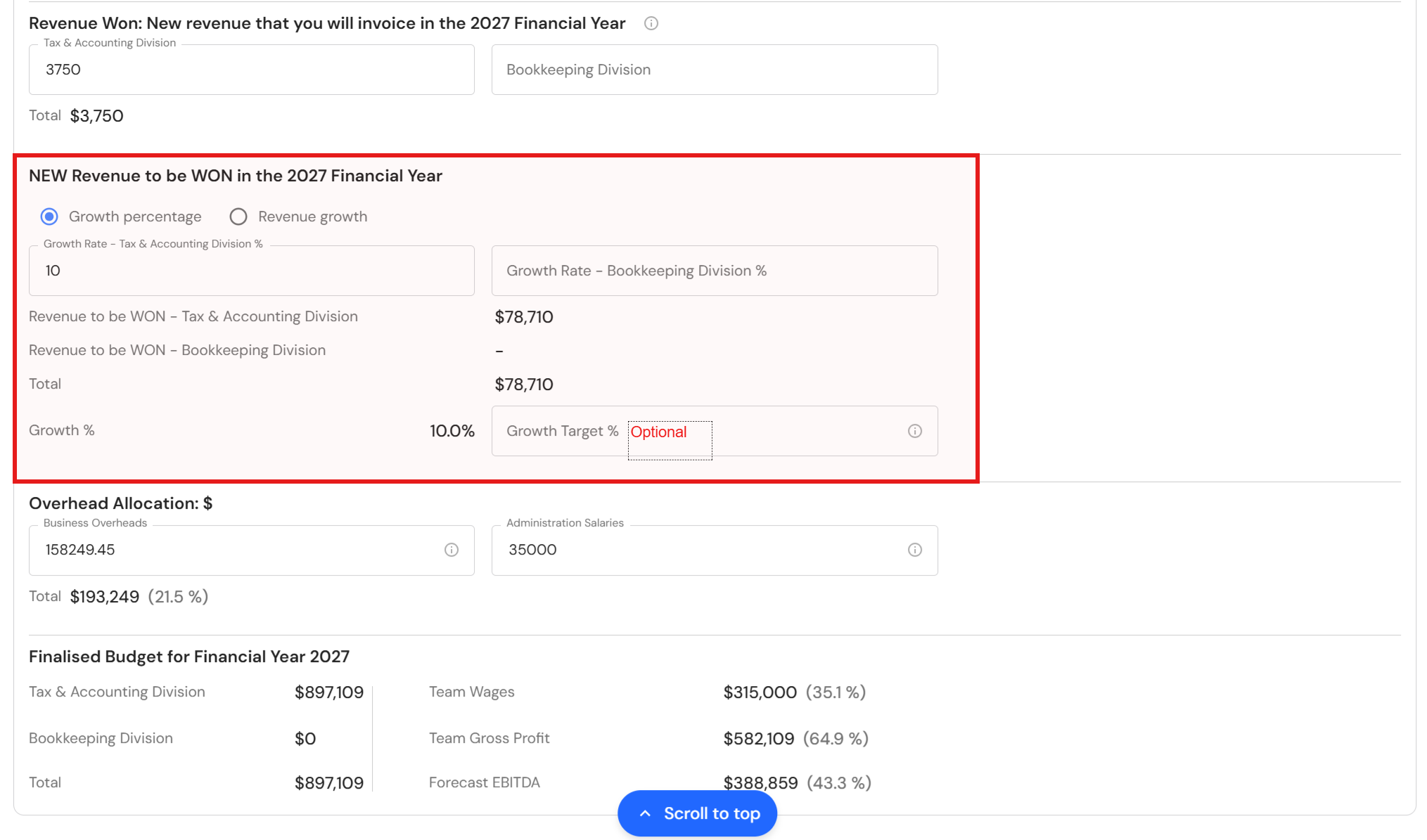
- Add a revenue growth goal for your team. Choose between a growth percentage or revenue growth value.
- Optional: Record an overall growth target percentage for your team.
- Optional: Pre-filled business overheads may include administration salaries. Separate annual administration salaries from business overheads under the overhead allocation heading.
- Review your finalised budget. Scroll to the top and click 'Update'.
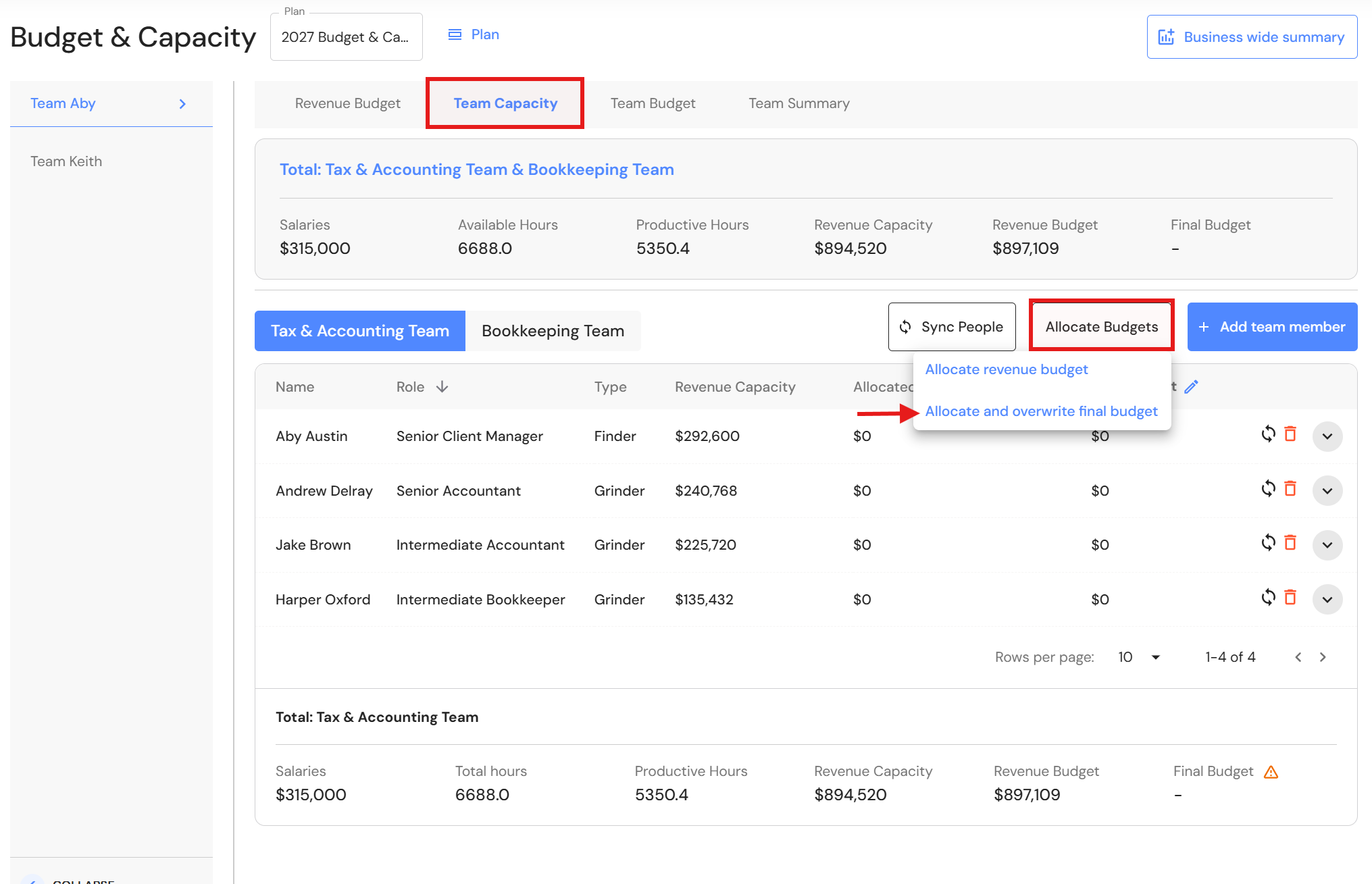
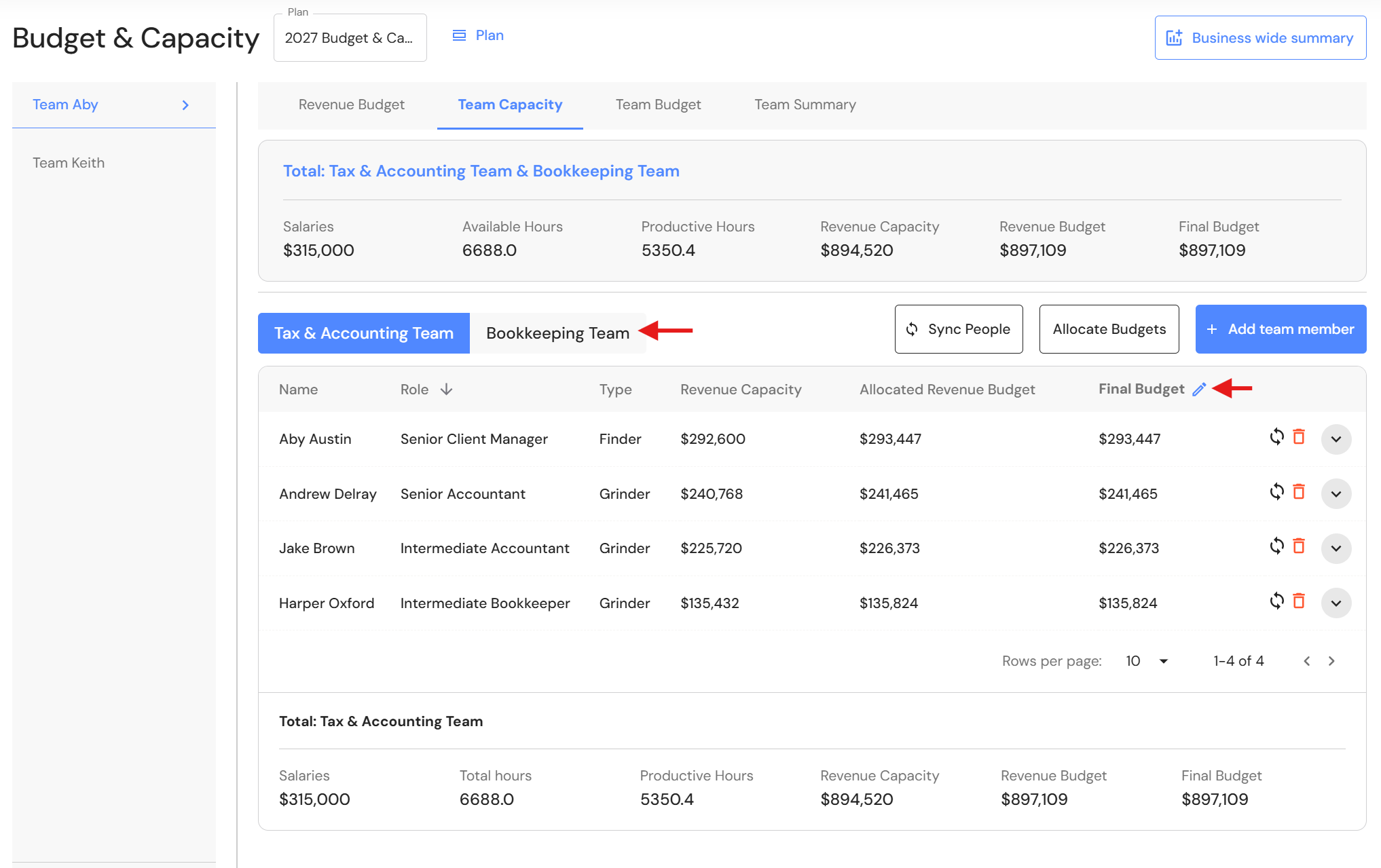
Go to the Team Capacity tab - Your team members have been pre-filled based on the 'Revenue division' in the production team (see Plan > Ideal Teams). All you need to do is click on 'Allocate Budgets' and select 'Allocate and overwrite final budget'.
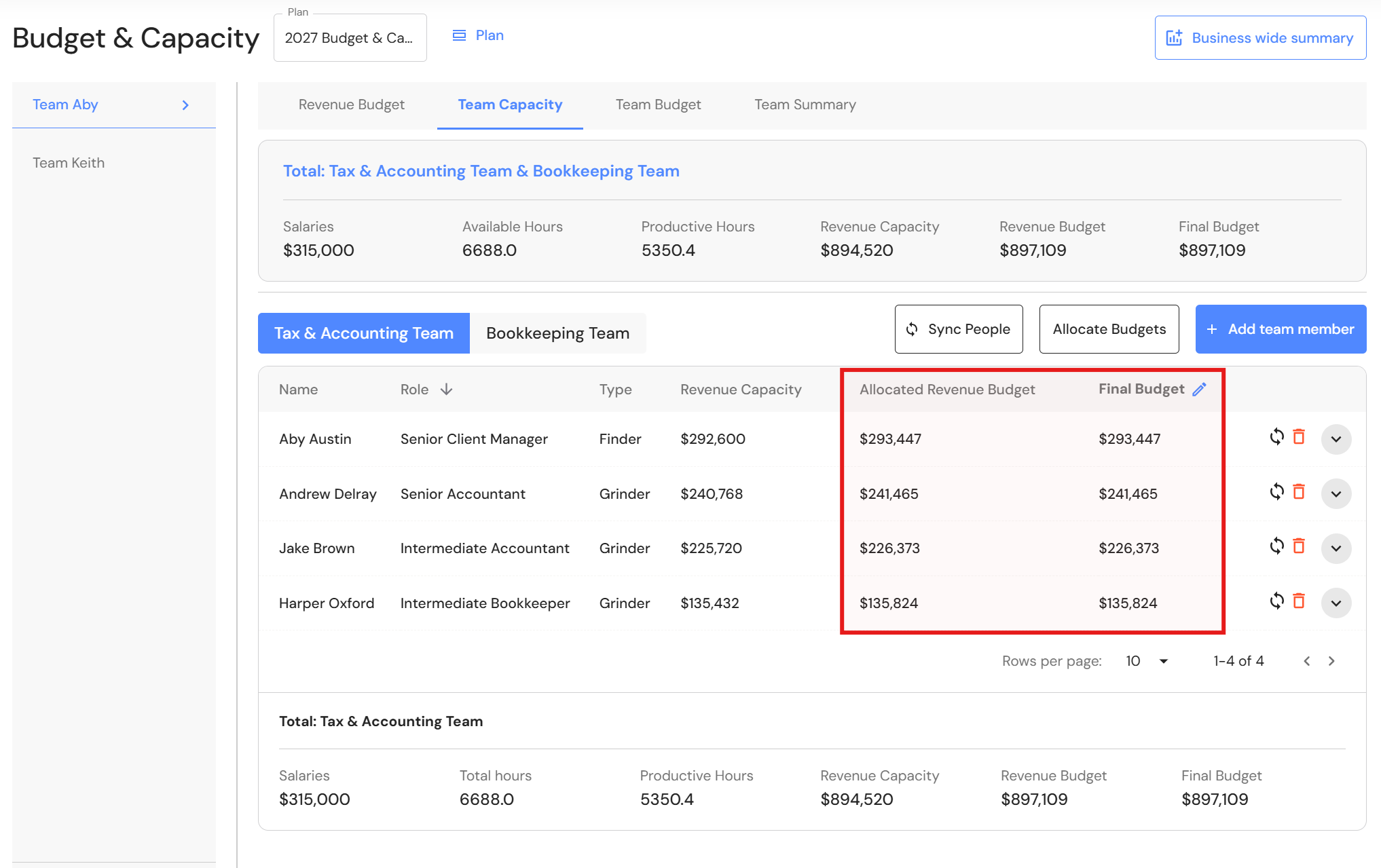
This step will update:- Allocated Revenue Budget - This provides a recommended revenue target for each team member based on their share of the team's total revenue capacity. This helps ensure targets are distributed fairly and consistently.
- Final Budget - The allocated revenue budget will also be assigned to the final budget for each team member. The final budget can be modified to allow for team specific circumstances.
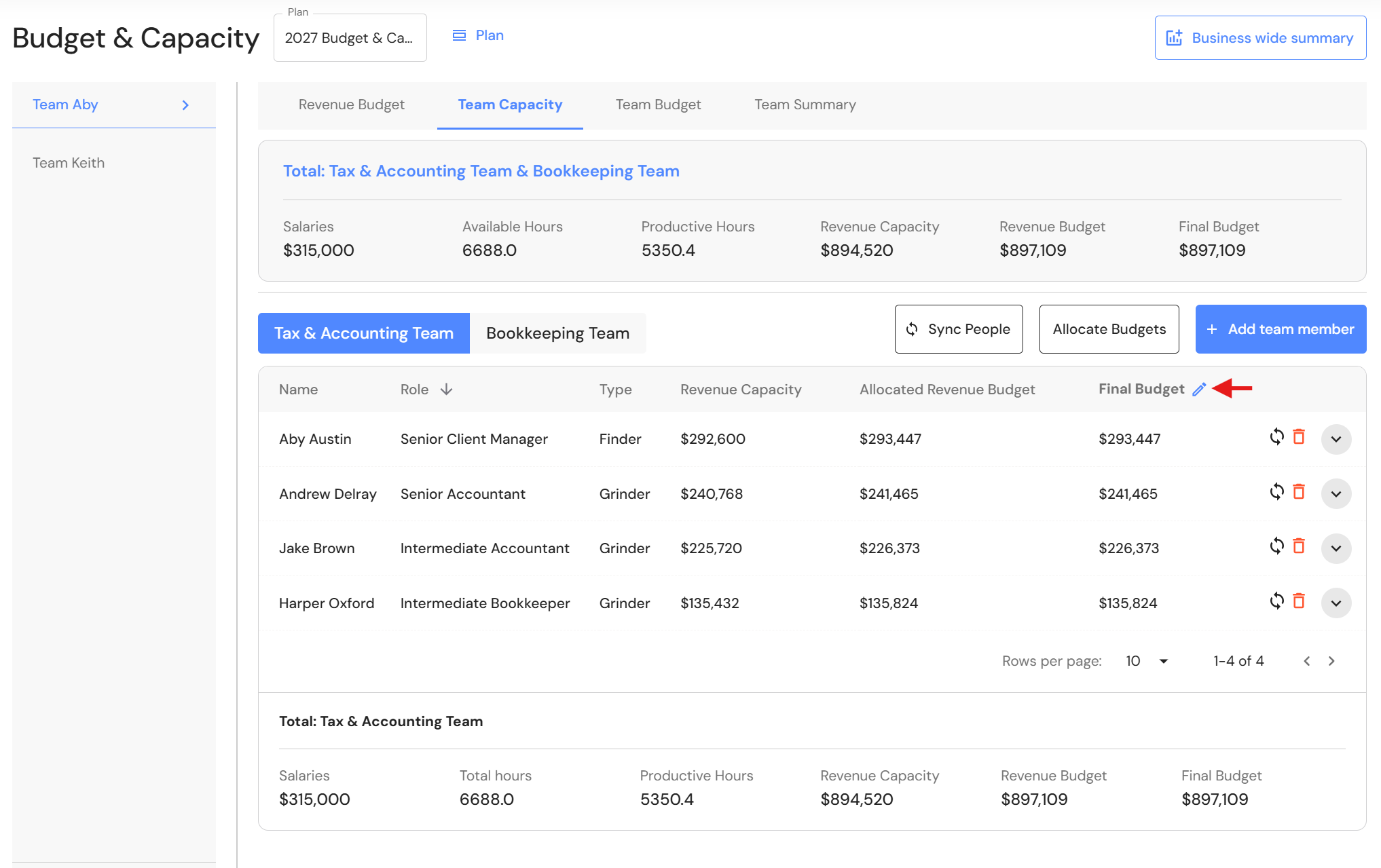
- Use the Final Budget column to determine the annual budget for each team member. Review the allocated budget alongside the individual's revenue capacity and make adjustments where needed. Budgets can be rounded or modified to account for specific circumstances, provided the overall team target remains achievable.
Click on the pencil icon next to 'Final Budget'.
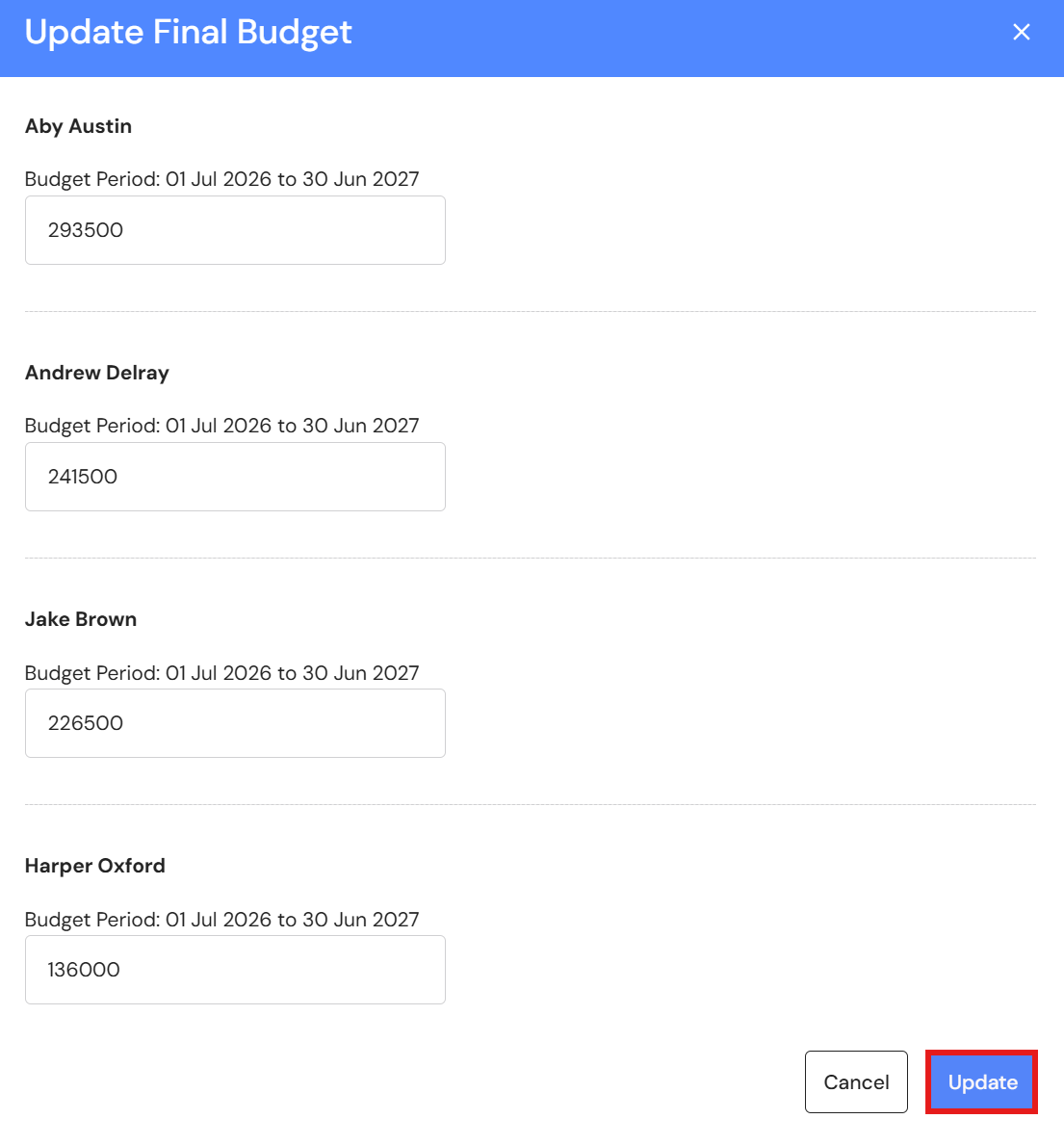
- Update the amounts for relevant team members and click 'Update'.
Repeat this step if you have team members assigned in both the Tax & Accounting Team and Bookkeeping Team.
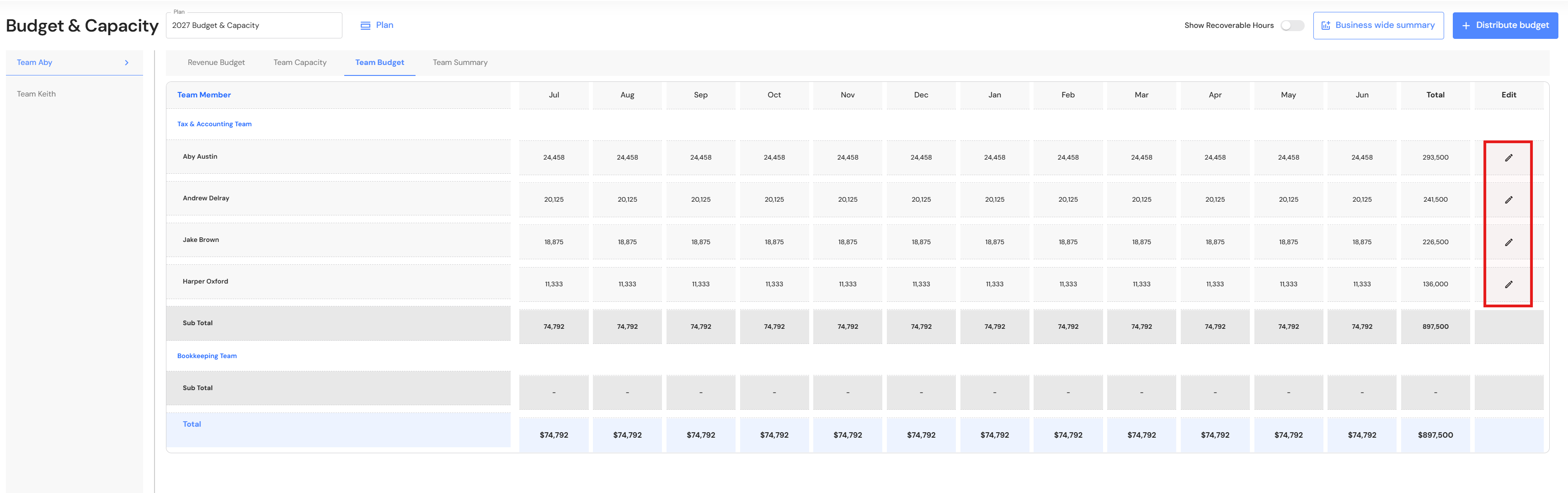
Go to the Team Budget tab
The next step is to distribute the budget across each month in the financial year.
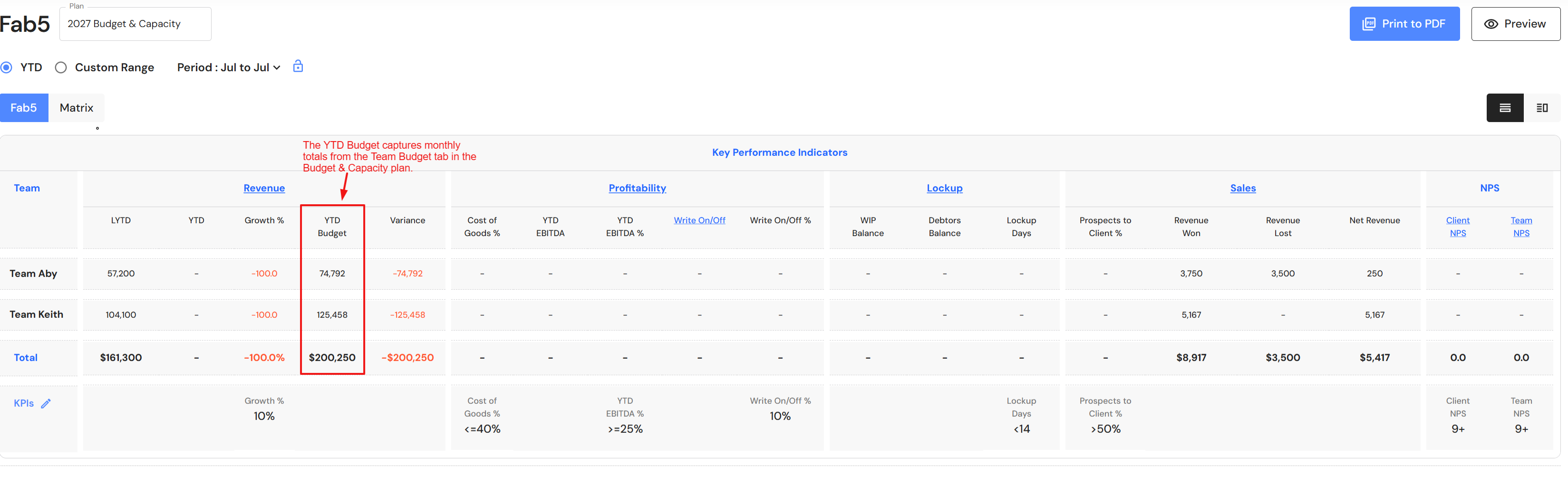
IMPORTANT: The YTD budget in the FAB5 dashboard is dependent on the totals in the team budget. If this is blank, no values will appear in the FAB5 dashboard. Refer to the FAB5 screenshot at the end of this page.
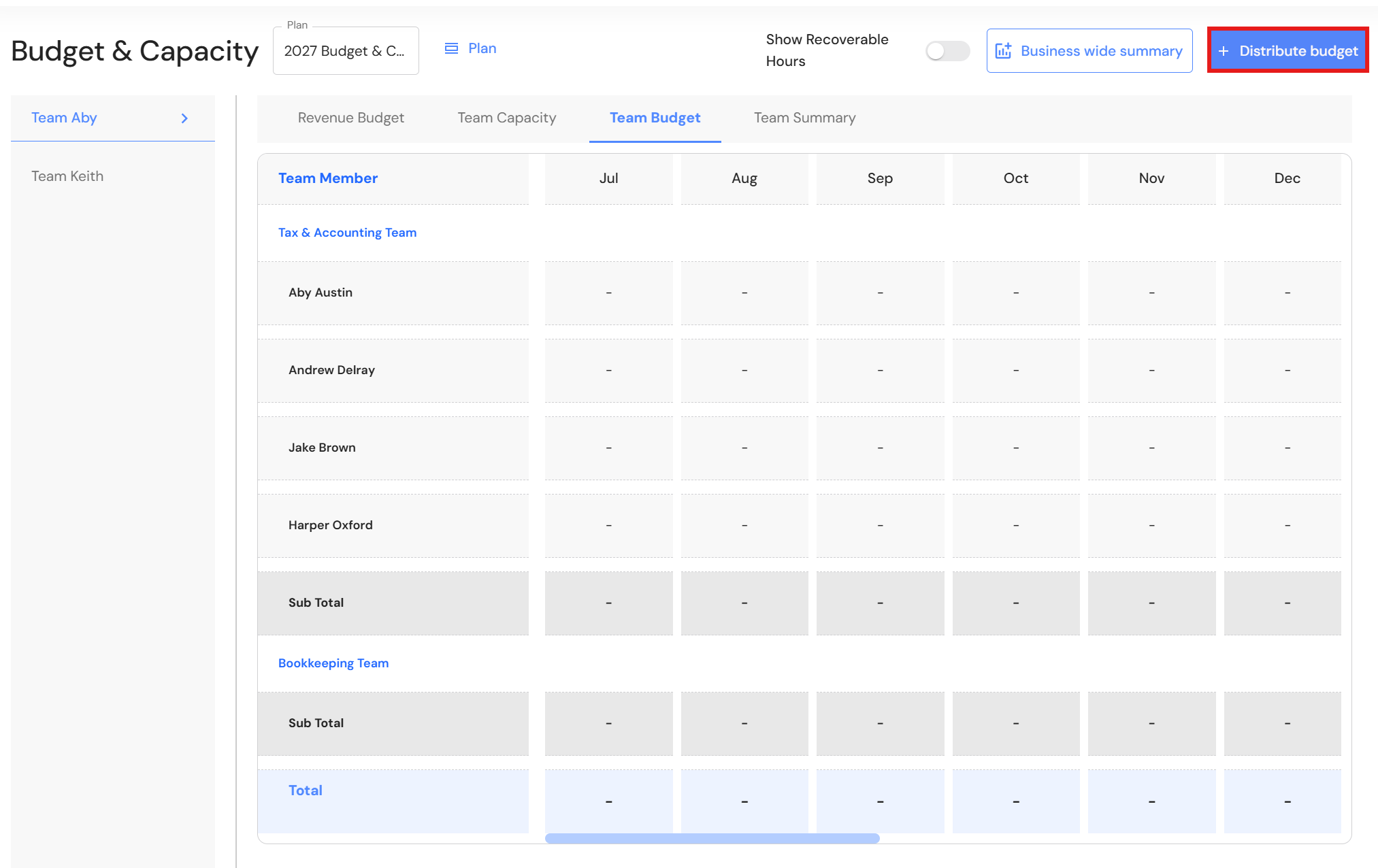
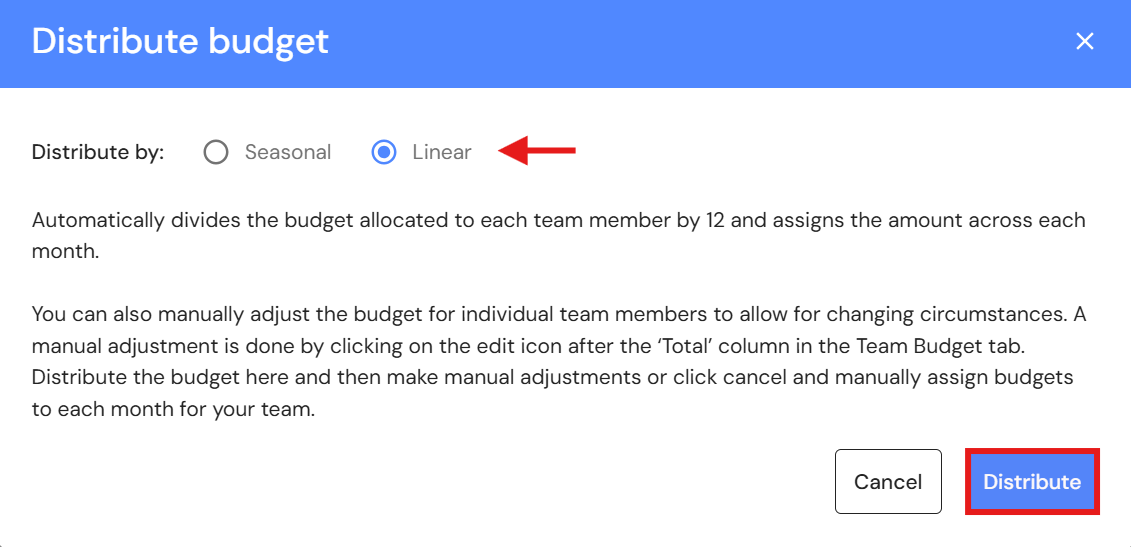
- Click on 'Distribute budget'. Choose between a seasonal or linear budget distribution and click on 'Distribute'.
- The total distribution will align with the final budget values in the Team Capacity tab. You can manually adjust individual budgets across each month by clicking on the 'edit' icon.
NB* If you edit monthly budgets, the total budget must still match the budget allocated to the team member.
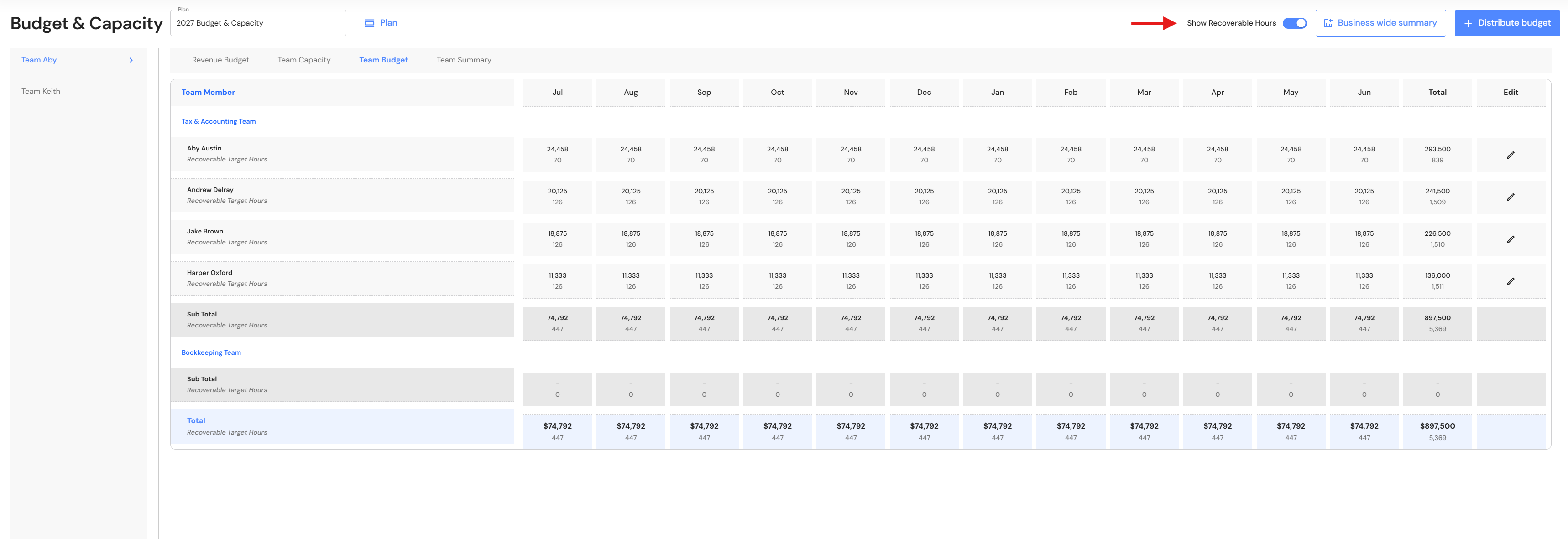
- Click the toggle next to 'Show Recoverable Hours' to view recoverable target hours for team members.
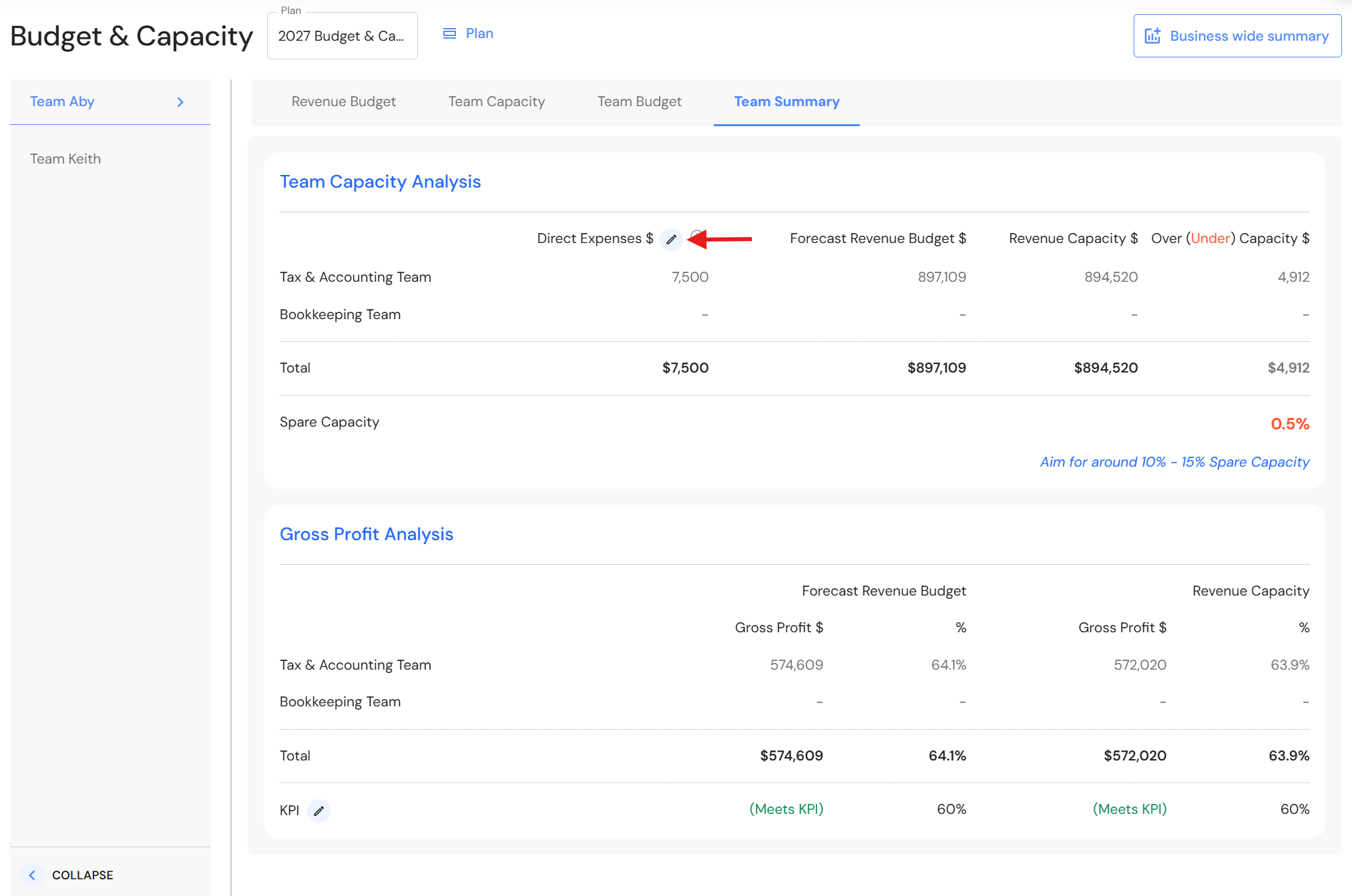
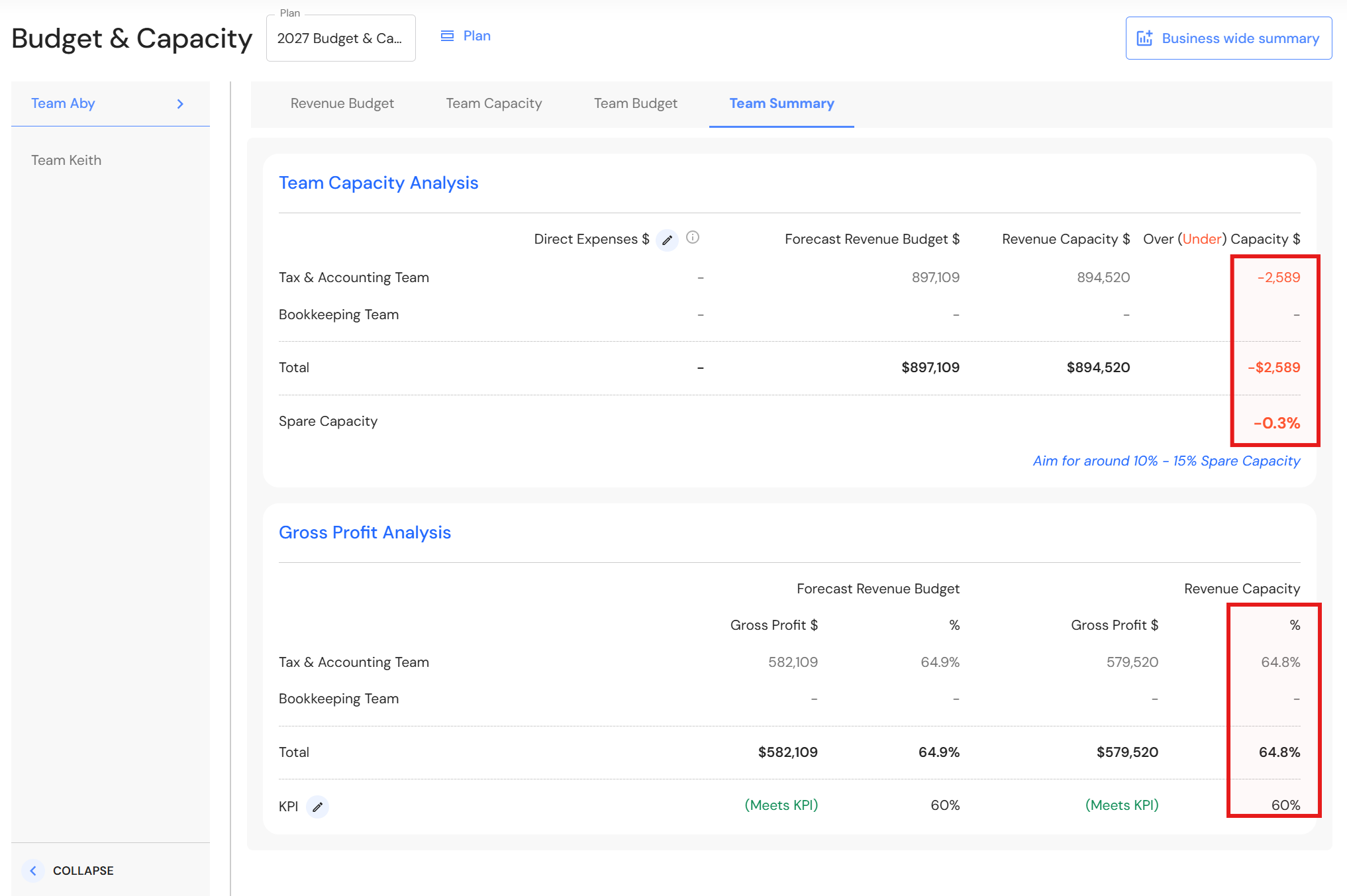
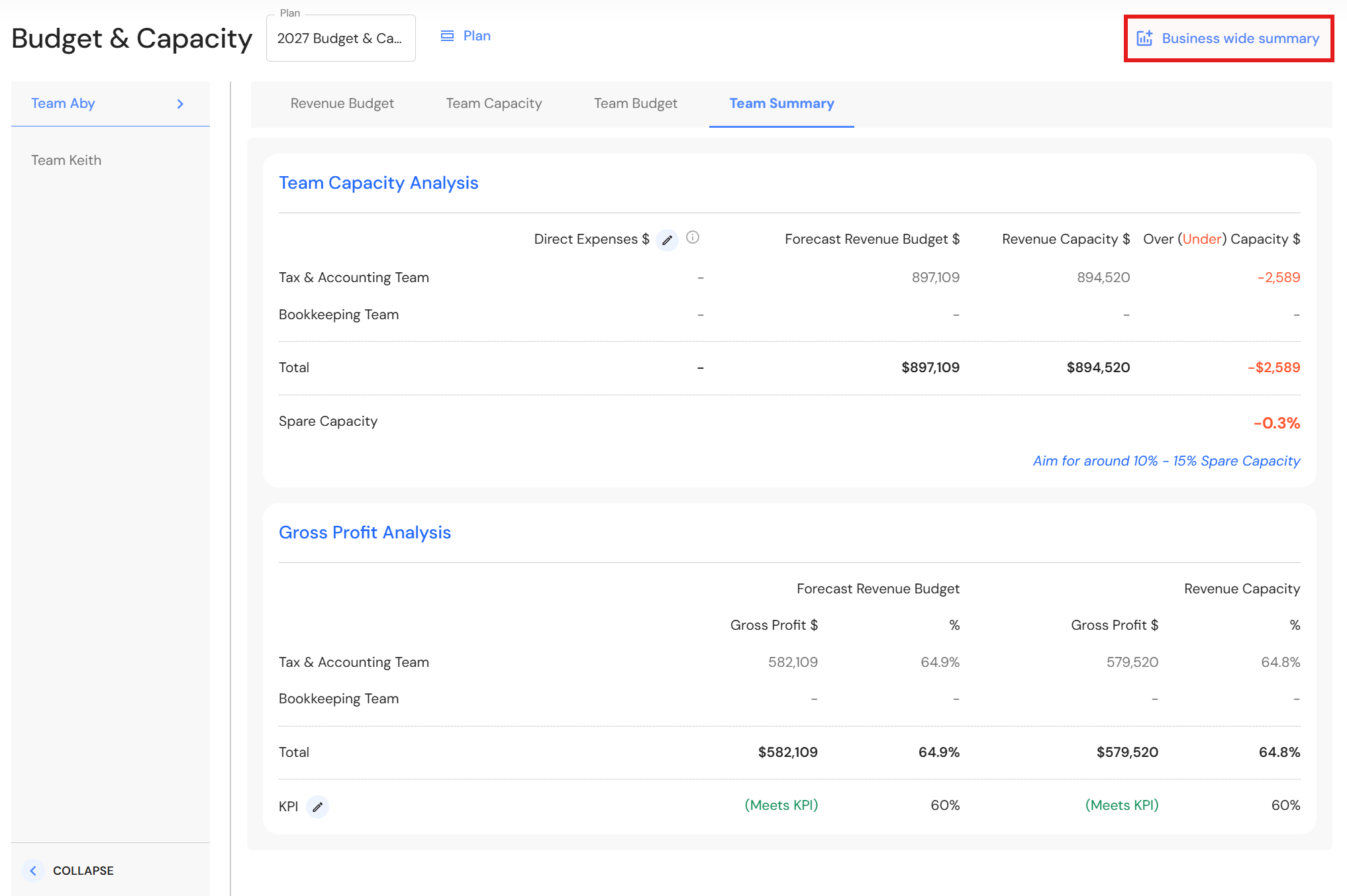
Go to the Team Summary tab - Review direct expenses and assign values to each division if relevant. Click the 'pencil' icon next to the 'Direct Expenses heading to update the values.
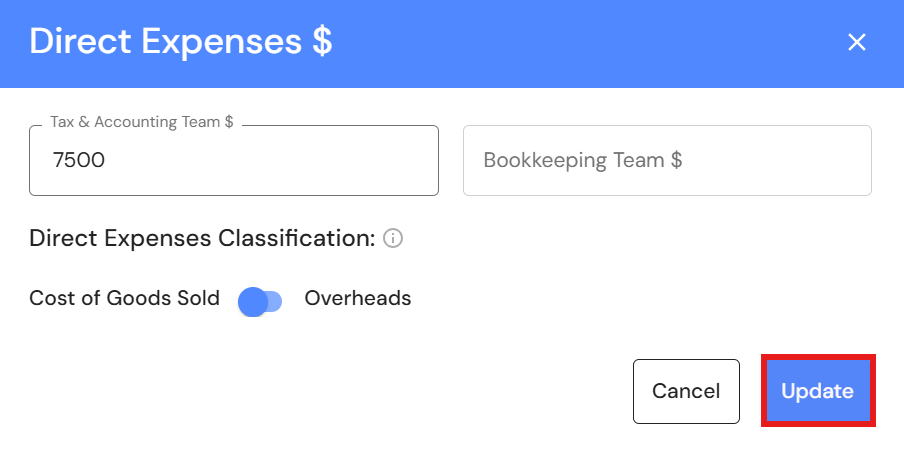
- Enter an estimated value of annual direct expenses.
- Choose how your business classifies direct expenses:
- Cost of Goods Sold - Direct expenses are included in the Gross Profit calculation.
- Overheads - Direct expenses are excluded from the Gross Profit calculation.
- Click 'Update'.
Since direct expenses do not involve labour, your team capacity is adjusted to reflect real capacity.
Review your team's capacity and gross profit analysis to make sure your team is sitting within the benchmark. Assess spare capacity and consider hiring decisions for the upcoming year.
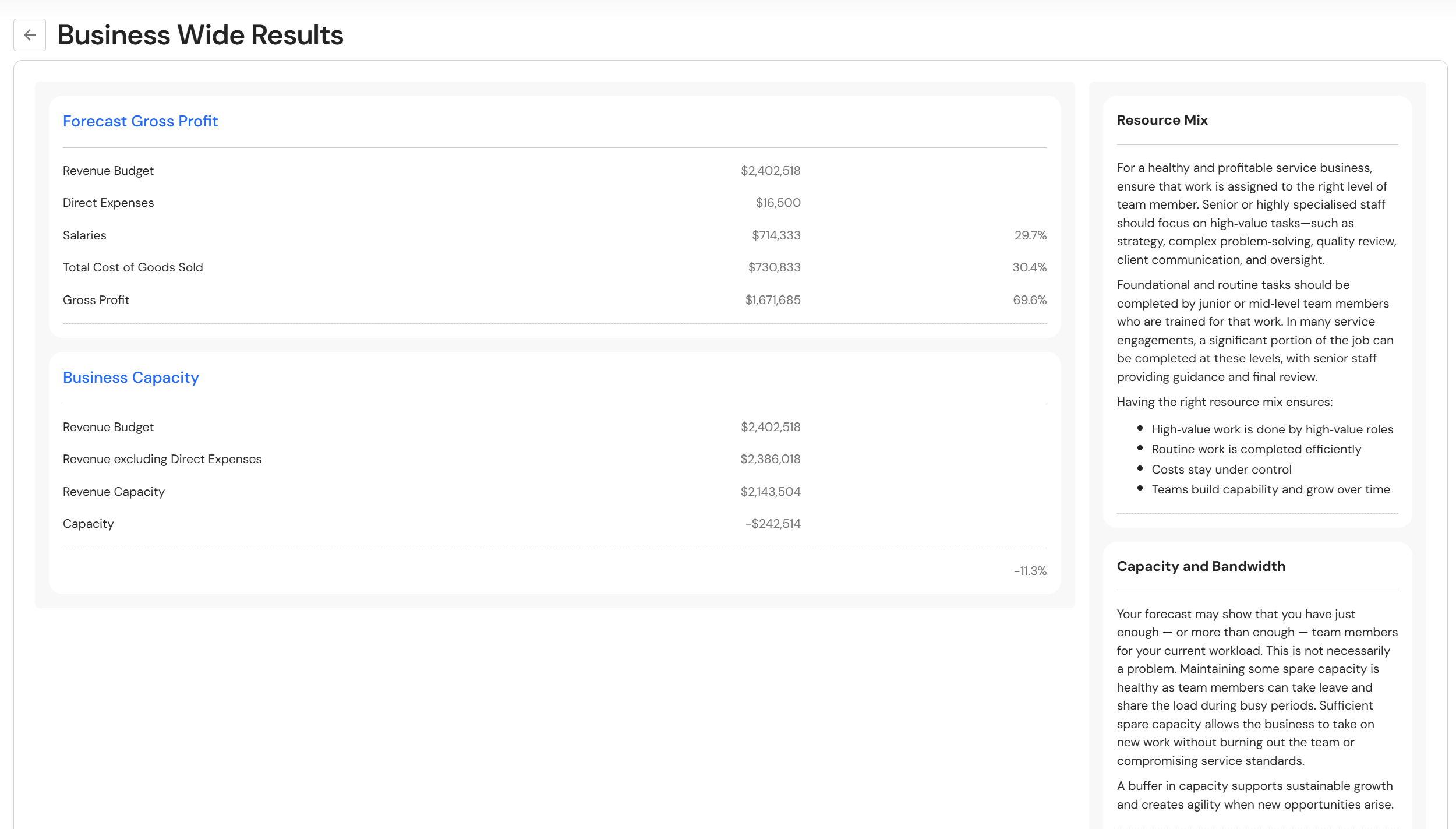
- Click on the 'Business wide summary' button to review your overall results. If you have low or negative capacity, it is time to determine your next hire to ensure your team can complete the work throughout the year while maintaining client service standards.
- Congratulations! You are now ready to complete your FAB5 data entry for the new financial year.