Meetings
eting rhythms across divisions create focus and purposeful action towards business and team objectives. Regular meetings bring attendees together for collaboration, problem solving, idea generation, individual contribution and team accountability.
The meetings module allows business' to run meetings and keep records of decisions, actions, associated tasks and outstanding matters in one place, all while maintaining confidentiality.
Users can record minutes against each agenda topic and if required, assign tasks to team members without leaving the meeting.
The meetings module is packed with features, giving business' the flexibility to create and run meetings in ways that is most efficient for their team.
Create a Meeting
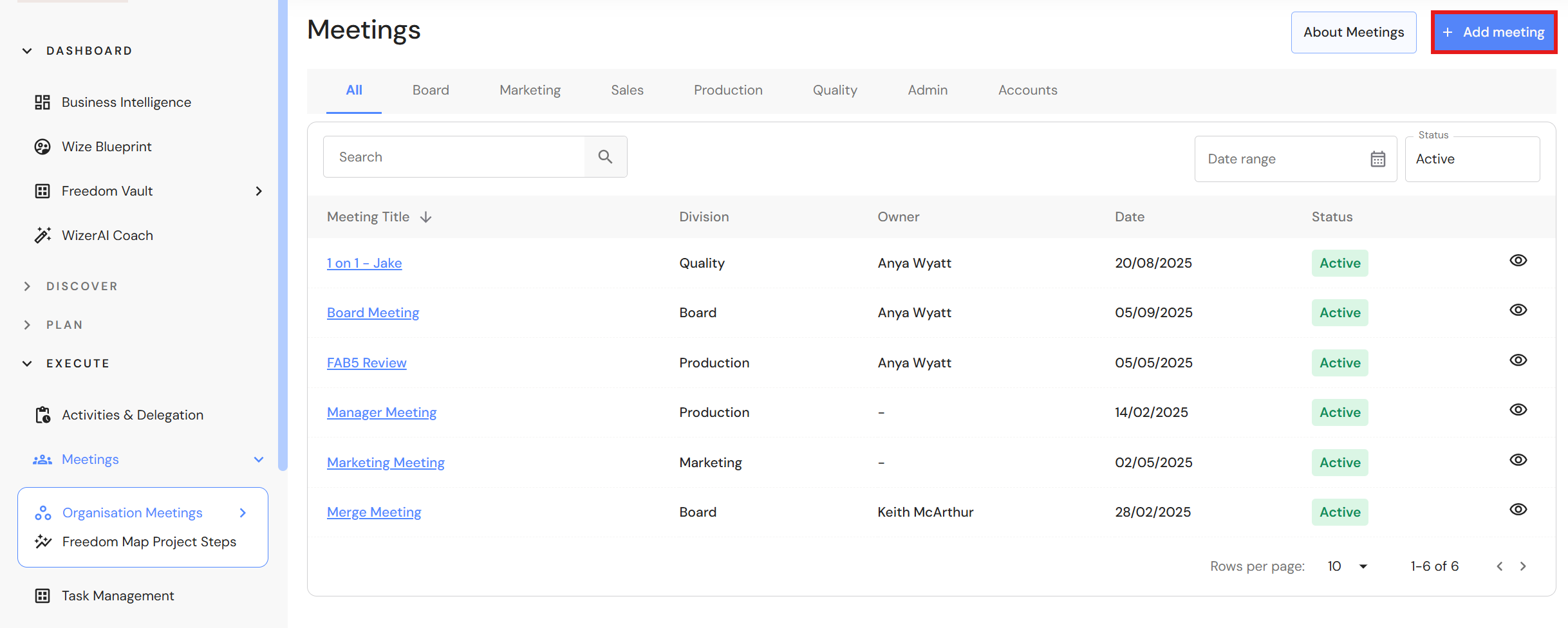
Go to Execute > Meetings
- Click '+ Add Meeting'.
NB* The person who creates the meeting will become the owner who chairs the meeting. The owner can be transferred to another team member after the meeting is created.
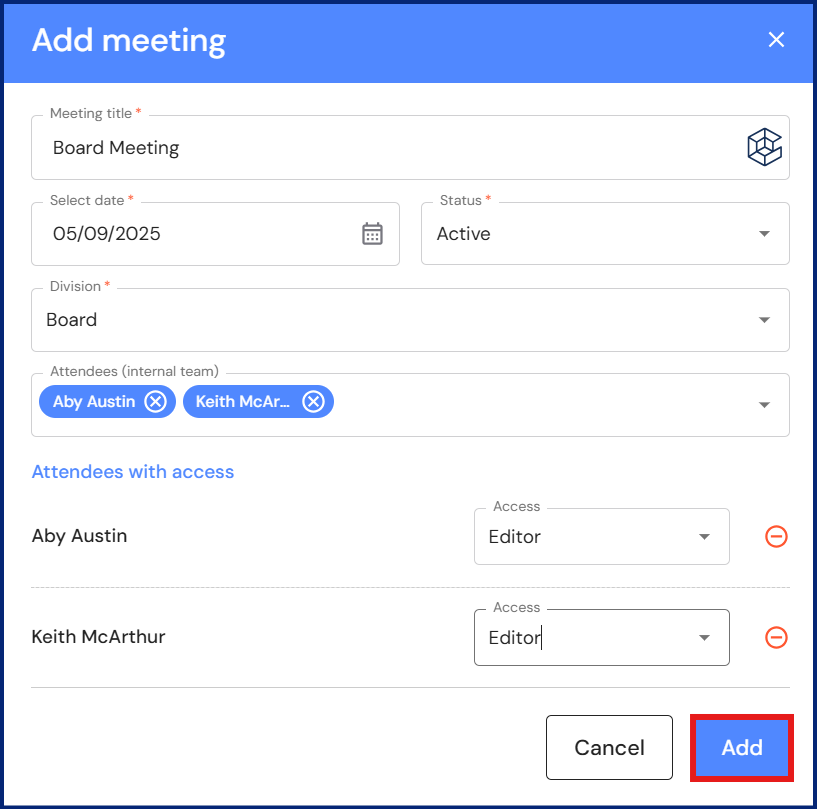
- Add a meeting title and meeting date.
- If the meeting relates to a different division, select the division from the dropdown list. The meeting will then appear in the relevant division.
- Add the attendees and select the access.
- Viewer - A view has visibility of the meeting without the ability to edit any details.
- Editors - An editor can update agendas, add minutes etc.
- Click 'Add'.
MEETING CONFIDENTIALITY: Meeting visibility is restricted to meeting owners and attendees. This ensures privacy of confidential discussions and meeting notes. NB* Executive users can view all meetings even if they are not participants.
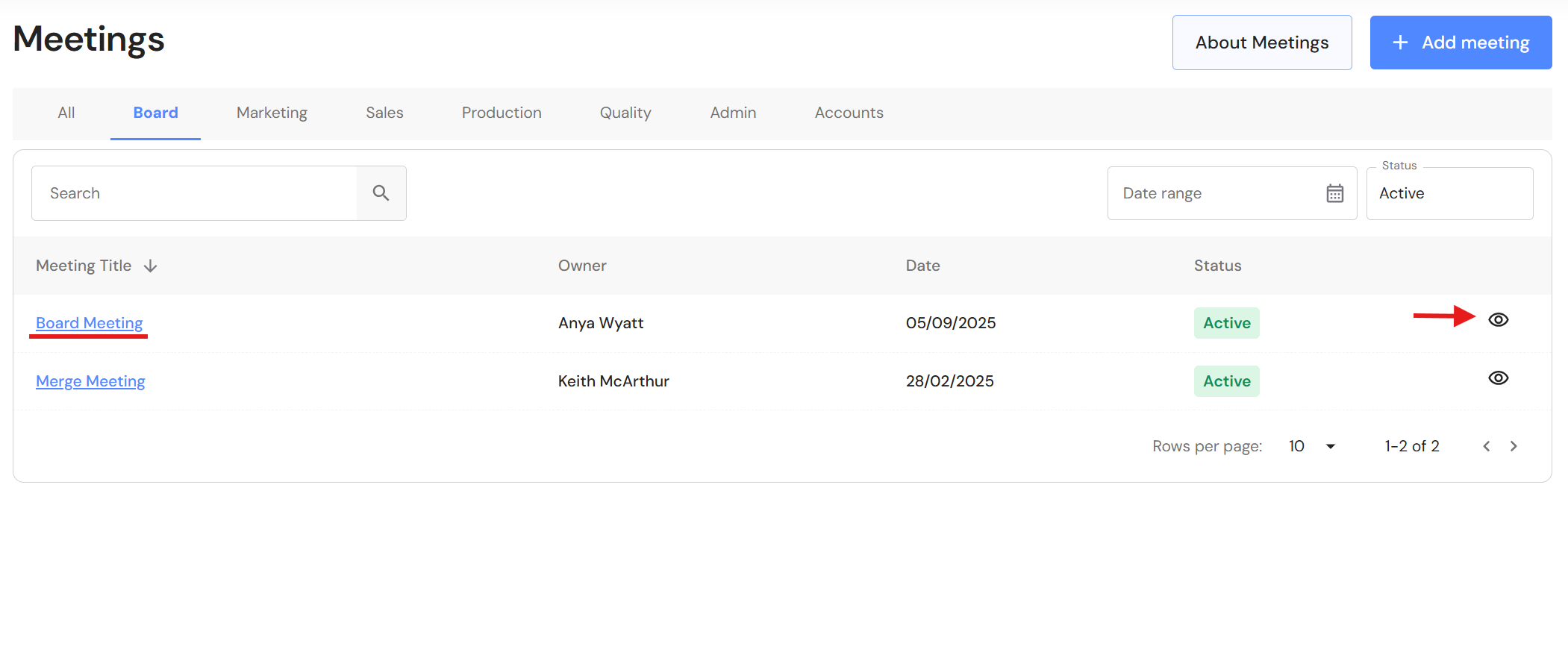
NB* To access the meeting agenda when you return to the meeting module, click on the meeting hyperlink or view icon to open the meeting.
Add a meeting agenda
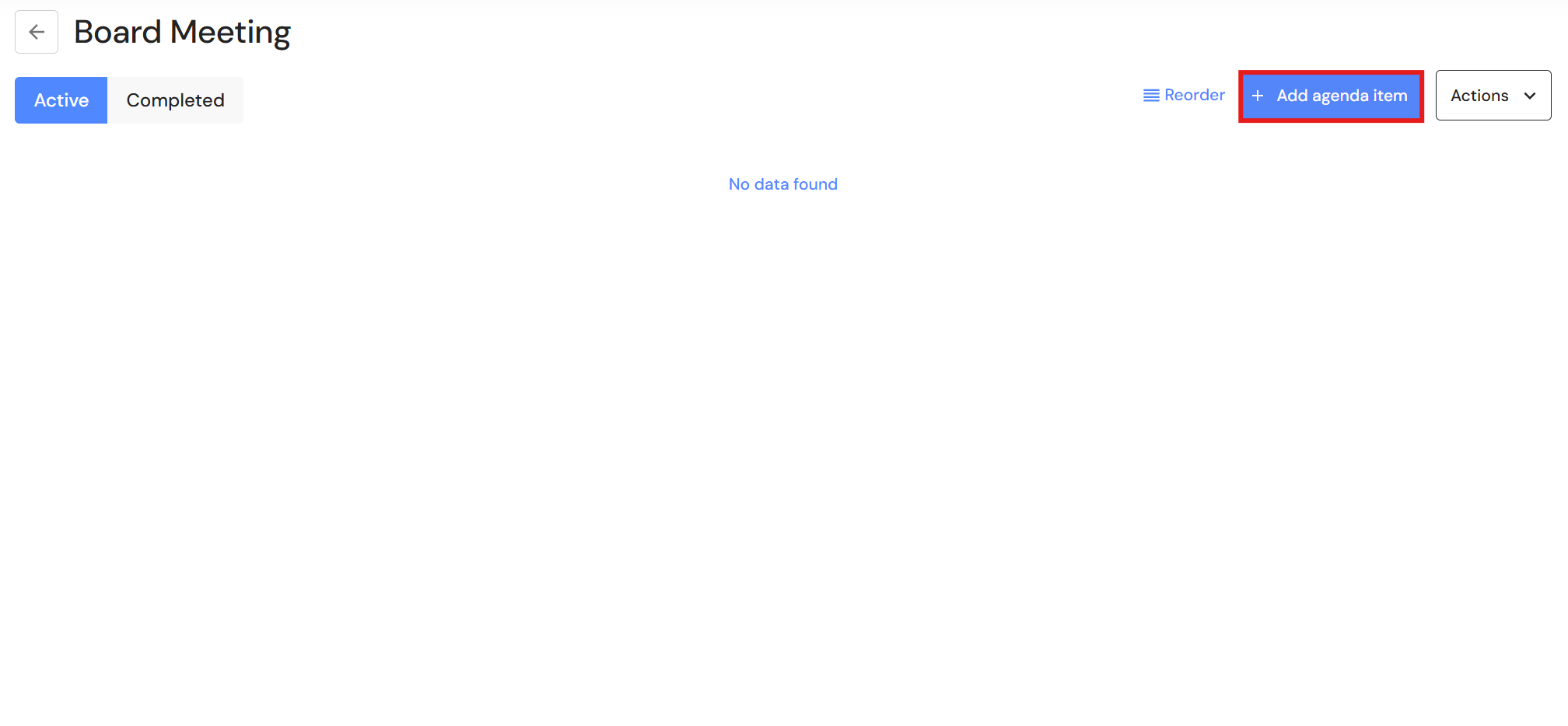
- After you create a meeting, you are ready to add the agenda.
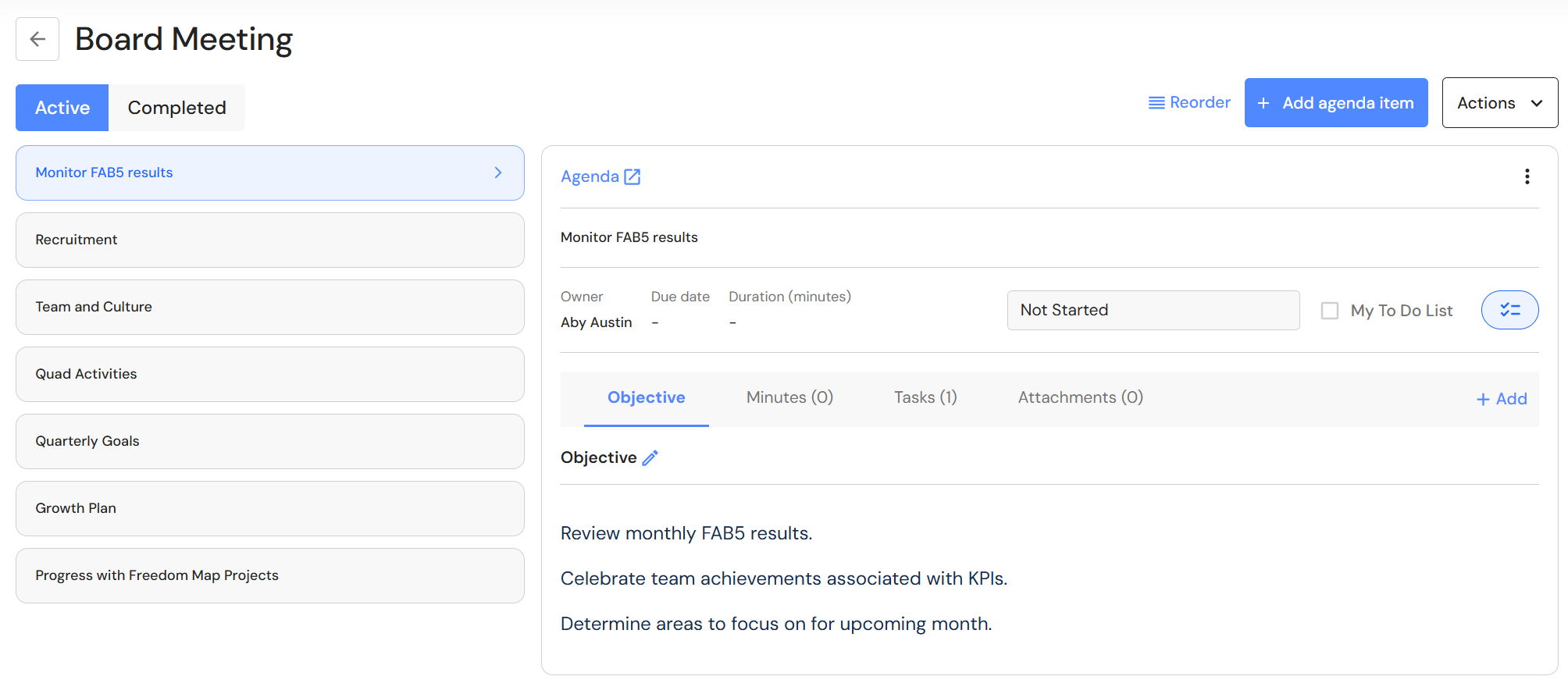
- Click '+ Add agenda item'.
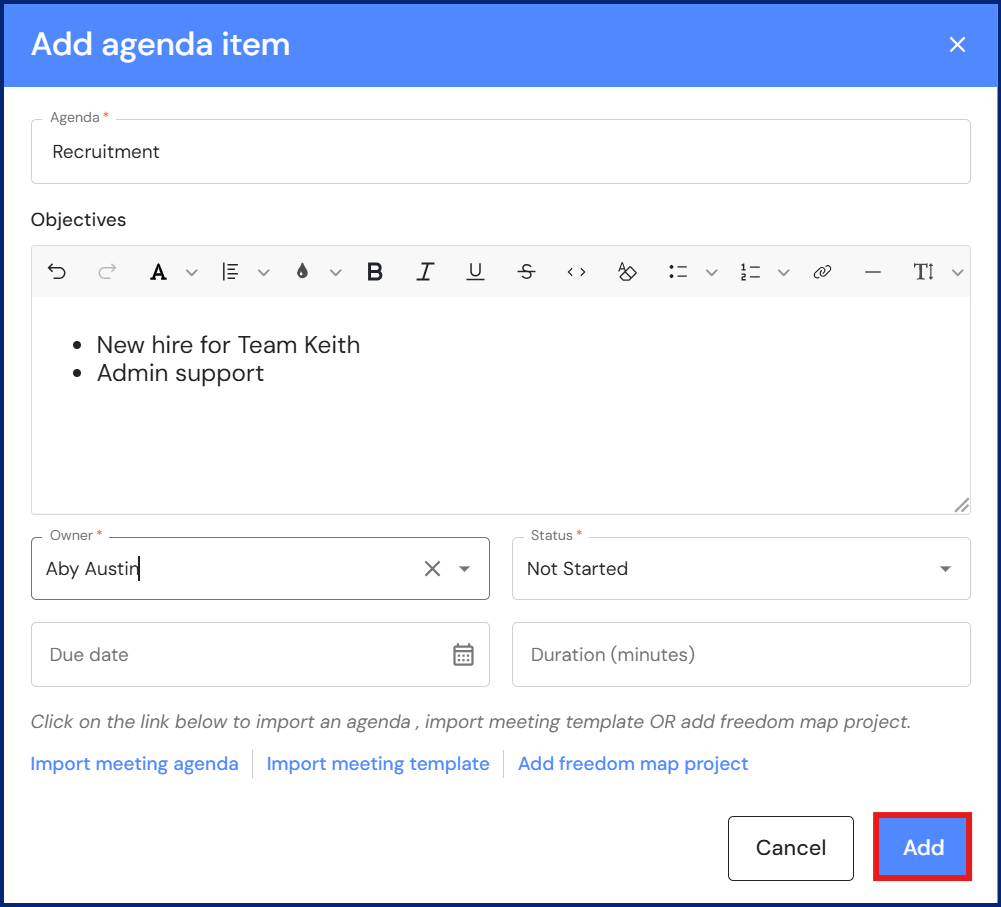
Users can add agenda topics or choose to import default agendas or a pre-defined meeting template. Refer to: - Add an agenda topic.
- Include key discussion points in the objectives.
- Select the owner of the agenda. The owner is person who will drive the discussion and post-meeting action.
- Optional fields include the status, due date, and duration.
- Click 'Add'.
Repeat these steps to complete the meeting agenda.
Reorder a meeting agenda
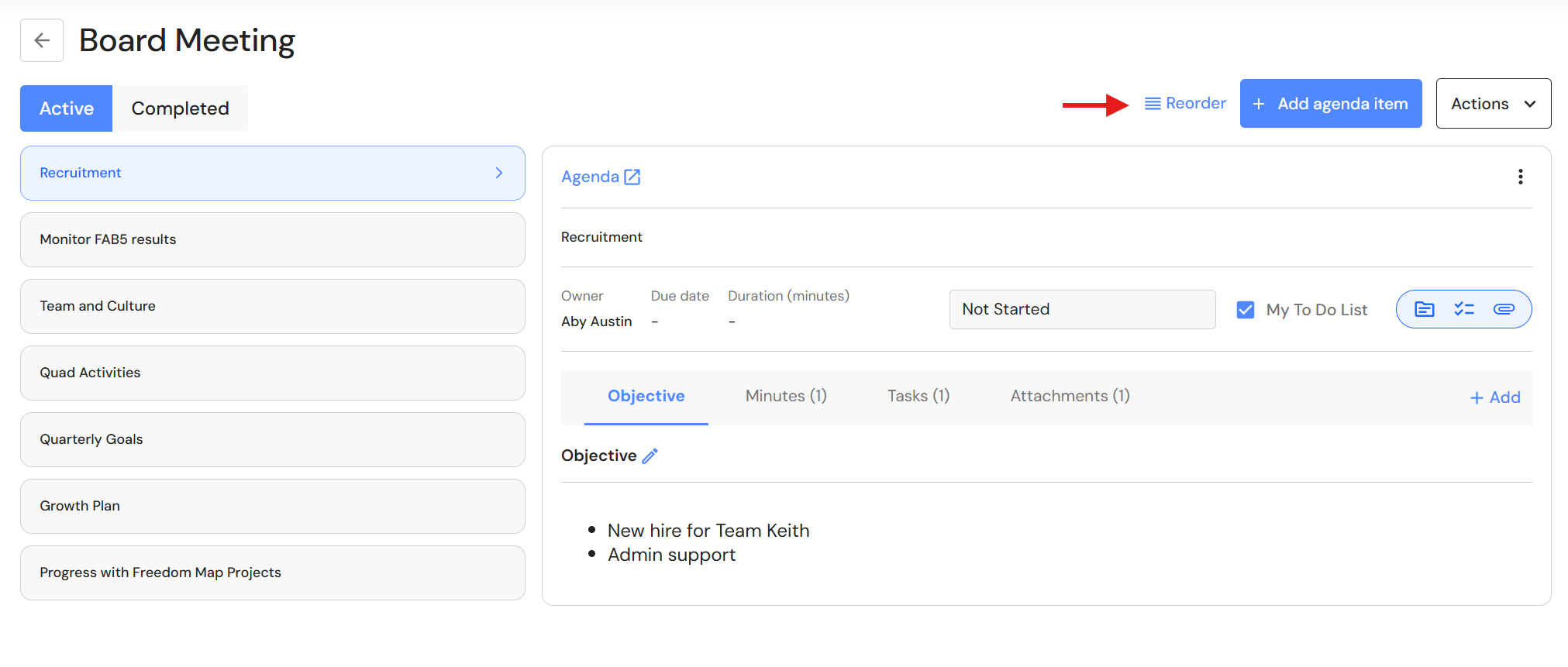
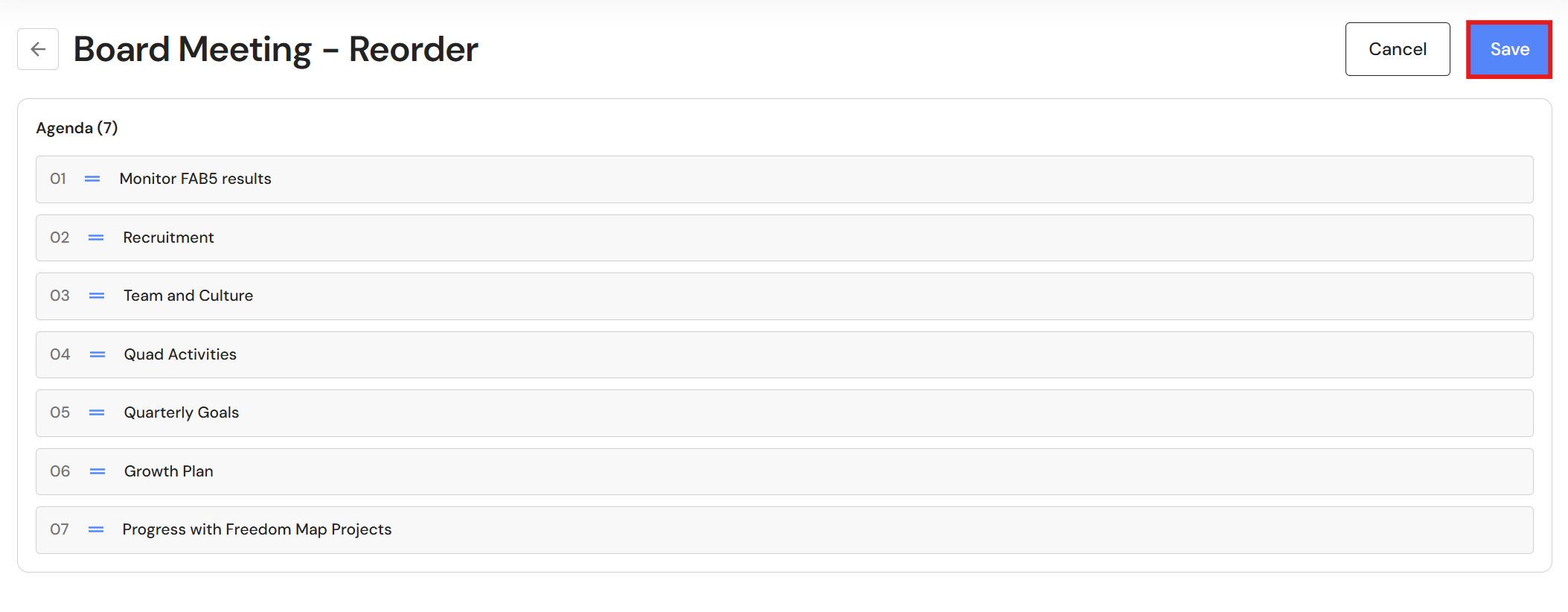
If meeting priorities change, users can reorder the agenda.
- Click on 'Reorder'.
- Hold the left button on your mouse and drag agenda items in your preferred order.
- Click 'Save'.
Add minutes
Minutes are used to record key discussions and agreed actions from the agenda objectives.
PRO TIP: Be flexible with minute taking to match your needs. While it is general practice to record minutes alongside a meeting topic, users can create a 'Meeting Minutes' agenda and record notes in the objectives. For business' who use AI to document minutes, you can copy and paste AI meeting summaries into the objectives.
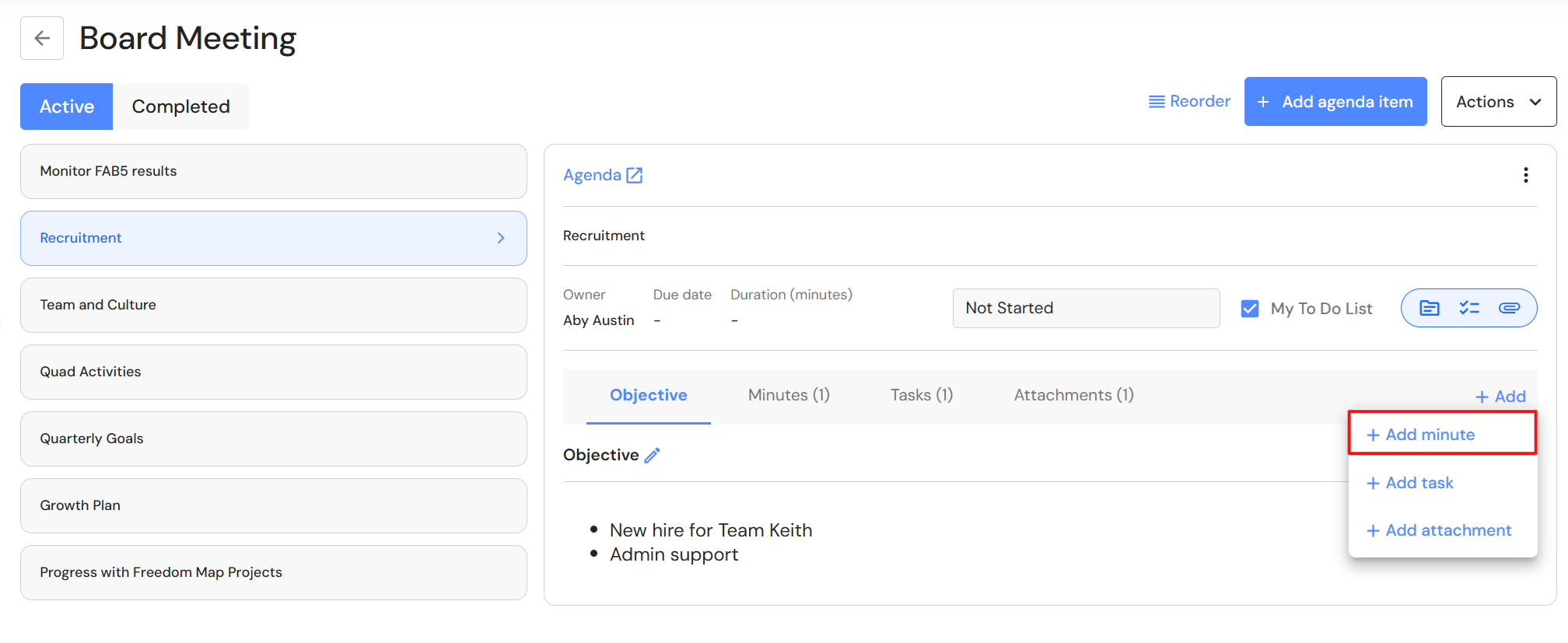
- Click '+Add' in the grey header and select + Add minute'.
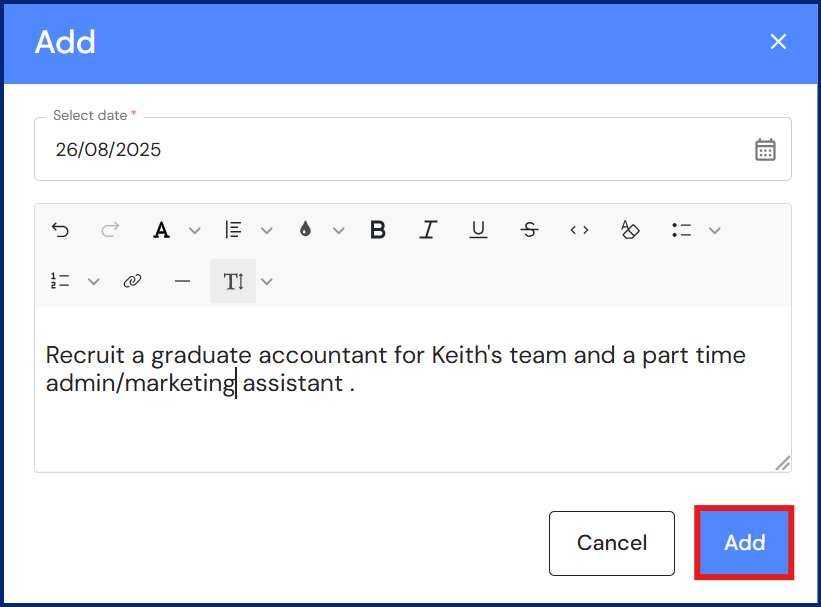
- The date will prefill with todays date but you can change the date if required.
- Document minutes in the text box field.
- Click 'Add'.
- The minute will be added to the Minutes tab in the agenda.
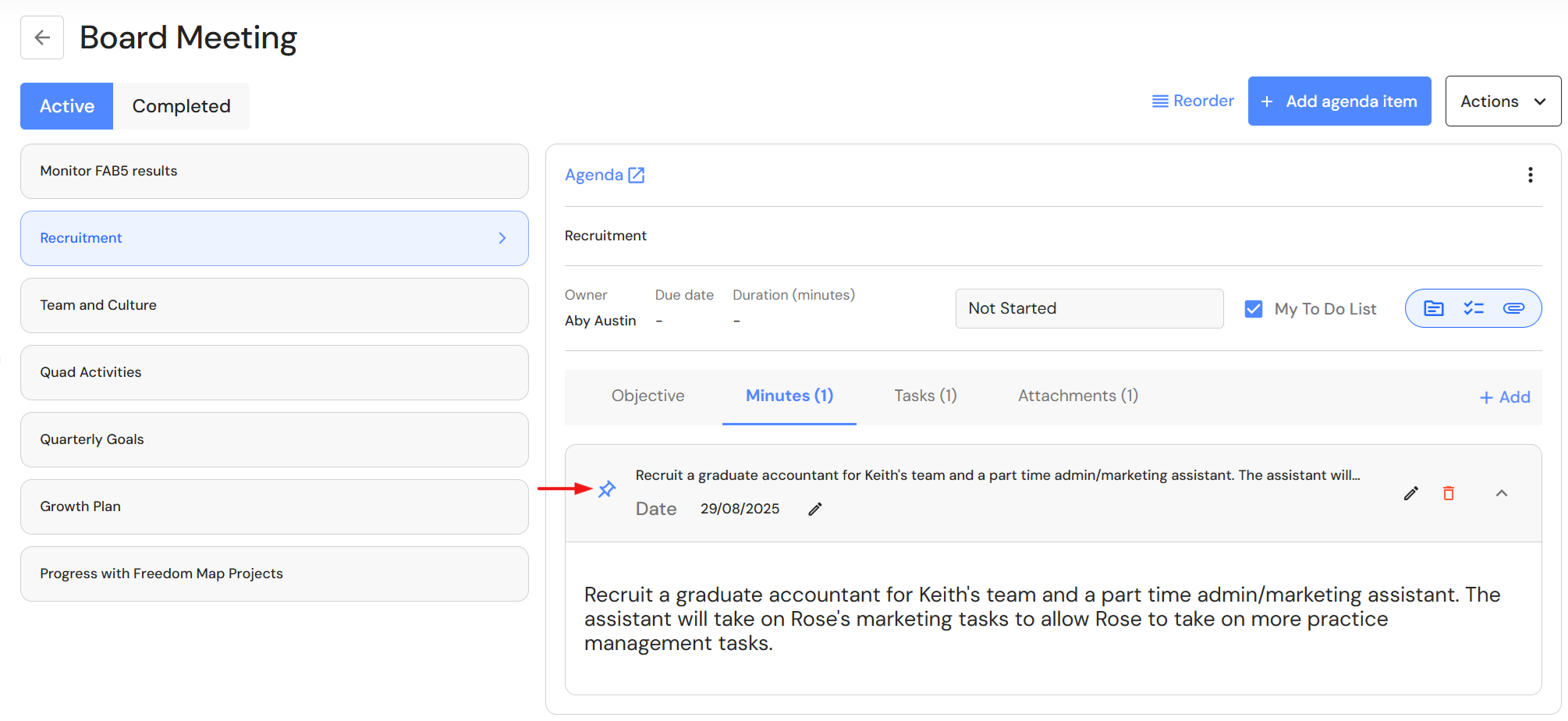
You can pin minutes so the minute details stay open. Click on the pin icon next to the minute header.
Assign tasks
In meetings, it is not uncommon to talk about tasks to bring objectives to completion. Tasks can relate to meeting attendees or it might be someone outside the meeting.
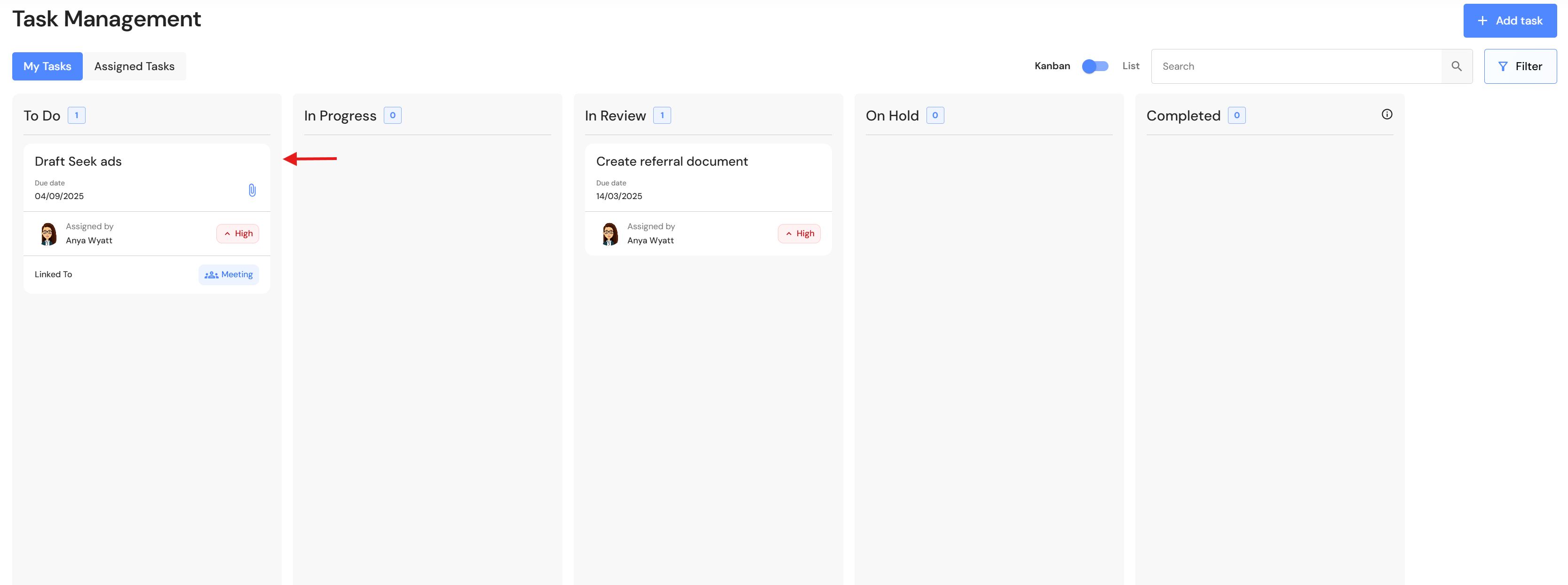
Users can easily assign tasks 'on the fly' as they work through the meeting agenda. The task will be added to the team member's tasks in the Task Management module while also being attached to the agenda as a record.
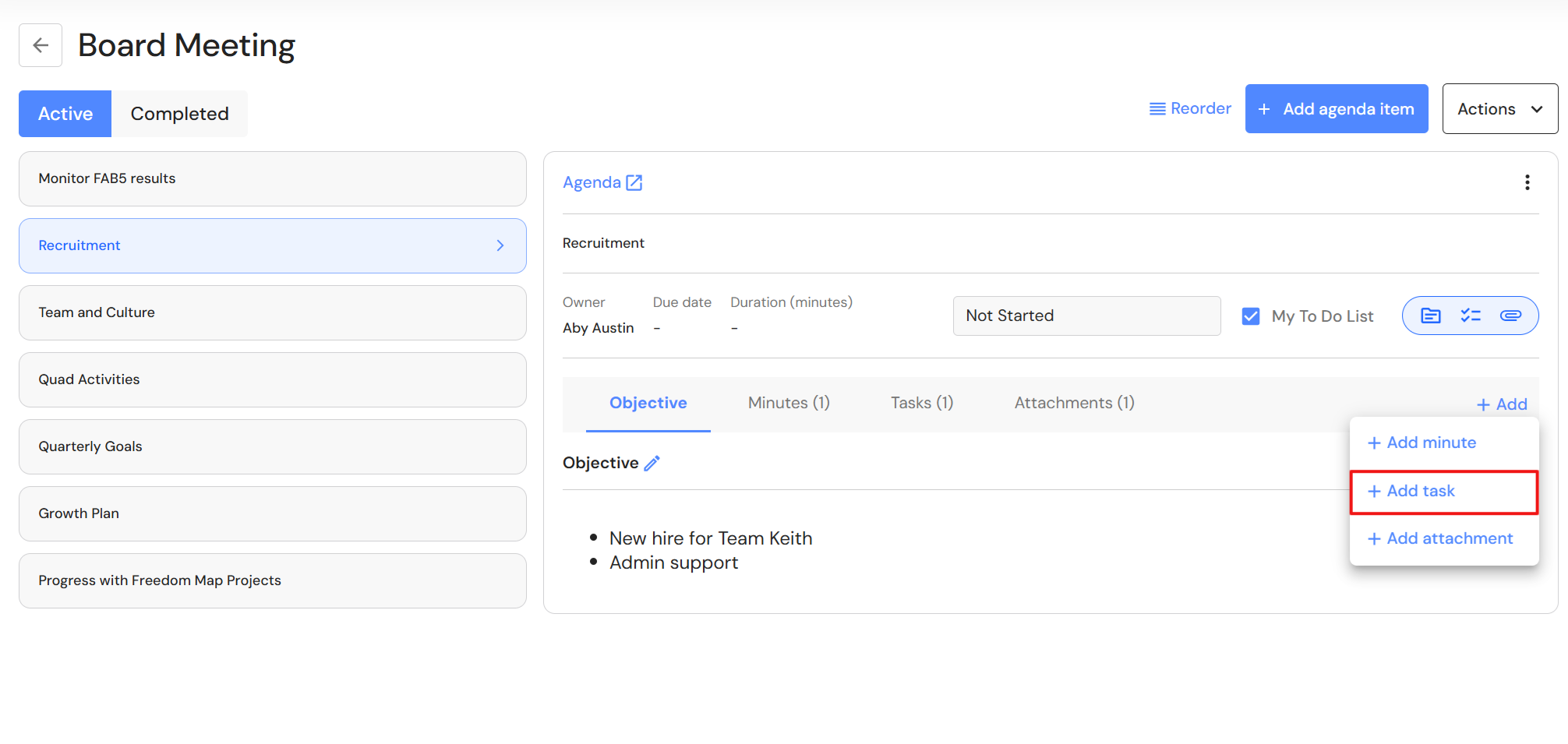
- Click '+ Add' in the grey header and select '+ Add task'.
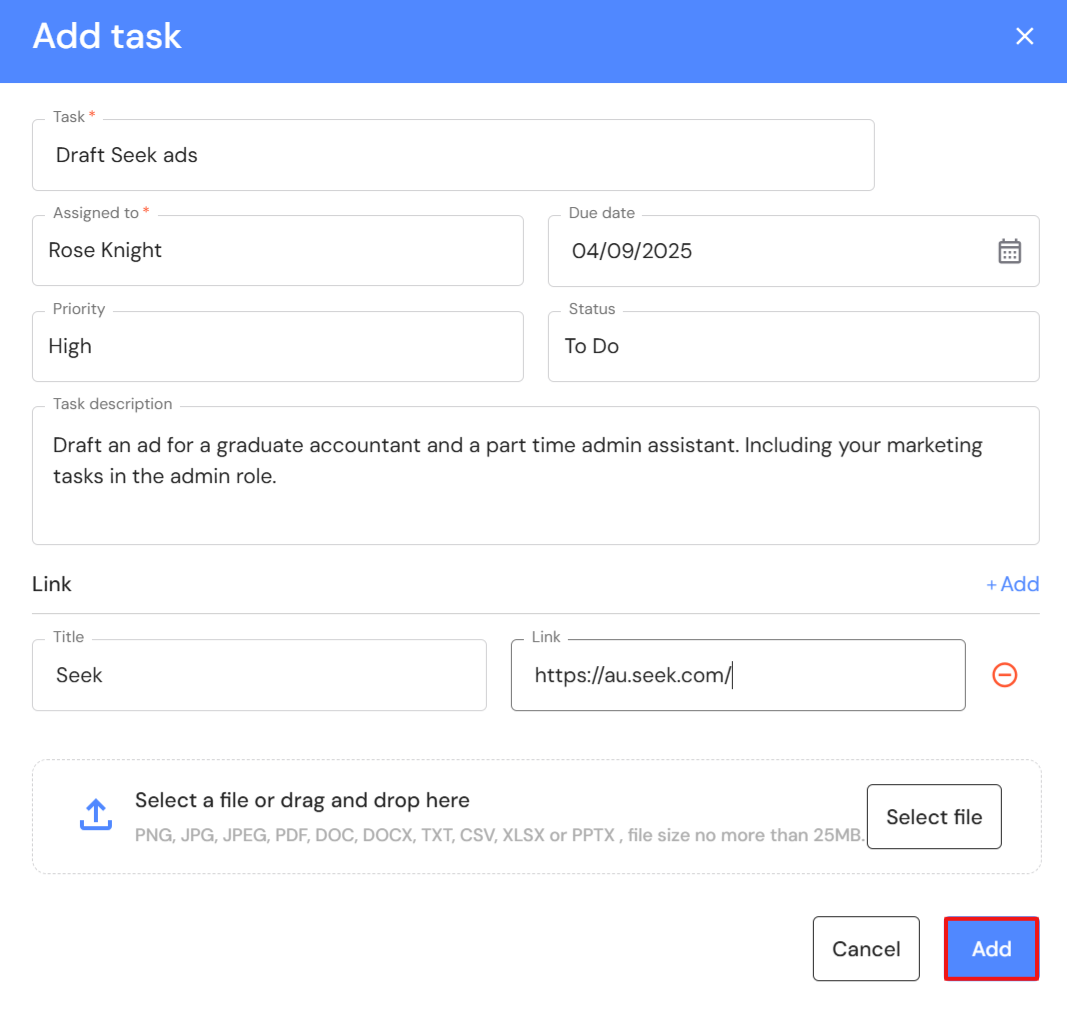
- Add a task summary.
- Assign the task to a team member.
- Add a due date.
- Add the task priority.
- The default status is 'To Do'.
- Include instructions or further context in the task description.
- OPTIONAL - Include a title along with a website link or drag and drop an attachment (leave title blank if you are attaching a document).
- Click 'Add'.
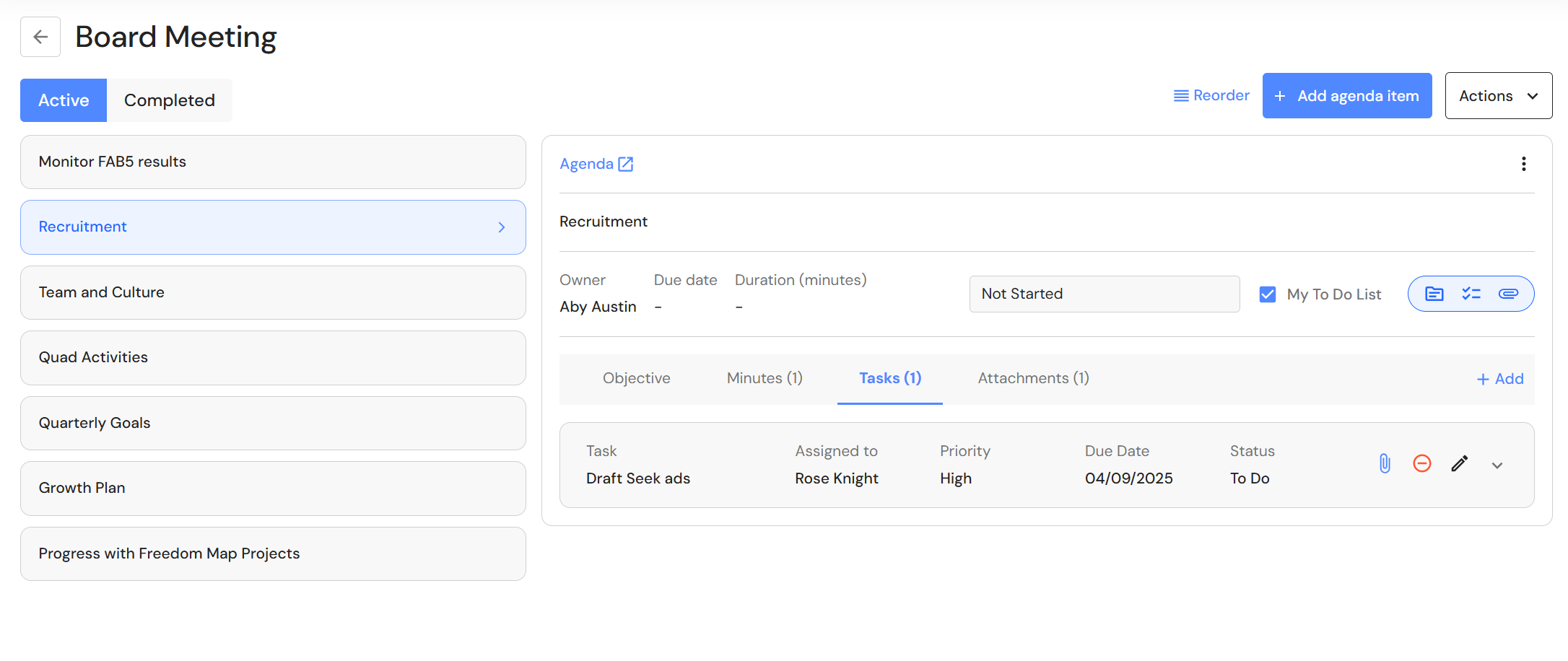
- The task will be added to the Tasks tab in the agenda.
- The task is added to the assignee's task list in Task Management.
Add attachments
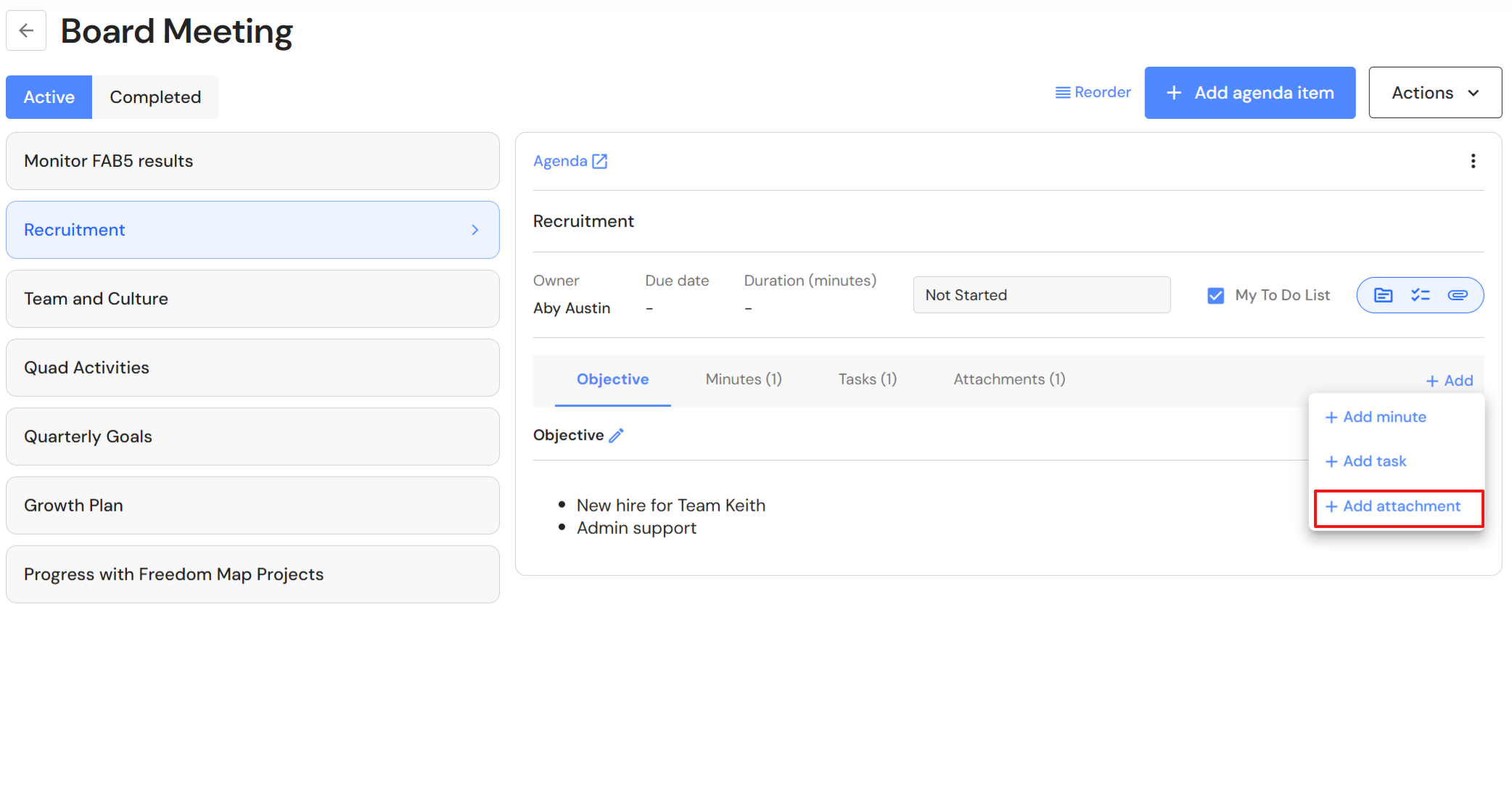
Sometimes an online resource or document adds context to meeting discussions. To keep everything together, users can attach URLS or documents to agendas.
- Click '+Add' in the grey header and select '+ Add attachment'.
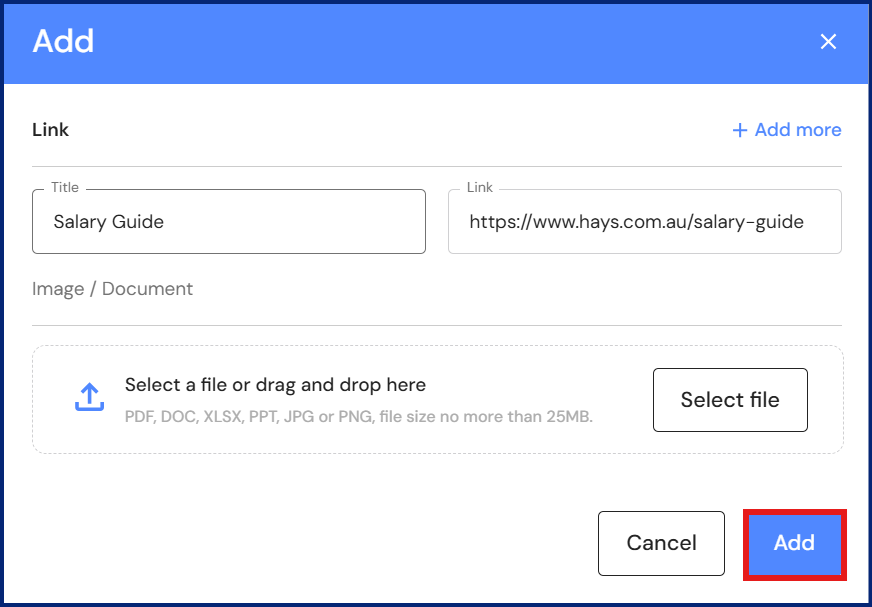
- Include and title and website link or drag and drop an attachment (leave title blank if you are adding an attachment).
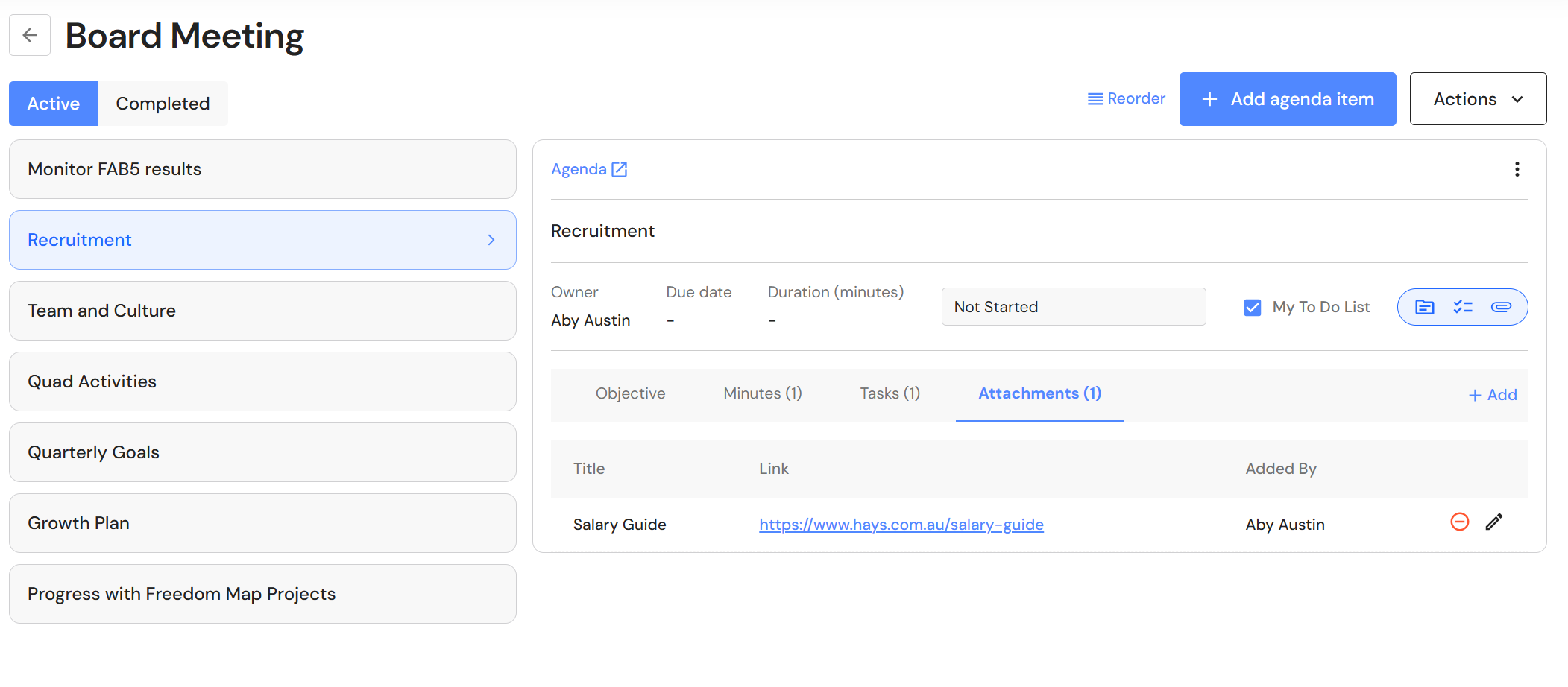
- Attachments will be added to the Attachments tab in the agenda.
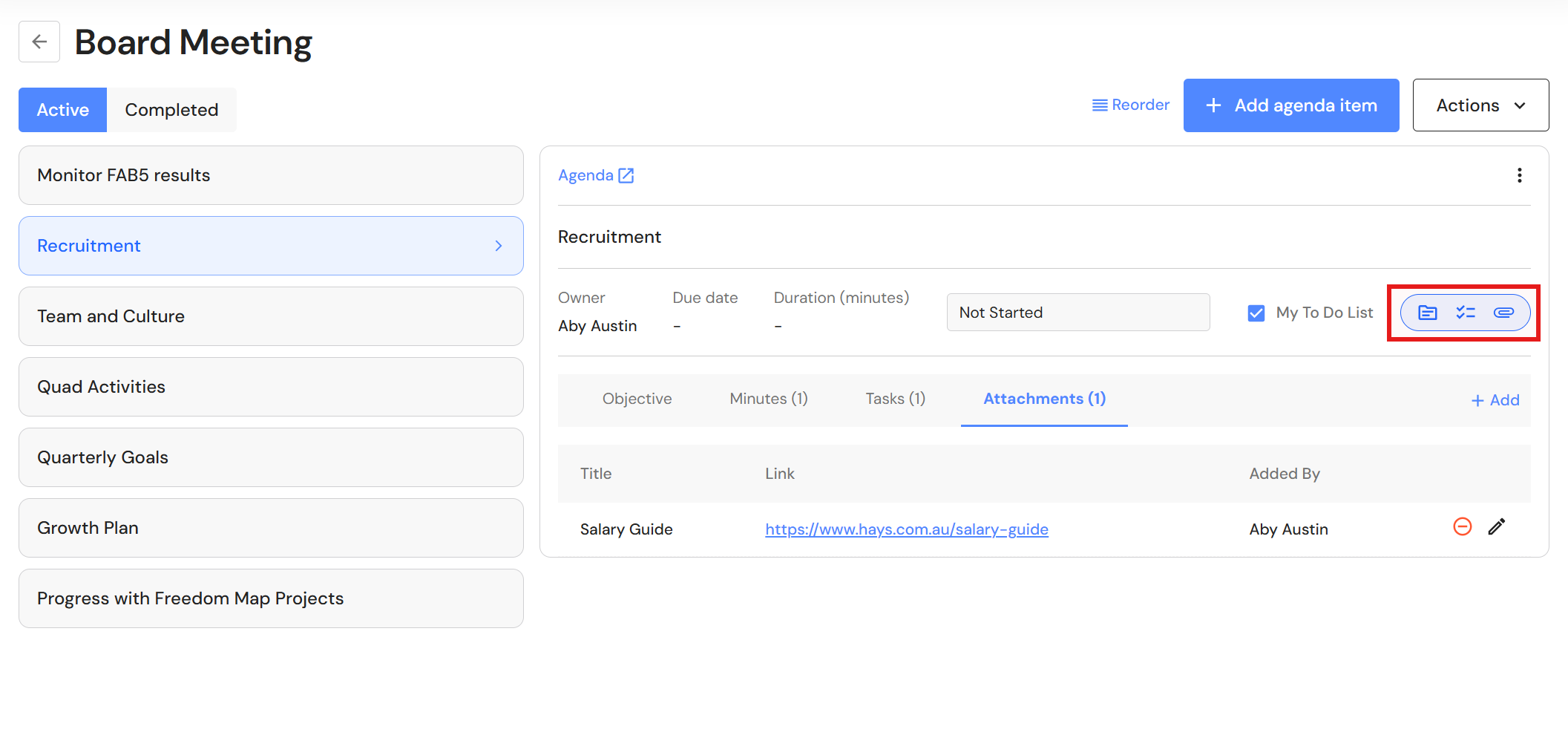
When minutes, tasks or attachments are added to agendas, an icon appears in the header to highlight that records exist. Users can click on the icon and it will take you to the relevant tab.
Add agendas to My To Do List
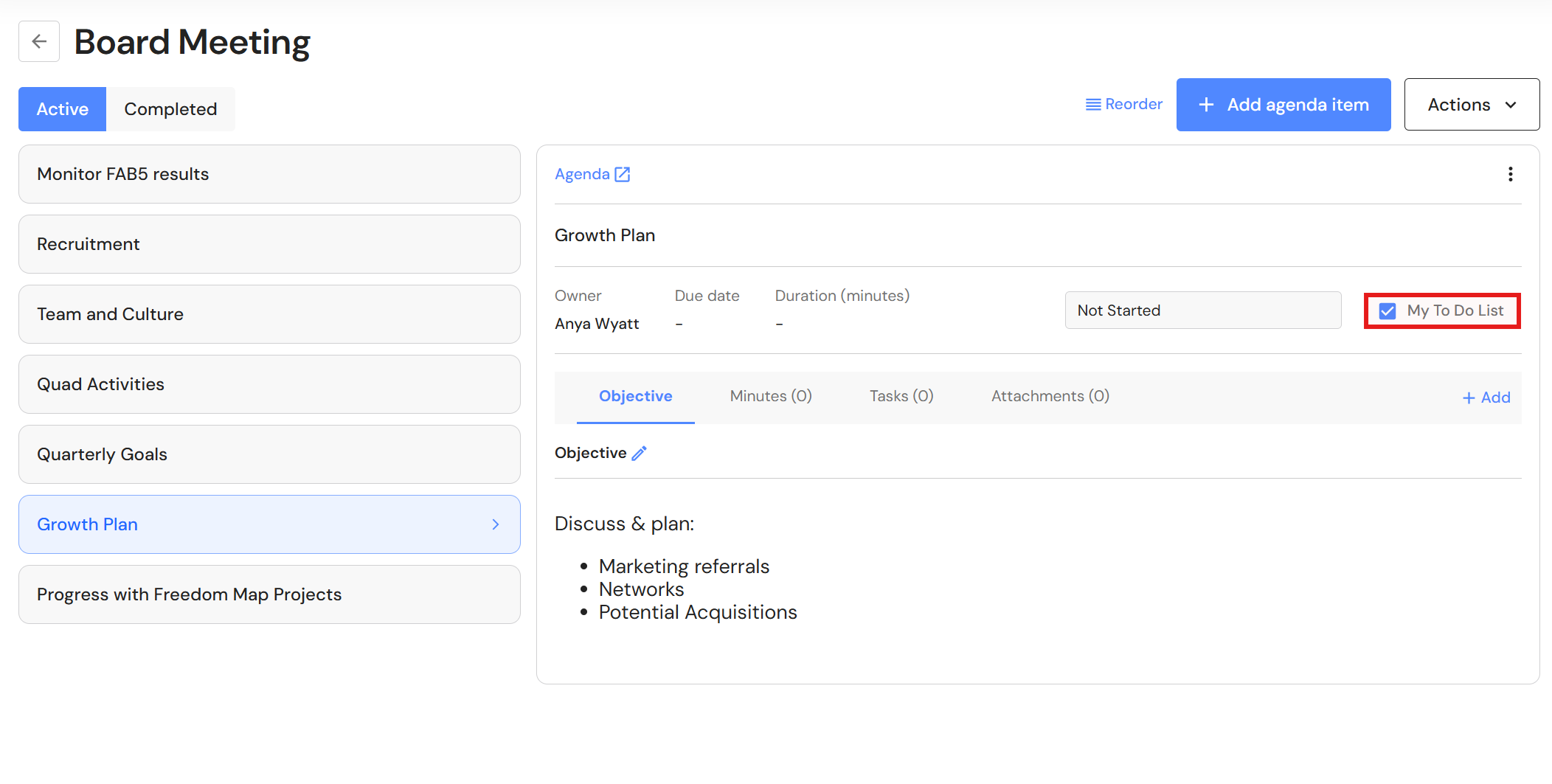
The agenda owner is the person responsible for driving the topic to completion. By adding the agenda to the owner's 'To Do' list, users can keep everything that requires their attention in one place, either the Business Intelligence board for Executive users or the Overview board for all other users.
- Check the 'My To Do List' box on the meeting agenda and it will appear on the owners Business Intelligence or Overview board.
Edit meeting details
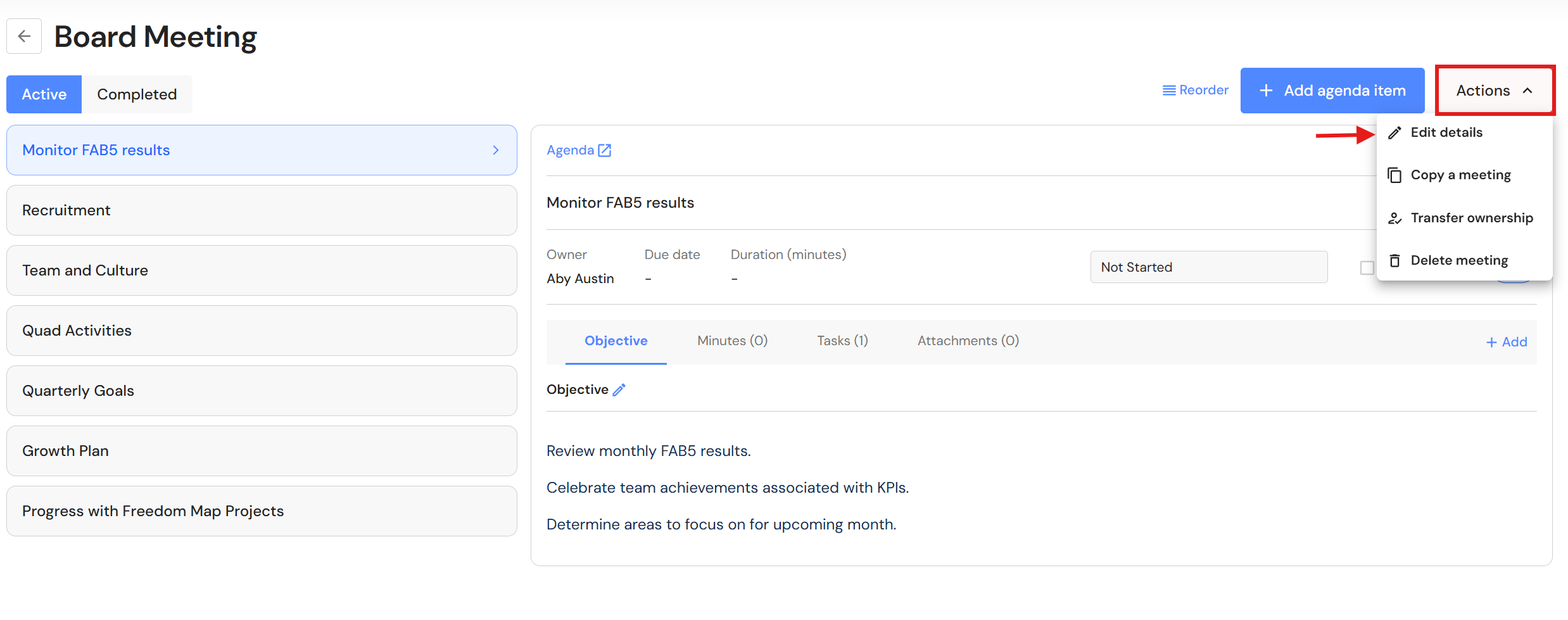
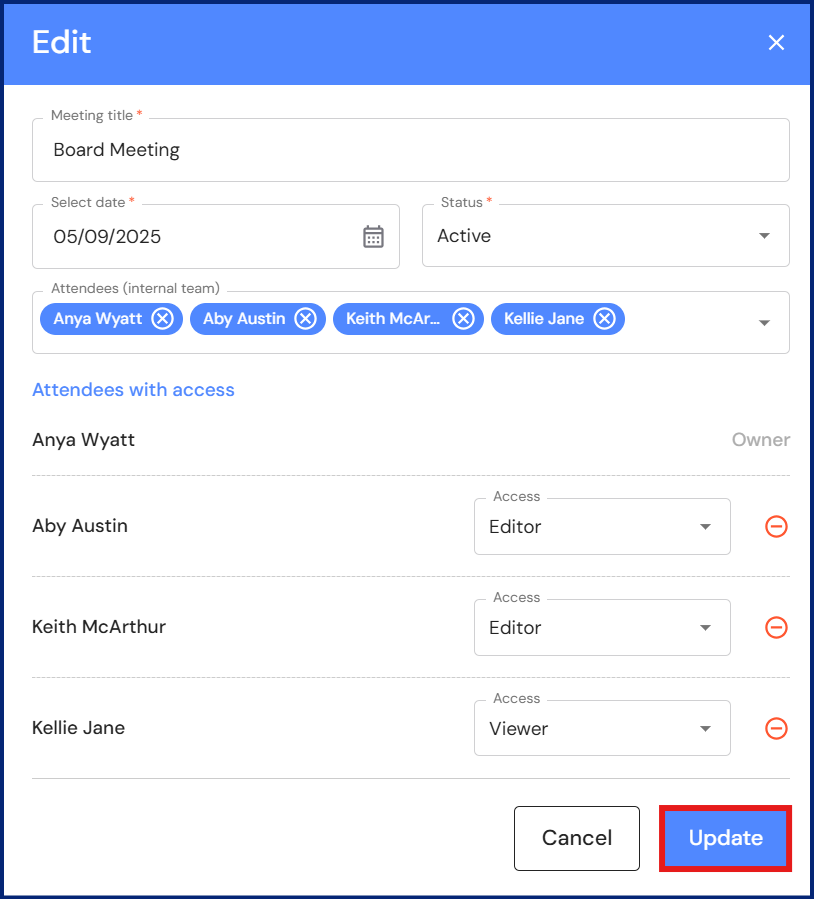
- To update the meeting title, date or attendees, click 'Actions' then 'Edit details'.
- Make the relevant changes and click 'Update'.
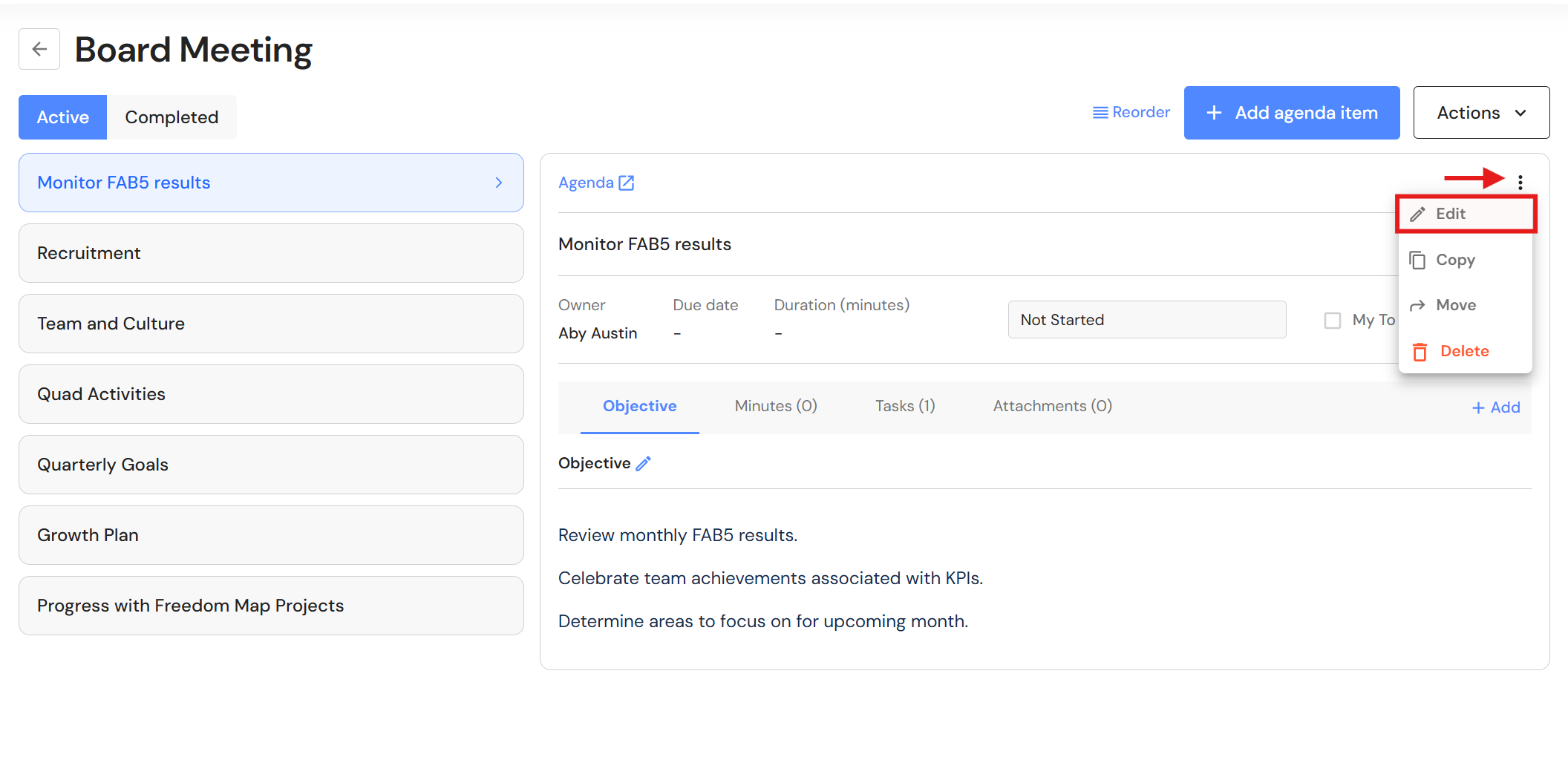
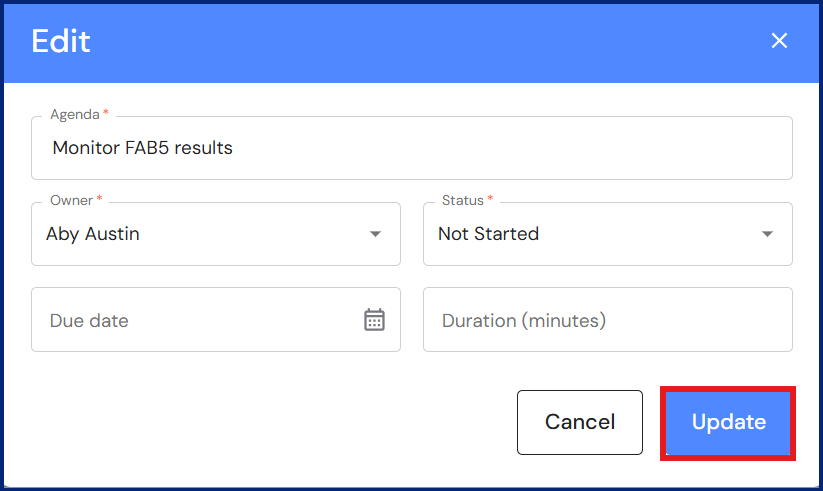
Edit agenda item
- Select the relevant agenda item.
- Click the ellipses button and select 'Edit'.
- Edit the relevant fields and click 'Update'.
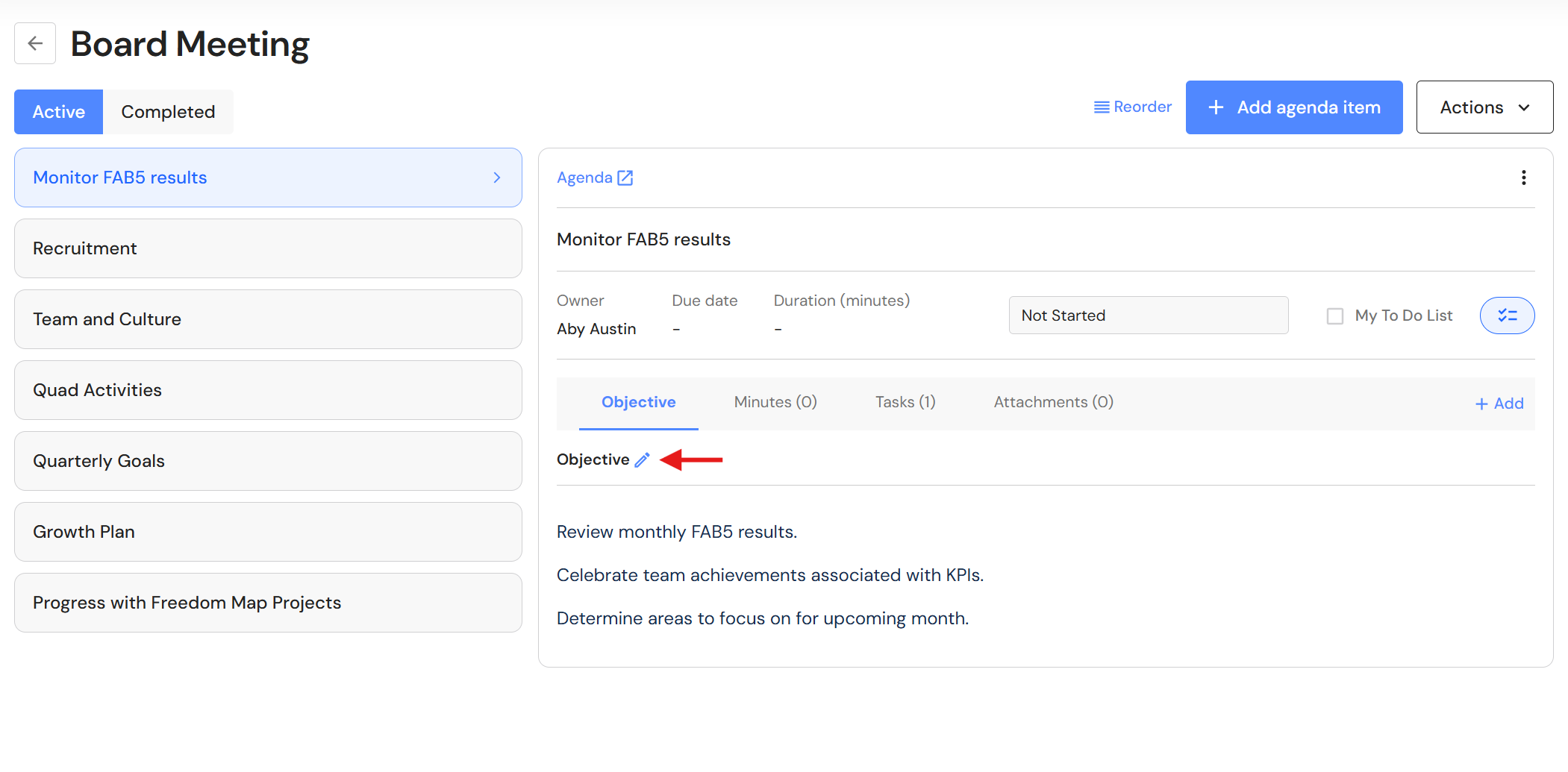
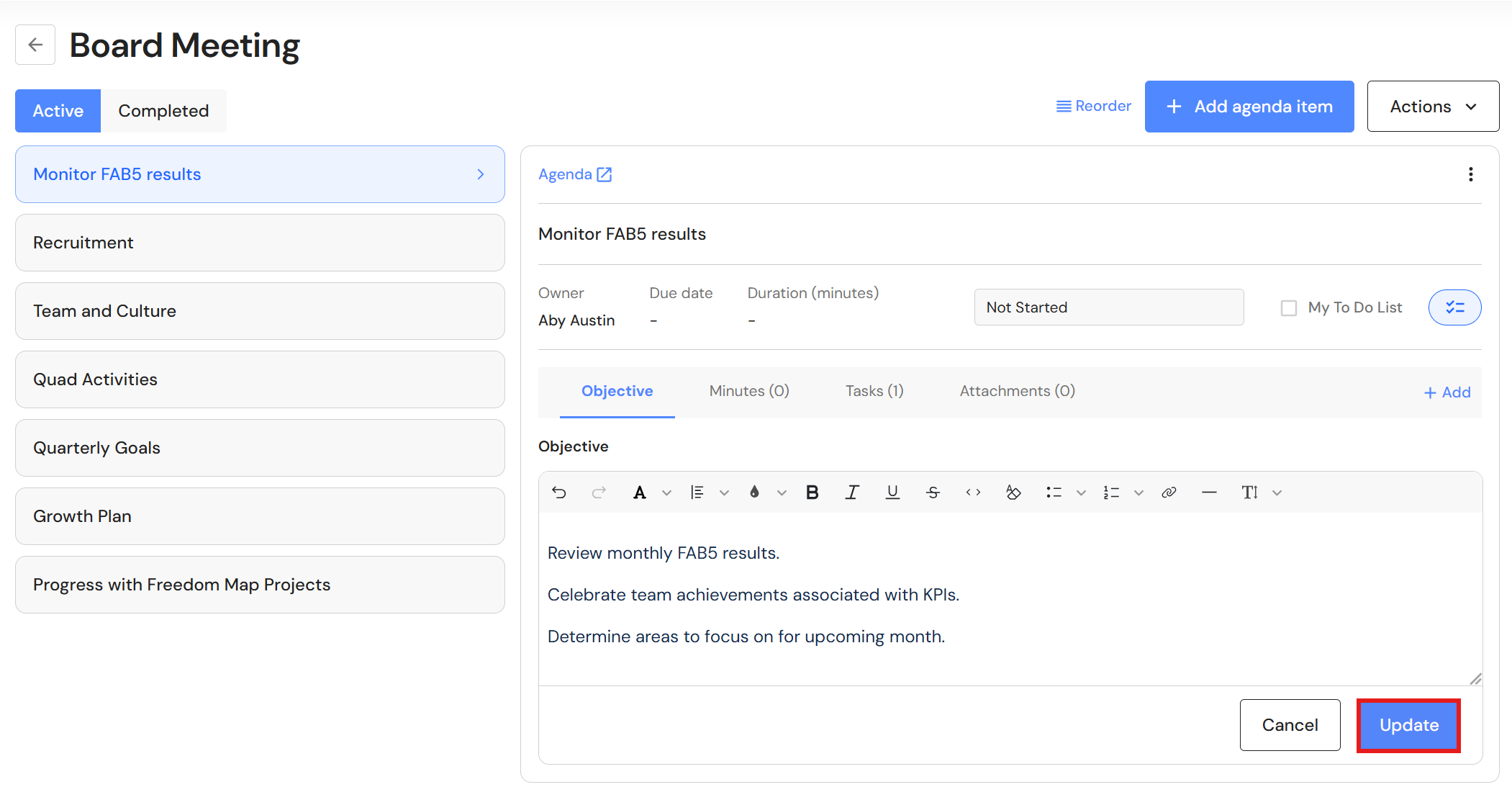
Edit agenda objective
- Select the relevant agenda item.
- Click the pencil icon next to the objective heading.
- Make changes and click 'Update'.
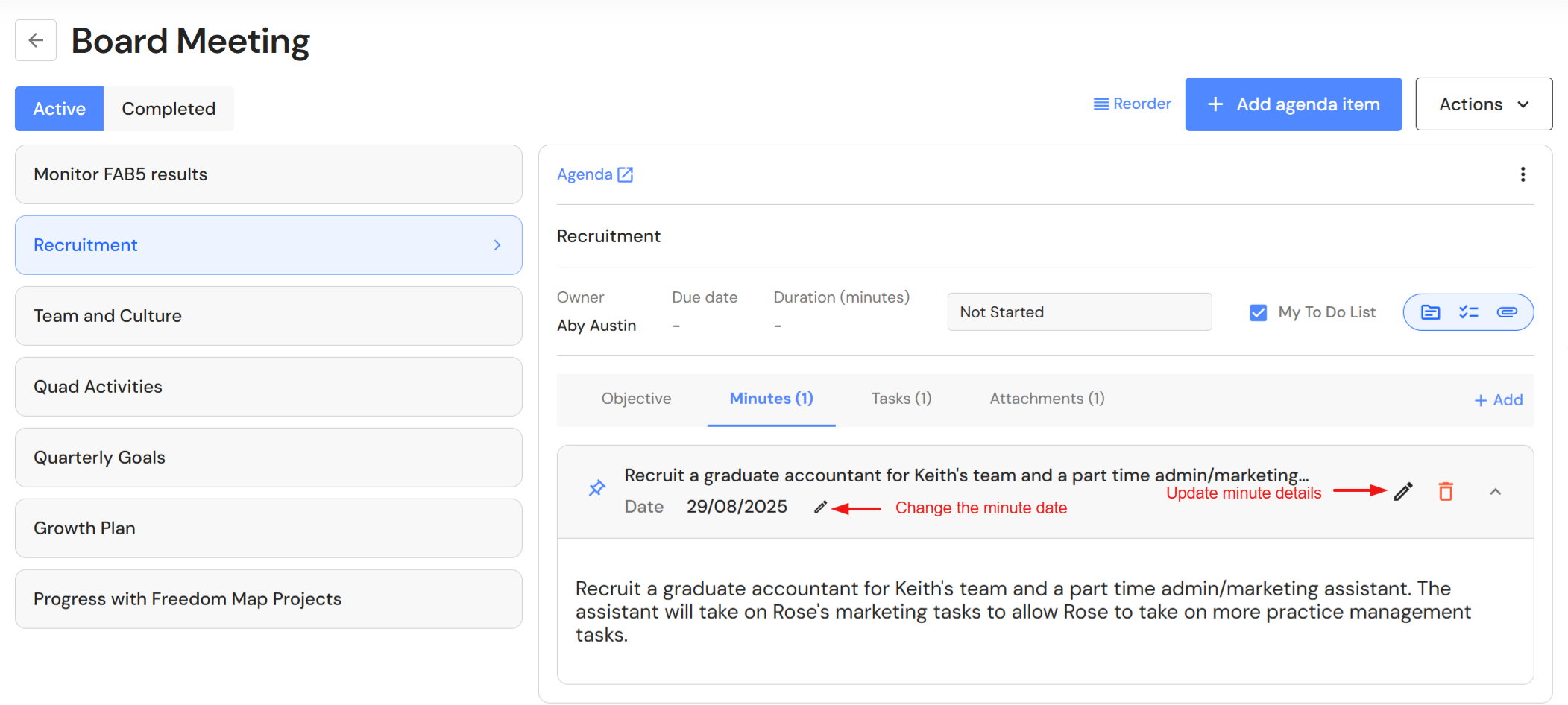
Edit minutes
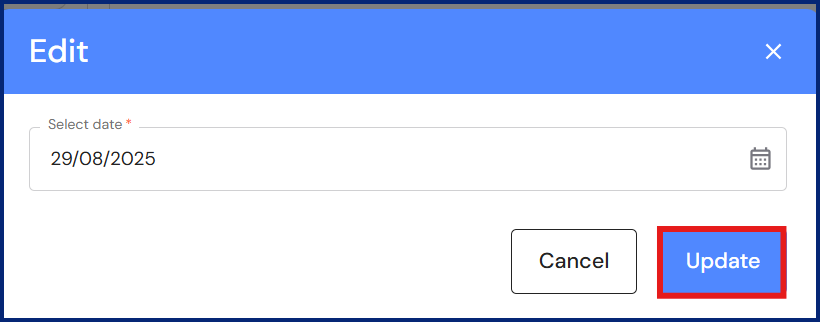
- To change the date of minutes, click the pencil icon next to the date.
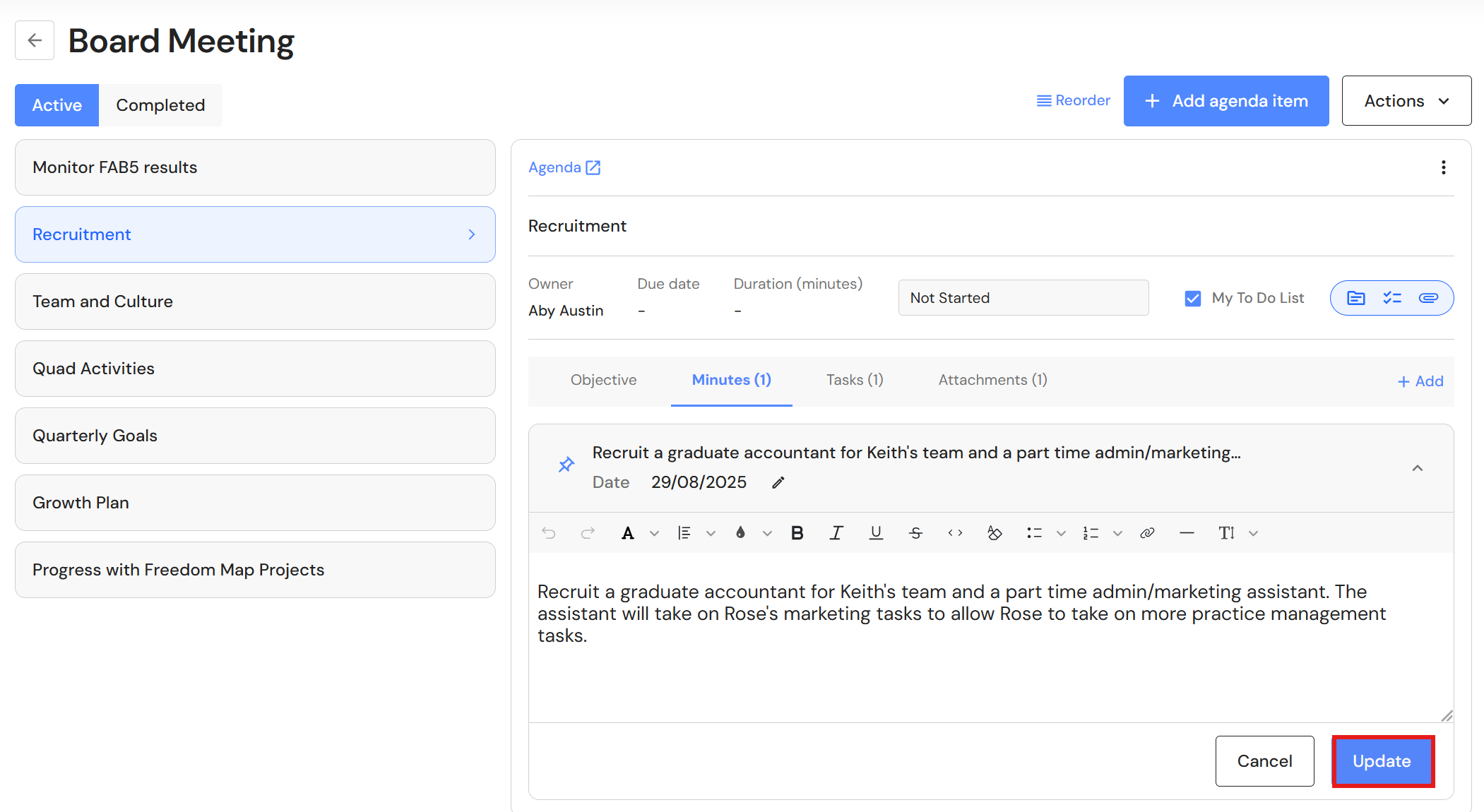
To change the minute details, click the pencil icon next to the delete icon.
- Change the date and click 'Update'.
- Update the text and click 'Update'.
Copy agenda item
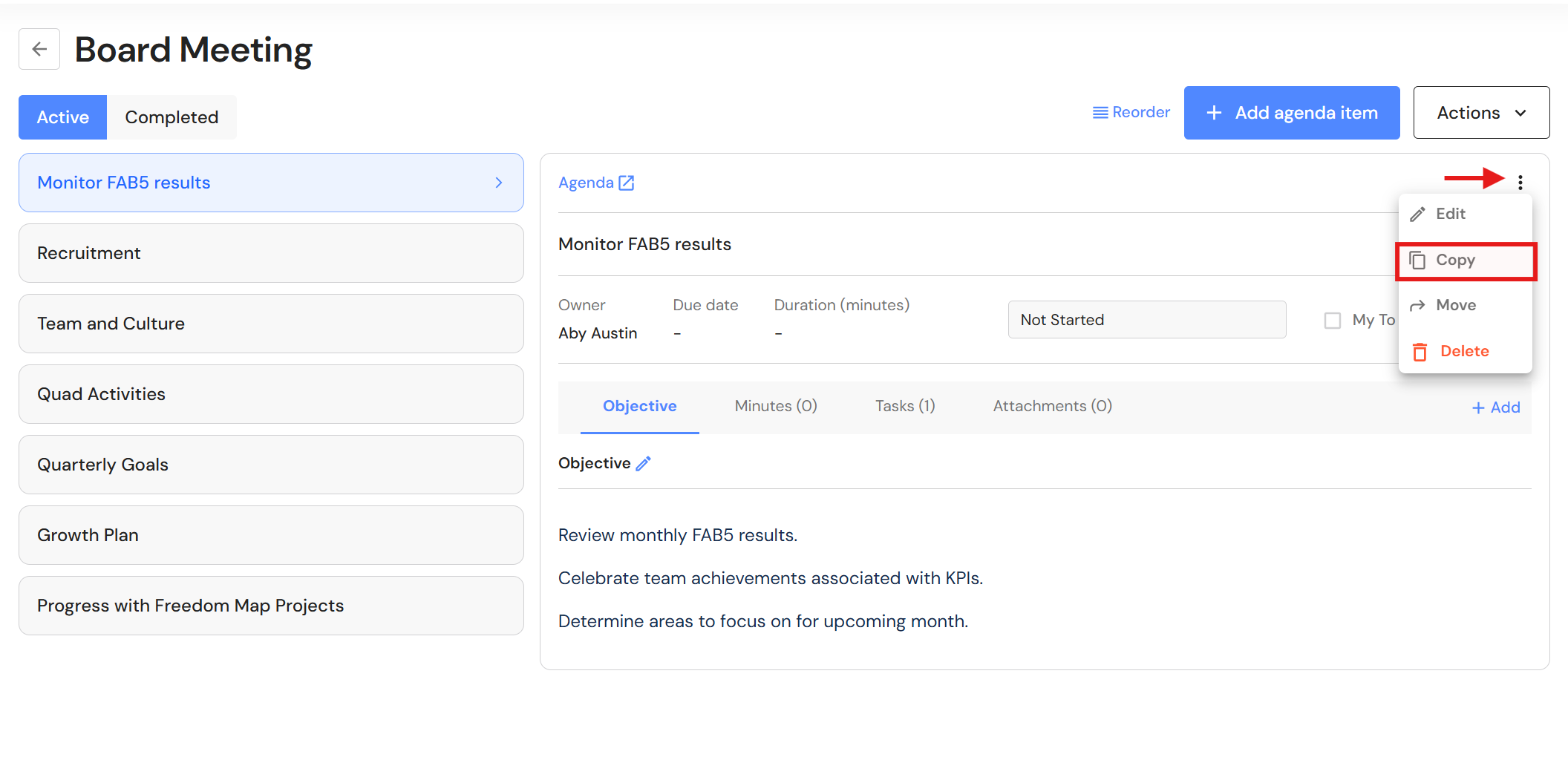
- At times, a meeting agenda is recurring or you want to add the same topic to another meeting. To save time typing the same information, users can copy an agenda and add it in another meeting.
- Select the relevant agenda item.
- Click the ellipses button and select 'Copy'.
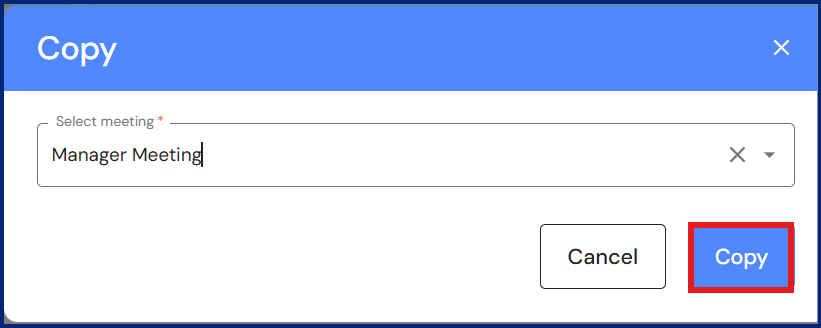
- Select the meeting from the dropdown list and click 'Copy'. The agenda will then be added to the meeting.
Move agenda item
- On occasion, users might prefer to discuss an agenda topic in another meeting. To save time deleting the agenda and typing it the correct meeting, users can easily move the agenda to the correct meeting.
- Select the relevant agenda item.
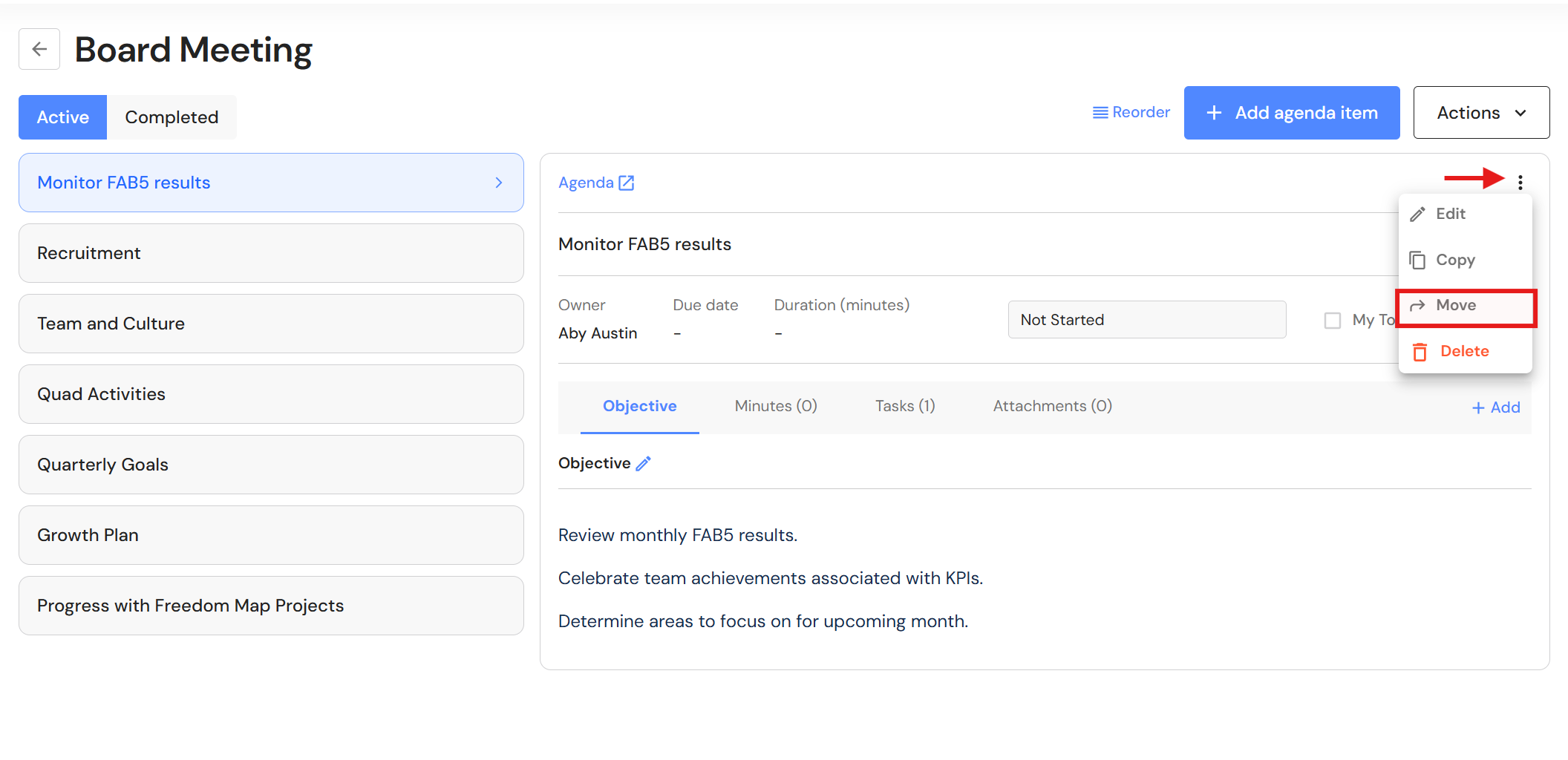
- Click the ellipses button and select 'Move'.
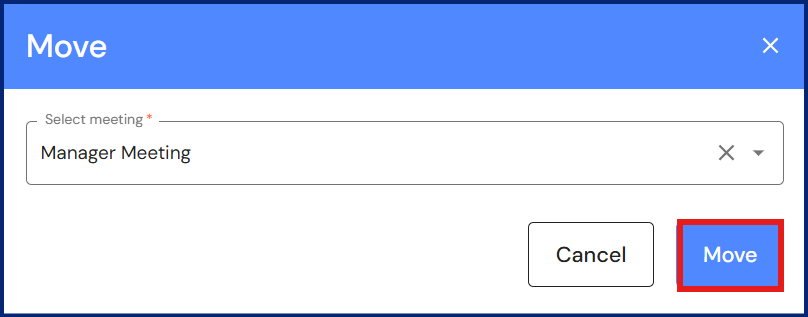
- Select the meeting from the dropdown list and click on 'Move'. The agenda will be moved to the meeting.
Delete agenda item
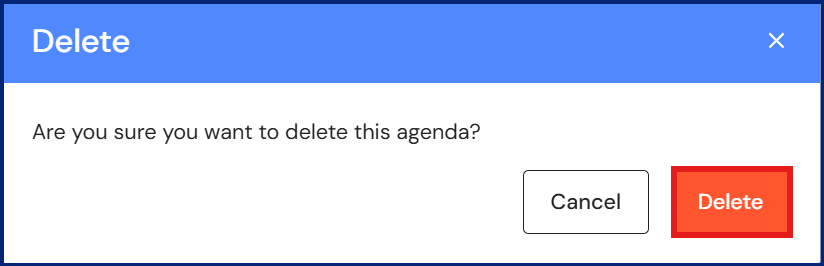
- Users can delete agenda items if they are no longer relevant in the meeting.
- Select the relevant agenda item.
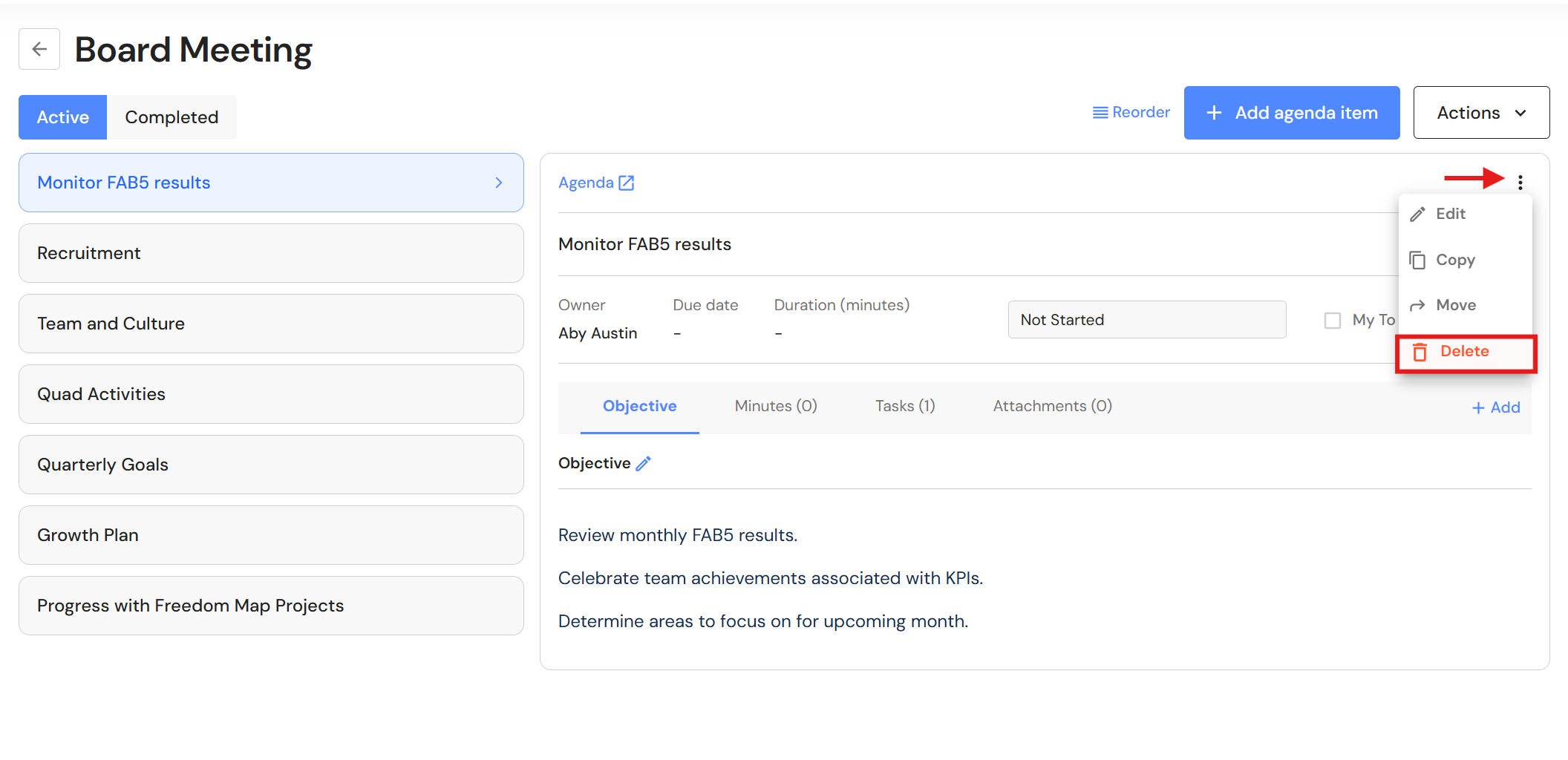
- Click the ellipses button and select 'Delete'.
Copy a meeting
In practice, regular meetings begin with a fresh agenda and new discussions even if the agenda includes recurring topics. Some users may choose to run with the same meeting and keep track of historical minutes while others prefer to create a new meeting.
An efficient way to create a recurring meeting is to copy a current meeting and include recurring agendas. When the new meeting is copied, users can then add new topics for discussion.
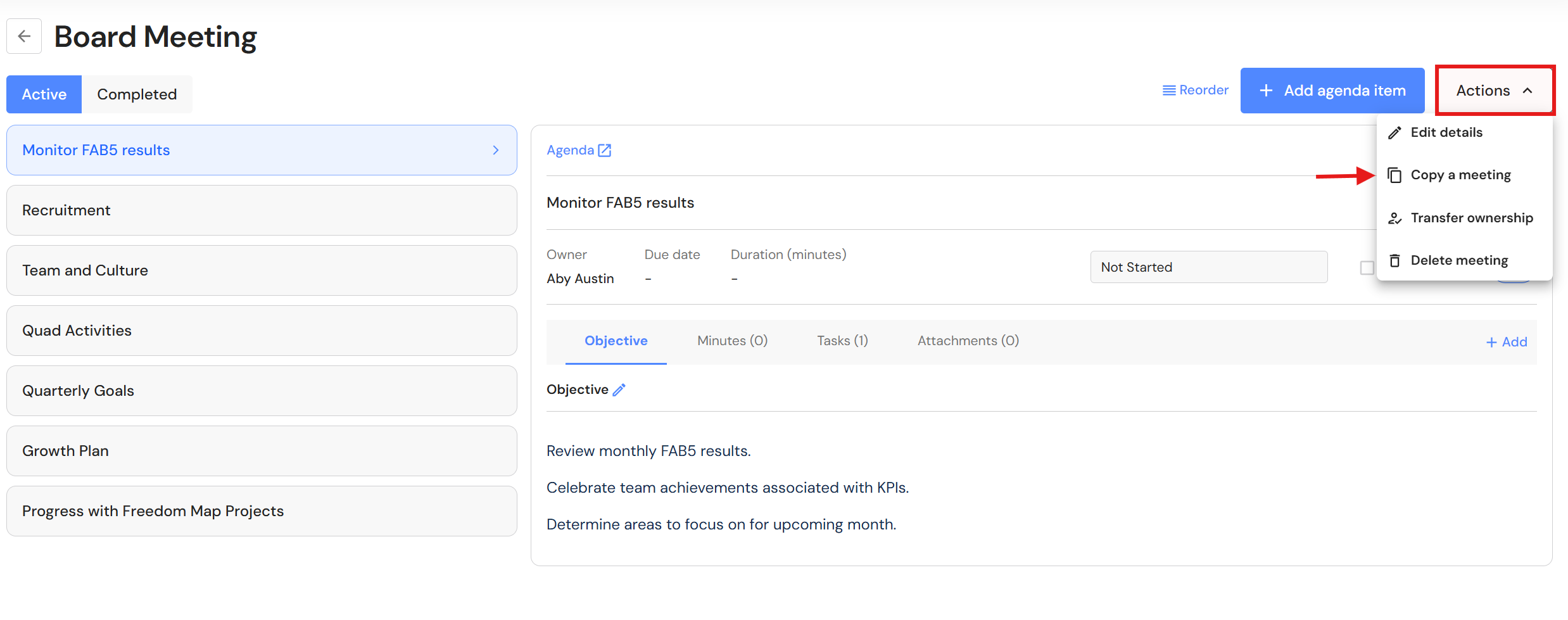
- In the current meeting, click 'Actions', then 'Copy a meeting'.
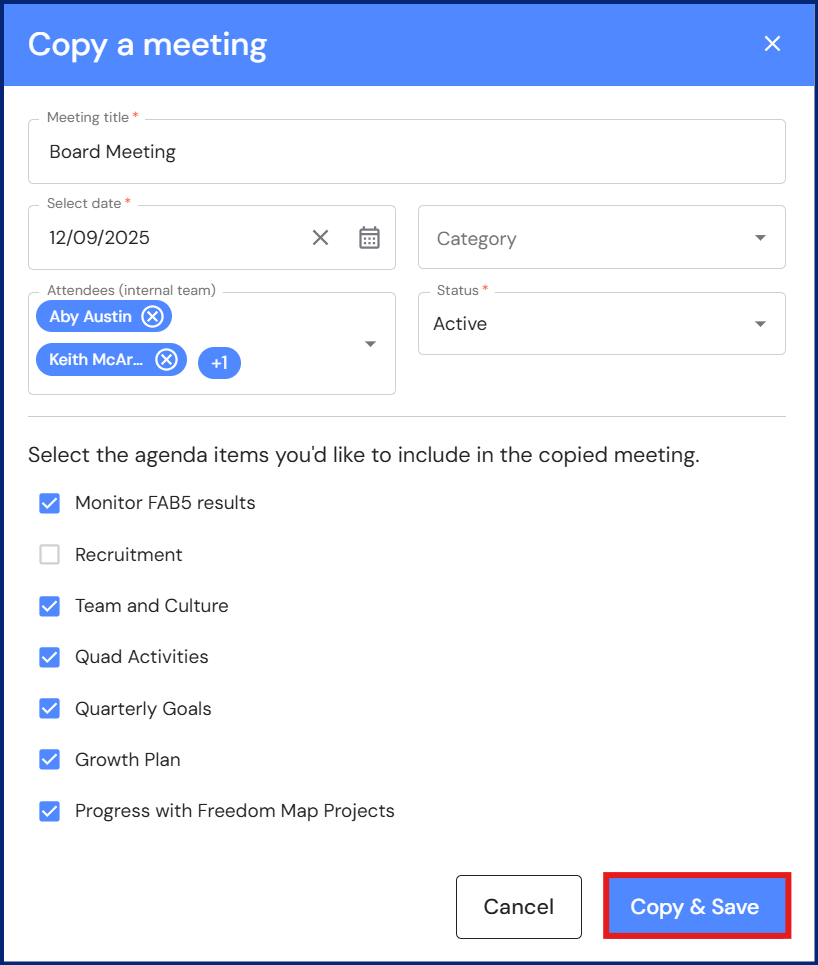
- Change any details such as the meeting title, date and attendees.
- Select agenda items to be copied into the new meeting.
- Click 'Copy & Save'.
A new meeting will be created. If users choose to copy agenda items, minutes and tasks will not be copied to the new meeting. Only the objective and attachments (if any) will be copied.
Delete a meeting
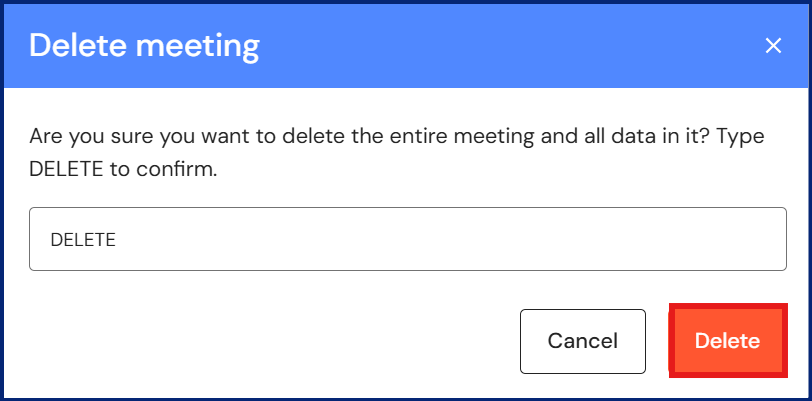
Users have the ability to delete meetings created in error.
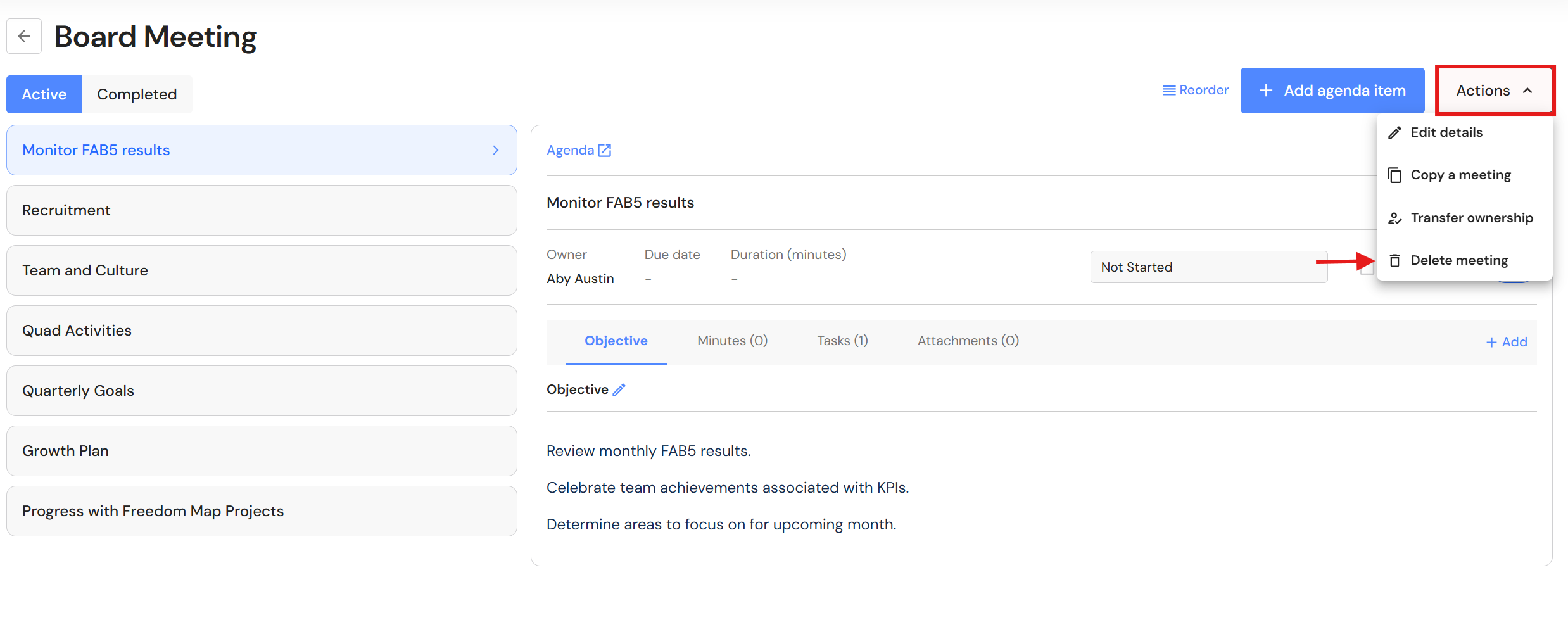
- Inside the meeting, click 'Actions', then 'Delete'.
- Type DELETE in capitals and click on 'Delete'. The meeting will be deleted.
Transfer the meeting ownership
If the meeting owner needs to change, users can transfer the owner to another meeting attendee.
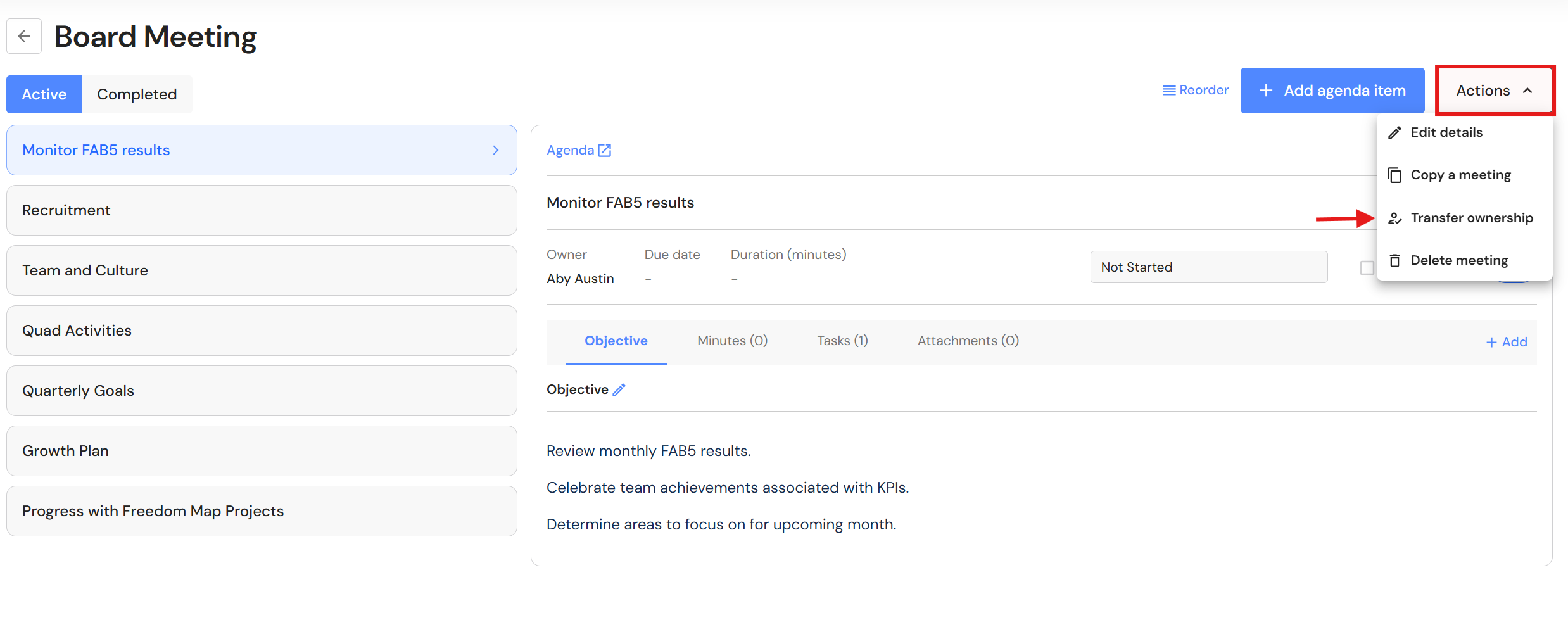
- Inside the meeting, click 'Actions', then 'Transfer ownership'.
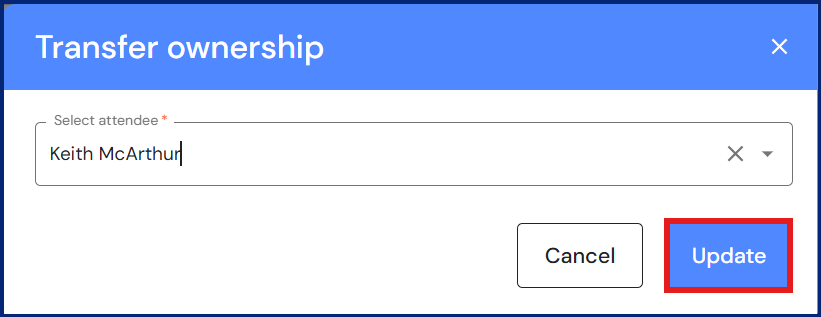
- Select a meeting attendee and click on 'Update'. The attendee will now be the meeting owner.
NB* The former owner will become a meeting attendee. If this person is no longer attending the meeting, you can click on 'Edit details' and remove me them as an attendee.