Team Designer
The Team Designer module is where you plan how you will build your team to reach your growth goals. The Team Designer is a future planning tool whereas, Ideal Teams is the current team status, laying out your People and their respective roles in each division.
Key benefits of outlining your team design:
- Sets a vision for your million dollar team.
- Highlights internal promotion opportunities.
- Allows you to consider professional development needs and how you will support your team on their career journey.
- Helps you think strategically about recruitment.
As you plan your teams, consider the roles your current team will fill as well as roles you will hire when the time is right. In addition to planning your future team(s), the process will help you uncover fitting career paths and drawing your attention to new skill development. Utilise the strengths, weaknesses and notes section in the People profile to document key details that support and influence current and future roles.
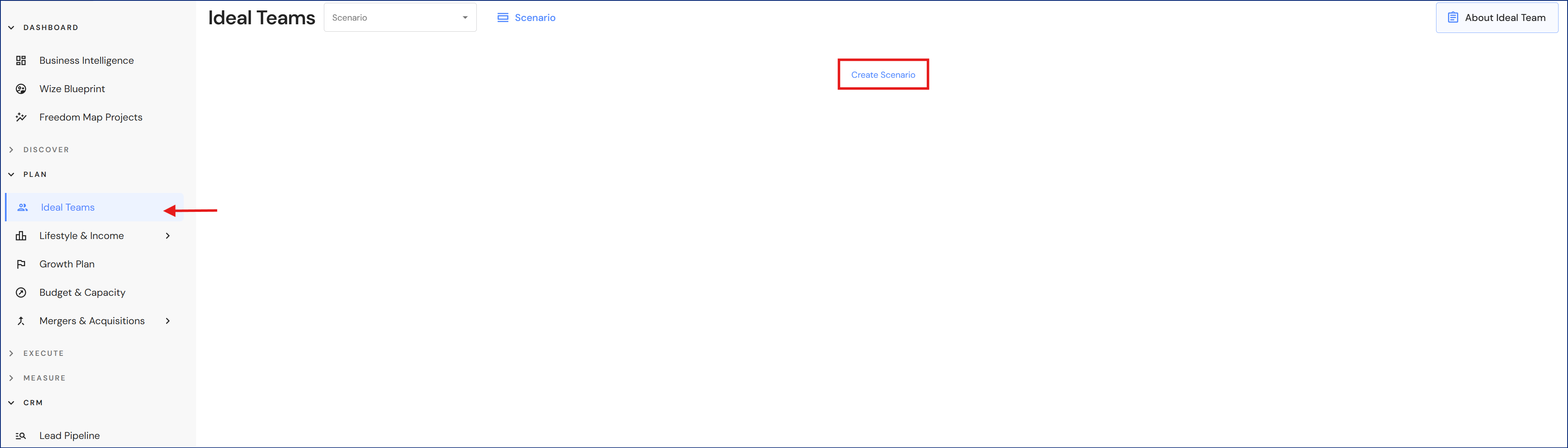
Go to Plan > Team Designer
NB* This module is available for Executive users.
- Click on Create Scenario (first time users) otherwise click on the Scenario button.
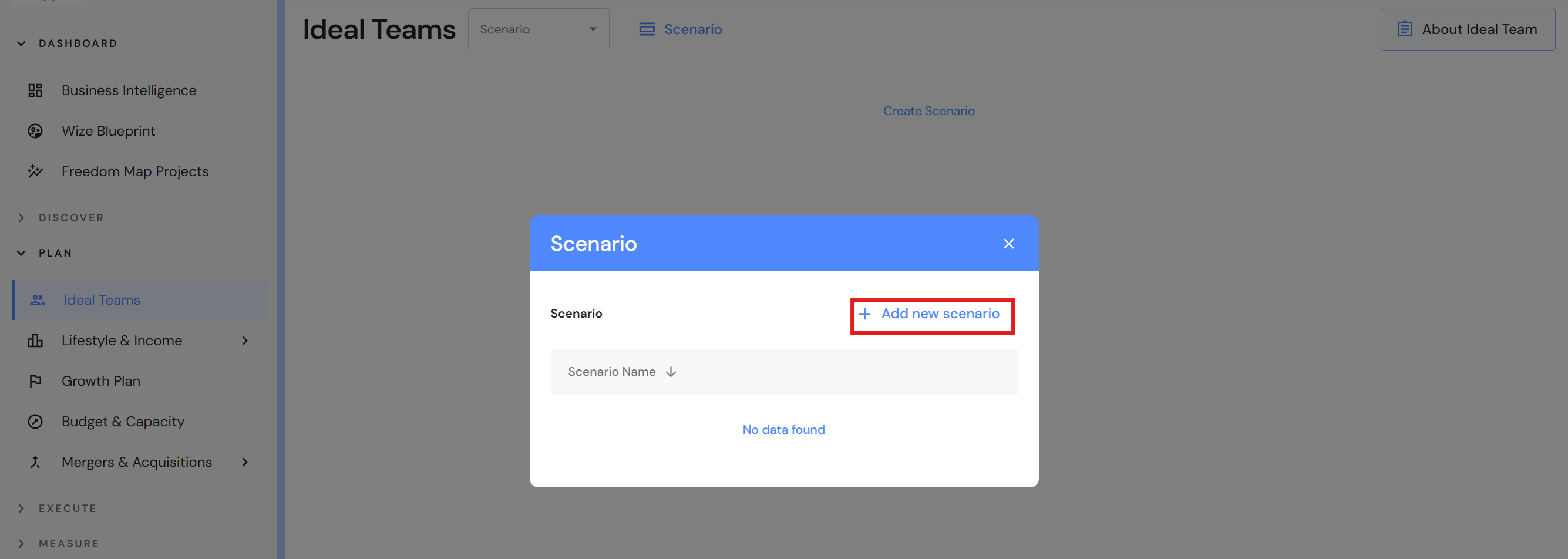
- Click on '+ Add new scenario'.
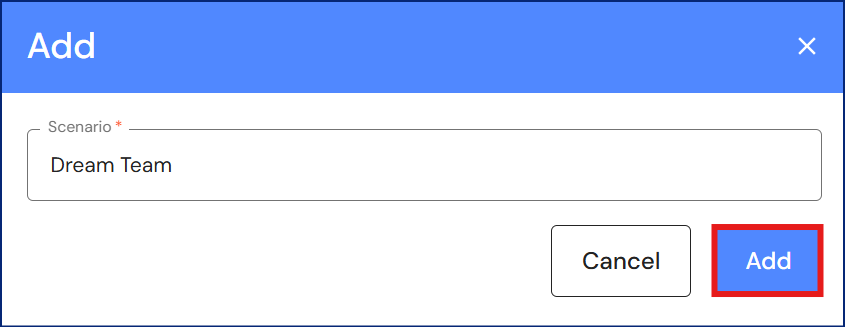
- Enter a team name and click on 'Add'.
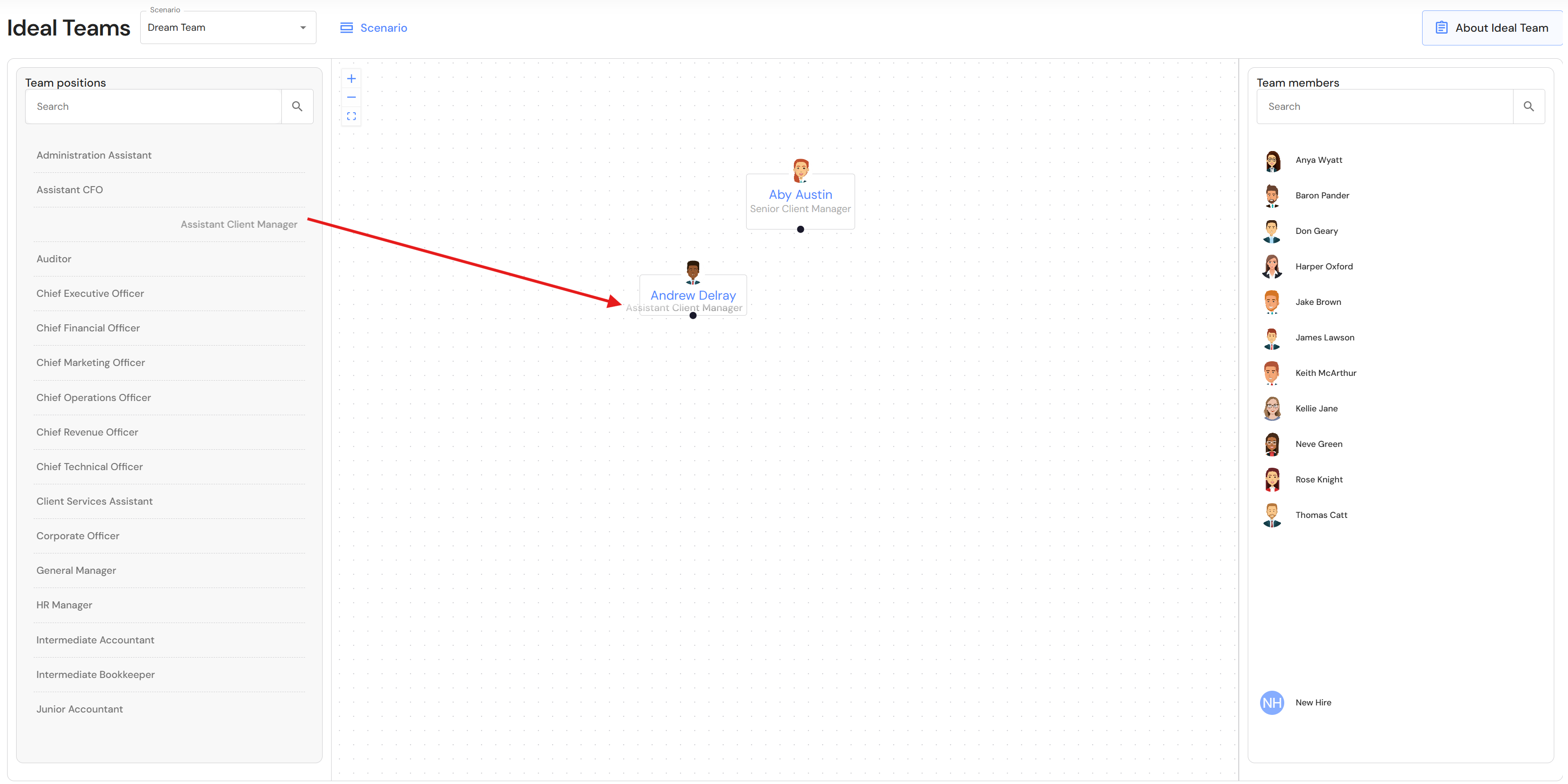
- Drag team members into position.
- Drag and connect current or future positions to team member avatars.
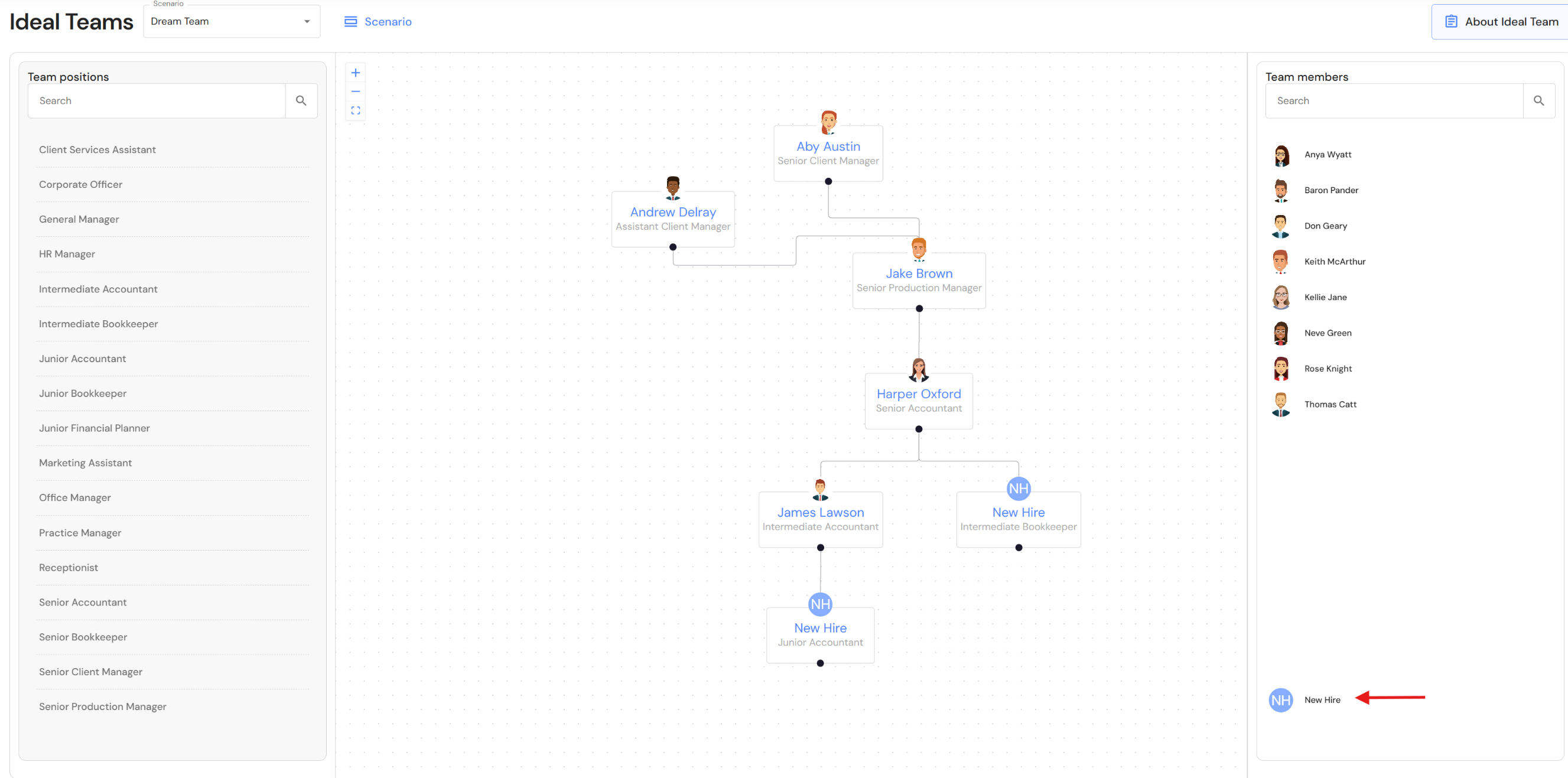
- Use the 'New Hire' avatar for future additions to the team.
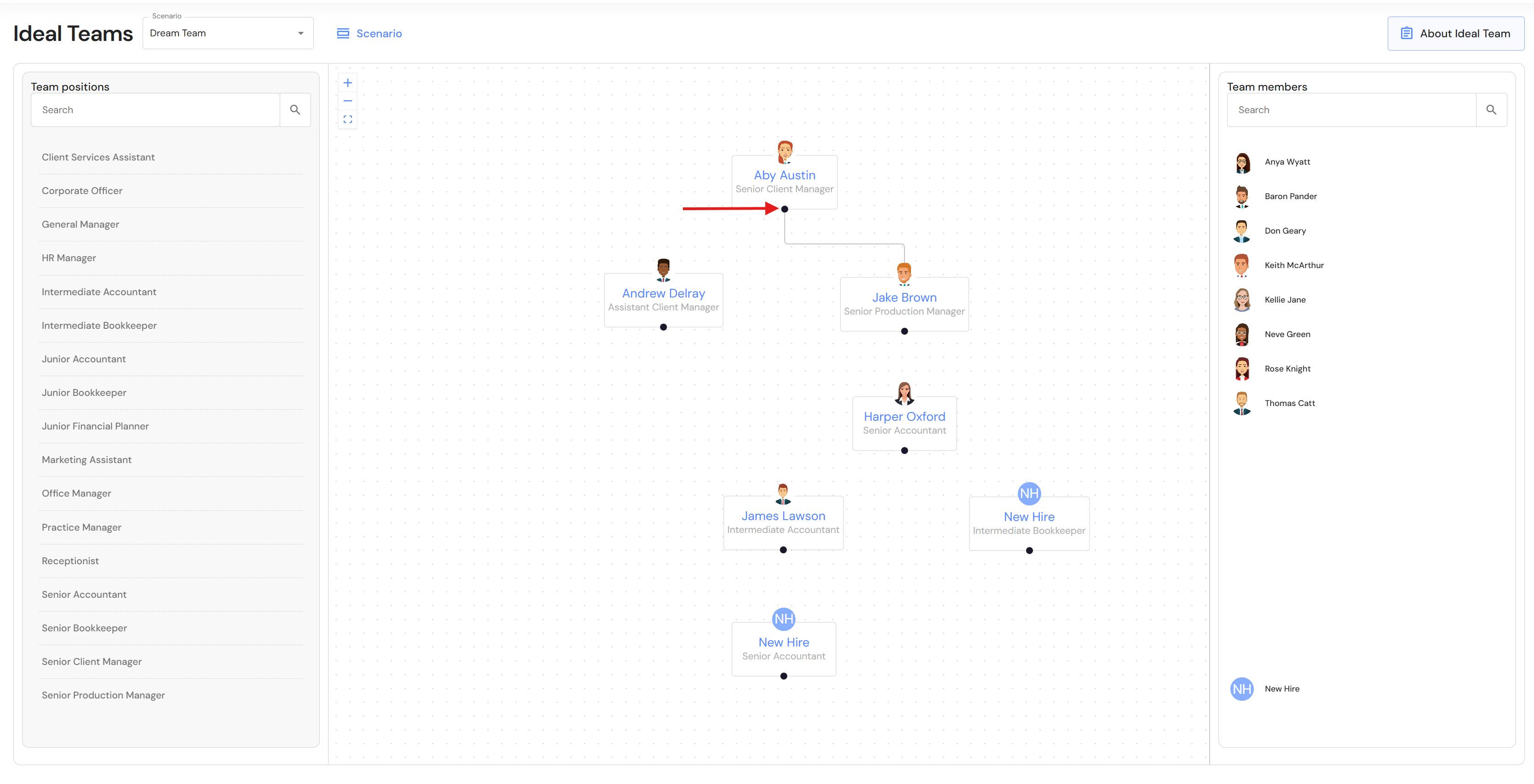
- Create reporting lines. Hover over the dot at the bottom of each avatar until you see a crossbar +. Drag the reporting line to the top of avatar profile picture to complete the connection.