
Reason for Fees Lost
This articles explains how to add more options in the 'Reason for leaving' list in Lost Clients (Revenue Won & Lost).
The 'Reason for leaving' list in Revenue Won & Lost (Lost Clients) can be updated in System Preferences by Executive, Administration Team or CFO users.
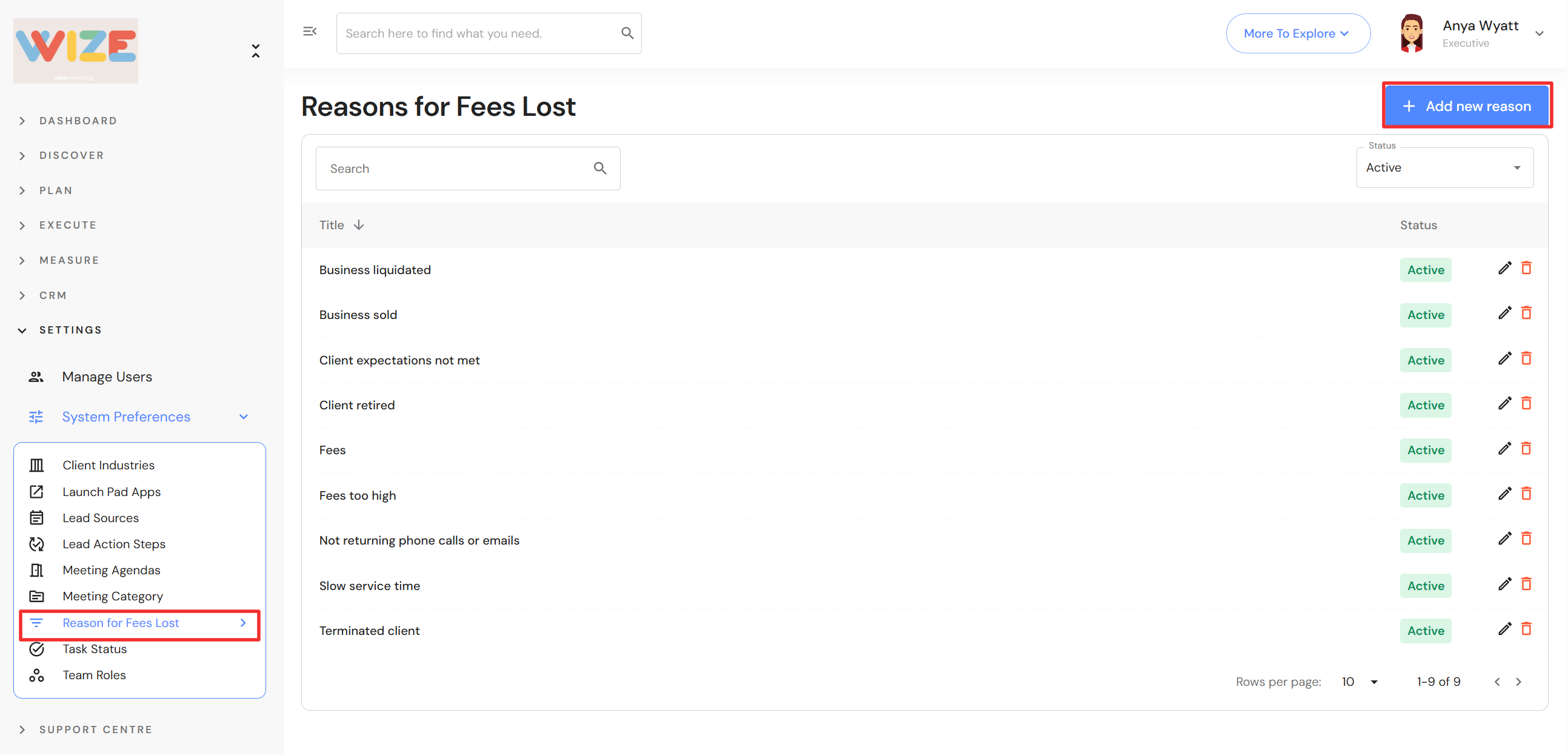
To add or modify options, go to Settings > System Preferences > Reason for Fees Lost.
- Click on '+ Add new reason' button.
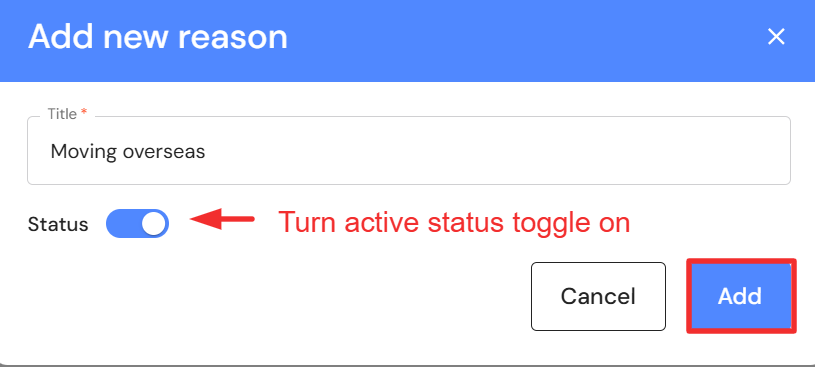
- Type the reason.
- Click the status toggle to on. This will make the reason active in Fees Lost.
- Click the 'Add' button.
Active and Inactive Reasons
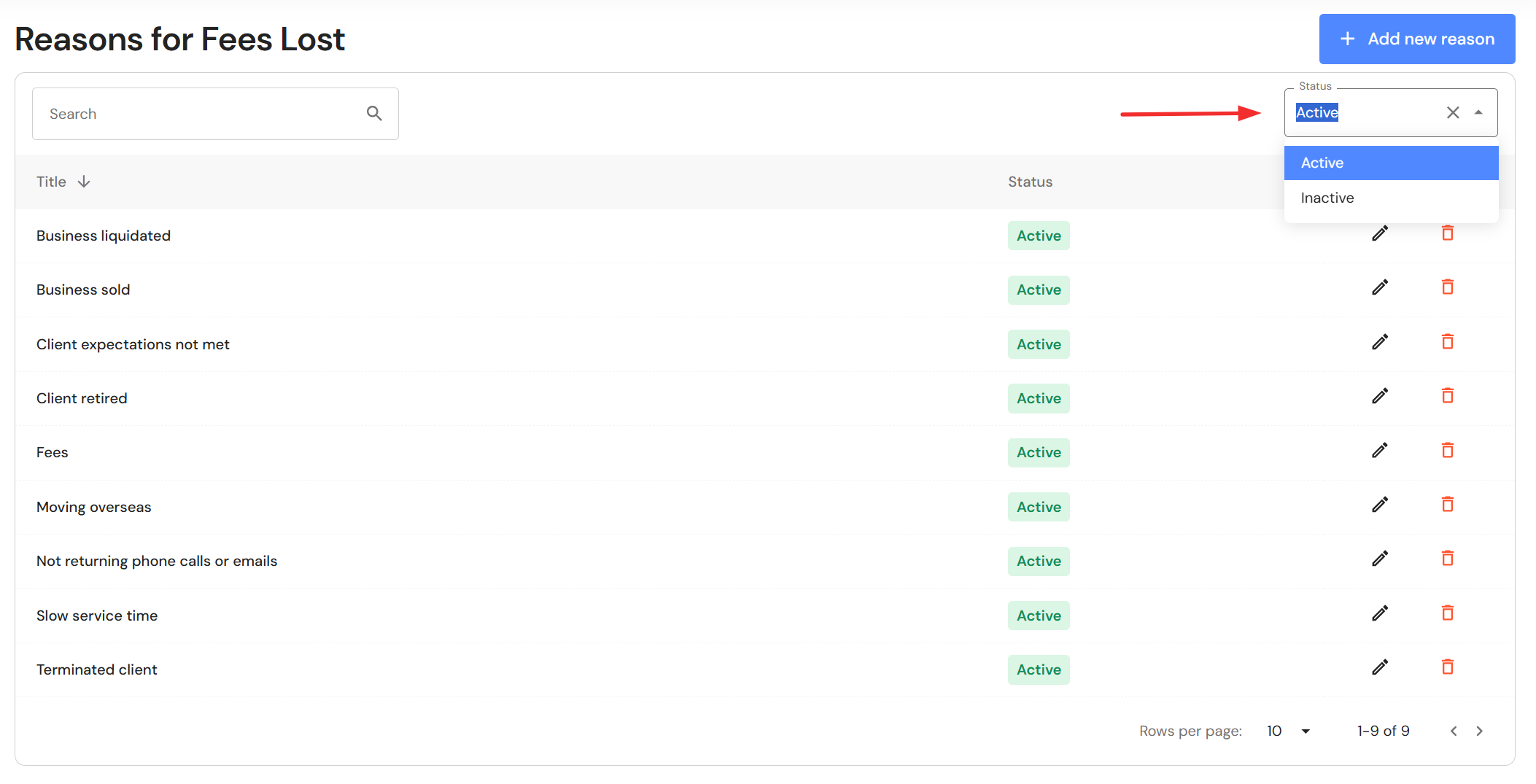
The list shows active items by default. To see inactive items, change the 'Status' filter in the top right corner.
Edit and Delete Reasons
Click on the pencil icon to edit existing reasons. Click the status toggle to off to make a reason inactive.
Click on the bin icon to delete reasons.