Meetings: Import a Meeting Agenda
This article explains how to import a default meeting agenda into meetings.
The WizeHub gives users the ability to maintain a default list of repetitive agenda items so they can be imported into meetings without manually adding recurring agendas into future meetings.
Your WizeHub comes with a pre-defined list of default meeting agendas that have been linked to meeting templates. You can import pre-defined agendas one-by-one or import a template.
To learn how to create a default agenda, refer to Meeting Agendas & Templates.
To learn about importing templates, refer to Meetings - Import a Meeting Template.
Import a Meeting Agenda
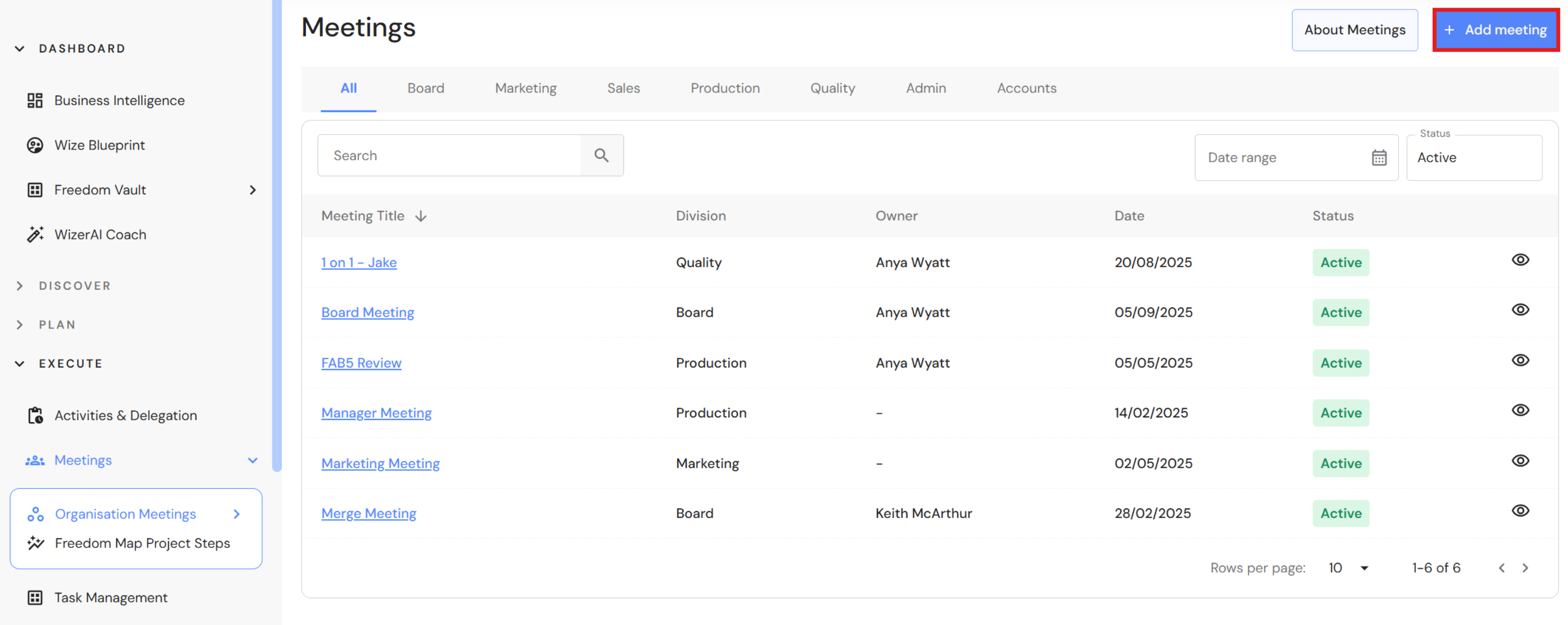
Go to Execute > Meetings
- Click '+Add meeting'
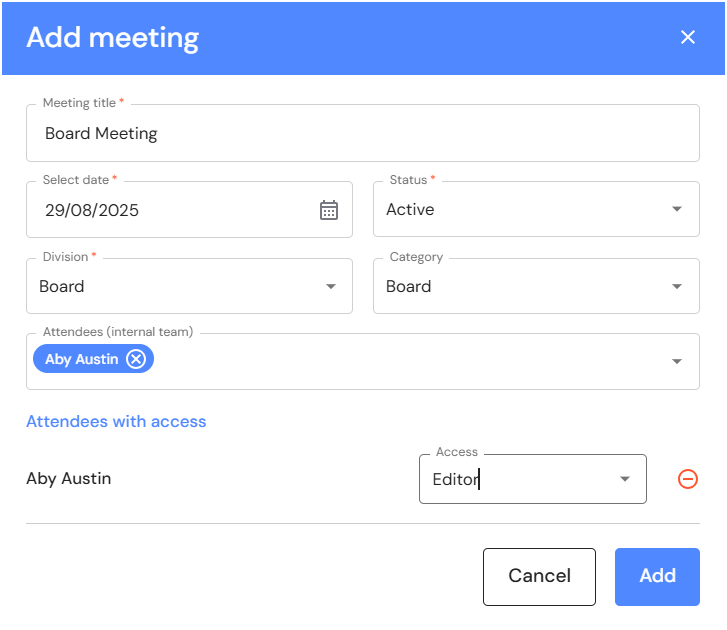
- Add a meeting title e.g. Board Meeting
- Select a meeting date.
- Select a category (optional).
- Include additional attendees (optional). Select Viewer or Editor access for each attendee.
- Click 'Add'.
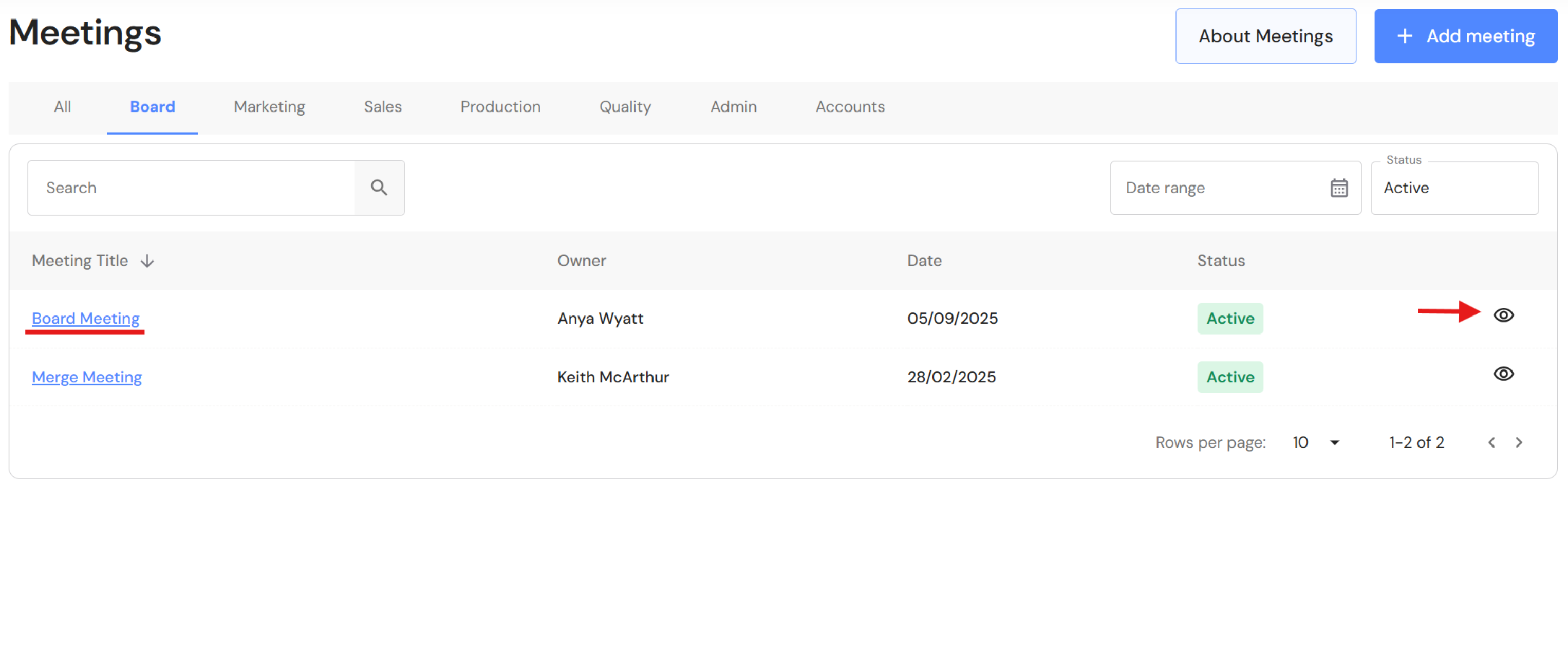
- Click on the meeting hyperlink (or the view icon) to access the meeting. Right click to open the meeting in a new chrome tab.
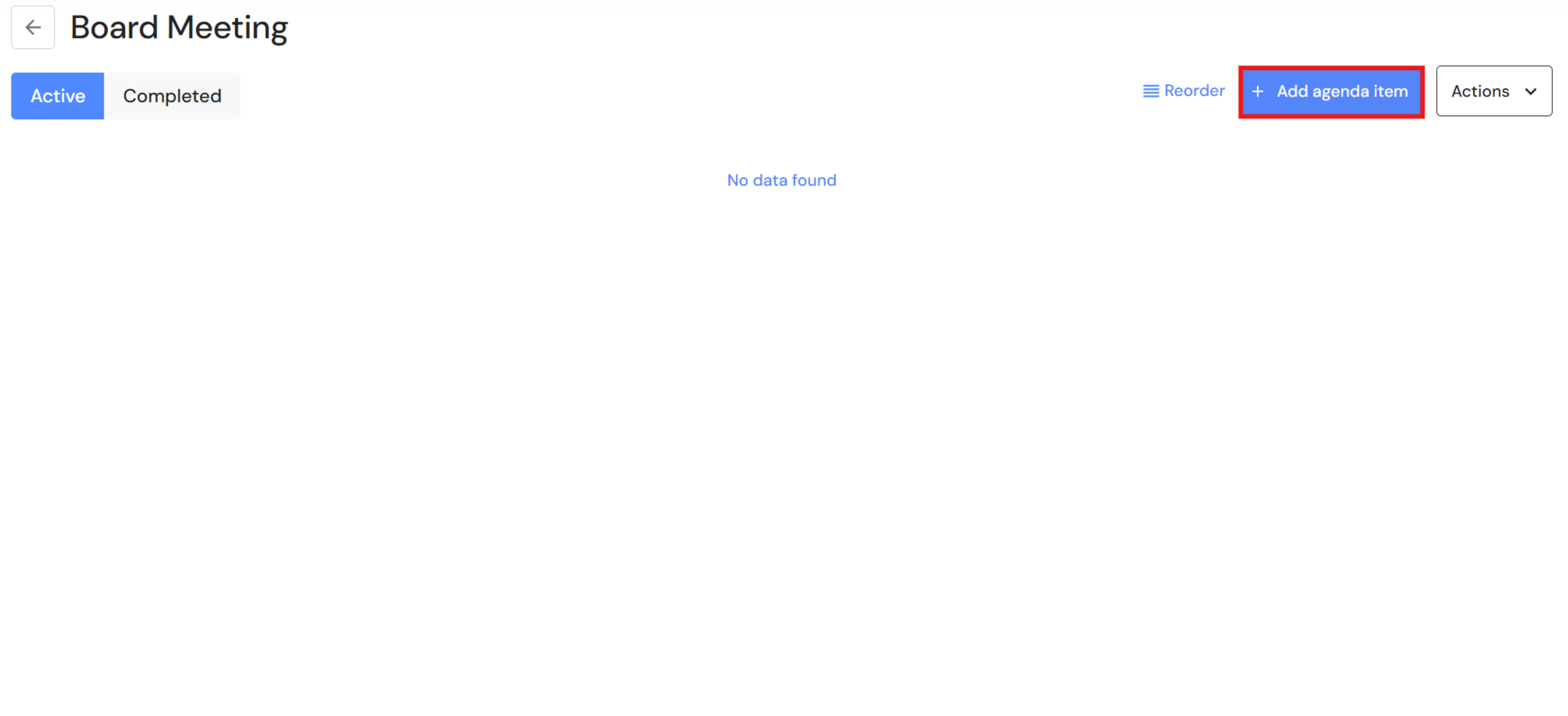
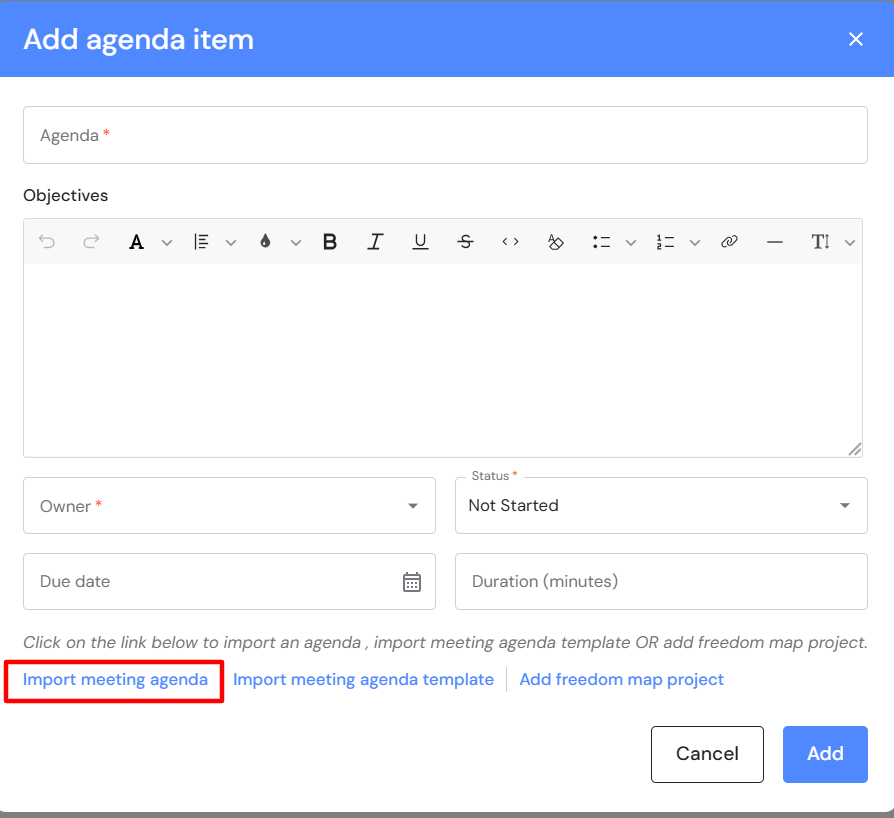
- Click '+Add agenda item'.
- Click on 'Import meeting agenda'.
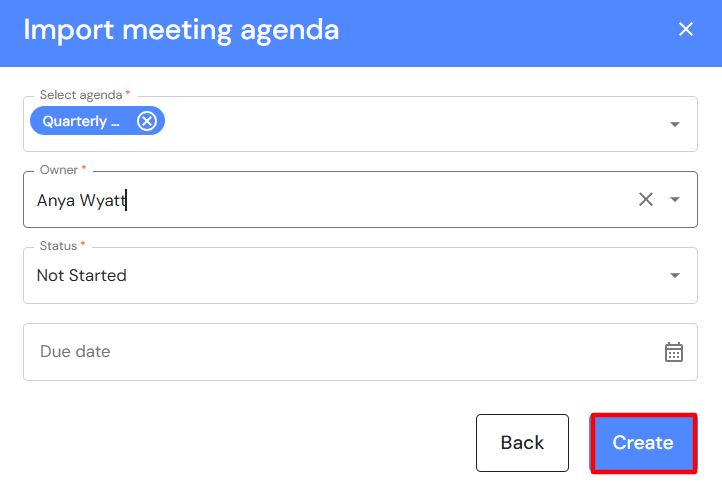
- Select an agenda from the dropdown list e.g. Quarterly Goals.
You can select more than one agenda and import them all at once. - Select an agenda owner.
The owner will be assigned to each agenda item. The owner is responsible to lead the completion of the agenda items. Each agendas can be re-assigned to other team members later. - Leave the status as 'Not started'.
- Select a due date to be assigned to each agenda item (optional).
The due date can be assigned later. - Click 'Create'.
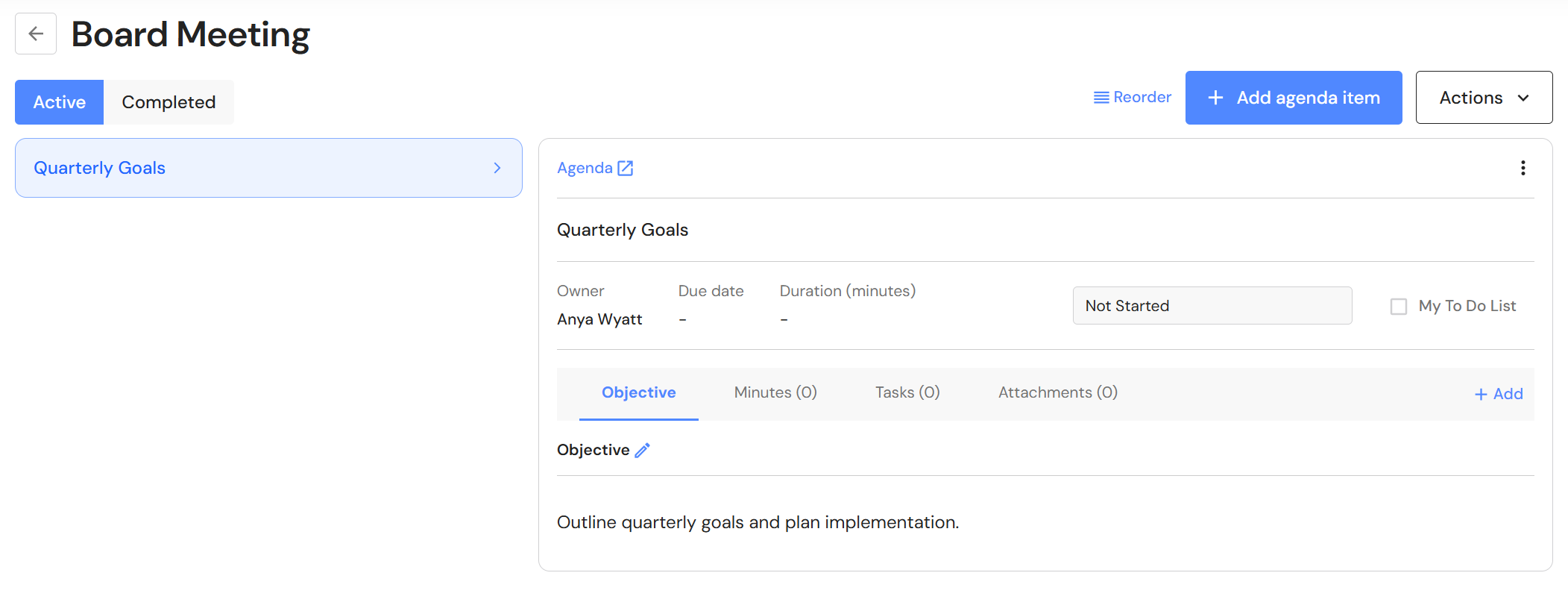
- Your meeting agenda has now been added to the meeting.