Revenue
Create a Revenue plan
The Budget & Capacity plan is the foundation for all FAB5 schedules including Revenue. In most cases, the Revenue plan will automatically be created alongside the Budget & Capacity plan.
If you need to create a standalone Revenue plan, you must have a new Budget & Capacity plan that is not already linked to another Revenue plan.
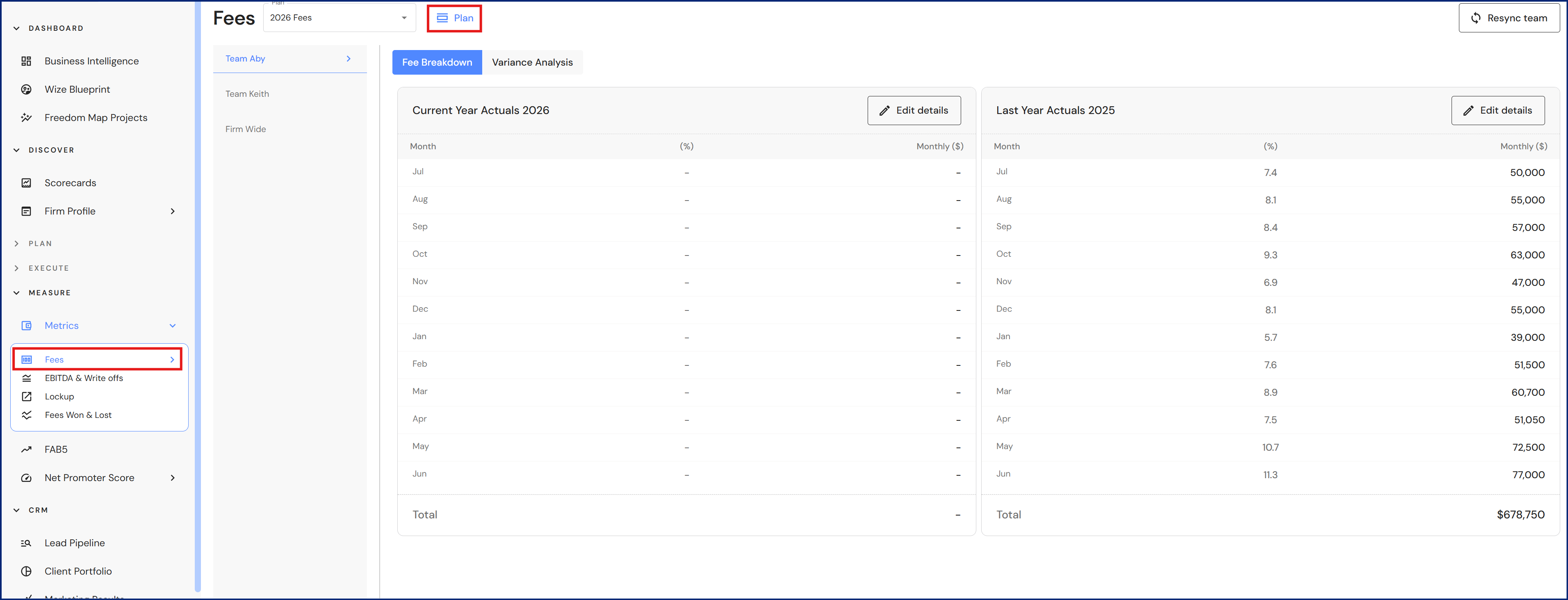
- Go to Measure > Metrics > Revenue
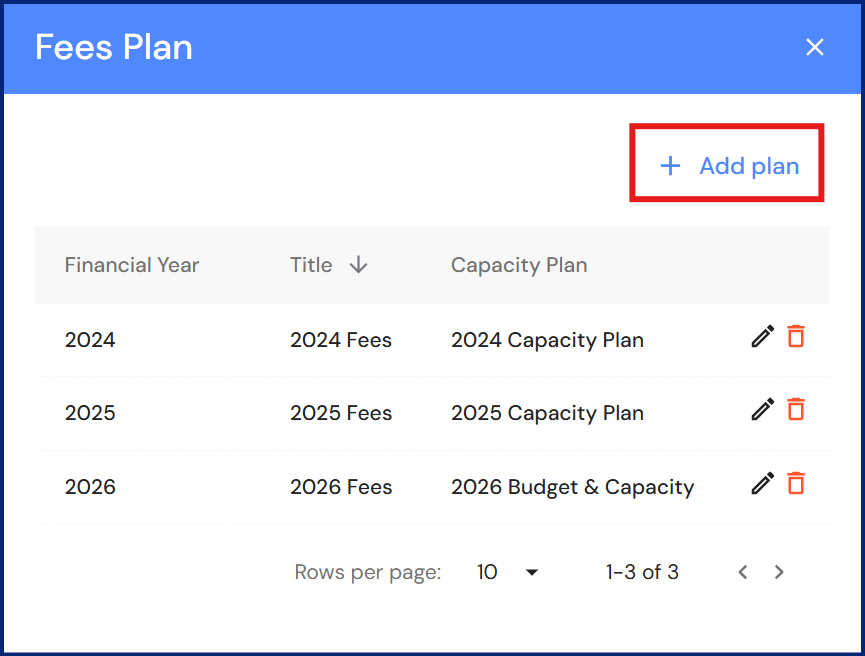
- Click '+ Add plan'.
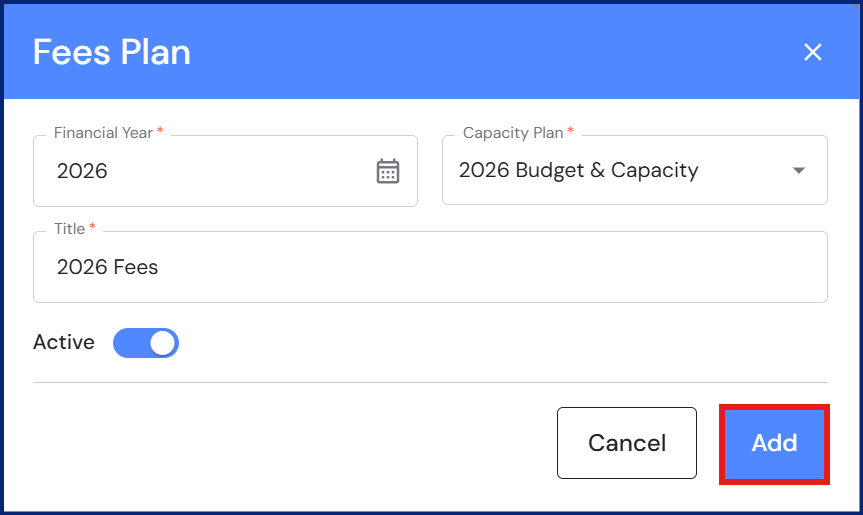
- Select the financial year and capacity plan to be linked to Revenue.
- Add a title e.g. 2026 Revenue
- Switch the 'Active' toggle on if you would like the Revenue plan to be the default plan. NB* If you have the active toggle set to 'on' in more than one Revenue plan, the newest plan will become the default.
- Click 'Add'.
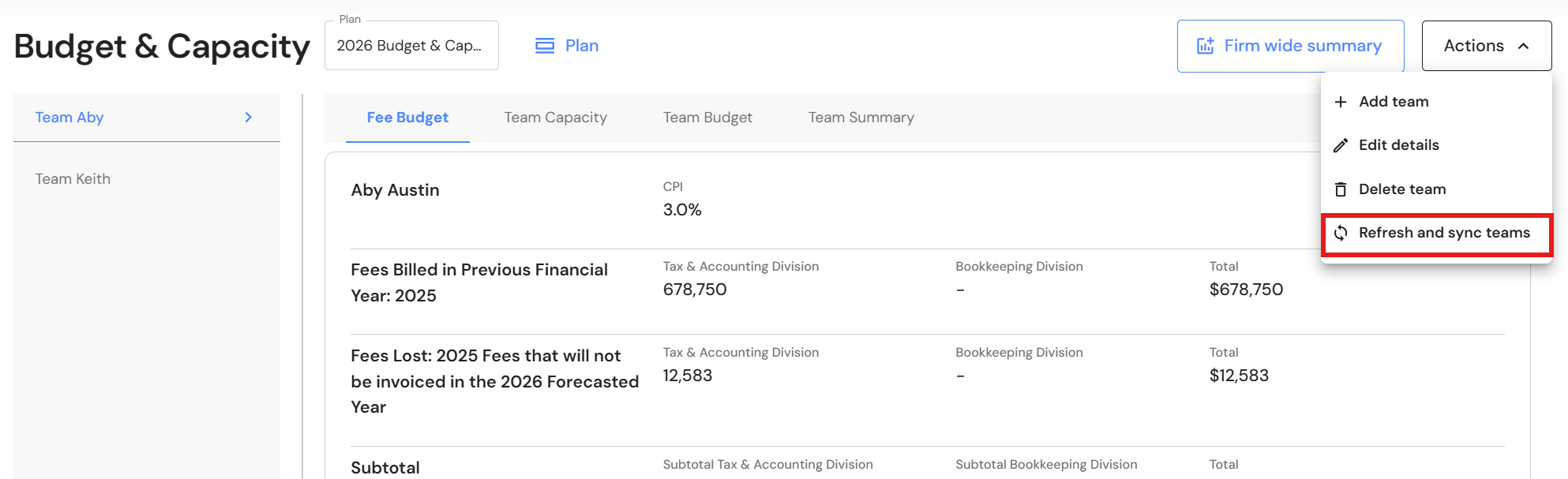
- Teams will automatically sync from the Budget & Capacity plan.
You can also manually sync teams from the Budget & Capacity plan. Click on 'Actions → Refresh and sync teams' and the Revenue Won & Lost plan will update with the team changes.
Update Revenue
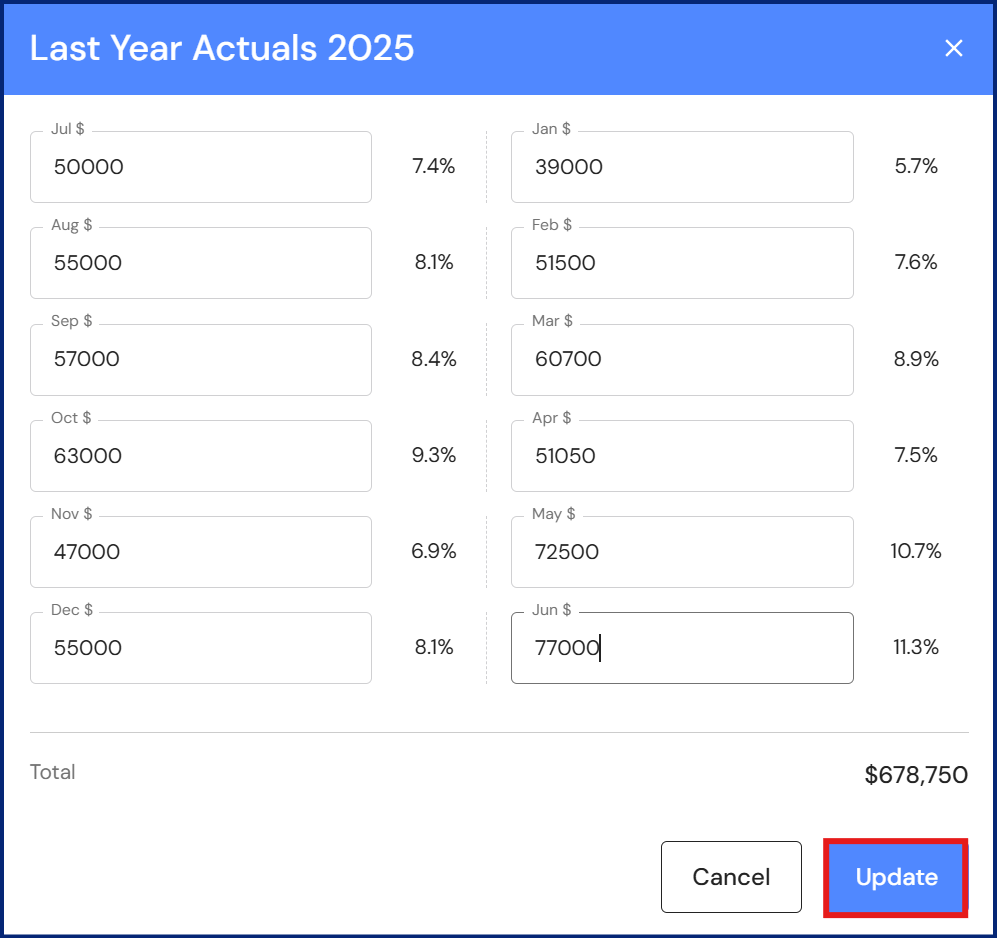
Complete Last Year Actuals
The first step is adding monthly revenue for the previous year. Completing this information has several benefits:
- You can easily compare year-to-date (YTD) revenue with last-year-to-date (LYTD) revenue in the FAB5 dashboard.
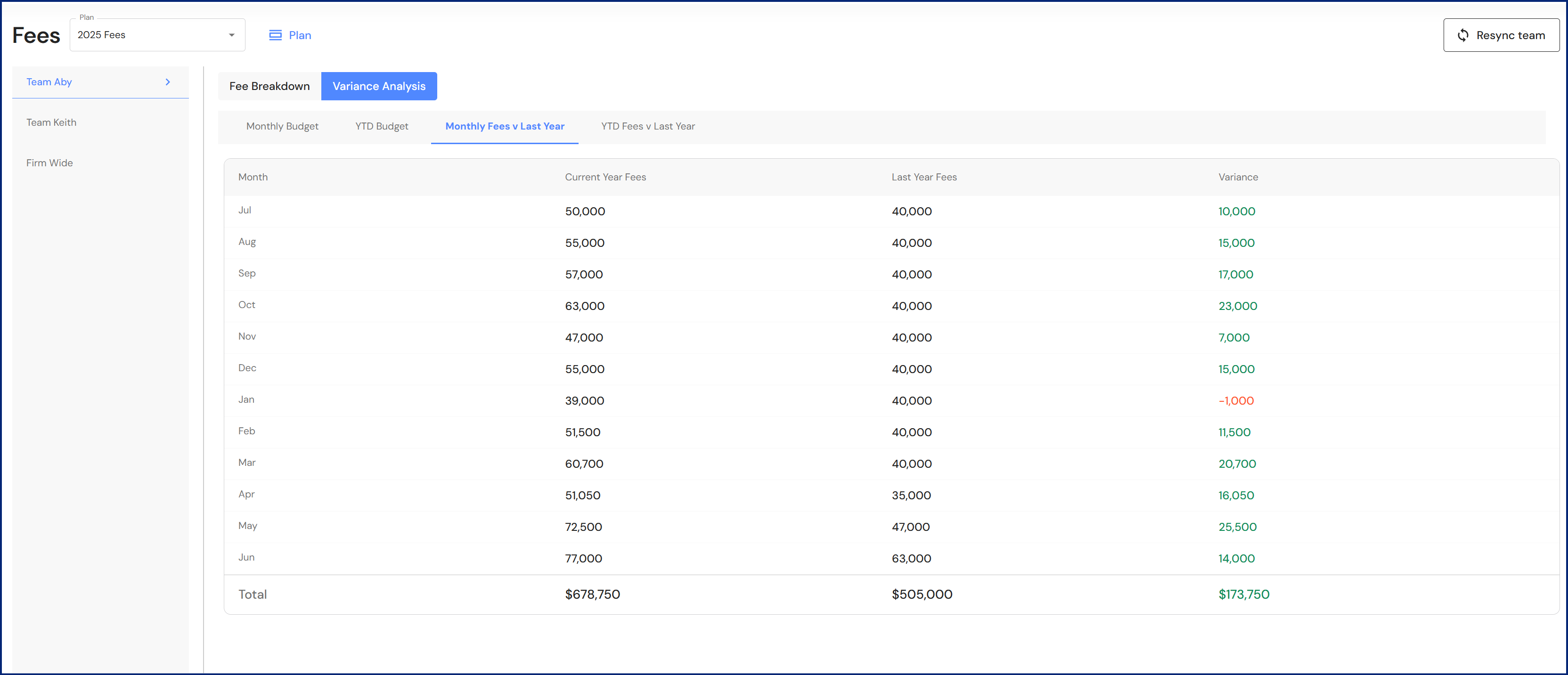
- You can review the variance analysis tab and recognise trends impacting revenue performance throughout the year. This can help you with workflow planning and decision making throughout the year.
- Entering last year actuals unlocks the seasonal budget distribution option in the Budget & Capacity plan.
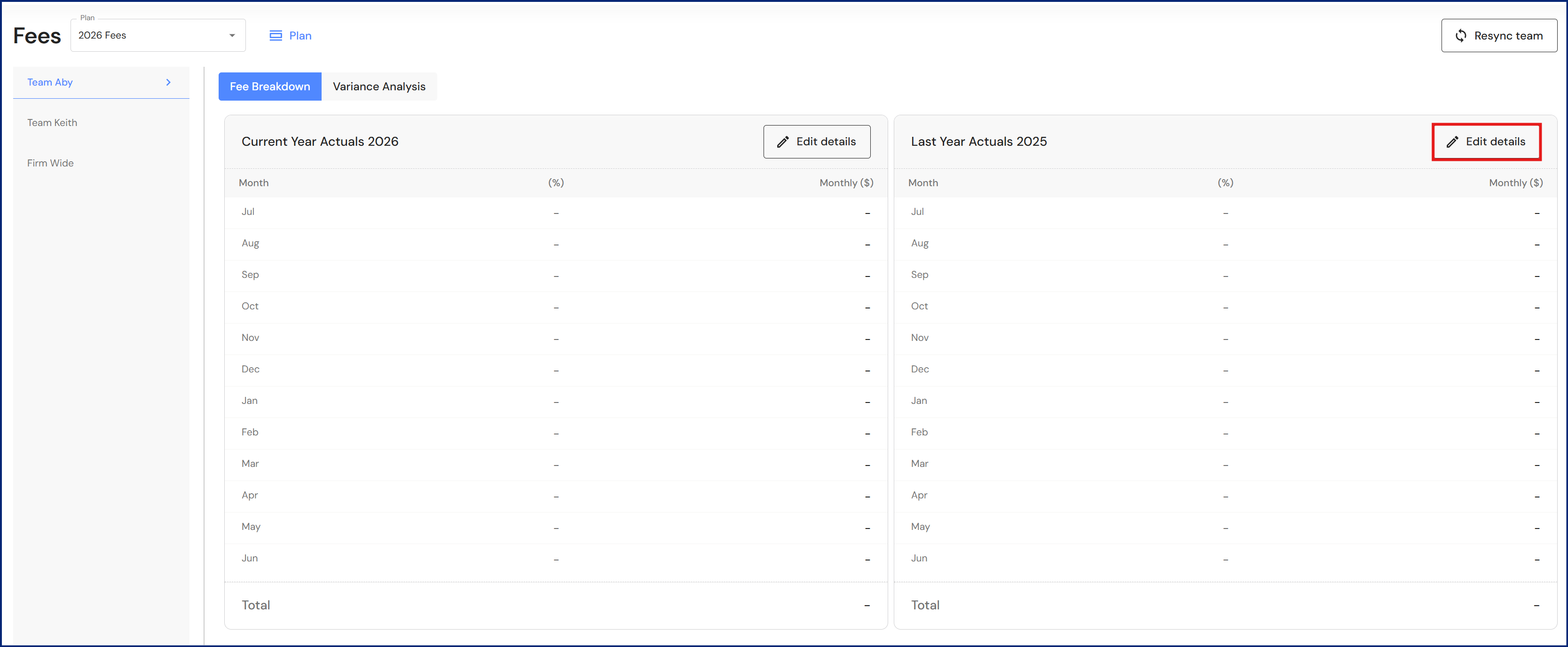
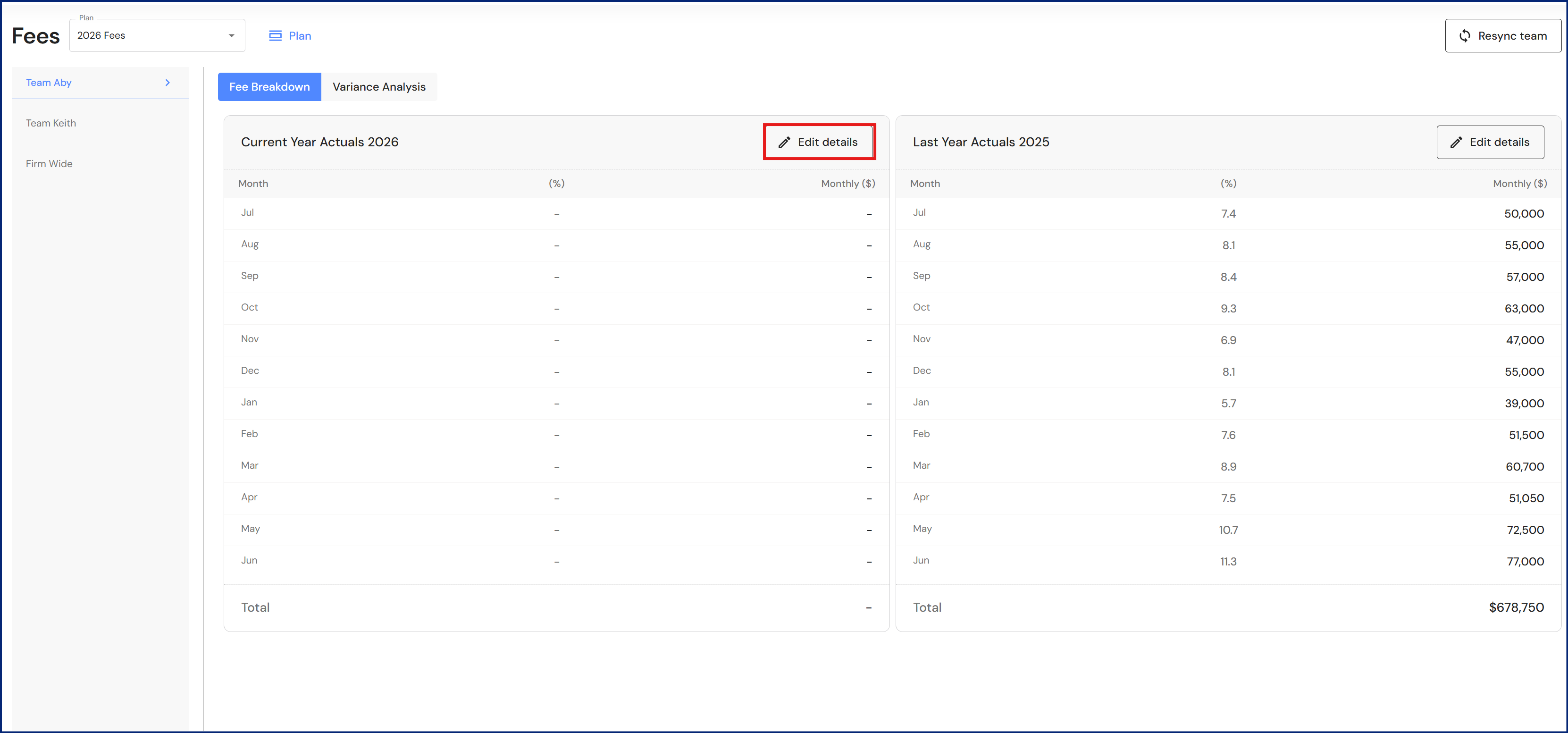
- Click 'Edit details' in the Last Year Actuals table.
- Enter the team's monthly revenue in each month.
- Click 'Update.
Repeat this process for each team.
Enter Current Year Actuals
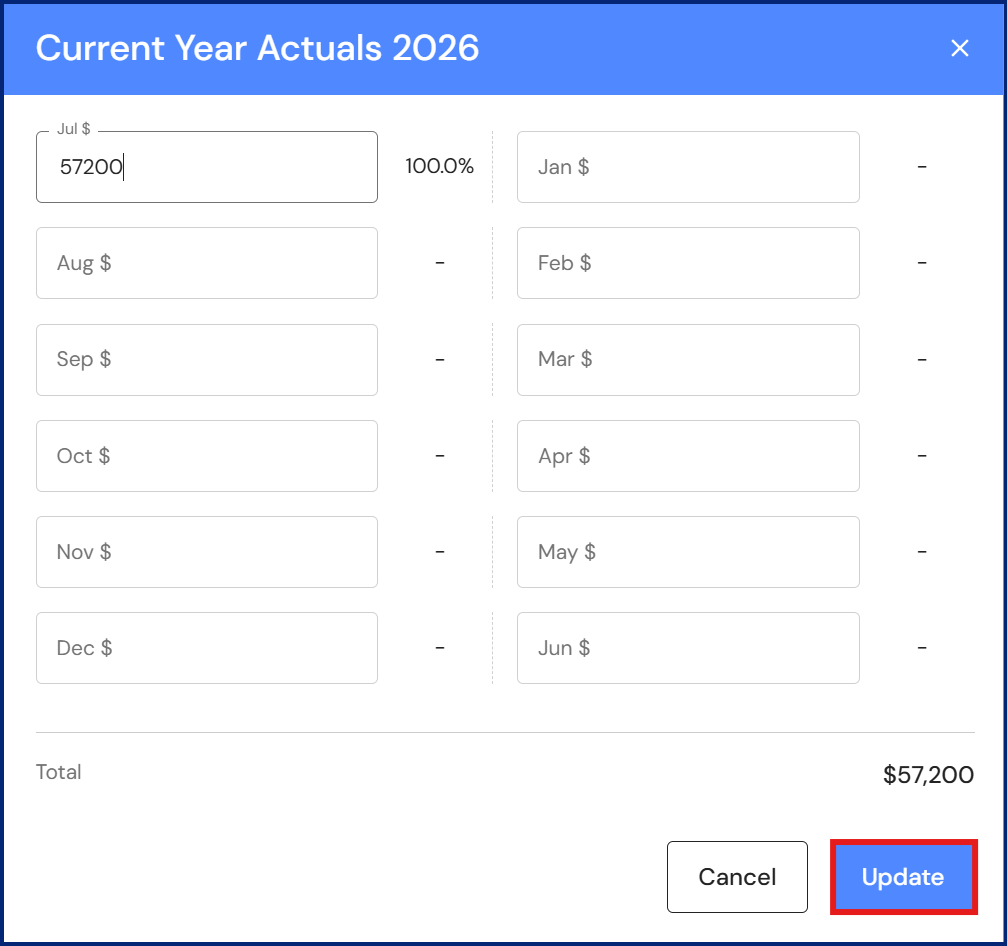
- Click 'Edit details' in the Current Year Actuals table.
- Enter the team's monthly revenue for the relevant month.
- Click 'Update'.
Repeat this process for each team.
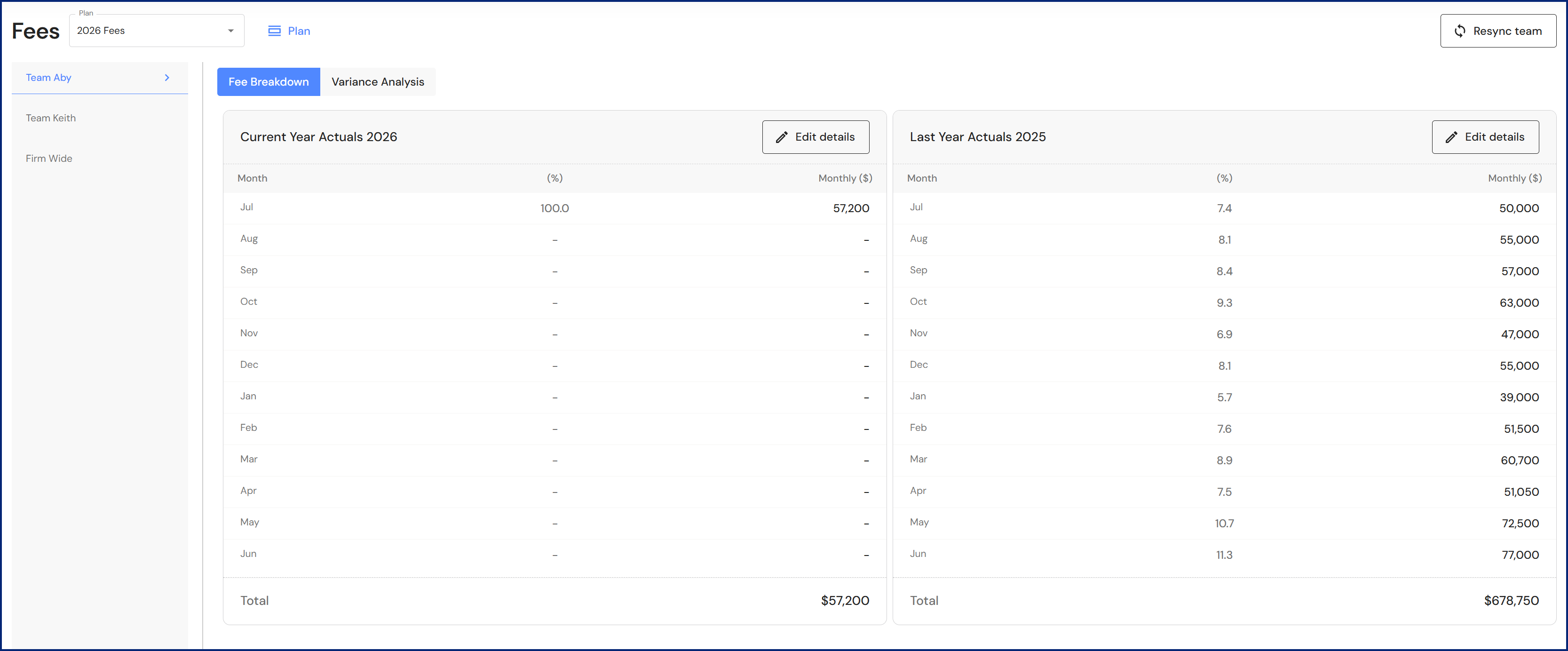
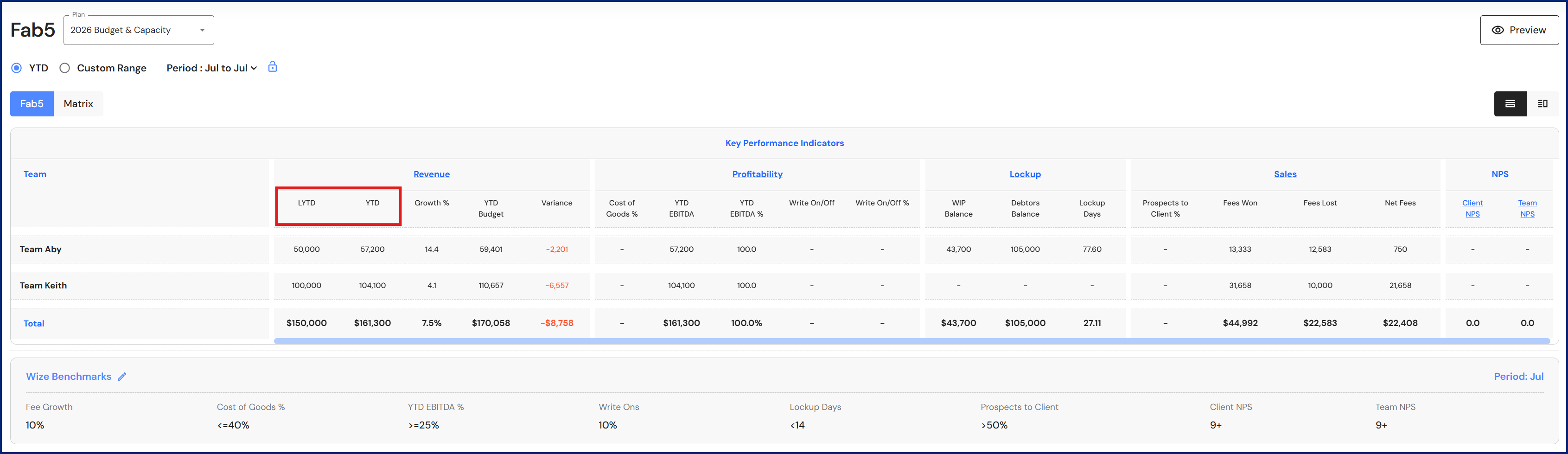
Go to Measure > FAB5 to review your Revenue KPI.
Variance Analysis
The variance analysis tab assists with planning and decision making as you gain further insight into your business's pattern of billing.
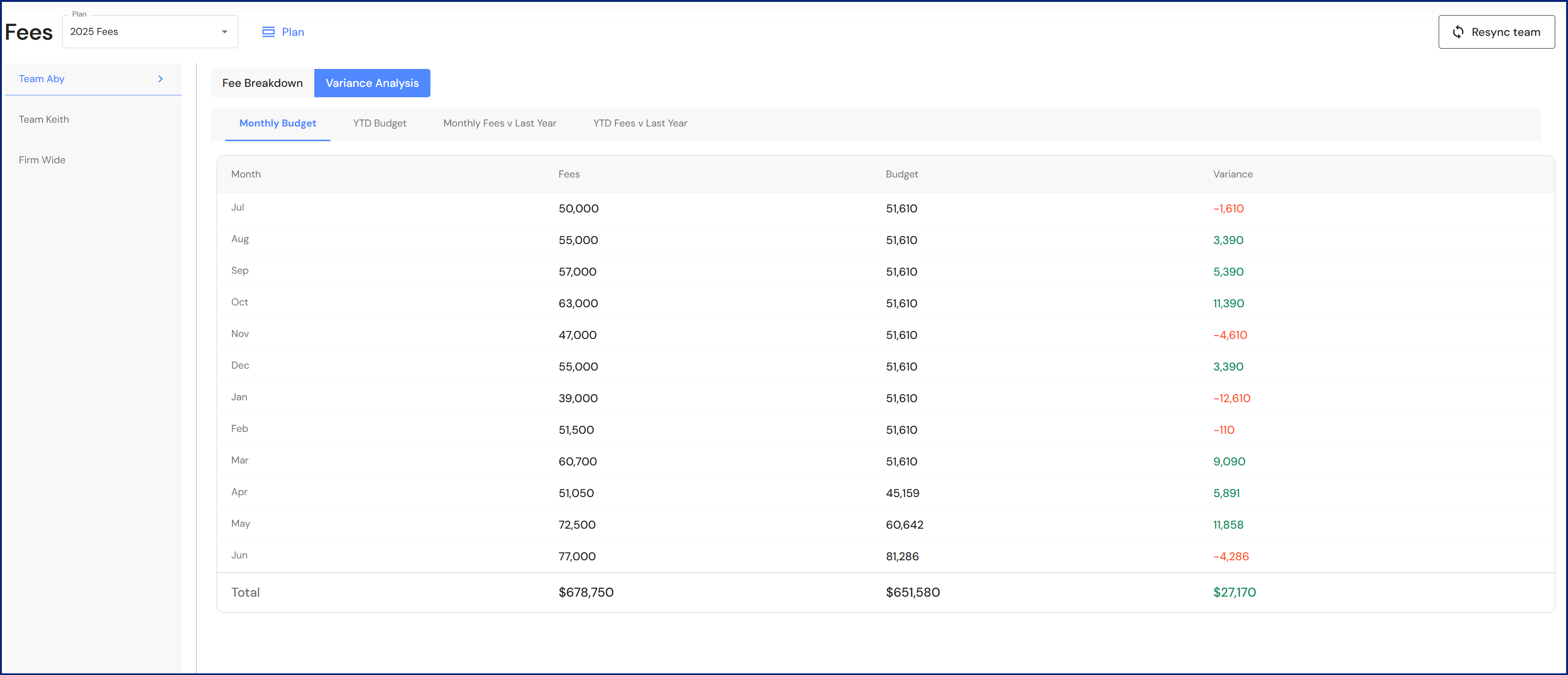
Monthly Budget
The monthly budget variance analysis may provide the following insights:
- Lags in completing jobs, limiting the amount of invoices that are finalised.
- Busier billing periods, ensuring teams are on hand to maintain client service standards.
- Months where meeting the budget is a challenge.
- Whether a seasonal or linear budget is most suitable for your business.
- The best time for staff to take extra leave.
YTD Budget
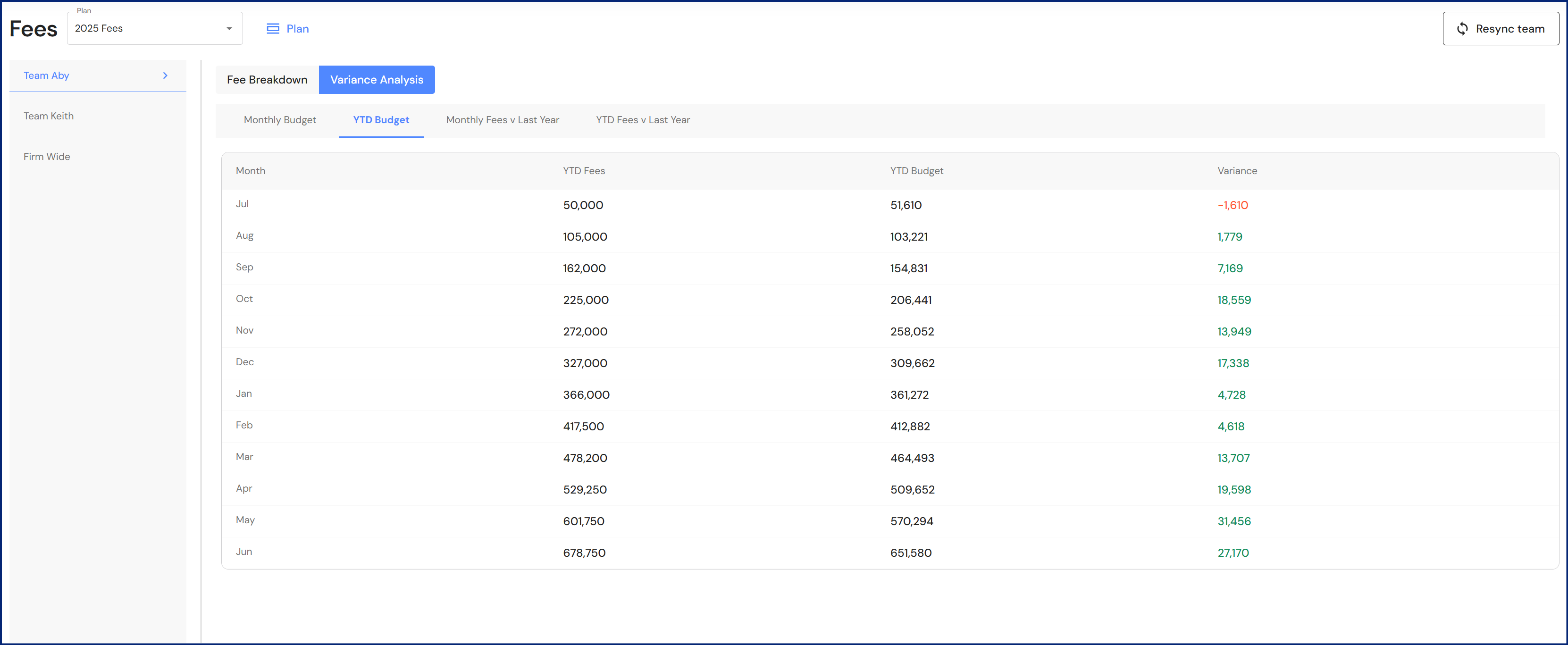
The YTD budget variance may uncover a different story for businesses with a linear budget compared to businesses using a seasonal budget. Insights include:
- The best timing for marketing initiatives. If you notice that a positive budget variance starts to detract across months, a targeted marketing campaign can win new clients in slower months.
- A positive variance may indicate higher than expected growth.
Monthly Revenue v Last Year
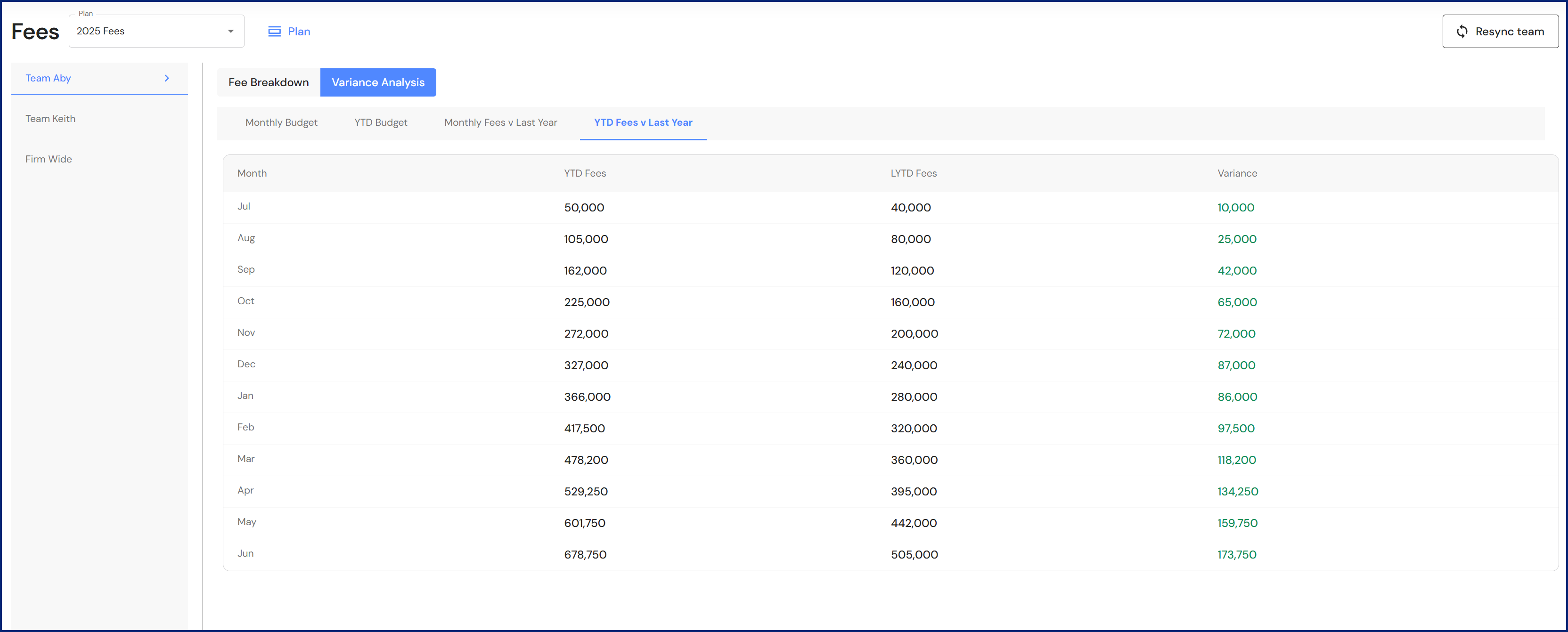
YTD Revenue v Last Year
Rename a Revenue plan
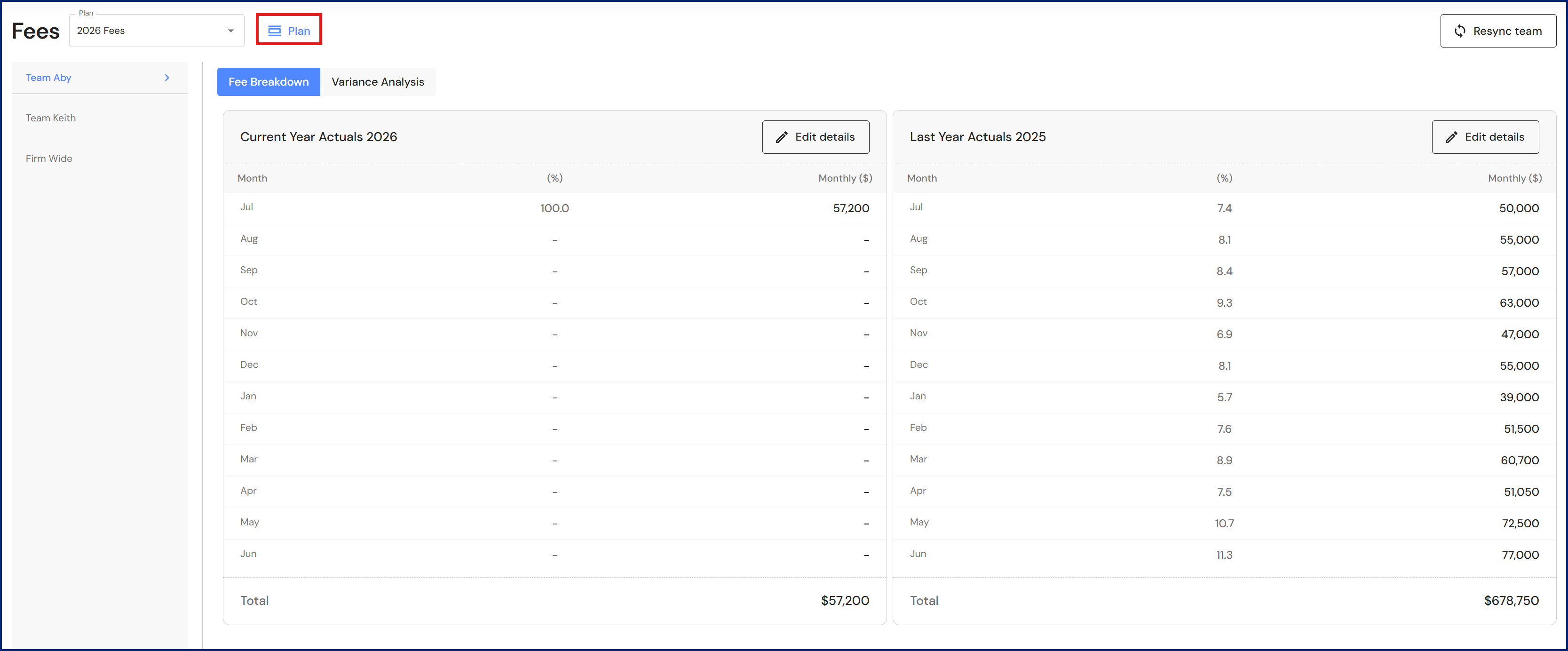
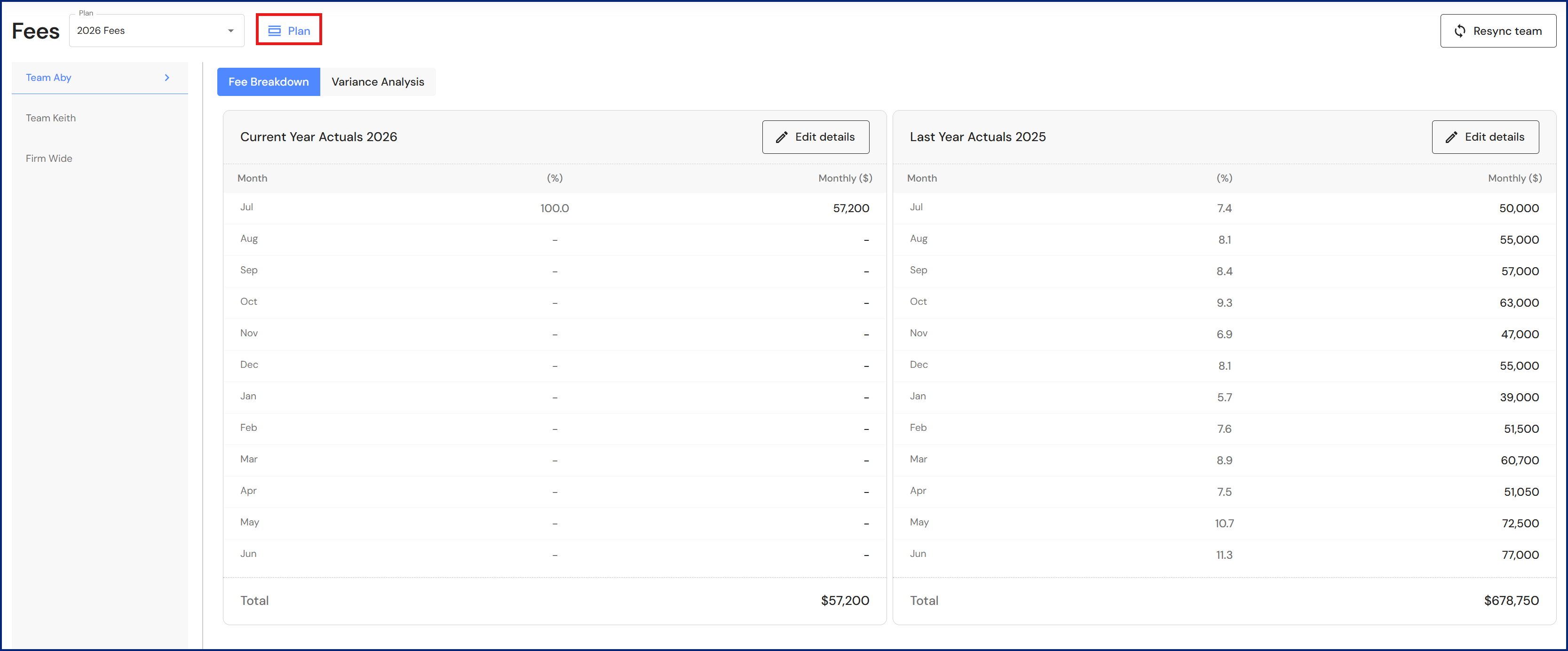
- Click the 'Plan' button.
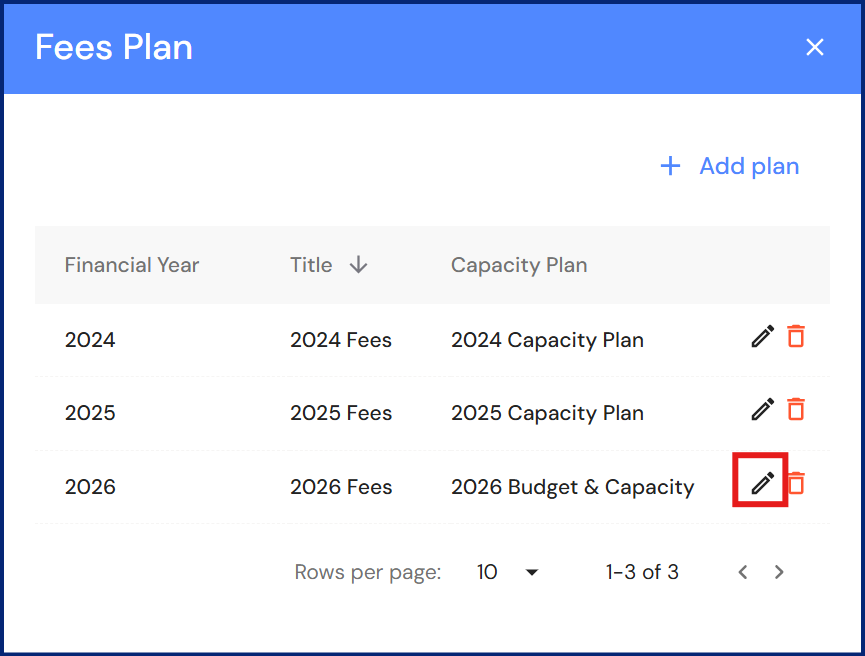
- Click the pencil icon.
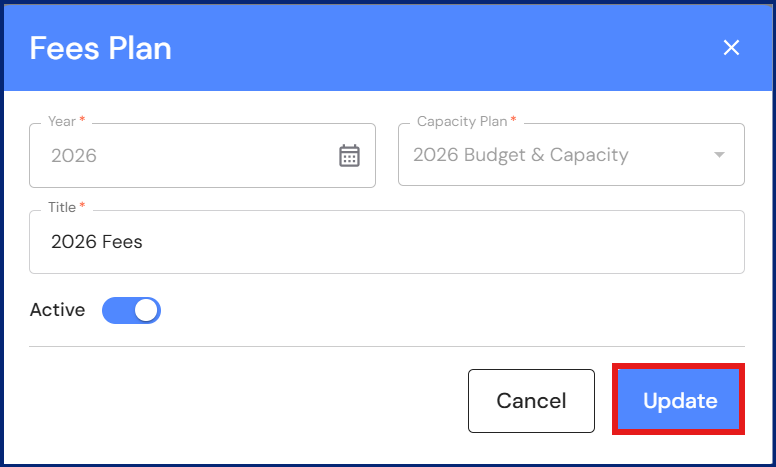
- Change the title and click 'Update'.
Delete a Revenue plan
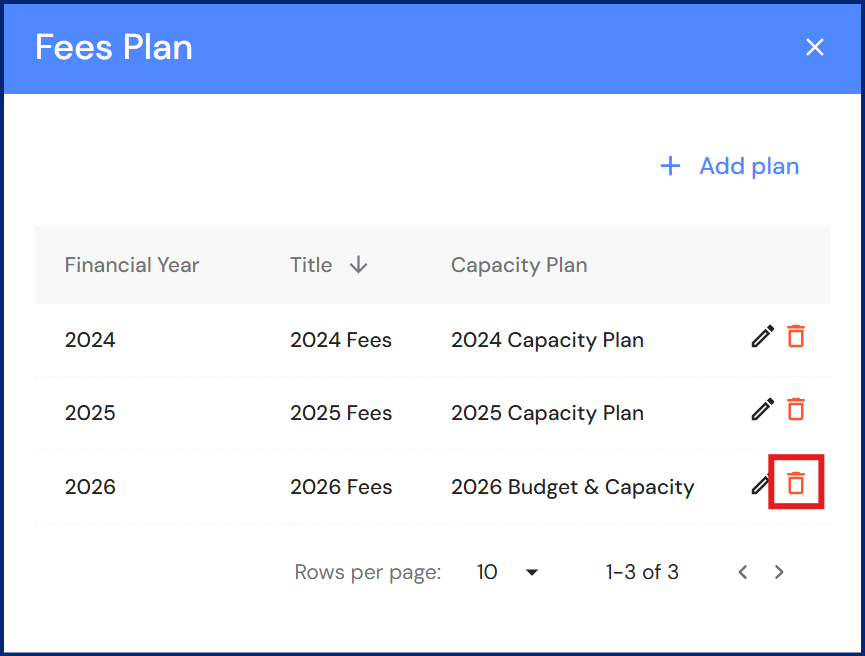
- Click the 'Plan' button.
- Click the bin icon.
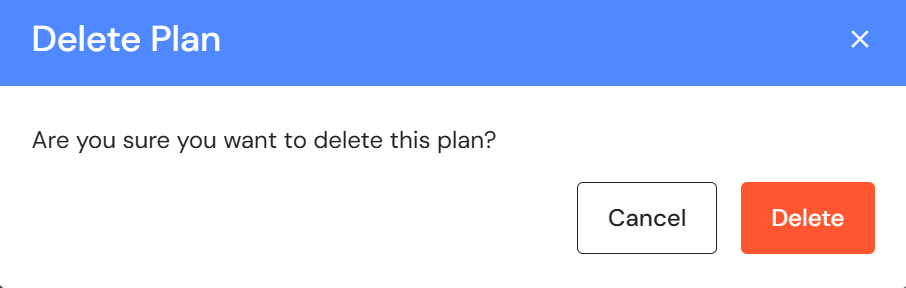
- Click 'Delete' to confirm.