Ideal Teams
This article provides step-by-step guidance to add team members across each division in your business.
Ideal Teams is where you build your business with the most important attribute - your People. Here, you will add team members to each division along with a division specific role.
Ideal Teams also becomes the foundation for your Organisation Chart. Any updates made to Ideal Teams will automatically update the Organisation Chart.
The Production division has further importance as production teams also become the foundation for Budget & Capacity planning and FAB5 reporting.
Pre-requisite: Make sure you have added your team to People before you proceed.
Go to Plan > Ideal Teams
Board
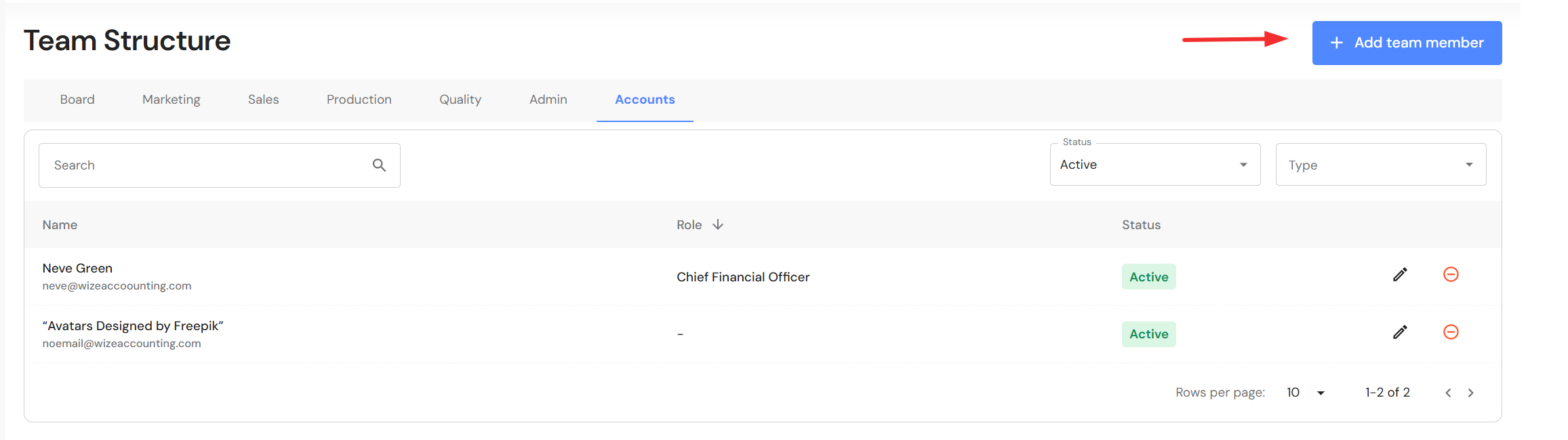
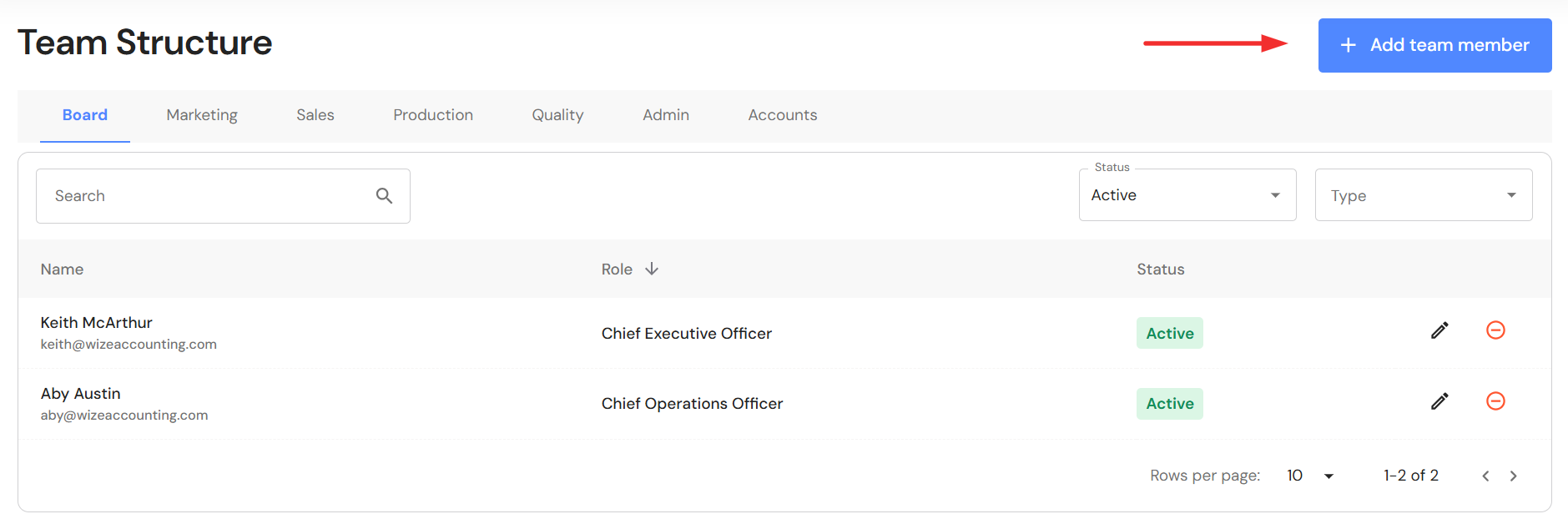
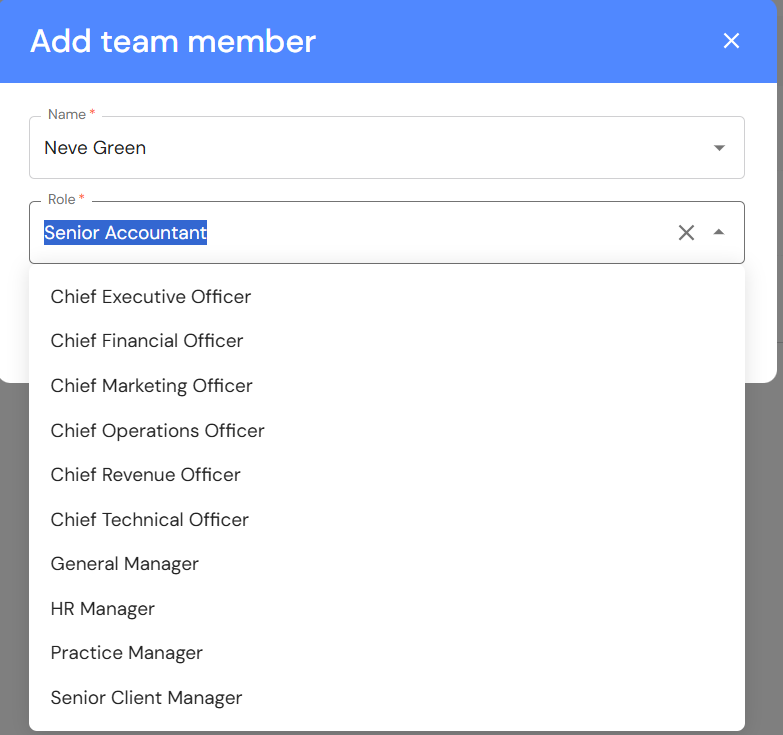
- In the Board tab, click on '+ Add team member'.
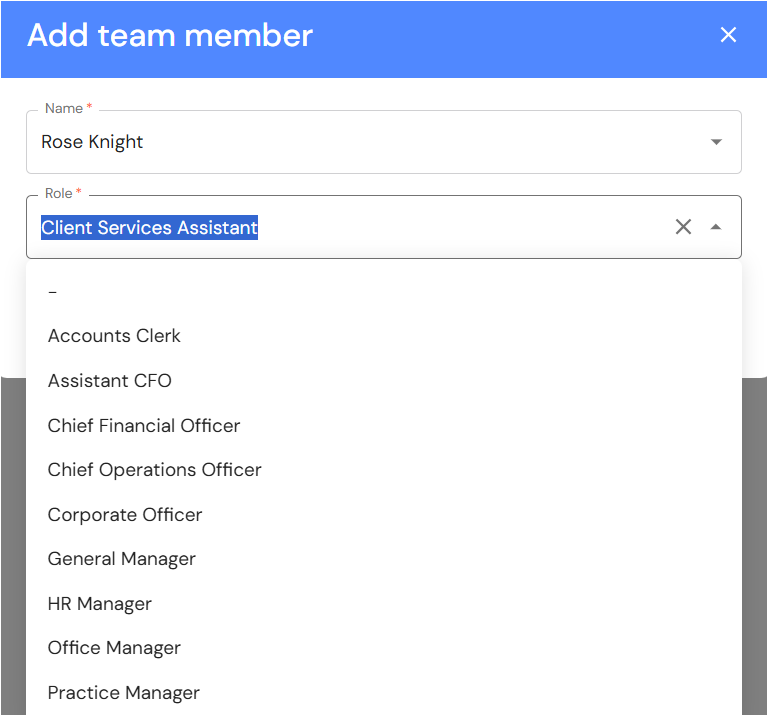
- Select a team member from the dropdown list.
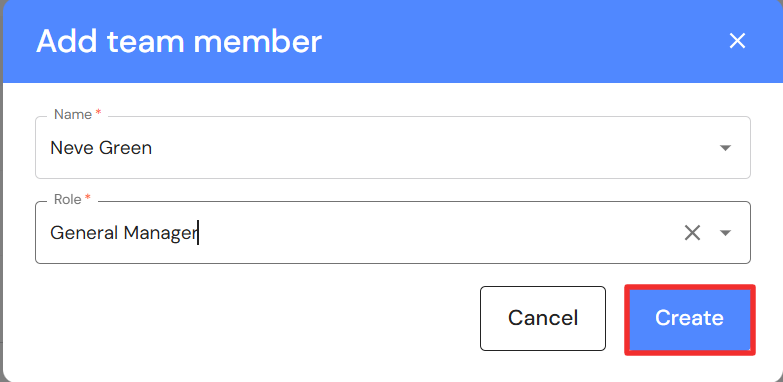
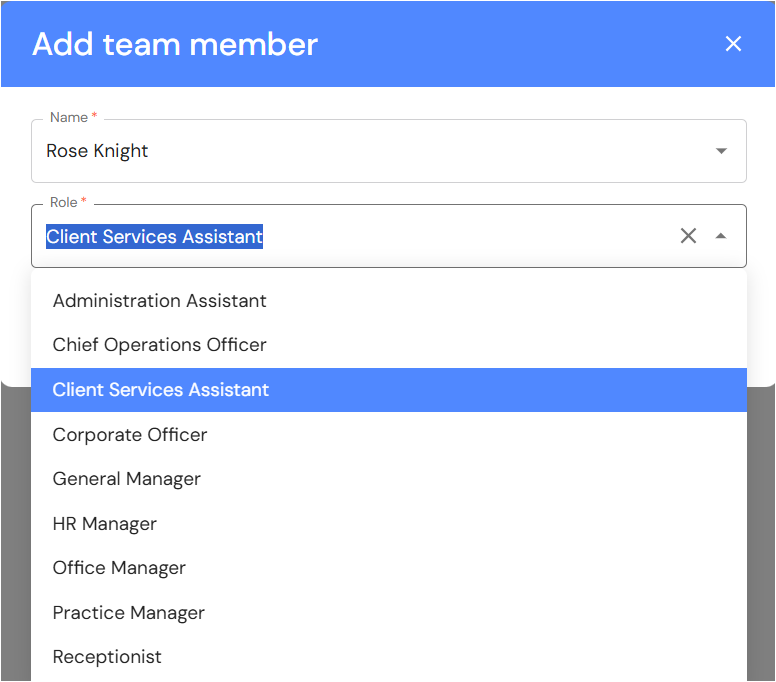
- The role assigned to the team member's profile in People will automatically prefill however, you can change the role to a board role from the dropdown list.
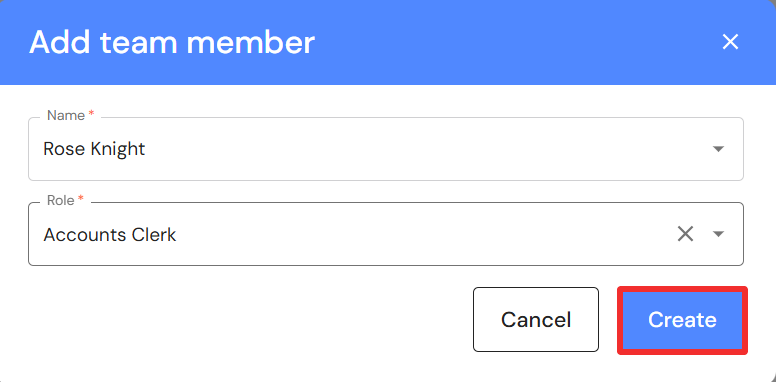
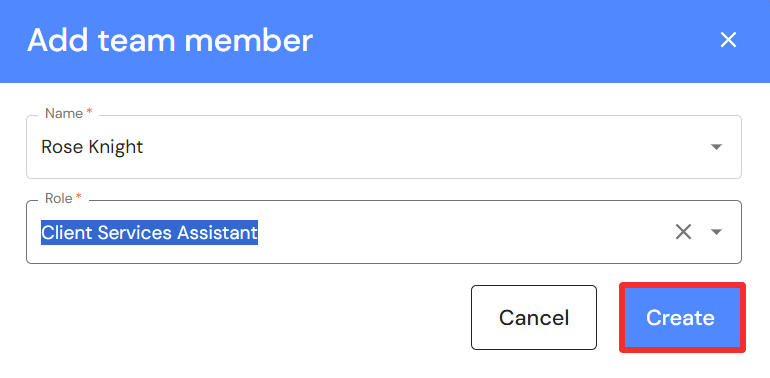
- Click on 'Create'.
Marketing
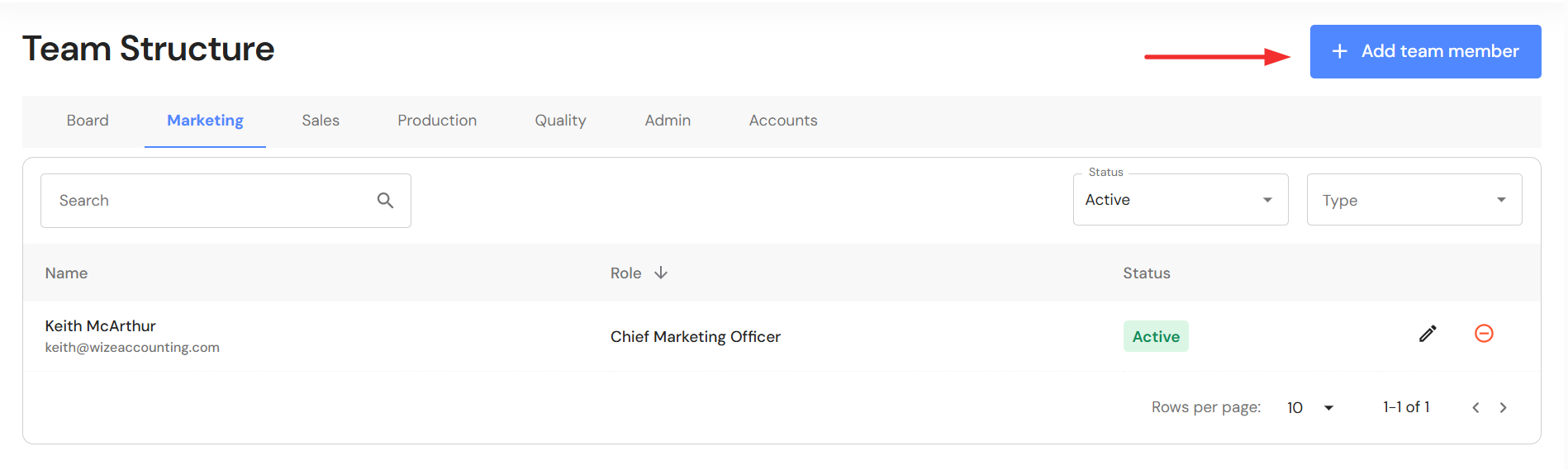
- In the Marketing tab, click on '+ Add team member'.
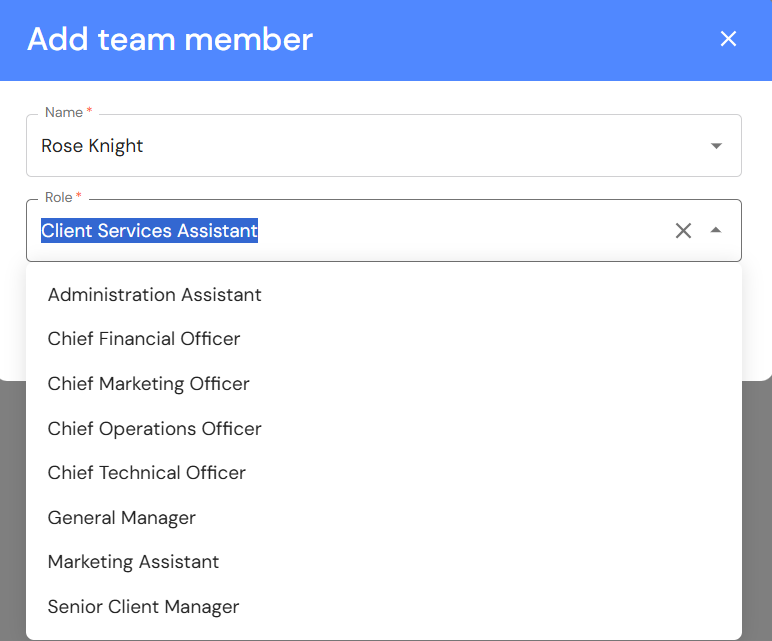
- Select a team member from the dropdown list.
- The role assigned to the team member's profile in People will automatically prefill however, you can change the role to a marketing role from the dropdown list.
- Click on 'Create'.
Sales
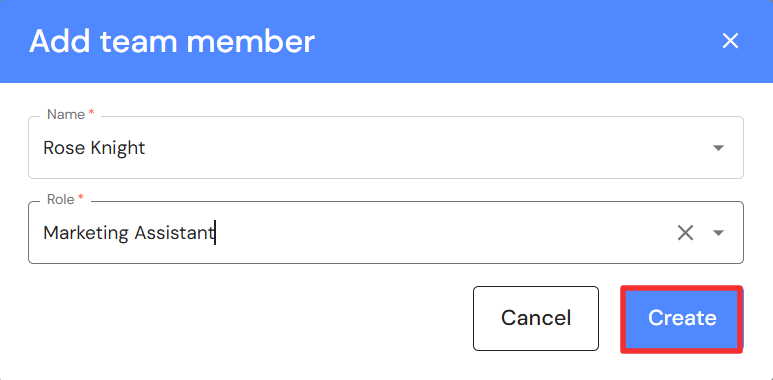
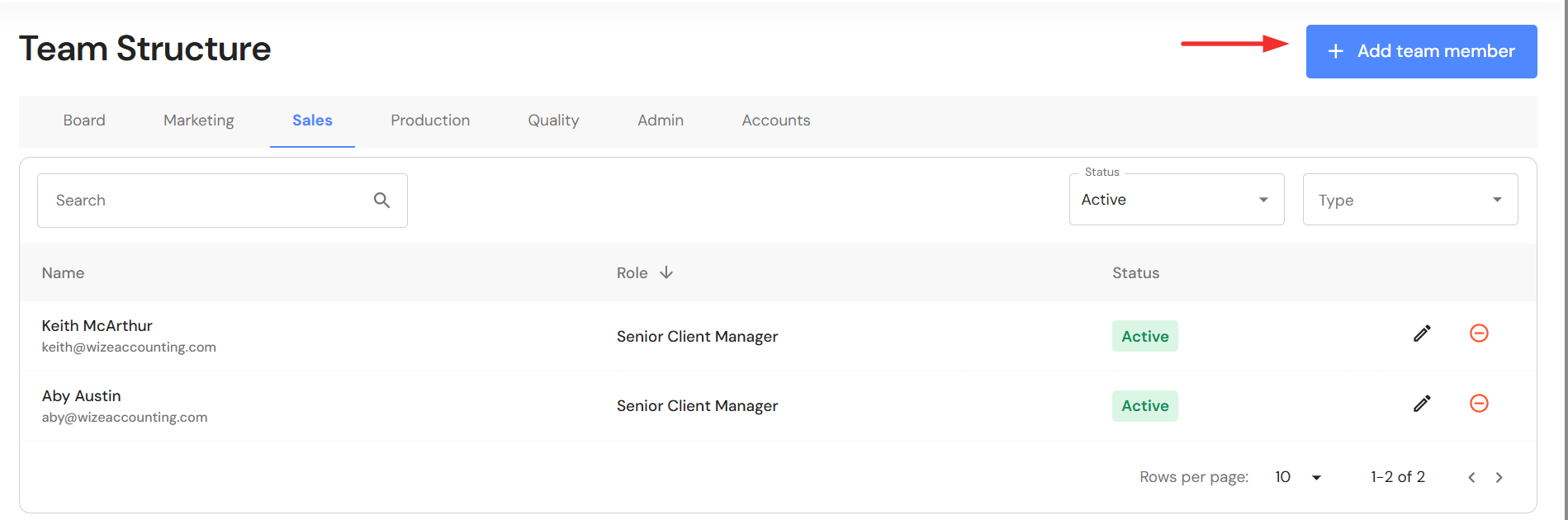
- In the Sales tab, click on '+ Add team member'.
- Select a team member from the dropdown list.
- The role assigned to the team member's profile in People will automatically prefill however, you can change the role to a sales role from the dropdown list.
- Click on 'Create'.
Production
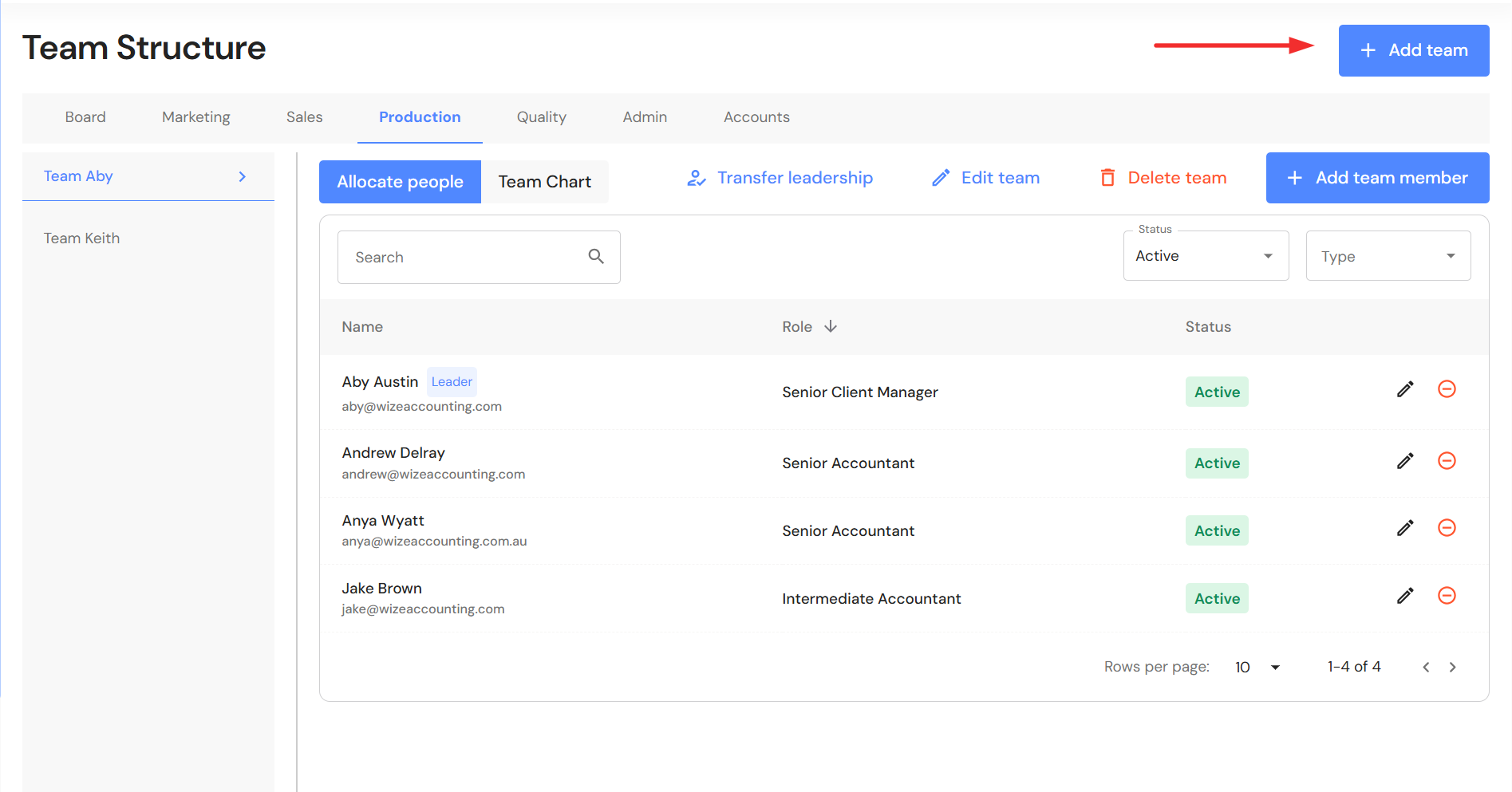
- In the Production tab, click on '+ Add team'.
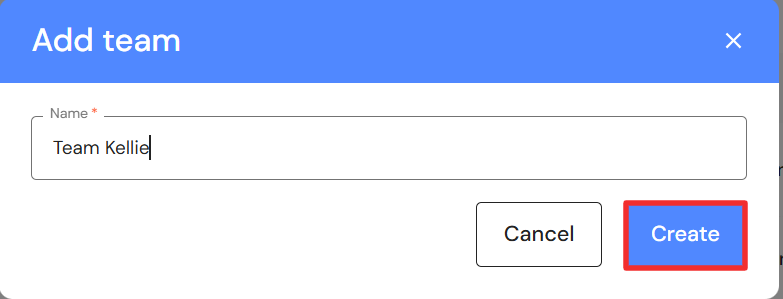
- Type a team name and click on 'Create'.
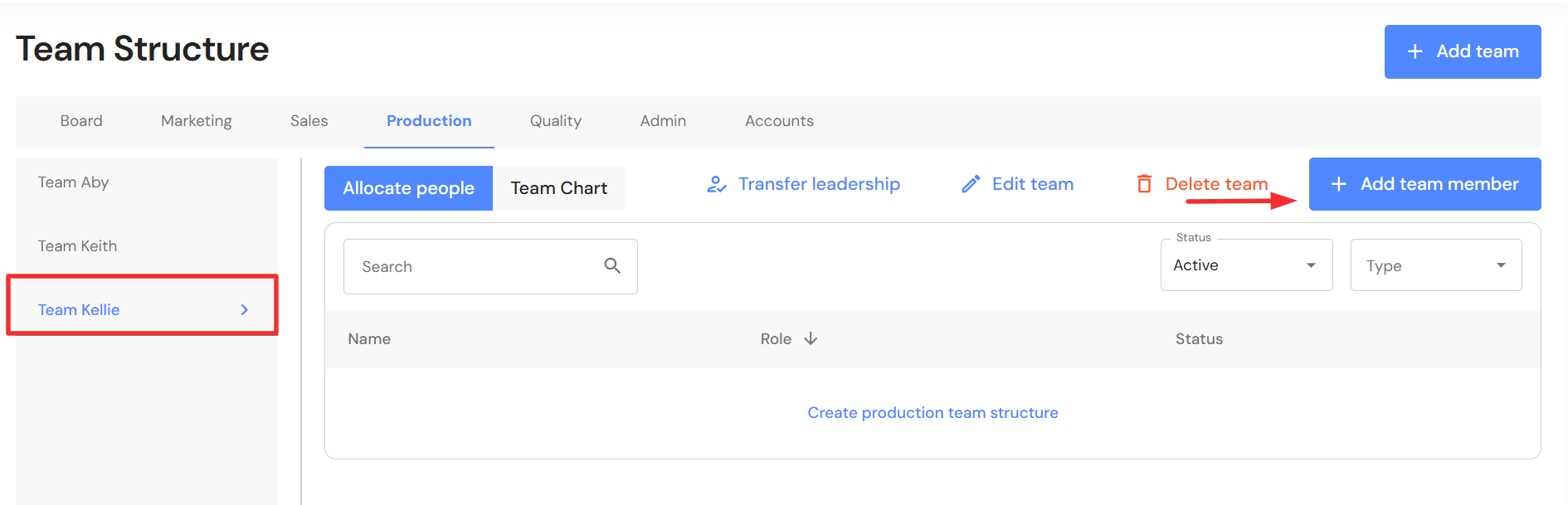
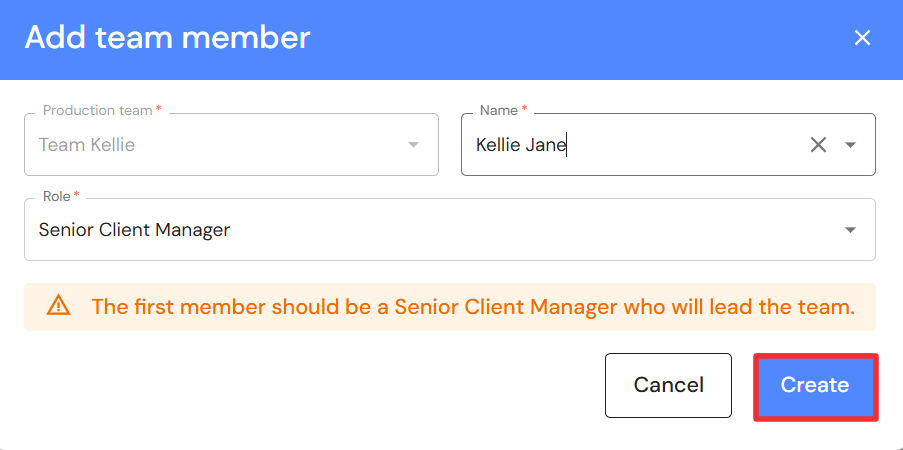
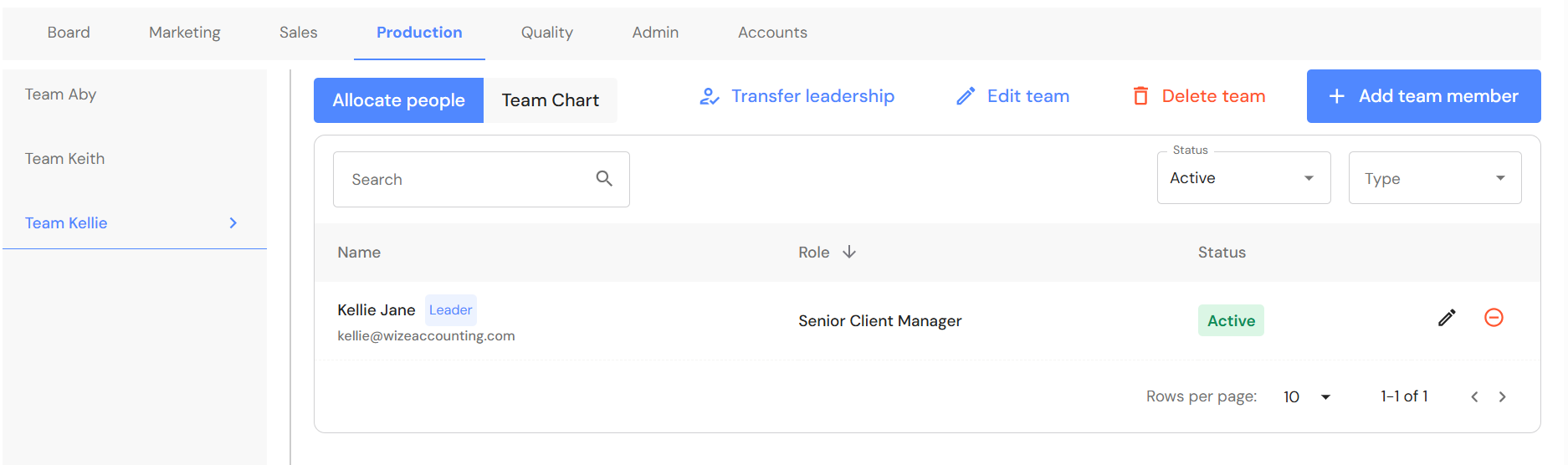
- Click on the team name in the grey panel. Then click on '+ Add team member'.
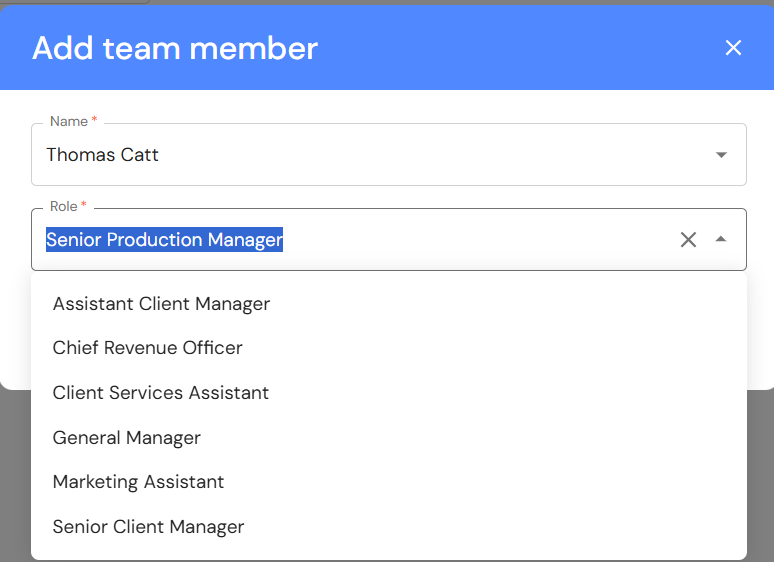
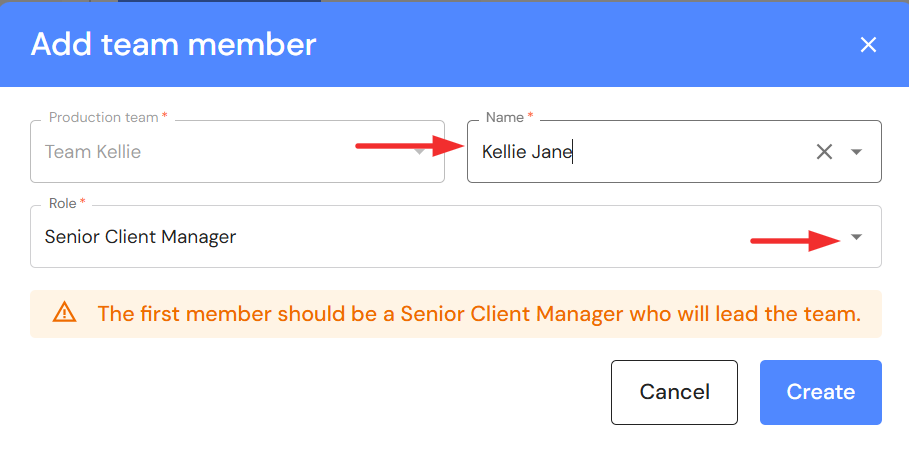
- Select a team member from the dropdown list.
- The first person to add is the team's Senior Client Manager who is responsible for the leading the team.
NB* The role assigned to the team member's profile in People will automatically prefill however, you can change the role to a production role from the dropdown list.
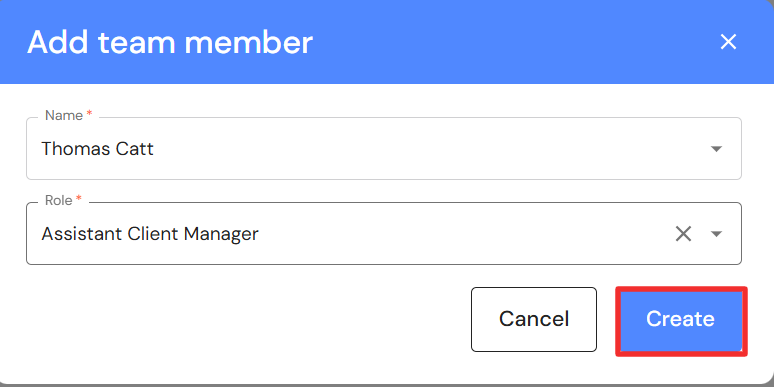
- Click on 'Create'.
Production Team Chart
The team chart is where you create a visual representation of your team's structure and reporting lines.
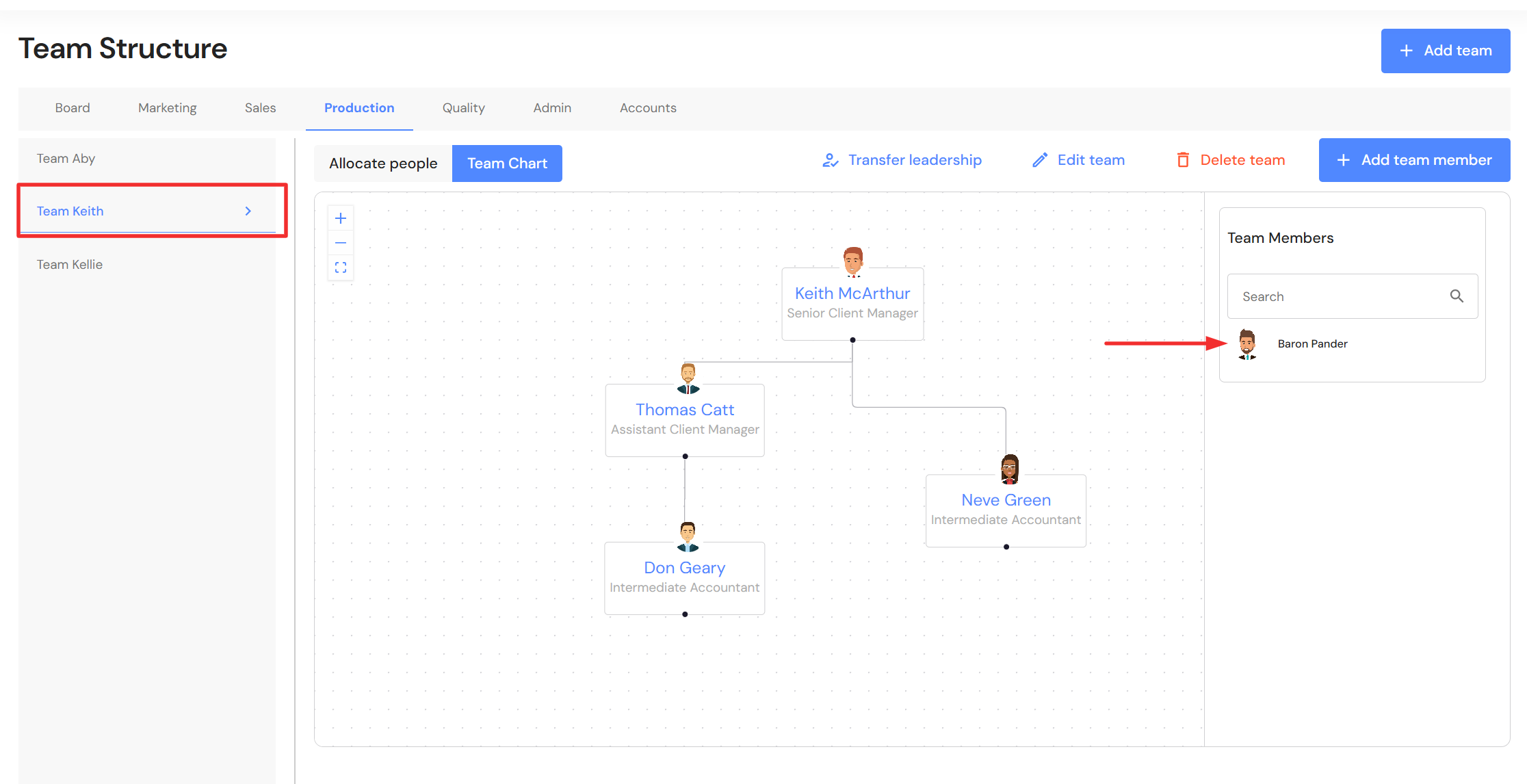
- Click on the team name in the grey panel. Then, click on the Team Chart tab.
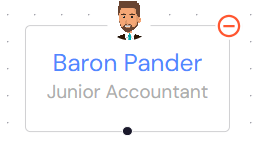
- Your production team members will be listed under the team members panel. Drag each team member into position in the whitespace. The production team role will align with the avatar.
NB* To see images, you must add a profile pictures to each team member profile in People.
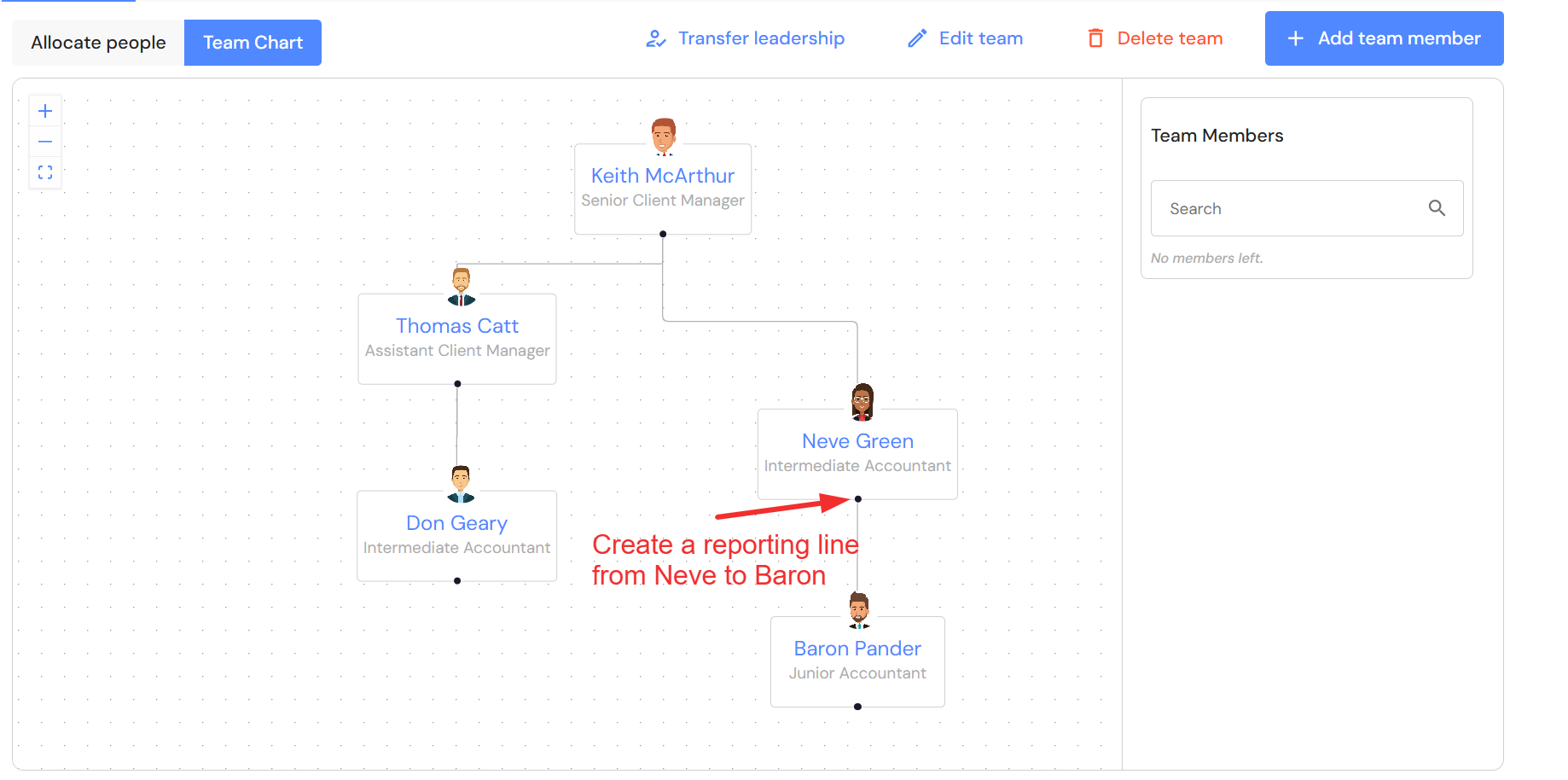
- To create reporting lines, hover over the black dot until your mouse changes to a cross (+). Drag the line and connect it to supervisees.
- To remove an avatar from the team chart, hover over the avatar until a red icon appears in the top right corner. Click on the red icon to remove the avatar. The team member will re-appear in the team members panel.
Quality
- In the Quality tab, click on '+ Add team member'.
- Select a team member from the dropdown list.
- The role assigned to the team member's profile in People will automatically prefill however, you can change the role to a Quality role from the dropdown list.
- Click on 'Create'.

Admin
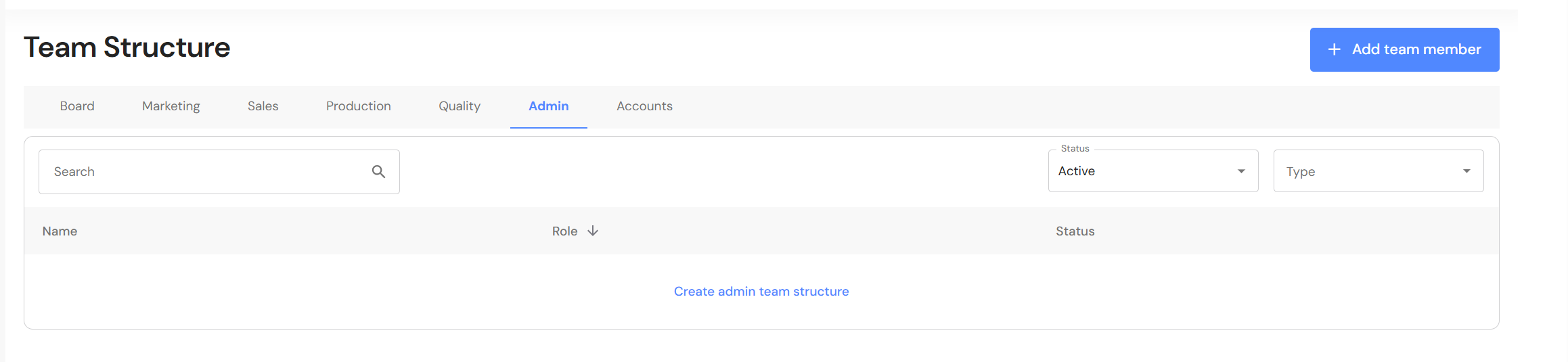
- In the Admin tab, click on '+ Add team member'.
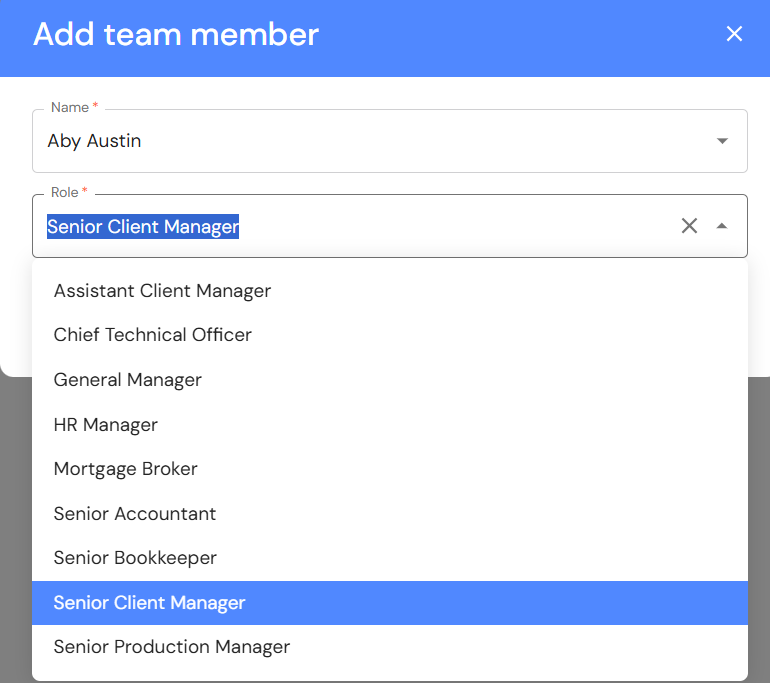
- Select a team member from the dropdown list.
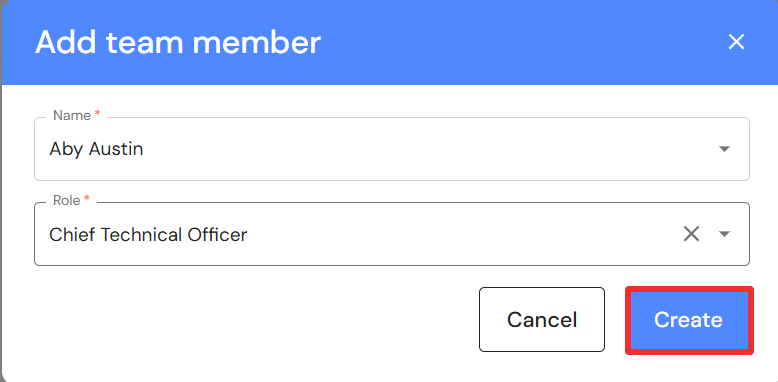
- The role assigned to the team member's profile in People will automatically prefill however, you can change the role to an admin role from the dropdown list.
- Click on 'Create'.
Accounts
- In the Accounts tab, click on '+ Add team member'.
- Select a team member from the dropdown list.
- The role assigned to the team member's profile in People will automatically prefill however, you can change the role to an accounts role from the dropdown list.
- Click on 'Create'.