
Release Notes - 3 March 2025
Budgets & Capacity
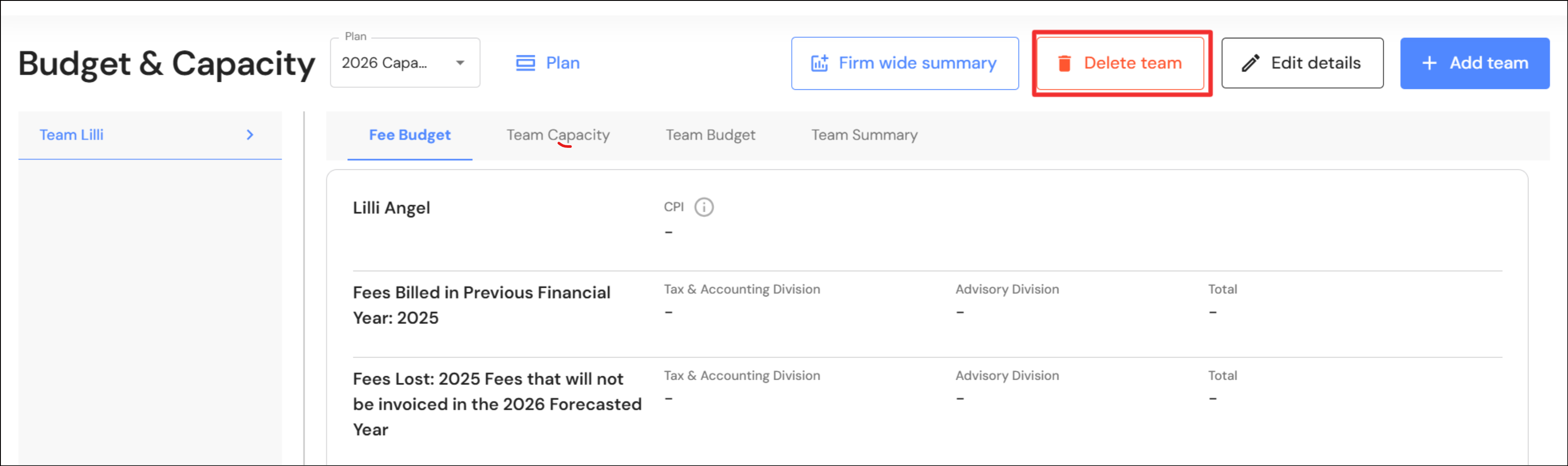
Deleting teams from Budgets & Capacity plan and connected FAB5 plans
Users can now delete teams from the Budgets & Capacity plan. This is particularly helpful if you are scenario planning and you no longer need the details to flow through to connected plans and the FAB5 dashboard. Once you delete a team from the Budgets & Capacity plan, the team will disappear from other plans. NB* If you have a connected plan open in another chrome tab, click on ‘Resync team’ and the newly deleted team will disappear.
Manage Users
Link user profile to employee profile
In our release on 20 February 2025, we added the ability to invite a user to the WizeHub without a requirement to add to them to People. Should a firm add the user as an employee down the track, the separate profiles need to be linked to make connections to specific modules in the WizeHub.
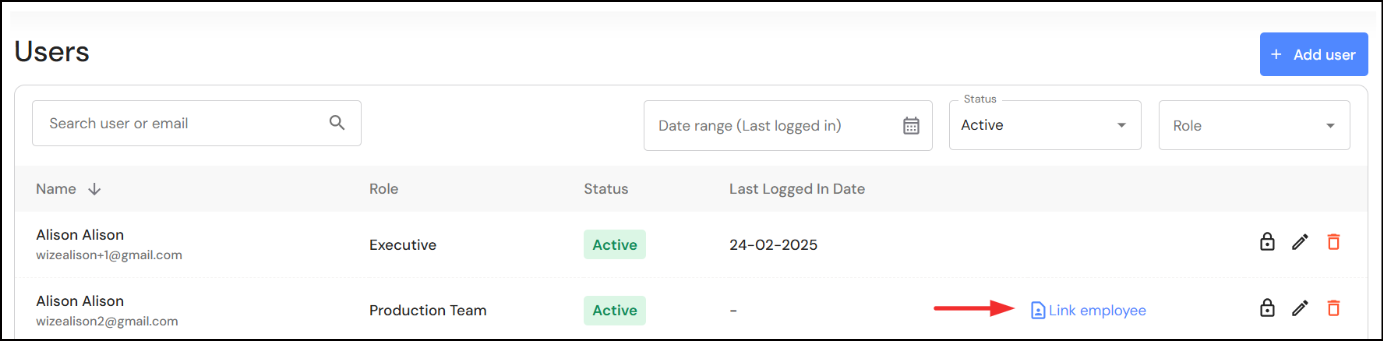
When a user profile is not linked to an employee, a button labelled ‘link employee’ will appear in the Manage Users module.
To link users to employees:
- Click on link employee
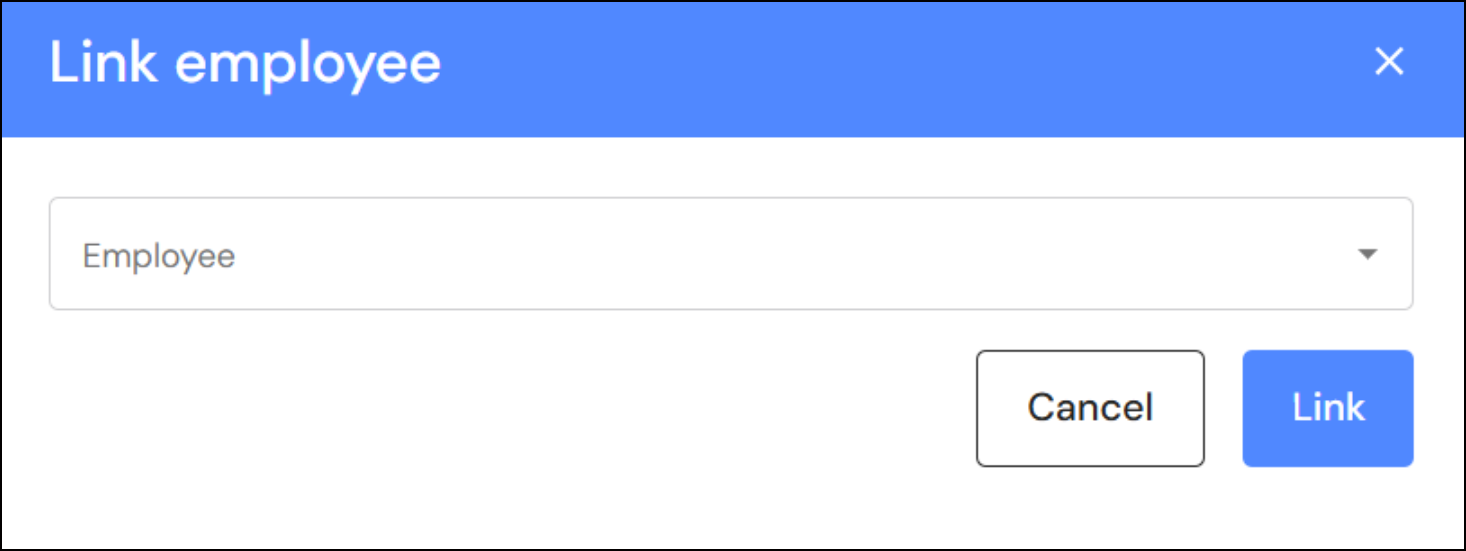
- Select the employee from the dropdown list.
- Click on Link to make the connection.
Once the connection is made, the link employee button will disappear.
Meetings
Meeting visibility
Permissions and visibility settings in the meetings module has been resolved. Permission levels in this module enable firms to maintain meeting confidentiality.
The meetings module has the following features:
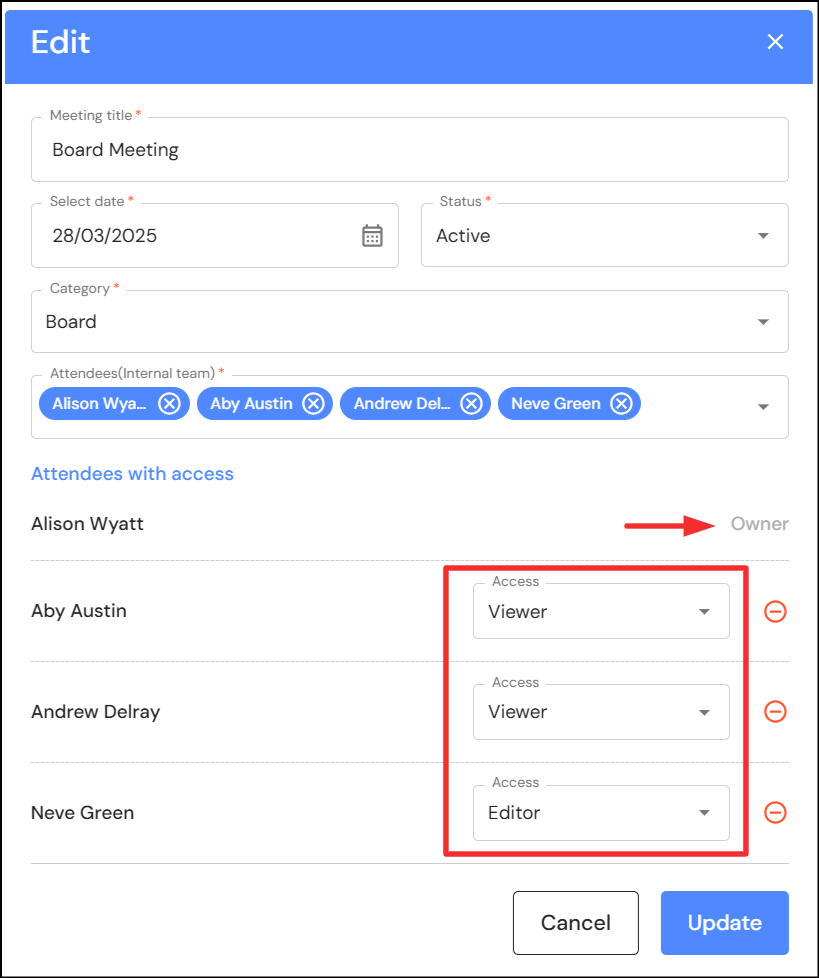
- Any user can create a meeting. The user who adds a new meeting is the meeting owner (and attendee by default) with "Editor" permissions. The meeting owner can transfer the meeting ownership to another attendee. This is helpful if the person who created the meeting wants to step away from a meeting and be removed as an attendee.
- Team members must be added to meetings as an attendee to have access to meetings. Attendee permissions can either be:
- "Viewer" access - An attendee can view agenda items and associated minutes, tasks and attachments.
- "Editor" access - An attendee can add or edit agenda items, minutes, tasks and attachments. They can also add meeting attendees.
- Executive users have full permissions across all meetings including the ability to transfer ownership to another attendee. They do not have to be added as an attendee to view a meeting, however to transfer ownership to themselves, a meeting attendee with "Editor" access must first add them as an attendee.
Meeting objective text box
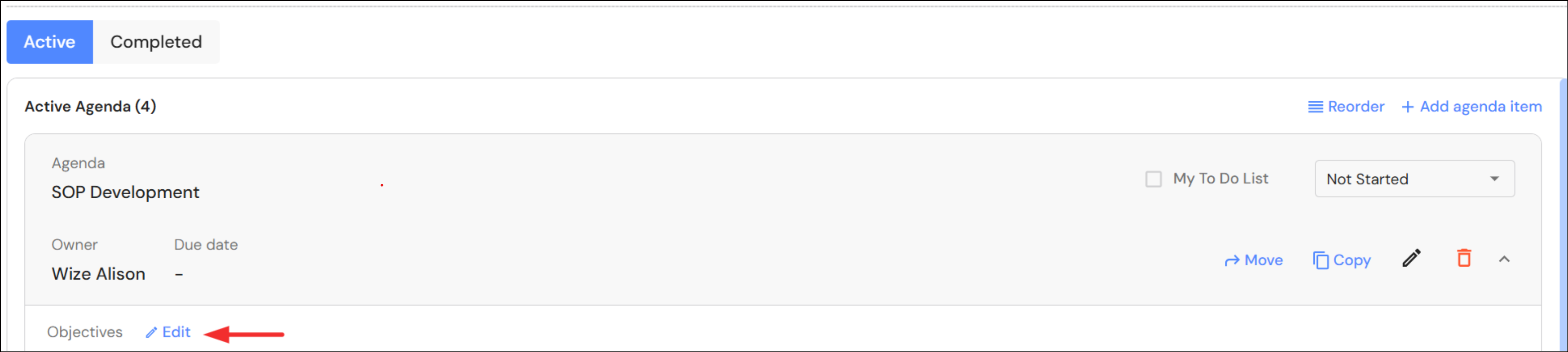
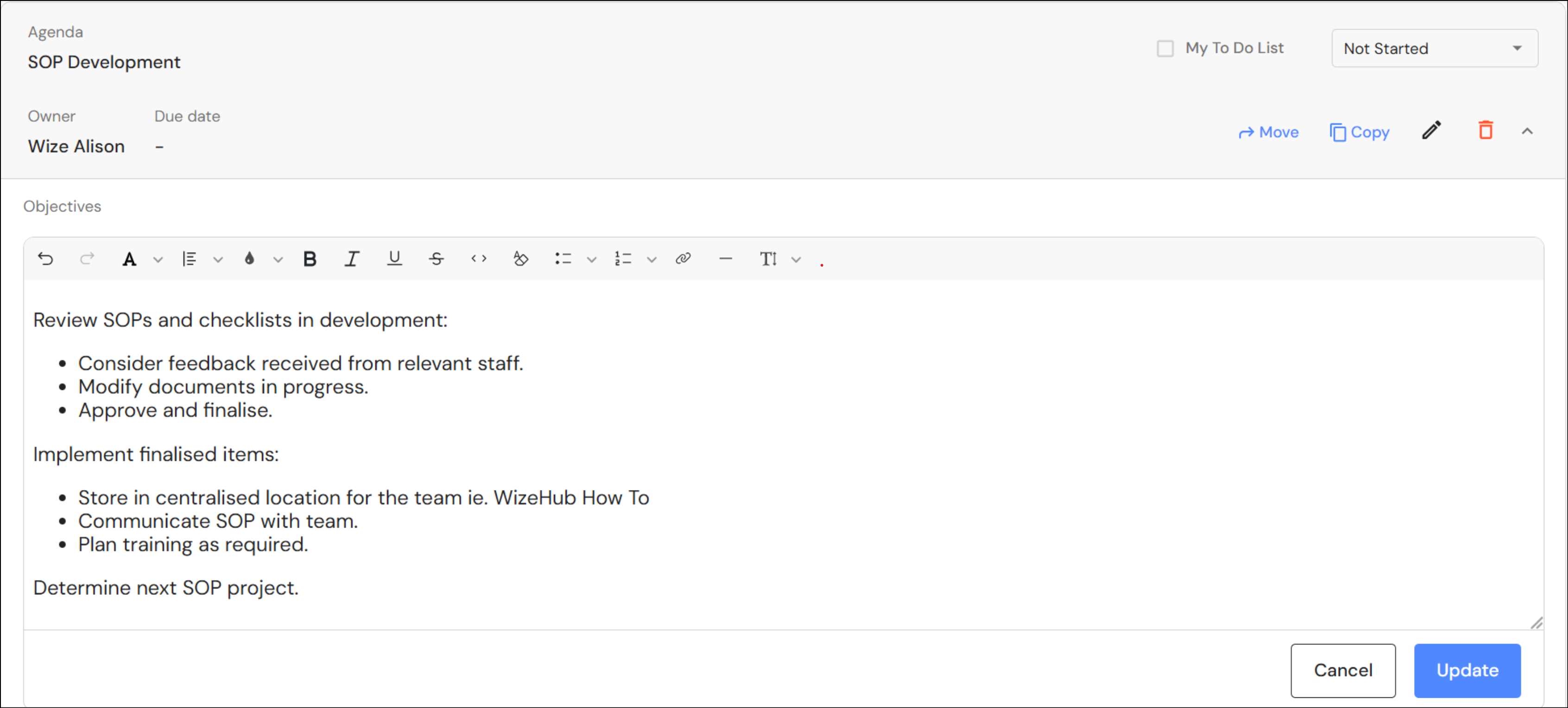
We have updated the meeting agenda field to make it easier for users to add detailed context to meeting objectives. This feature becomes available after you add the meeting agenda. To update the meeting objective:
- Expand the meeting agenda
- Click on the ‘Edit’ icon next to the objectives heading.
- Type or copy/paste your detailed objectives and click on ‘Update’.
Adding Minutes
When adding a minute to the agenda, users can now type the minutes on the screen before adding them to the agenda. The date will prefill with today’s date when adding new minutes. Users can change the date by clicking on the date icon.
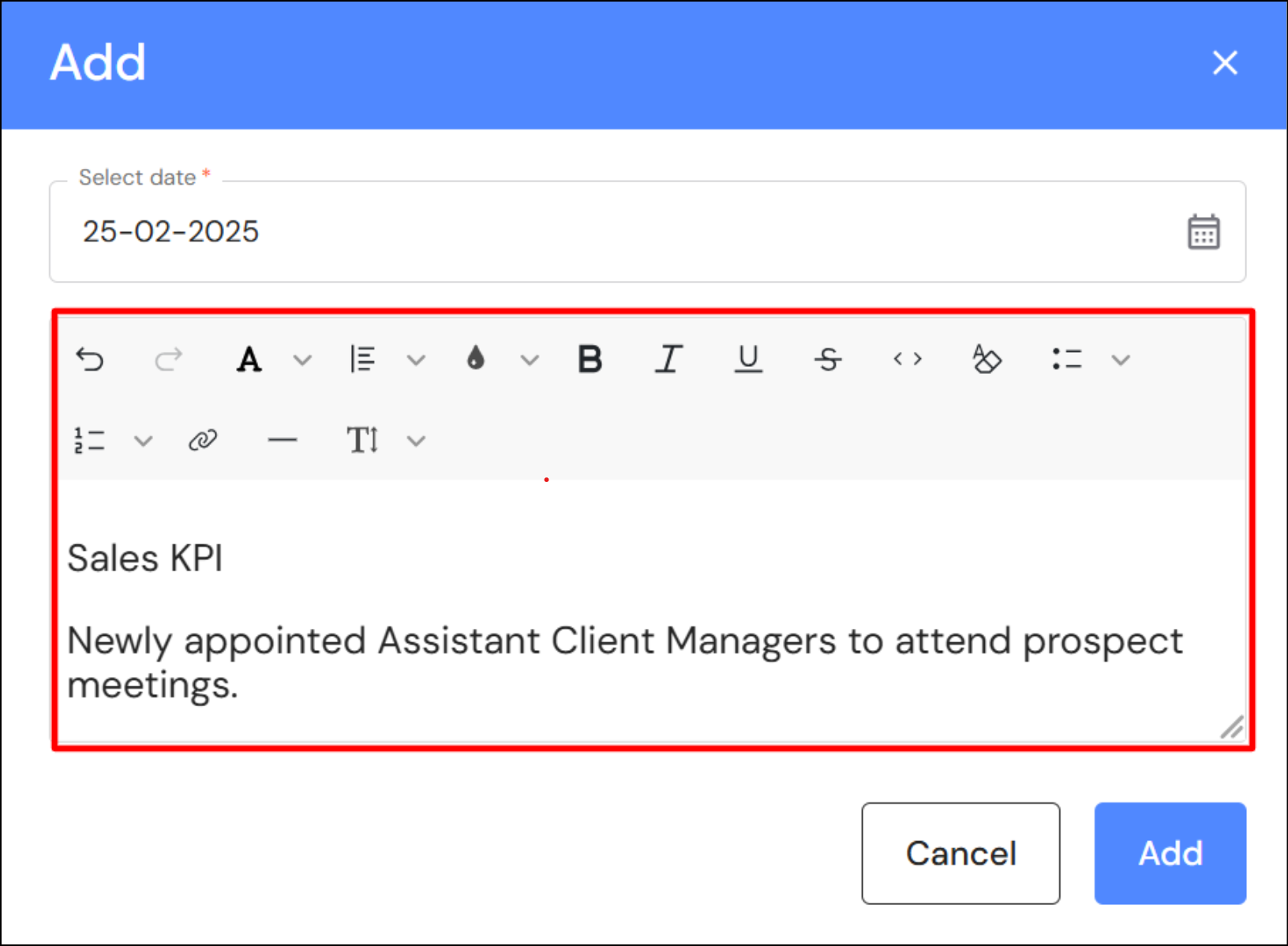
Once the minute is added, the first 100 characters of your minutes will be displayed in the header. You can edit/update the minutes by clicking on the pencil icon next to the header.
You can also pin your minutes so the full context is visible when you expand the agenda.

User Role Security Matrix
Updates to CFO permission levels
The CFO user role has been updated to include Full Access to the following modules:
- Mission, Vision & Values
- Team Structure
- Merge & Acquisitions
- Task Management: Firm Wide Tasks tab
Updates to Senior Client Manager permission levels
The Senior Client Manager has been updated to include Full Access to the following modules:
- Task Management: Firm Wide Tasks tab
Updates to Policies & Procedures permission levels
Your user role will determine access levels to each division in Policies & Procedures. In summary, access is as follows:
- Executive - Full access to all divisions
- Senior Client Manager - Read only access to Marketing, Sales, Production, Quality and Admin
- Production Team - Read only access to Marketing, Sales, Production, Quality and Admin
- Administration Team - Full access to Marketing, Sales, Production, Quality and Admin
- CFO - Full access to Marketing, Sales, Production, Quality, Admin and Accounts
Refer to the User Role Security Matrix for full details.