People
People profiles are foundational to the WizeHub as they interact with various modules. Ensure you add your employees and maintain accurate profiles. People are utilised throughout the following modules:
- Ideal Teams and Team Charts
- Organisation Chart
- Team Designer
- Budget & Capacity
- Task Management
- Activities & Delegation
- Meetings
- Policies & Procedures (Author/Creator)
- Lead Pipeline
- Revenue Won & Lost
- Client Portfolio
- Lead Calculator
Add People
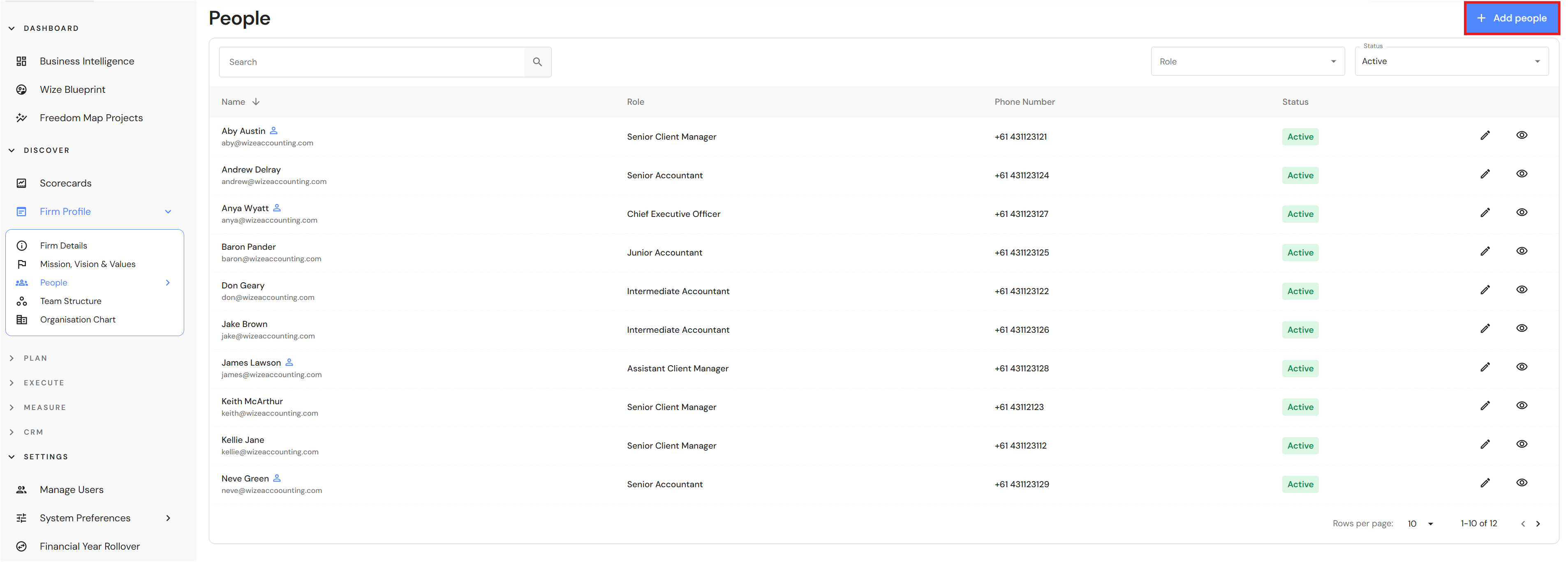
Go to Discover > People
NB* Only Executive users can add and edit People. CFO and Administration Team users can add and edit basic employee profile details.
- Click on '+ Add people'.
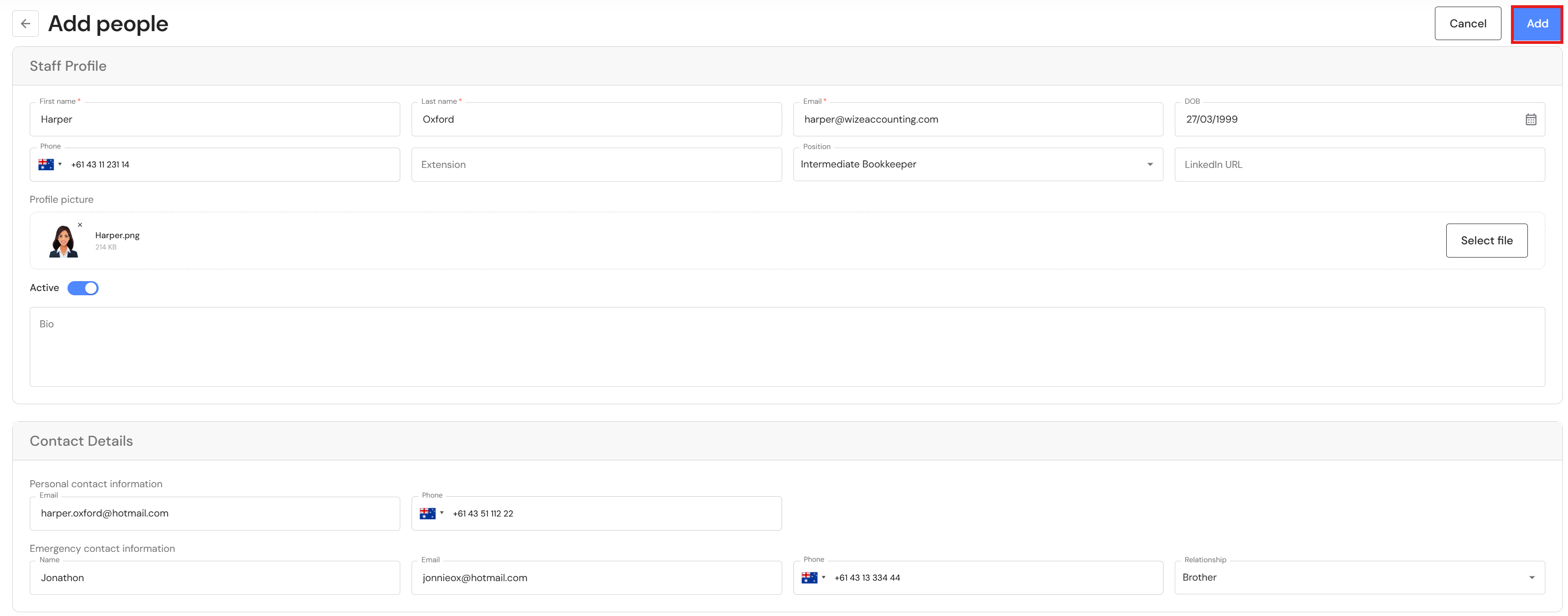
- Complete employee profile details and then click on 'Add'.
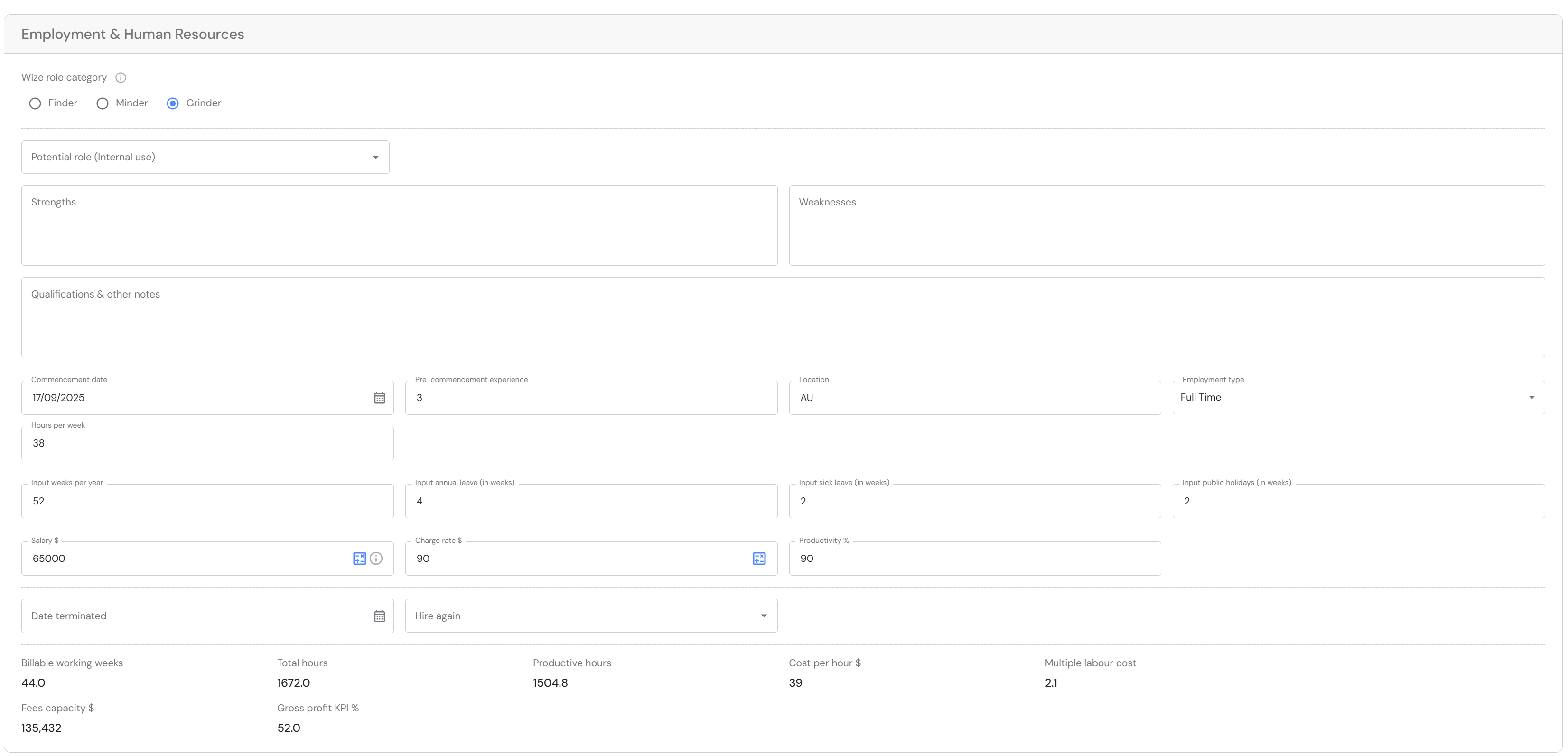
The following information is required to support interconnected functionality within WizeHub:- Position - Select the main role.
NB* You can add or customise roles in Settings > System Preferences > Team Roles. - Profile picture - Recommended only.
- Commencement date - When you assign a team member to the capacity plan, this data is used to calculate years' experience.
- Pre-commencement experience - When you assign a team member to the capacity plan, this is added to total years' experience.
- Location - Enter where the employee is based e.g. Australia, USA, Philippines etc.
- Employment type - The employment type determines whether you are prompted to add a full time salary, pro-rata salary, or average salary in the salary field.
- Hours per week - Enter contracted work hours. For casual employees, enter the average for the year.
- Weeks per year - Enter 52. This is a temporary field.
- Annual leave - Enter annual entitlements as days per year.
- Sick leave - Enter annual entitlements as days per year.
- Public holidays - Enter annual entitlements as days per year.
- Salary $ - Enter the annual salary the employee receives based on their employment type.
- Charge rate $ - Enter the hourly rate you charge out to clients for work performed by your team member.
- Productivity % - Enter the percentage of time to be spent completing billable work.
- Position - Select the main role.
Edit People
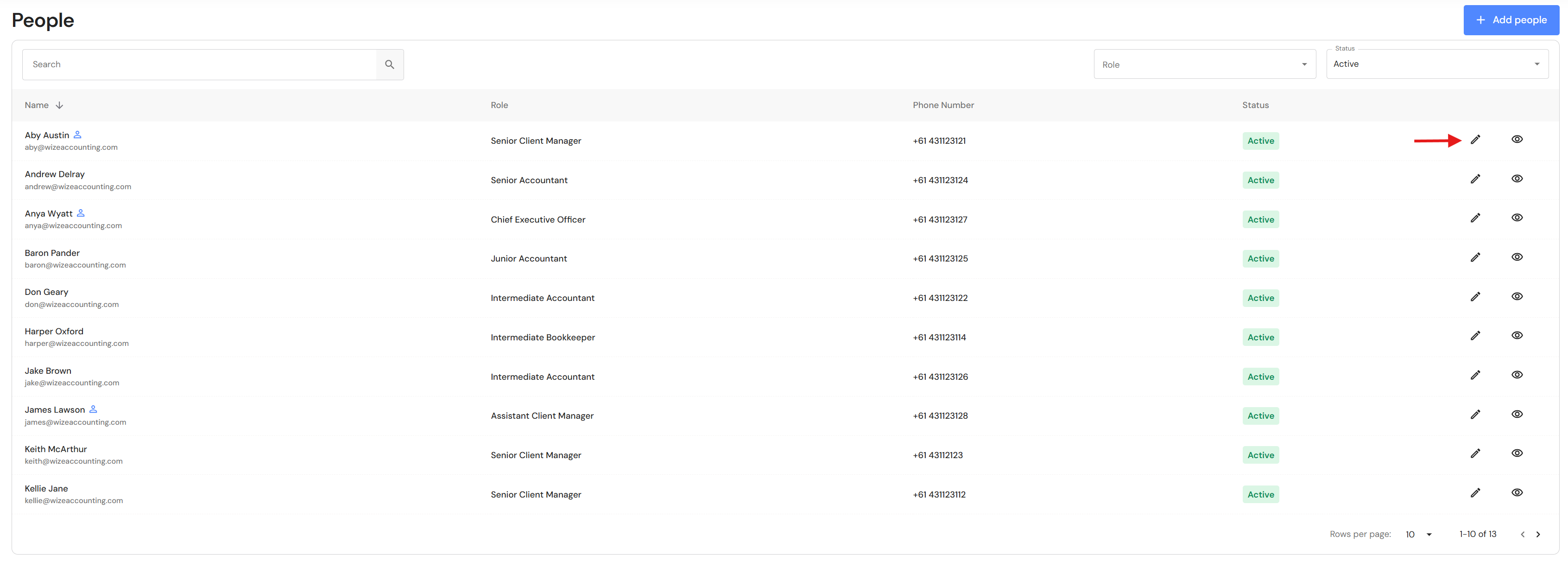
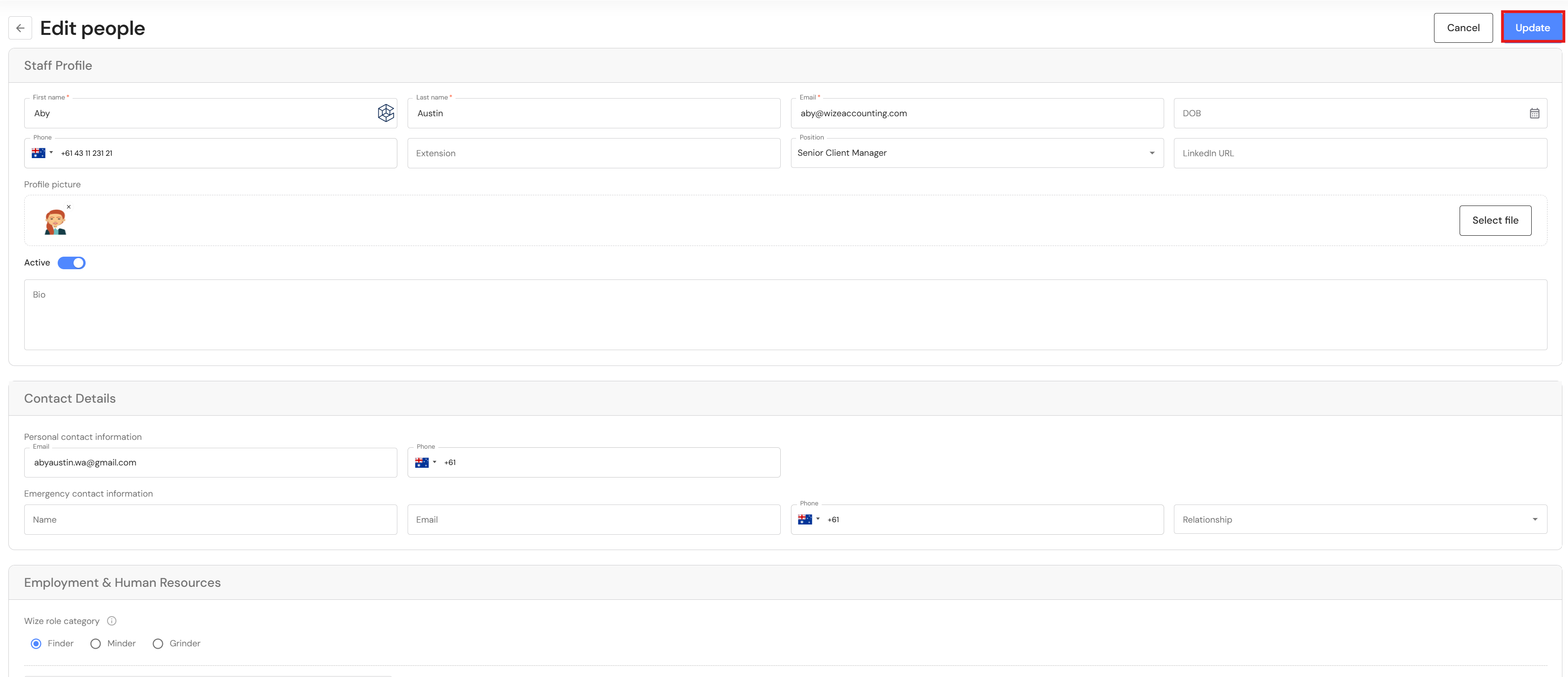
To edit employee profiles, click on the edit icon next to the relevant person. When you are finished with the changes, click on 'Update'.
Archive People
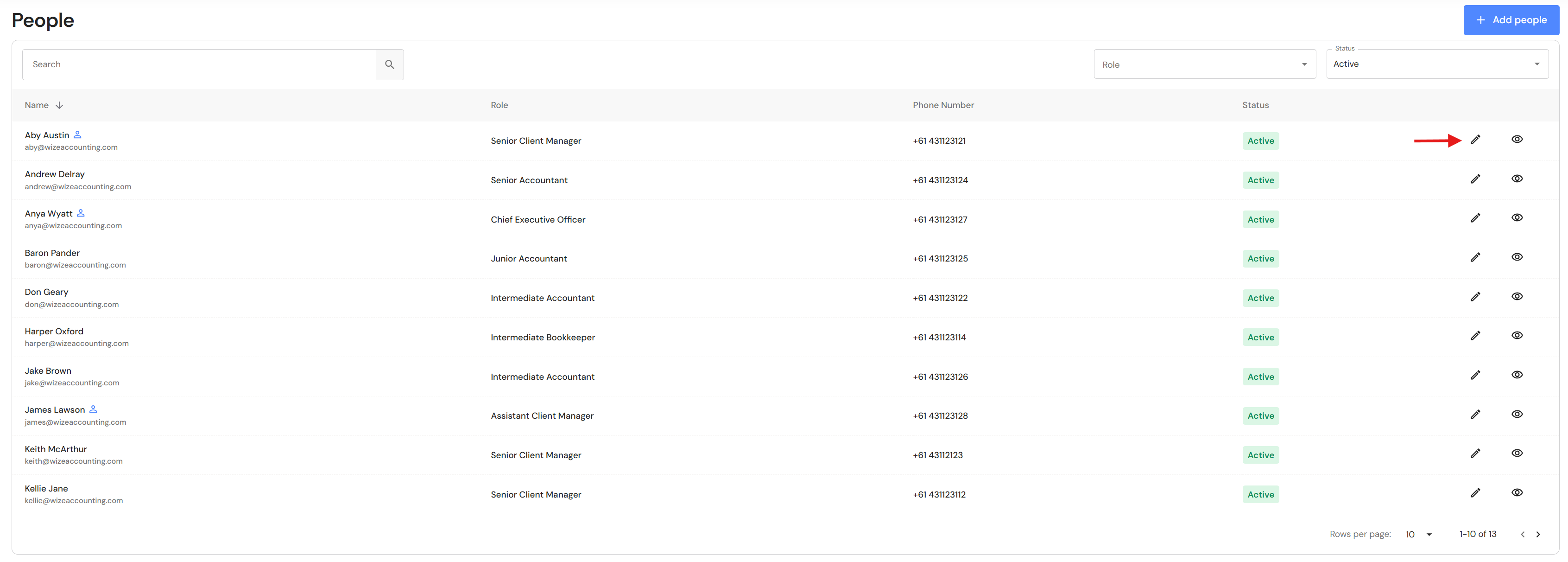
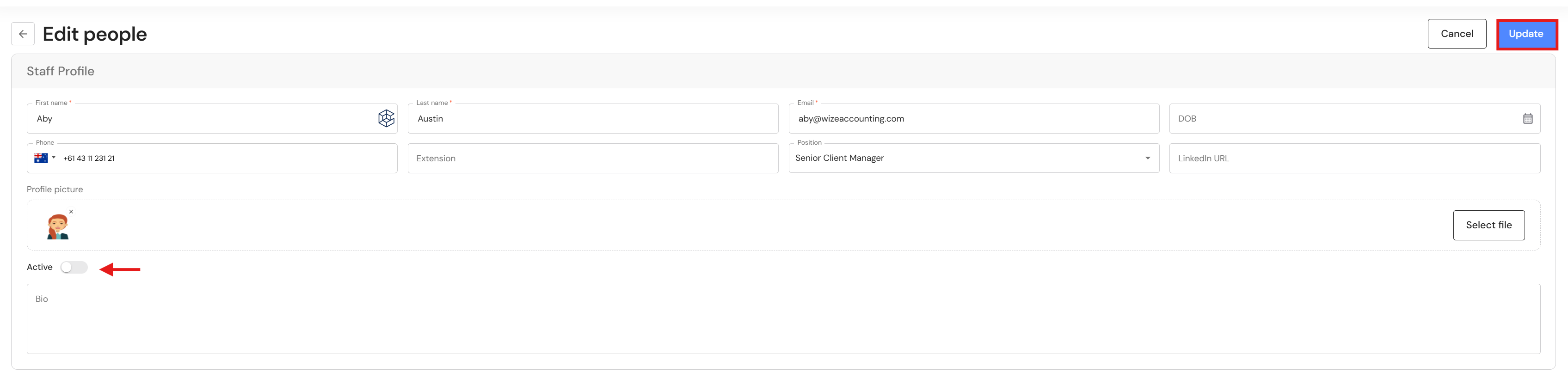
When a team member leaves your business, make them 'inactive' to hide them from the People list.
Click on the edit icon next to the relevant person. Switch the active toggle off and then click on 'Update'.
NB* Inactivating team members will not automatically remove them from other areas in the WizeHub. While they cannot be added to new records, historical information is retained. Review and modify WizeHub modules according to your internal off-boarding requirements. A checklist is added below as a general guide.
Offboarding Checklist
To assist you with employee offboarding, here is a summary of modules and relevant updates to clean up historical data for a departing employee.
| People | Change the employee profile to inactive. Optional - Add a termination date to the human resources section. |
| Manage Users | Revoke user access. |
| Ideal Teams | Remove employee from relevant divisions. NB* View inactive employees. |
| Budget & Capacity | Adjust the budget period to align with the termination date and review & re-distribute the budget for the departing employee. |
| Meetings | Transfer the ownership of meetings or agenda items to another team member. Remove the attendee from relevant meetings. |
| Task Management | Re-assign tasks. |
| Activities & Delegation | Re-assign outstanding delegations to another team member. |
| Lead Pipeline | Re-assign current leads and prospects to a new client manager. |
| Client Portfolio | Re-assign clients to a new client manager. |
People Profile linked to User Profile
The People profile is interconnected throughout the WizeHub and it is used whether team members have access to the WizeHub or not.
When a team member is added to the WizeHub as a user, their People profile must be linked to the user profile before they have visibility based on their user role. Refer to Manage Users.
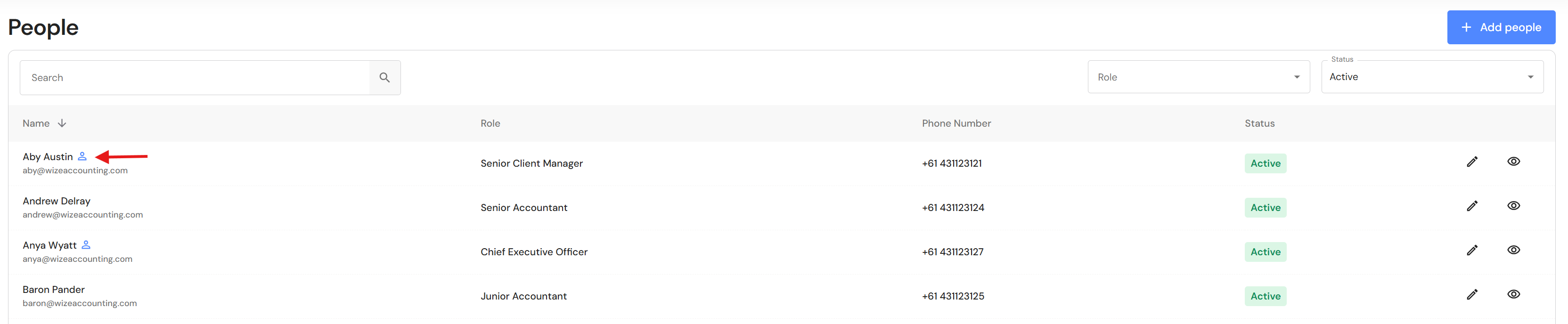
When a team member is linked to a user profile, a person icon appears next to their name.