Scorecards
Learn how to complete the Scorecards and take stock of where you are today.
Complete Scorecards
Go to Plan > Scorecards
NB* The Scorecards module is only available to Executive users.
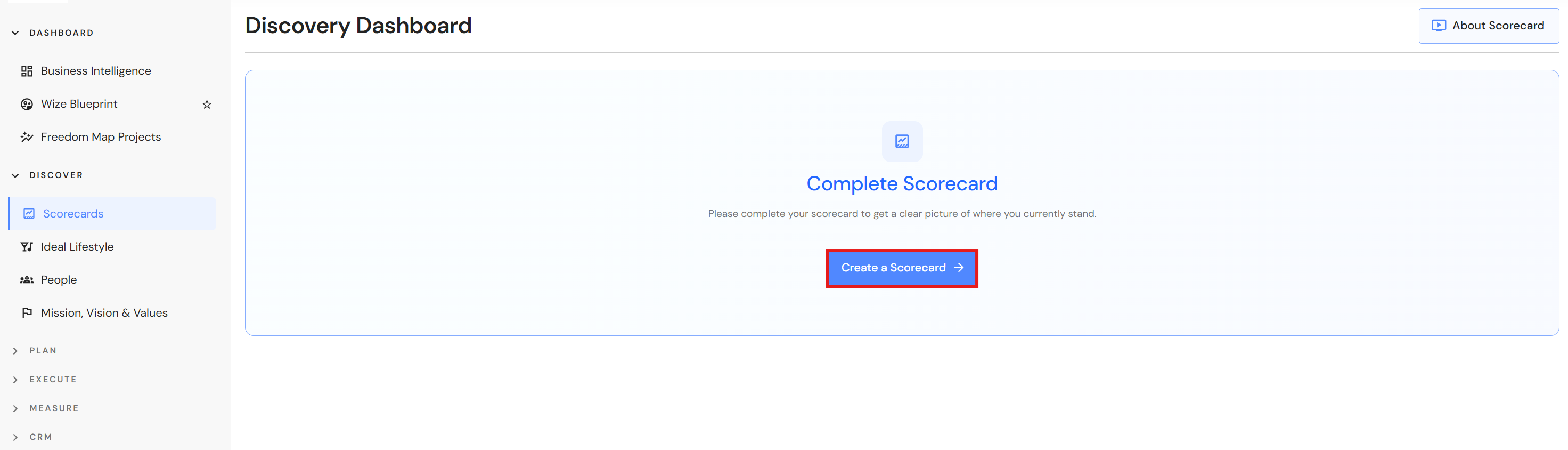
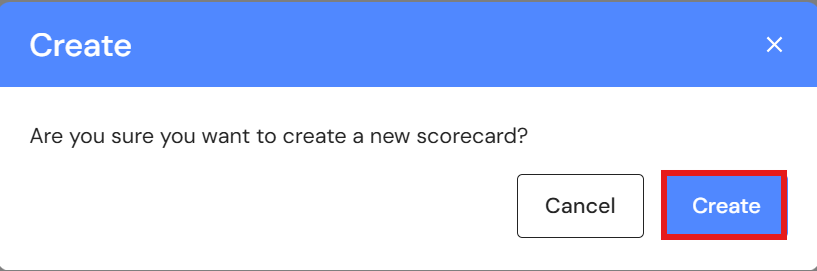
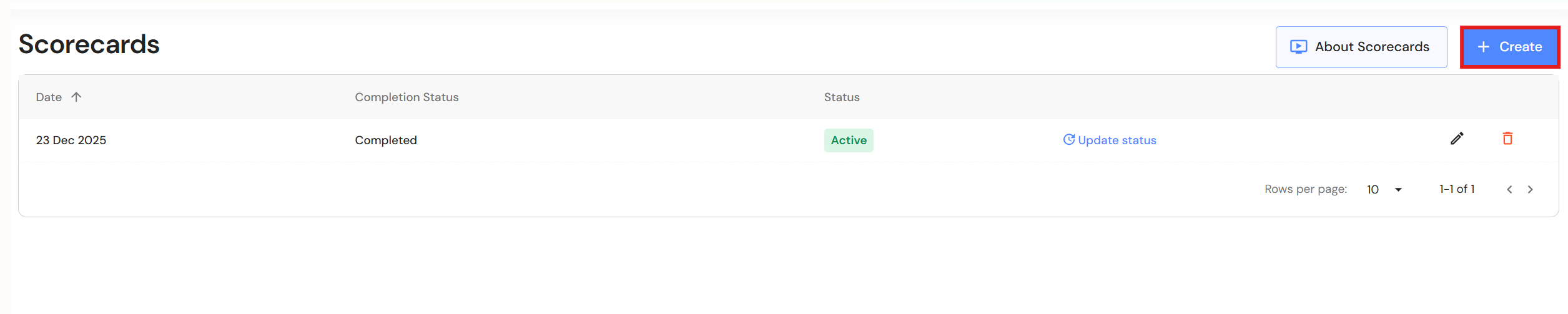
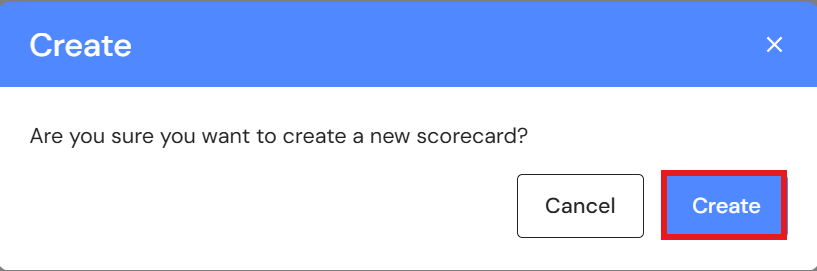
- Click on 'Create a Scorecard', then 'click on 'Create'.
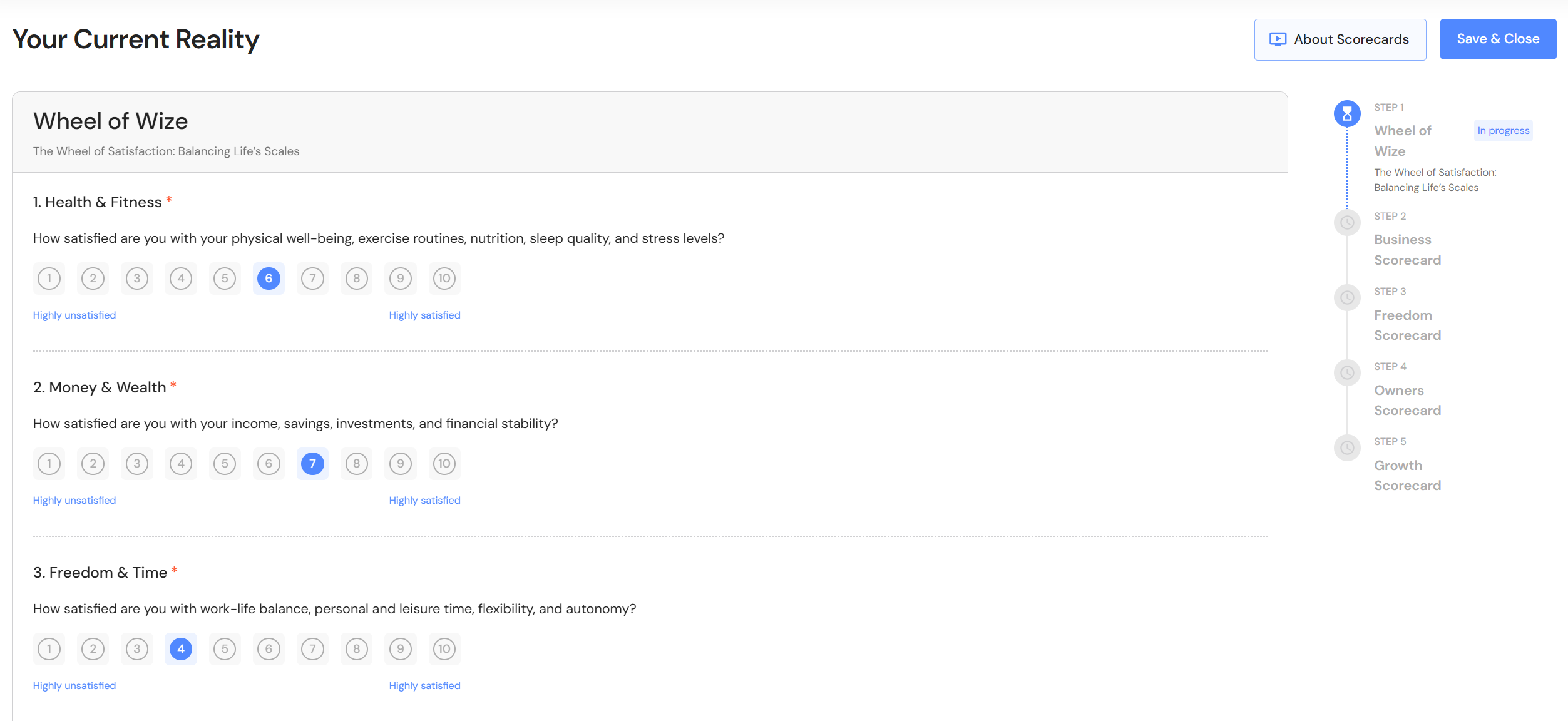
- Complete all the questions in the Wheel of Wize by rating your satisfaction levels on a scale of 1 to 10. Click on the number that represents how you feel today with 1 being highly unsatisfied and 10 being highly satisfied. Click 'Next' at the bottom of the page to go the next scorecard.
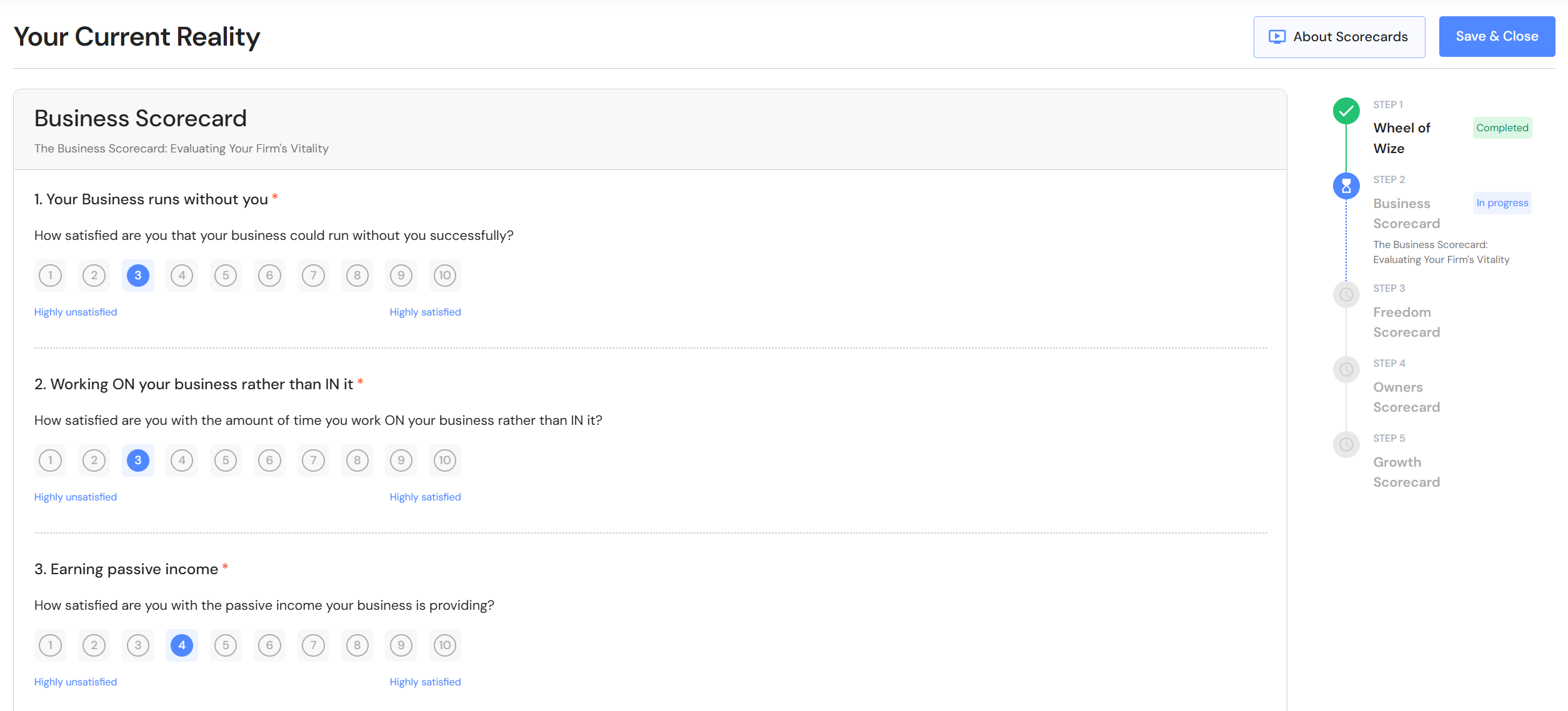
- Complete all the questions in the Business Scorecard by rating your satisfaction levels on a scale of 1 to 10. Click on the number that represents how you feel today with 1 being highly unsatisfied and 10 being highly satisfied. Click 'Next' at the bottom of the page. Click 'Previous' to go back to the previous scorecard.
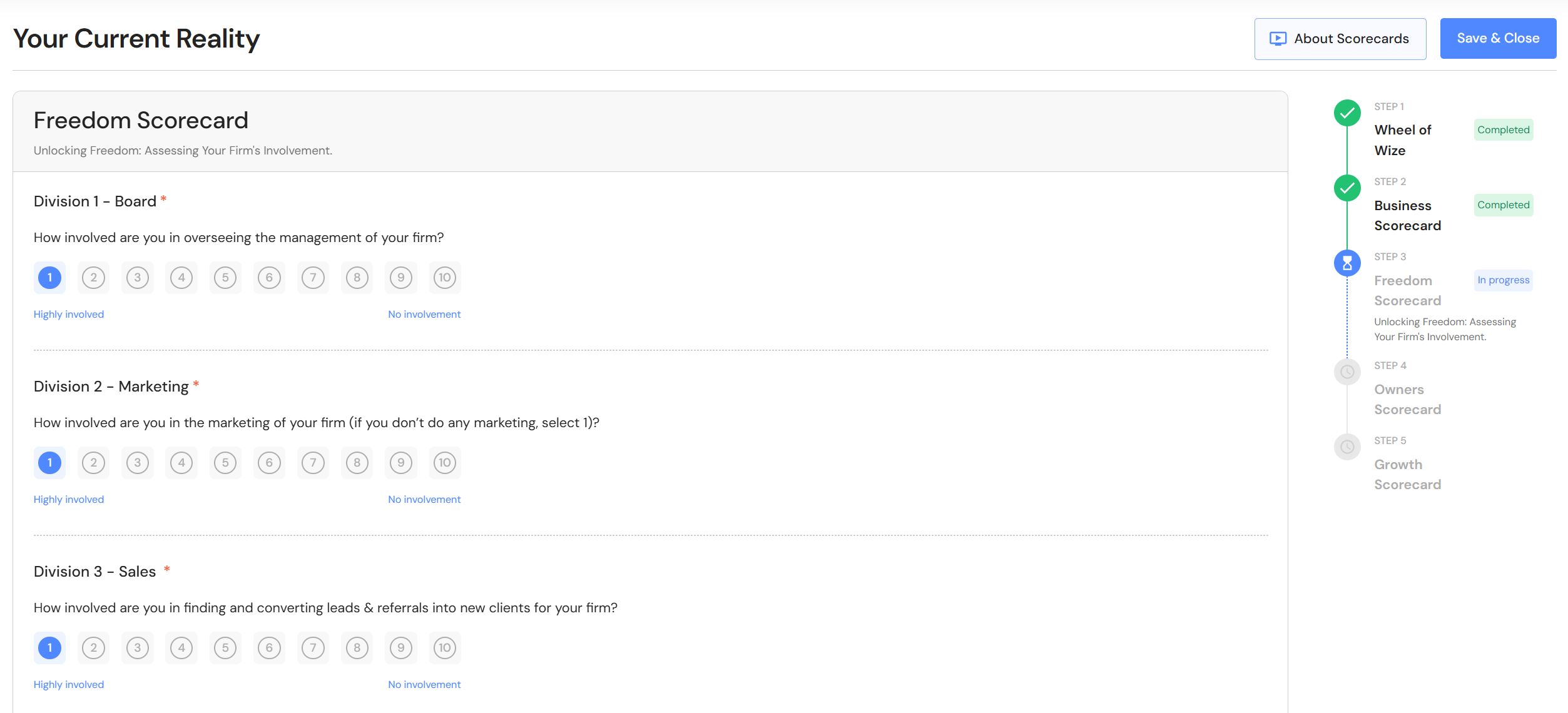
- Complete all the questions in the Freedom Scorecard by rating your involvement levels on a scale of 1 to 10. Click on the number that represents how involved you are today with 1 being highly involved and 10 being no involvement. Click 'Next' at the bottom of the page. Click 'Previous' to go back to the previous scorecard.
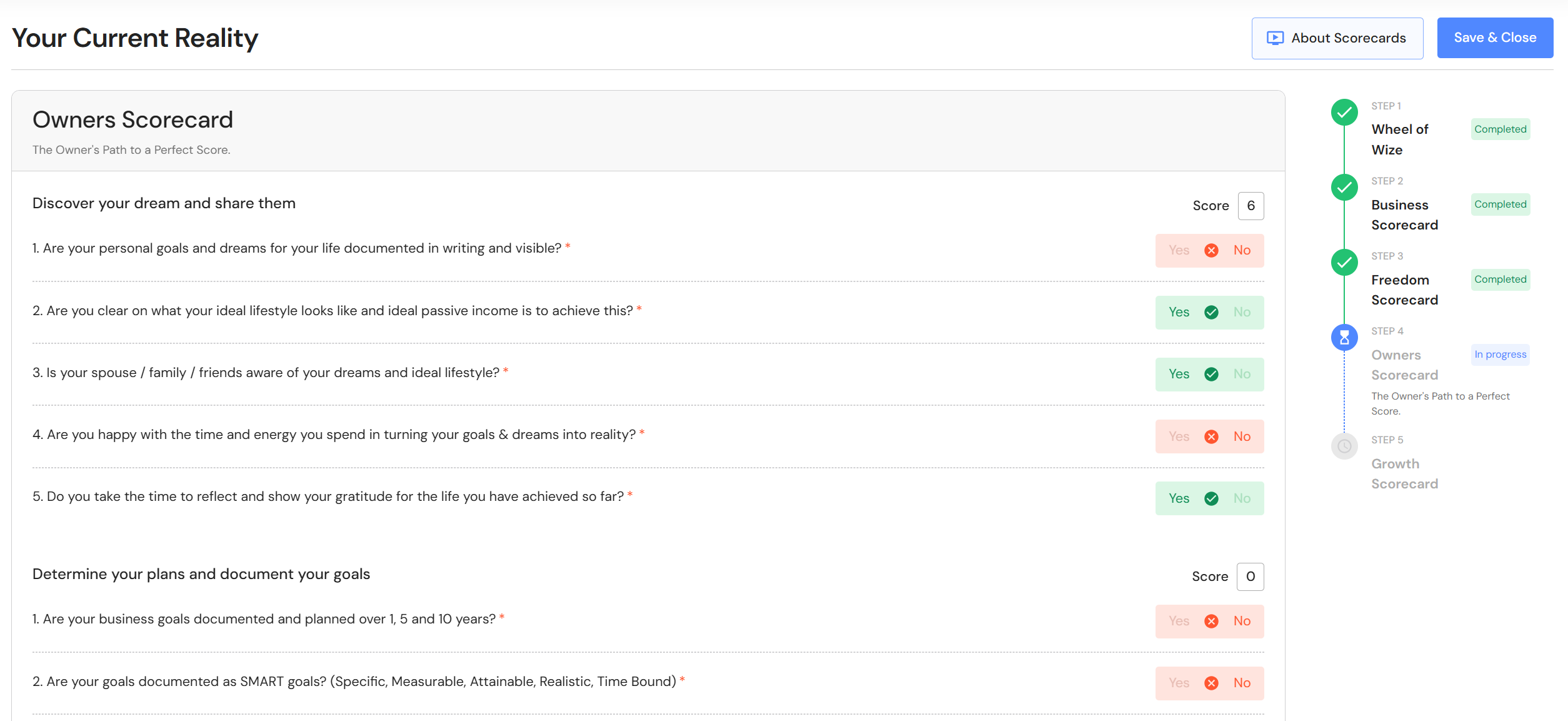
- Complete all the questions in the Owners Scorecard by clicking on either Yes or No. Click 'Next' at the bottom of the page. Click 'Previous' to go back to the previous scorecard.
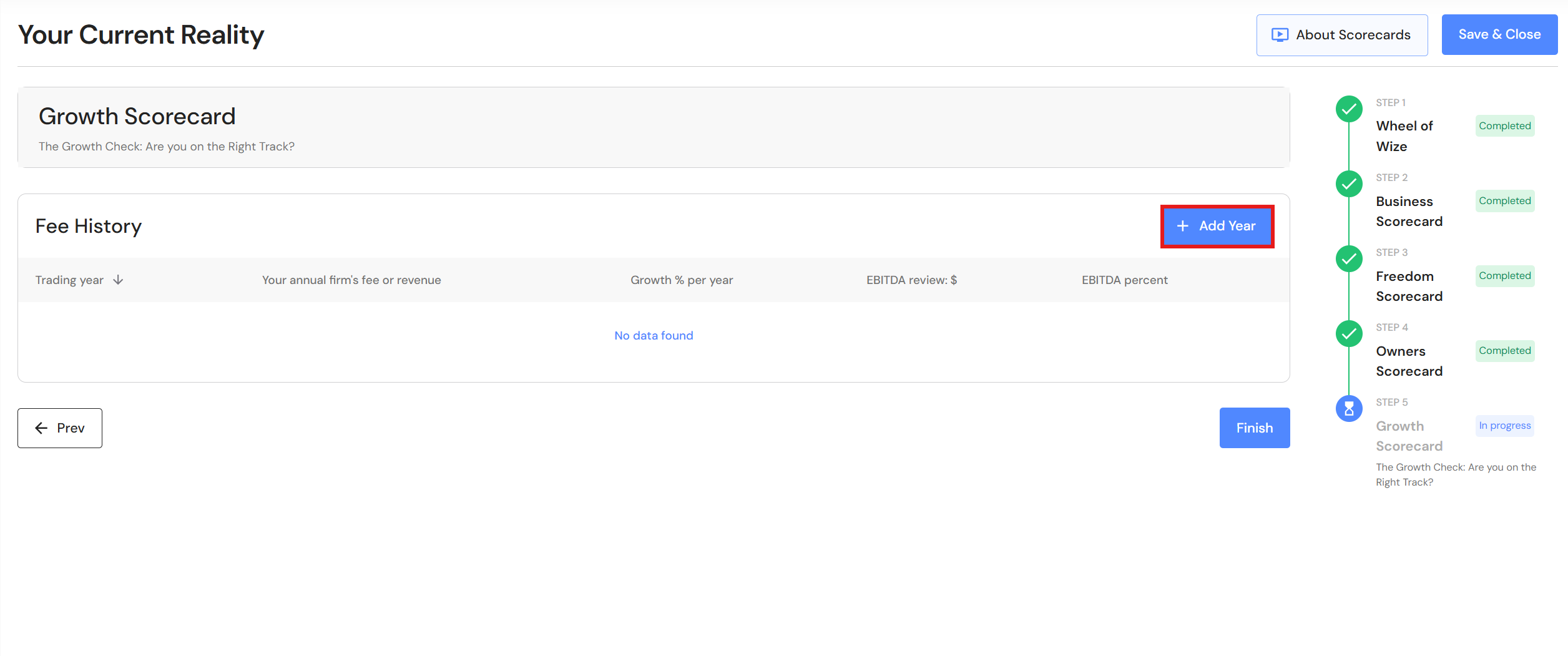
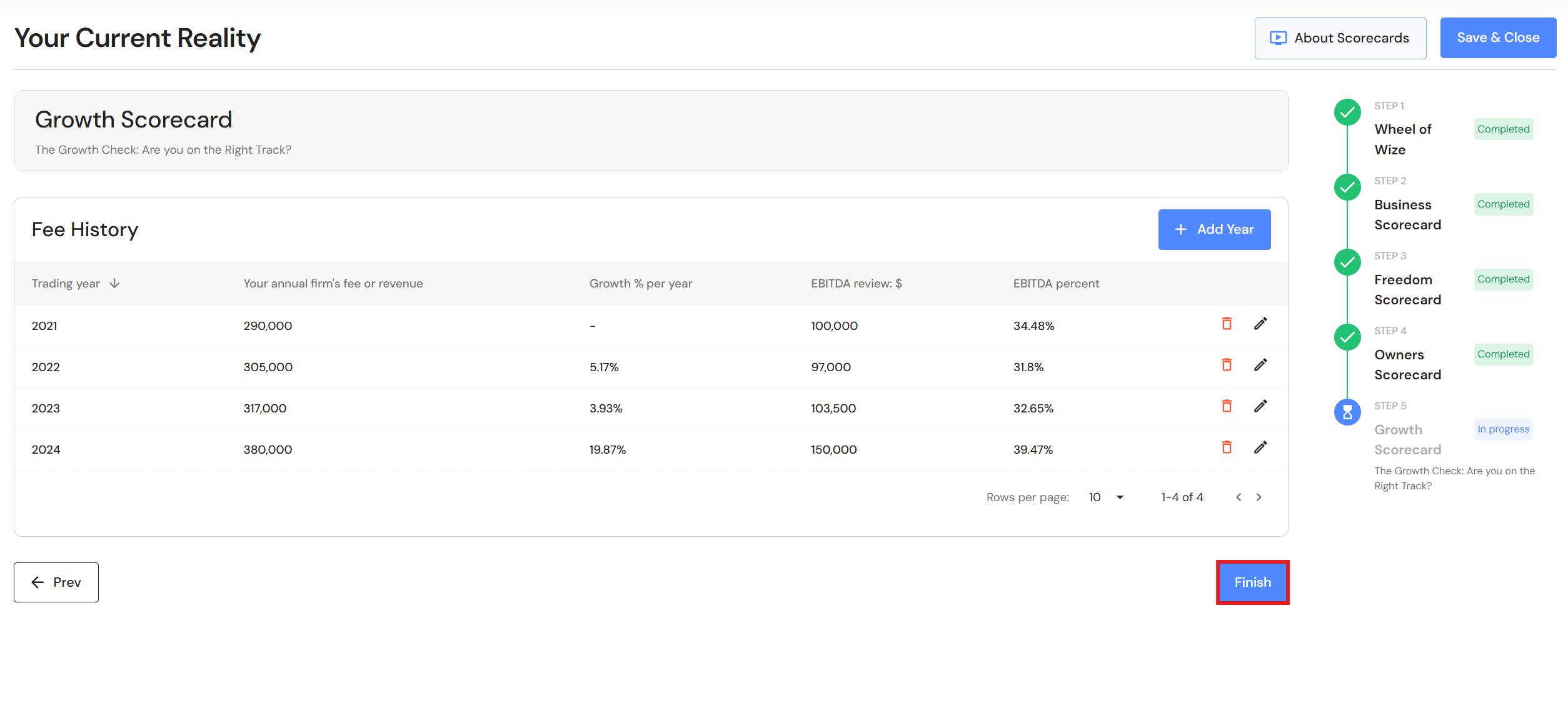
- Add your historical revenue and EBITDA to the Growth Scorecard. Click on '+ Add Year'.
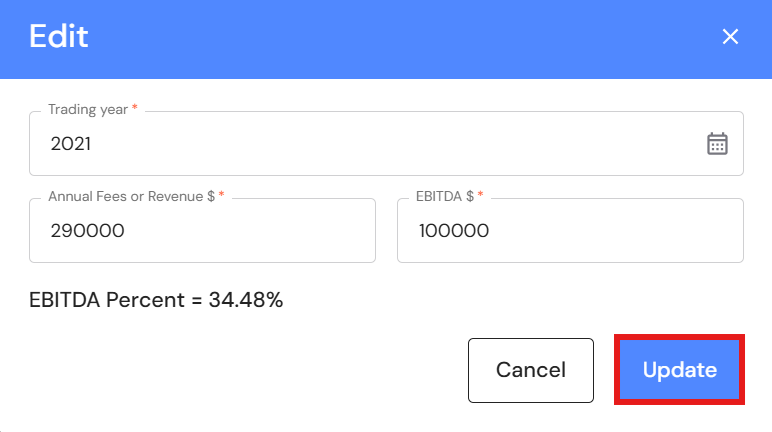
- Complete the trading year, annual revenue and EBITDA fields. Click on 'Update'. Repeat this step for all years up to the previous financial year. Do not include the current year.
- Click on 'Finish'.
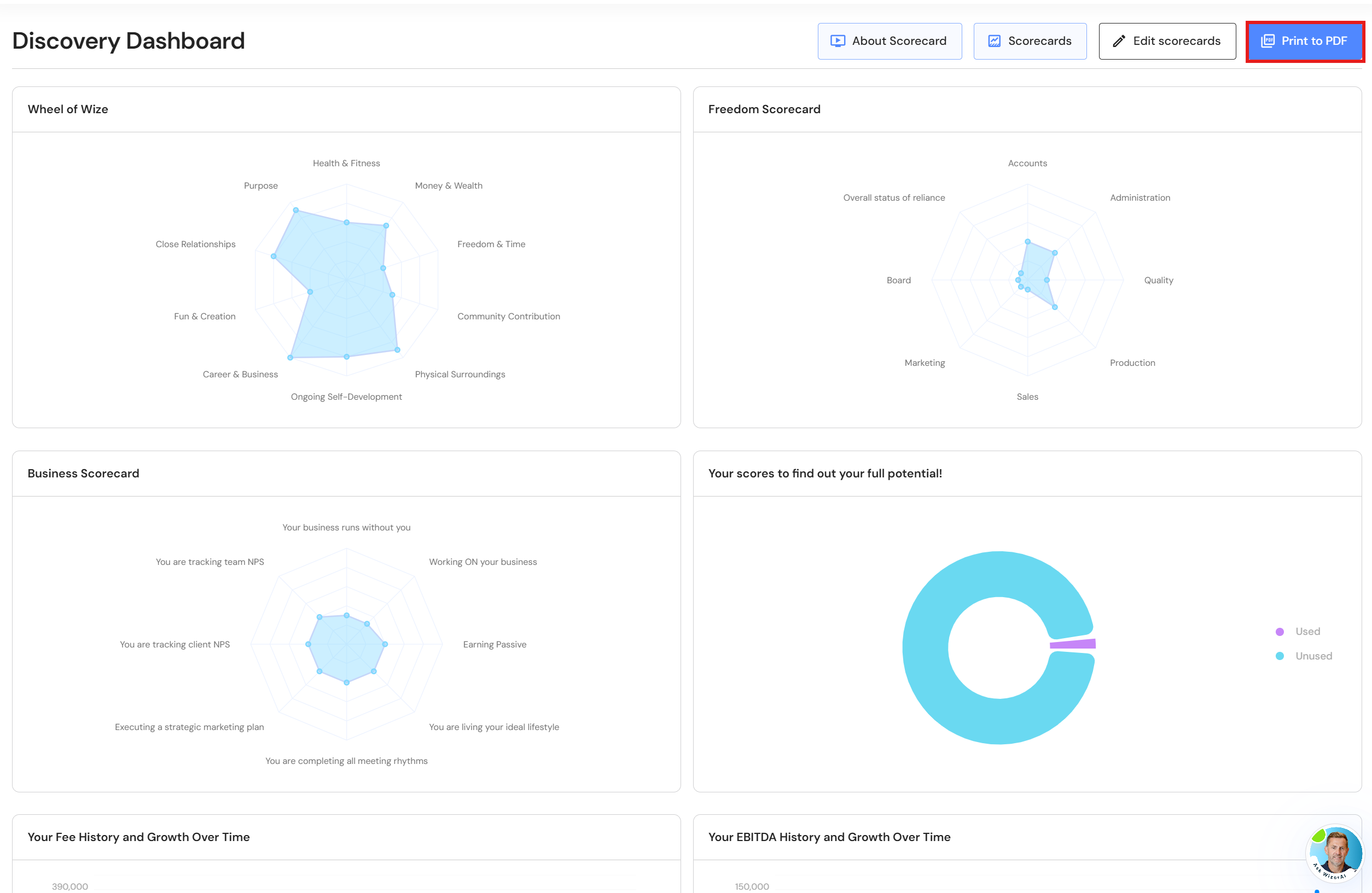
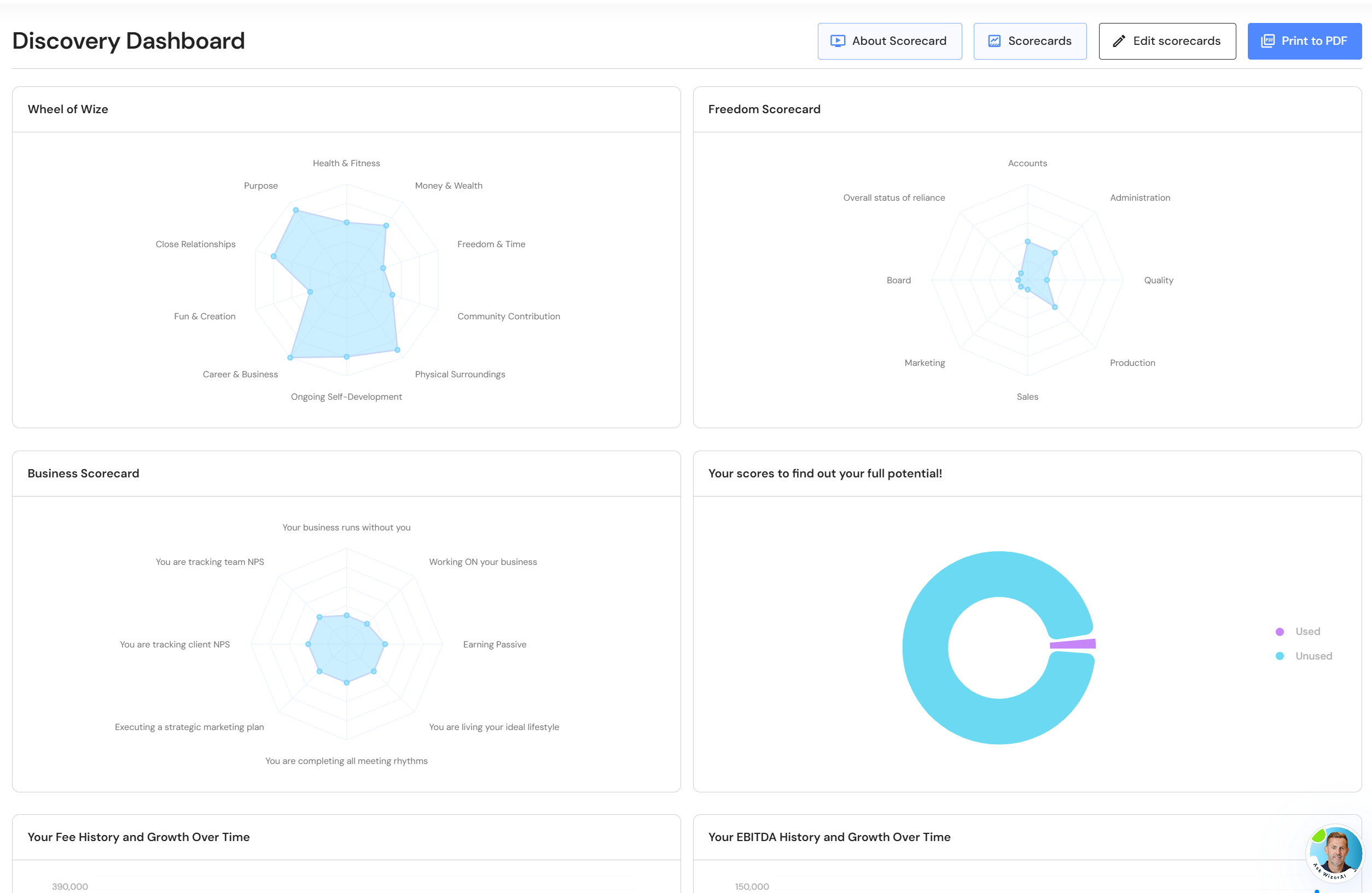
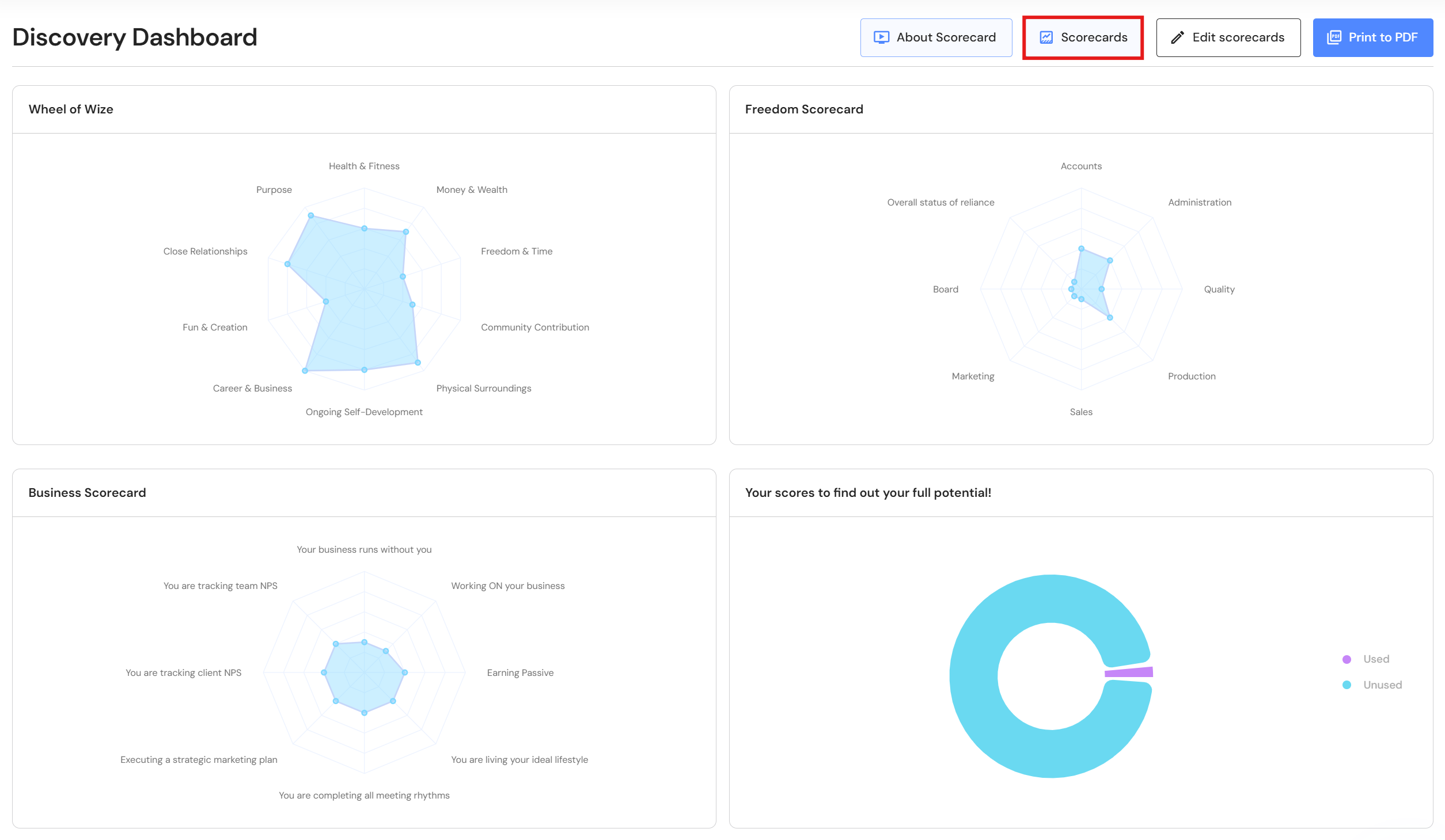
- View your Discovery Dashboard. Review where you currently stand and consider the areas you would like to improve on. Continue on your Wize journey to learn how.
Edit Scorecards
Active Scorecard
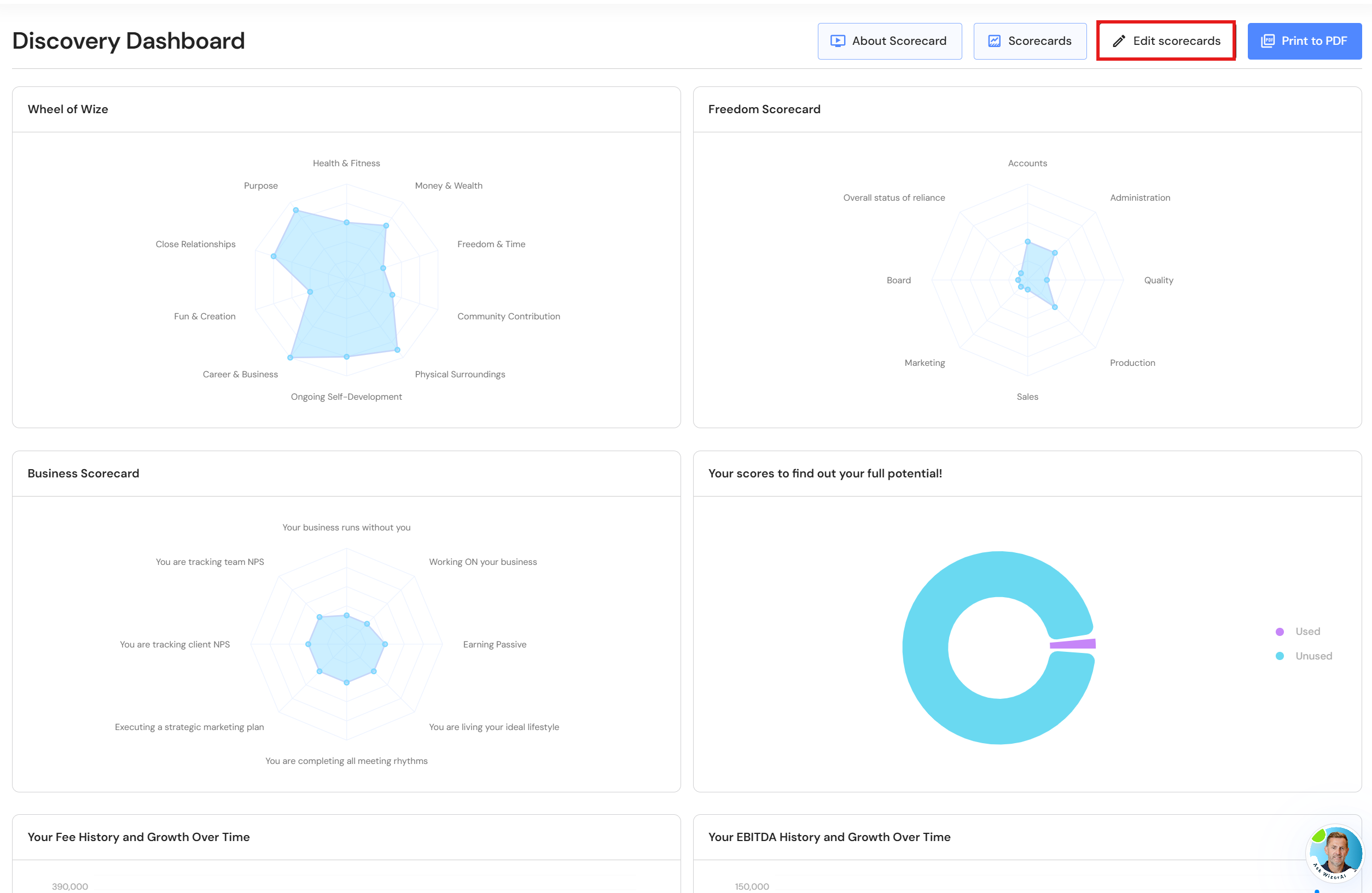
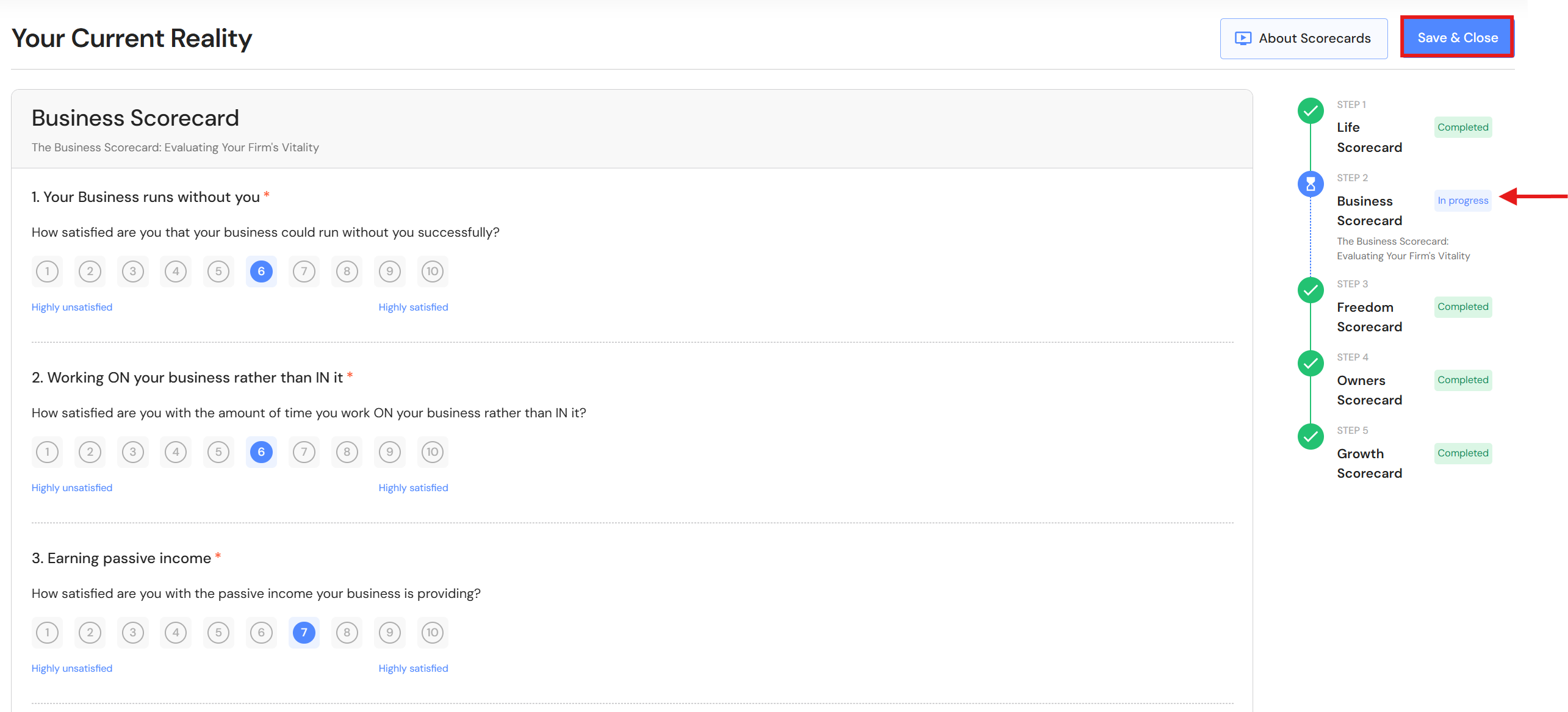
- To edit an active scorecard, click on 'Edit scorecards'.
- Review and update your details. You can jump between steps by clicking the headings on the right. Click and 'Save & Close' when you are finished.
Previous Scorecards
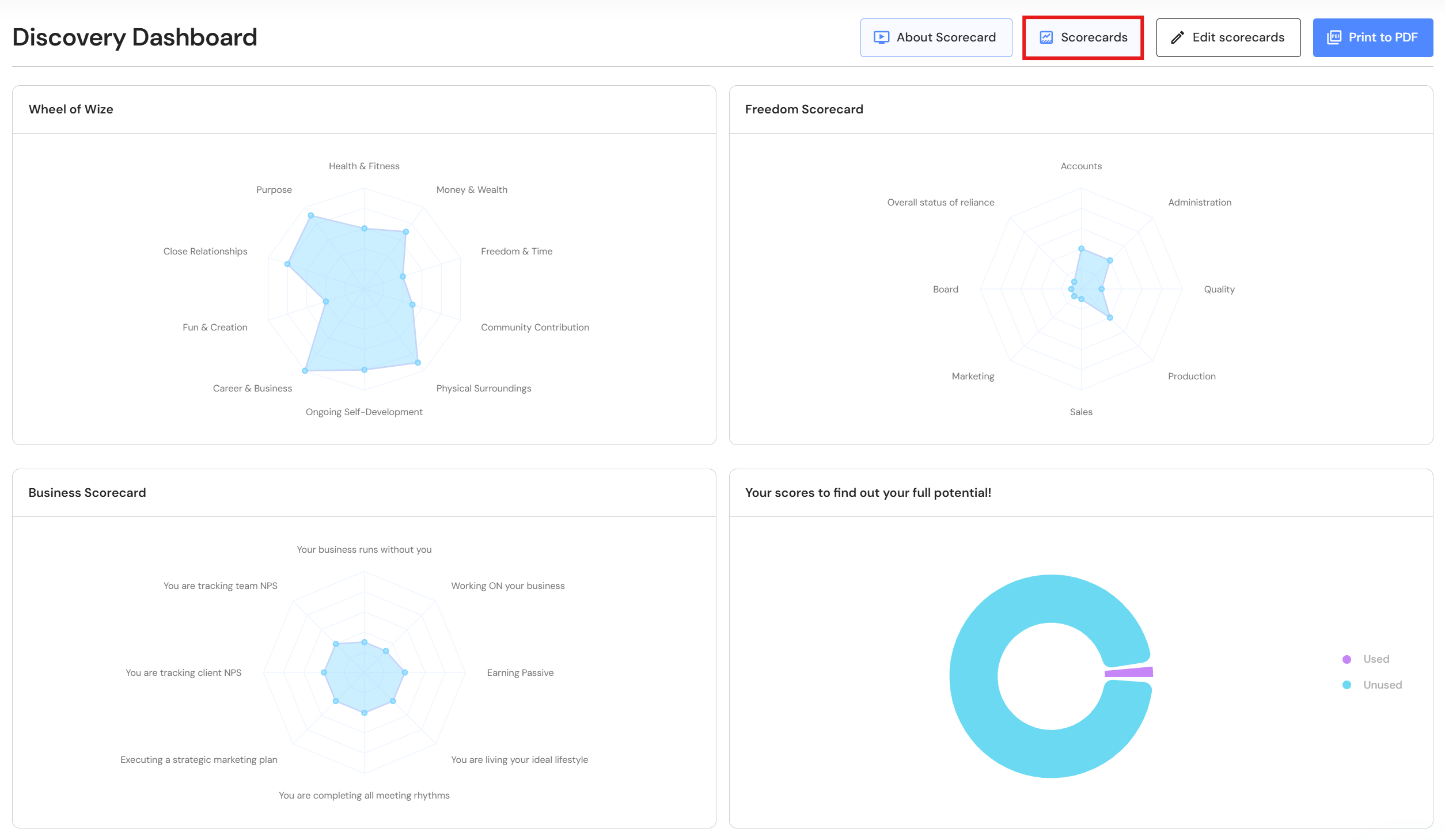
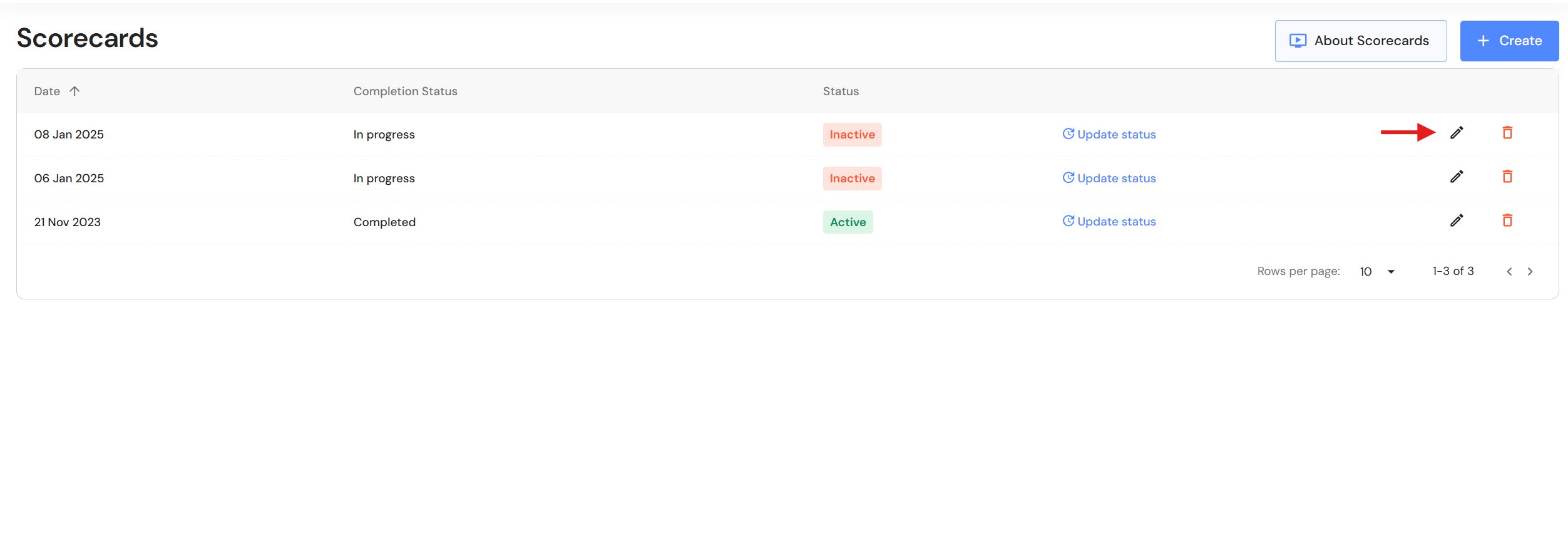
- To review and update a previous scorecard, click on 'Scorecards'.
- Click on the edit icon to update a previous scorecard.
- Review and update your details. You can jump between steps by clicking the headings on the right. Click and 'Save & Close' when you are finished.
View Previous Discovery Dashboards
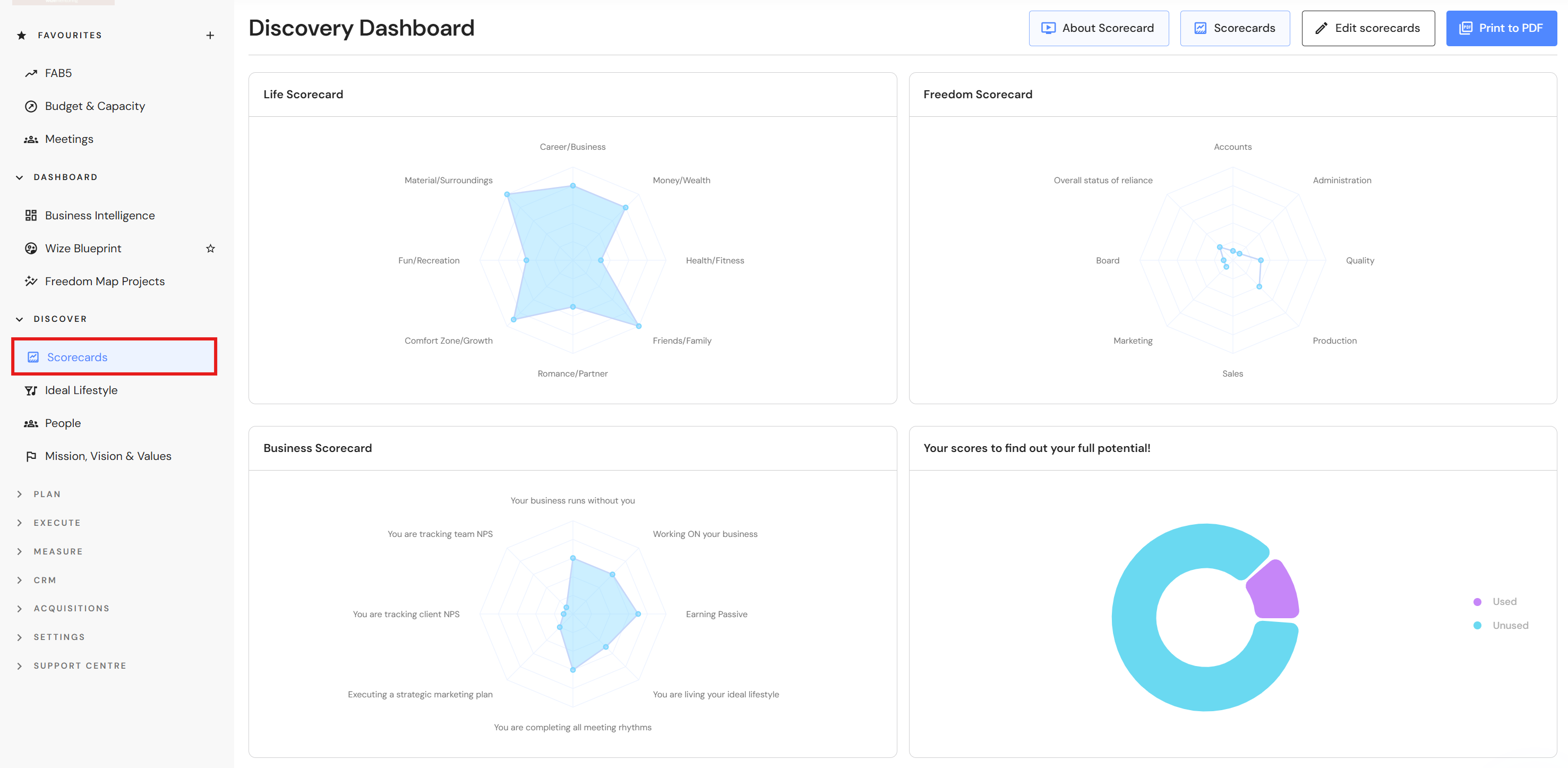
The Discovery Dashboard shows the active scorecard. To view a previous Discovery Dashboard, you will need to make the scorecard active.
- In the Discovery Dashboard, click on 'Scorecards'.
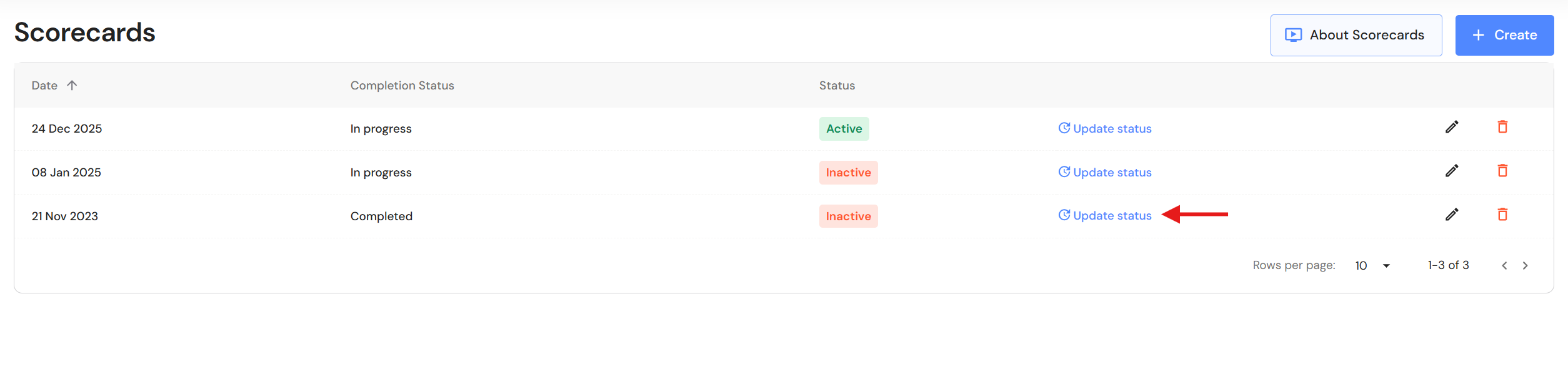
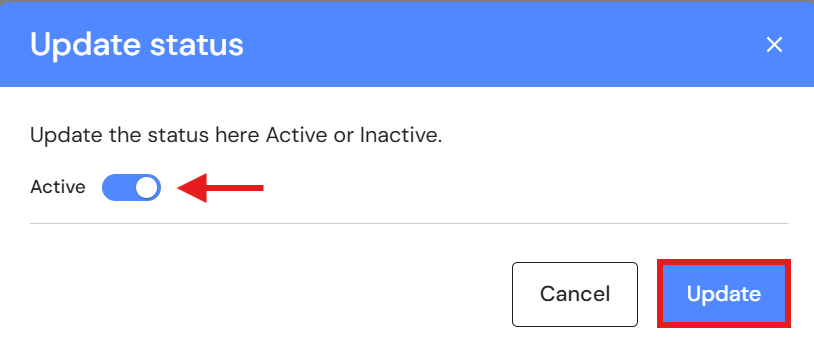
- Click on 'Update status'.
- Switch the active toggle on and click on 'Update.
- Click on 'Scorecards' in the side menu to view Discovery Dashboard.
Delete Scorecards
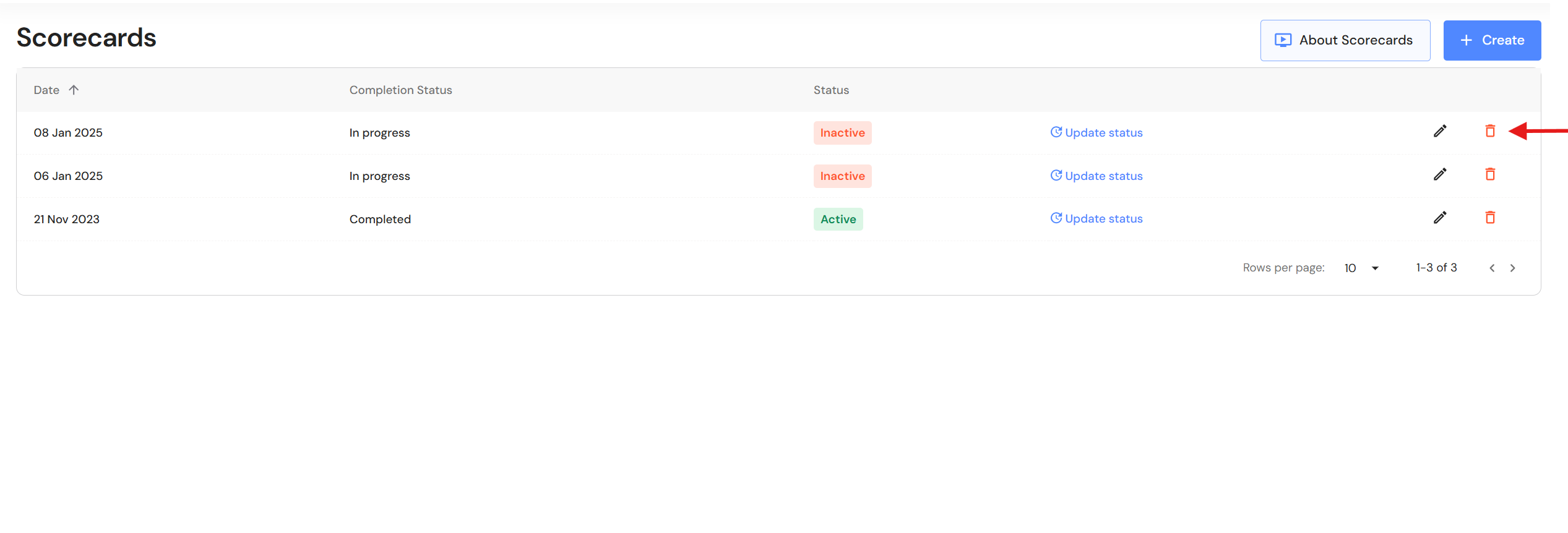
- In the Discovery Dashboard, click on 'Scorecards'.
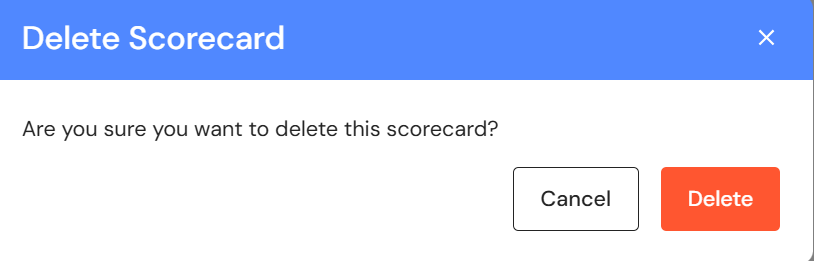
- Click on the bin icon to delete a scorecard.
Annual Scorecards
We recommend that you complete new Scorecards every 12 months so you can look back and compare your progress.
- To create a new scorecard, click on 'Scorecards'.
- Click on '+ Create', then 'Create'.
- The newly created scorecard will automatically be made 'active'. Refer to Complete Scorecards above and follow step 2 onwards.
Print to PDF
In the Discovery Dashboard, click on 'Print to PDF' to download a copy of your results.