Release Notes - 20 February 2025
Business Intelligence
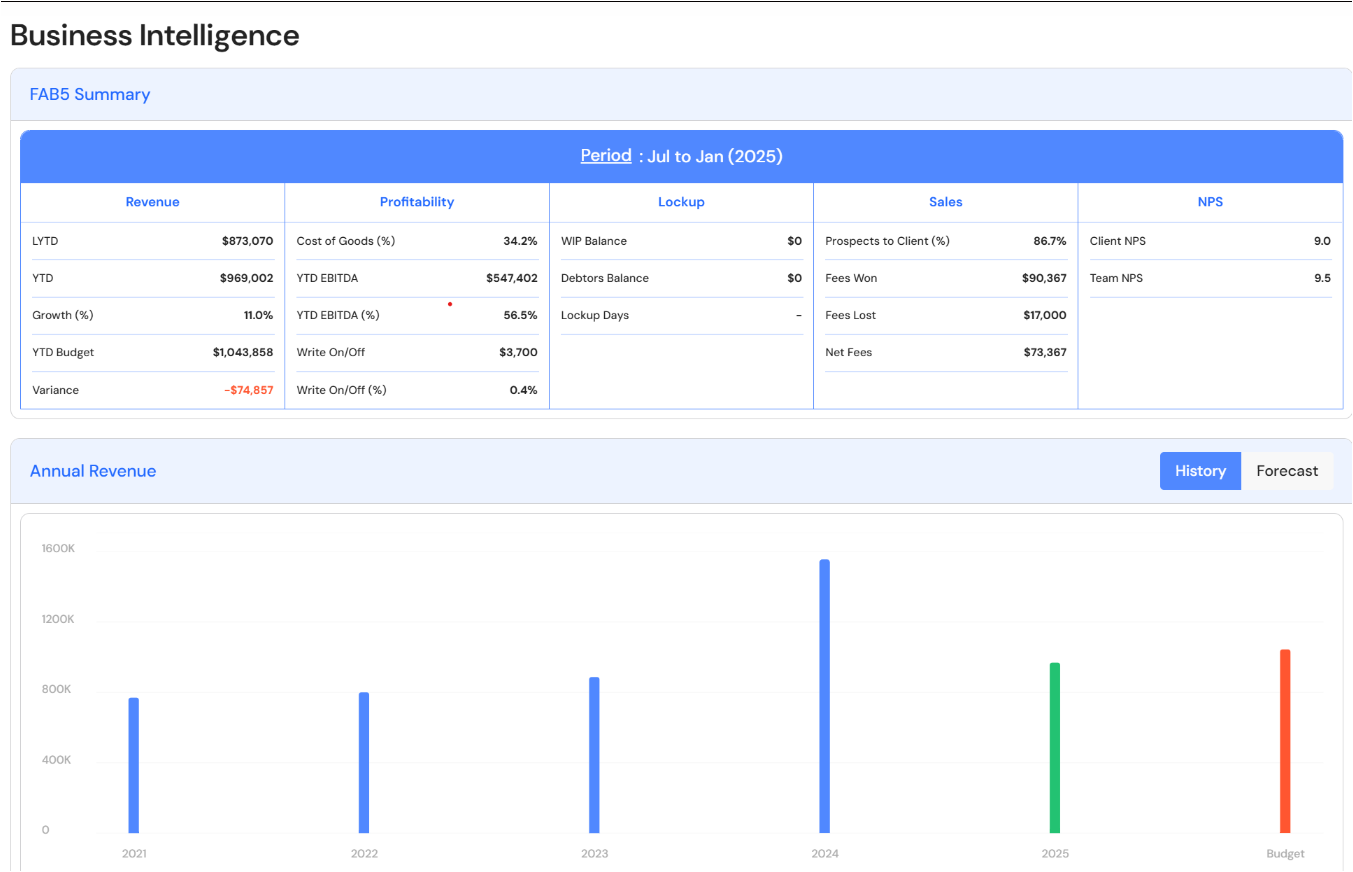
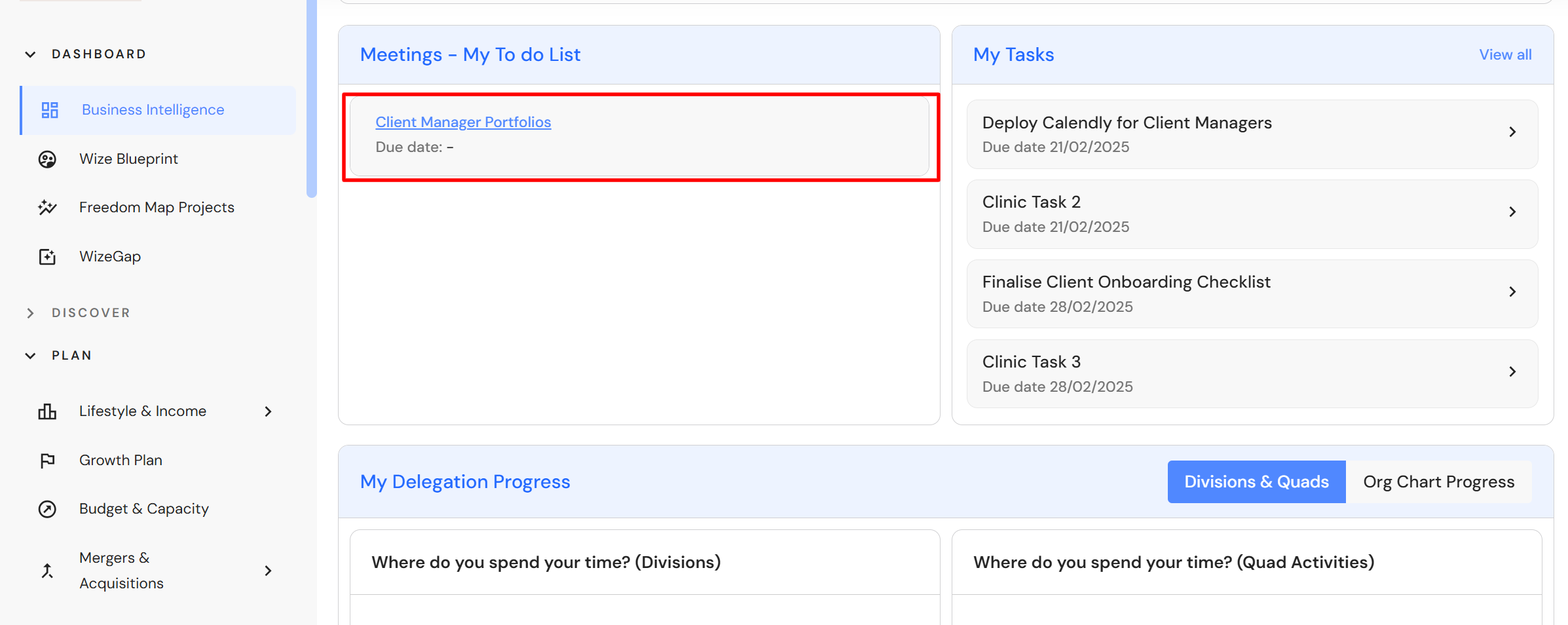
The Overview summary for Executive users has been replaced by a Business Intelligence board.
Executive users now have a collective snapshot of current business performance and key areas of focus. Focus points include current meeting responsibilities, tasks, delegation goals and their current state of play towards their life goals.
Firm Details
Uploading your firm logo
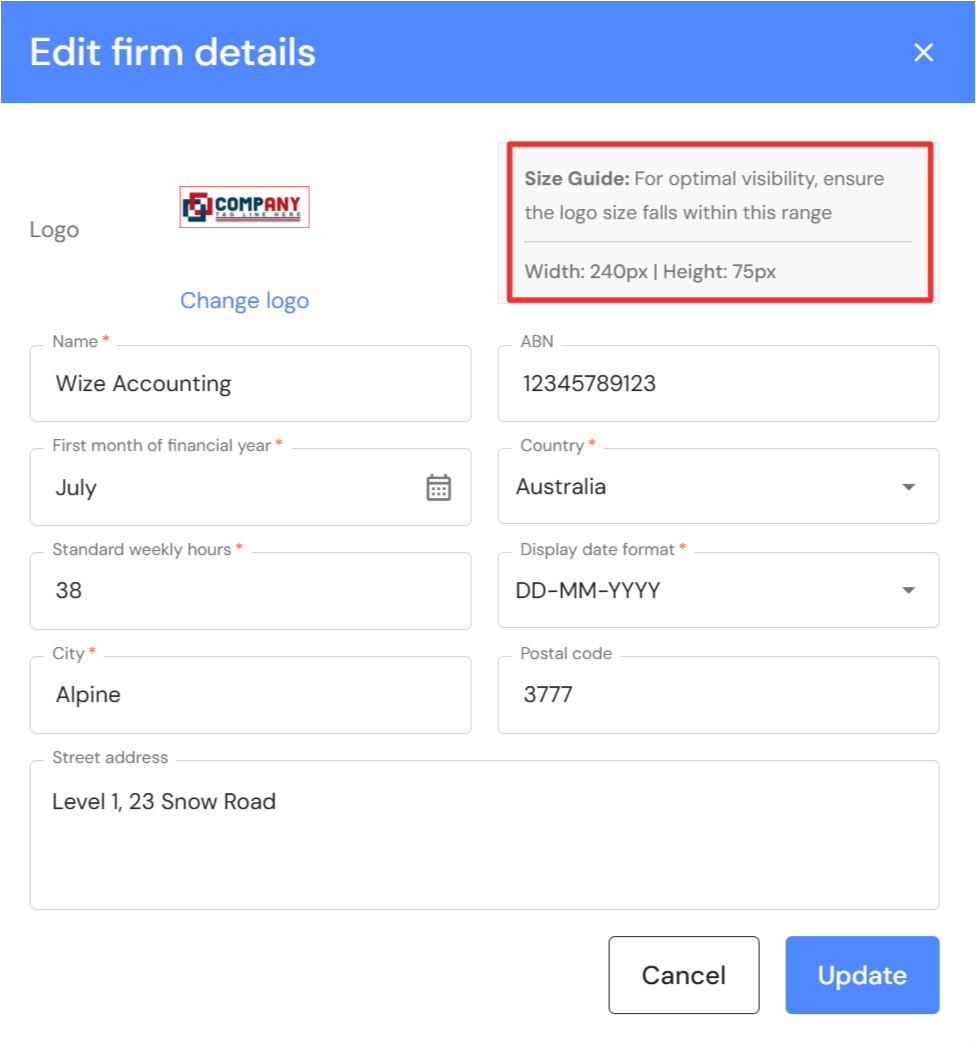
We have improved the placeholder settings for your firm logo. To get the best fit, we recommend uploading a logo size of 240px W x 75px H.
To upload a logo, go to Discover > Firm Profile > Firm Details
Growth Plan
Loan repayment calculator
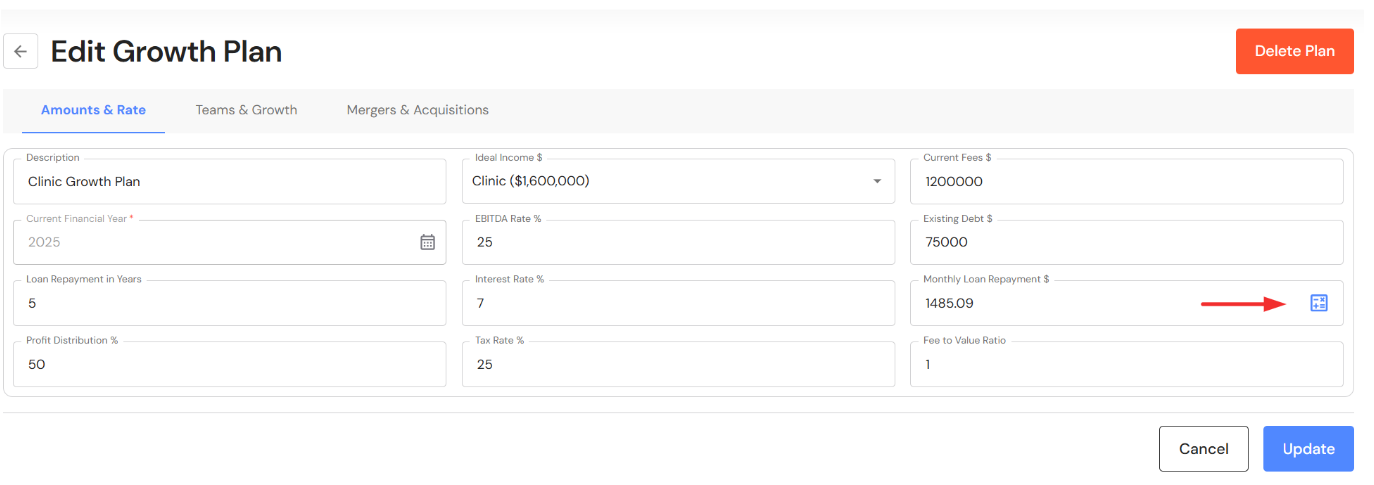
We have added a loan repayment calculator to the Growth Plan to assist Executive users in calculating the monthly loan repayment on existing debt and planned debt for future mergers & acquisitions.
Go to Plan > Growth Plan. Click on the calculator icon in the monthly loan repayment field to apply the loan repayment to your Growth Plan.

Manage Users
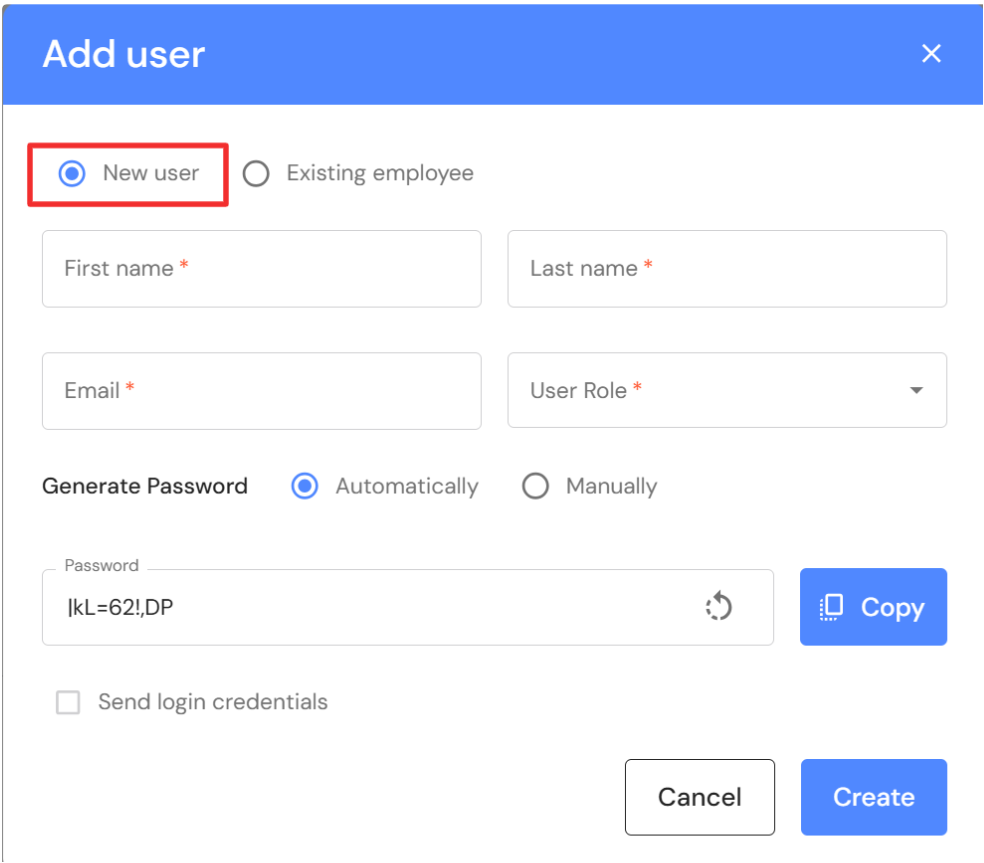
Executive users now have the ability to add a user to the WizeHub without adding them to People. This is helpful for firms who use contractors or other personnel who are not direct employees. NB* If you add the user as an employee down the track, contact support@wizehub.co to link the profiles.
Go to Settings > Manage Users. Choose between adding a new user or an existing employee. Once selected, completed the details on the screen and click on ‘Create’.
Meetings
Meeting agendas 'To Do' appear on the Business Intelligence board
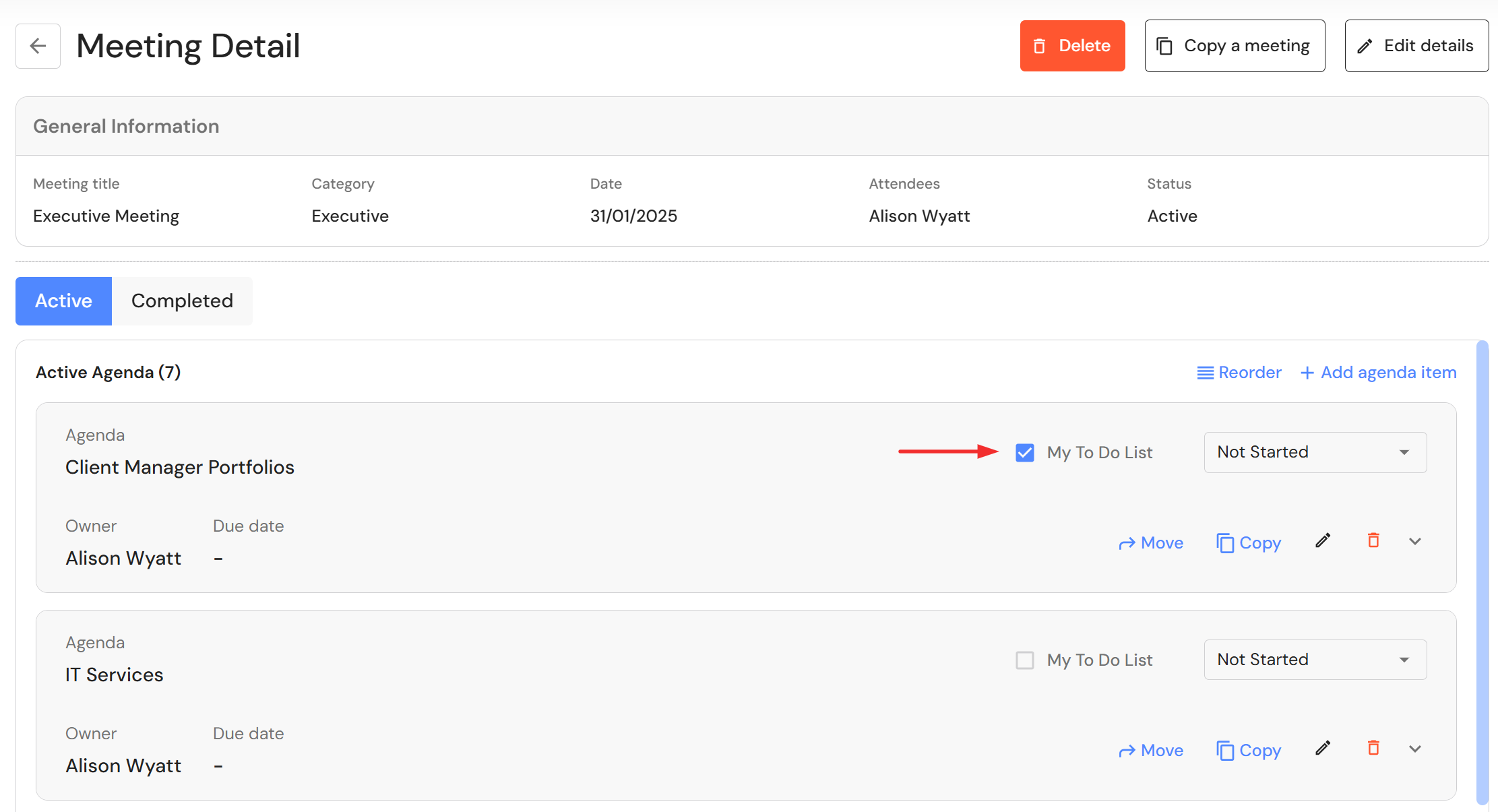
The owner of a meeting agenda now has the ability to add agendas to their 'To Do' list on the Business Intelligence board.
Go to Execute > Meetings. To add a meeting agenda to your Business Intelligence board, open a meeting and click on the 'My To Do List' checkbox on the agenda.
PLEASE NOTE: This feature is currently deployed for Executive users. All other user roles will see the update on the Overview board in March.
Request Support
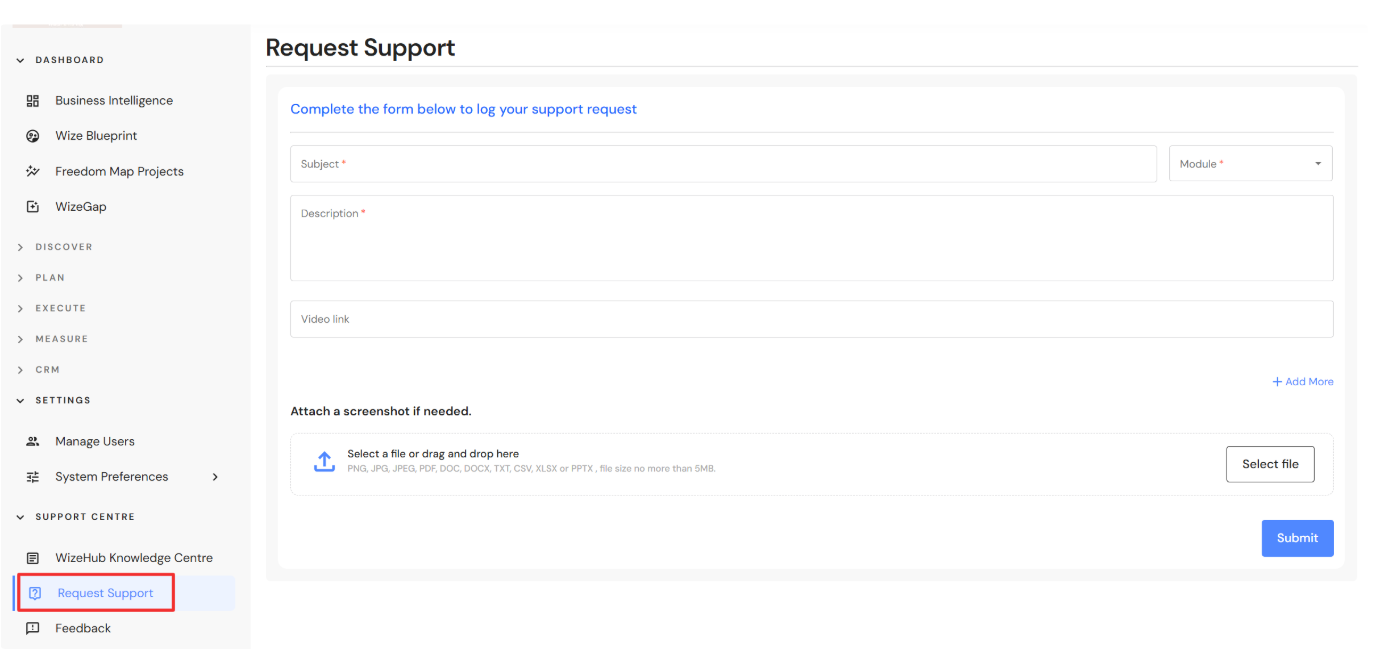
Users can now log support tickets directly from the WizeHub app.
Go to Support Centre > Request Support and complete the form. Include as much information as possible so our support team can fully understand your support needs. You can also add a link to a recording (eg. loom video) and attach any screenshots.
User can continue to log support tickets via email support@wizehub.co
WizeHub Knowledge Centre
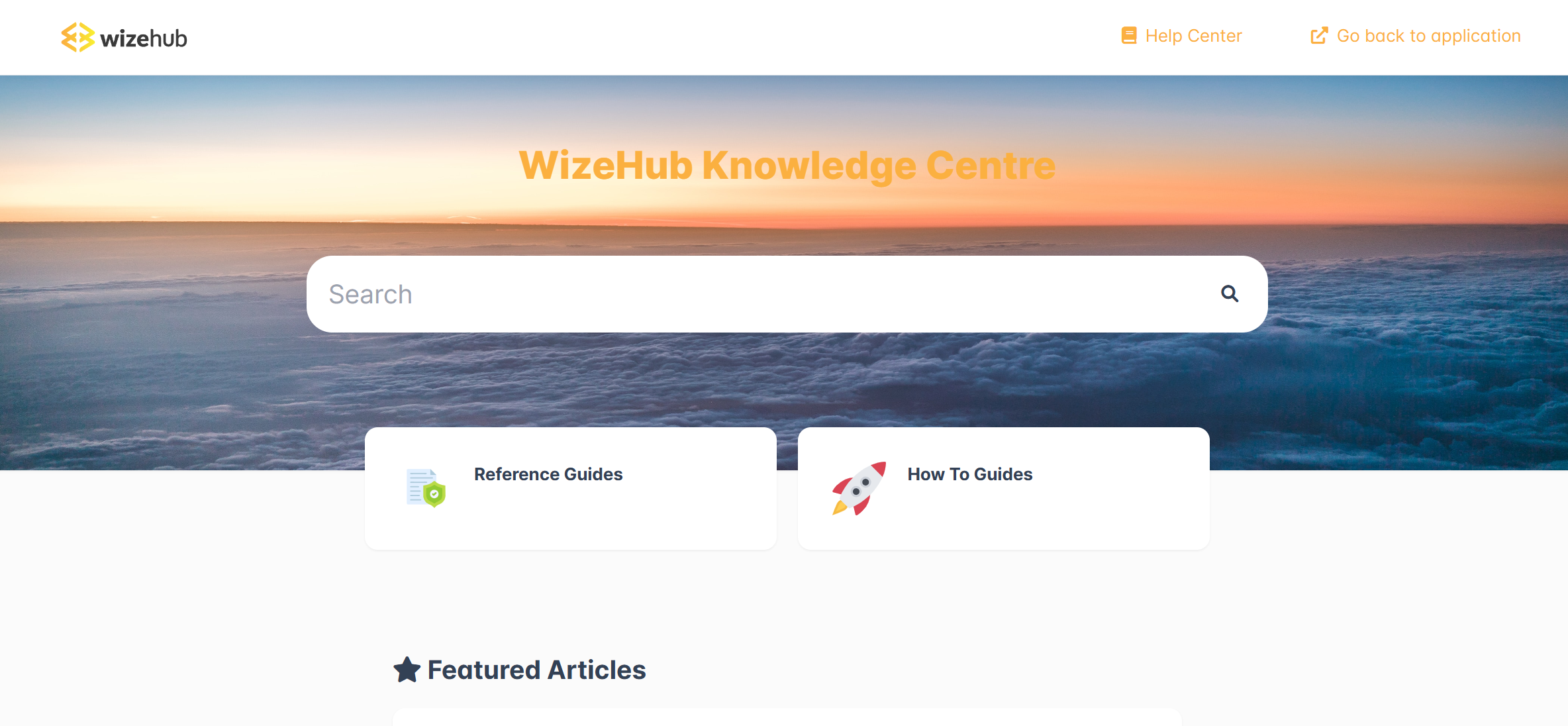
Users can now access the WizeHub Knowledge Centre directly from the WizeHub app.
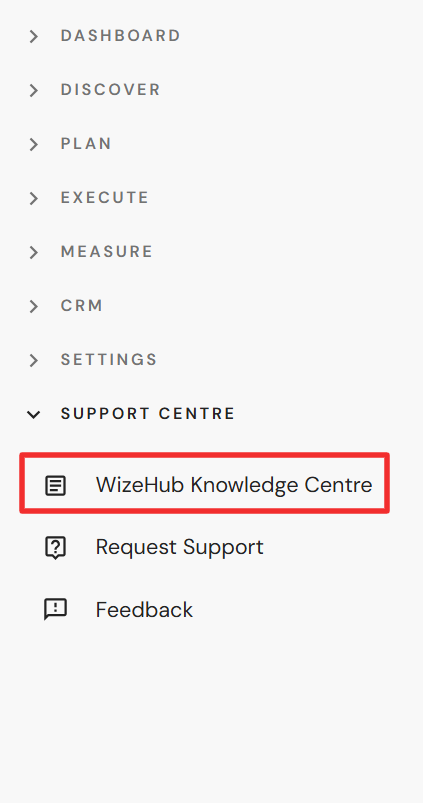
Go to Support Centre > WizeHub Knowledge Centre and you will be directed to an external page.
We recommend bookmarking the page so you can access the resource anytime without needing to login to the WizeHub.
WizeVault
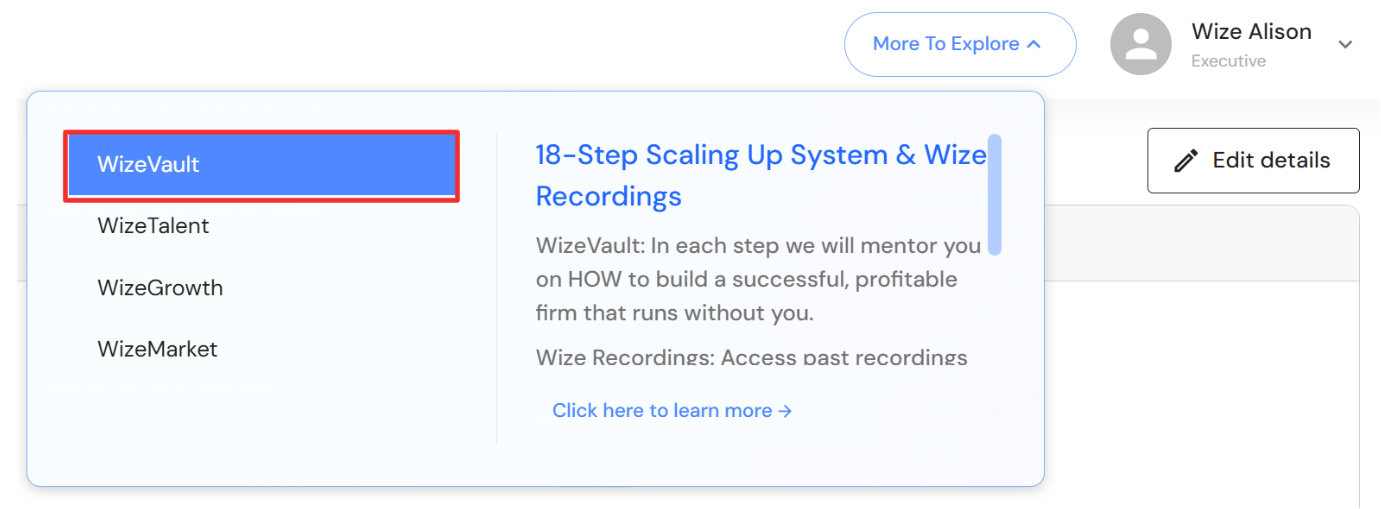
Users can now access the WizeVault directly from the WizeHub app.
Click on the ‘More To Explore' button in the top right corner in the WizeHub to access the WizeVault and Wize clinic recordings.