Release Notes - 26 March 2026
Activities & Delegation
We have added several enhancements to Activities & Delegation to improve visibility, progress tracking, and delegation.
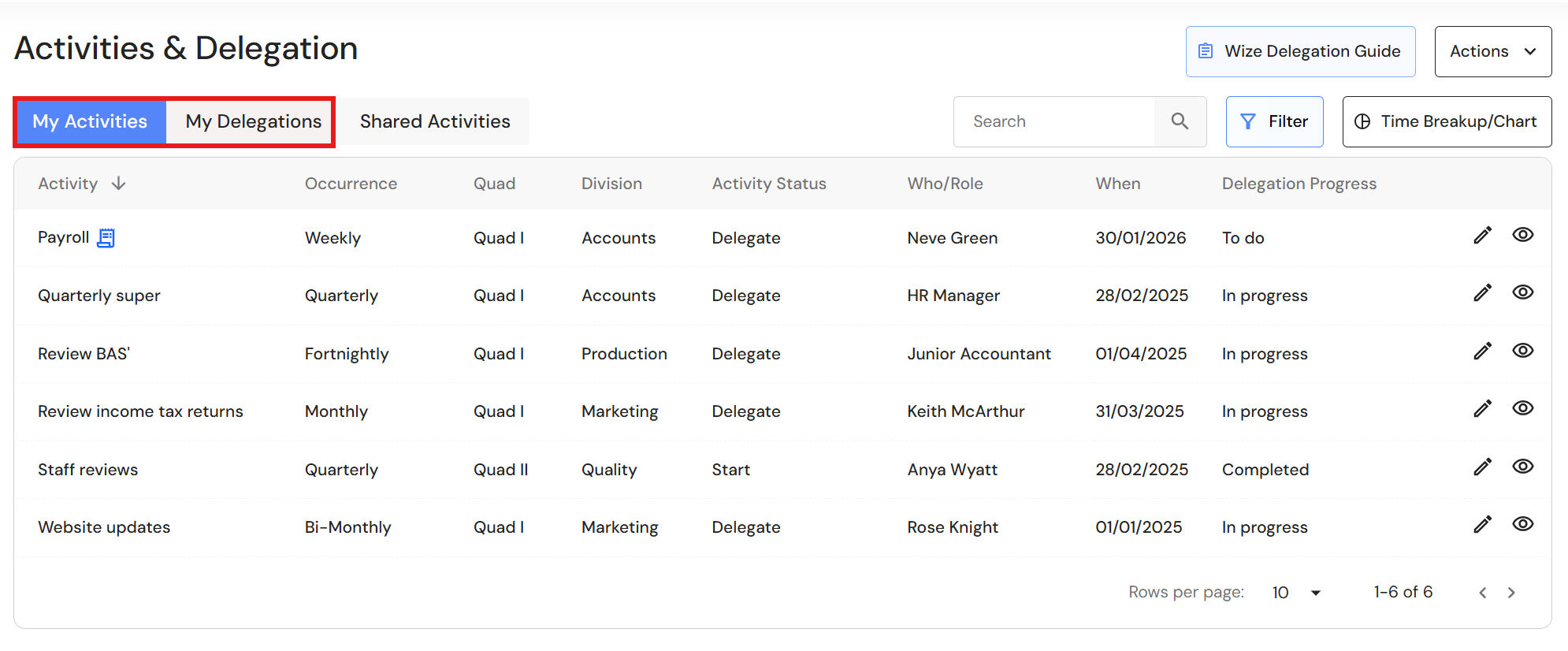
New Activity Tabs
Activities are now separated into two tabs:
- My Activities – Activities you are currently responsible for, including activities flagged for delegation.
- My Delegations – Activities you have delegated to other team members.
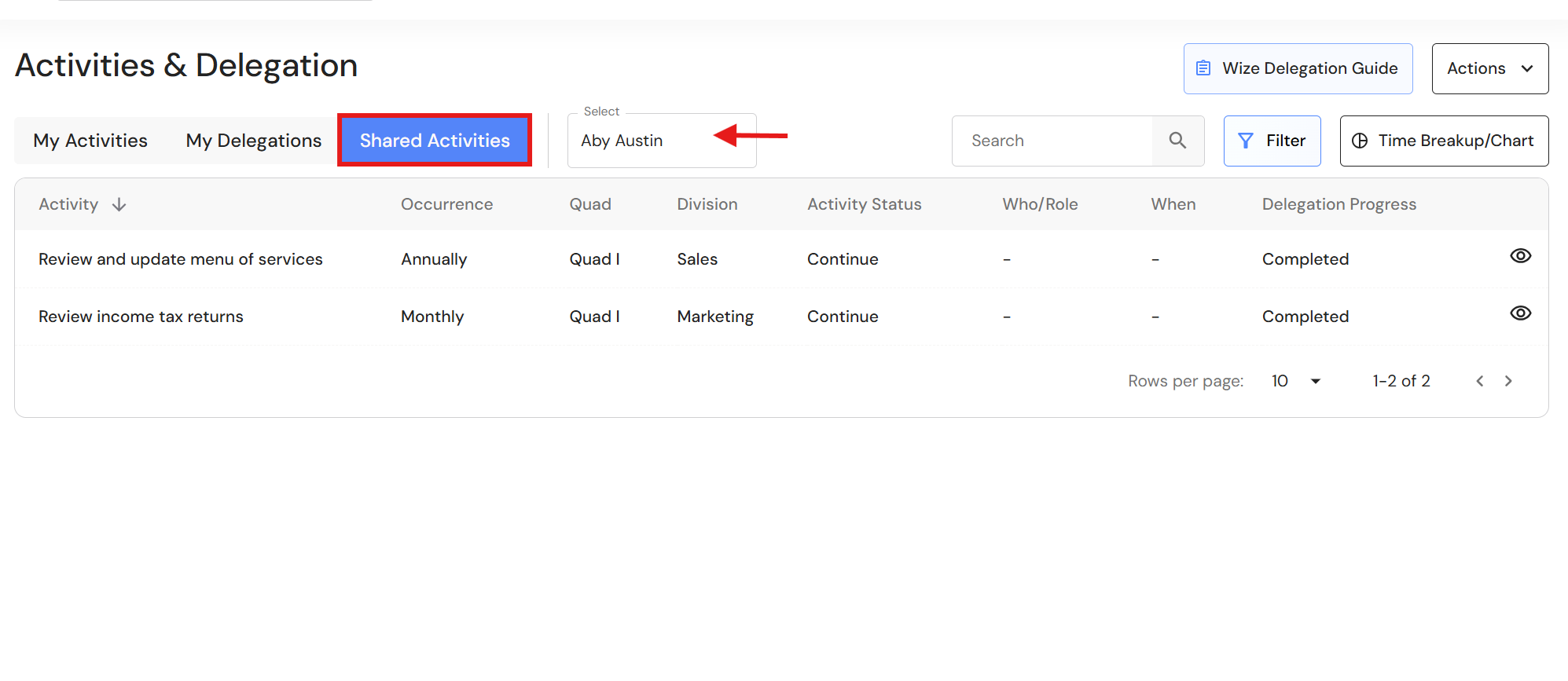
Shared activities by team members are now displayed as a combined view of activities and delegations.
Progress Buttons
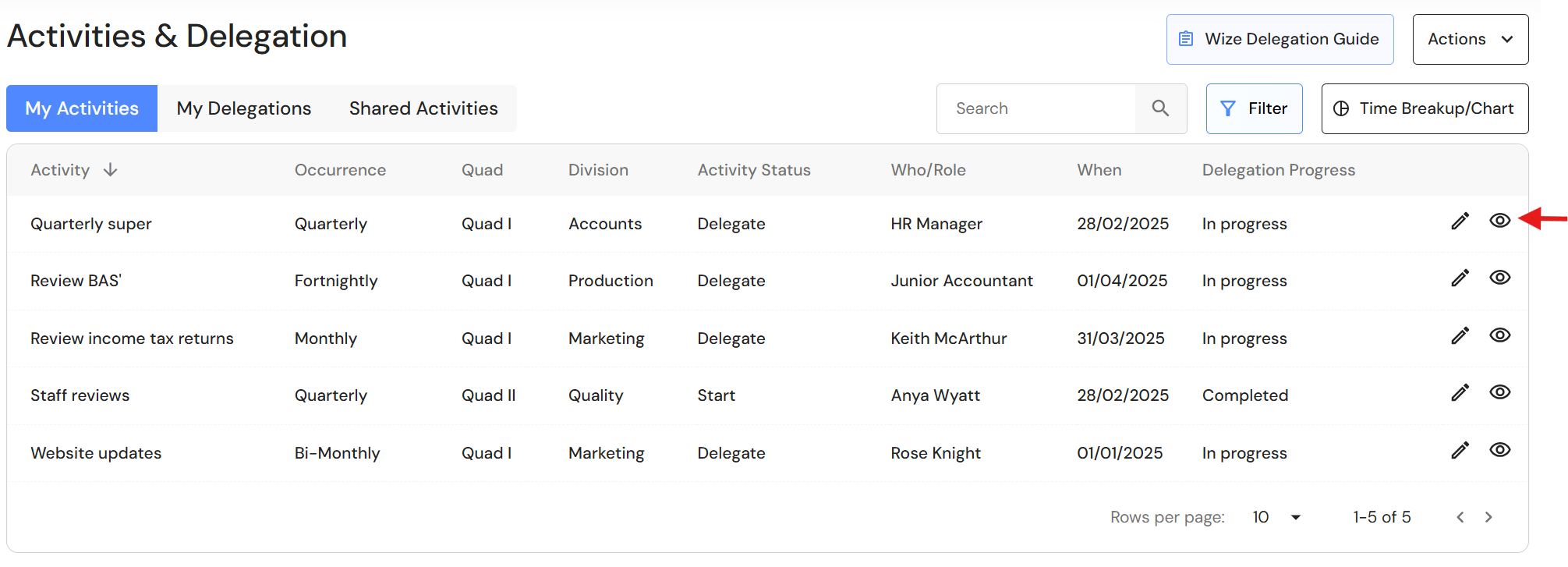
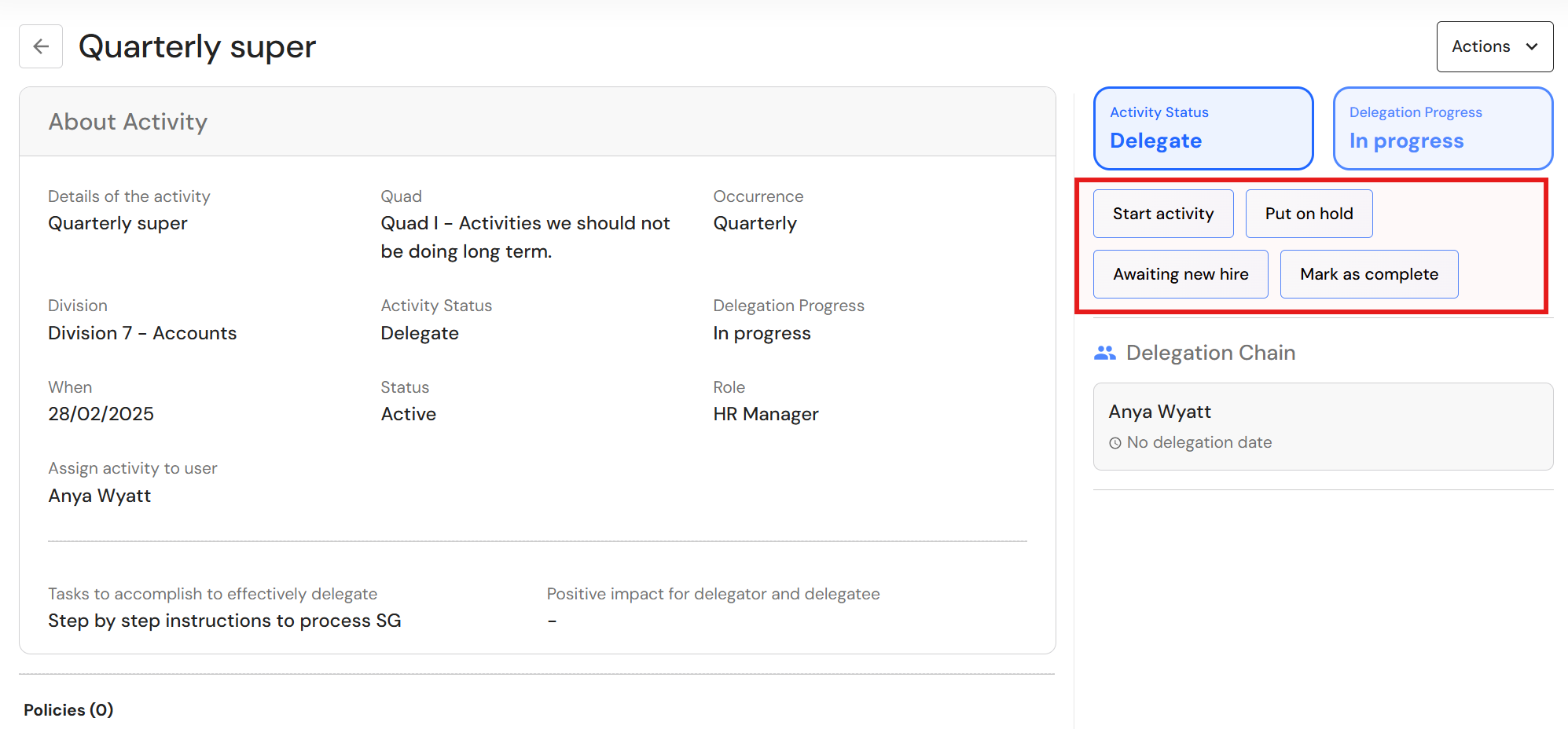
New progress buttons make it easier to update your delegation progress.
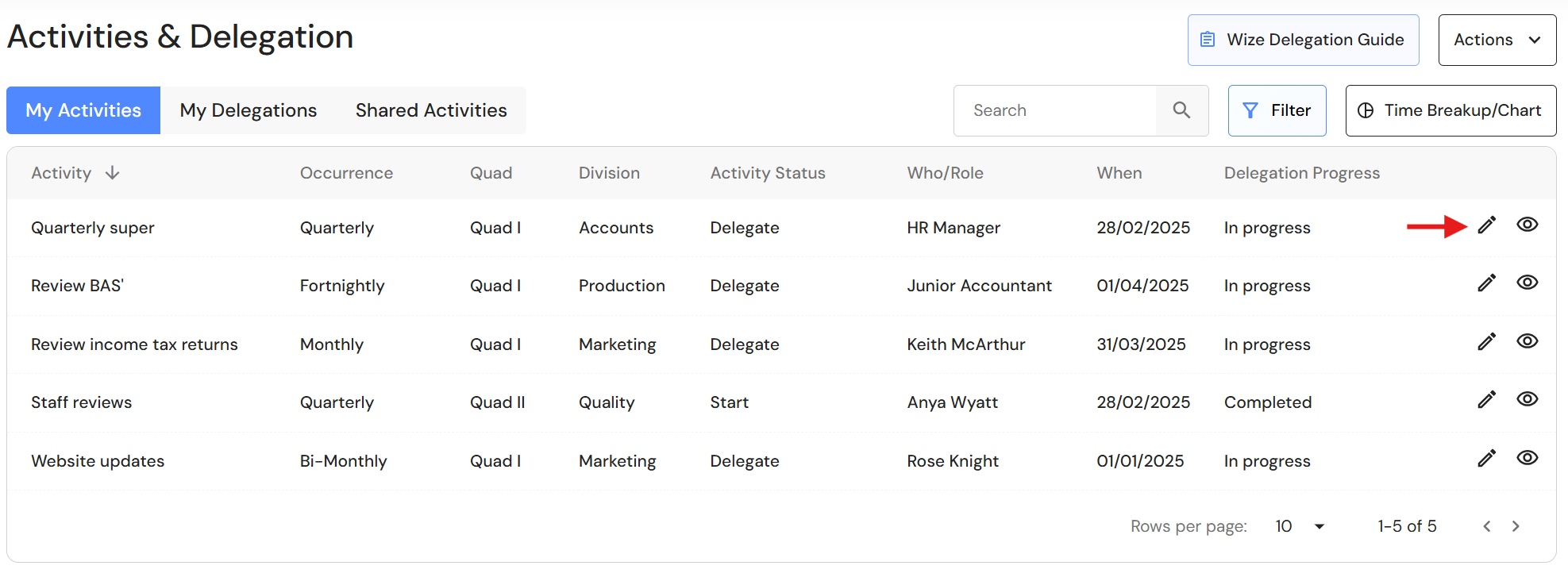
- Progress buttons appear when viewing an activity. Click the 'View' icon to update progress.
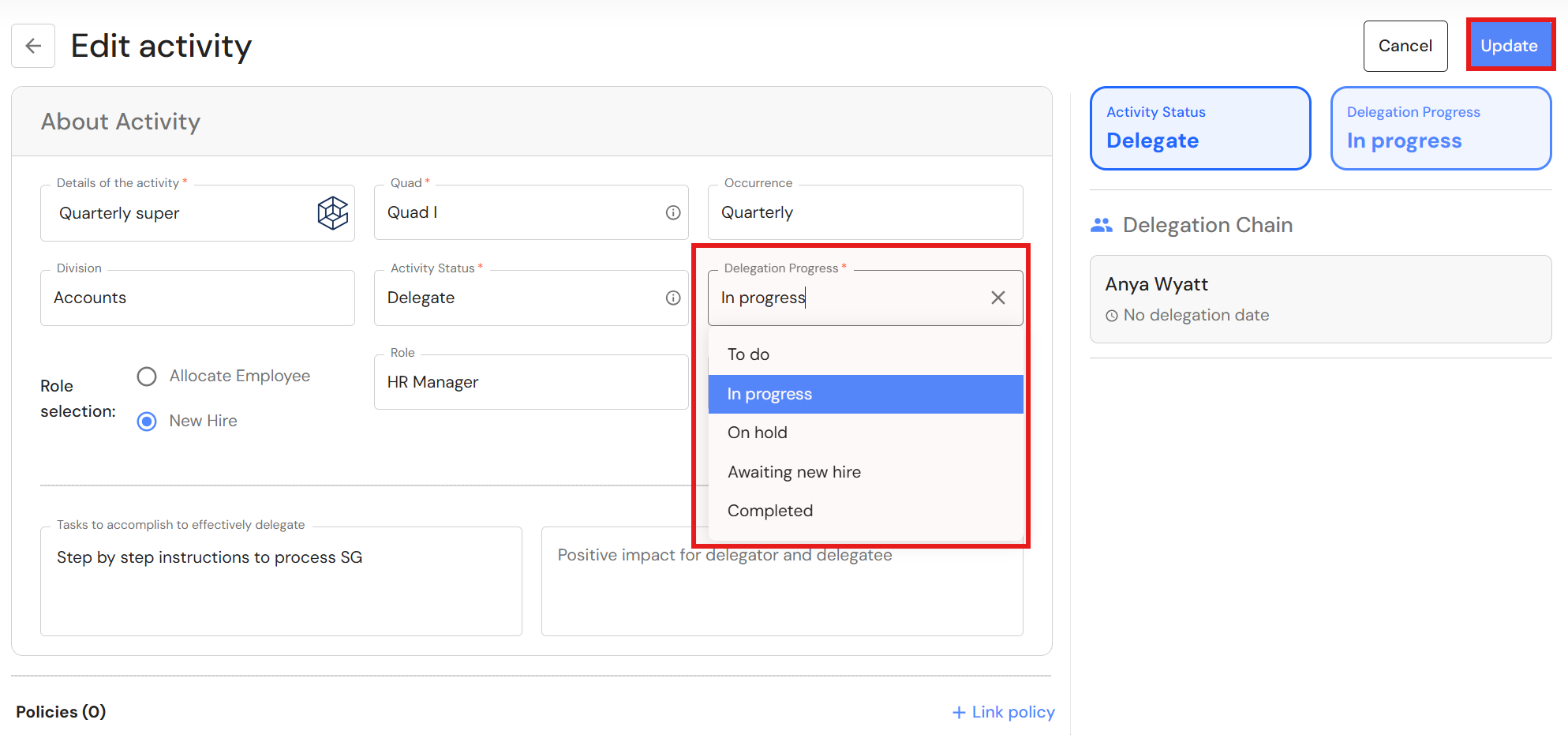
- Progress buttons are not available in 'Edit' mode. To update progress while editing an activity, select the status in the 'Delegation Progress' field and click 'Update'.
New Delegation Flow
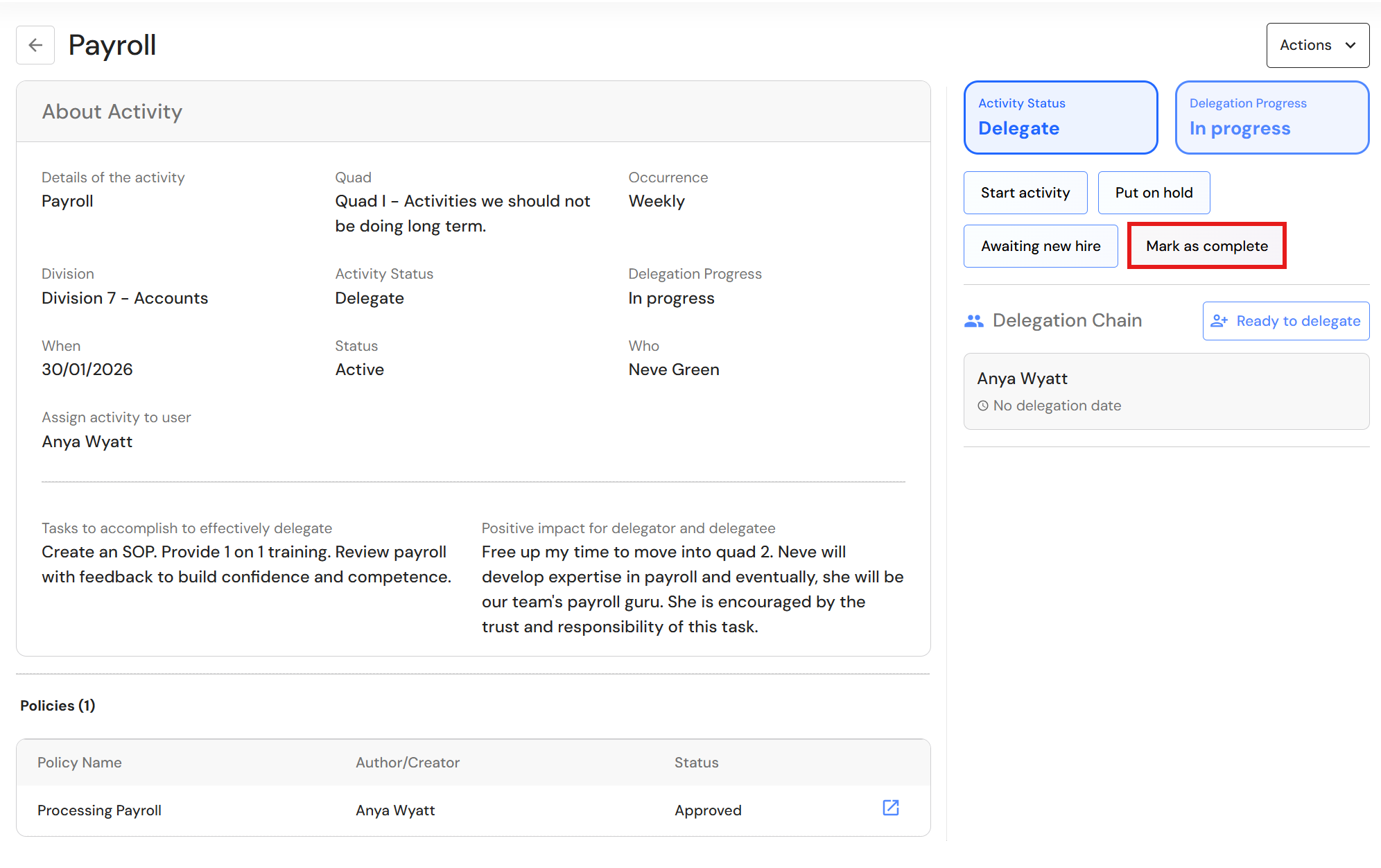
A new delegation flow has been introduced to formally delegate activities to team members. Once the 5 Steps to Effective Delegation are completed, the activity is ready to be delegated:
- Mark the activity status as 'Completed'.
- Click 'Ready to Delegate'.
- Click 'Delegate' to assign the activity to a team member.
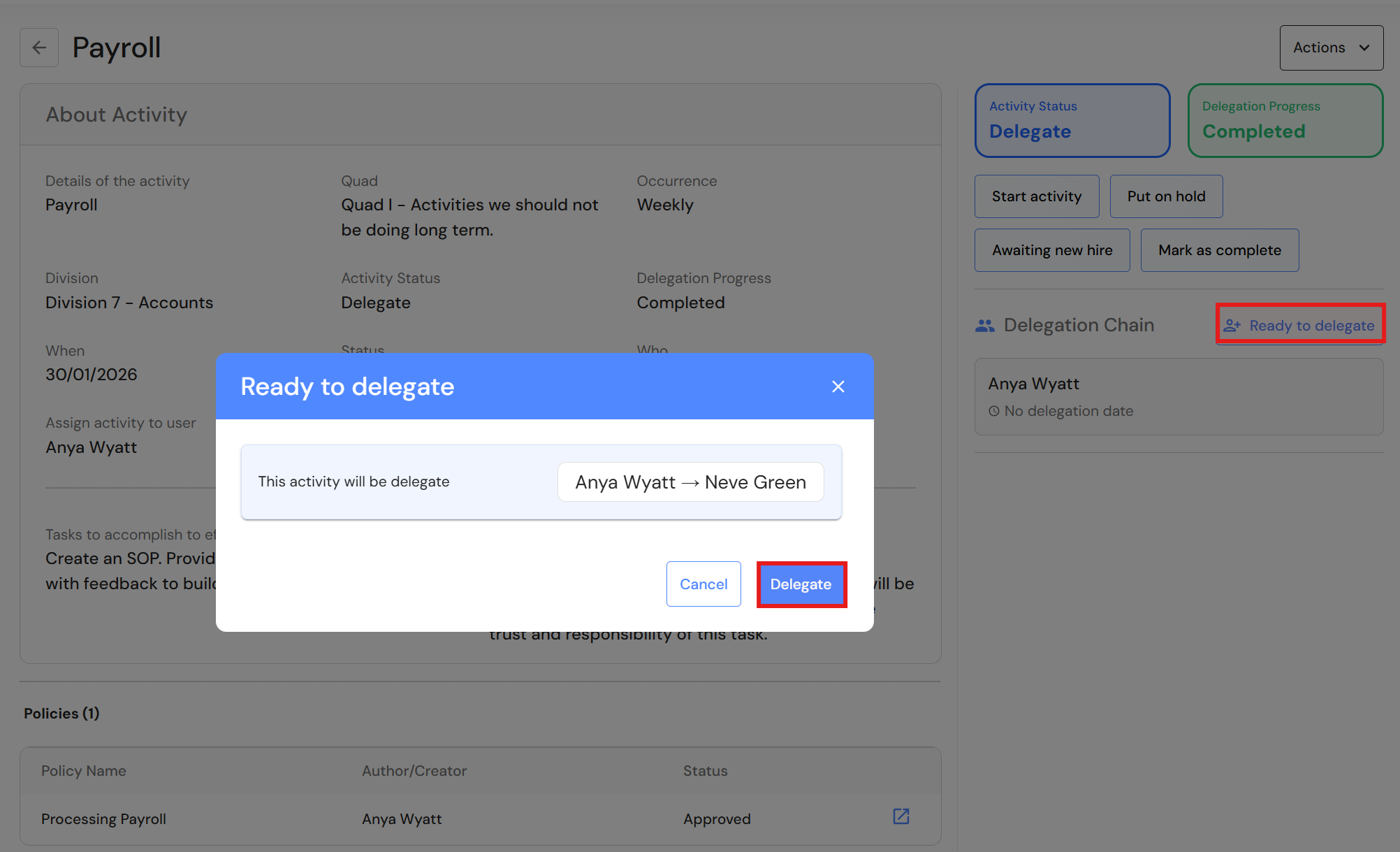
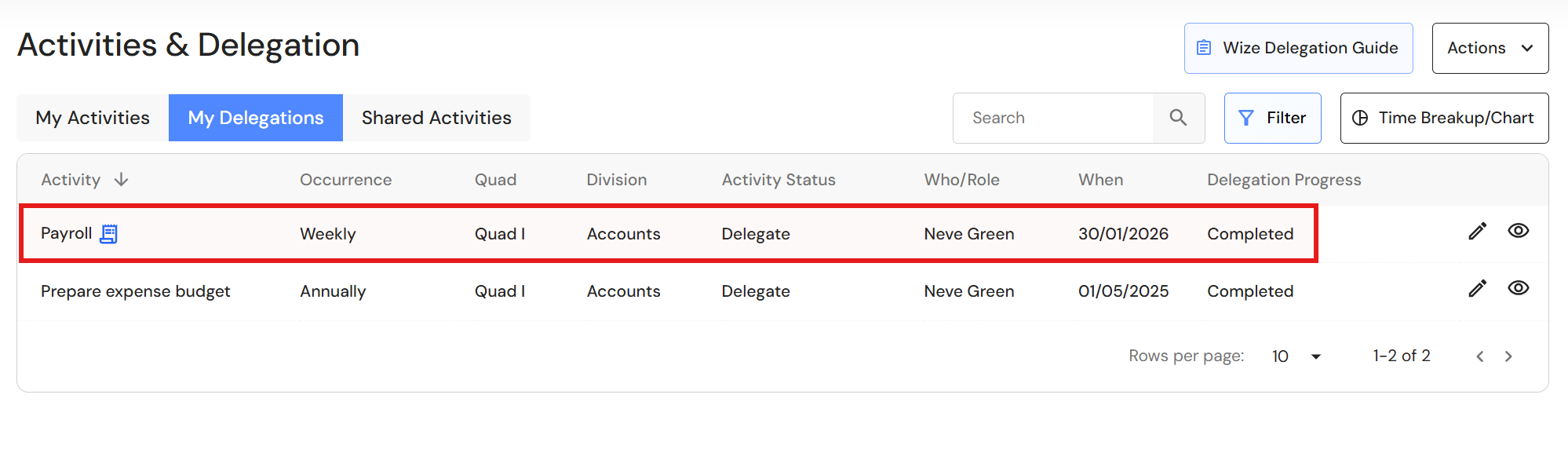
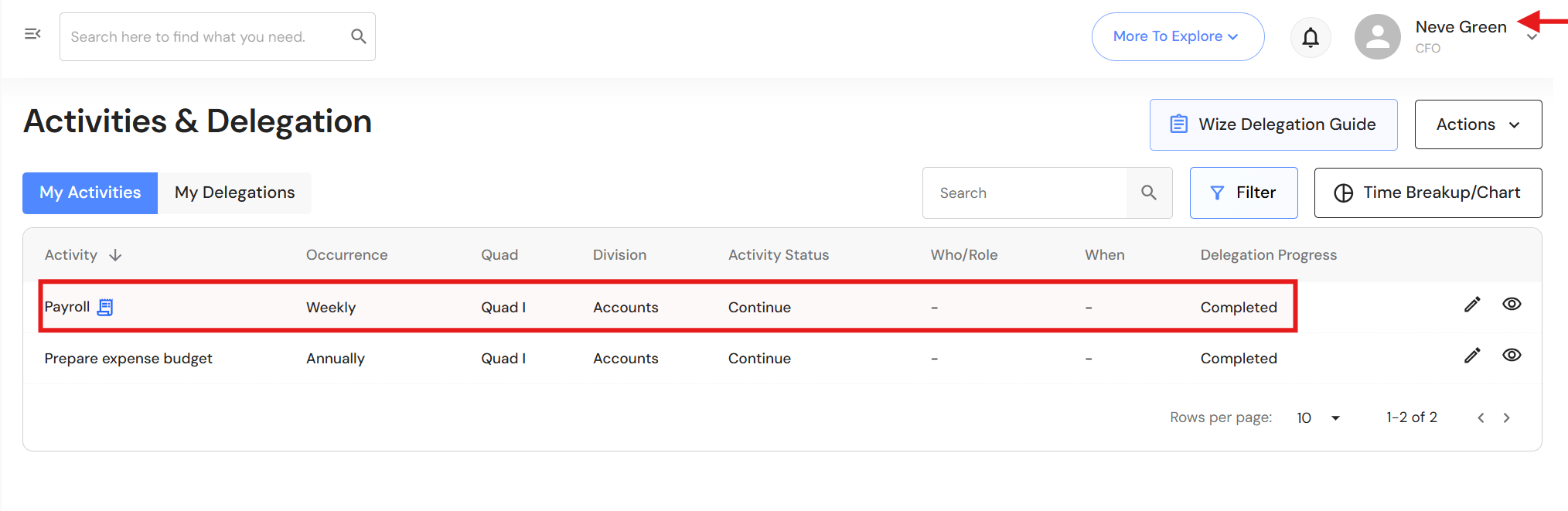
Once delegated:
- The activity moves from My Activities to My Delegations.
- A new activity is created in the team member’s My Activities list with an activity status of Continue, marked as Completed.
Archive Old Activities
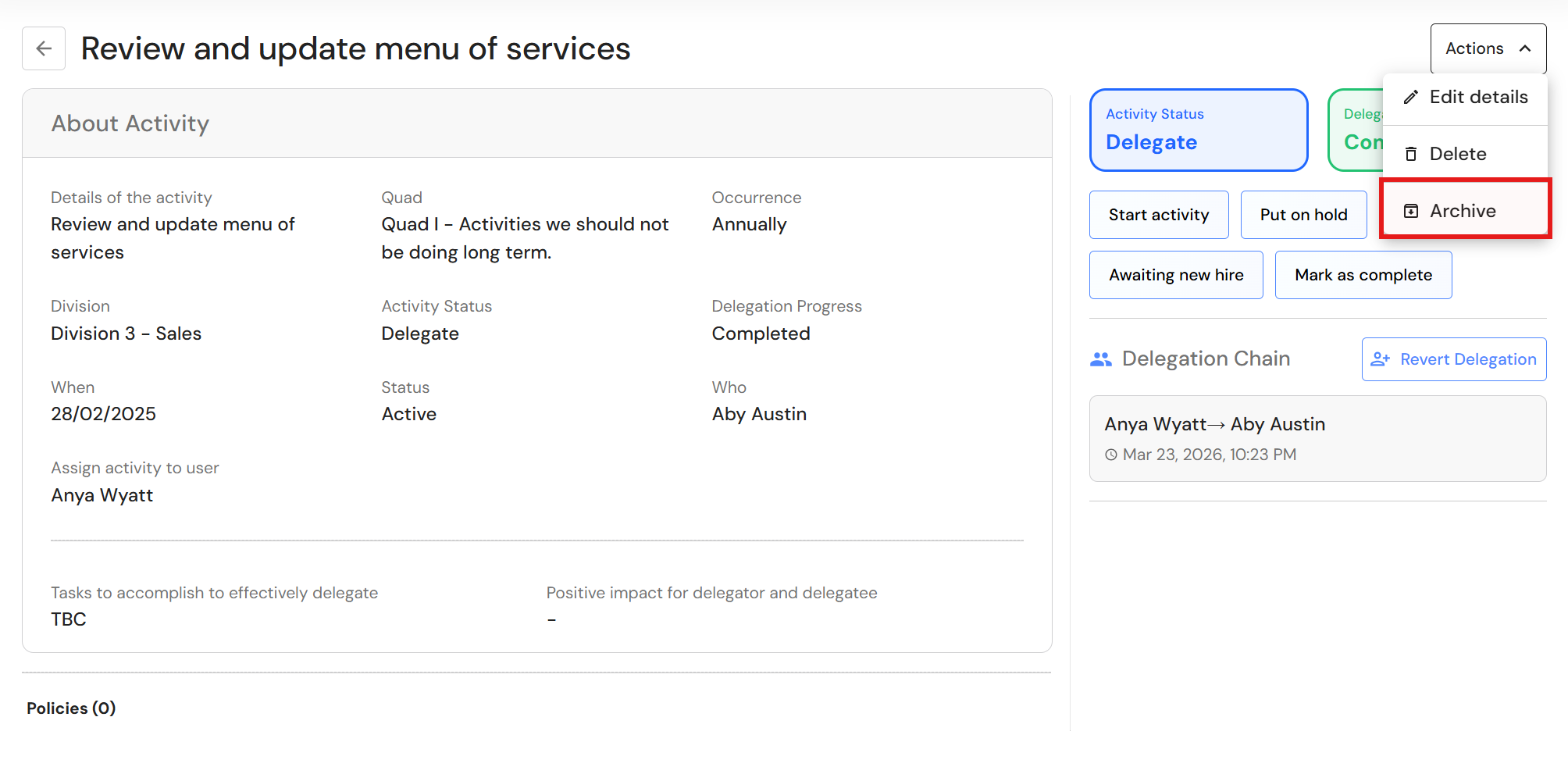
Users can now archive activities that are no longer relevant.
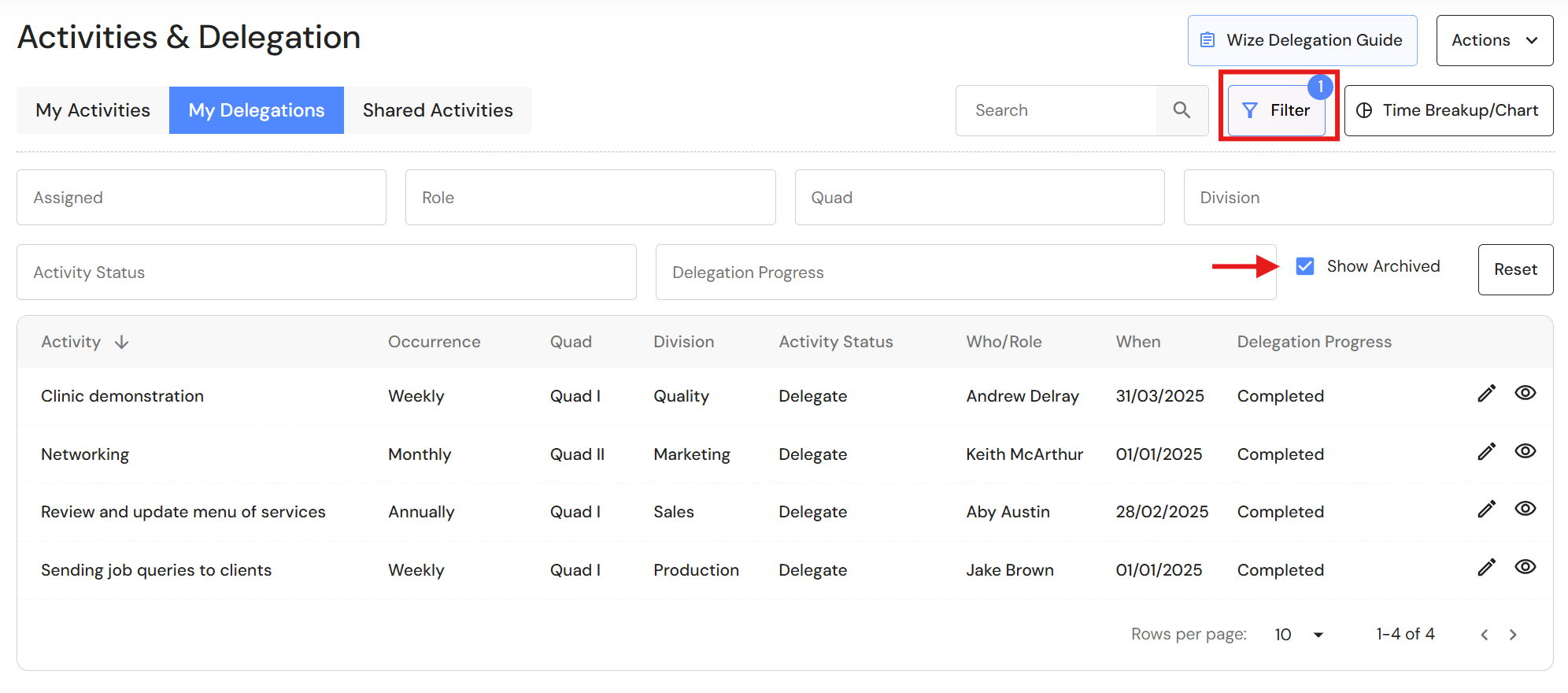
- To archive an activity, click 'Actions', then 'Archive'.
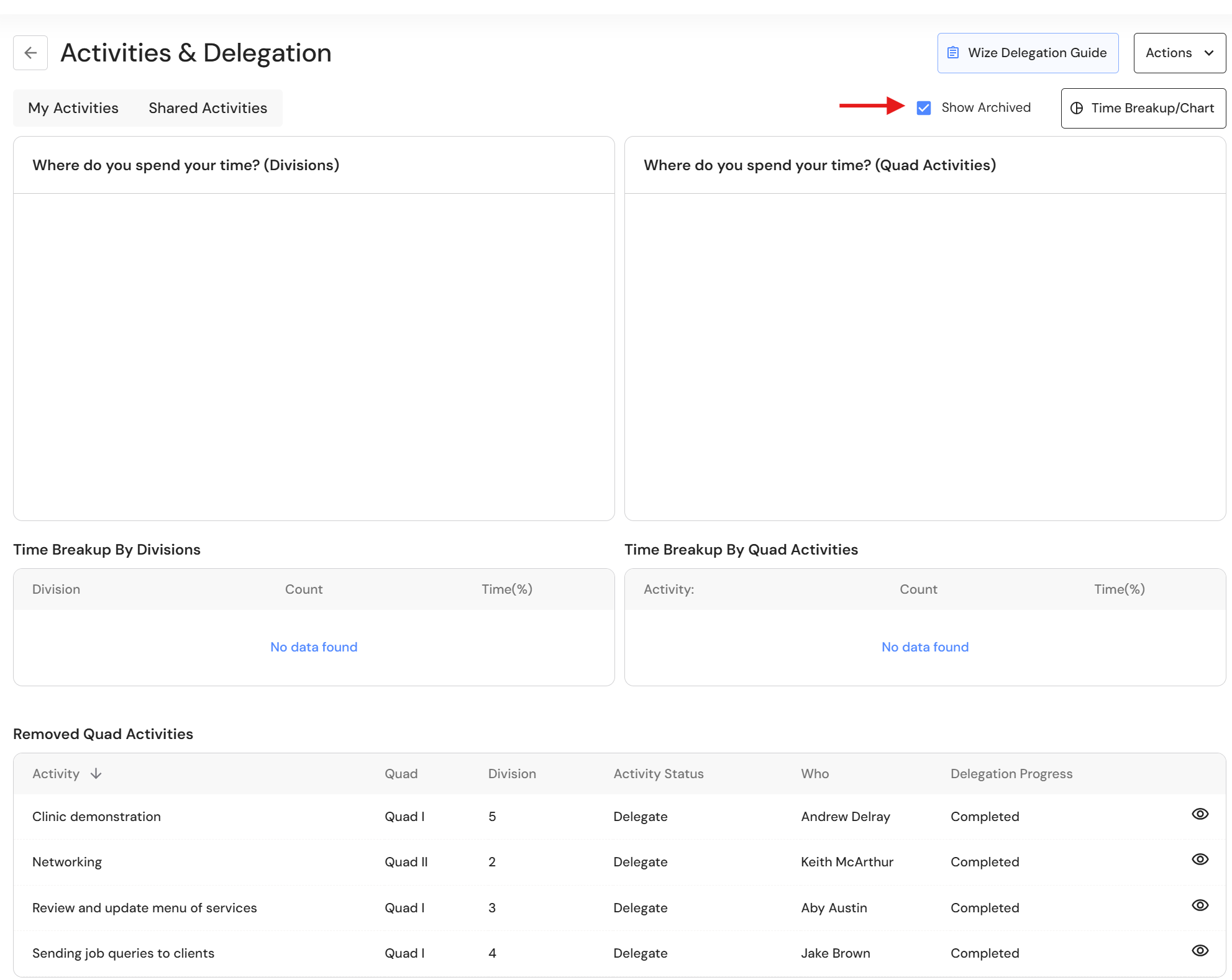
- To view archived activities:
- Click the 'Filter' and select 'Show Archived'.
- In the Time Breakup/Chart, check 'Show Archived'.
- Click the 'Filter' and select 'Show Archived'.
Equity Plan
Enhancements
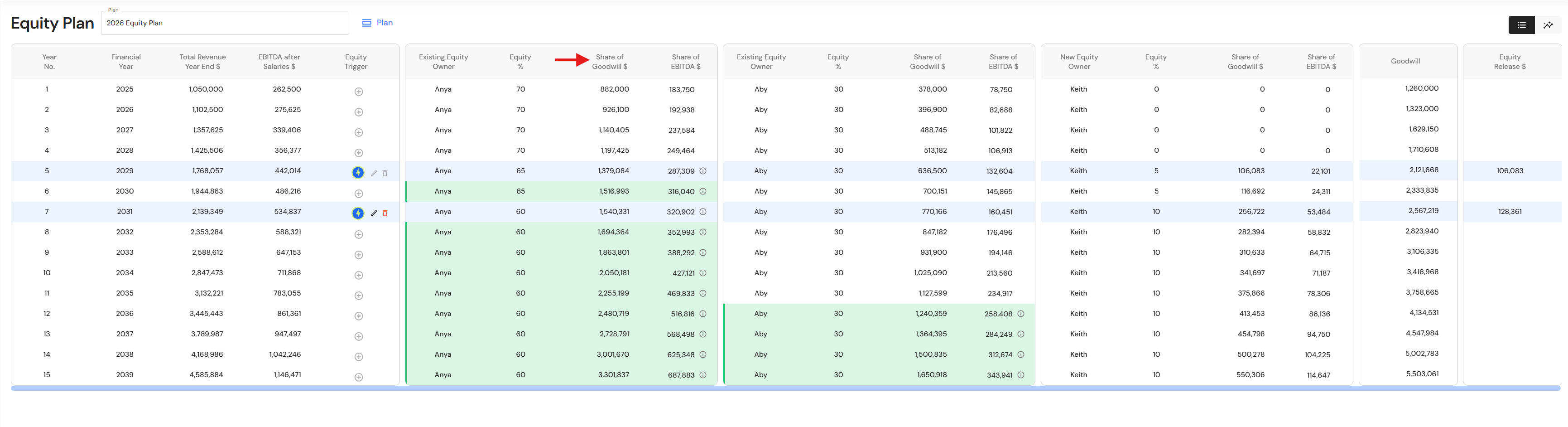
The Equity Plan now calculates and displays the 'Share of Goodwill' for each equity owner.
Additionally, when an equity owner reaches their ideal income (EBITDA), their row is highlighted in green, making it easy to identify when individual income goals have been achieved.
Wize Blueprint
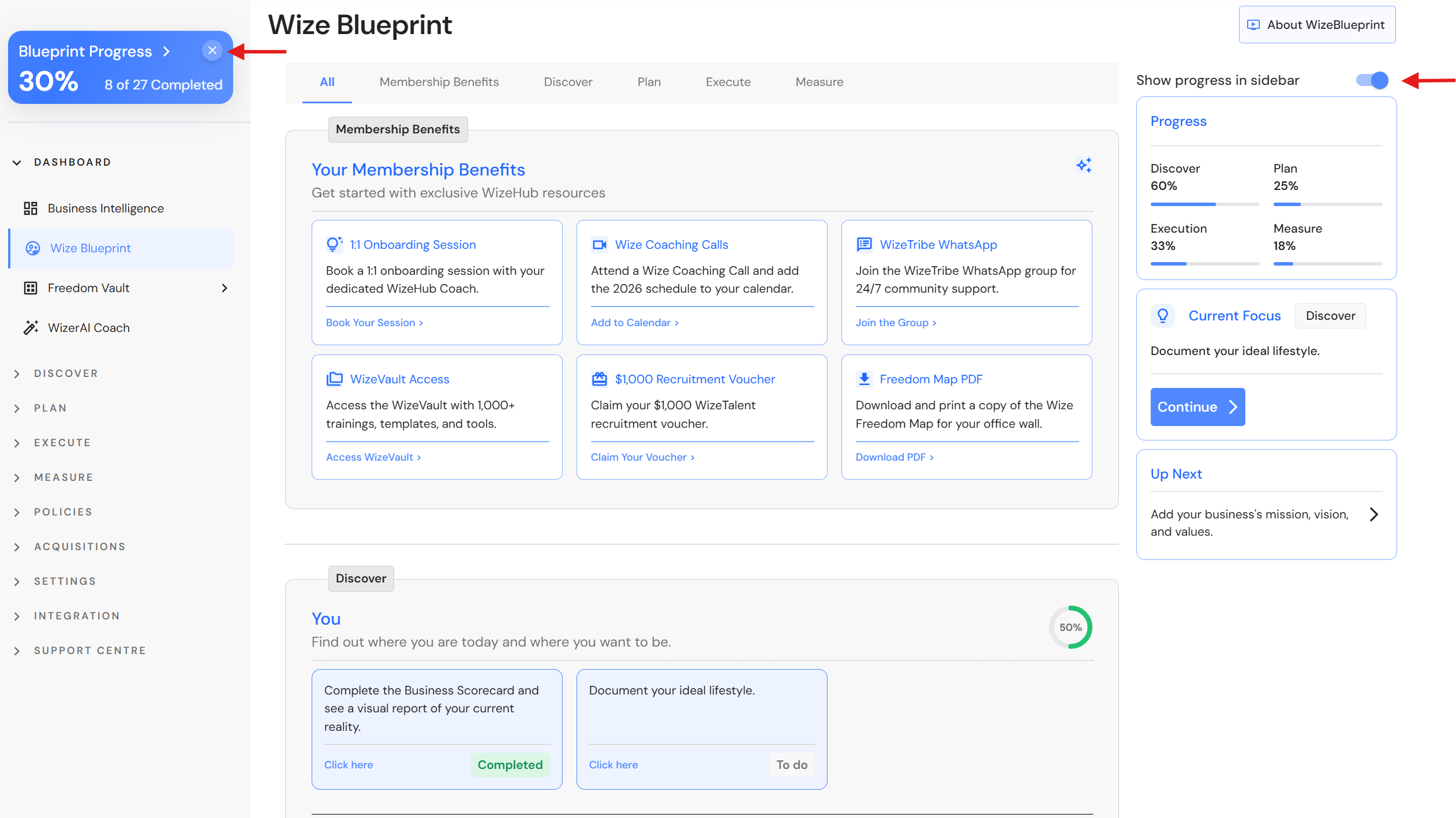
Close the progress banner in the side menu
The 'Blueprint Progress' banner helps Executive users stay on track as they complete the WizeHub foundational journey. The Wize Blueprint is designed as an early start — ideally completed within the first 30 days — and lays the foundation for continued growth through the Freedom Vault.
Once users have made significant progress, or if they choose to jump straight into Freedom Map projects, the progress banner can be closed by clicking the X in the top-right corner.
To re-enable the banner, navigate to the Wize Blueprint and toggle it back on to display progress in the sidebar.