Connecting Xero Practice Manager (XPM) to WizeHub
Overview
To ensure accurate syncing of fee and team data between XPM and WizeHub, three foundational areas must be set up:
- People
- Production Teams
- Budget & Capacity Plan
Once these are completed, proceed to connect the XPM integration - not before.
Prerequisites
Step 1 — Add Your People
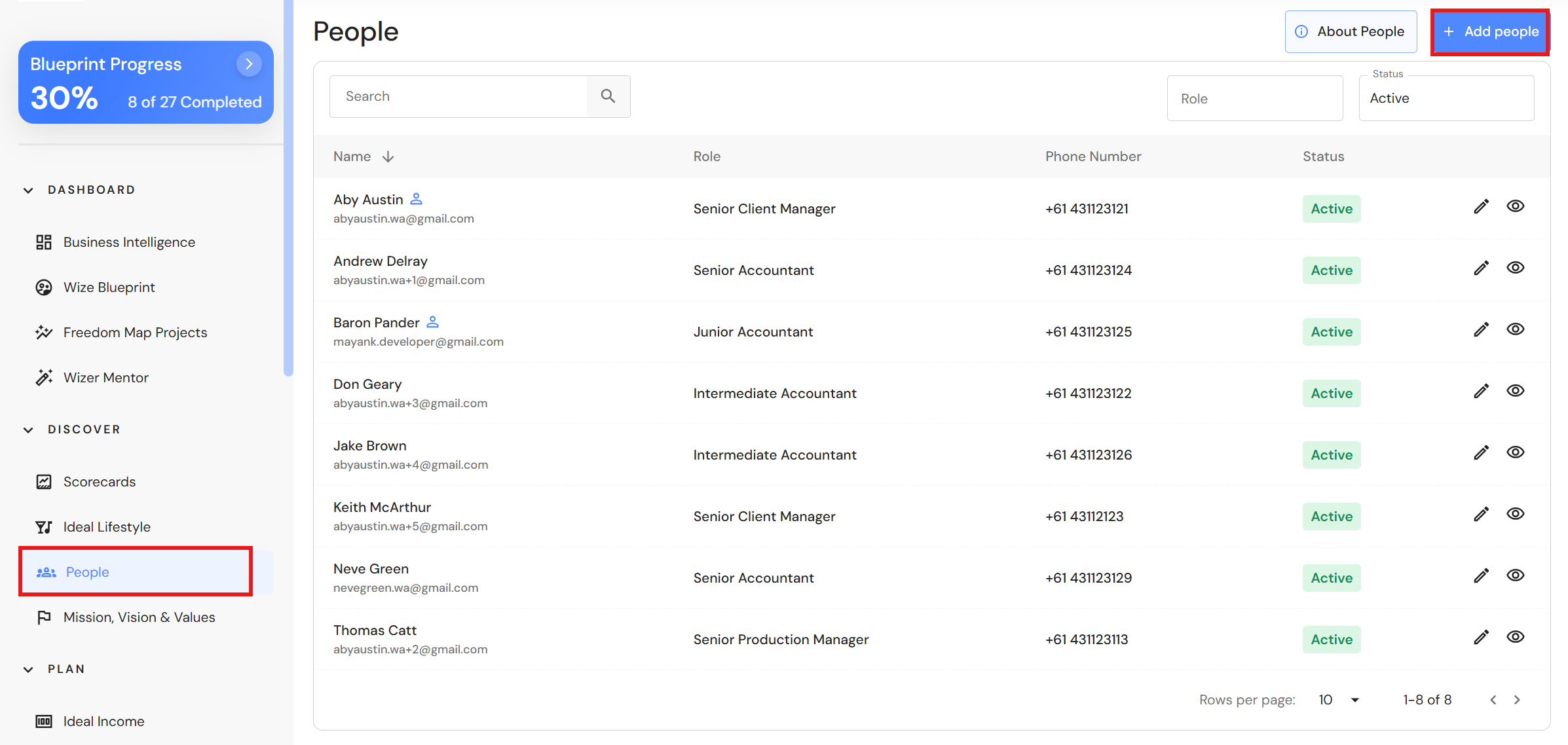
Go to Discover > People
Click on '+ Add people'.
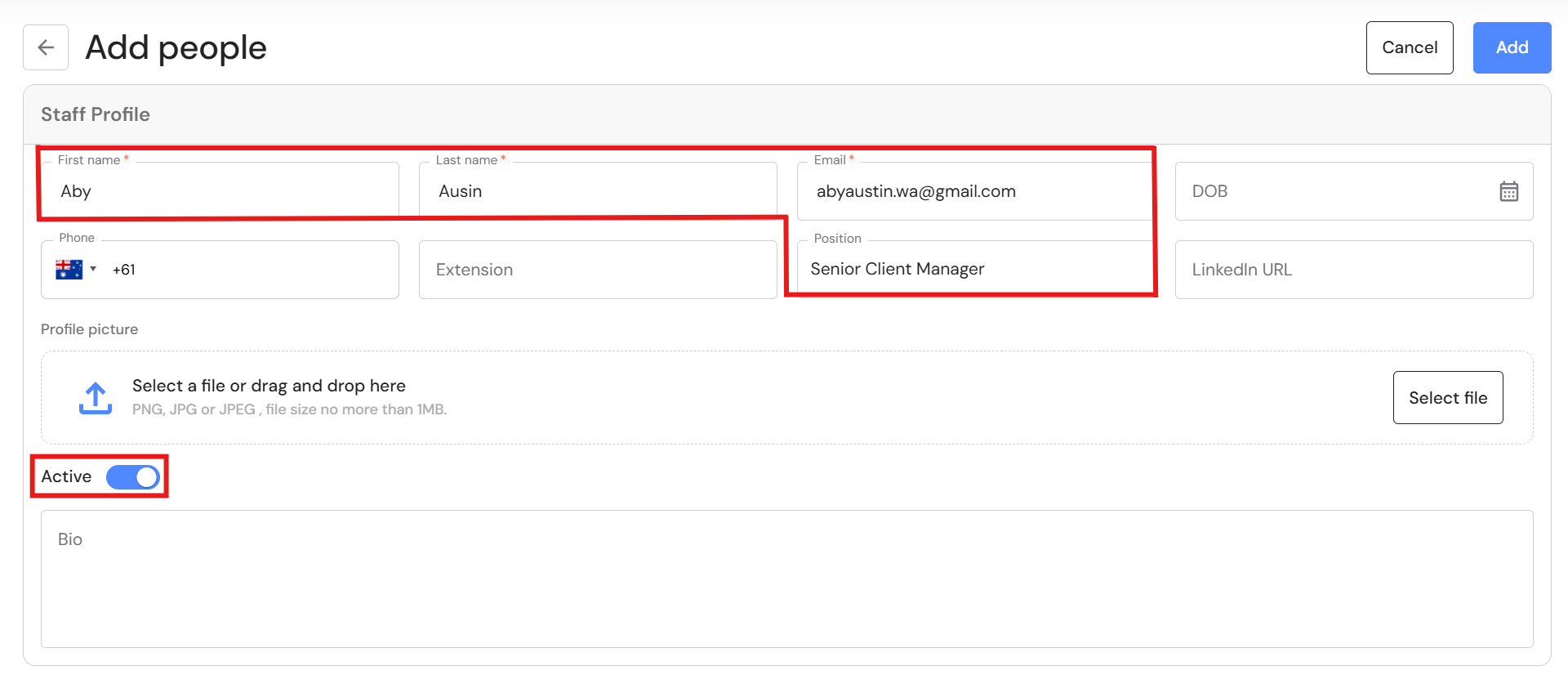
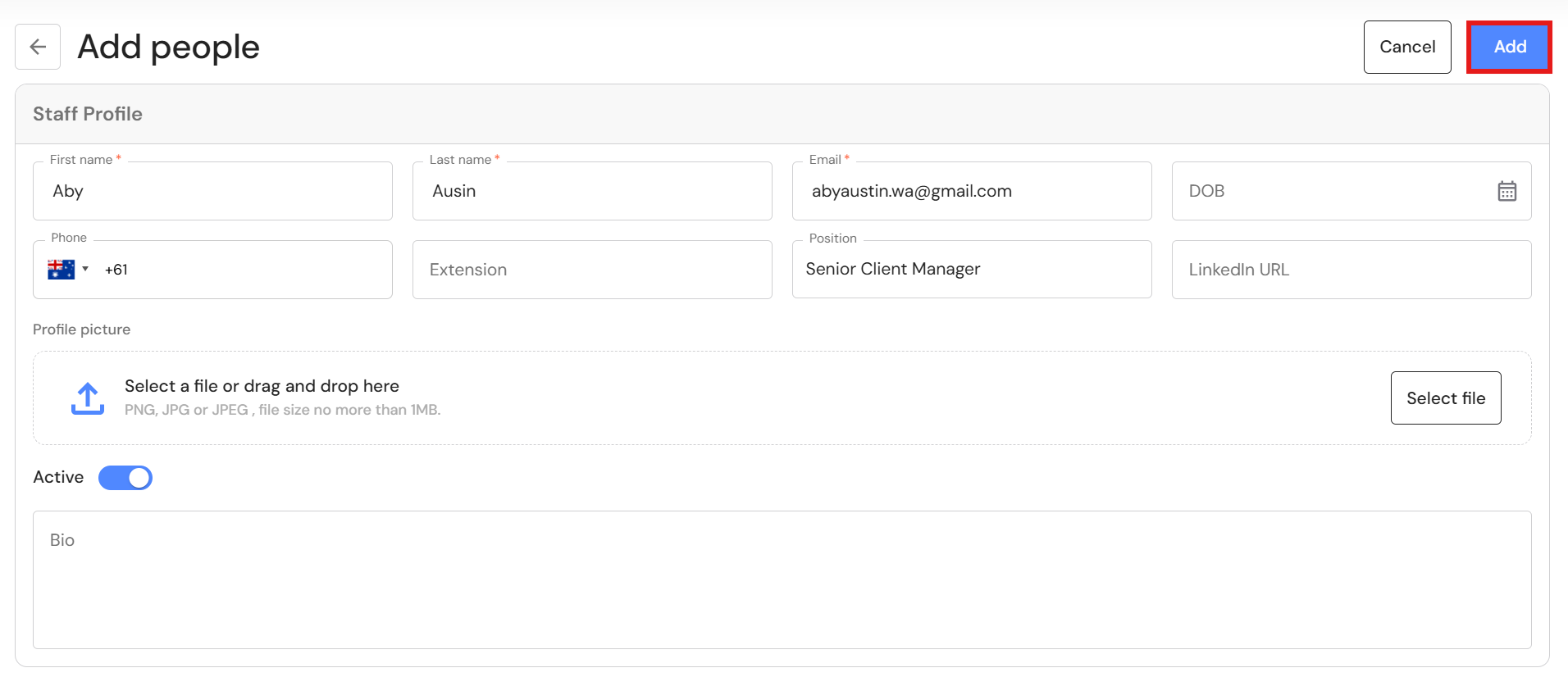
Complete the following fields at minimum:
- First name
- Last name
- Email (must match staff email in XPM)
- Position
- Active toggle is on
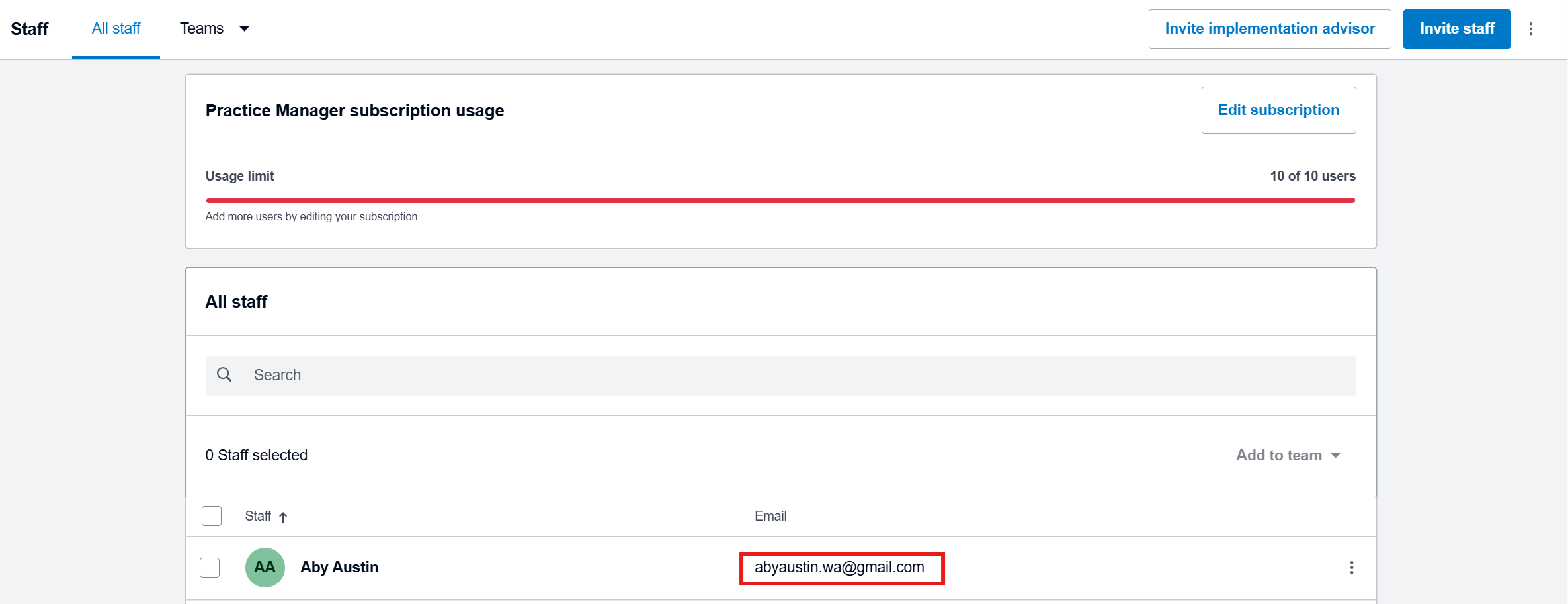
To verify emails in XPM, go to Business > Settings > Staff
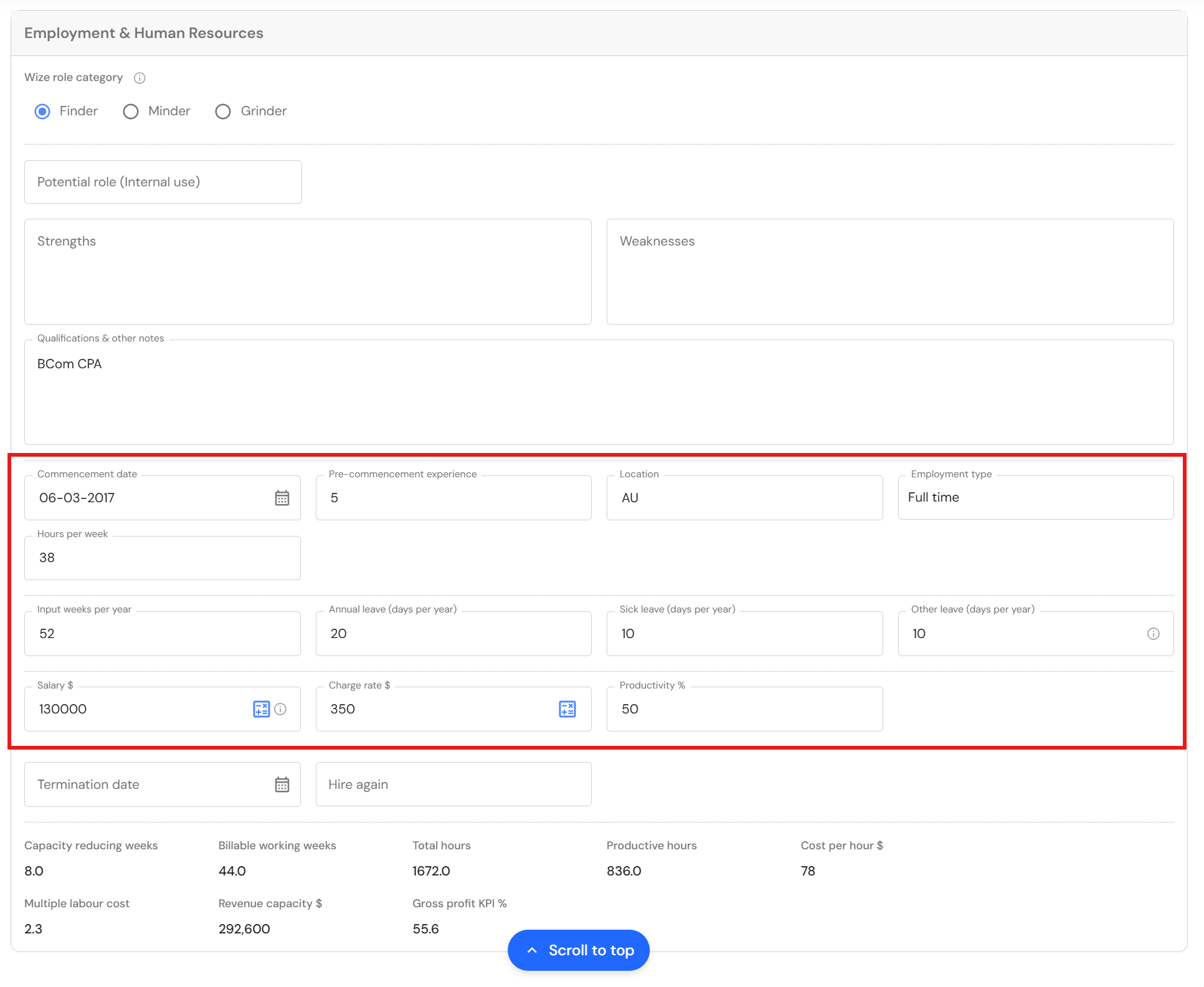
- For revenue‑earning employees, complete all Employment & Human Resources (HR) fields from 'Commencement date' to 'Productivity'.
- Scroll to the top and click on 'Add'.
IMPORTANT:
- If an email does not match XPM, syncing will fail.
- If mandatory HR fields are empty, you cannot add the person to Team Capacity in the Budget & Capacity plan.
Refer to People for more details about setting up and maintaining employee profiles.
Step 2 — Set Up Your Production Teams
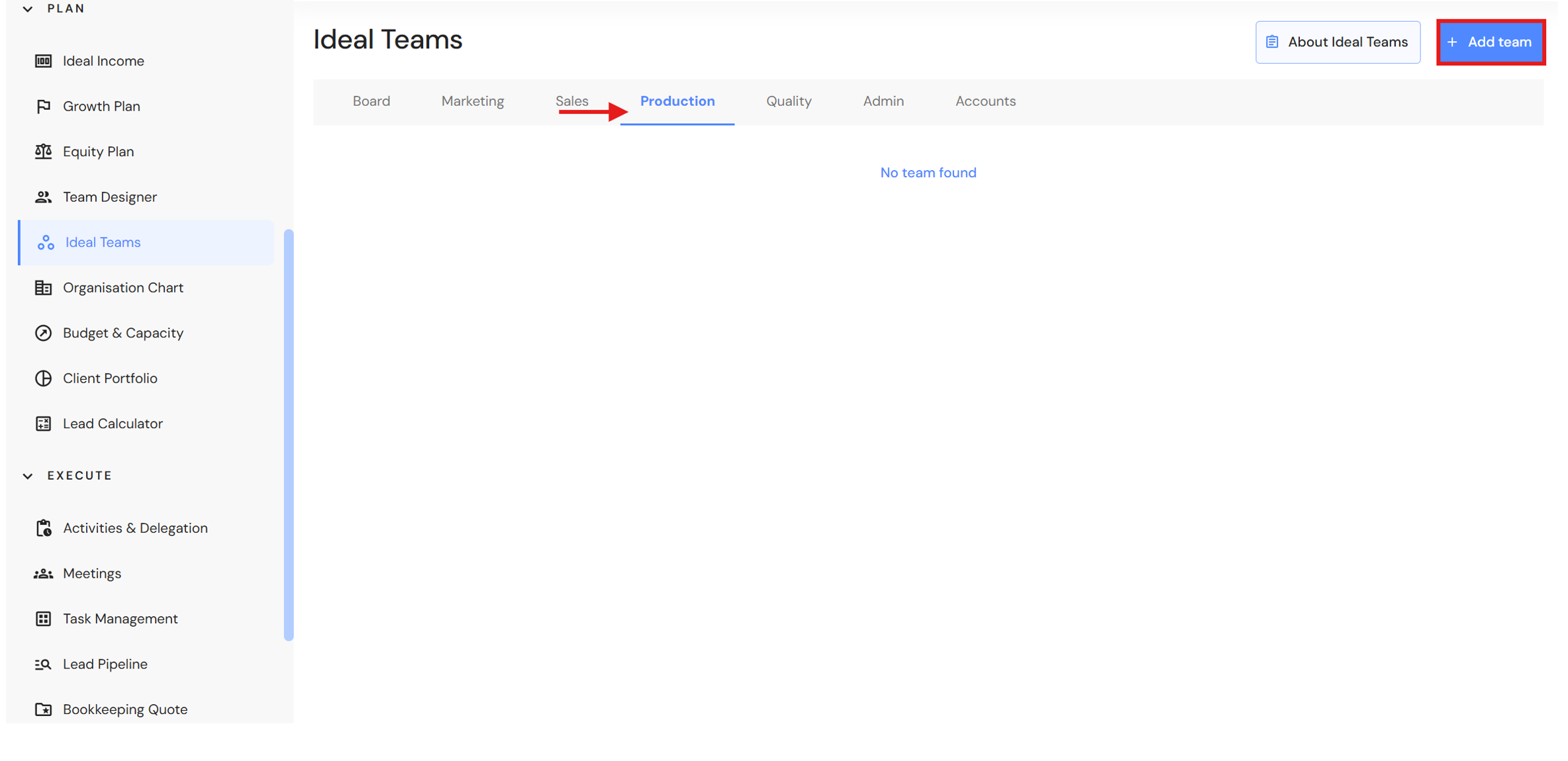
Go to Plan > Ideal Teams
The following steps refer to setting up your Production Team to get ready to connect XPM data only. For the complete setup, refer to Ideal Teams
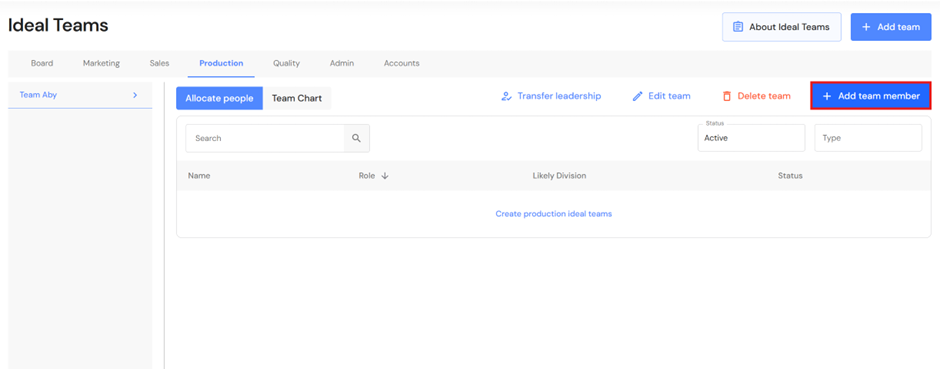
- In the Production tab, click on '+ Add team'.
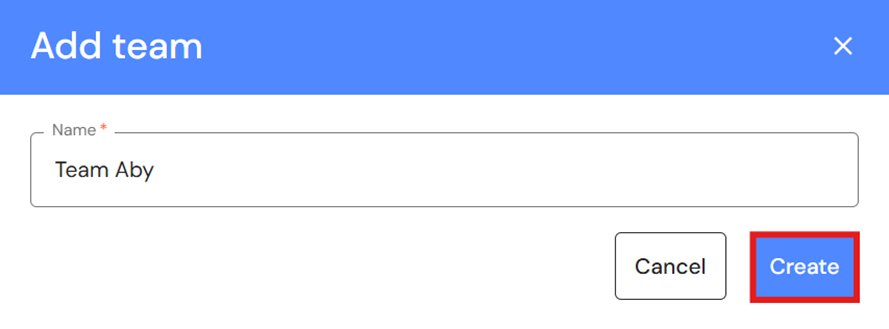
- Type a team name and click on 'Create'.
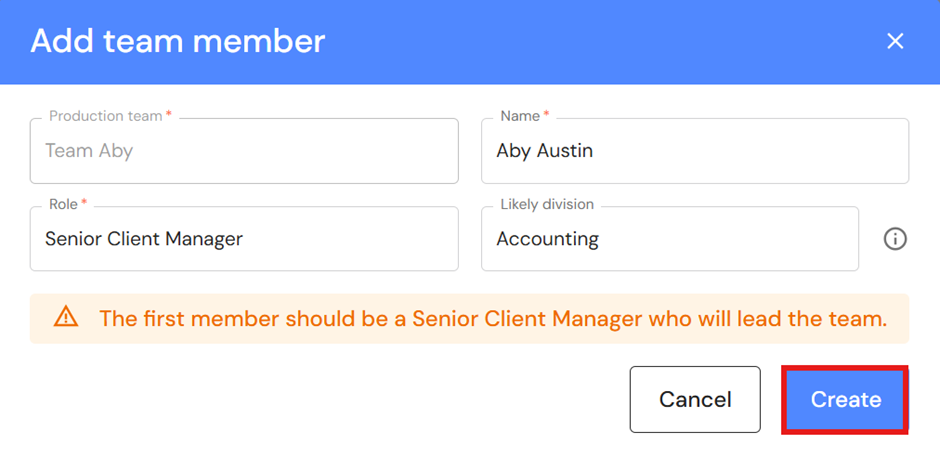
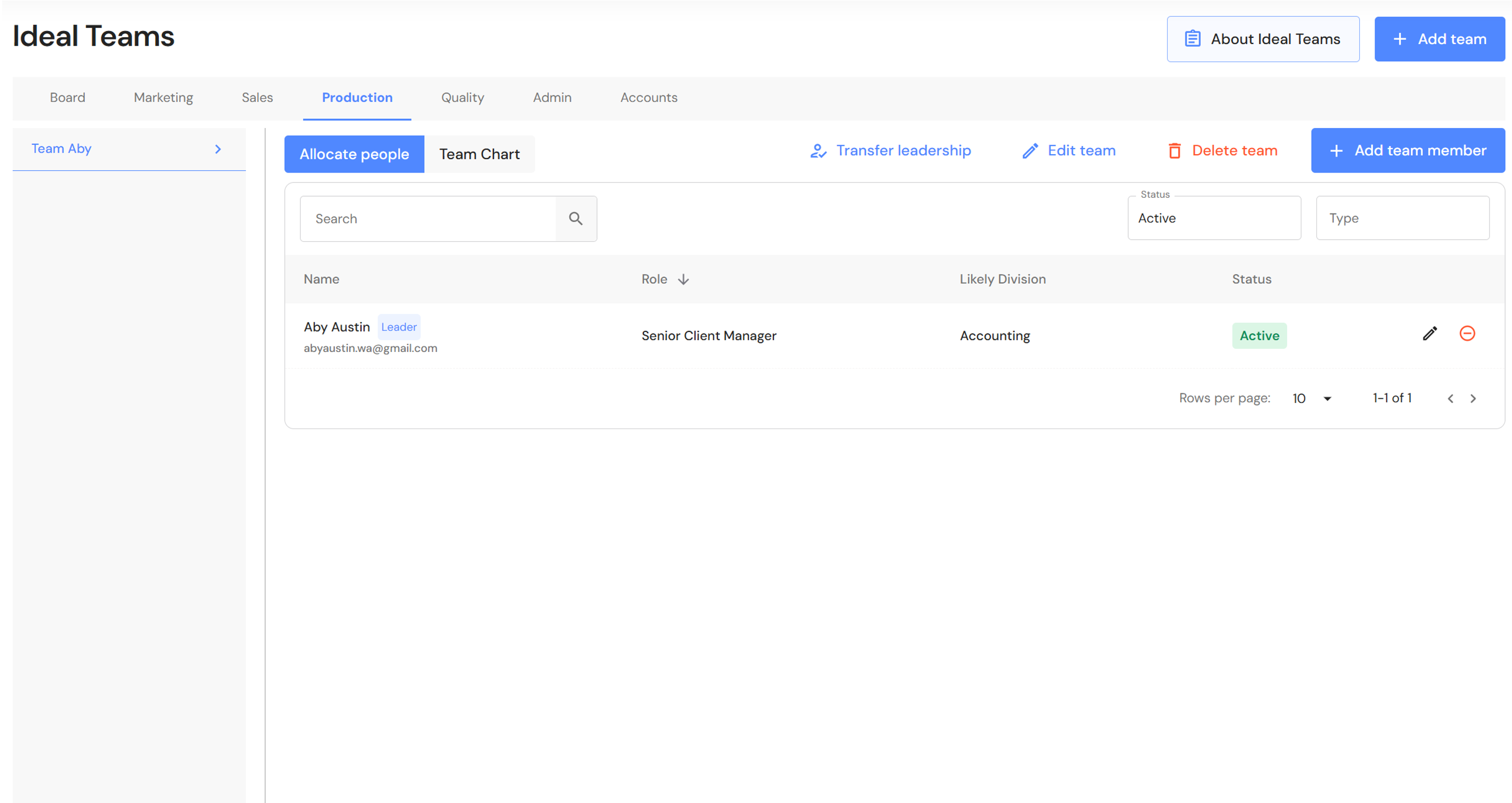
- Click on '+ Add team member' and add chargeable team members to each team.
- The first person to add is the team's Senior Client Manager (Partner, Owner, or experienced senior) who is responsible for the leading the team.
NB* The role assigned to the team member's profile in People will automatically prefill however, you can change the role to a production role from the dropdown list. - Click on 'Create'.
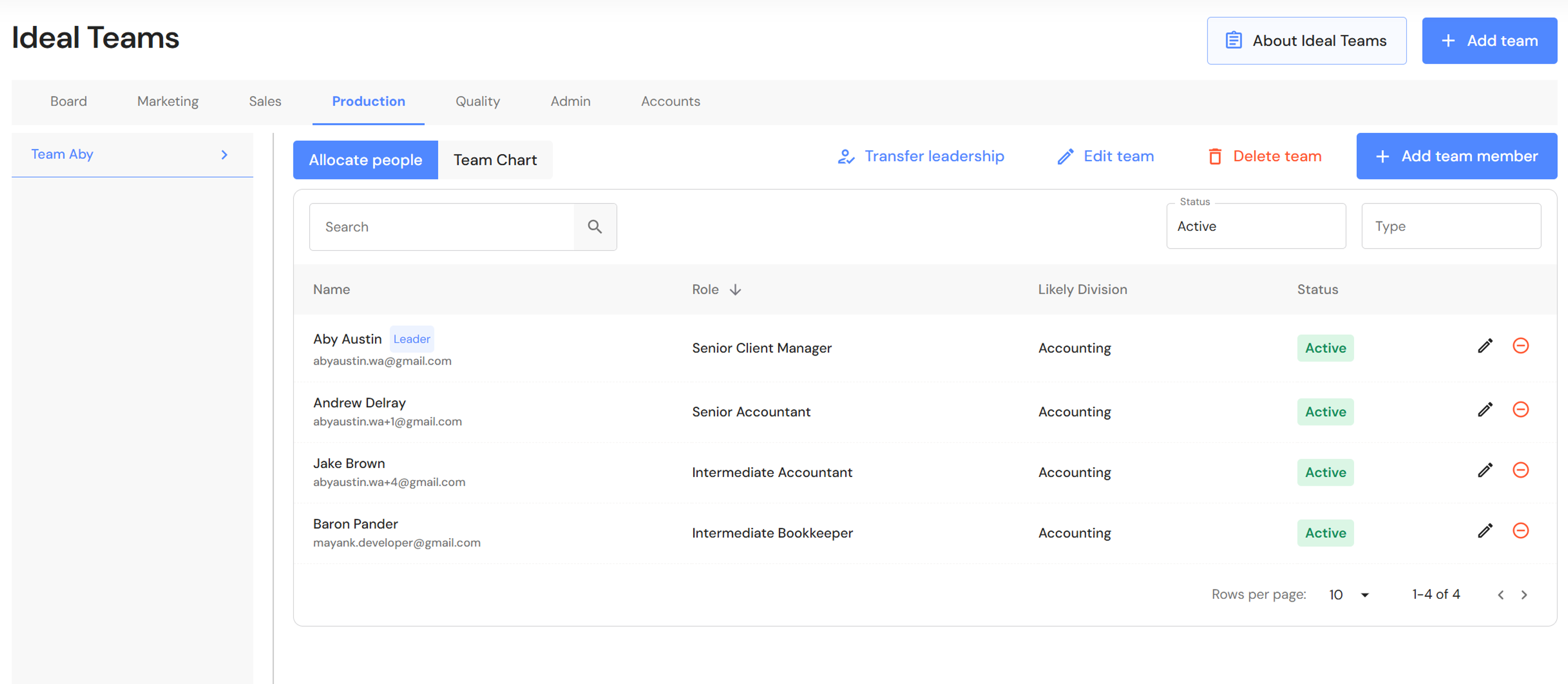
- Repeat step 3-5 for remaining team members.
- Repeat step 1-5 for each production team.
IMPORTANT:
- When you are ready to connect XPM, you will choose to sync data by Partner or Manager. Make sure to add all Partners (or Managers) to your Production Team and Budget & Capacity plan.
- Adding multiple Partners (or Managers) to a Production Team and Budget & Capacity plan is possible. In these circumstances, invoice and client data from XPM will be grouped into each team.
Example:
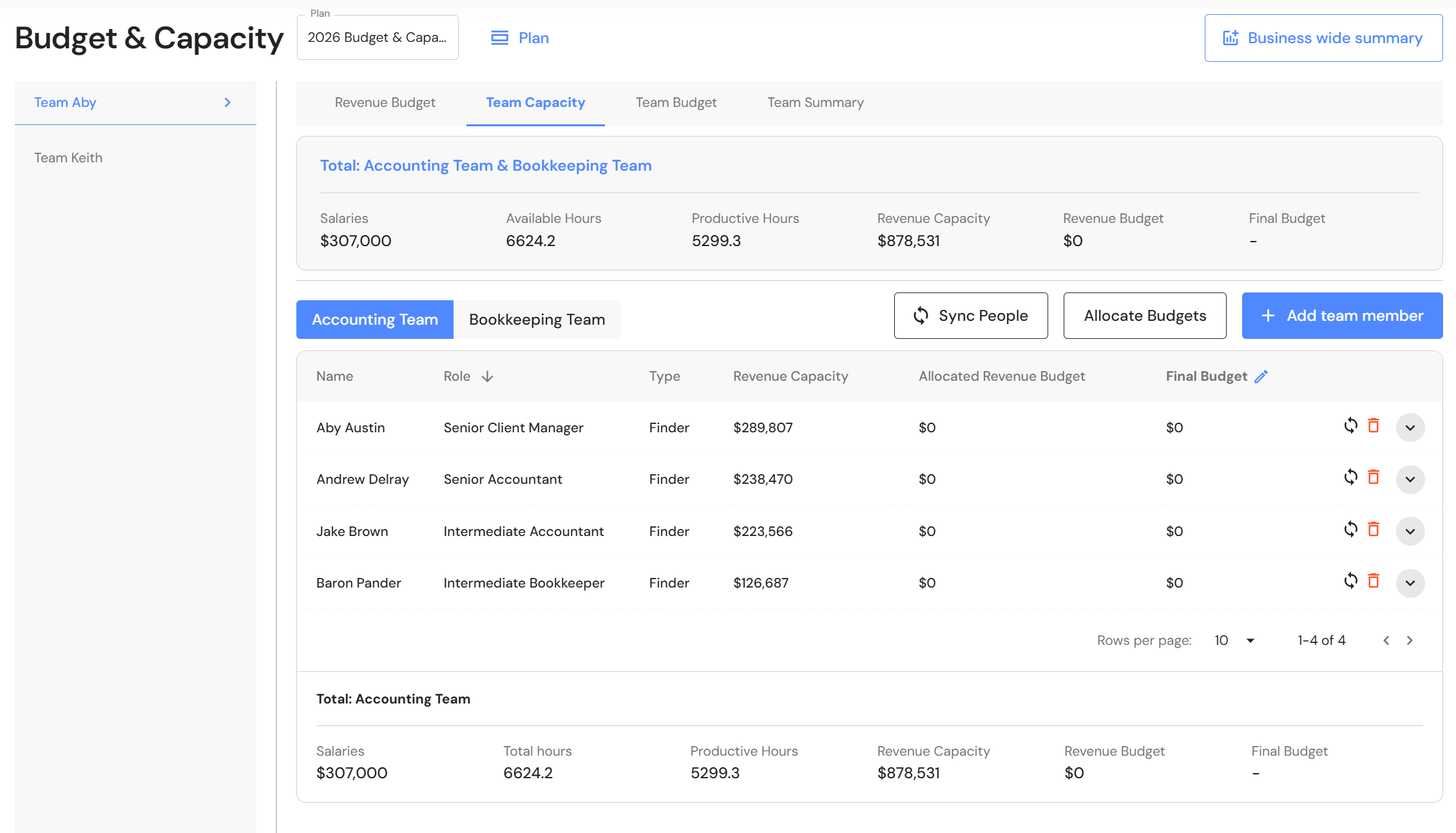
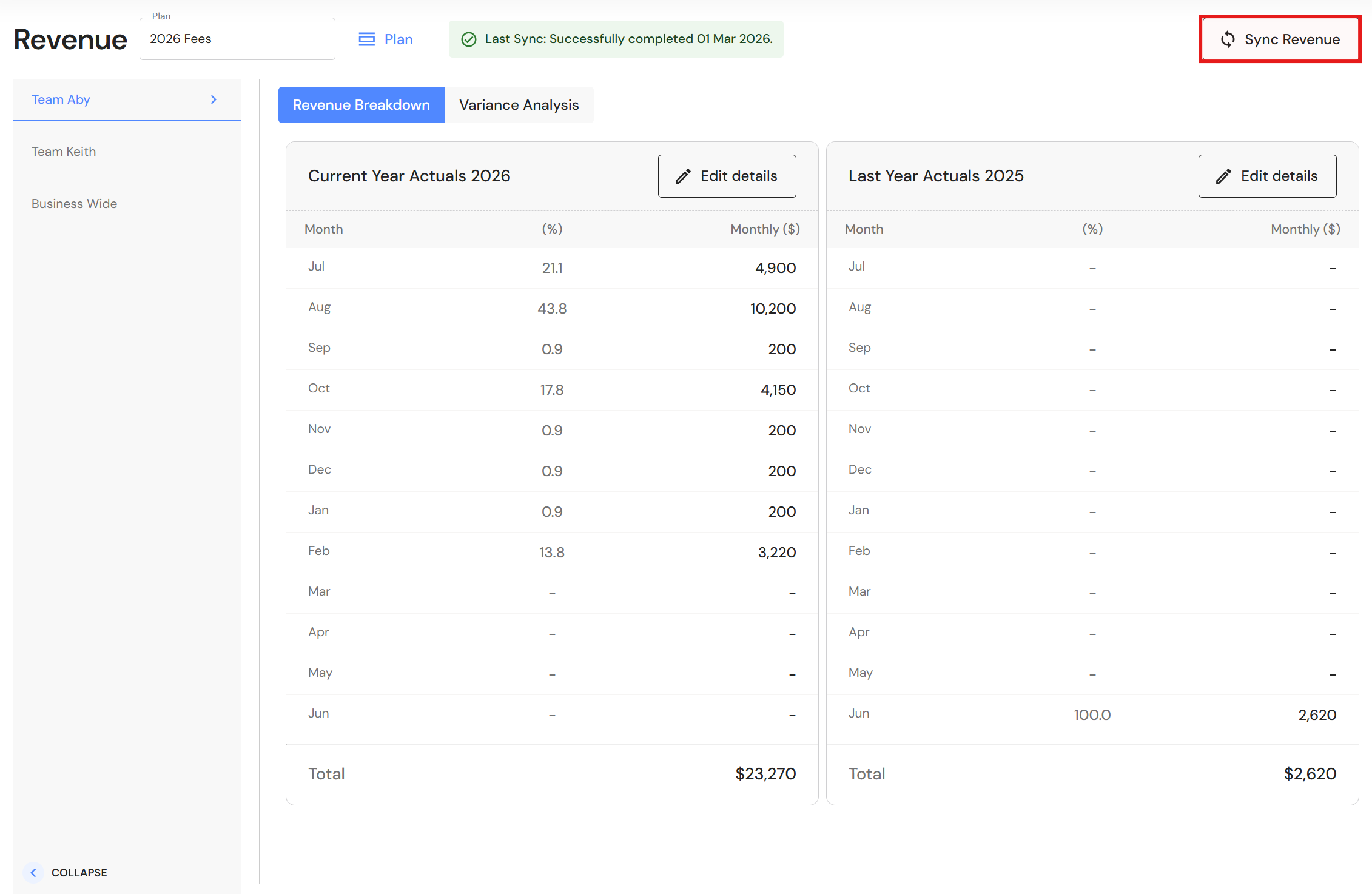
Aby Austin, Andrew Delray and Jake Brown are Managers in XPM. They are all assigned to Aby's Production Team and Team Capacity. The invoices for Aby, Andrew and Jake's clients will be grouped in Revenue under Team Aby.
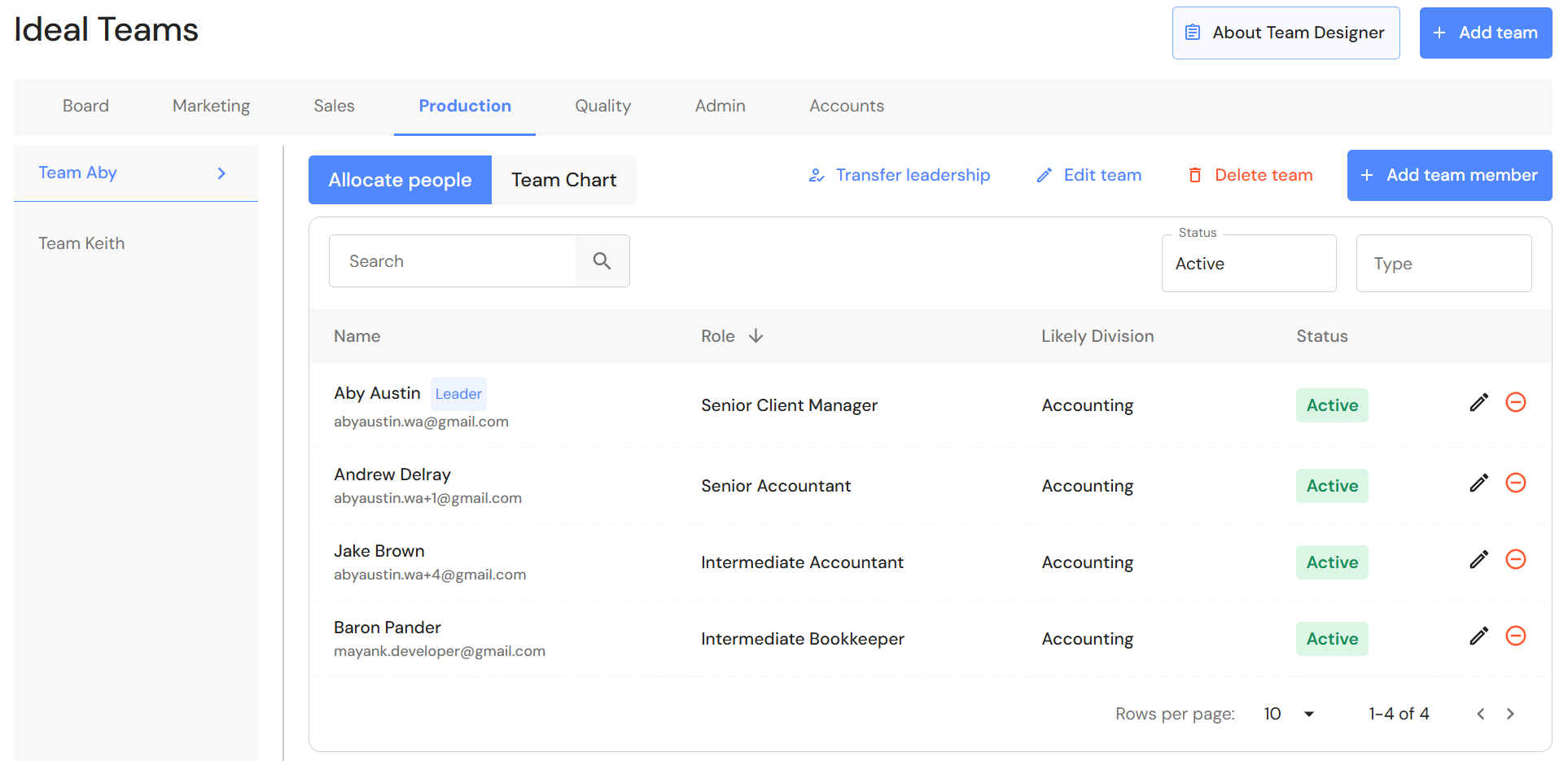
Production Team - Team Aby
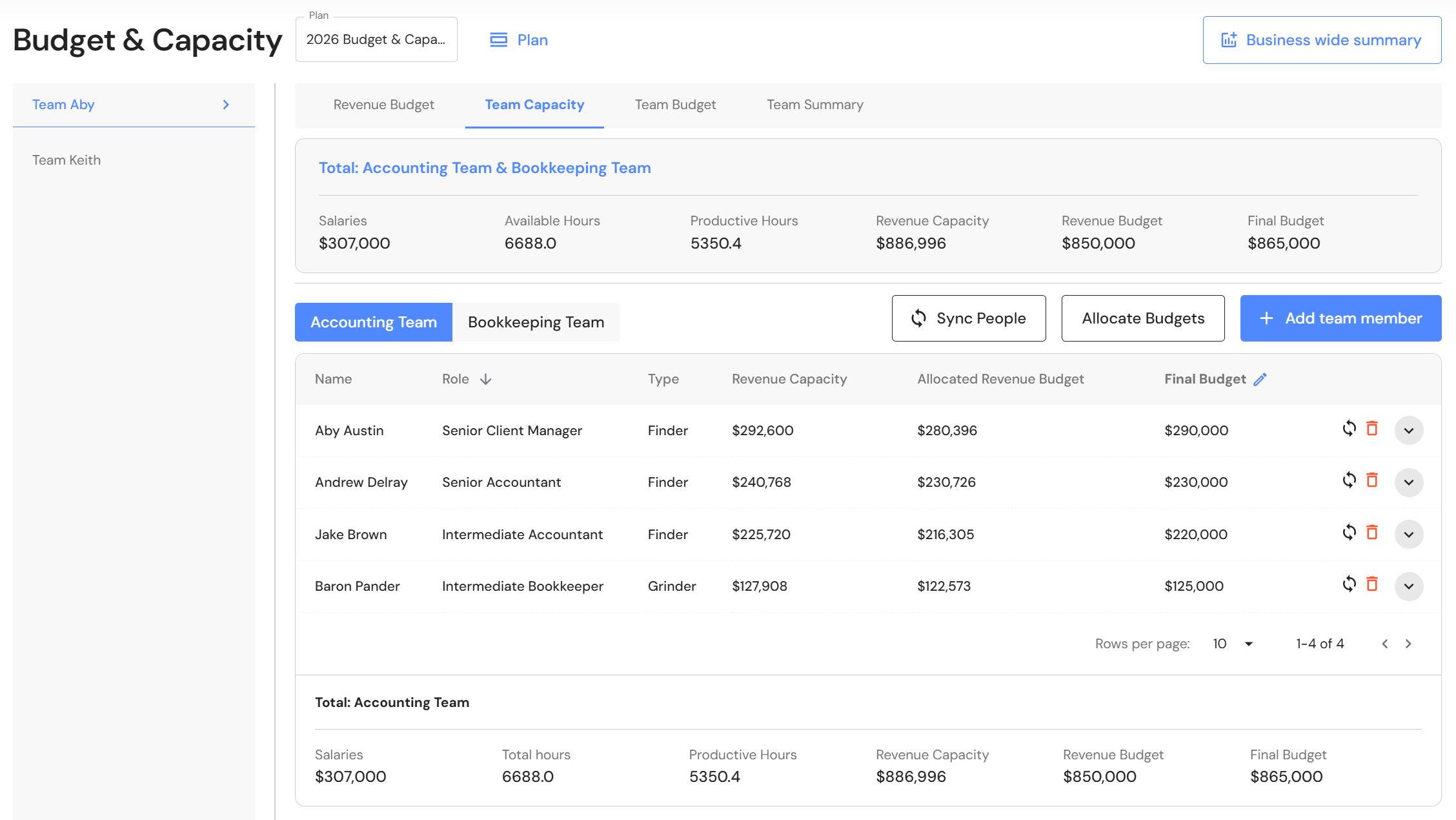
Budget & Capacity: Team Capacity for Production Team - Team Aby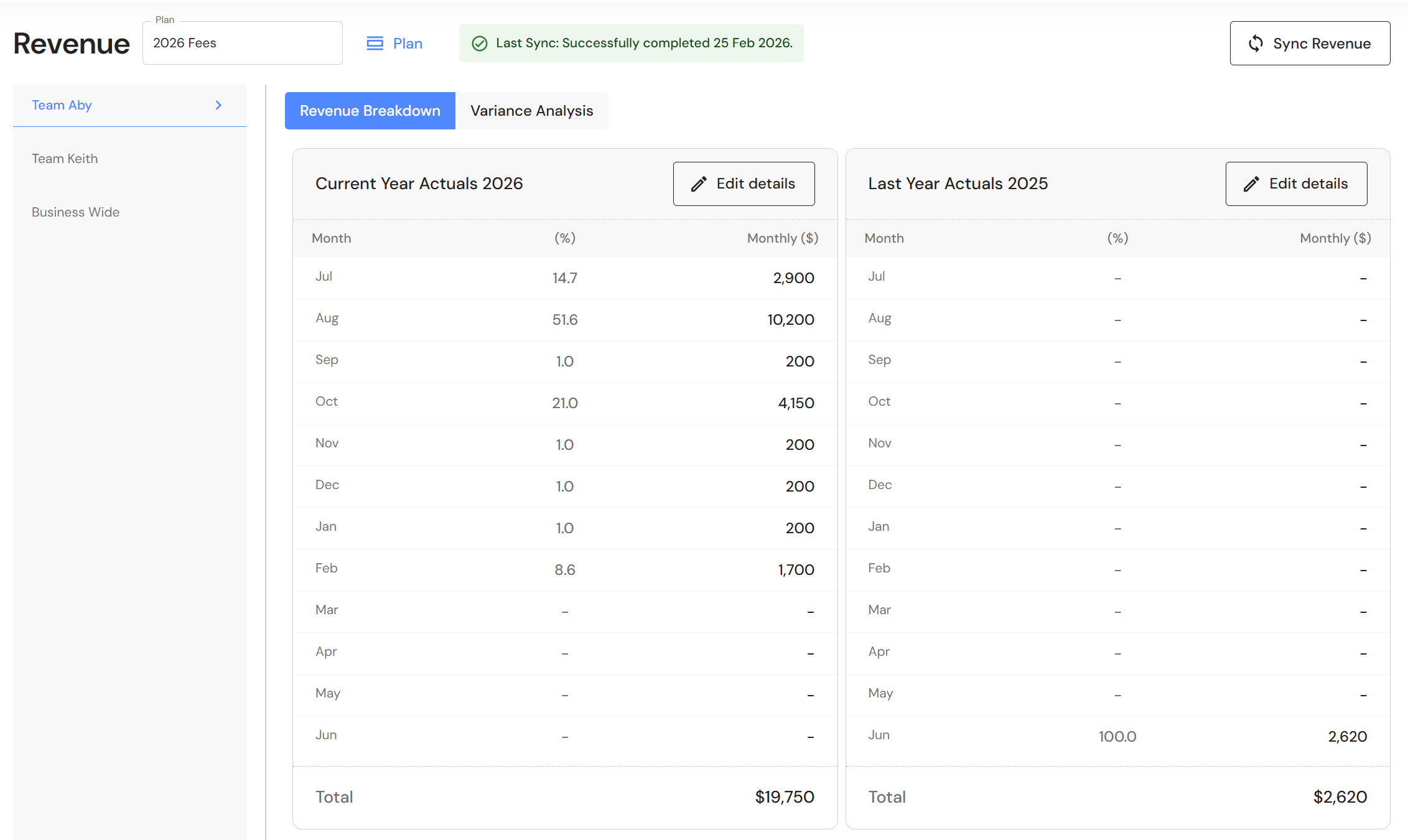
Step 3 — Create Your Budget & Capacity Plan
Go to Plan > Budget & Capacity
The following steps include the minimum criteria to be able to connect and sync XPM data only. For the complete setup, refer to Budget & Capacity.
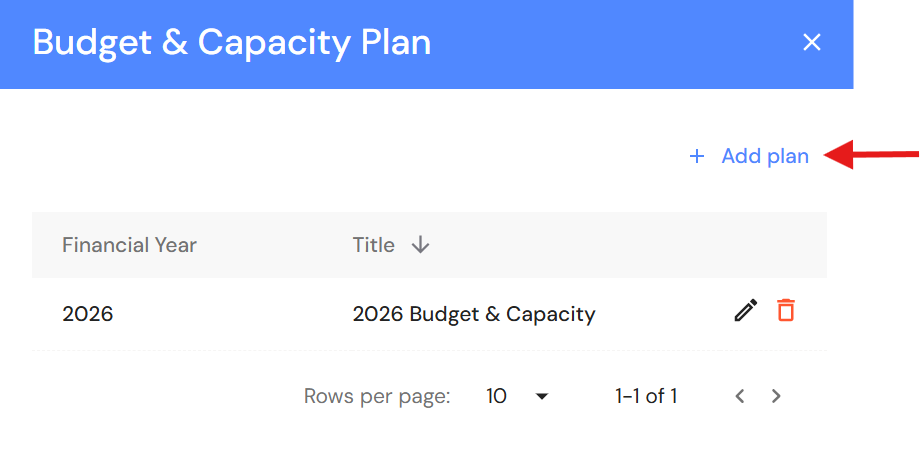
- Click on 'Plan'.
- Click on '+ Add plan'.
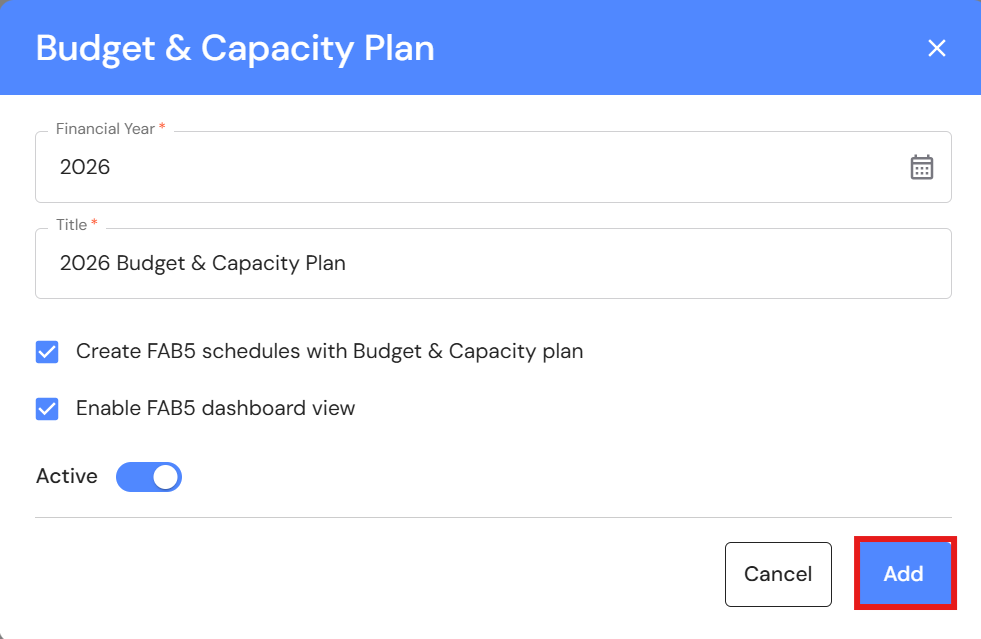
- Select the Financial Year.
- Add a Title e.g. 2026 Budget & Capacity Plan.
- Select the checkbox next to:
- Create FAB5 schedules with Budget & Capacity plan
- Enable FAB5 dashboard view
- Turn the 'Active' toggle on.
- Click on 'Add'.
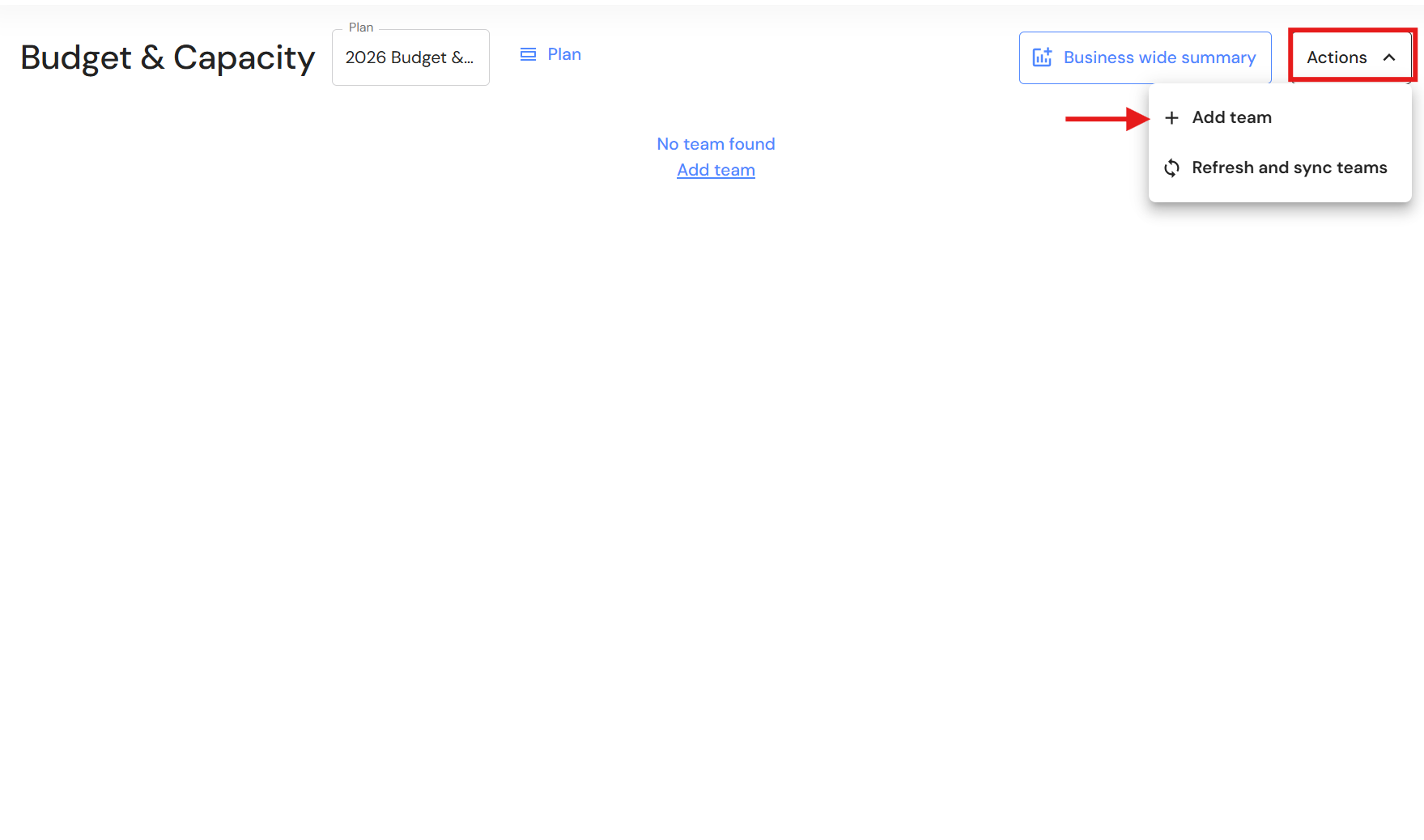
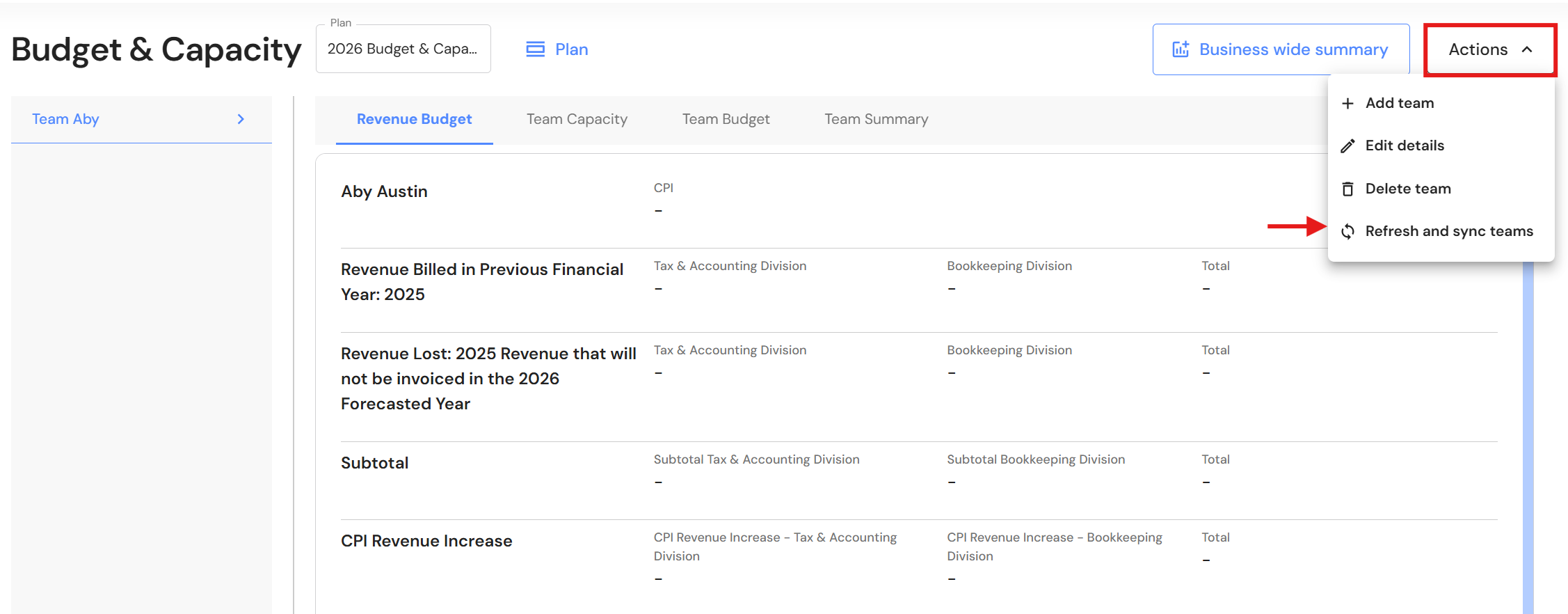
- Click on 'Actions', then '+ Add team'.
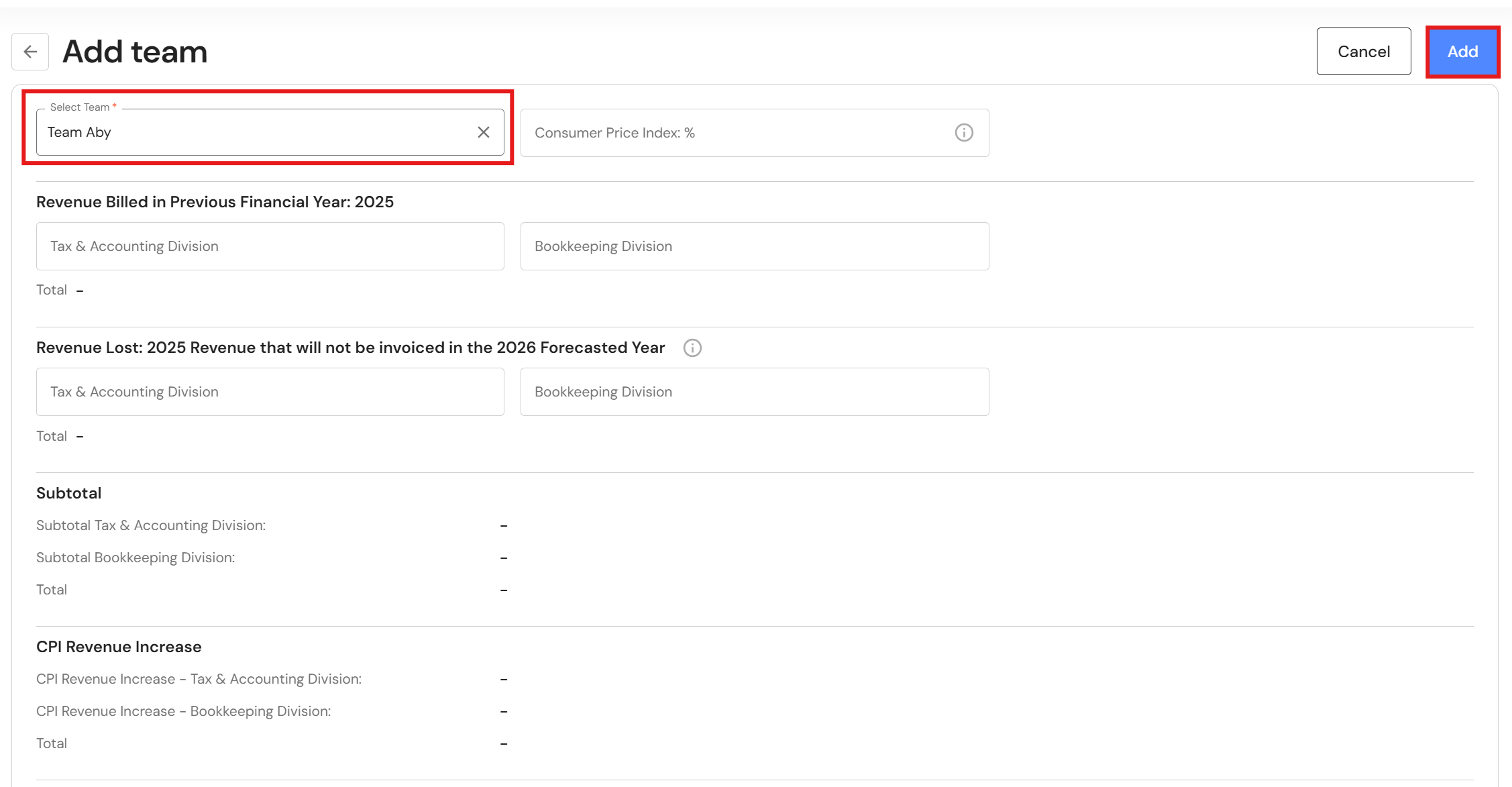
- Select your production team from the dropdown list.
- Click on 'Add'.
- Click on 'Actions', then 'Refresh and sync teams' to add the team to FAB5 schedules.
NB* If you are adding more teams to the capacity plan, you can refresh and sync teams after you have added your final team.
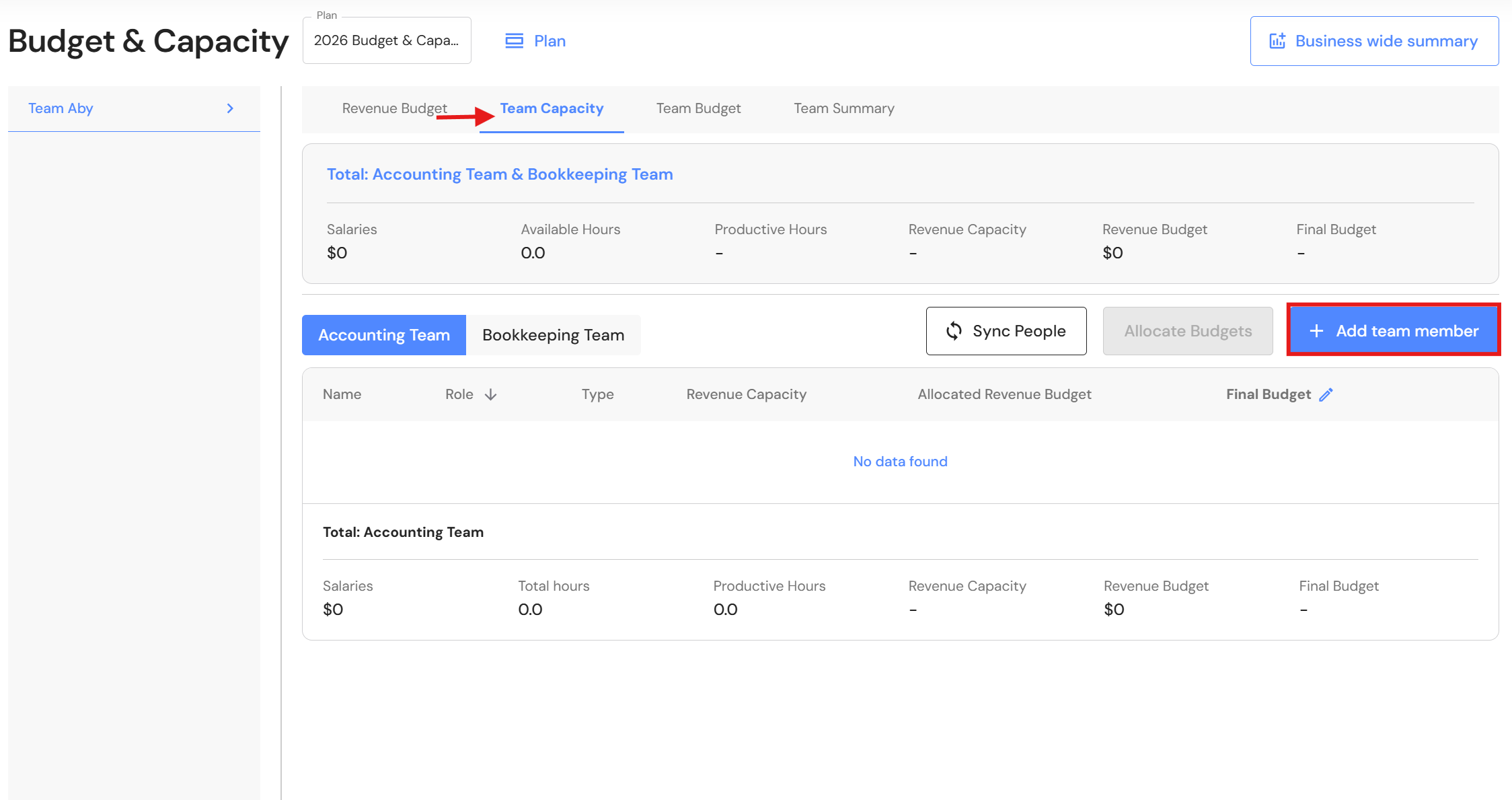
- Click on the Team Capacity tab to add your production team members.
- Click on '+ Add team member'.
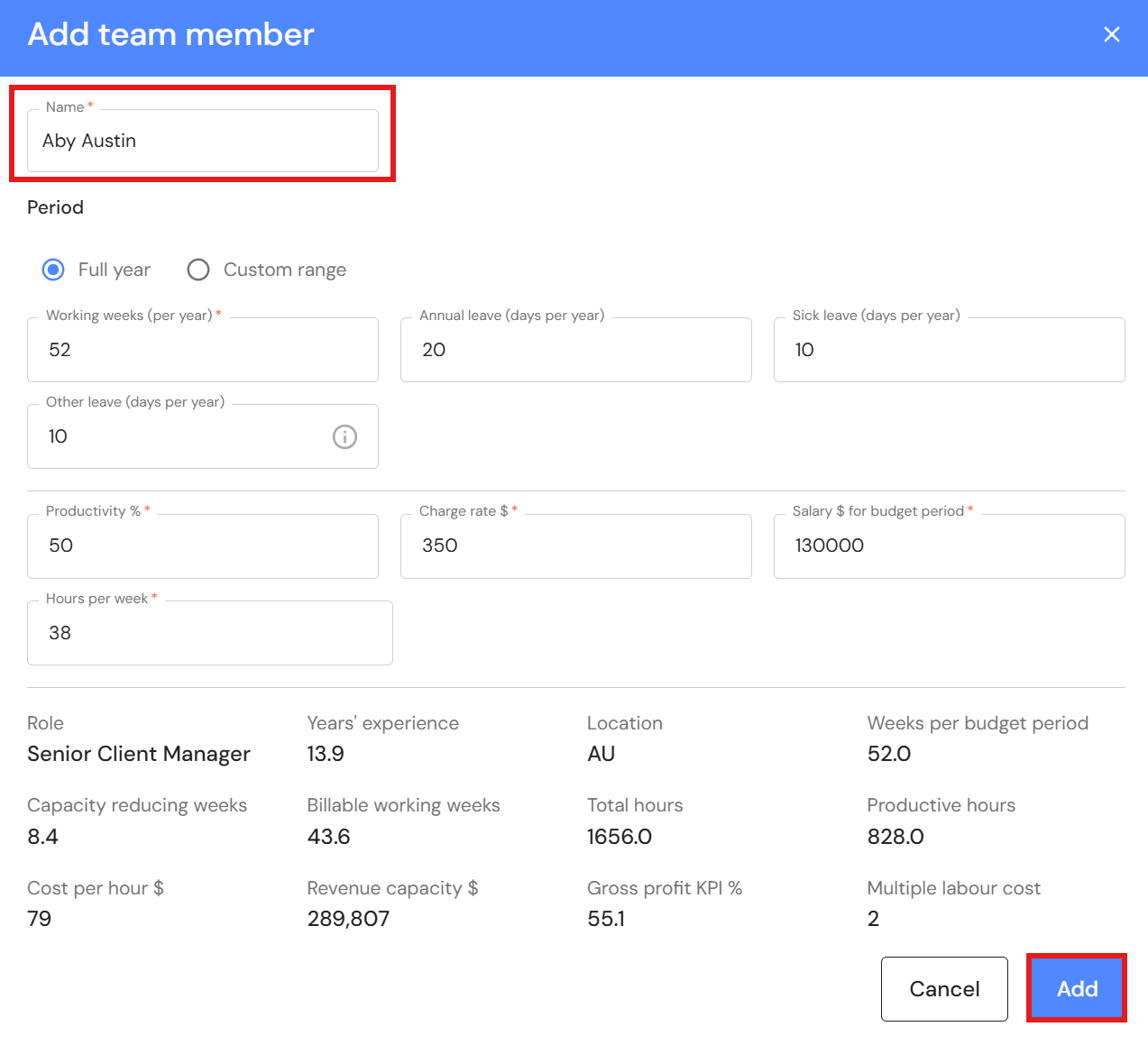
- Select a team member from the dropdown list.
- Click on 'Add'.
- Repeat step 12-15 for every team member.
- Repeat step 8-15 for every production team.
- Depending on your data sync preference, ensure all XPM Partners (or Managers) are included.
- After you connect XPM, setup your revenue budget, assess capacity, and assign a budget to team members. Refer to Budget & Capacity
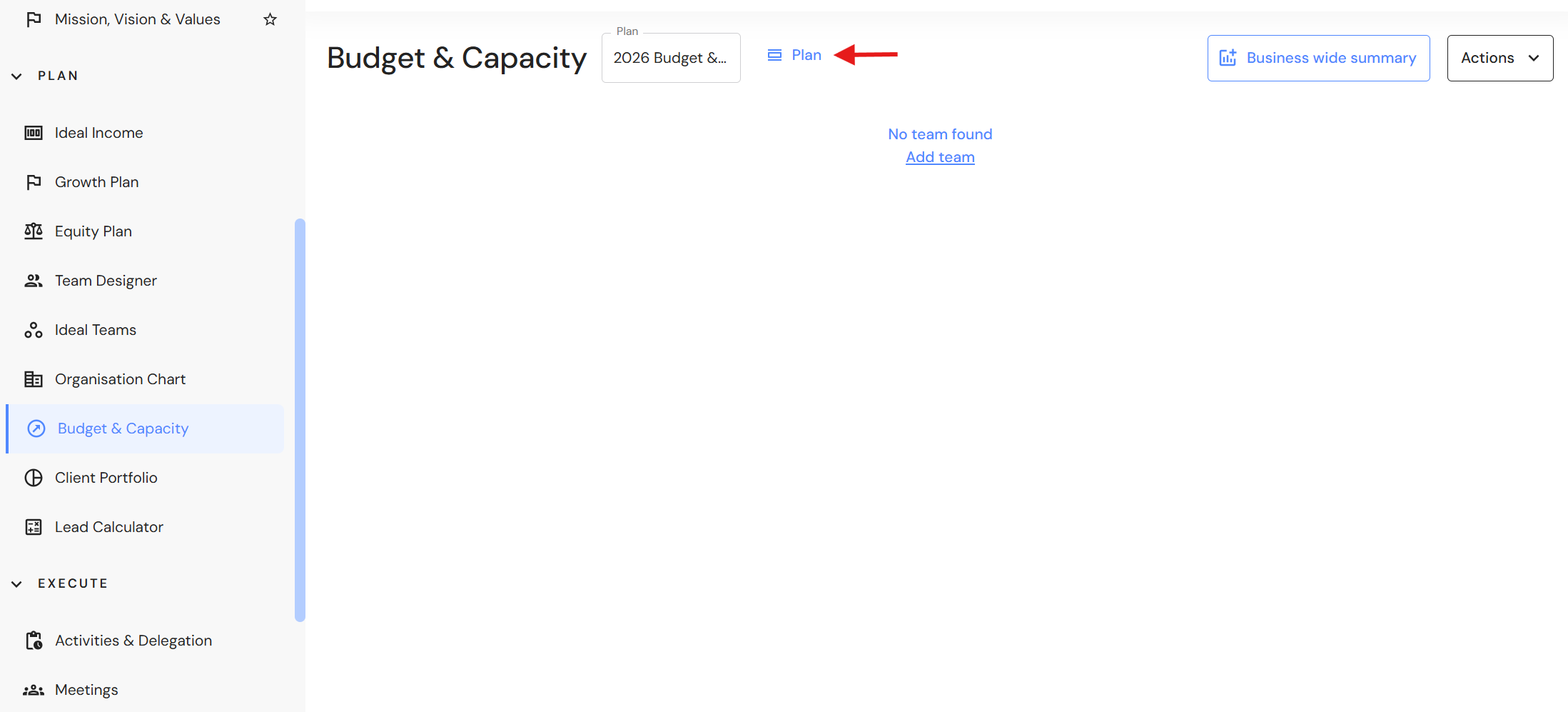
IMPORTANT:
For successful syncing, Partners or Managers must appear in the Team Capacity tab — otherwise data won’t map to the correct team.
Integration Steps
Once prerequisites are complete, you’re ready to connect XPM.
Step 4 — Connect XPM
Go to Integrations > Accounting Software
Steps:
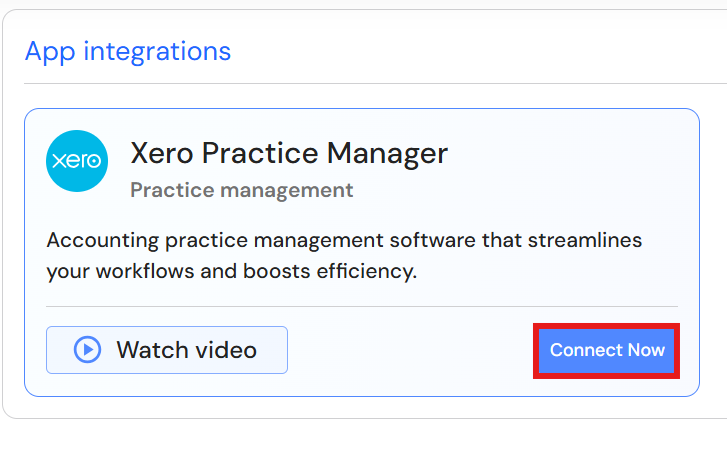
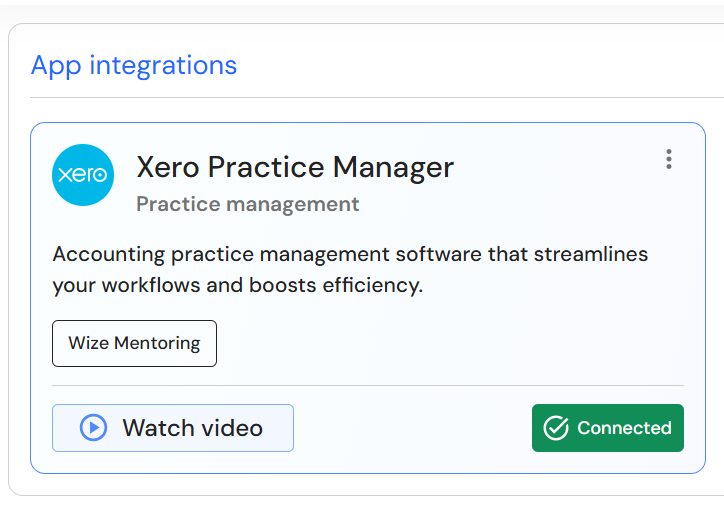
- Click 'Connect Now'.
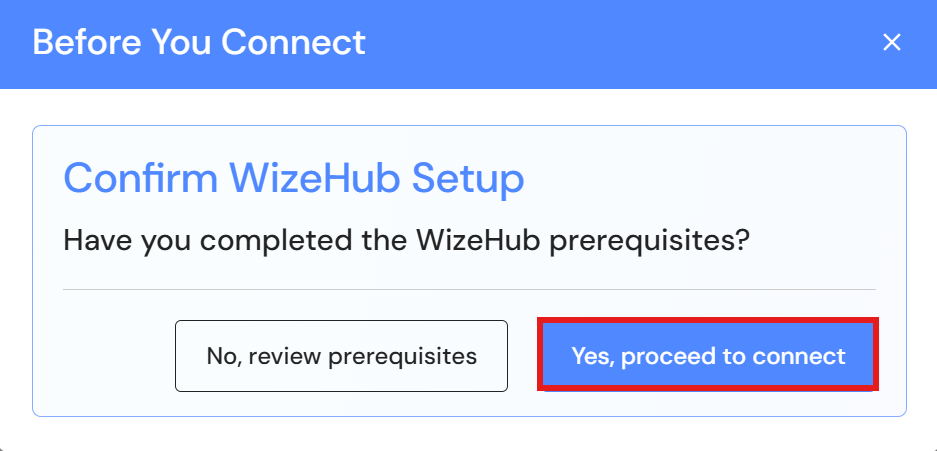
- If you have completed the prerequisite steps above, click on 'Yes, proceed to connect'.
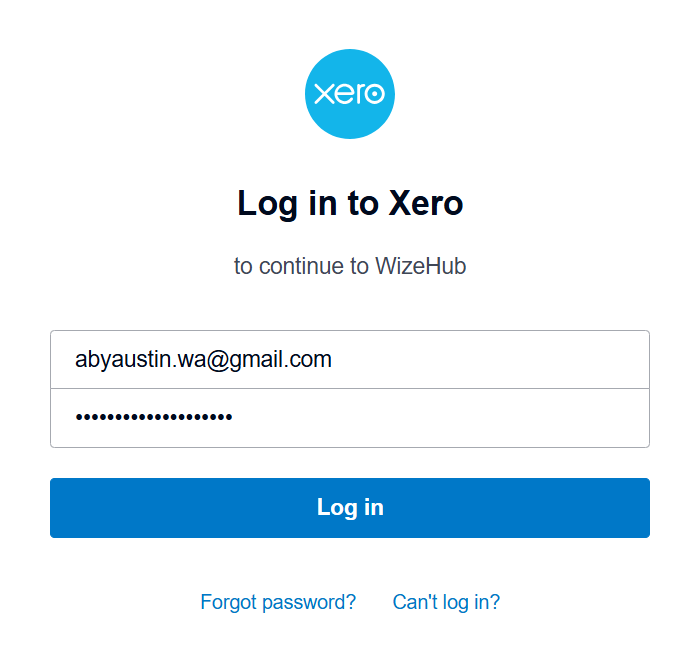
- Log in to Xero
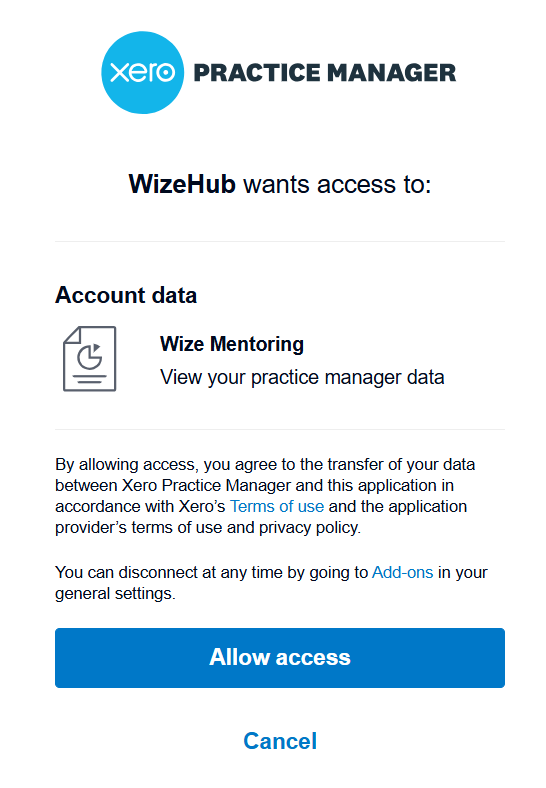
- Click on 'Allow access'
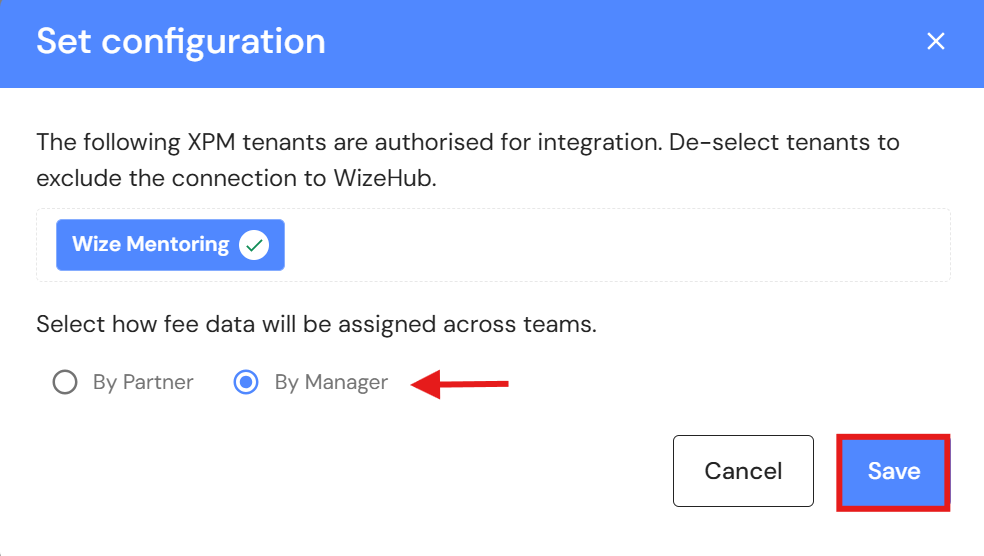
- If you have multiple XPM tenants, select/deselect the appropriate ones.
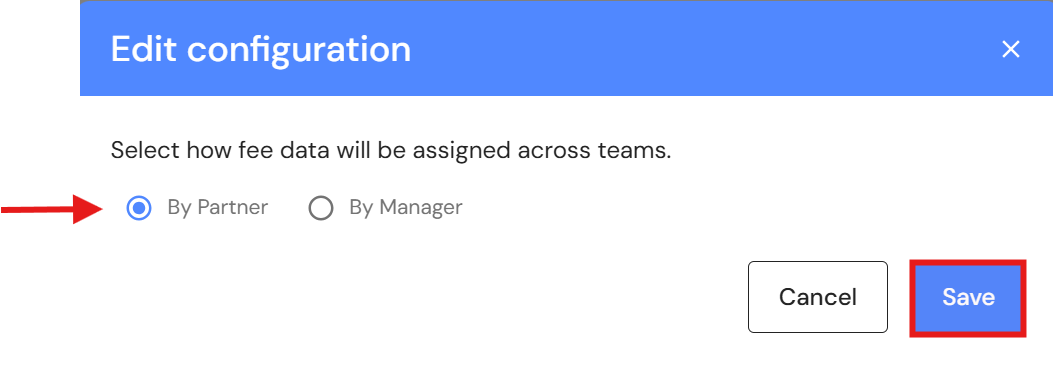
- Choose your sync method:
- By Partner, or
- By Manager
- Click 'Save'.
Important:
If Partner/Manager details are missing in XPM, those clients’ invoices will not sync into WizeHub.
Step 5 — Sync Fee Data
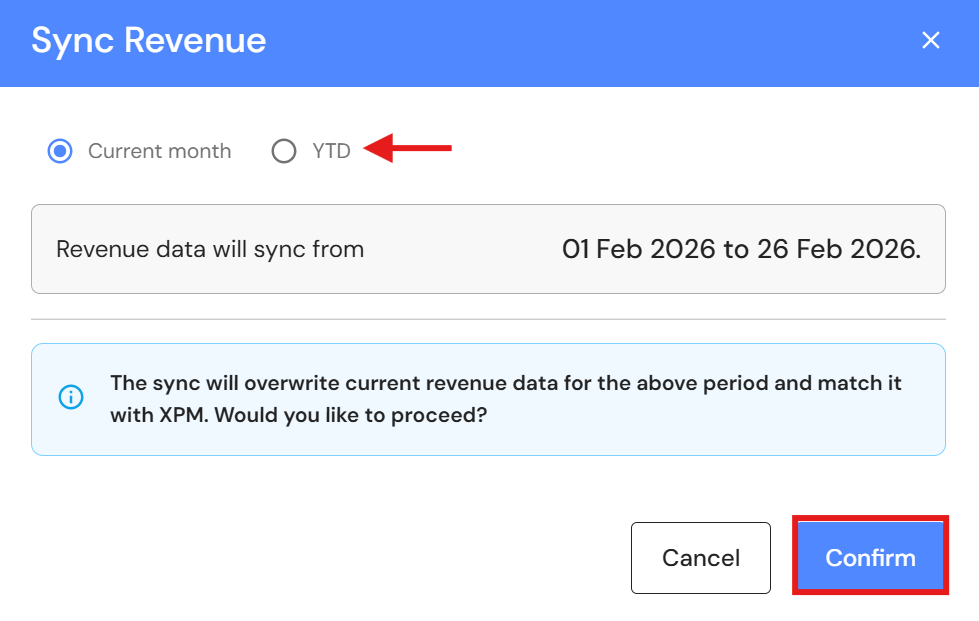
Choose your initial sync type:
- Choose your initial type:
- Current month, or
- Year-to-date (YTD)
- Click 'Confirm' to run your first data import.
After the initial import, fee data will continue to sync daily.
Important:
If Partner/Manager details are missing in XPM, those clients’ invoices will not sync into WizeHub.
Reports to View & Verify XPM Data
Depending on how you choose to sync (Partner or Manager), your data will appear in different reports in XPM. If you would like to verify your data, the following reports can be used to reconcile your data.
If syncing by Partner
Use a Standard Report in XPM
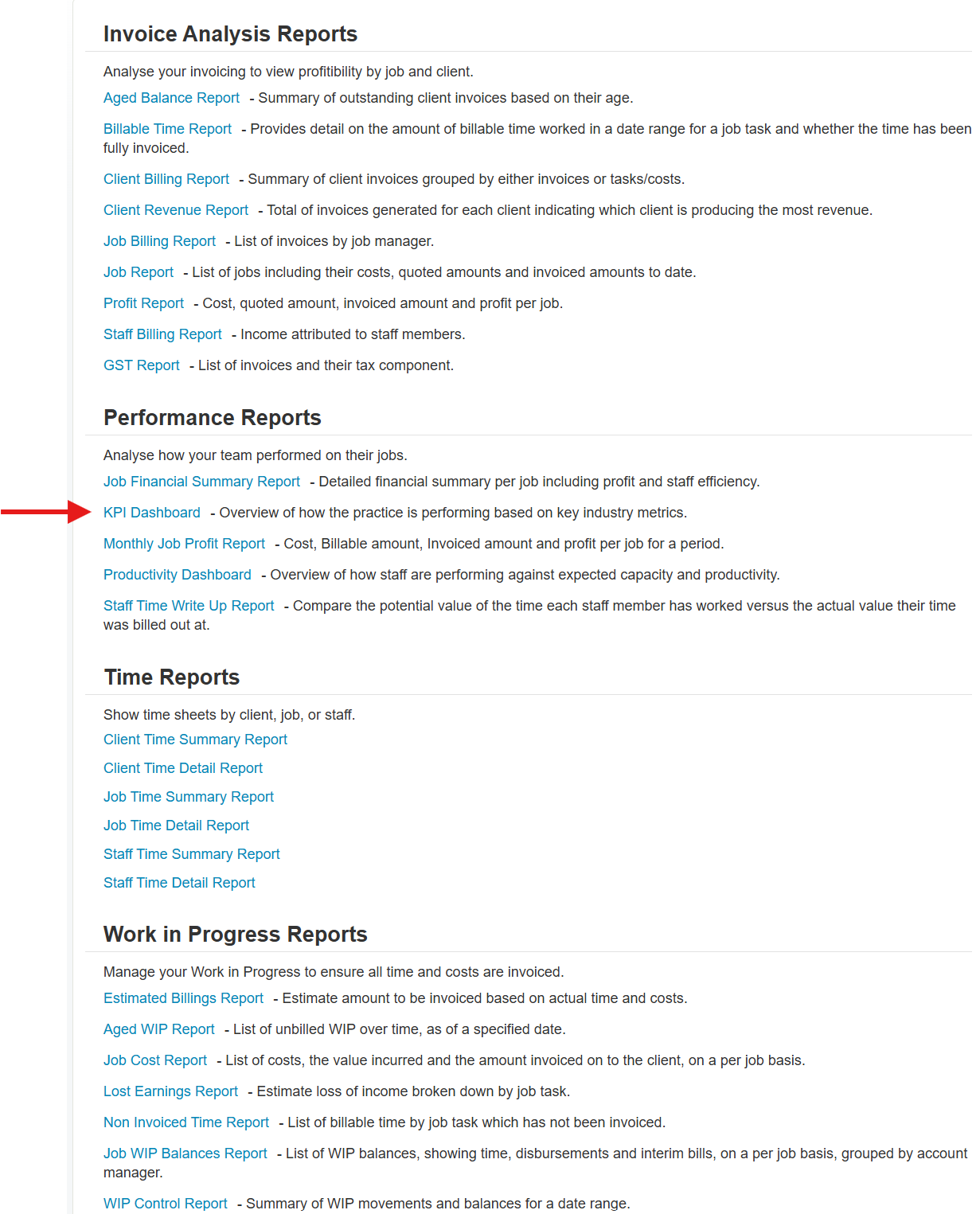
Go to Reports > Standard Reports
- Under Performance Reports, click on KPI Dashboard.
- In the KPI Dashboard, click on Revenue.
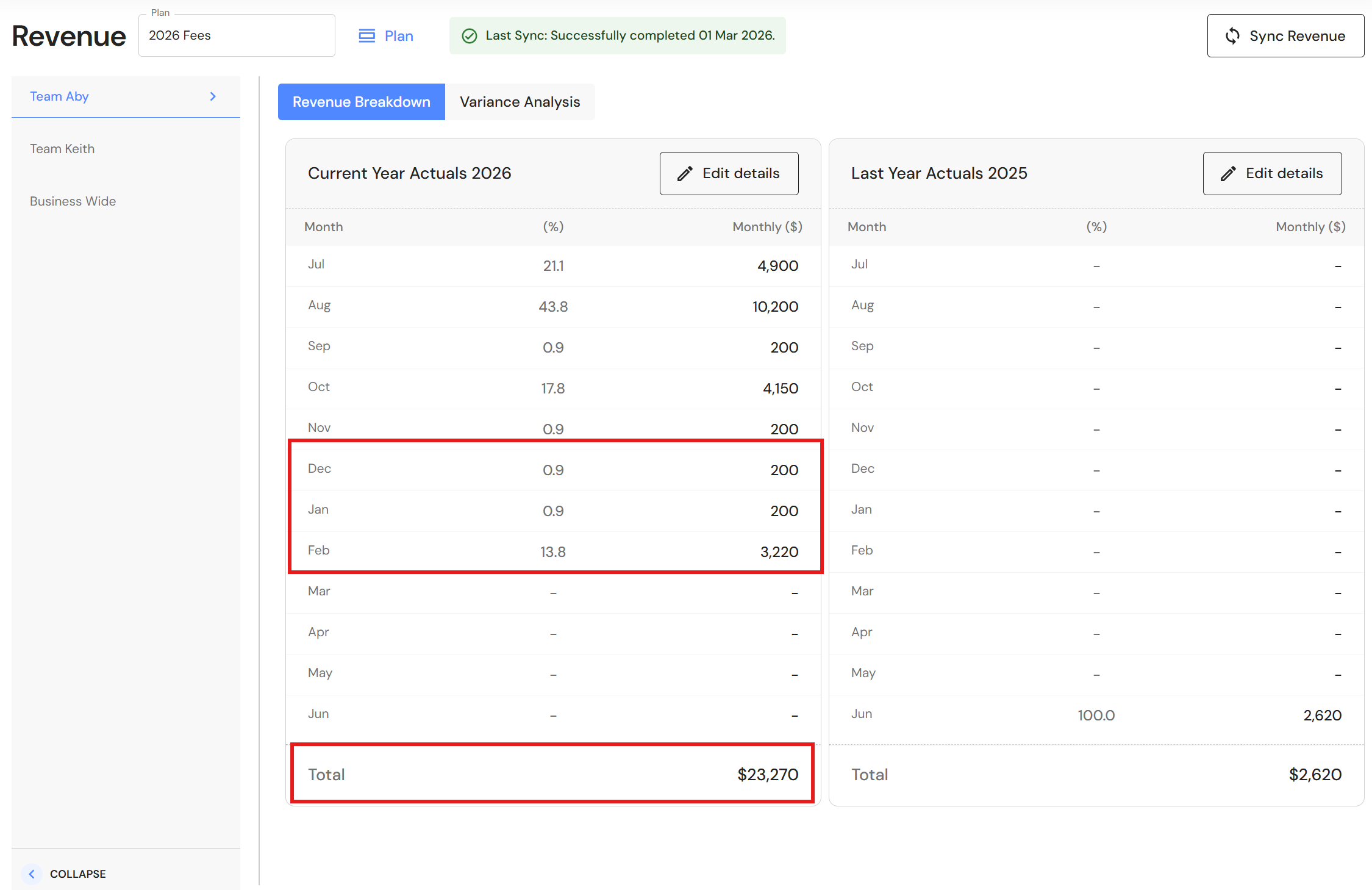
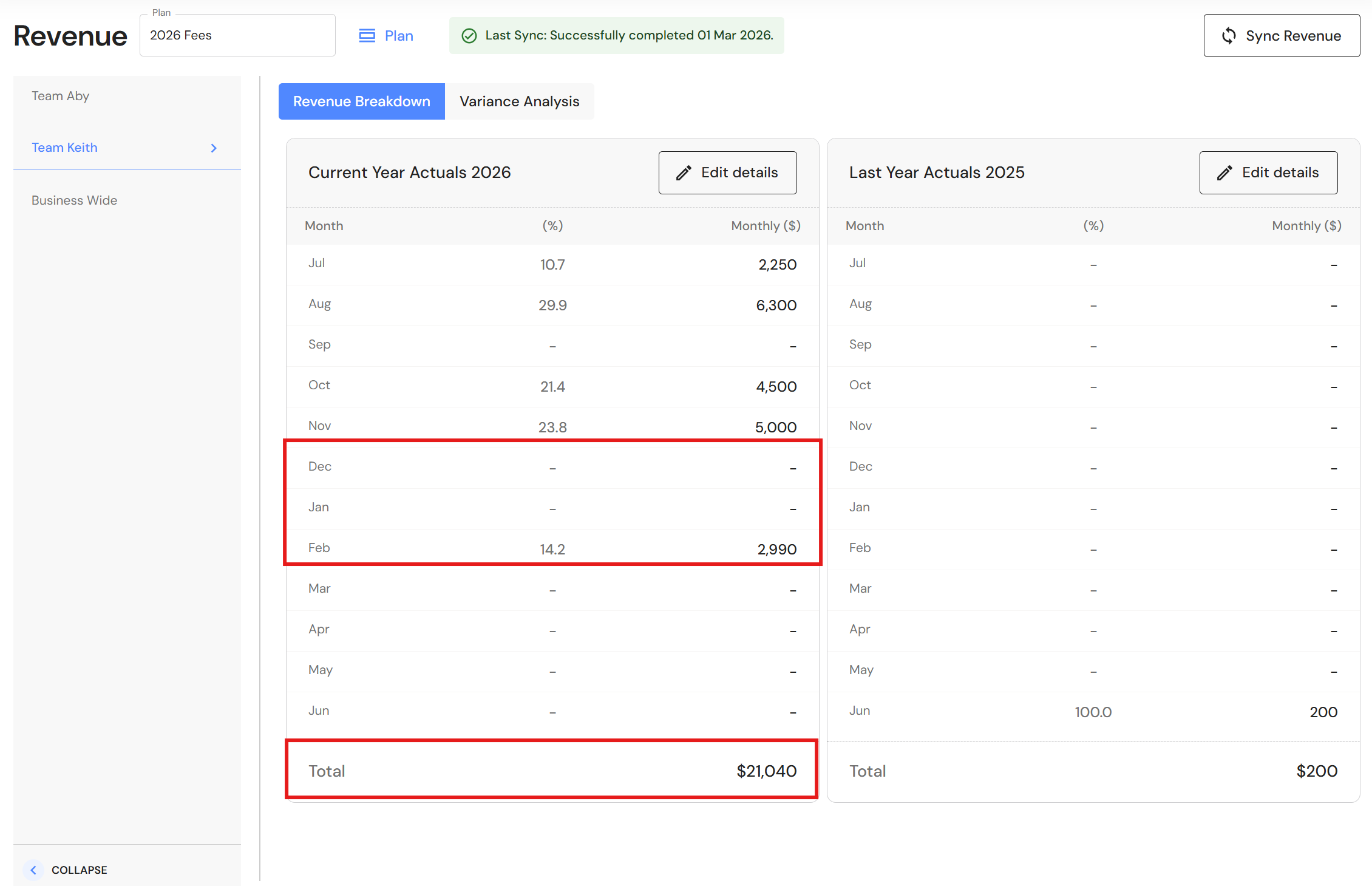
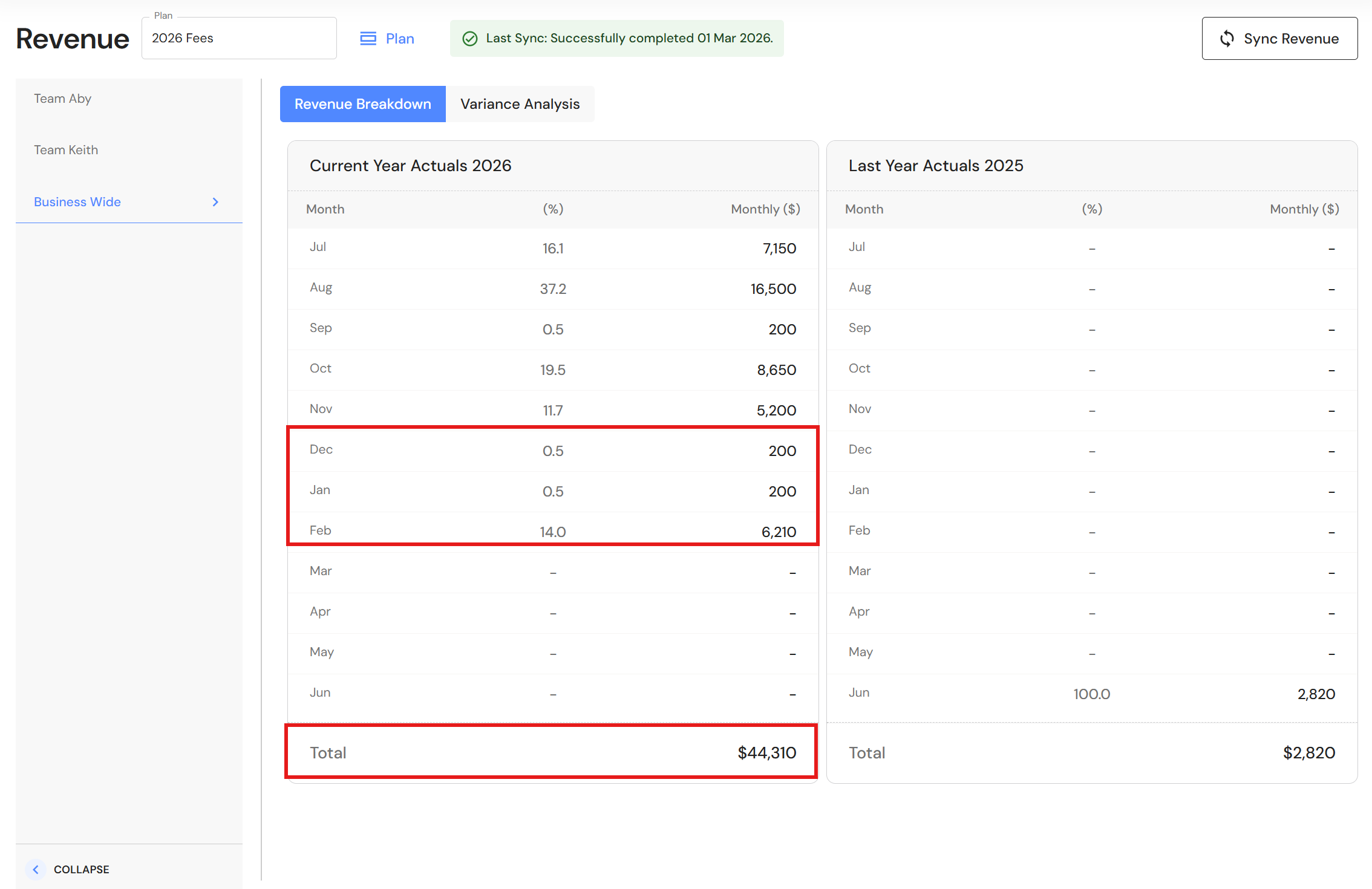
- Reconcile monthly Director/Partner revenue with team revenue in WizeHub. Remember, if Partners are in the same team, you will need to combine their data.
NB* The Job Manager in the KPI Dashboard is not the Manager assigned to Clients. It represents staff assigned as the Manager on Jobs. If you setup XPM custom reports, data labels are distinguished by the location in the square brackets i.e. [Client] Job Manager and [Job] Job Manager.
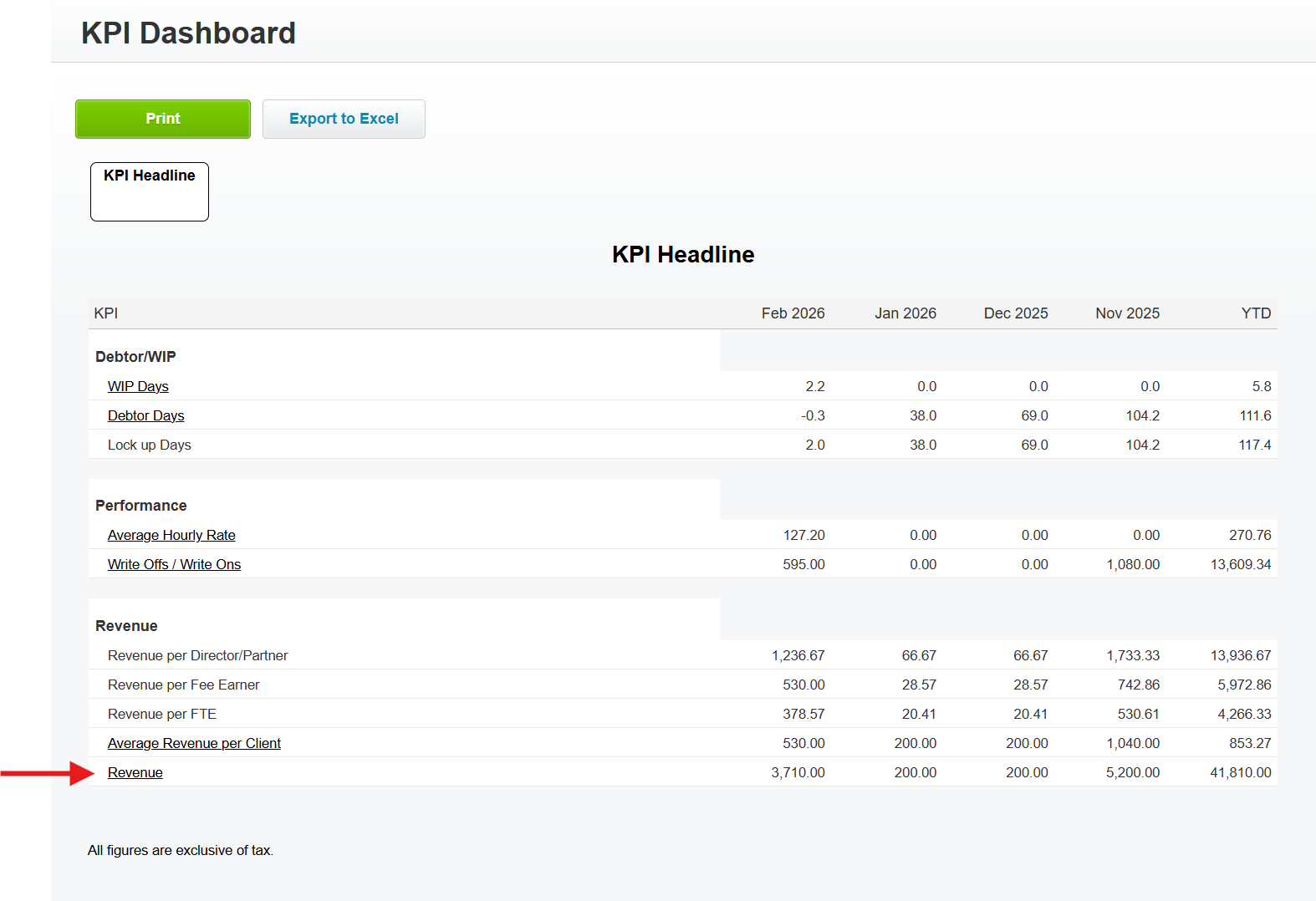
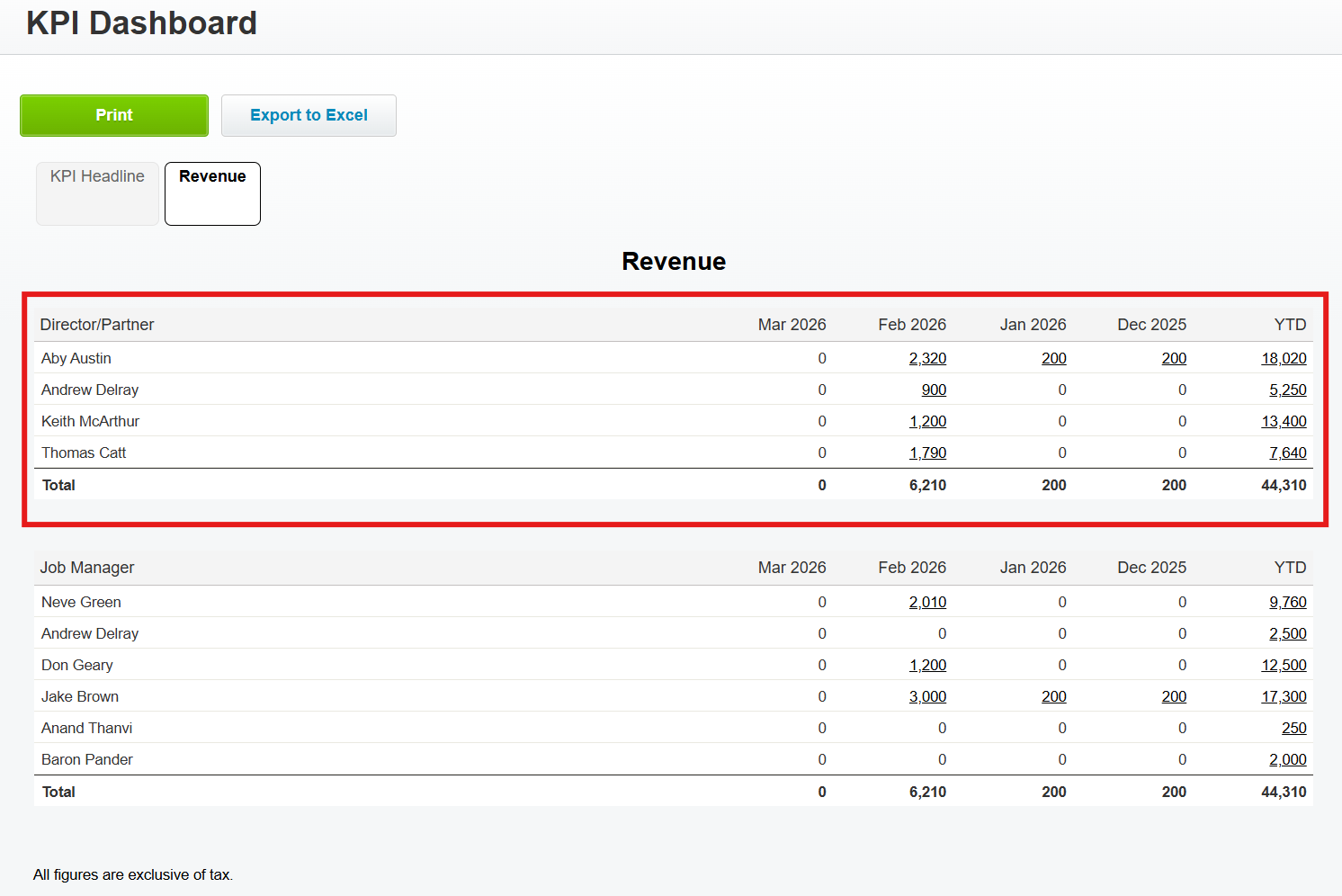
The KPI Revenue Report is reconciled with Team Revenue in WizeHub
| Production Team | Partners | Dec 2025 | Jan 2026 | Feb 2026 | Mar 2026 | YTD |
| Team Aby | Aby Austin Andrew Delray | 200 | 200 | 3,220 | - | 23,270 |
| Team Keith | Keith McArthur Thomas Catt | - | - | 2,990 | - | 21,040 |
| Business Wide Total | $200 | $200 | $6,210 | - | $44,310 |
If syncing by Manager
Build the Custom Report in XPM
Go to Reports > Report Builder
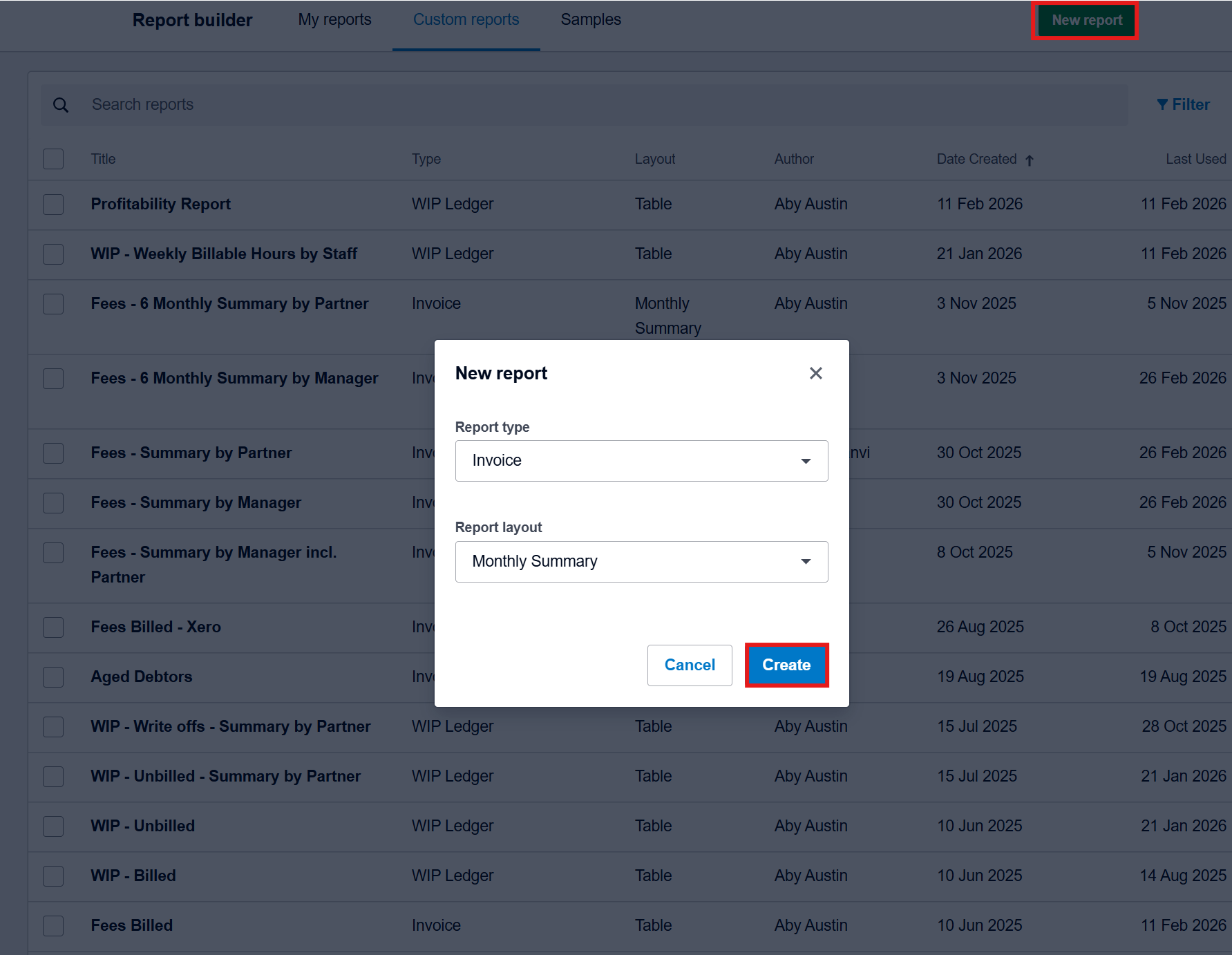
- Click on 'New report'.
- Report type: Select Invoice
- Report layout: Select Monthly Summary
- Click on 'Create'.
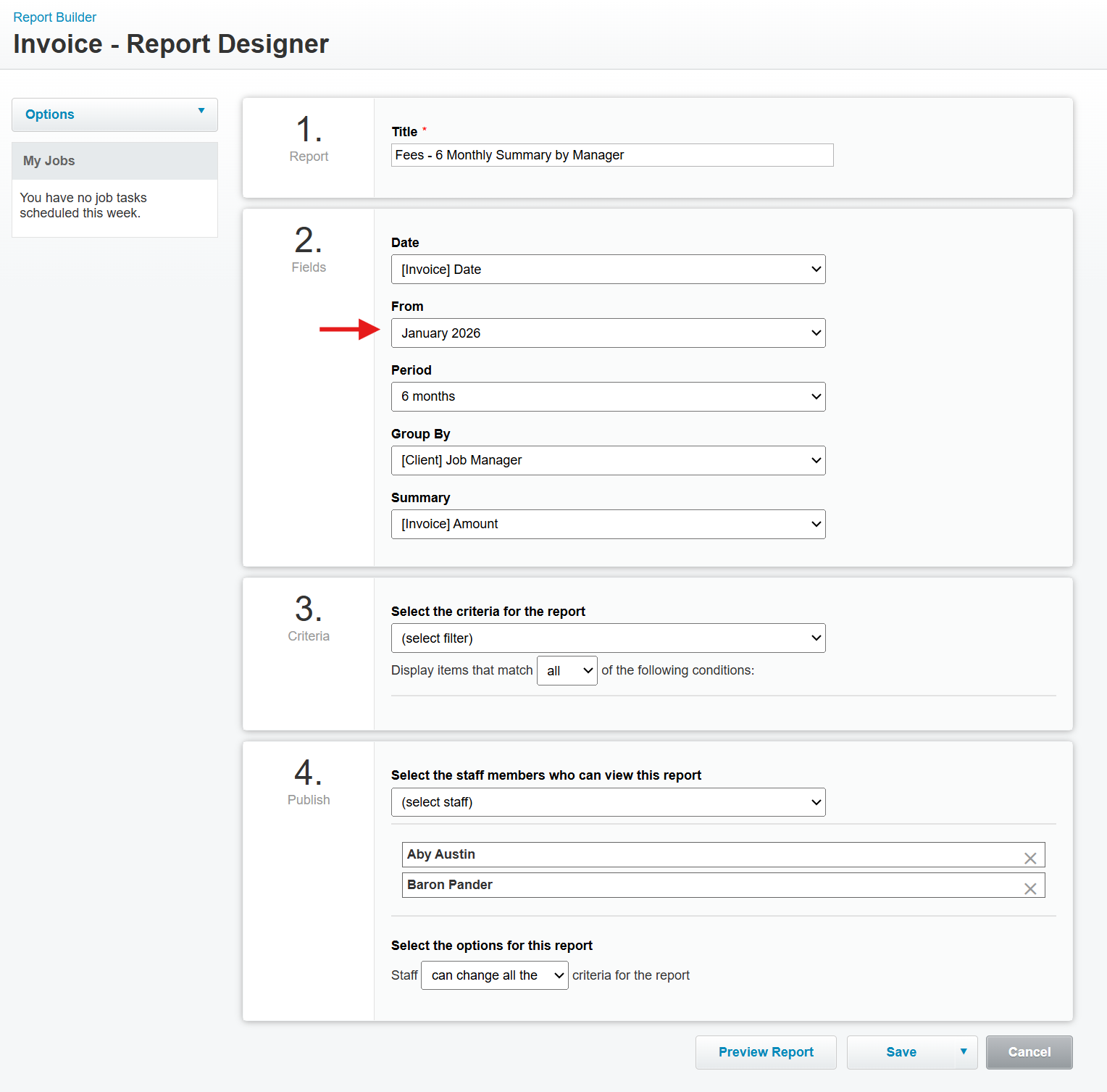
- Follow the Report Designer settings in the screenshot.
NB* This report is limited to a 6 month period so it will need to be updated every 6 months. Change the report from the 1st month of your financial year e.g. July 2025 to the 7th month of your financial year e.g. January 2026. - Click on 'Save'.
To set up a second report by Partner, use [Client] Account Manager instead of [Client] Job Manager.
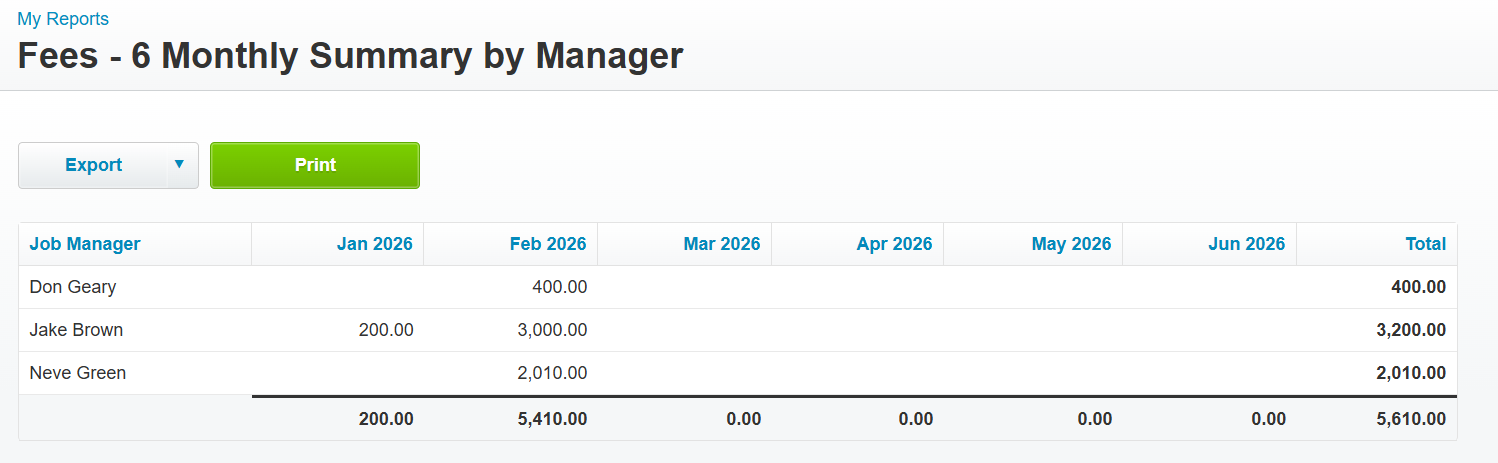
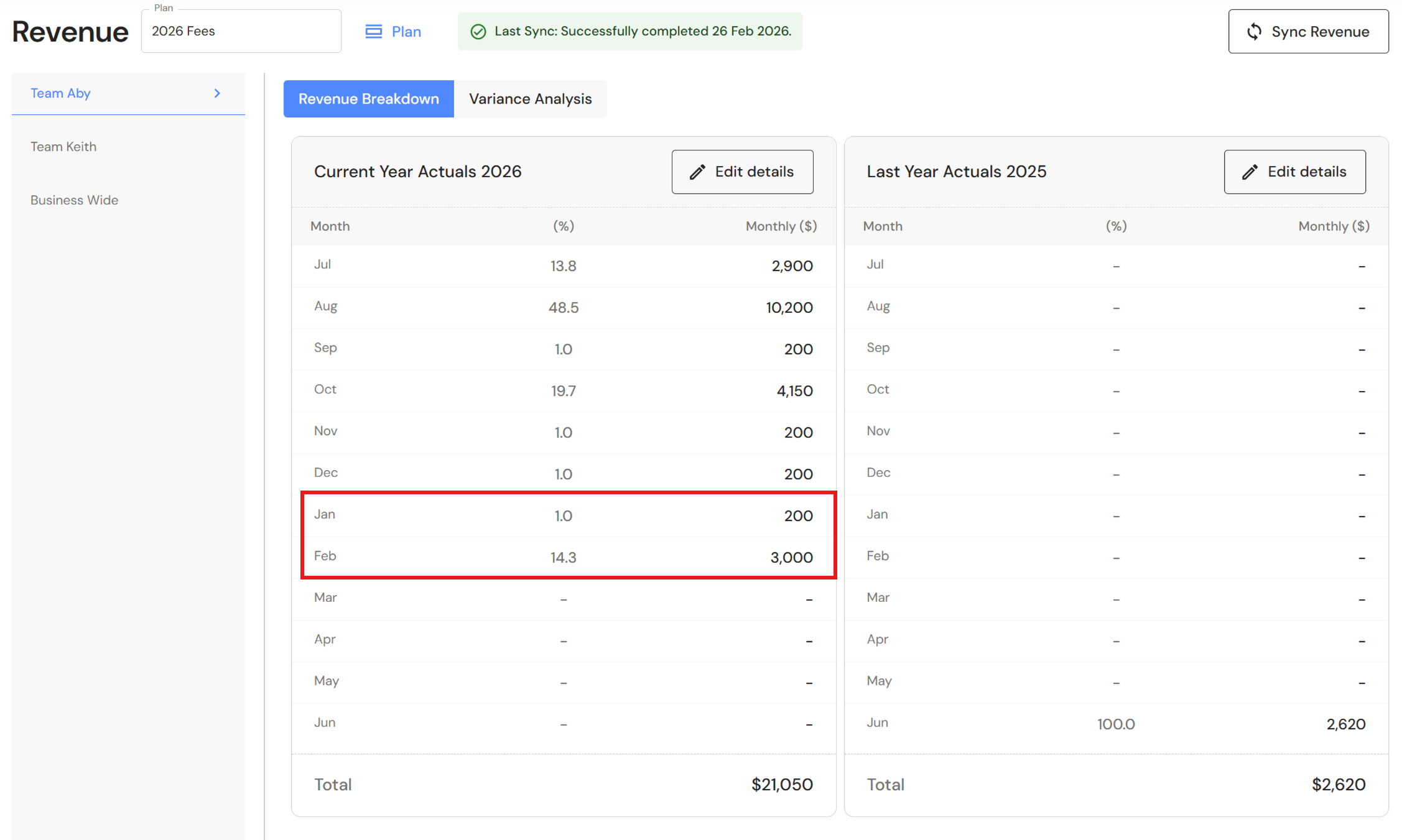
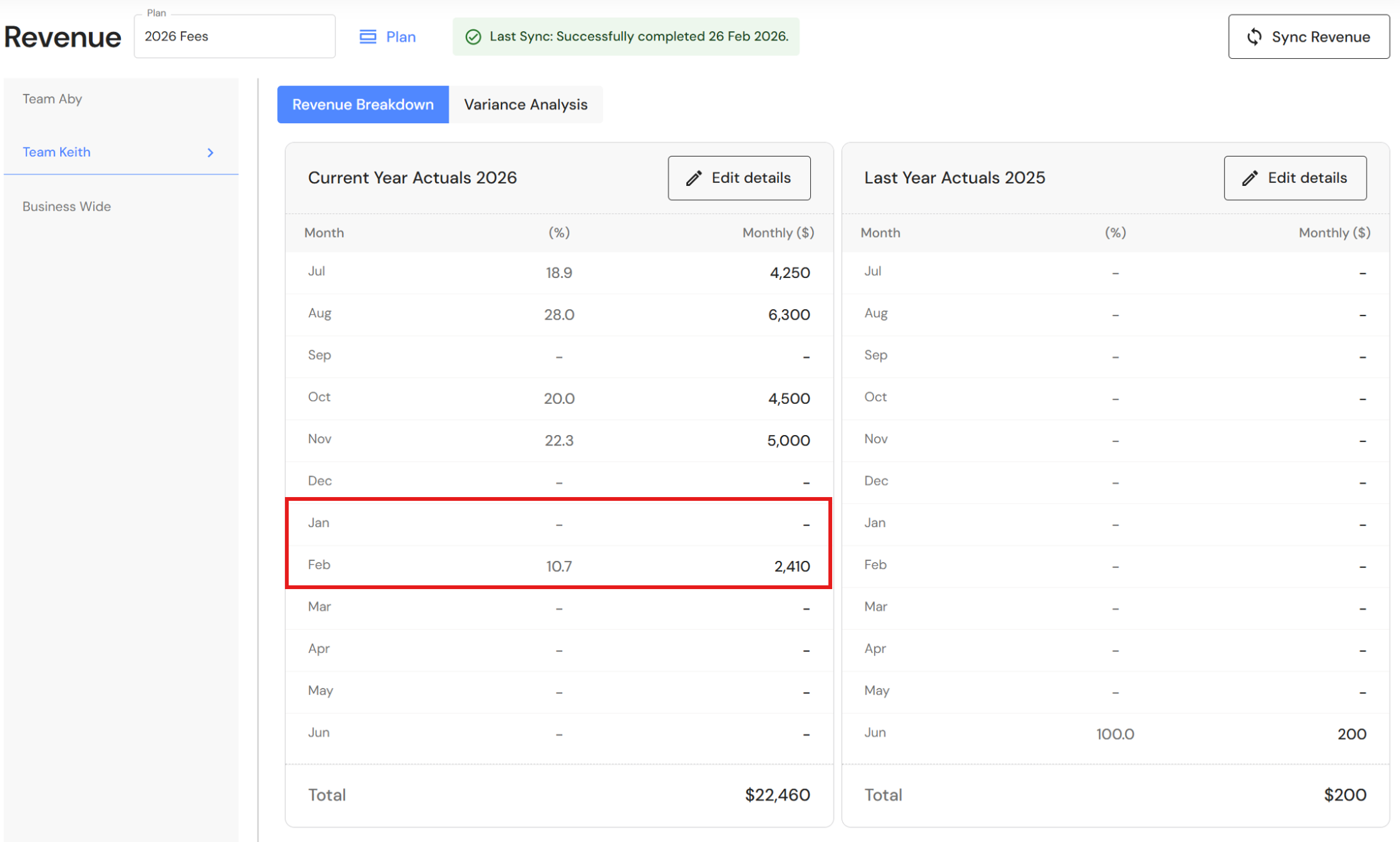
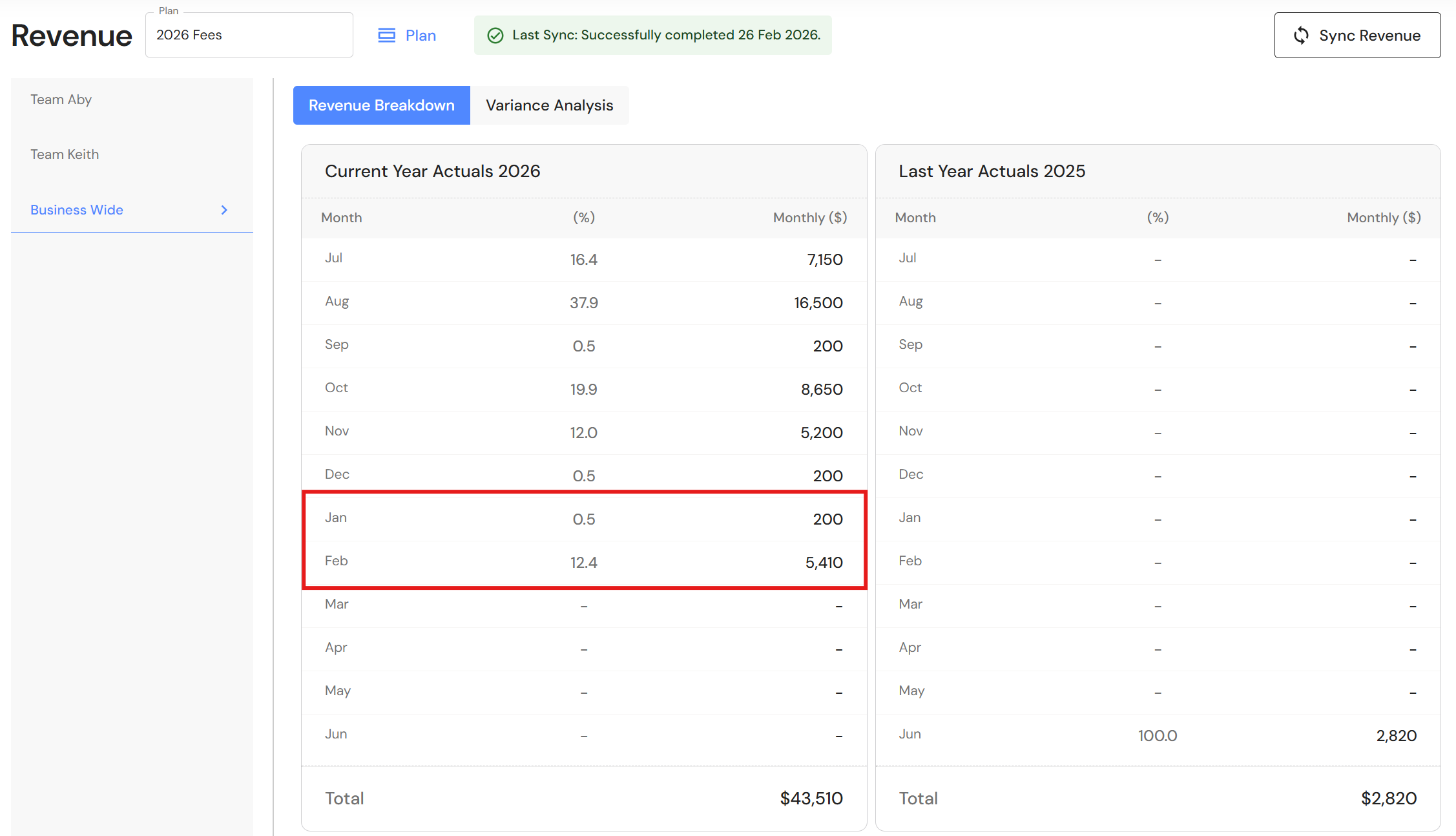
The XPM Custom Report is reconciled with Team Revenue in WizeHub
| Production Team | Managers | Jan 2026 | Feb 2026 | ... Total |
| Team Aby | Don Geary Neve Green | - | 2,410 | 2,410 |
| Team Keith | Jake Brown | 200 | 3,000 | 3,200 |
| Business Wide Total | $200 | $5,410 | $5,610 |
Disconnect the XPM Connection
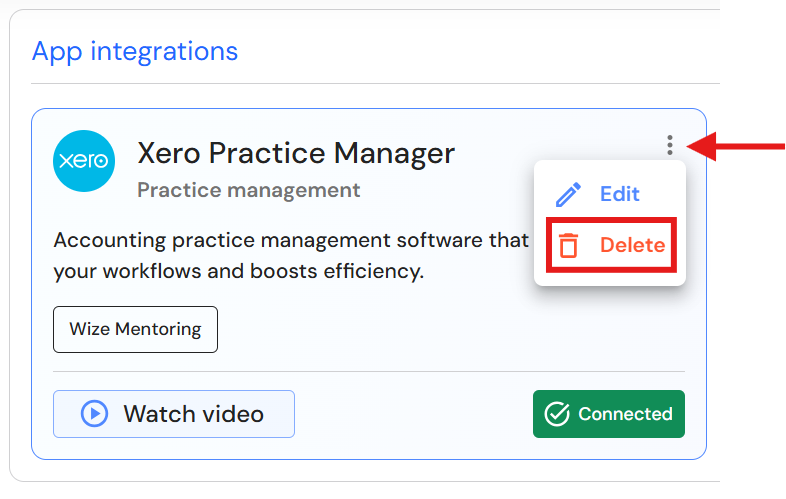
Go to Integrations > Accounting Software
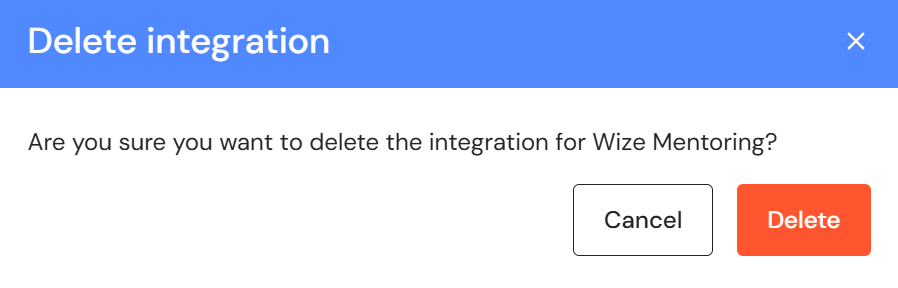
- Click on the three dots, then 'Delete'.
- Click on 'Delete' to confirm.
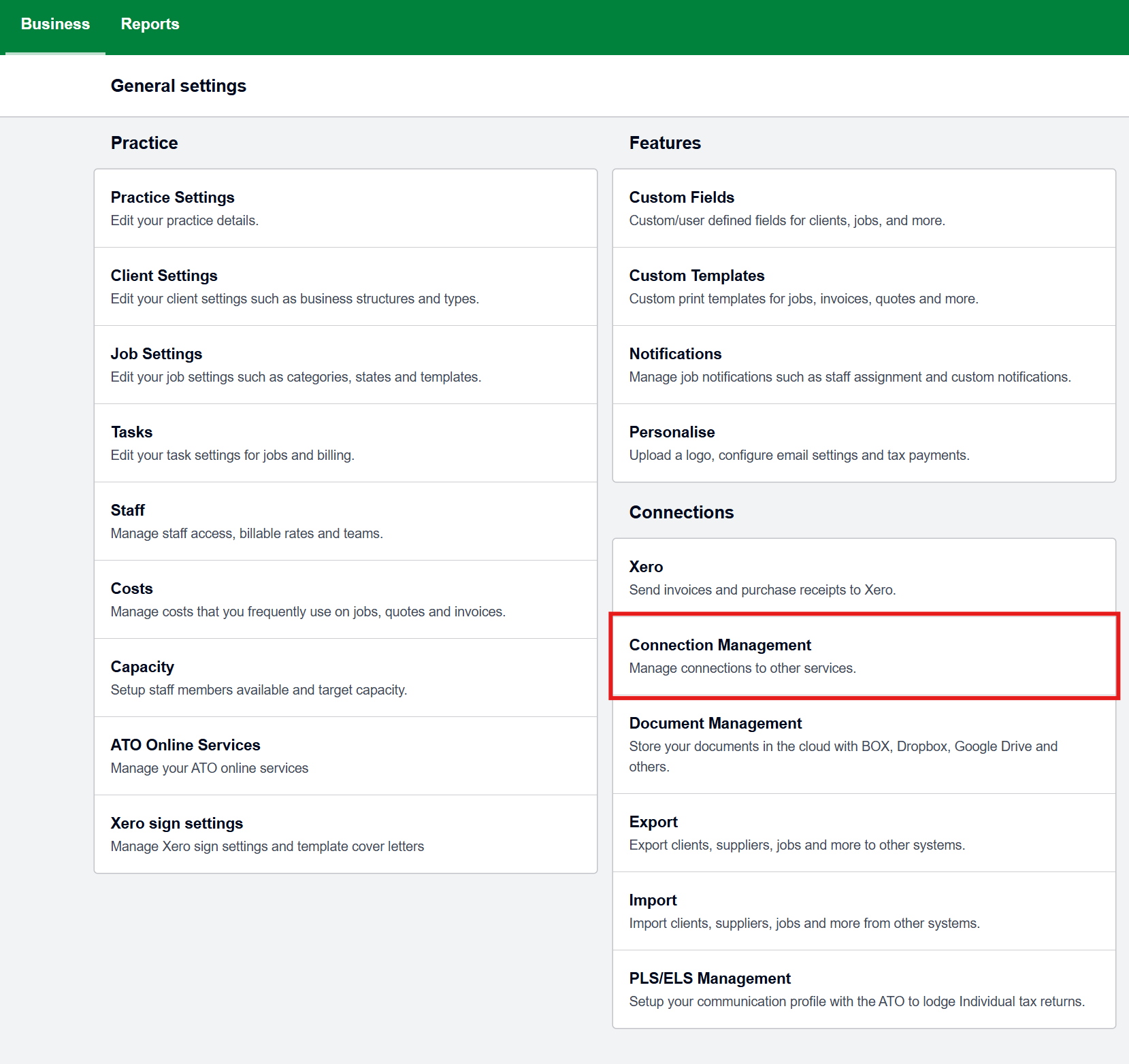
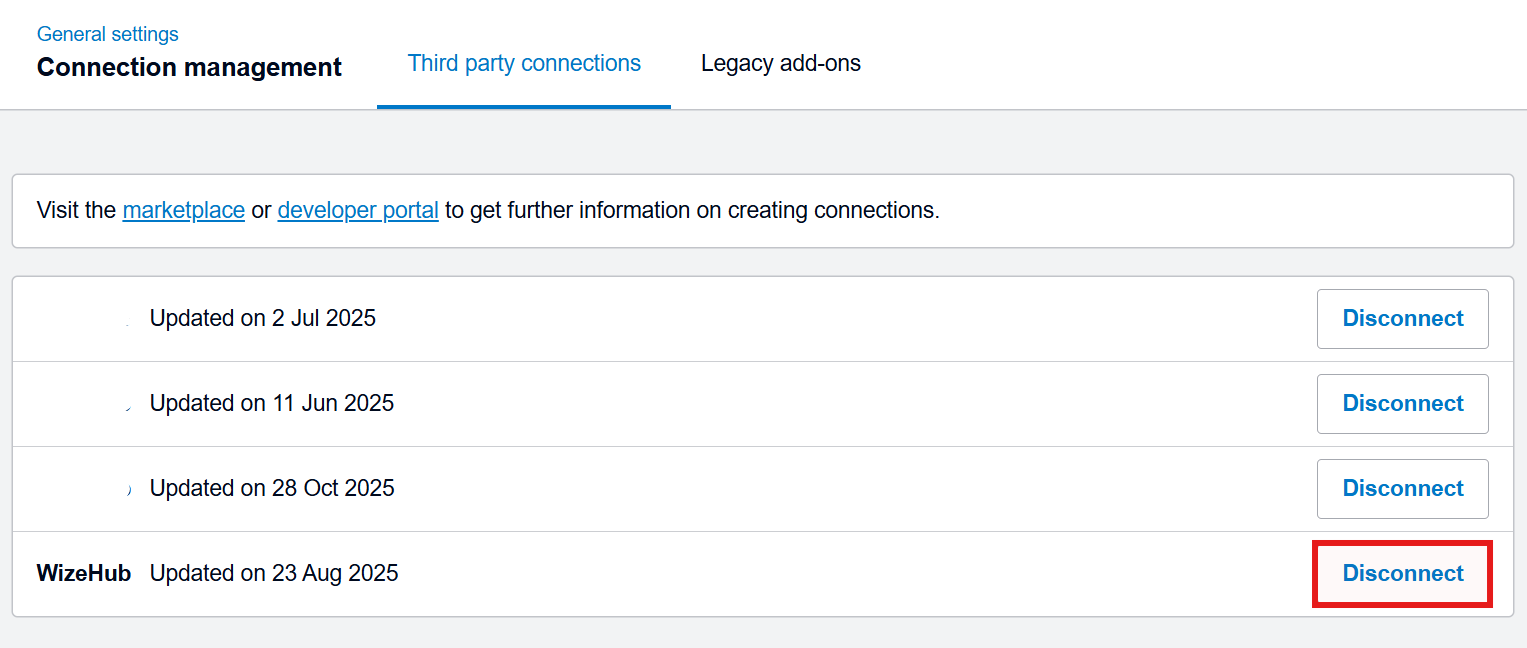
- While your XPM tenant is no longer connected, XPM does not automatically remove the app even though the connection has been removed. Remove old connections in XPM via Business > Settings > Connection Management.
- Click 'Disconnect' to remove third party connection.
- Click on 'Disconnect' to confirm.


Change data sync from Partner to Manager
Go to Integrations > Accounting Software
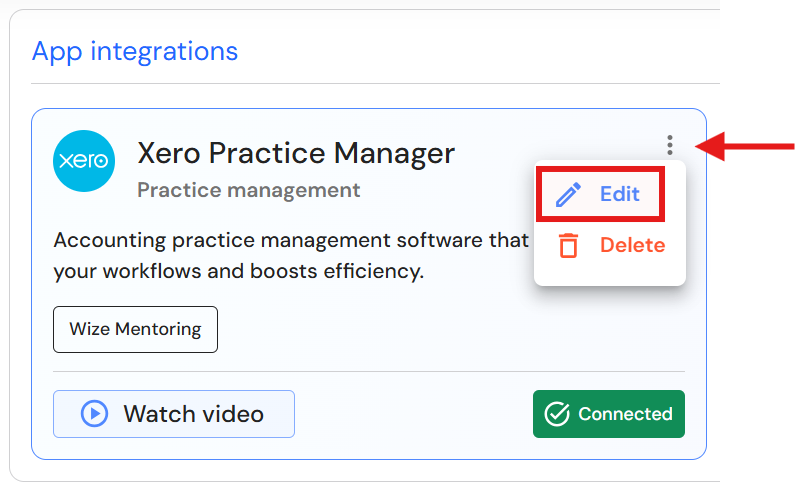
- Click on the three dots, then 'Edit'.
- Change your sync preference and click on 'Save'.
- Go to Measure > Financial Metrics > Revenue
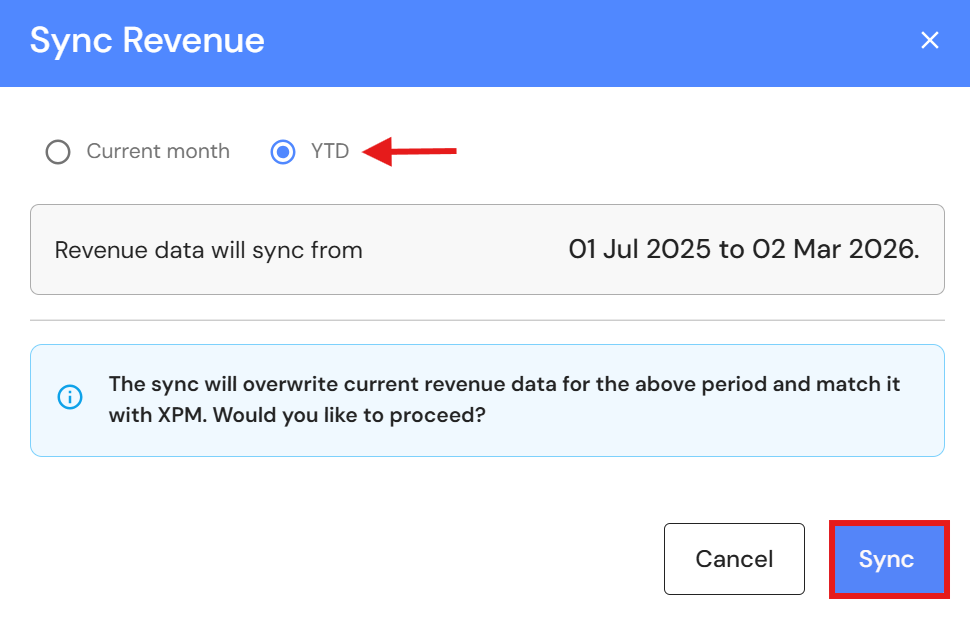
- Click on 'Sync'.
- Select 'YTD' and click on 'Sync' to refresh and align data.
Troubleshooting Common Issues & Errors
| Issue | Review impact and apply correction |
|---|---|
| Email mismatch | If the staff email in WizeHub doesn’t match XPM → syncing fails. |
| Partner or Manager missing in XPM | Invoices for those clients will not sync. |
| Partner or Manager missing in Team Capacity | Fees cannot map without them in the capacity plan |
| Required fields in People incomplete | Mandatory HR fields must be completed to add someone to Team Capacity in the Budget & Capacity plan. |
| Sync Error Message | Cause | Action |
|---|---|---|
| Failed due to low connection | There was a connectivity issue while syncing data with XPM. | Please retry the sync manually from WizeHub. |
| We're unable to complete this action due to restricted access of staff. Please disconnect and connect again to keep things running smoothly. | The connected XPM account does not have permissions to access staff-related data. | Disconnect and reconnect the XPM integration using an account with 'Manage Staff' permissions in XPM. |
| We're unable to complete this action due to restricted access of clients. Please disconnect and connect again to keep things running smoothly. | The connected XPM account does not have permission to view or sync client data. | Disconnect and reconnect the XPM integration using an account that has 'View & Edit (Clients)' permissions in XPM. |
| We're unable to complete this action due to restricted access of invoices. Please disconnect and connect again to keep things running smoothly. | The connected XPM account does not have permission to access to invoice-related data. | Disconnect and reconnect the XPM integration using an account that has 'Full Manage Invoices (Finance)' permissions in XPM. |
| Latest active plan not found. | No active Budget and Capacity plan is available in WizeHub to sync the data. | Please make sure to have an active Budget and Capacity plan for the current financial year in WizeHub, then re-run the sync to ensure the data is synced correctly. |
| Sync Warning | Cause | Action |
|---|---|---|
The following employee is associated with multiple tenants:
If this employee is setup for data mapping, all data will be combined into the relevant team. | The employee is linked to multiple XPM tenants, which is not an ideal scenario according to WizeHub guidelines. | This is only a warning and will not affect any data syncing in WizeHub. |
Support & Assistance
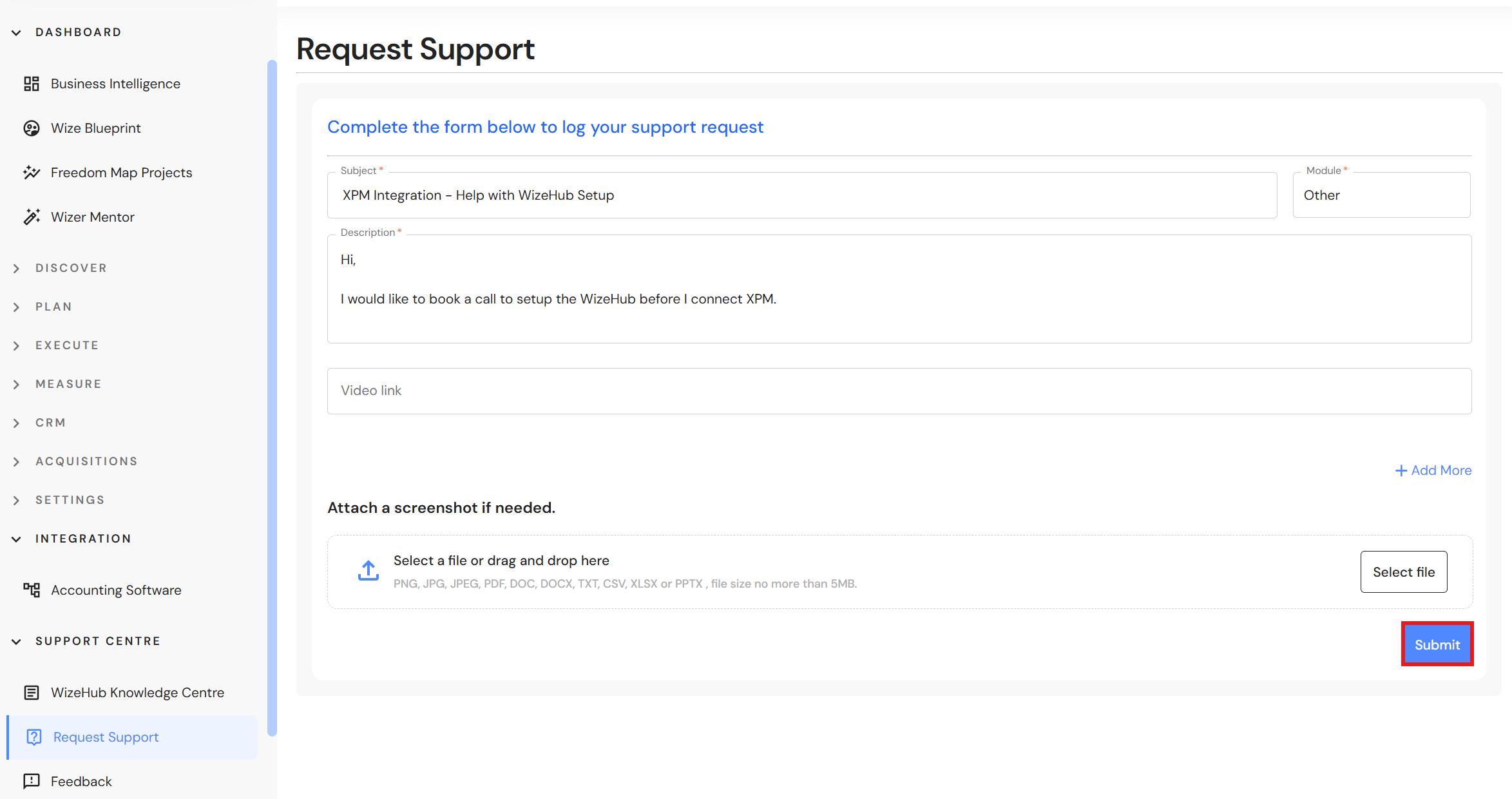
If you need help finalising your setup, reach out to our support team to book a call with our WizeHub coach.
Go to Support Centre > Request Support
Complete:
- Subject
- Module
- Description
- Click on 'Submit'.