Release Notes - 23 July 2026
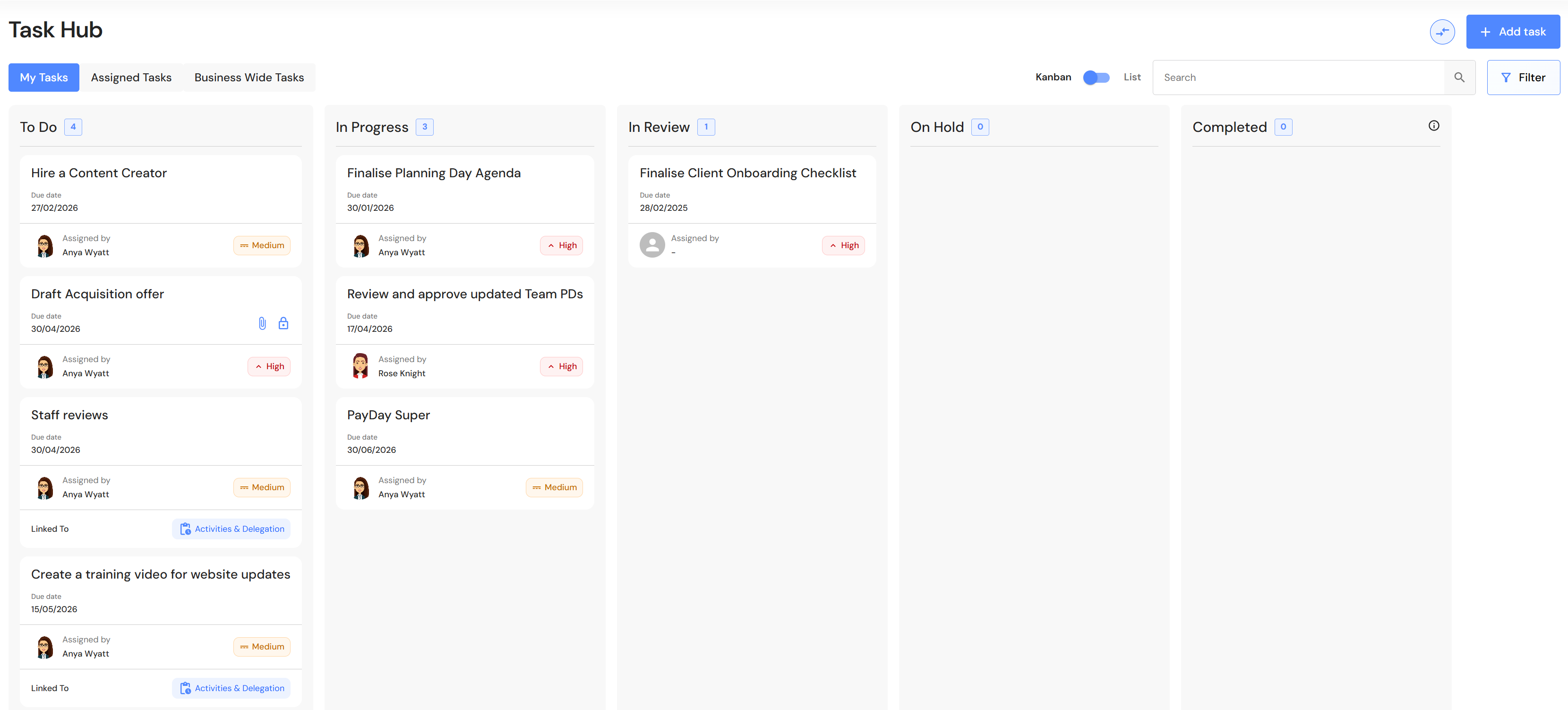
Task Hub (formerly Task Management)
Task Management has been renamed to Task Hub, reflecting its role as the central location for managing and tracking tasks across the platform.
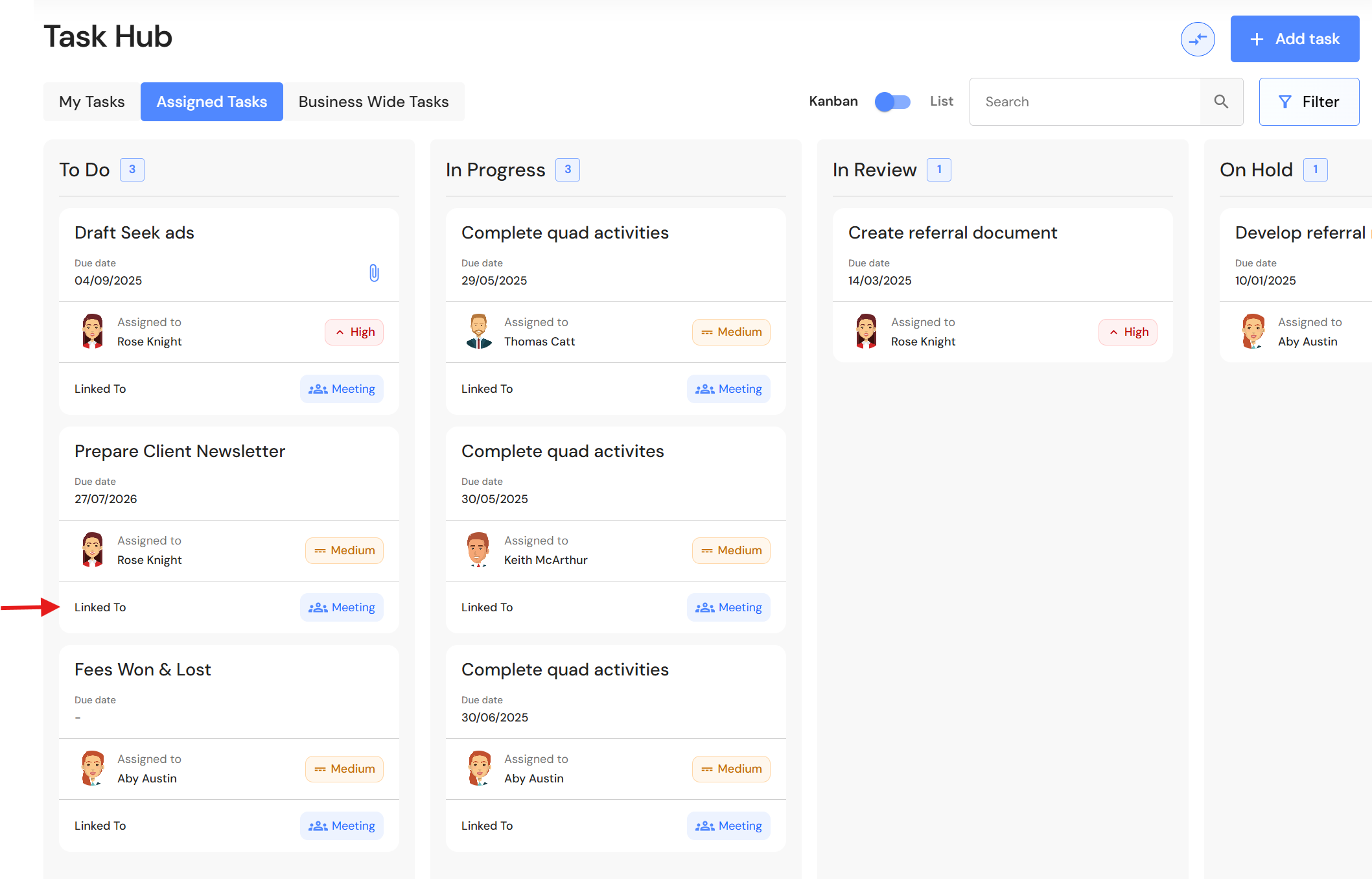
Add Tasks to Meeting Agendas
Users can now link newly created tasks directly to existing meetings, making it easier to maintain context, improve accountability, and keep action items connected to the discussions where they originated.
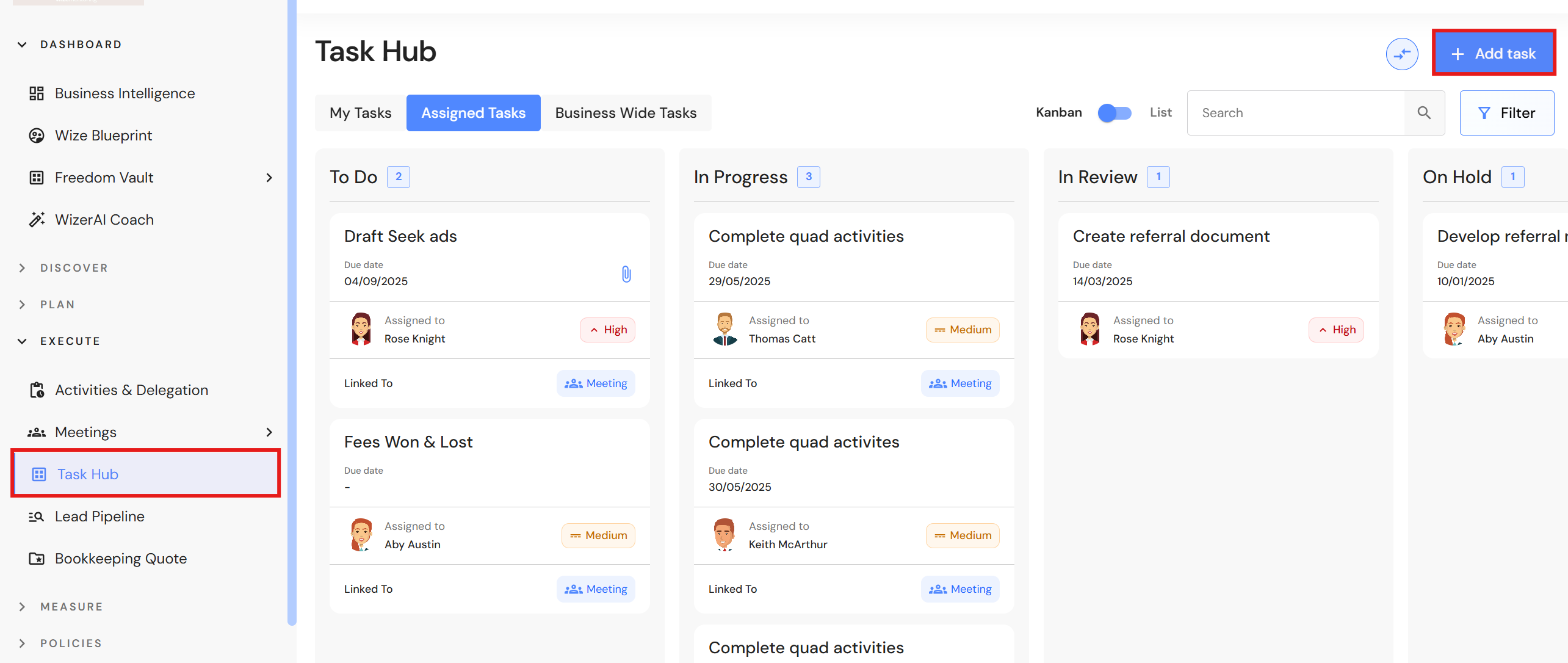
Go to Execute > Task Hub
- You can assign a task to yourself in 'My Tasks' or to another team member under 'Assigned Tasks'.
NB* Business Wide Tasks is visible to Executive, Senior Client Manager and CFO users only. - Click '+ Add task'.
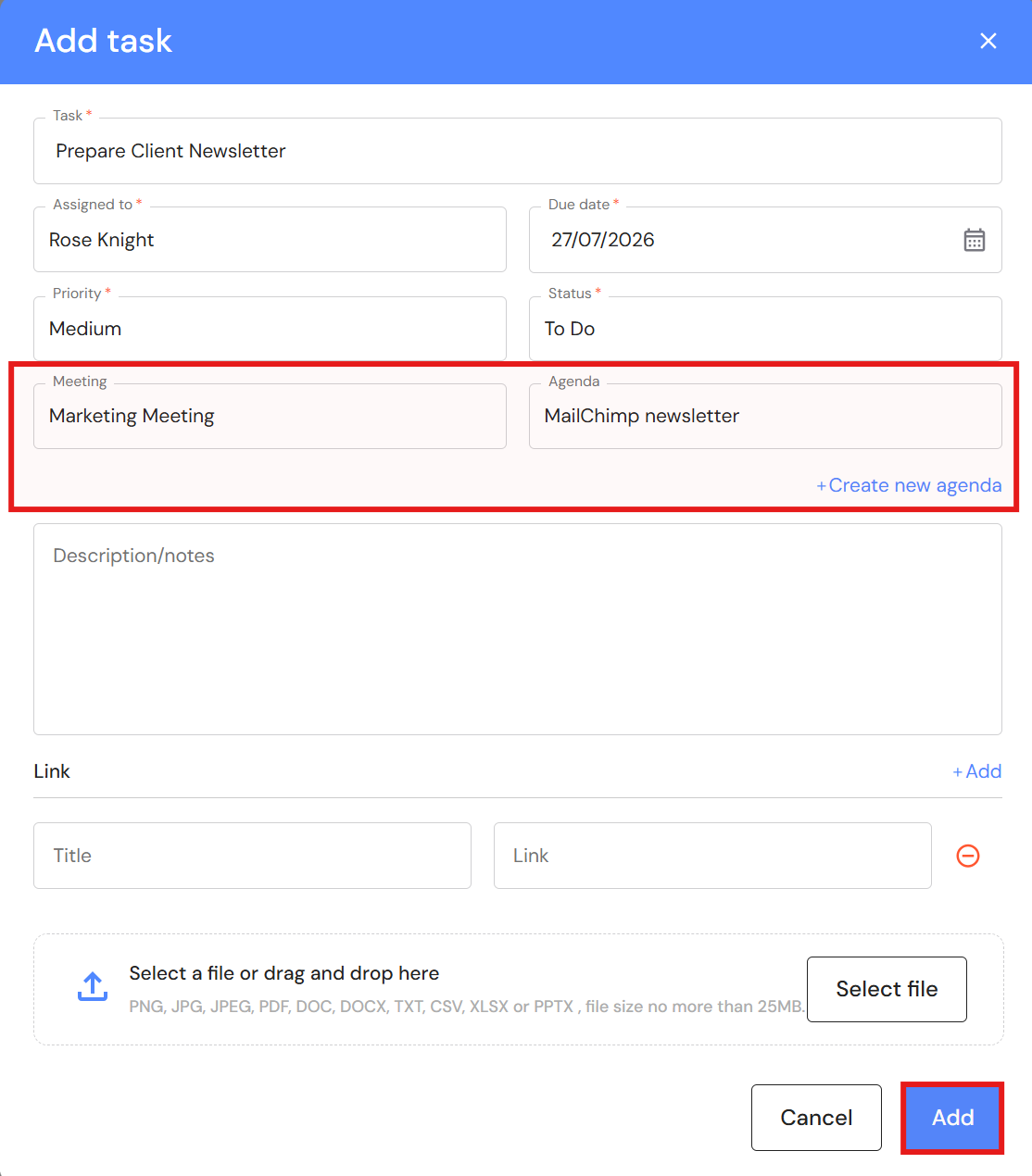
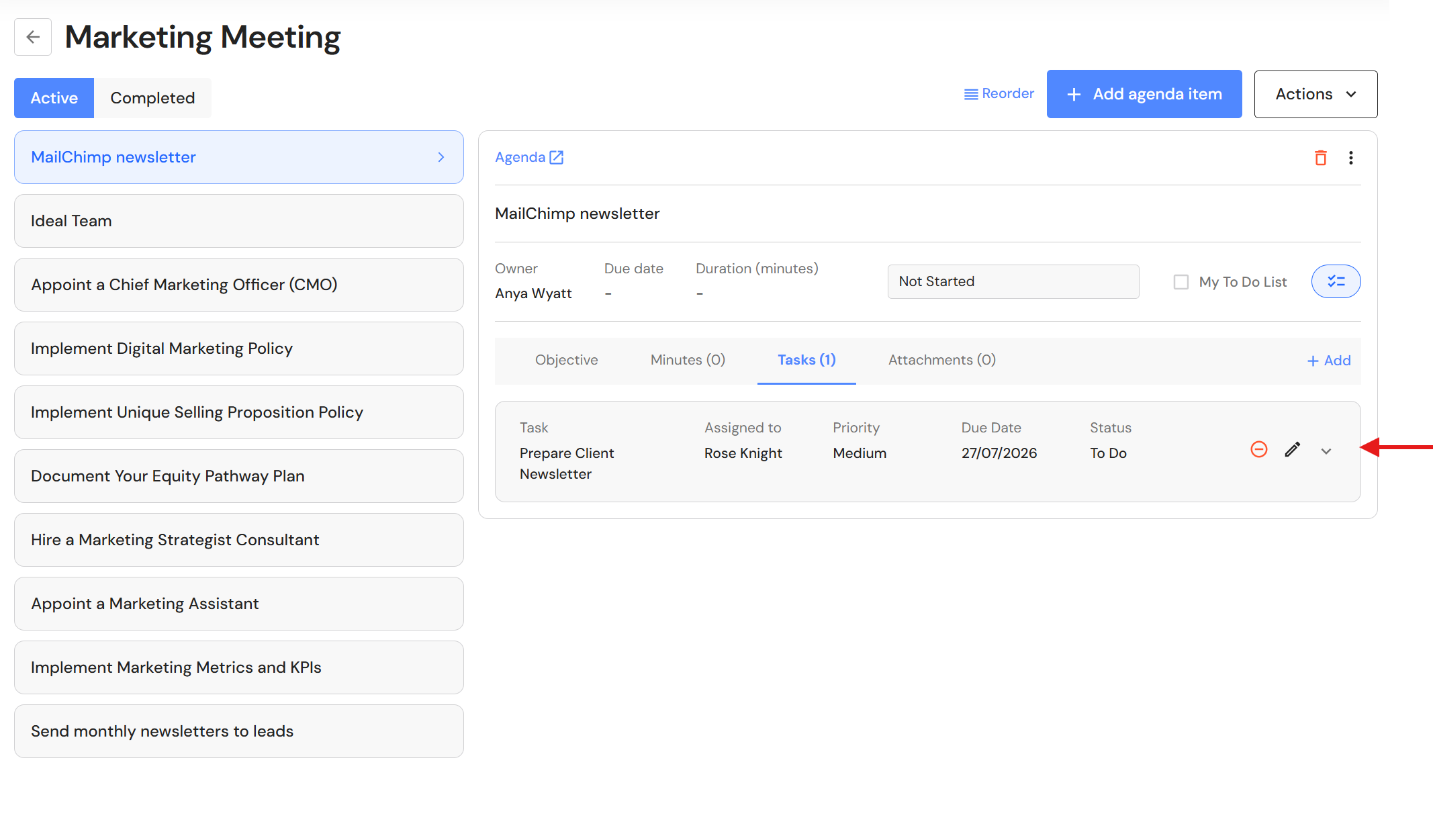
- Complete task details. Select a meeting and link the task to an agenda. If an agenda is not in the list, click '+Create new agenda' to add a new agenda to the meeting.
- Click 'Add'.
- The task is now linked to a meeting and visible in the meeting agenda.
Freedom Map Projects
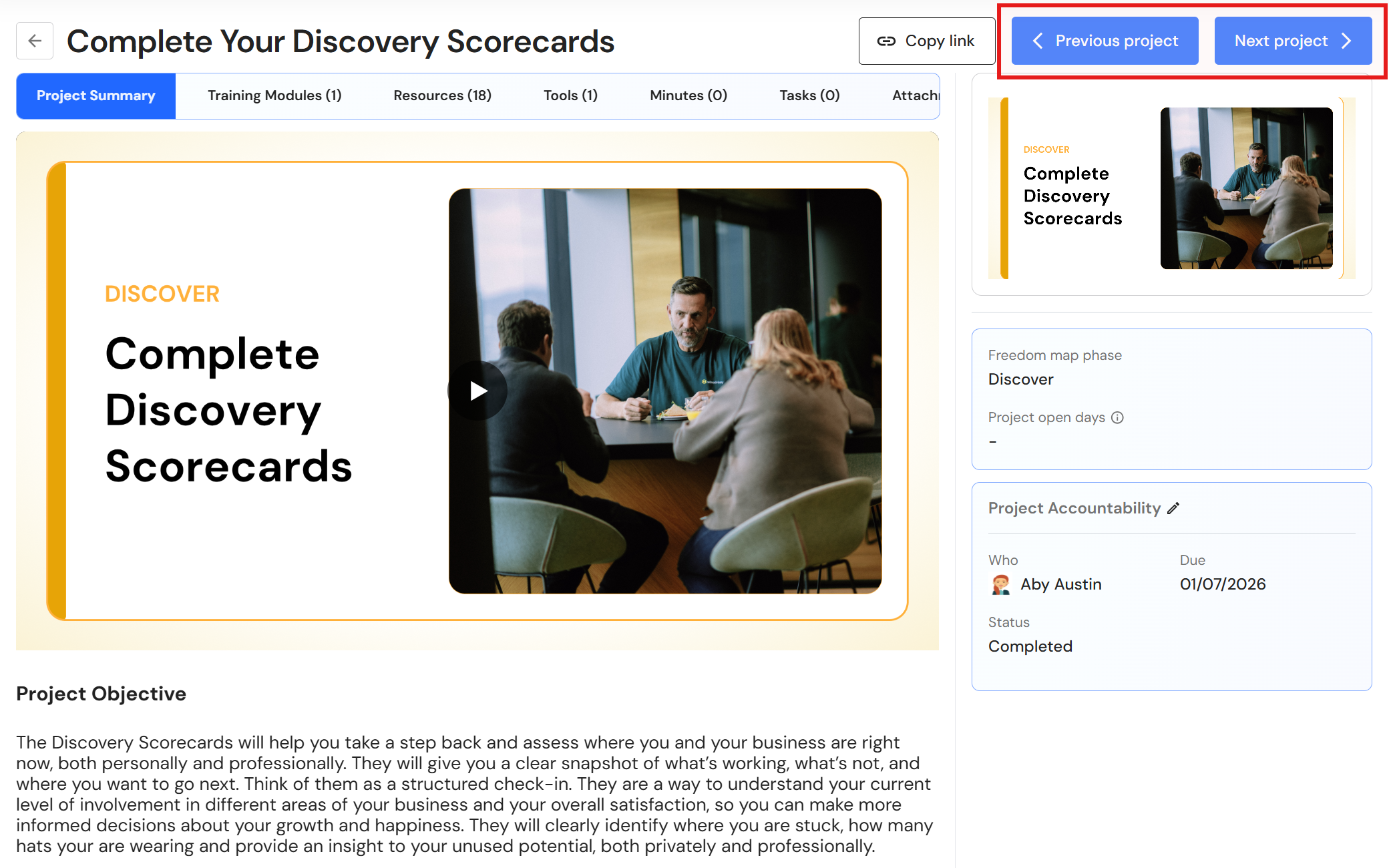
Improved Navigation between Projects
To improve navigation and streamline the project review experience, Next and Previous buttons have been added to Freedom Map Project headers. Users can now move between projects more efficiently without returning to the main project list, reducing clicks and improving workflow continuity.
Grant Access to Freedom Map Projects
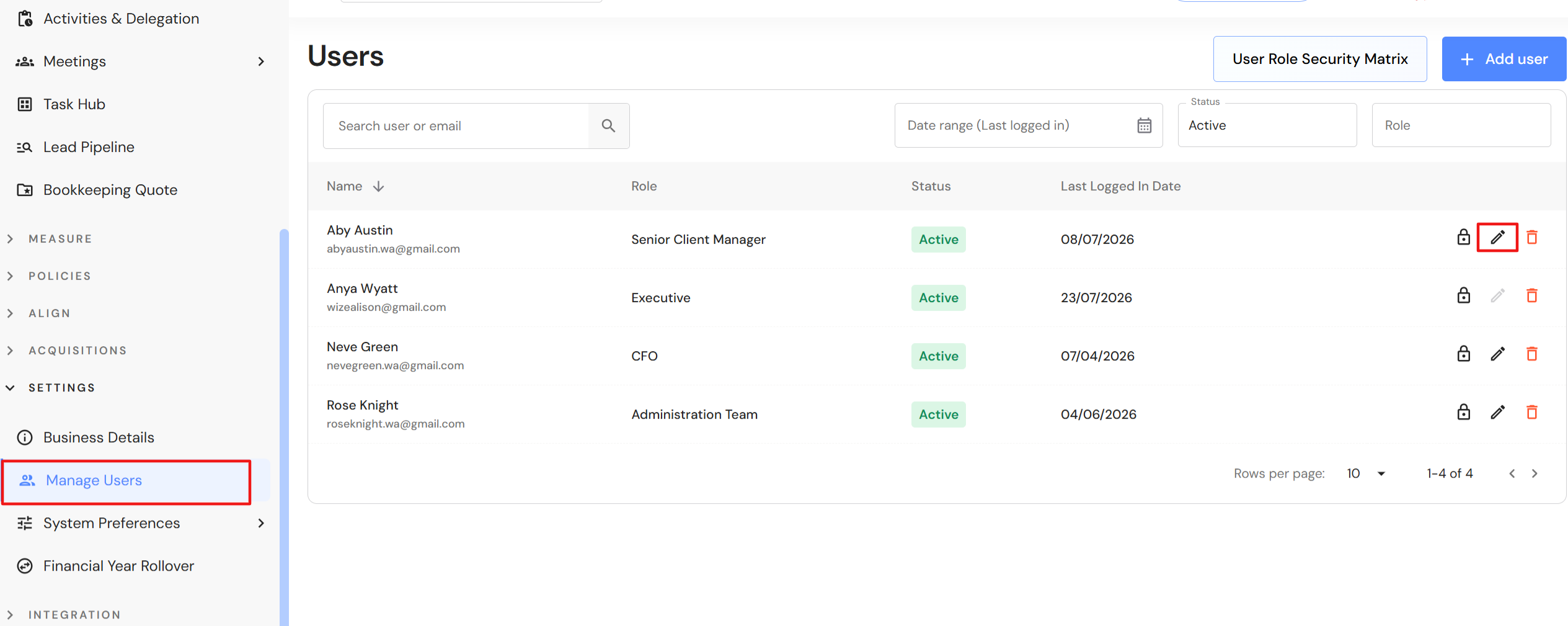
Executive users can now grant team members access to Freedom Map Projects and Freedom Map Project Steps (changing to Freedom Map Coaching Steps soon). This enhancement provides greater flexibility in managing project visibility and participation, ensuring key leaders can join the growth journey.
Go to Settings > Manage Users
- Click the pencil icon.
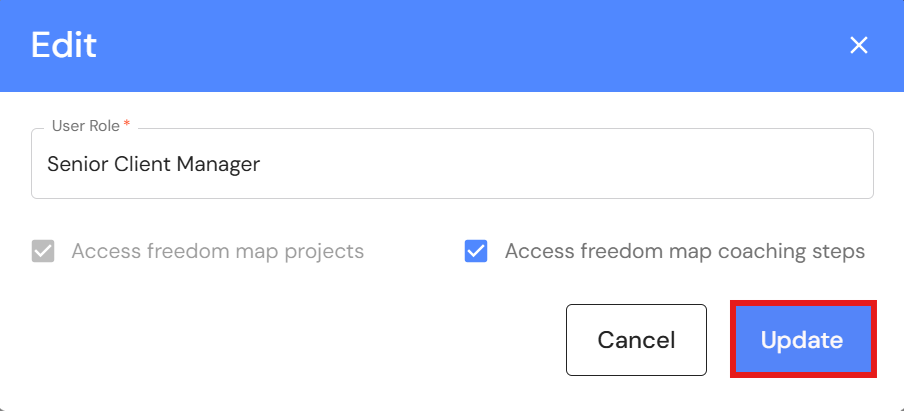
- Tick the following options to grant access:
- Access freedom map projects: The user will access Freedom Map Projects with visibility of core training, associated training modules, resources and tools.
- Access freedom map coaching steps: The user will access Freedom Map Coaching Steps - the meeting module for collaboration throughout the growth journey. They will also see meeting minutes, tasks, and attachments inside projects.
NB* Coaching steps permissions are dependent on the user having access to Freedom Map Projects.
- Click 'Update'.
Align
Share with Multiple Managers
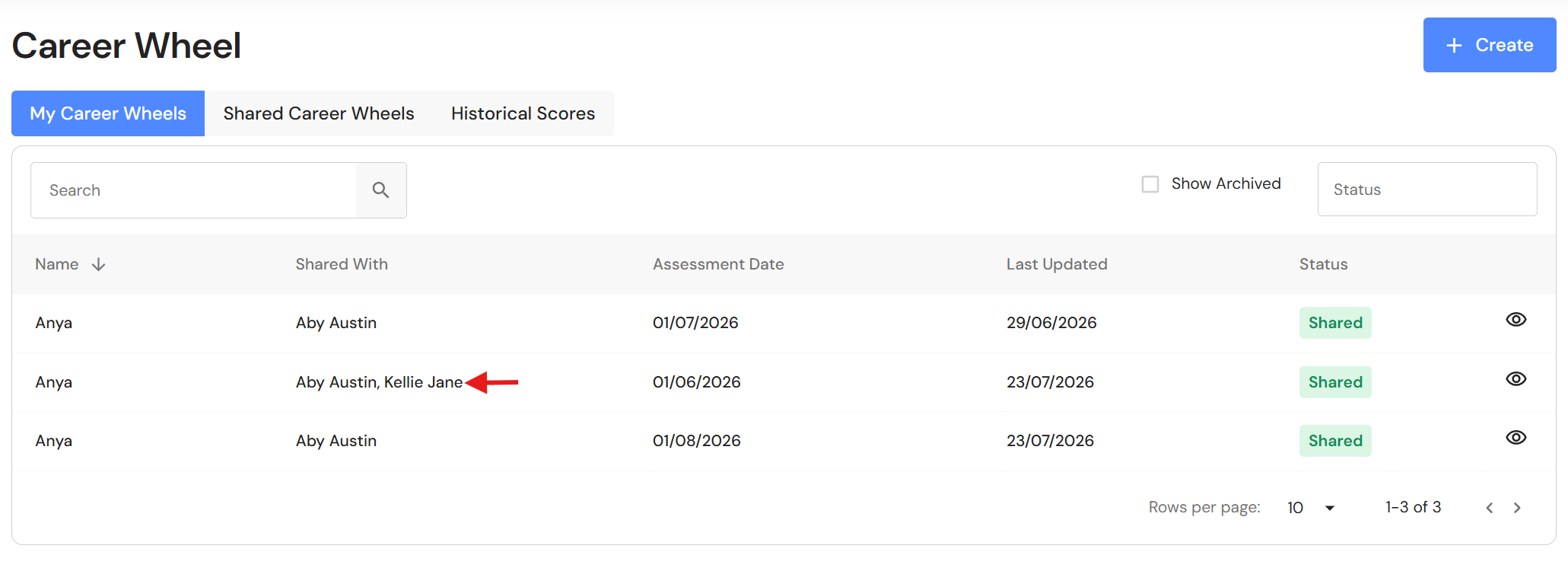
Employees can now share their Career Wheel, Energy Audit and Life Wheel with multiple managers, enabling broader collaboration, visibility, and support across reporting structures.
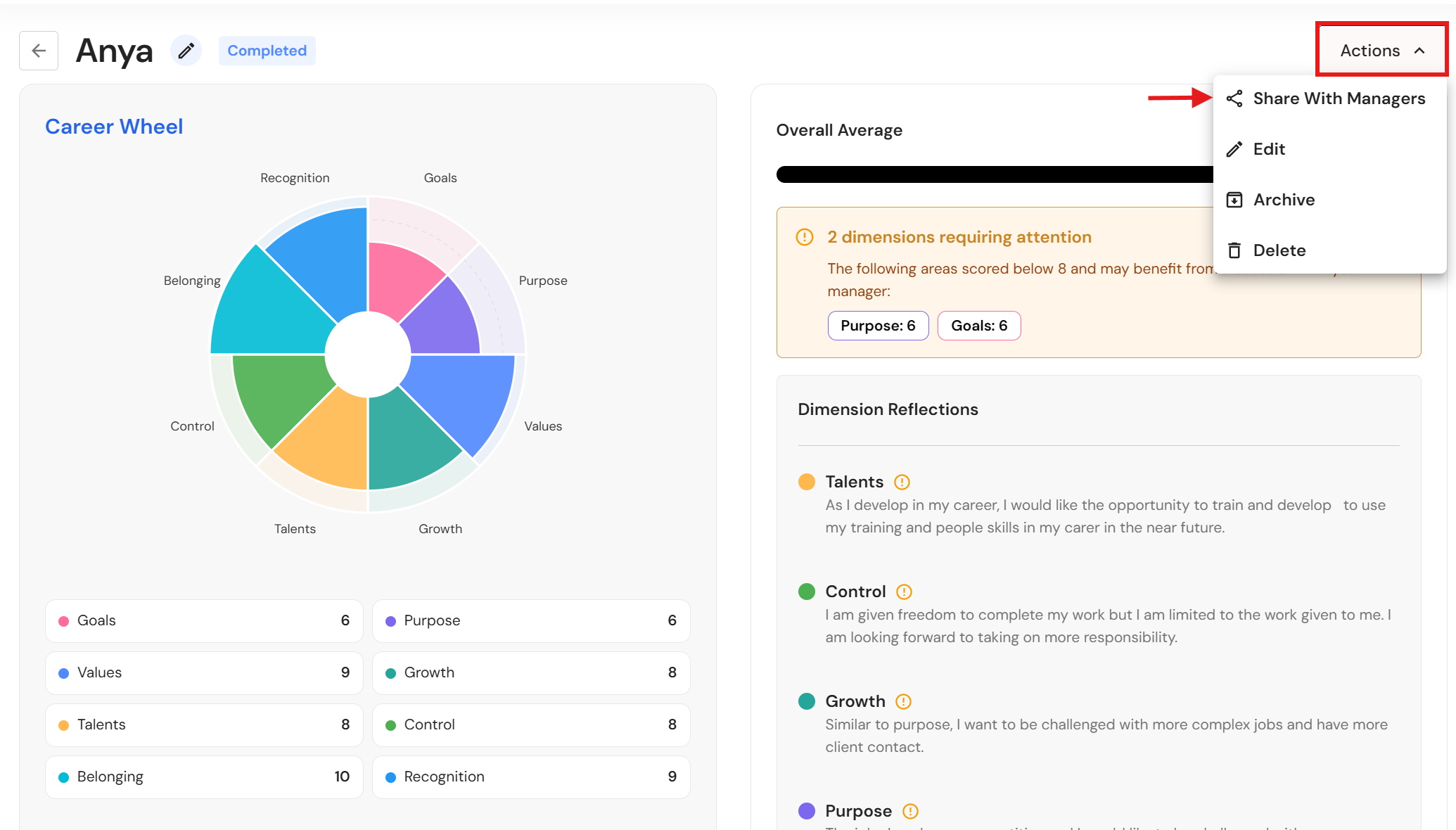
- When a Career Wheel, Energy Audit or Life Wheel is completed, click 'Actions'.
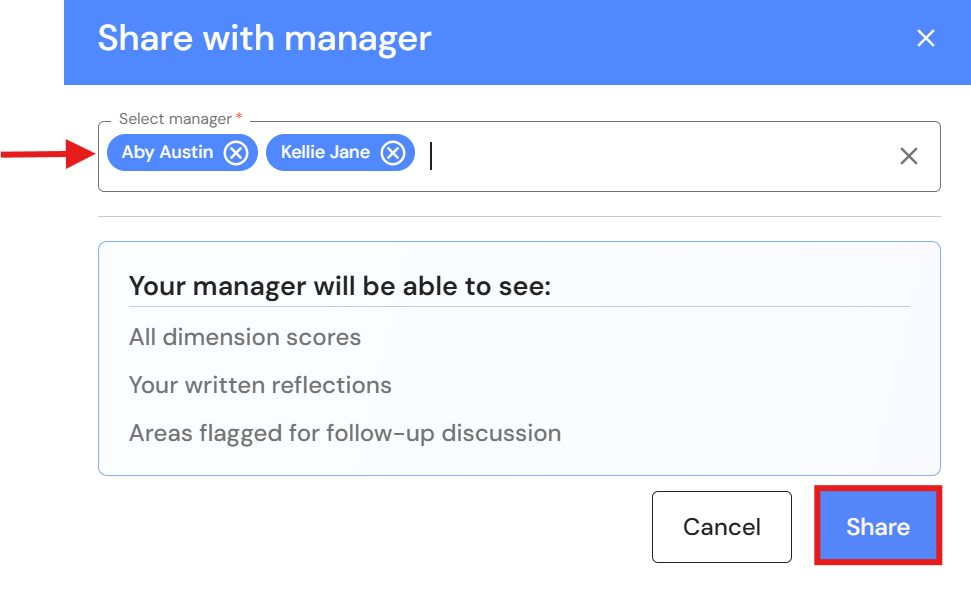
- Select managers from the list and click 'Share'.
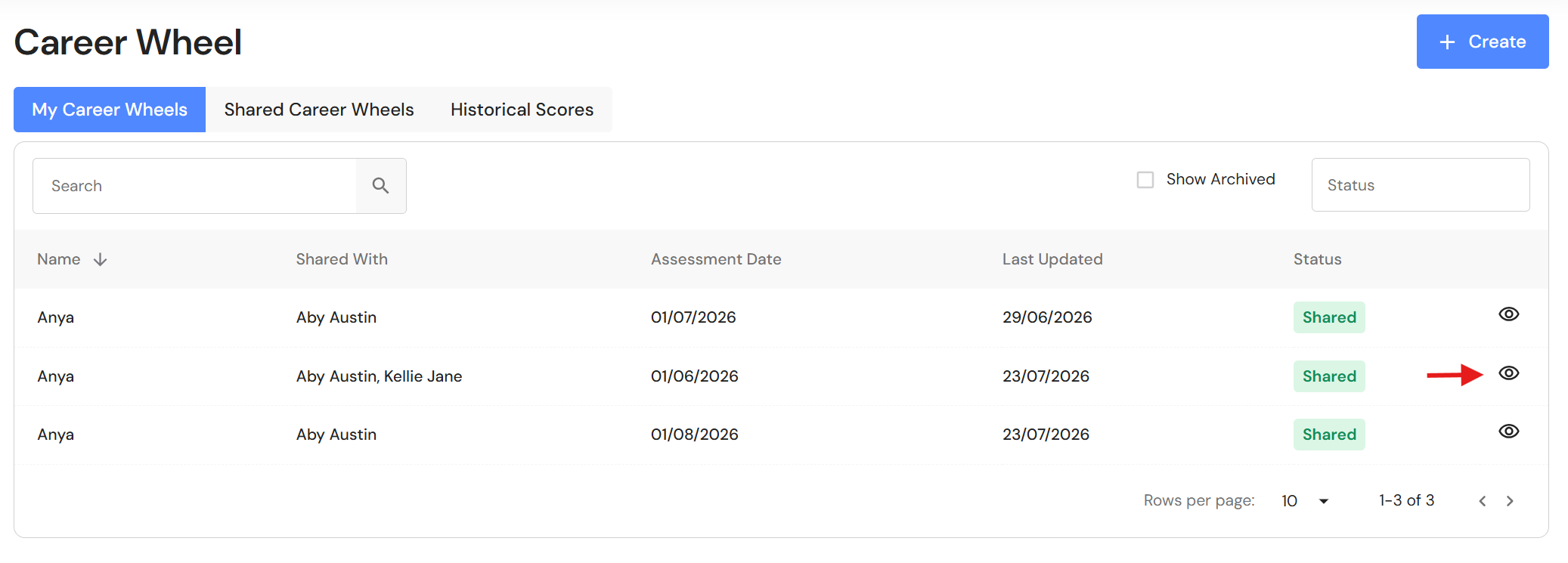
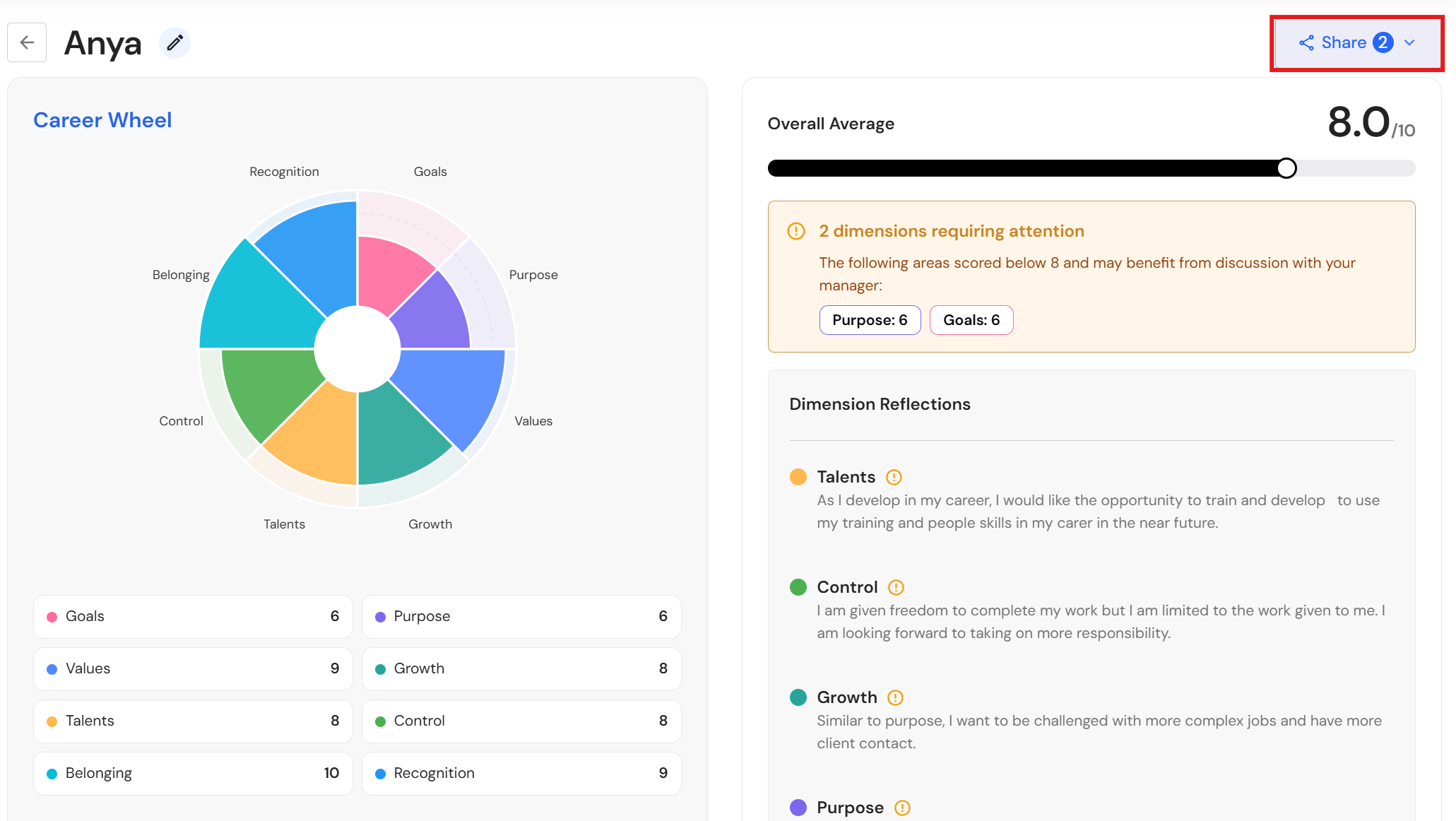
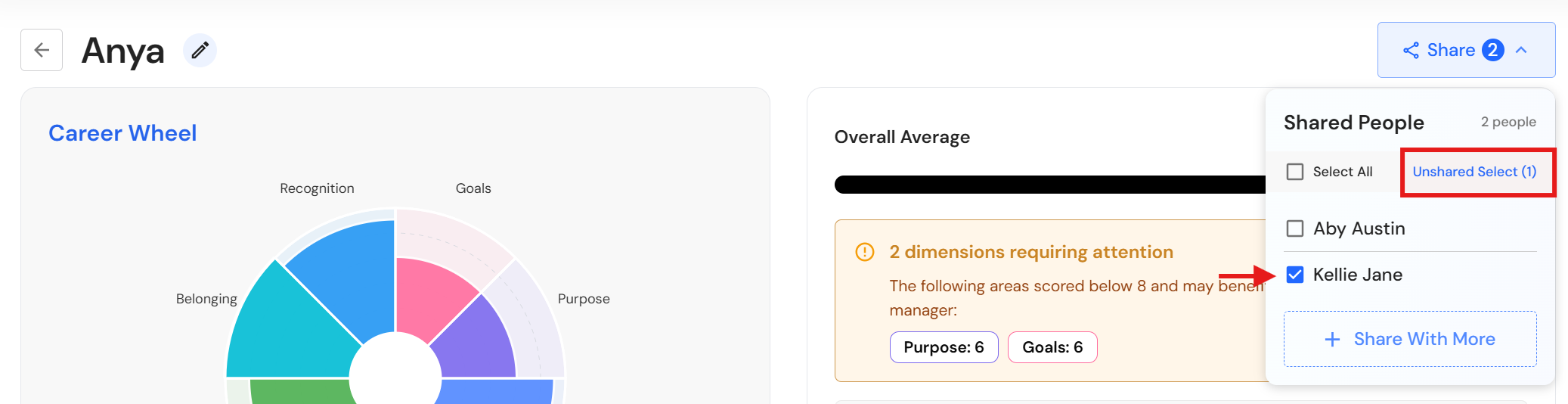
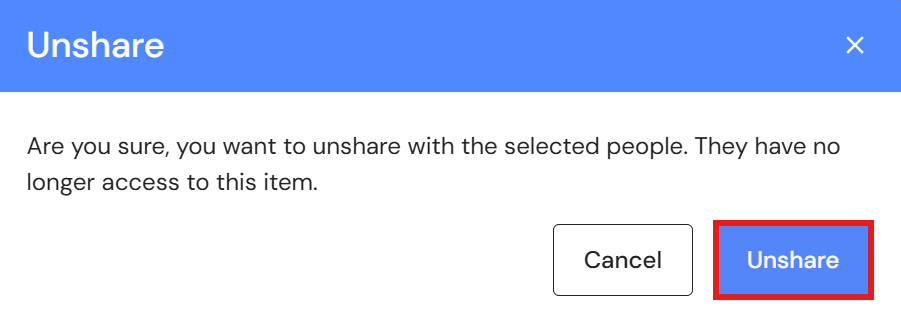
Un-share with a Manager
- Click the view icon on the Career Wheel, Energy Audit or Life Wheel.
NB* This only applies if the status is shared.
- Click 'Share'.
- Select a name and click 'Unshared Select (1)
- To confirm, click 'Unshare'.
In-app Notifications
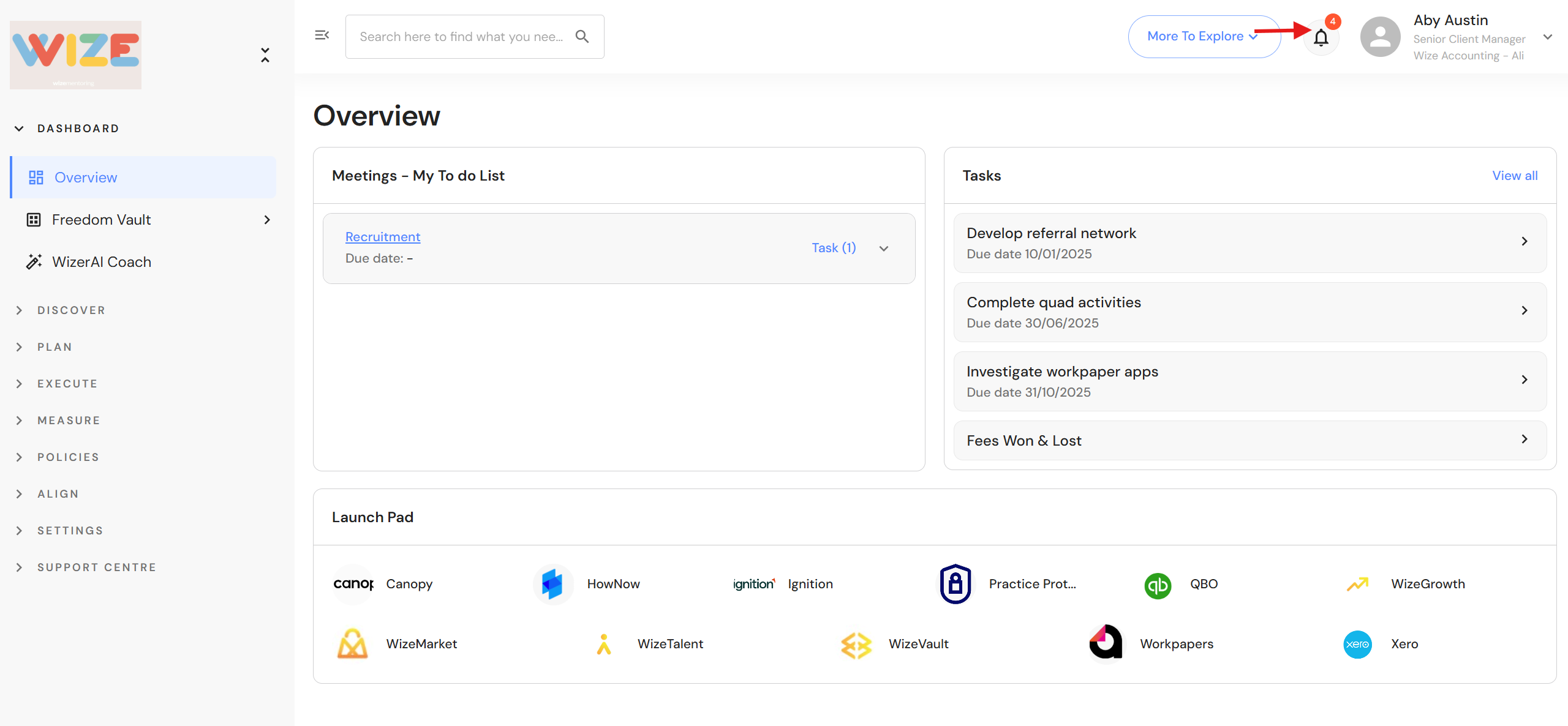
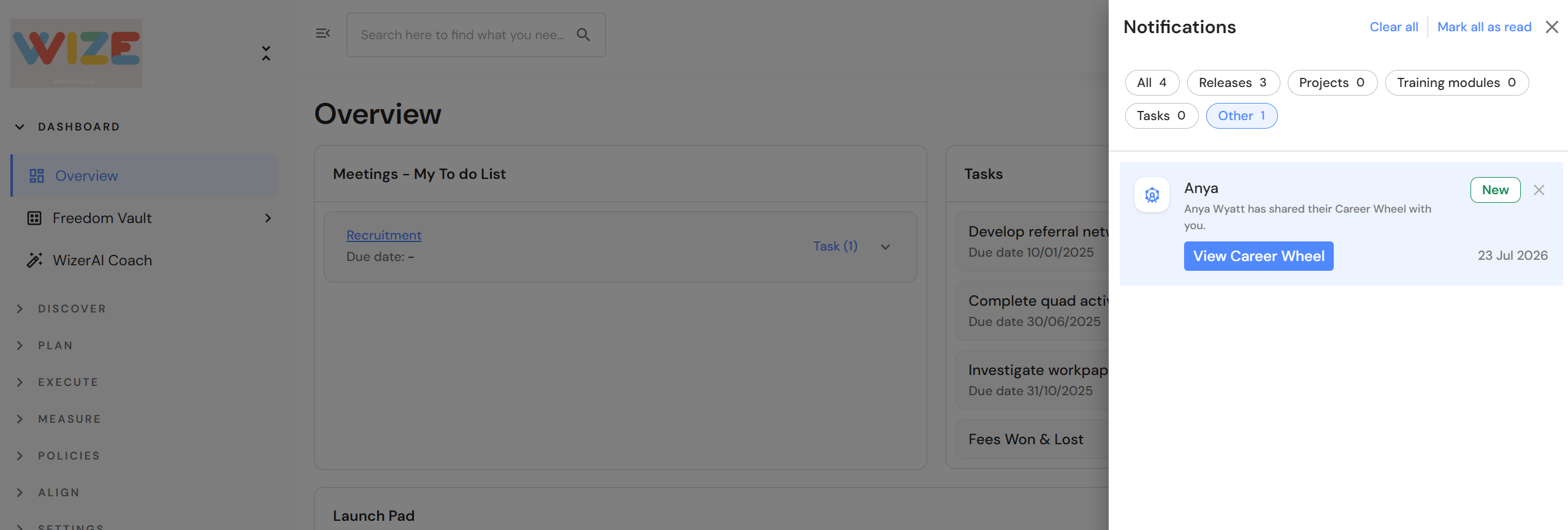
We have also introduced in-app notifications that alert managers when Align modules are shared, helping ensure timely awareness and engagement.
Lead Pipeline
New Filters
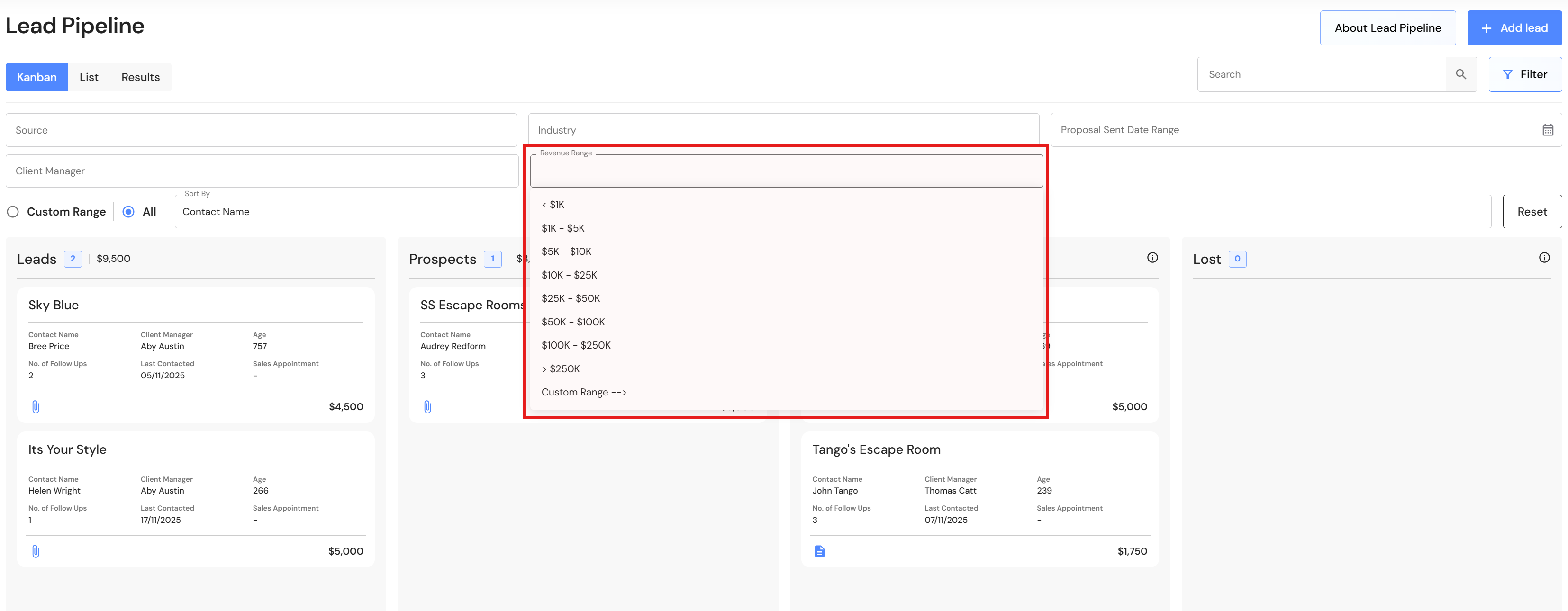
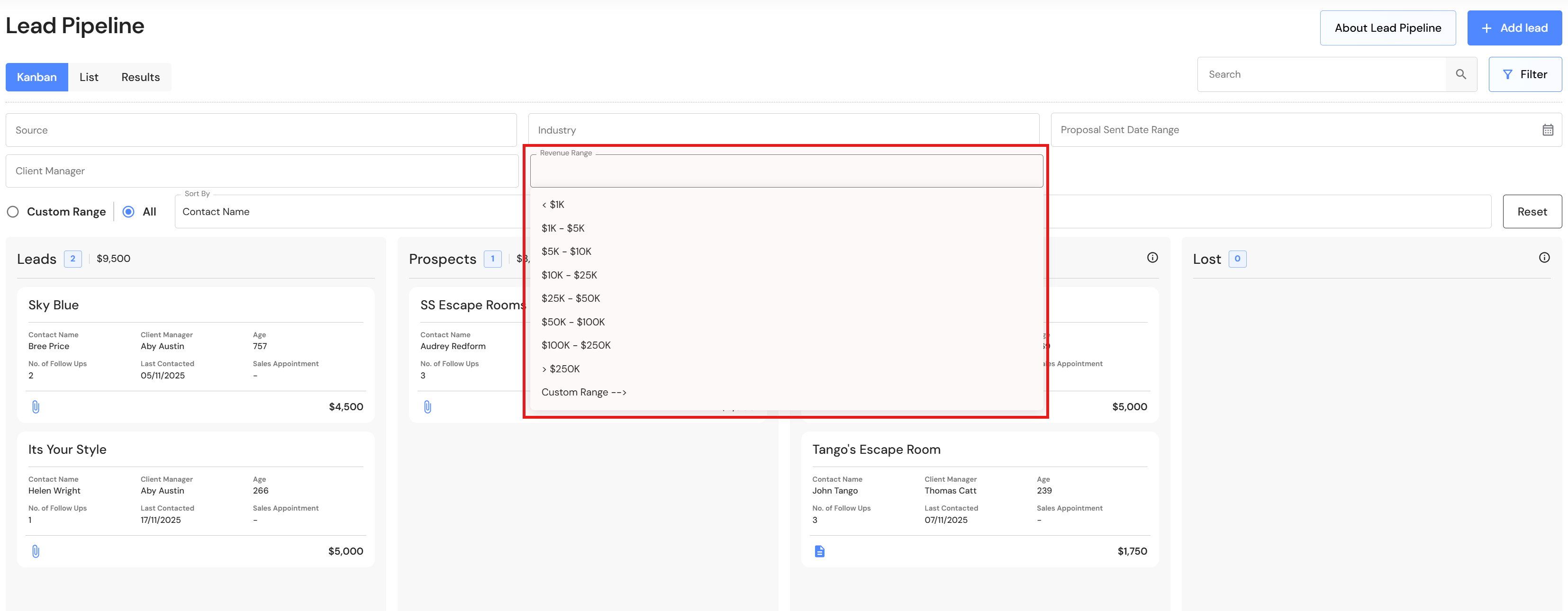
The Lead Pipeline has been enhanced with new filtering and sorting capabilities to help users identify and prioritise opportunities more effectively. A new Revenue Range filter allows users to narrow results based on estimated revenue values, while Sales Appointment has been added as a sorting option to make it easier to organise and review pipeline activity.
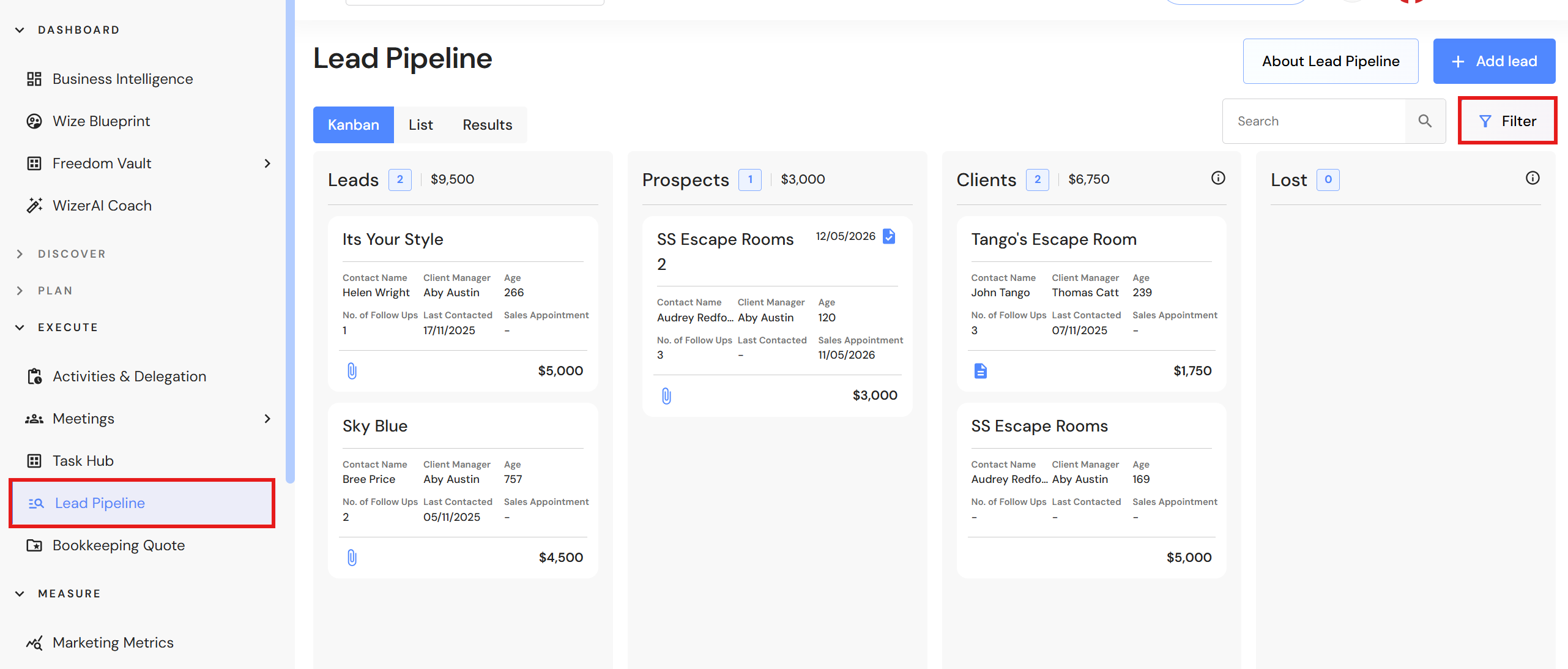
Go to Execute > Lead Pipeline
- Click on 'Filter'.
- Select an option from the 'Revenue Range' and/or select "Sales appointment" from the 'Sort by' field.
NB* The filters are also available in the list view.
FAB5
Re-order teams
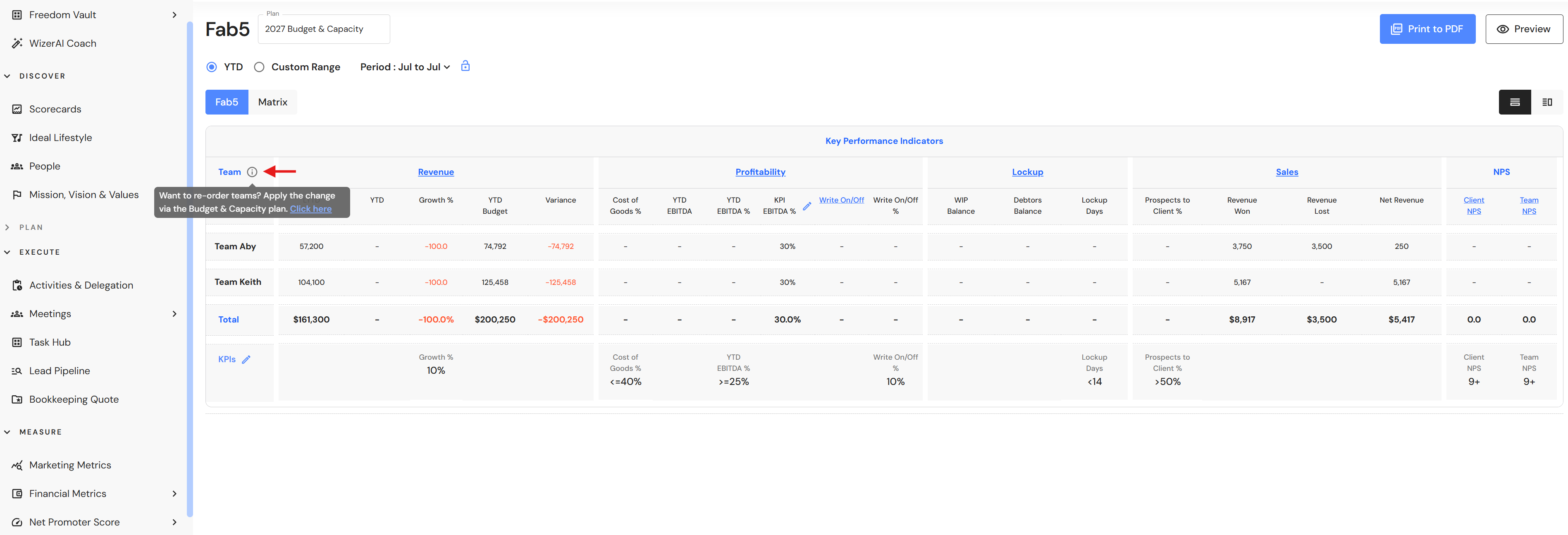
Users can now reorder teams across all FAB5 plans, providing greater flexibility when organising and managing team structures. This enhancement makes it easier to customise team arrangements and maintain consistent visibility throughout connected plans.
- Hover over the information icon next to the Team heading on the FAB5 dashboard, then select 'Click here'.
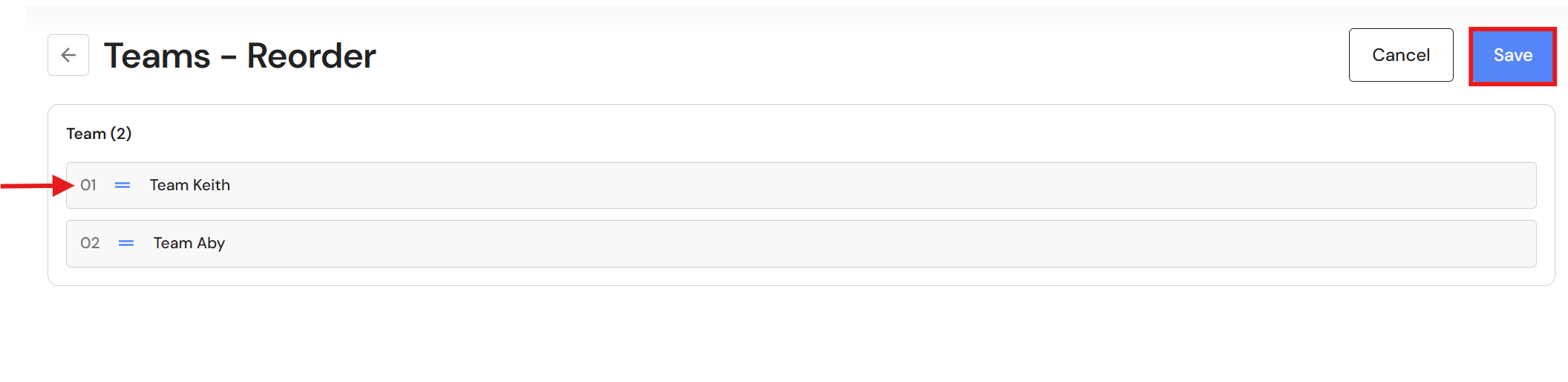
- You will be re-directed to the re-order feature in the Budget & Capacity plan (the foundation of all FAB5 plans).
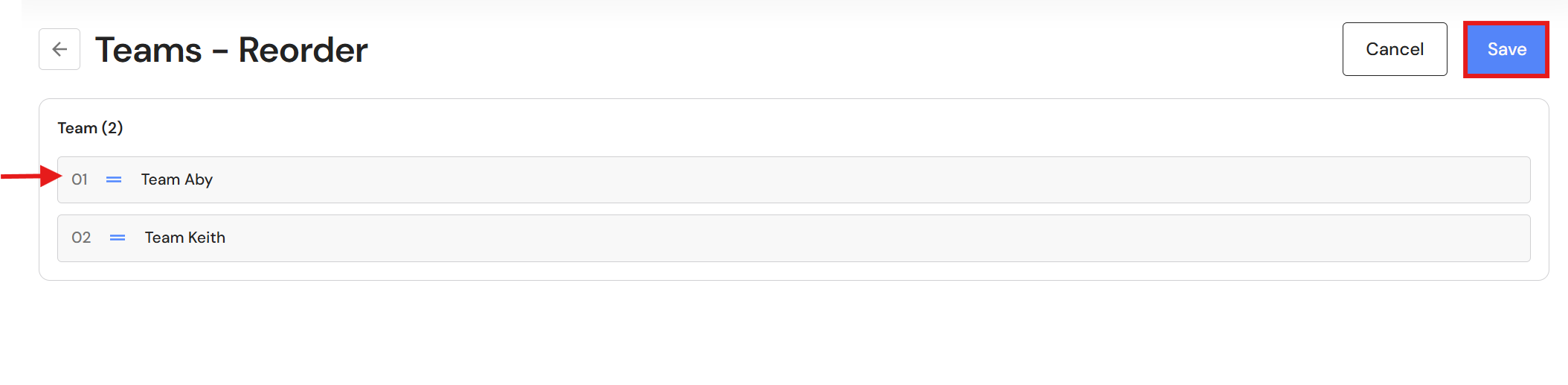
- Drag & drop teams in your desired order, then click 'Save'.
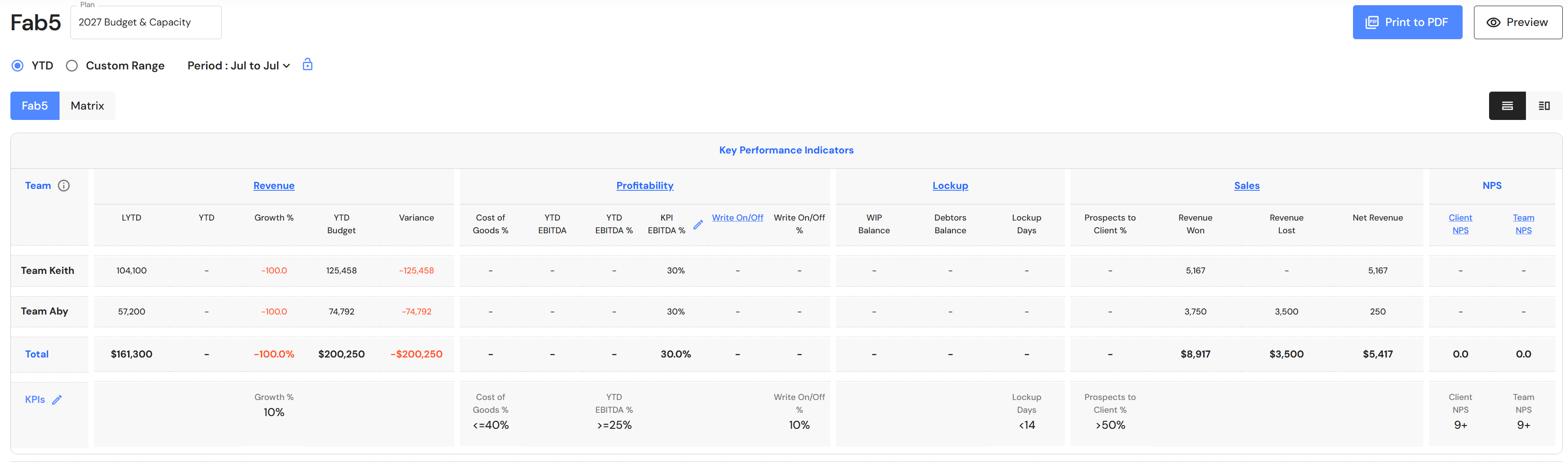
- You will be re-directed back to the FAB5 dashboard and the teams will be updated.
NB* The teams will be re-ordered in all FAB5 plans e.g. Revenue, EBITDA, Lockup etc.
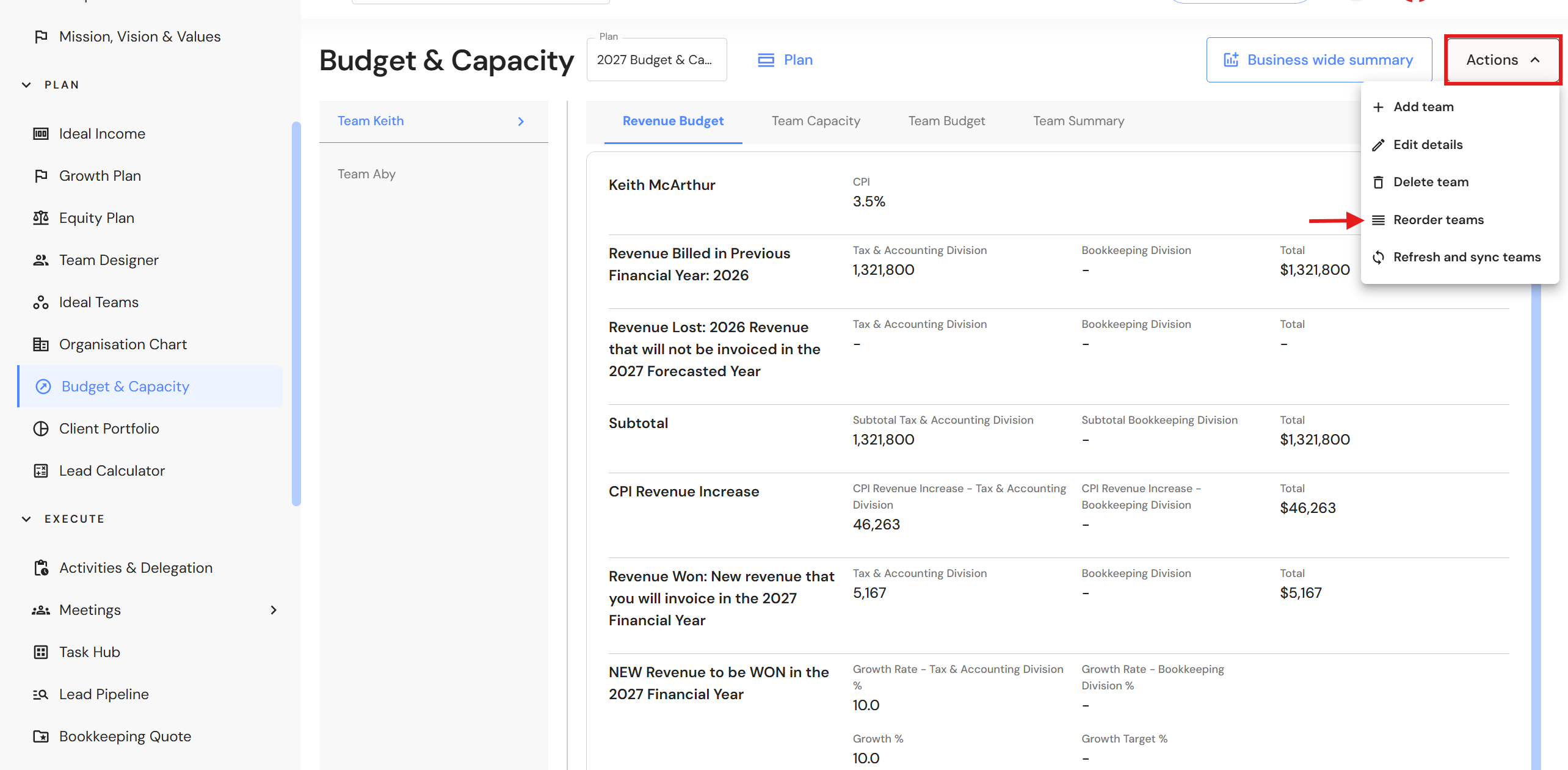
Re-order teams in the Budget & Capacity plan
Re-ordering teams occurs in the Budget & Capacity as it's the foundation of all FAB5 plans.
Go to Plan > Budget & Capacity
- Click 'Action', then 'Reorder teams'.
- Drag & drop teams in your desired order, then click 'Save'.
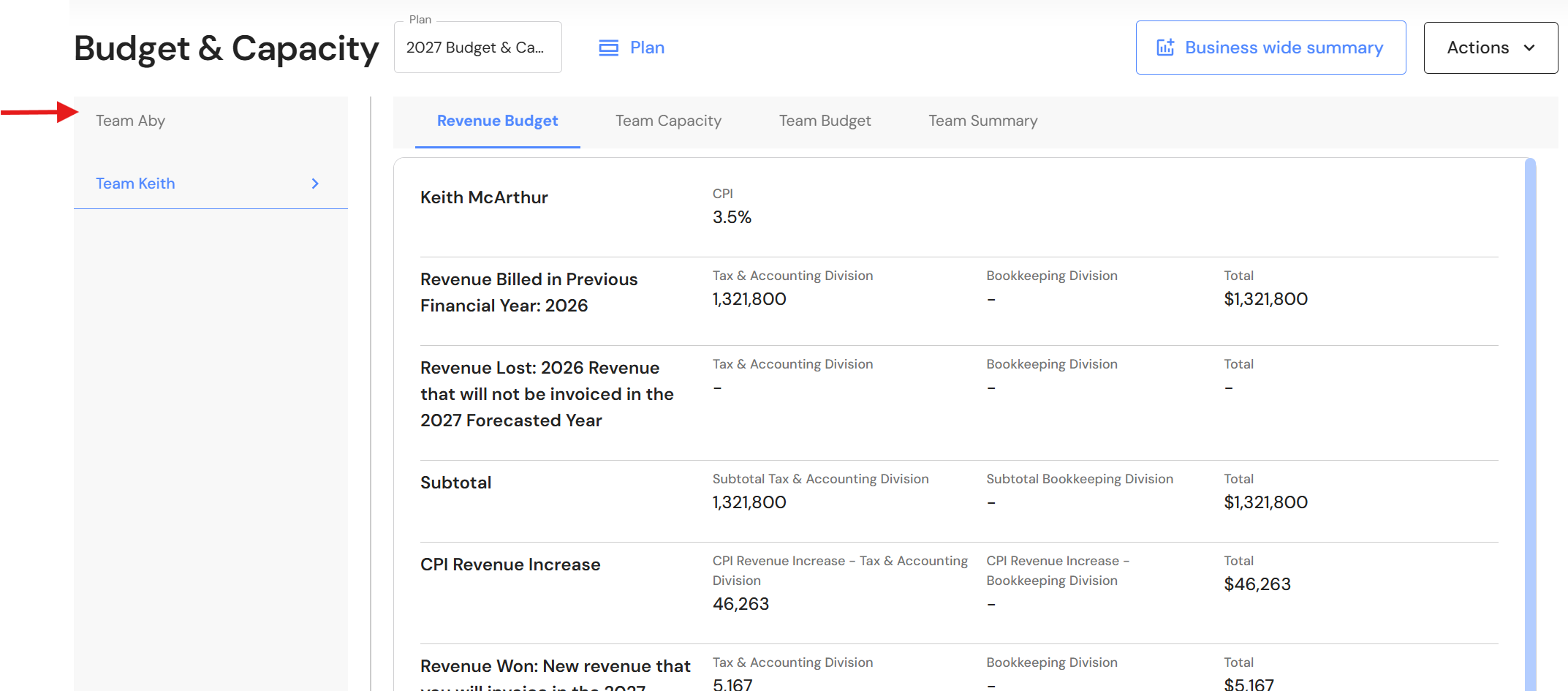
- Teams will be re-ordered across all linked plans as well as the FAB5 dashboard.
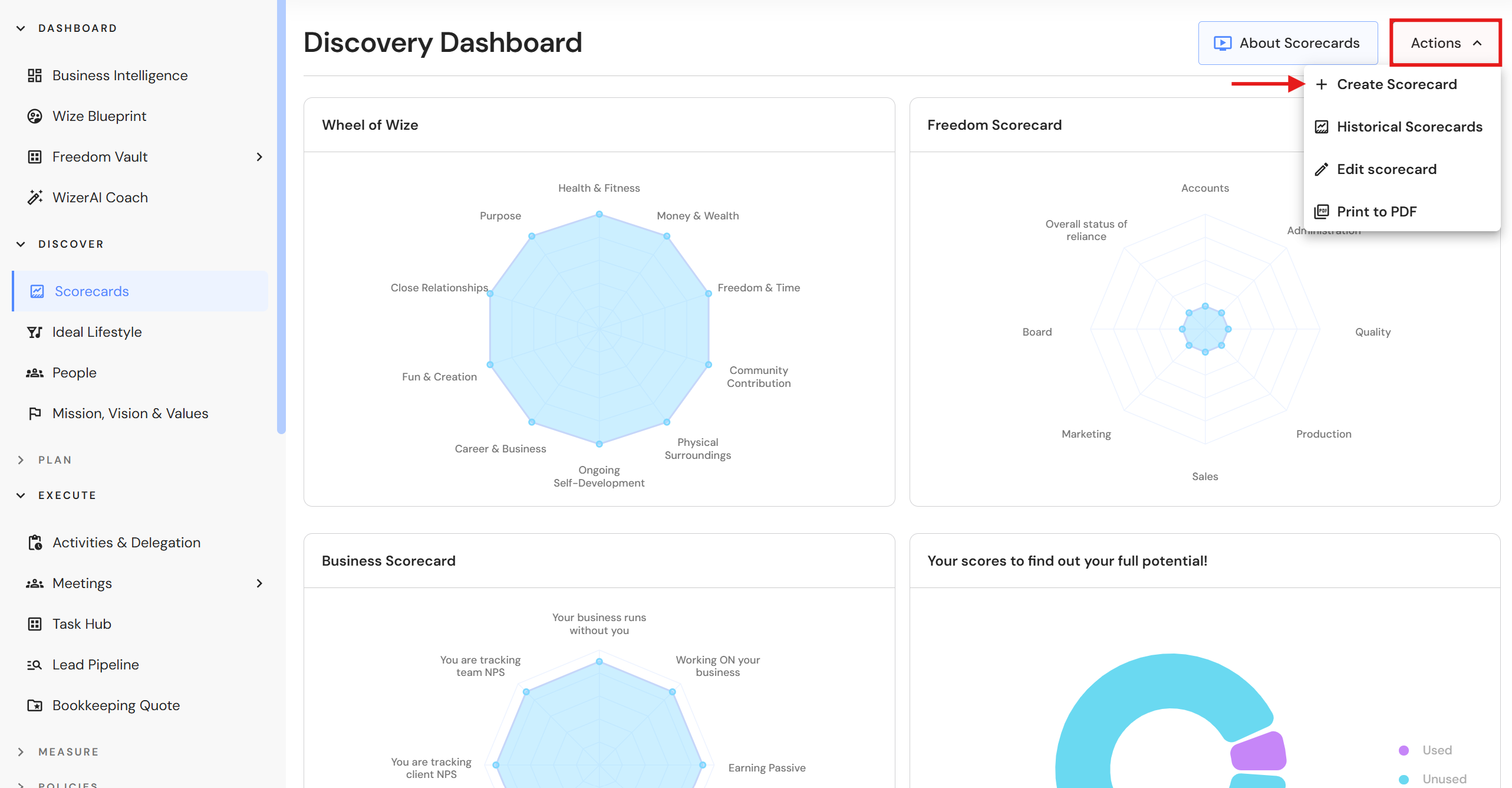
Scorecards
To improve usability and align with other platform actions, the Create Scorecard button has been relocated to the Actions menu. This change provides a more consistent user experience while making scorecard-related actions easier to find and access.